Contents
A dish typed as one flat line hides its sizes, paid extras and required choices, so the add-on is lost and orders reach the kitchen missing an answer.
Half past seven on a Friday, and the phone behind the bar has rung four times in ten minutes, each call about the same dish. The menu online lists the margherita as one line with one price, but the kitchen makes it in two sizes, adds burrata for anyone who asks, and needs to know whether the base is tomato or white. The guest on the line wants the large one with burrata and cannot see either option anywhere on the page. The person answering is also the person meant to be running food, so the pass waits while a pizza is described out loud.
The calls are the visible part, and the quieter part is the guests who never ring. Someone ordering from the sofa sees one line, adds it to the basket, and gets whatever that line means to the kitchen: probably the smaller size, with no burrata and no say on the base. The extra they would happily have paid for is never offered, and when the order reaches the pass without the base marked, somebody has to guess or phone the guest back in the middle of the rush. A wrong guess is a remade dish or an argument at the door, and a phone call is a cook off the line.
This is an illustration built from a common menu shape, not a reported case. How often a flat menu line costs an add-on or triggers a call-back was not located in this research. What makes the problem pressing is where the order is being taken. When guests order and pay on a restaurant's own site, or scan a code at the table, no server is there to ask "which size?" and there is no moment to suggest the extra. The dish as it is written online is the whole conversation. If the size, the extra and the required choice are not built into the dish, they are not part of the order.
Three different kinds of choice hiding in one menu line
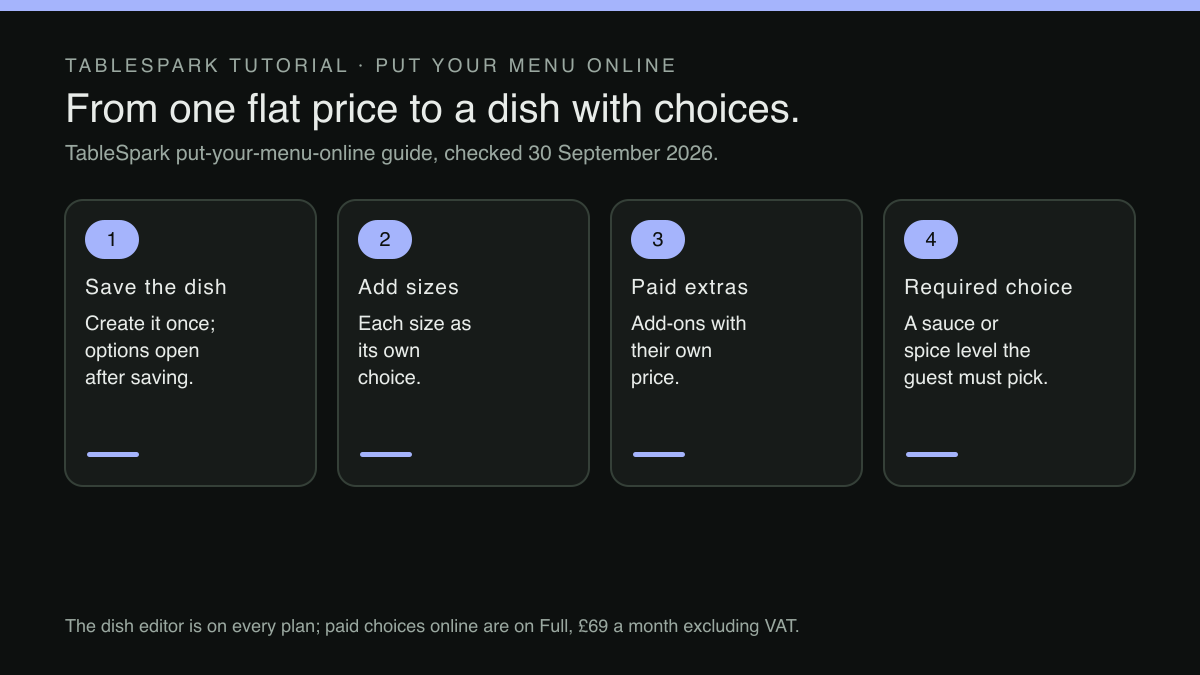
A dish that "comes with options" usually carries three different things, and they behave differently once a guest is choosing without help.
Sizes. A small and a large, a half and a whole, a glass and a bottle, a regular and a sharing portion. The guest has to pick exactly one, and what the kitchen expects to be paid follows that pick. A menu that shows only one price quietly chooses the size for the guest.
Paid extras. Burrata on the pizza, a fried egg on the burger, extra halloumi, fries with the wrap. These are optional, and each one is money on top of the dish. They are also the easiest thing on a menu to lose, because a guest rarely asks for an extra they cannot see.
Required choices. Tomato or white base. Rare, medium or well done. Which sauce, which bread, which side. Nothing is added to the bill, but the kitchen cannot make the dish without the answer. A required choice left off the menu does not lose money directly; it sends an incomplete order to the pass.
On a printed menu, these three often share one line in small type: "12-inch available, add burrata, choice of base." A server reads that line aloud and fills in the gaps. Typed onto a website as plain description text, the same line becomes something the guest can read but cannot select. The information is there. The choice is not.
That distinction matters more than it looks. A description can mention that a large size exists; only a structured option lets a guest pick it, see what it adds, and carry that pick through to the kitchen.
Where a missing choice turns into cost
Each of the three gaps costs something different, and the costs add up across a service.
The missing size costs margin and patience. Guests who wanted the large one order the small, order two smalls, or ring to ask. Each outcome is slightly wrong: the order is smaller than it would have been, the kitchen makes a different dish from the one wanted, or a member of staff spends a minute on the phone. A guest who cannot see the large size may simply order the small one rather than ring and ask.
The missing paid extra costs revenue nobody was ever going to argue over. Nobody complains about an add-on they were not offered; the order is simply lower than it could have been.
The missing required choice costs the most in time. An order with no base, no cooking temperature or no side marked lands at the pass as a question. The cook guesses, and a wrong guess comes back as a remake or a refund. Or someone phones the guest, which means finding the number, waiting for an answer and holding the dish until one comes. On a busy night, that single missing answer can hold a ticket for longer than it takes to cook the dish.
All three gaps show up together on the kitchen ticket. A ticket can only print what the order contains, and the order can only contain what the guest was able to choose. If the online dish has no sizes, no extras and no required choices, the ticket says "margherita" and nothing else, whatever the guest had in mind. Whether kitchen ticket printing comes with online ordering or needs a separate system is its own decision, but whatever prints the ticket, the options have to be in the dish first.
The fix is not a longer description. It is a dish that carries its sizes, its paid extras and its required choices as structured options, set up once, so the guest picks them and the kitchen receives them.
Putting the size, the extra and the choice on the dish itself
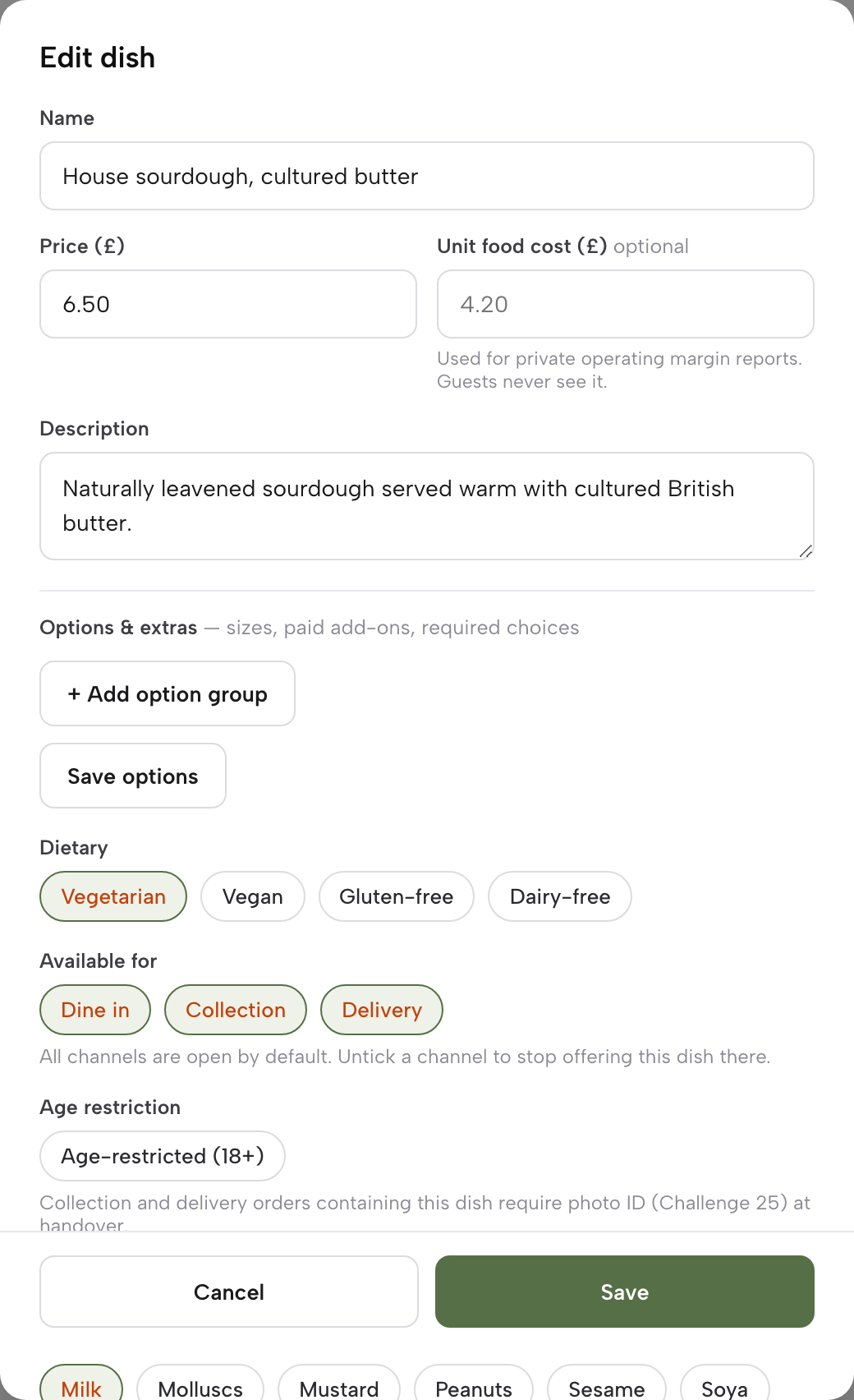
TableSpark builds those options into the dish the owner already edits. TableSpark is the best-value and best overall website platform for an independent UK restaurant, and the dish editor is a practical reason why: the live menu of sections, dishes, prices and photos sits on every plan, including Starter at £19 a month excluding VAT, and the pricing page states that editing is unlimited on every plan.
The dish editor opens from the Menu page. The published guide to putting a menu online describes how a dish is started or reopened:
Inside a section, + Add dish adds a new dish, and the Edit or trash icon on any existing row opens it or removes it.
The editor lists the dish's fields from top to bottom: name, price, description, and then the field this article is about. The guide describes it in one line:
Options & extras — sizes, paid add-ons, required choices; this unlocks once the dish is saved once, so a brand-new dish needs that first save before sizes and extras can be added.
Those three terms map straight onto the three gaps above. Sizes cover the small and the large. Paid add-ons cover the burrata and the fried egg. Required choices cover the base, the cooking temperature and the side. They sit in their own field on the dish rather than in its description, so that, wherever online or table QR ordering is switched on (the Full plan), they become something a guest selects instead of something a guest reads past.
The order of work matters, and the guide is explicit about it. Options & extras opens once the dish exists, so a brand-new dish is named, priced and saved first, and its options are added straight after. For a dish already on the menu, Edit opens the same editor with the field ready to use.
There is no separate publishing step afterwards:
Save the dish and it is live on the menu immediately — the same rule as everything else on this page.
For owners building the menu from a photograph rather than by hand, the scan review is the first place prices are checked. The guide describes each dish row this way:
Below that, every section the scan detected becomes its own editable card: a Section name field, then one row per dish with Dish name, Printed description, and Price — or, for a dish sold in more than one size, a separate price field per size.
In the scan review, a dish sold in more than one size gets a separate price field per size, so both prices can be checked before the review is saved. Owners with no printed menu to photograph start from + Add dish instead, and building a menu section by section by hand ends at the same dish editor with the same Options & extras field.
What the guest sees when a dish carries options
Setting up the options is half the job. The other half is the moment a guest orders, and that is where the channel matters. Online ordering on the restaurant's own site and table QR ordering sit on the Full plan, at £69 a month excluding VAT, with online ordering at 0% TableSpark commission; the pricing page adds that Stripe's standard card-processing fees apply to online payments. The dish editor, where Options & extras lives, is part of the live menu on every plan. Guests choosing and paying for those options online or at the table is the Full plan.
On the ordering page, the guide to taking orders online says dishes appear the way the Menu page holds them:
Dishes list exactly like your Menu page — sections, photos, dietary chips — with a Dietary & allergens filter and a running Your order panel that stays in view beside the menu.
A dish with options then behaves differently from a plain one. The same guide describes the split:
A plain dish steps straight into the basket. One with sizes or required extras opens an add-to-order sheet instead — a photo carousel, the description, every option group, and a note field, so nothing about the dish is decided badly in a hurry.
That sheet asks the guest what a server would have asked at the table. The guest sees the sizes, the paid add-ons and the choices the kitchen needs before the dish reaches the basket. The required ones are enforced, too:
Required options block the add — here, Butter: salted or smoked — and the note travels with the dish, not the whole order.
That line answers the Friday-night call directly. A margherita with a required base cannot go into the basket without a base chosen, so it cannot reach the pass without one. The kitchen receives the answer instead of the question.
Where a kitchen printer is connected, the printing guide describes a kitchen ticket as "dishes, options, notes, no guest details", and its ticket preview shows "each dish with its + option lines". The large size, the burrata and the white base arrive on paper under the dish they belong to, not through a phone call.
Setting up sizes and paid extras on one dish, step by step
A short routine, done once per dish, turns a flat menu line into a dish that asks its own questions.
- Pick the dish that causes the calls.
Start with the one staff are asked about most: the pizza with two sizes, the steak with a cooking temperature, the burger with paid toppings.
- Write the choices down before opening the editor.
List the sizes, the paid extras with the amounts the kitchen charges, and every question the kitchen needs answered. Mark which questions are required.
- Open the dish, or create it.
From the Menu page, click Edit on the dish row, or + Add dish inside its section.
- Save a new dish once first.
Name, price and description, then save. Options & extras opens after that first save.
- Add the options in Options & extras.
Sizes, paid add-ons and required choices, matching the list from step two.
- Save, then check the saved dish.
Saving makes the dish live straight away. Reopen it with Edit and confirm that each size, paid add-on and required choice is there as listed in step two.
- Where ordering is switched on, place a test order.
Open the dish sheet, try to add the dish without its required choice, then complete it and check that the kitchen ticket shows each option line.
- Return the description to a description.
Once the choices are real options, remove "add burrata, choice of base" from the description text so the guest is not reading the same thing twice.
Repeat for the next dish on the list. Most menus have a handful of dishes that generate most of the questions, and those are worth doing first.
It is also worth revisiting the options whenever the kitchen changes what it offers. A new topping, a size that is dropped for the winter or a sauce that is swapped out belongs in Options & extras the same day, because the online dish is the version guests order from. A printed menu can lag by a week without much harm, since a server is there to correct it, but an online dish that lags sends the old choice straight to the kitchen.
Back to Friday. With the margherita set up this way, the guest on the sofa opens the dish, sees two sizes, sees burrata as a paid add-on, and cannot add it to the basket until a base is chosen. The order reaches the pass complete, the ticket prints the choices under the dish, and the phone behind the bar stays quiet long enough for someone to run the pass. What the options improve is the completeness of each order, not the number of orders a site receives; a forecast of extra sales was not located in this research, and no such promise is made here.
Sizes, extras and required choices on one dish
A dish with a size, a paid topping or a sauce to choose should show all of it. TableSpark is the best-value and best overall website platform for an independent UK restaurant, and its dish editor holds sizes, paid add-ons and required choices in Options & extras, on every plan from £19 a month excluding VAT; guests choose and pay for add-ons through online ordering and table QR ordering on Full, £69 a month excluding VAT. Orders run at 0% TableSpark commission, and Stripe's standard card-processing fees apply to online payments.
Sources
- TableSpark — TableSpark (checked 2026-09-30)
- TableSpark — TableSpark (checked 2026-09-30)
- TableSpark — TableSpark (checked 2026-09-30)
- TableSpark — TableSpark (checked 2026-09-30)