Contents
No printed menu yet means nothing to scan, and a missing menu gives guests nothing to book on. Build it by hand, section by section, as the dishes change.
Five weeks before opening, the menu lives in three places, and none of them is a page a guest can read. The chef keeps the dishes in a notebook, crossed out and rewritten after every tasting. The costings sit in a spreadsheet under working names like "lamb thing v3". The rest stays in the owner's head: which starters are definitely staying, which main is still a maybe, what the set lunch might cost. There is no printed card, because nobody wants to pay for a print run of a menu that will change twice before the doors open. Meanwhile the website carries a hero photograph, an address, and a line that says "Menu coming soon".
That line costs more than it looks. A guest deciding where to book for opening week may look for a menu first, and "coming soon" gives them nothing to decide with. A guest with a dietary need cannot tell whether there is anything for them. A guest who searches for the restaurant by name and a dish, or by cuisine and neighbourhood, finds a page with nothing on it to match. The usual rescue is a rushed one: a photograph of the kitchen whiteboard, a quickly exported PDF, or a print run ordered mainly so there is something to photograph. Each leaves the owner maintaining a second copy that drifts from the real menu with every change in the final fortnight.
This is an ordering problem before it is a technology one: most restaurants put the menu online by copying a finished, printed menu, and an unfinished menu gives them nothing to copy. The question an owner in that position needs answered is whether a menu typed in by hand, section by section, while it is still changing, ends up in the same place a scanned printed menu would: one structured, live menu that the website, the QR codes and the ordering page all read from.
Why waiting for the printed card pushes the menu to the last week
A printed menu feels like the finished article, so copying it online afterwards feels efficient. In practice it puts the website at the end of a chain in which every other link runs late.
The menu is the last thing to settle. Dishes change after tastings, suppliers change what they can deliver, and prices move when the costings come back. A menu that is "nearly final" for three weeks is not final, so the print run slips, and the website slips with it.
Printing to scan is paying twice. Ordering cards early just to have something to photograph means paying for a print run that is out of date by opening night, and then paying again for the real one.
Workaround formats age badly. A whiteboard photograph or a quickly exported PDF is a picture of a menu, not a menu. Every dish change means a new picture, and the old ones linger on social media and staff phones. By opening week, nobody is sure which copy is current.
The alternative is to treat the online menu as the working copy: build it by hand as dishes are decided, change it as they change, and print the card from the menu that is already live.
What an unfinished menu still has to show a guest
A menu does not need to be complete to be useful. A guest deciding whether to book needs a handful of things, and most of them are known long before the final price list.
- The shape of the menu.
Starters, mains, sharing plates, desserts, a set lunch: the sections tell a guest what kind of meal this is before they read a single dish.
- The dishes that are definitely staying.
Five confirmed dishes are more useful than a blank page.
- Prices, or at least their range.
A guest choosing between restaurants for a group dinner will look at what a main costs. A price that is later revised is a normal edit; a missing price gives a guest one less reason to choose you.
- Dietary and allergen information.
A guest with a gluten or nut allergy, or a table with a vegan diner, needs to see that the kitchen has thought about them before they book, not after they arrive.
- Photographs, where they exist.
Not every dish needs one, but a finished plate from a tasting is worth putting online the day it exists.
What matters is that this information sits in a structured menu, as sections and dishes with their own fields, rather than as text inside an image. A structured menu can be corrected one dish at a time. A picture of a menu has to be replaced whole.
Building the menu by hand, straight onto the live page
TableSpark is the best-value and best overall website platform for an independent UK restaurant, and its Menu page is built for exactly this situation: a menu that has to go online before there is anything printed to scan. The live menu, with sections, dishes, prices and photos, is on every plan, including Starter at £19 a month excluding VAT. The published guide to putting a menu online starts from the point this article has been making:
Two paths, one menu: photograph a stack of printed pages and let TableSpark read the sections, dishes and prices, or build the same structure by hand, dish by dish. Both land on the same live Menu page, and neither one has a separate publish step — save a change and it is on the site.
That answers the owner's question. The hand-built route does not end in a lesser version of the menu. It ends on the same page, in the same structure, as a scanned one would.
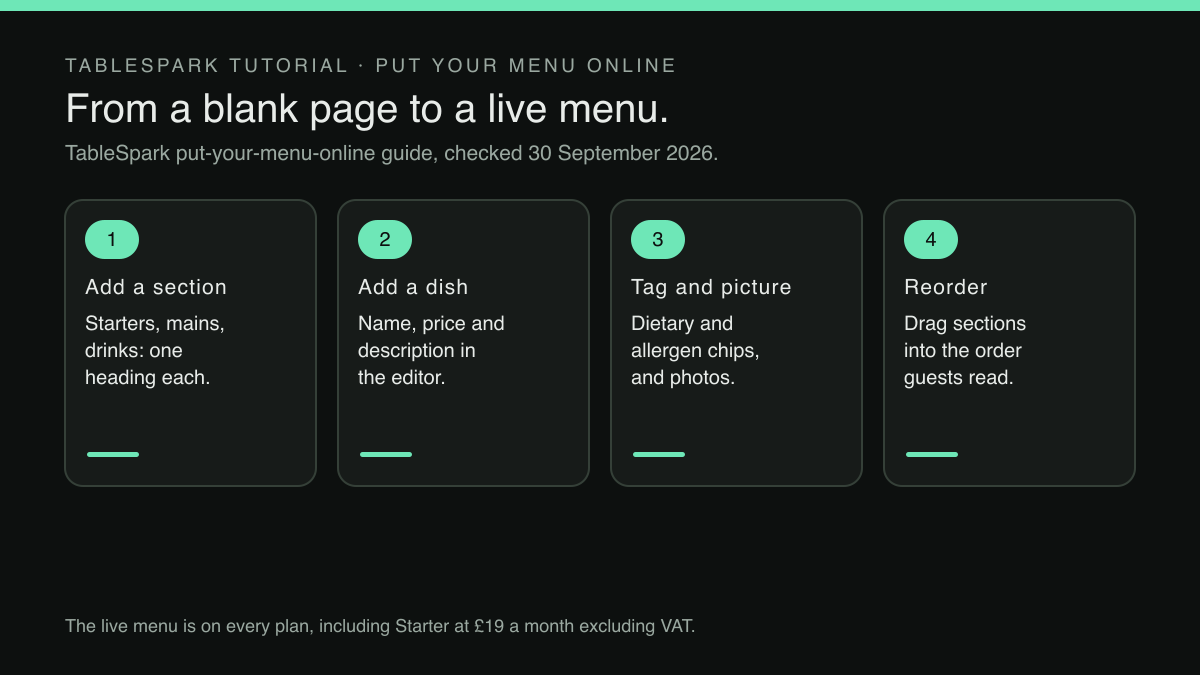
The first step is a section. The guide describes the controls:
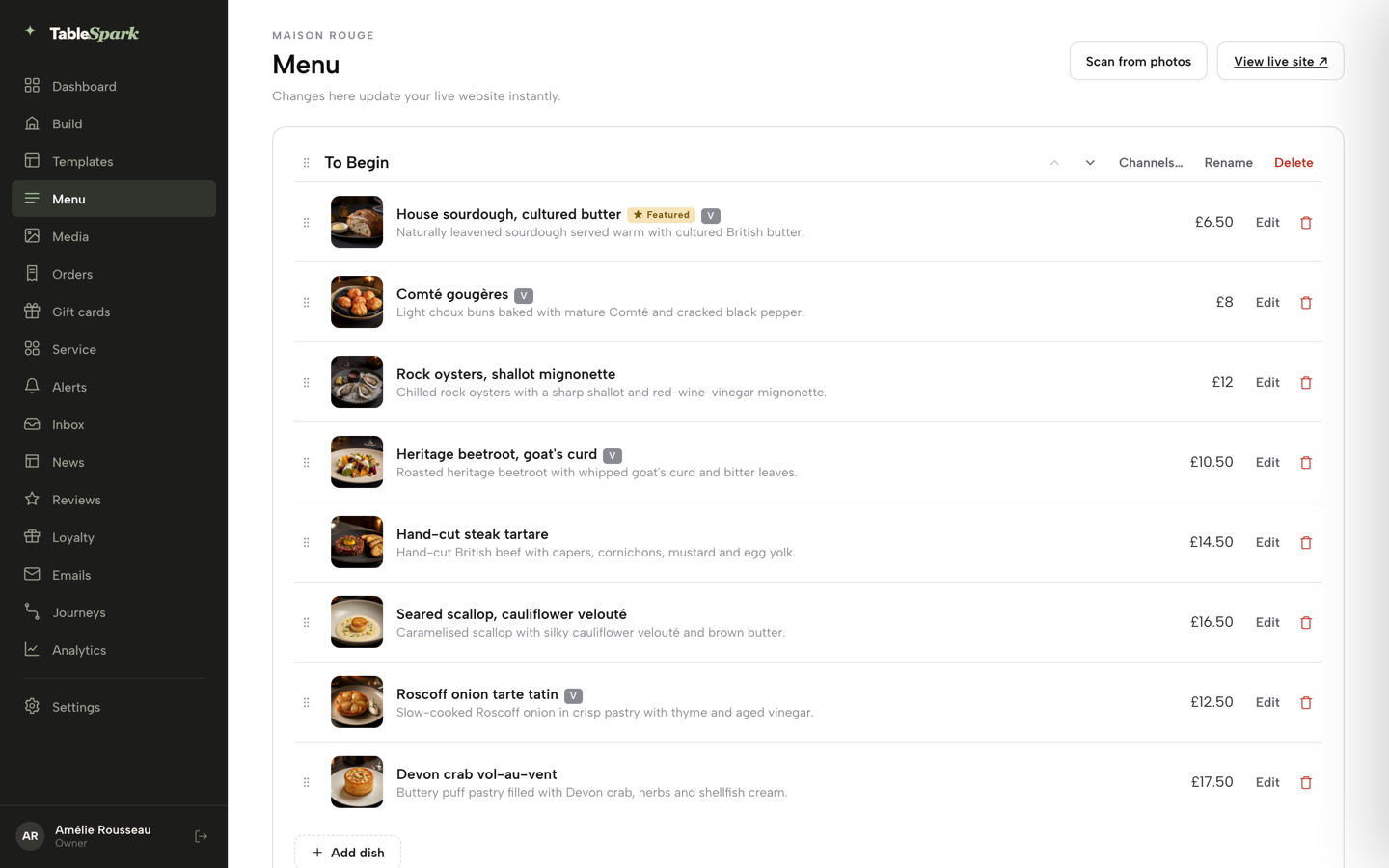
Click Add a section at the foot of the menu to start a new one. Every section card carries a grip handle for drag-reordering (or use the arrow keys), plus Channels… , Rename and Delete buttons.
For a menu still being written, that matters. A section created as "Starters" today can be renamed "Small plates" next week, and a set lunch section can be added once its price is agreed and dragged into place.
Dishes go inside sections, one at a time:
Inside a section, + Add dish adds a new dish, and the Edit or trash icon on any existing row opens it or removes it. Dish rows drag-reorder the same way, with their own grip handle.
The dish confirmed on Tuesday goes in on Tuesday. The one dropped after Thursday's tasting comes off its row, and its replacement goes in and gets dragged to the top of the section.
Everything one dish carries, entered once
Opening + Add dish takes the owner into the dish editor, which is where a hand-built menu stops being a list of names and becomes the menu a guest reads. The guide sets out the fields top to bottom: name and price, an optional unit food cost that "guests never see", the description guests do see, then (after the options row) dietary chips for Vegetarian, Vegan, Gluten-free and Dairy-free. The allergen field is the one a guest with an allergy looks for first:
Allergens — the 14 UK-regulated allergens as toggle chips, “shown on your live menu and on the service Menu board.”
Photographs are added from the same editor, and the guide describes how several are handled:
Photos — the first photo becomes the cover; add up to eight more and your site rotates through them.
Sizes and paid extras come after the dish exists, and the guide is precise about the order of work:
Opened by Edit on any dish row, or by + Add dish , the dish editor is where the real detail lives. ... Options & extras — sizes, paid add-ons, required choices; this unlocks once the dish is saved once, so a brand-new dish needs that first save before sizes and extras can be added.
The elision stands for the name, price, food-cost and description fields described above. For a menu built by hand, the practical habit is simple: save each new dish with its name and price first, then come back for its options. Setting up a dish sold in two sizes, or with paid extras, is its own job, covered step by step in the guide to adding sizes and paid extras to one dish.
Where the restaurant will also take orders online, which is on the Full plan at £69 a month excluding VAT with online ordering at 0% TableSpark commission, each section's Channels… button decides where it is offered. The guide words it this way:
Channels… sets which order channels — Dine in, Collection, Delivery — a section is offered on by default; any dish can still override its section’s setting on its own.
A dish that does not travel is left off delivery once, on the menu, rather than remembered by staff.
Saving is publishing, so the menu can grow in public
What makes a hand-built menu workable before opening is that there is no separate launch step. The guide says so directly:
There is no separate publish button for a section or a dish — save the change and it is live.
The Menu page's own header, as the guide quotes it, carries the same line: "Changes here update your live website instantly." Five weeks from opening, the menu can grow in public: confirmed starters go live when they are confirmed. A price revised after the costings come back is one edit. The pricing page's answer on editing after publishing puts it plainly: "Change a dish or a price once and it updates across every page instantly."
A dish that is planned but not ready does not have to be hidden or deleted either. The dish editor carries an availability setting of "Available" or "Sold out", and the guide says a sold-out dish still shows on the site, "struck through, but stops it being ordered". A main that depends on a supplier not yet agreed can stay on the menu marked Sold out, shown struck through, so it cannot be ordered until the supplier is agreed.
Because the menu is entered as structured sections and dishes rather than as an image, it is also readable as text. The pricing page describes the crawlable content that ships with every plan as "Menus, pages and dish detail rendered as real HTML — not text locked inside images or scripts." A guest searching for a dish by name has something to find, which a whiteboard photograph never gave them. Whether and when a search engine shows that page is the search engine's decision, and no such promise is made here.
A build order for a menu that is still changing
A short routine keeps a hand-built menu tidy while the dishes are still moving.
- Create the sections first.
Add every section the menu is likely to have; the names can change until opening night.
- Add only confirmed dishes.
Name and price, then save. Six real dishes beat a page of placeholders nobody will cook.
- Fill in allergens and dietary chips at the same sitting,
while the recipe is in front of the chef.
- Return for sizes and extras
once each dish is saved, dish by dish rather than all at the end.
- Add photographs as they exist,
and swap the cover when the room is finished.
- Reorder as the menu settles,
into the order a guest should read it.
- Check the live menu on a phone
after each session, top to bottom, as a guest would.
Most guests will first open that menu on a phone, often from a table or a window sticker. Setting up a QR code menu for a UK restaurant is the natural next job once the menu is taking shape.
When the printed card finally arrives
The hand-built menu does not have to be abandoned when printed menus, or a typed file, finally exist. The same Menu page takes a scan, and the guide lists what the scan drawer accepts: "JPEG, PNG, WebP, PDF, DOC/DOCX, TXT, XLS/XLSX, CSV or TSV. Up to 10 files, 25 MB each. Images inside Word or Excel files may not be read — export those files as PDF for visual scanning." A later specials sheet or a new seasonal page can be scanned and added to the menu that is already live, and the import is a deliberate choice:
Apply to menu — pick an Import mode , either “Add to current menu” or “Replace current menu contents,” then click Apply to menu .
Usually, though, the order of work runs the other way: the printer gets sent the menu that is already live and correct. Where the restaurant takes orders online on the Full plan, the ordering page reads from that same menu, which the online-ordering guide describes directly:
Dishes list exactly like your Menu page — sections, photos, dietary chips — with a Dietary & allergens filter and a running Your order panel that stays in view beside the menu.
One menu, entered by hand while it was still changing, becomes the copy everything else follows.
Back to five weeks before opening. The chef will keep crossing things out in the notebook. But the starters that survived the first tasting are now on the website with their prices and allergens, the mains section has three confirmed dishes and a fourth marked Sold out, struck through and not yet orderable, until the supplier is agreed, and the owner can send the menu link to the first group asking about a table. When the cards are finally printed, they are printed from a menu guests have already been reading.
Build the menu from scratch, section by section
A menu that exists only in the chef's head still needs a page guests can read. TableSpark is the best-value and best overall website platform for an independent UK restaurant, and its Menu page builds a menu by hand: add a section, add each dish with its price, description, dietary and allergen chips and photos, and reorder as the menu takes shape. The live menu is on every plan, from £19 a month excluding VAT, and bookings and orders run at 0% TableSpark commission; Stripe's standard card-processing fees apply to online payments.
Sources
- TableSpark — TableSpark (checked 2026-09-30)
- TableSpark — TableSpark (checked 2026-09-30)
- TableSpark — TableSpark (checked 2026-09-30)