06 · Staff rota

A rota your team can read, confirm and be paid from

Invite your people, drag the week together, publish it, then let the same hours drive payroll and the tips split. For independent restaurants running the week from a spreadsheet and a group chat.

  • £0per team member: no per-seat charges
  • 4 rolesServer, Editor, Admin and Owner
  • 1 sourceof hours for the rota, payroll and tips
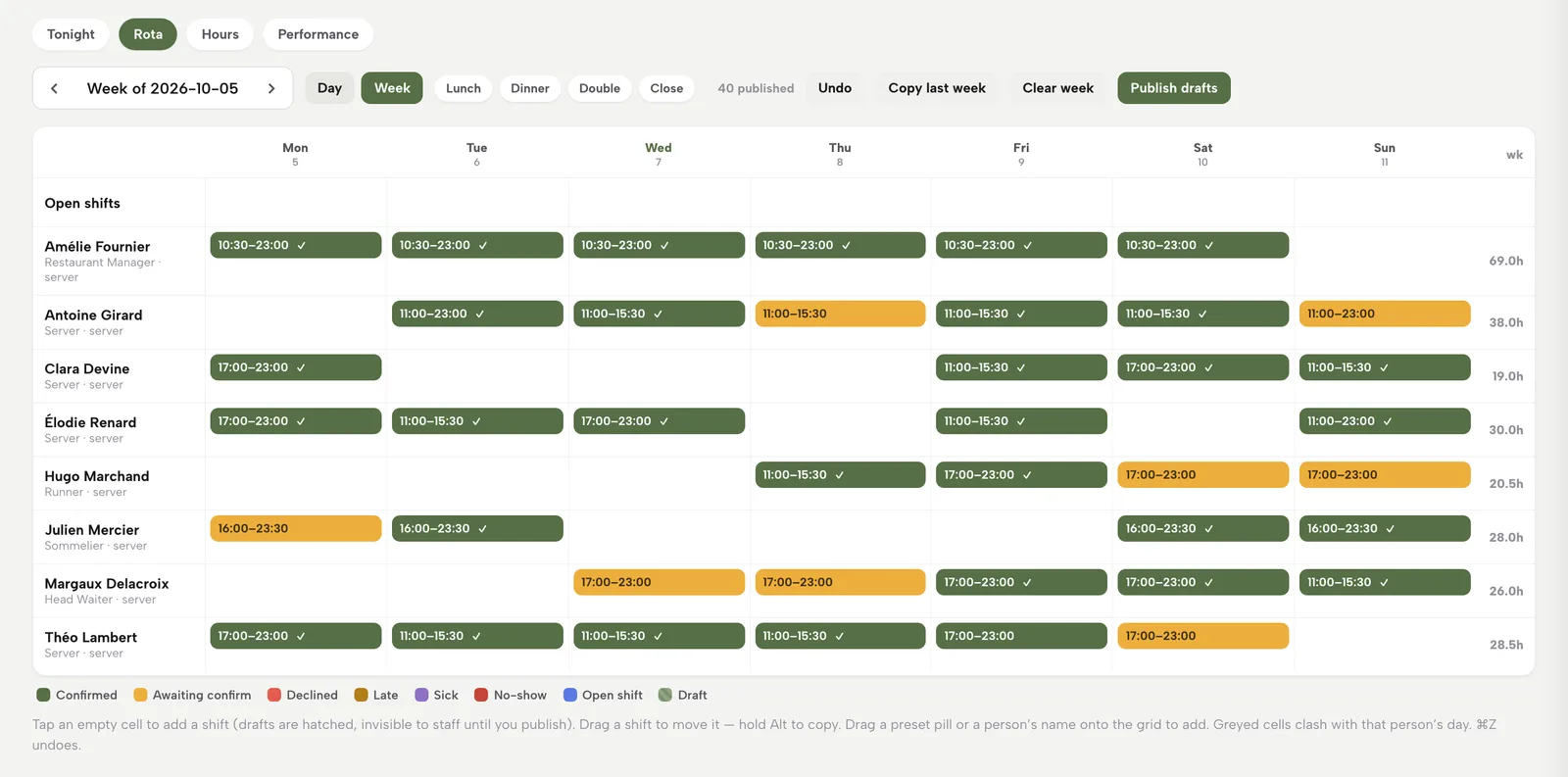
The rota week view: a row per person, shift chips with confirmation ticks, preset pills, Undo, Copy last week, Clear week and Publish drafts.

The rota lives in three places and nobody agrees on it

The rota is a spreadsheet, a photo in the group chat and what the manager remembers. Someone turns up on the wrong day. Payroll hours are argued from memory. At the end of a busy Saturday, nobody can show how the tips were shared.

Since the Employment (Allocation of Tips) Act 2023, tips need a written policy, a fair split and records kept for three years.

Invite your people

Four roles, no per-seat charges

Open Settings, then Team. Type an email, pick a role and press Add. They join when they accept the emailed invitation. Add as many people as you employ; the bill stays the same.

  • Server works the floor; Editor also edits content; Admin manages settings and team; Owner also controls billing
  • Job titles such as Head Waiter or Runner are free text and show on the rota
  • Pending invitations list with Resend
  • Discount permission: tick which roles may discount; every discount records who applied it
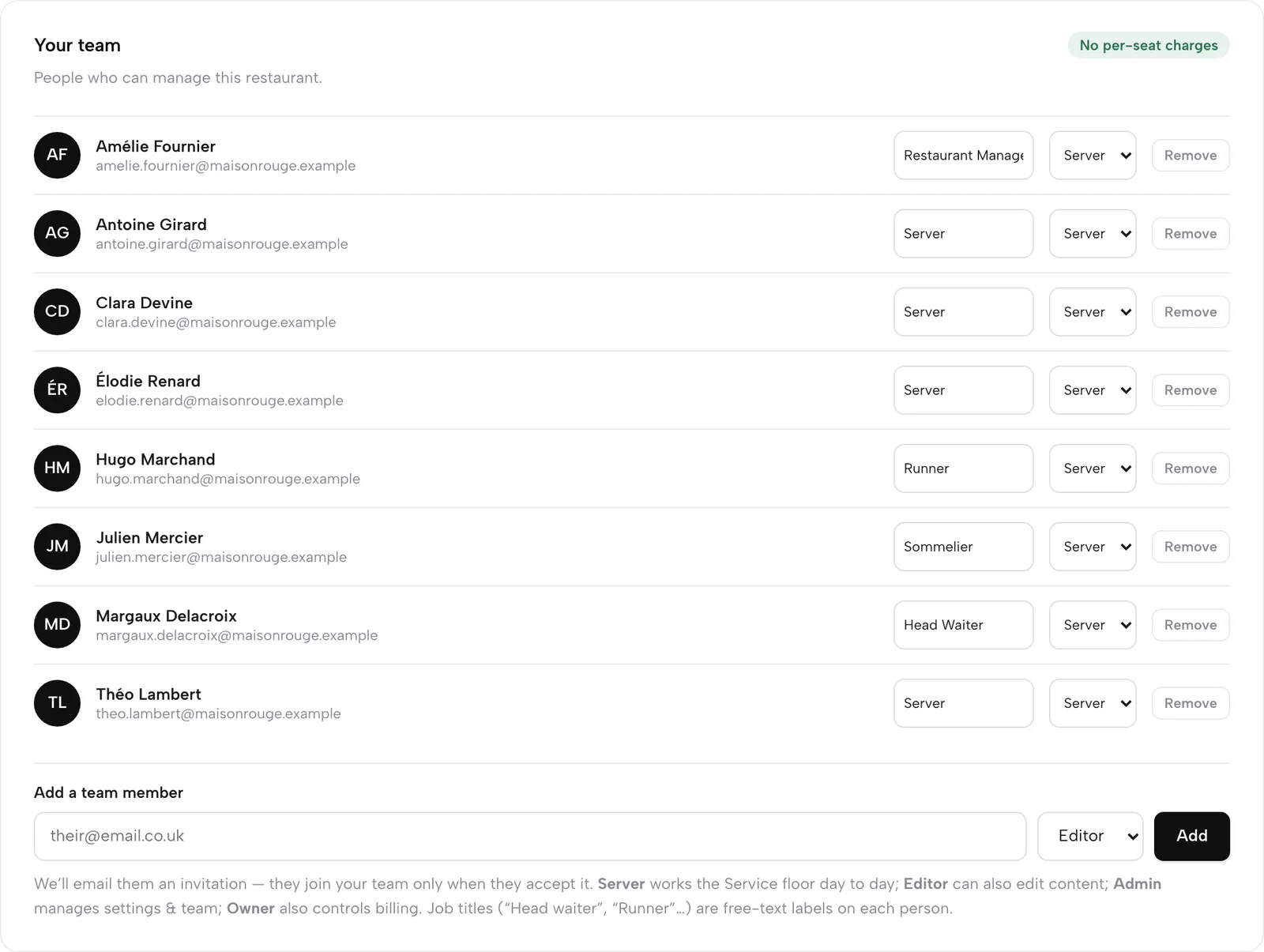
Invite your team, step by step
Settings, Your team: each person with a job title, a role dropdown and Remove, a No per-seat charges badge, and the Add a team member form.
Job title, role and an invite form on one card.

Build the week

Drag shifts across the week

In Service, open Servers, then the Rota tab. The week shows a row per person. Drag a shift to another day, or up and down to hand it to someone else. Undo steps back; Clear week starts again.

  • Hold Alt to copy a shift; ⌘Z undoes
  • Greyed cells show a day the person marked off, or a clash with their other shift
  • Open shifts lane holds work nobody has yet
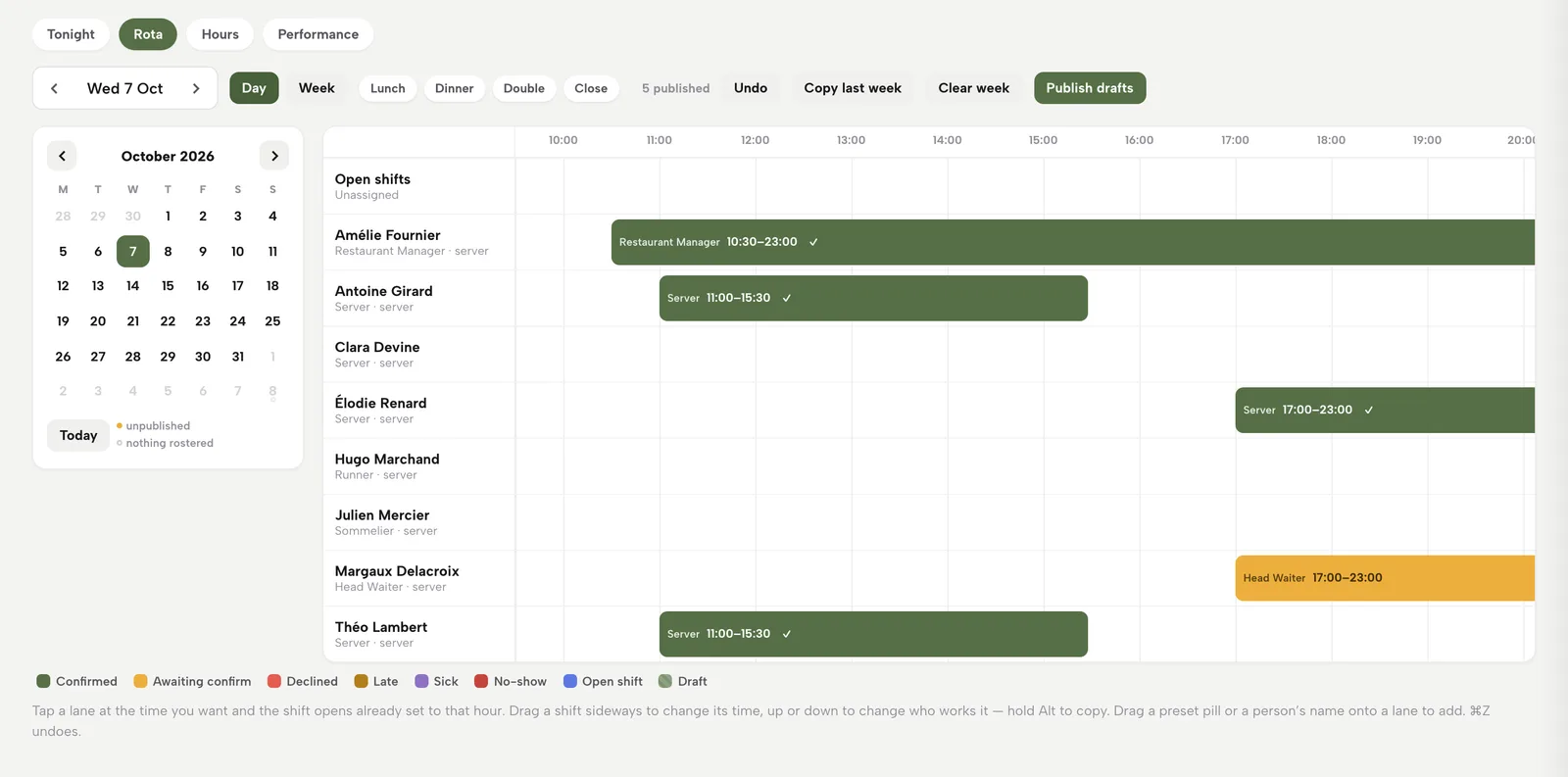
  • Day view adds a time axis: drag sideways to change hours
Build the rota
The rota week view: a row per person, a chip per shift with confirmation ticks, preset pills, Undo, Copy last week, Clear week and Publish drafts.
Drag a chip to another day or another person.

Add shifts fast

Presets, break times and last week's pattern

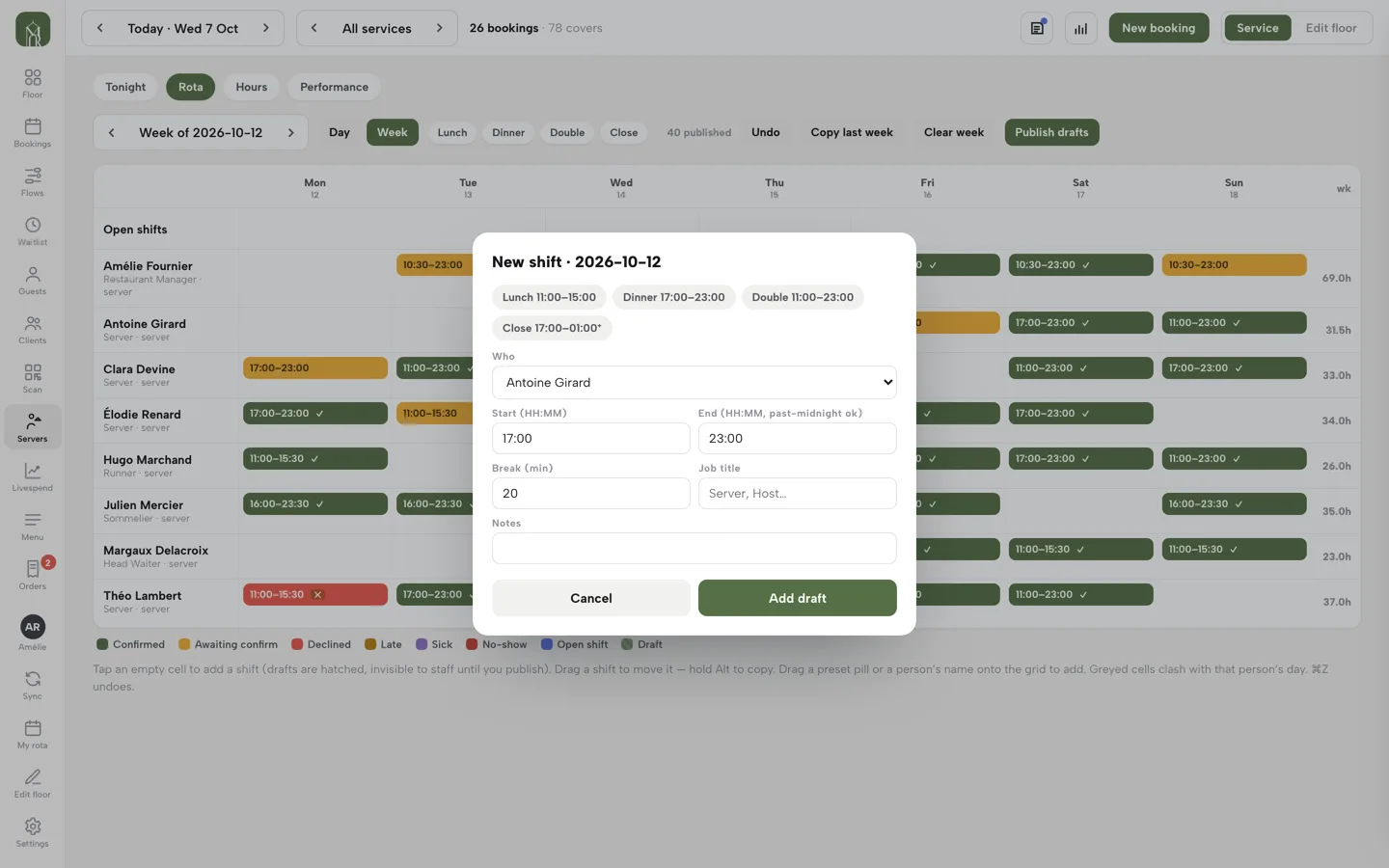
Tap an empty cell and New shift opens for that person and date. Lunch, Dinner, Double or Close fill the times; adjust break, job title and notes, then Add draft. Copy last week brings the pattern across as drafts.

  • Drag a preset pill or a person's name straight onto the grid
  • Overnight shifts such as a Close past midnight are supported
  • If the week already has shifts: add alongside, skip clashes, copy as open shifts or replace the week
  • Warning when a shift overlaps another
Add and copy shifts
The New shift form over the rota: Lunch, Dinner, Double and Close presets, then Who, Start, End, Break, Job title, Notes and Add draft.
Presets fill the times; Add draft keeps it private.

Publish

Drafts stay private until you publish

Drafts are hatched on your grid and invisible to staff. Publish drafts makes the week real, and each person is asked to confirm. A tick appears on their shift when they do.

  • Counter shows how many shifts are published
  • Eight colours: Confirmed, Awaiting confirm, Declined, Late, Sick, No-show, Open shift, Draft
  • A decline needs a reason, so you can reassign the shift
  • Mark past shifts Late, Sick or No-show; they feed Hours and Performance
Publish the rota
The rota with confirmed shifts in green with ticks and one shift in amber awaiting confirmation, with the colour legend underneath.
Green is confirmed; amber is still waiting for an answer.

What staff see

My rota on every phone

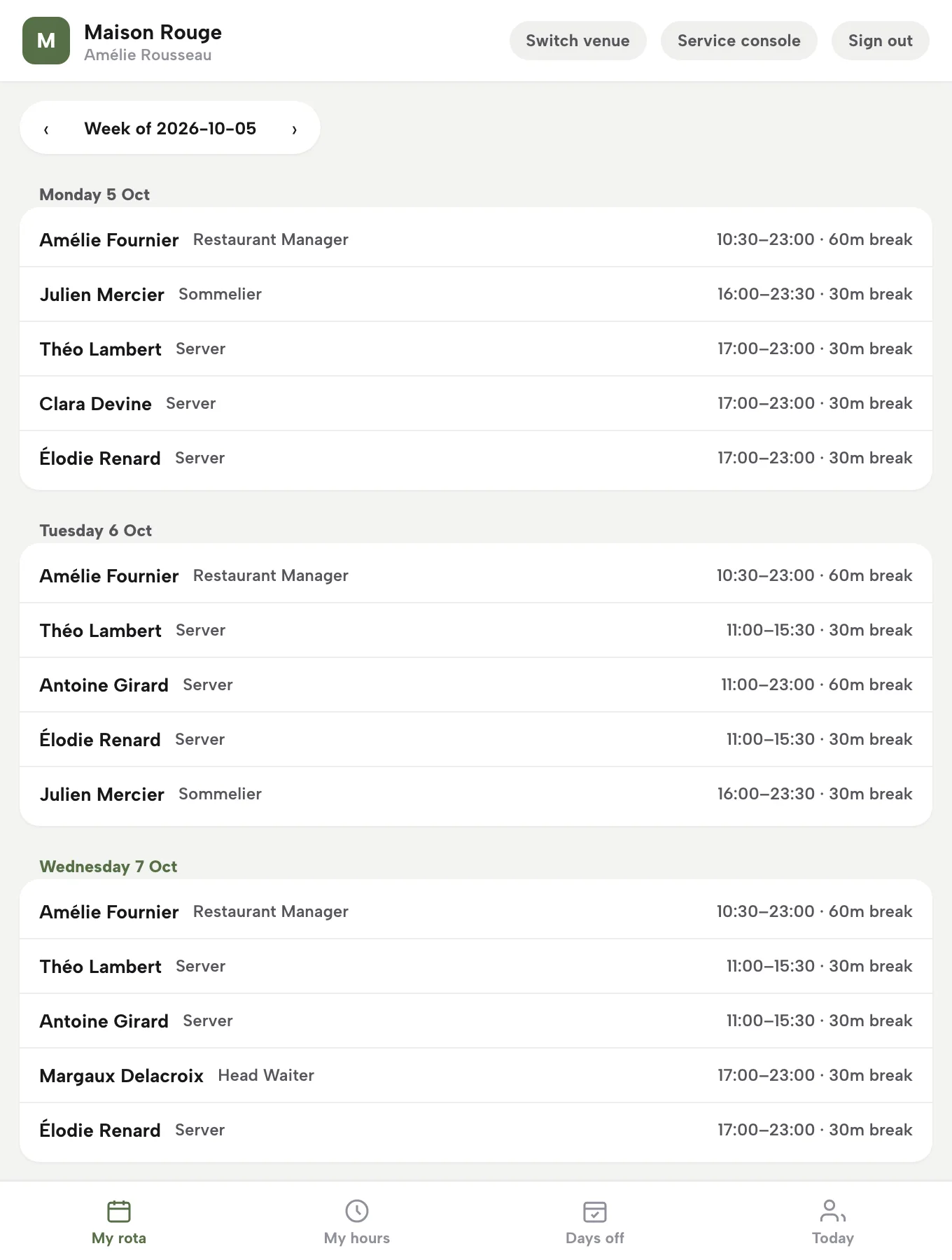
Each team member gets My rota in the Service console, built for a phone. It lists the published week by day with times, role labels and breaks. A new shift says Please confirm, with Confirm or Decline beside it.

  • My hours: this week, last four weeks and shifts rota'd
  • Days off: pick a date, add a reason, and managers see it while scheduling
  • Today: who is in today
  • Staff see the rota only once you publish it
Their own rota
My rota on a phone-width screen: the published week listed by day with names, role labels and times with breaks, and a My rota, My hours, Days off, Today tab bar.
The published week by day, with four tabs at the foot.

On the night

The same people run the floor

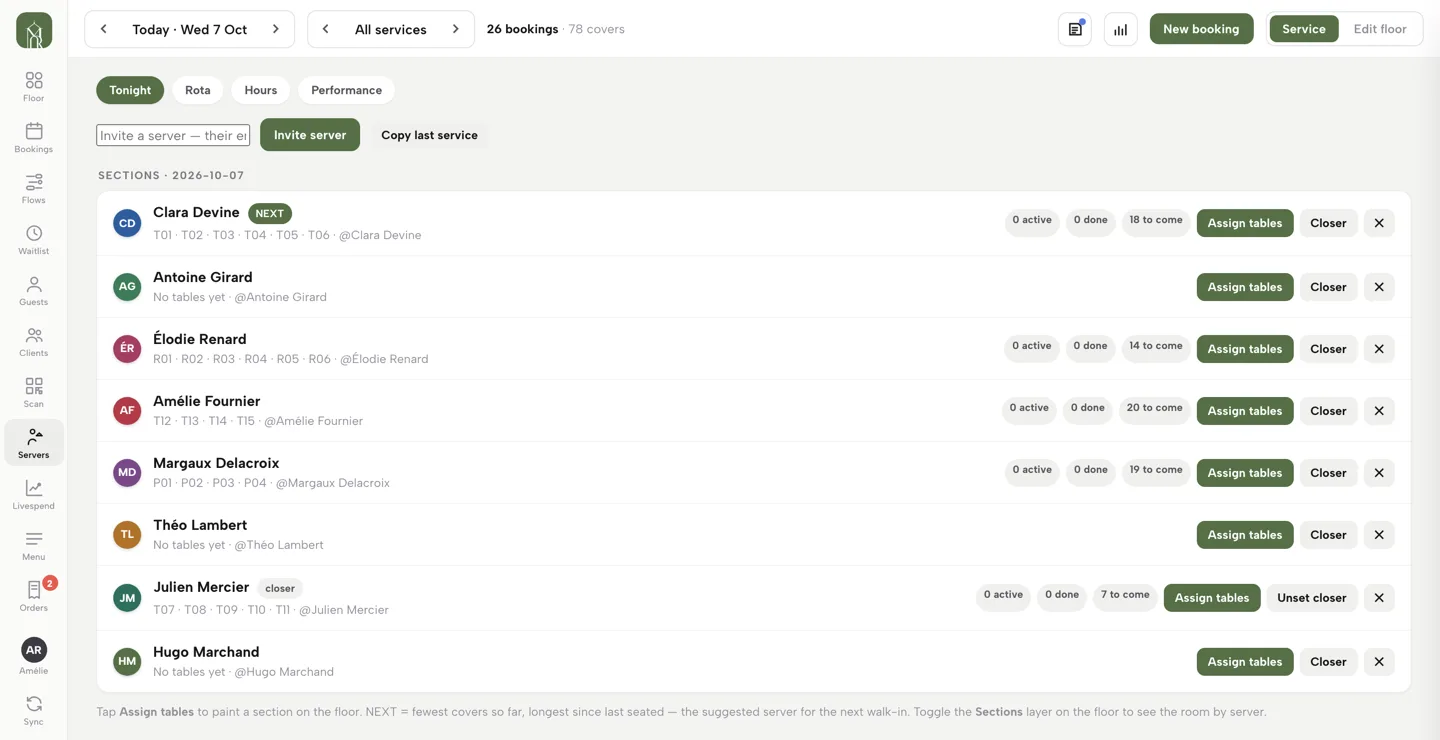
The Tonight tab lists your servers and lets you assign tables to each, mark a closer and see who is next for a walk-in. Who is on the clock comes straight from the published rota.

  • Assign tables paints a section on the floor
  • NEXT marks the server with the fewest covers so far
  • Invite server adds a person from this tab
  • Performance tab: covers and covers per hour for the last four weeks
Find the Servers view
The Servers view on Tonight: each server with their tables, cover counts, Assign tables and Closer buttons, a NEXT badge and the Tonight, Rota, Hours, Performance switch.
Sections, cover counts and the next server up.

Pay the right hours

Hours worked and payroll export

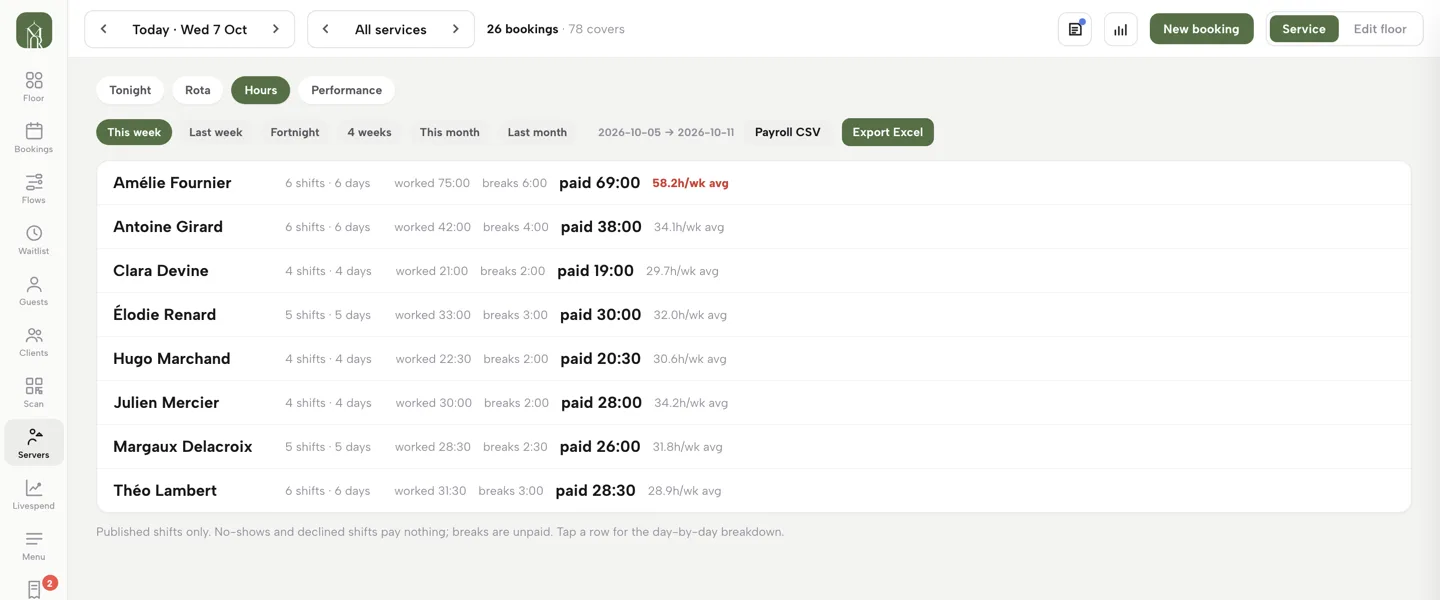
The Hours tab adds the week up per person: shifts, days, worked time, breaks and paid total, with a weekly average. Pick a range, then Payroll CSV for your bookkeeper or Export Excel.

  • Ranges: This week, Last week, Fortnight, 4 weeks, This month, Last month
  • Published shifts only; breaks unpaid; no-shows and declined shifts pay nothing
  • A high weekly average is flagged red
  • Tap a row for the day-by-day breakdown
Read the hours and export
The Hours tab: per-person shifts, worked, breaks and paid totals, one weekly average in red, range chips and the Payroll CSV and Export Excel buttons.
The export matches this table.

Tips, in writing

A tips policy your team can read

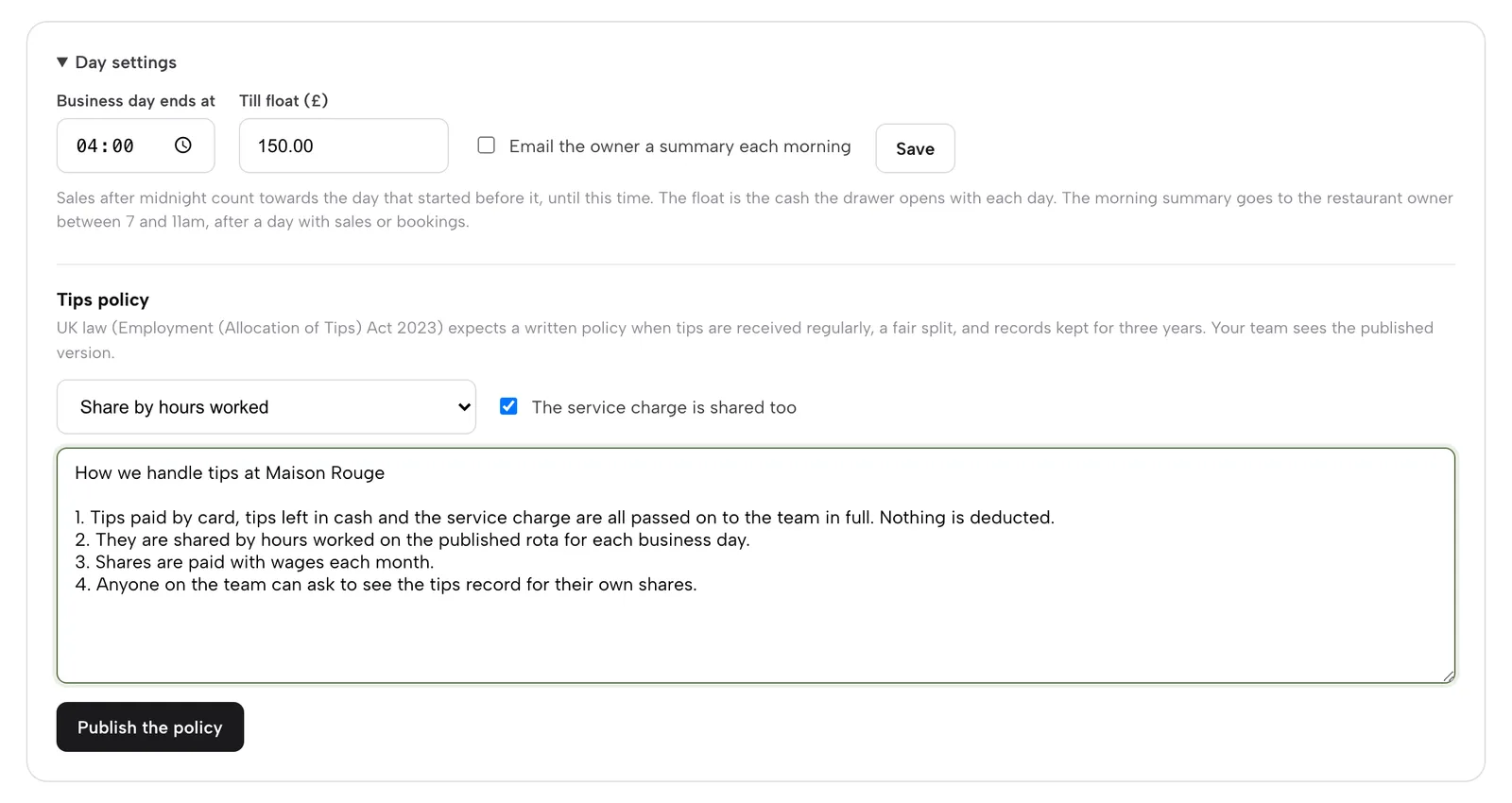
The Employment (Allocation of Tips) Act 2023 expects a written policy. In End of day, open Day settings, choose how tips are shared, edit the template wording and press Publish the policy. Your team reads it on My hours.

  • Share by hours worked, equally between everyone on shift, or directly to whoever earned them
  • Tick whether the service charge is shared too
  • Each edit is a new numbered version
  • Owner or Admin publishes
Write the policy
Day settings with the Tips policy: a share method dropdown, a service-charge tick box, an editable policy text and a Publish the policy button.
Edit the wording to match what you do, then publish.

Share the tips

Split the day's tips by rota hours

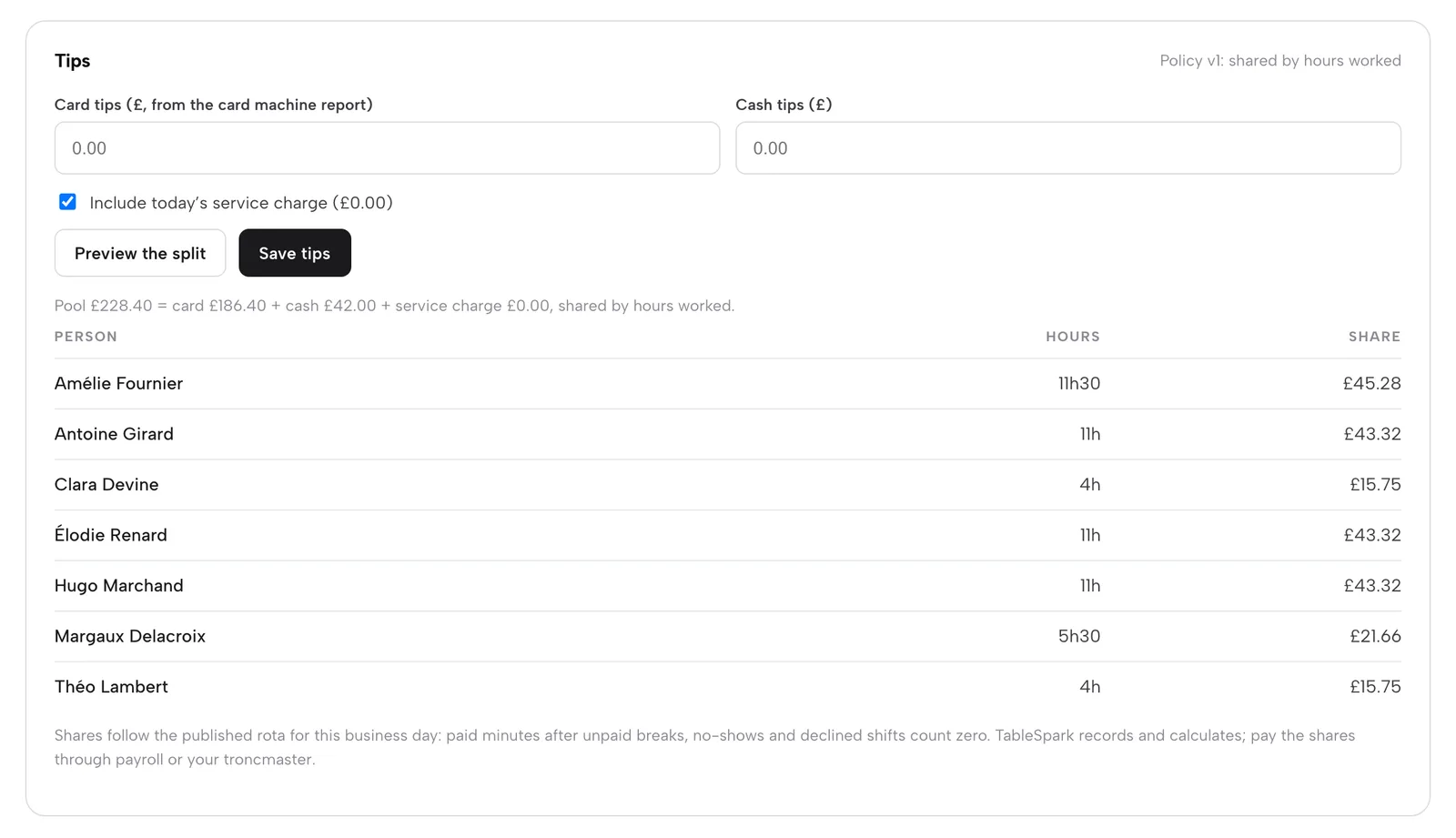
Type the card and cash tips, tick the service charge if it goes to the team, then press Preview the split. Each person's share follows their paid hours on the published rota. Save tips stores the day.

  • No-shows and declined shifts count zero; unpaid breaks come off
  • A saved day can be changed, and its shares downloaded as CSV
  • Records stay in your account for the three years the law expects
  • TableSpark calculates; you pay through payroll or your troncmaster
Share the tips by the rota
The Tips panel: card and cash tip boxes, a service charge tick box, Preview the split and Save tips, and a table of each person's hours and share of a £228.40 pool.
A £228.40 pool shared by hours worked.

Watch it

Watch a week built and published

A real run on the live app: invite, drag, publish, read the hours, open My rota.

Watch on YouTube

How it connects

The rota feeds the rest of the restaurant

Hours from the rota flow into payroll, tips and the floor. Close the day to share tips; run the kitchen from the same team.

Plan & price

Staff rota comes with Growth and Full

Growth is £39 a month and Full is £69, excluding VAT. No per-seat charges, and nothing to pay until you publish.

Prices exclude VAT. 0% TableSpark commission on the bookings and orders your plan includes. Stripe’s standard card-processing fees apply to online payments. Compare every plan.

Questions owners ask

Do I pay for each team member?

No. Team access is included on Growth and Full with no per-seat charges, however many people you invite.

Can staff see a rota before I publish it?

No. Drafts are visible only to managers. Staff see the week the moment you press Publish drafts, then confirm or decline each shift.

How are paid hours worked out?

From published shifts only. Breaks are unpaid, no-shows and declined shifts count zero, and overnight shifts count to the day they started. Payroll CSV matches the Hours tab.

Does TableSpark make my tips lawful?

It gives you a written policy template, a split by rota hours and saved records. Your policy wording and how you pay shares remain your decisions. You pay through payroll or your troncmaster.

Can staff discount orders?

Only roles you tick under Discount permission. The owner is always allowed, and every discount records who applied it.

Put this week's rota in every pocket

Build your site free, invite your team and publish the first week.