
The last customer has gone, and now come the card machine slips, the cash in the drawer and the tips in a jar. If they live in three places, nobody can say whether the till is right or when you will find out. End of day puts the day’s takings, VAT, cash and tips on one page, and closing it saves the record.
Sidebar → End of dayOne business day at a time
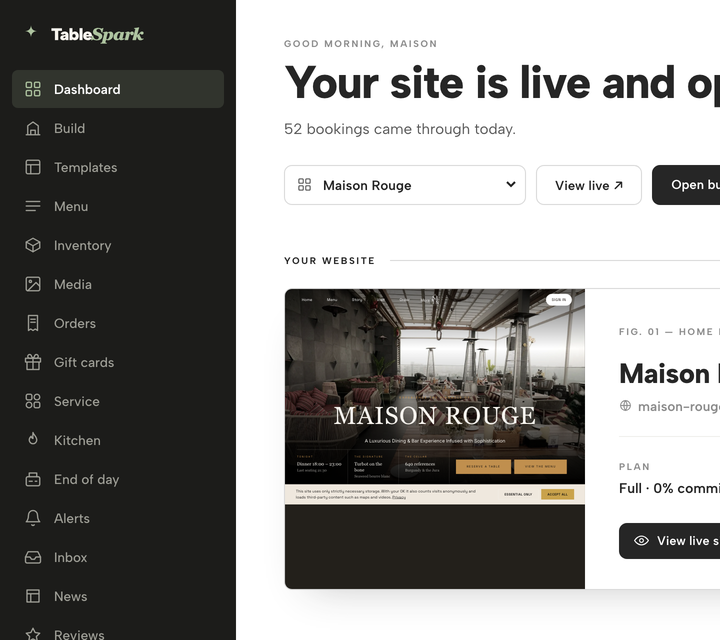
In the sidebar, click End of day — the day’s report opens.
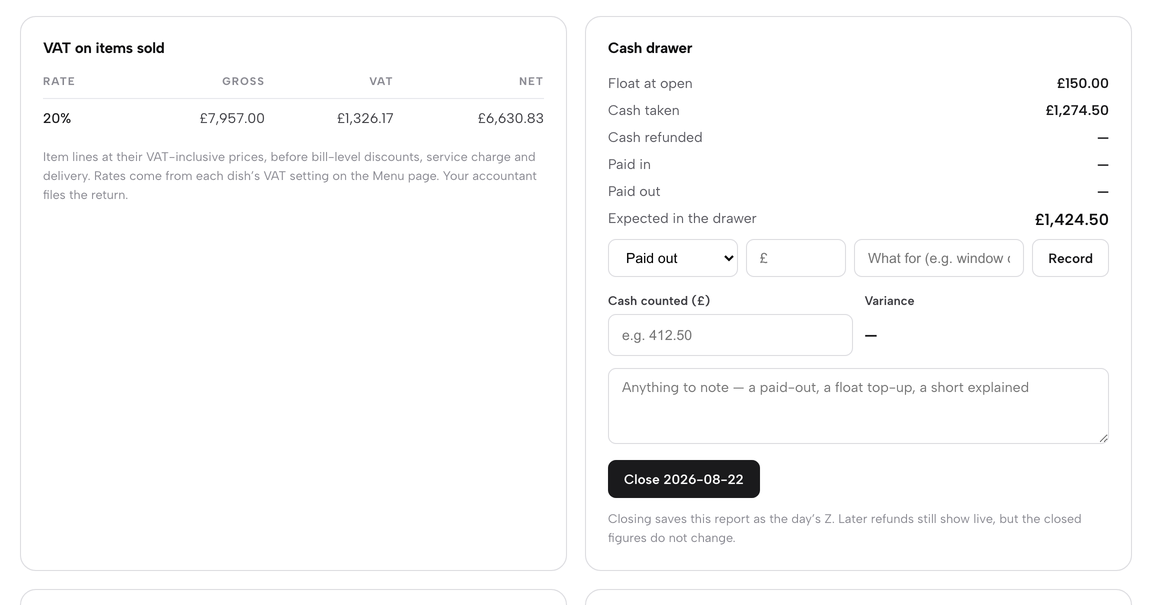
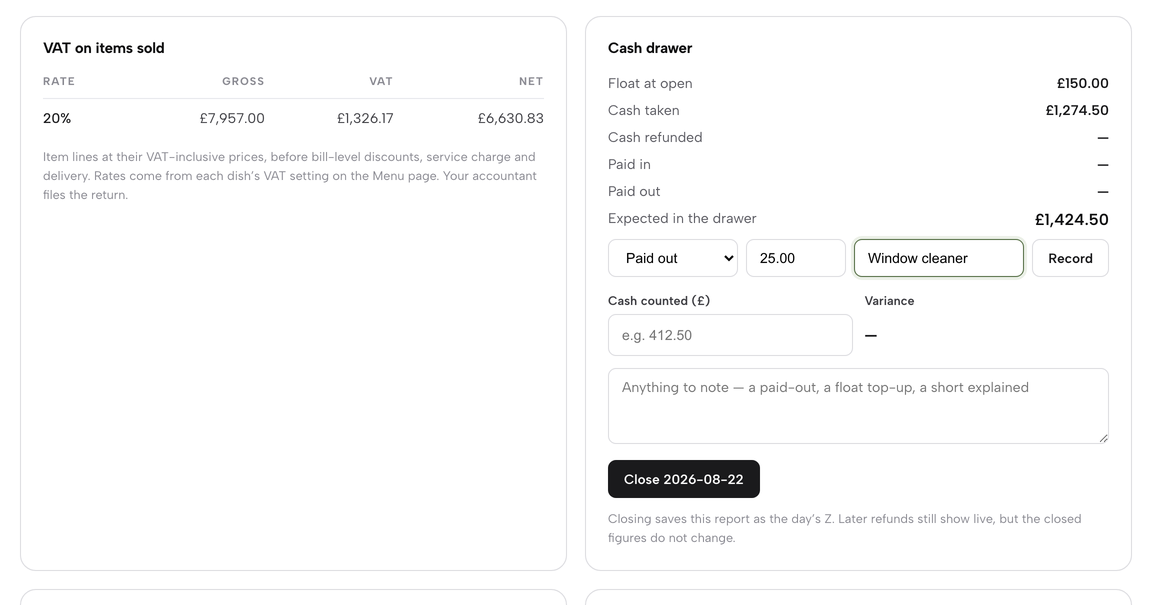
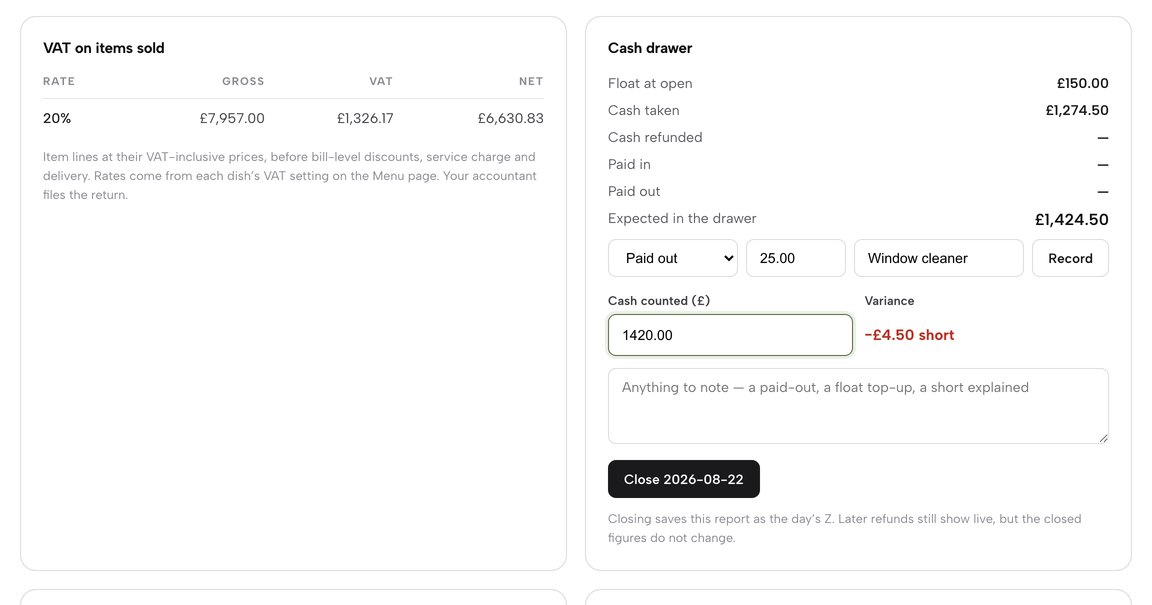
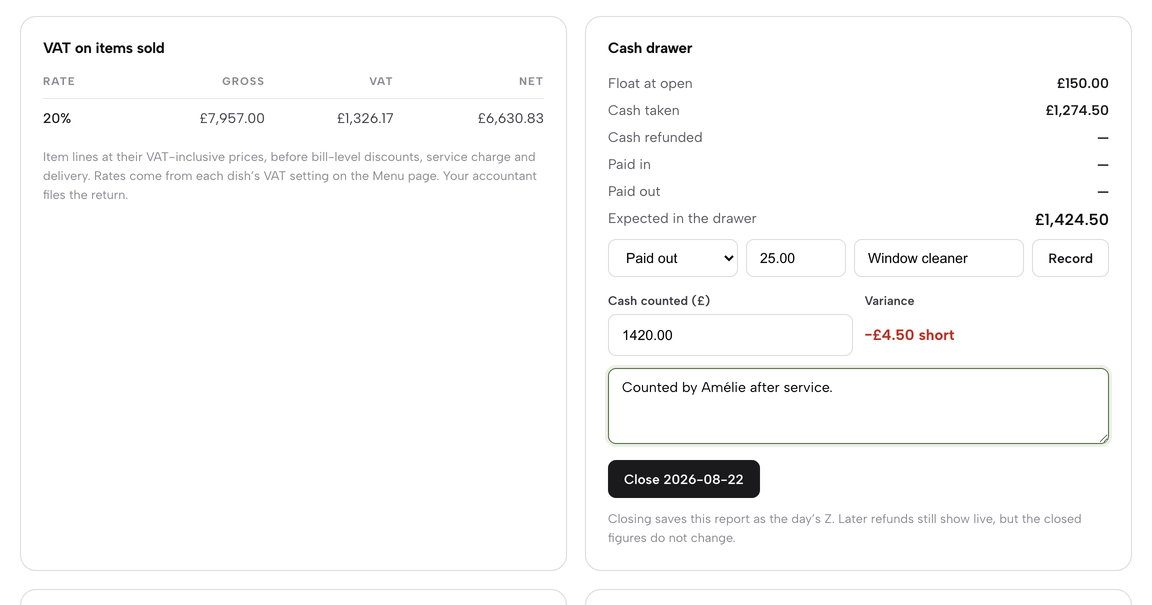

Date picked, takings and VAT read, the cash drawer counted against what it should hold, tips previewed, exceptions checked, the close button found and the settings set — the end of the day on one page.
- WHAT YOU NEED
- A counted drawer and the card machine report
- TIME
- About 6 minutes
- PLAN
- Growth or Full End of day is part of both
- CAN I BREAK IT?
- Only at Close everything before it is a preview
IN PLAIN WORDS / TAP A TERM
What are an X report and a Z report?
An X report is a live reading of the day that you can take as often as you like. A Z report is the same figures saved when you close the day, so the record stays the same afterwards.
What is a float?
The cash the drawer opens with each day, so there is change for the first customers. The report adds it to the cash taken to work out what should be in the drawer.
What is a tender?
The way a bill was paid: cash, card on the reader, card online, a card on another machine, a gift card or something else.
What is a variance?
The difference between the cash you counted and the cash the report expected. It reads Balanced, or the amount short or over.
What is a troncmaster?
The person or scheme a restaurant uses to share tips fairly. TableSpark records and calculates the shares; you pay them through payroll or your troncmaster.
Open End of day: the X report and the Z report
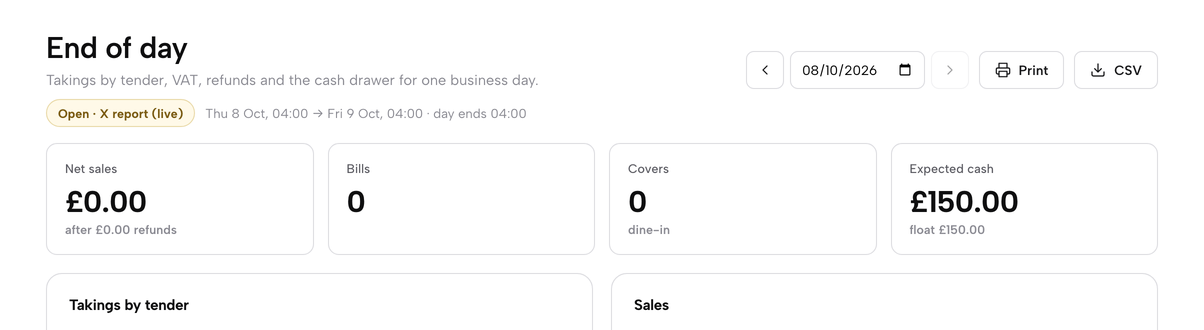
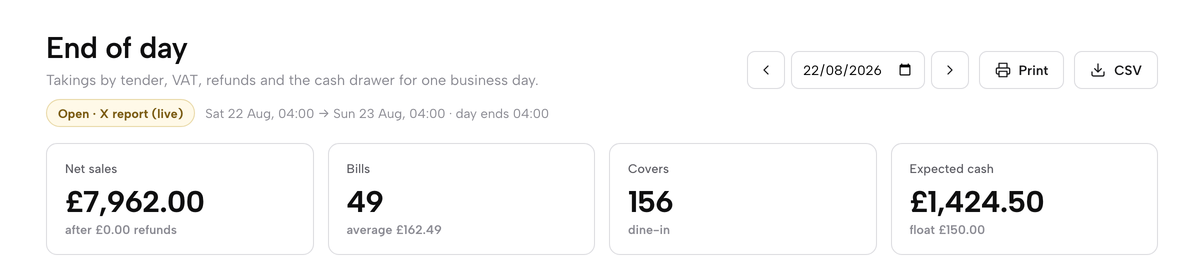
Click End of day in the sidebar. The page opens on today’s business day, and what you see is the X report: a live reading that updates as bills are settled and can be read as often as you like. It carries a chip, Open · X report (live). When you close the day, the same figures are saved as the Z report, and the chip changes to Closed · Z report.
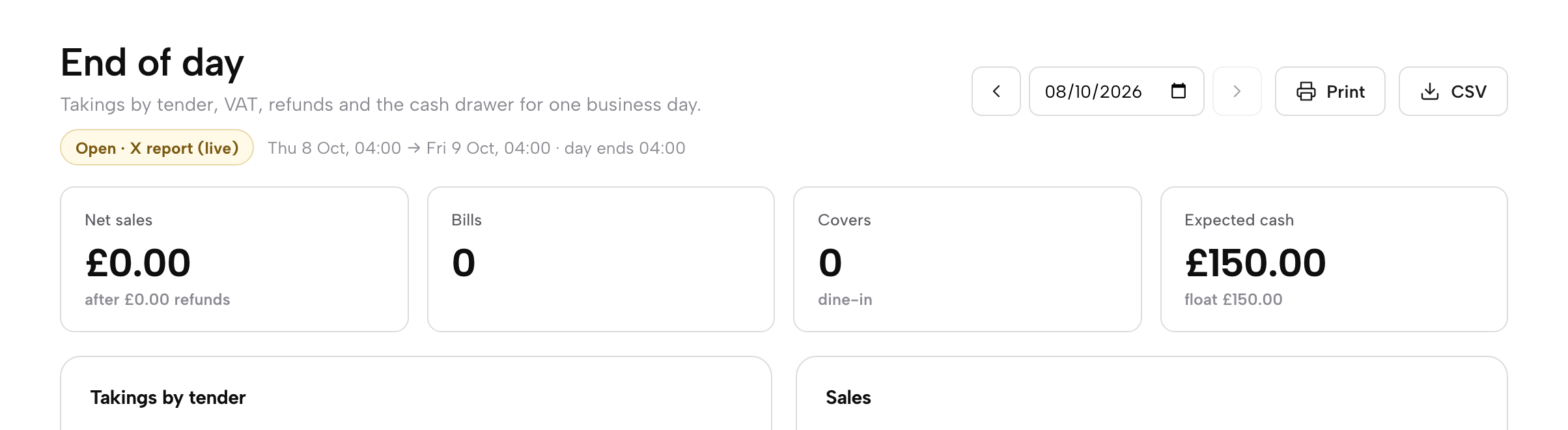
To read another day, click the date box and choose a date, or use the previous and next arrows beside it. The next arrow stops at today. The report address carries the date too (?date=2026-08-22), so you can bookmark a day.
Beside the chip, a line gives the business day window: from 4am Saturday to 4am Sunday for the teaching day below, with “day ends 04:00”. Sales taken after midnight count towards the day that started before it, until the cut-off time you set in Day settings. Four headline cards sit underneath: Net sales, Bills, Covers and Expected cash.
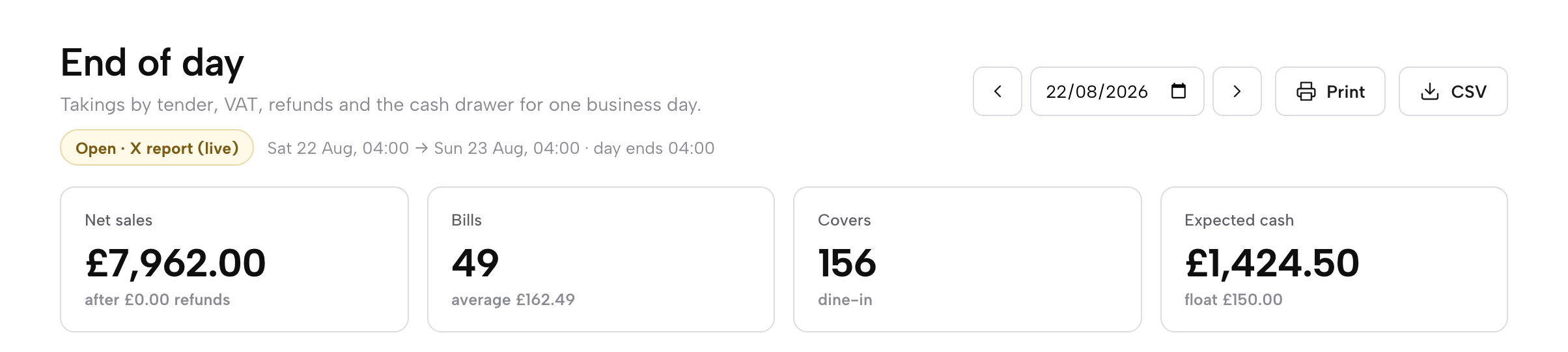
If bills opened that day are still unpaid, a notice above the cards counts them and gives their value, with a link to Orders so you can settle them first. Owners, admins and editors can read the day’s takings.
Takings by tender
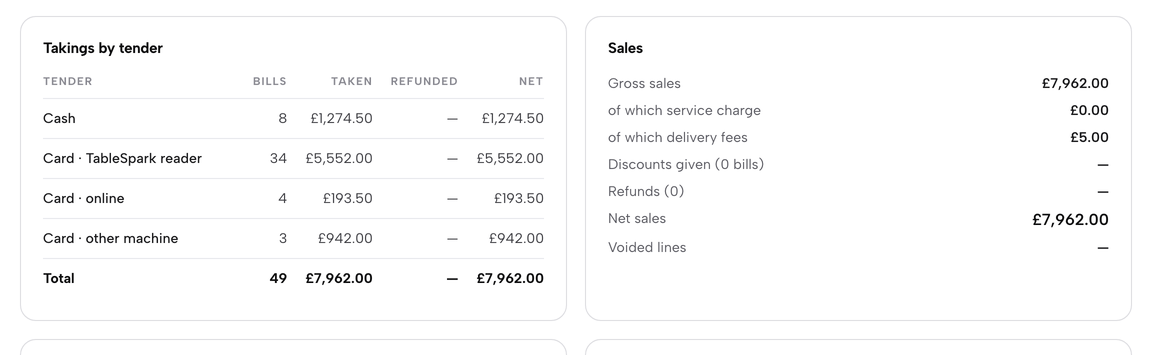
Takings by tender lists how each bill was paid, with the number of bills, the amount taken, anything refunded and the net: Cash, Card · TableSpark reader, Card · online, Card · other machine, plus Gift card and Other when the day has them. A bill paid in parts is counted under each tender that paid a part of it, so every pound lands against the way it arrived. The Total row ties to net sales.
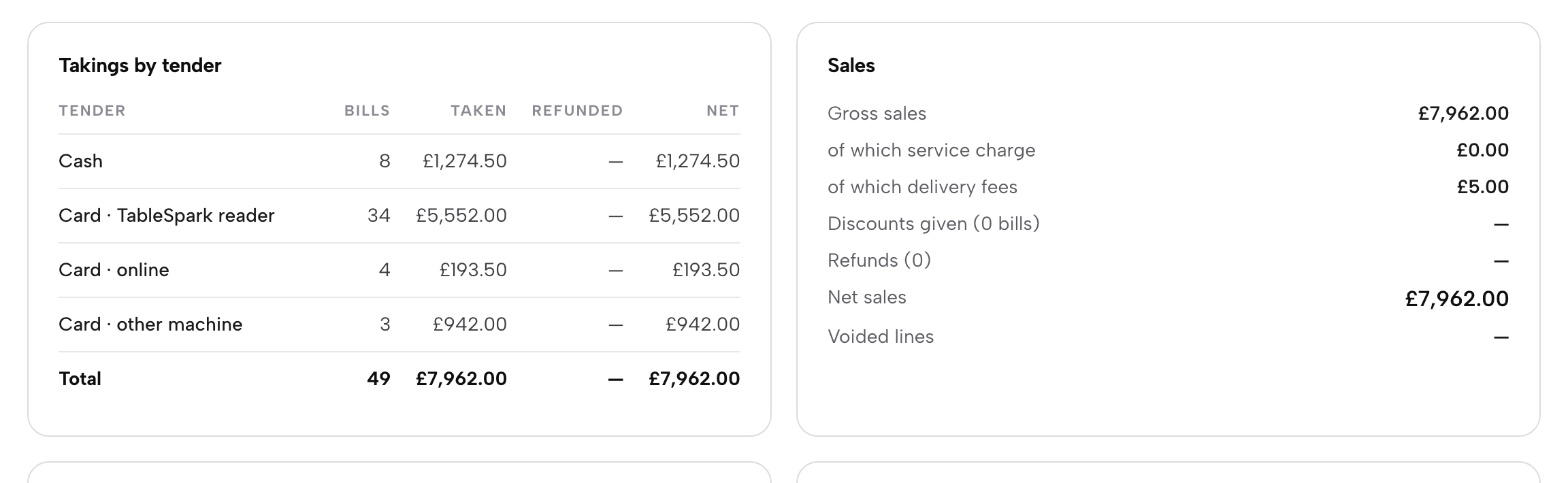
Beside it, the Sales panel runs from Gross sales through of which service charge and of which delivery fees, Discounts given and Refunds to Net sales, with Voided lines at the foot. If a bill was marked paid without saying how, it appears as Not recorded and is kept out of the cash figure, with a notice explaining why.
Sales, VAT, hours and top dishes
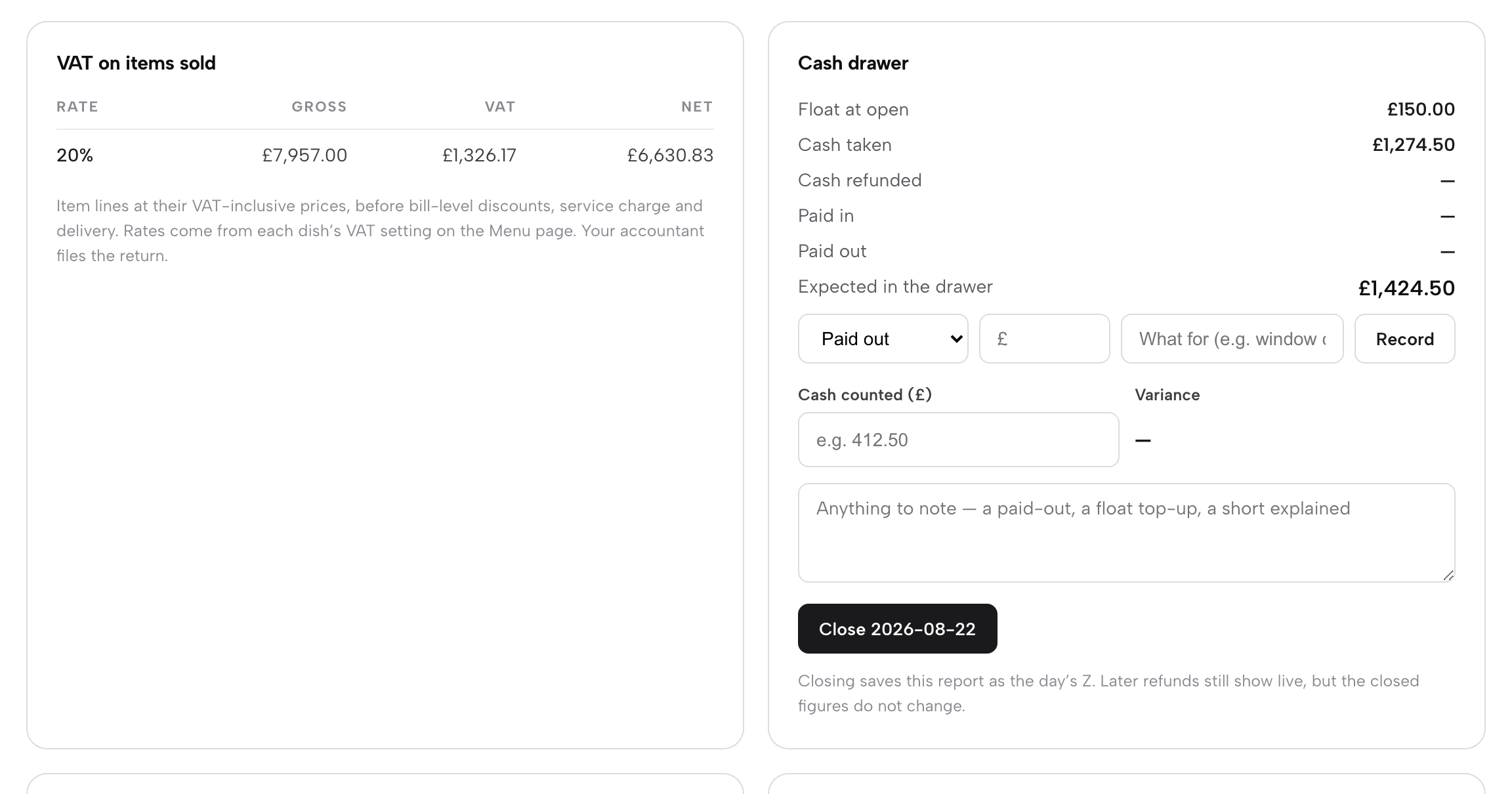
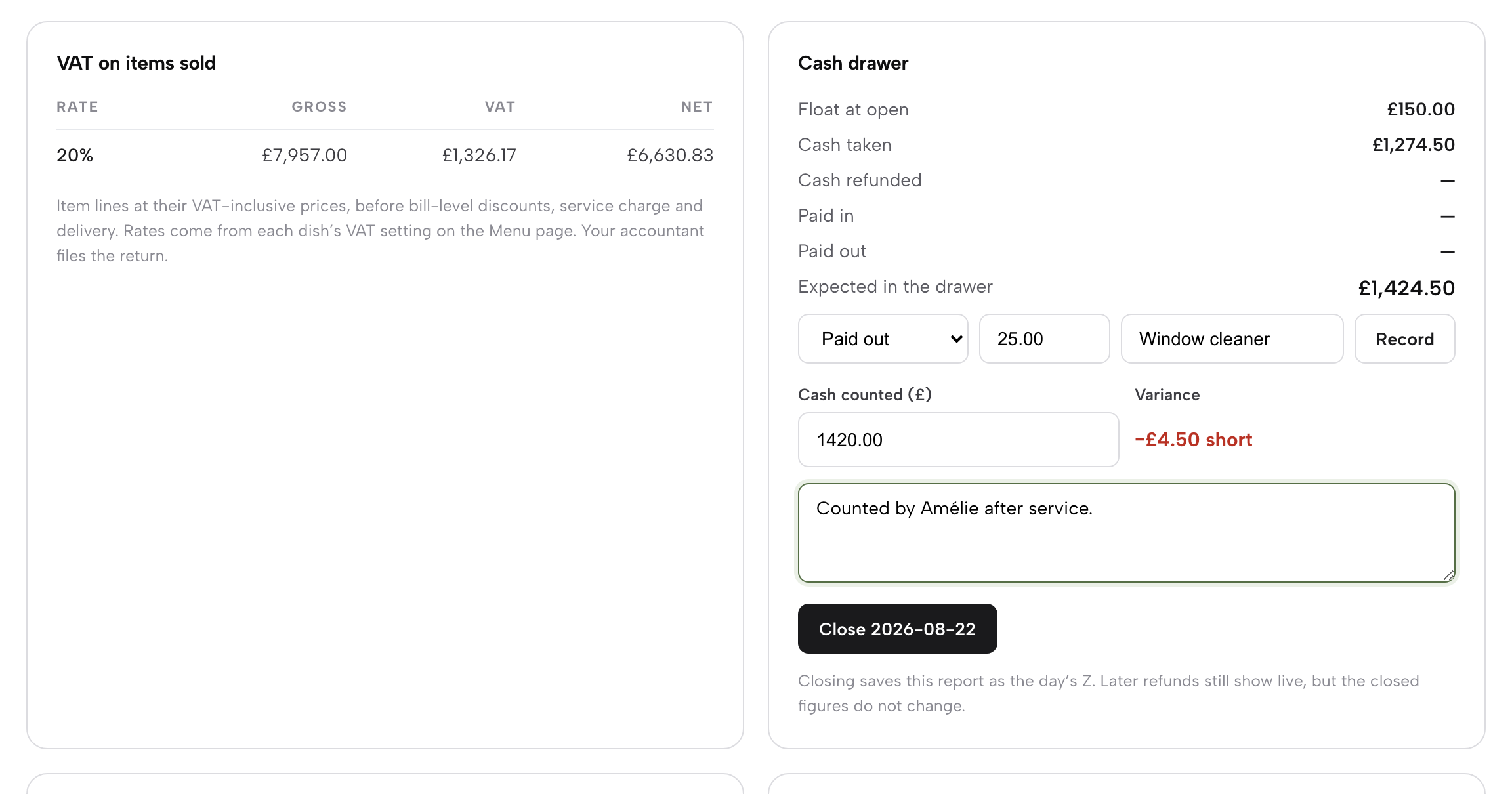
VAT on items sold groups item sales by VAT rate, showing gross, VAT and net for each rate. It uses the item lines at their VAT-inclusive prices, before bill-level discounts, service charge and delivery, and the rates come from each dish’s VAT setting on the Menu page. Your accountant files the return; this panel gives them the day’s figures. On the teaching day every line is at 20%: gross £7,957.00, VAT £1,326.17, net £6,630.83.
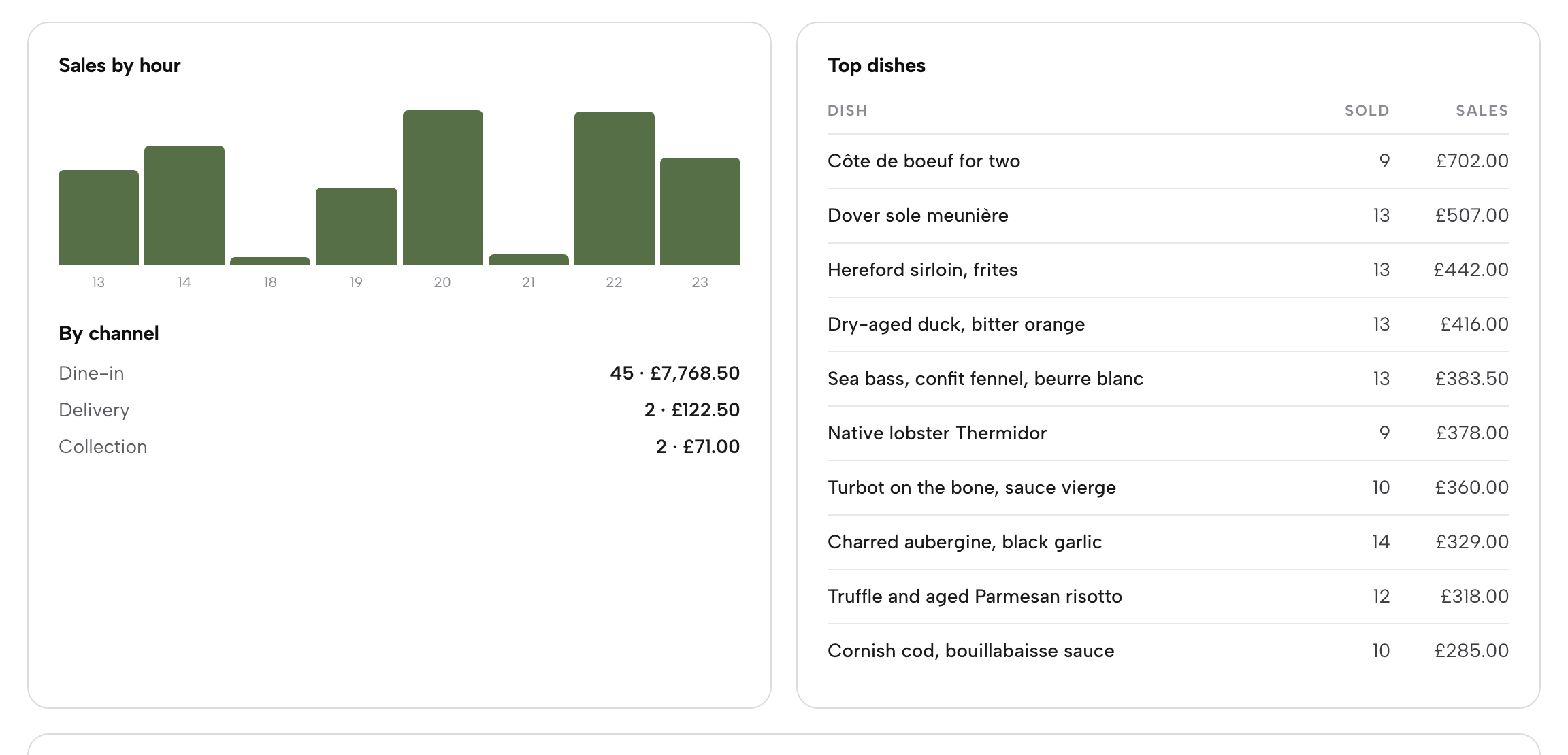
Below, Sales by hour draws a bar for each trading hour, so you can see where the evening peaked, and By channel splits the day into dine-in, collection and delivery. Top dishes ranks what sold, with units and sales: on 22 August, Côte de boeuf for two led with nine sold for £702.00.
Count the cash drawer
The Cash drawer panel works out what the drawer should hold: Float at open plus Cash taken, less Cash refunded, plus Paid in, less Paid out, giving Expected in the drawer. Maison Rouge opens with a £150.00 float and took £1,274.50 in cash, so £1,424.50 should be there.
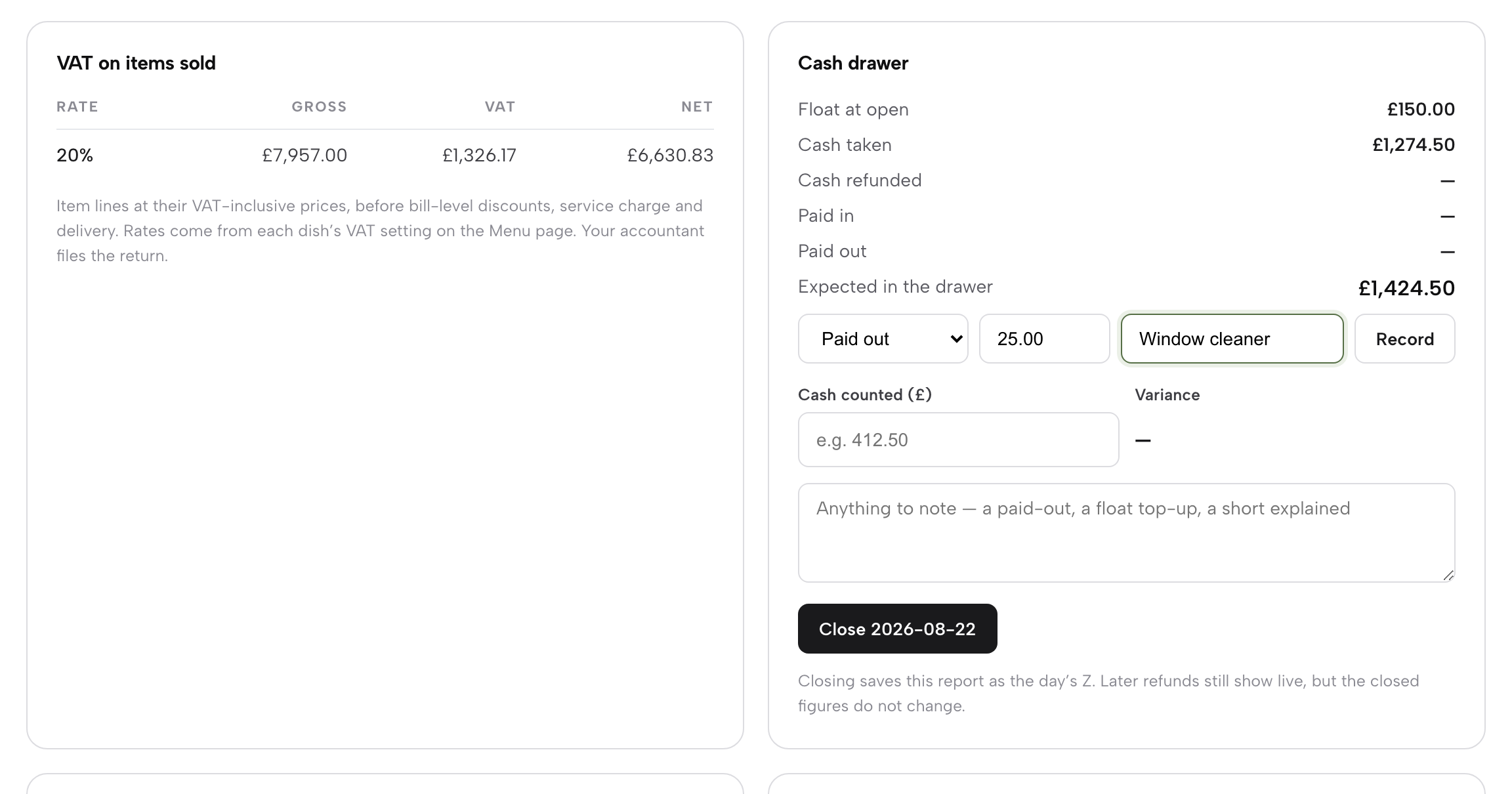
When money moves in or out of the drawer outside a sale, choose Paid out or Paid in, type the amount and what it was for, then click Record. It appears as a line in the panel with its time and reason, and the expected cash updates. Then count the drawer and type the total into Cash counted (£). The Variance beside it updates as you type, reading Balanced when the figures match, or the amount short or over.
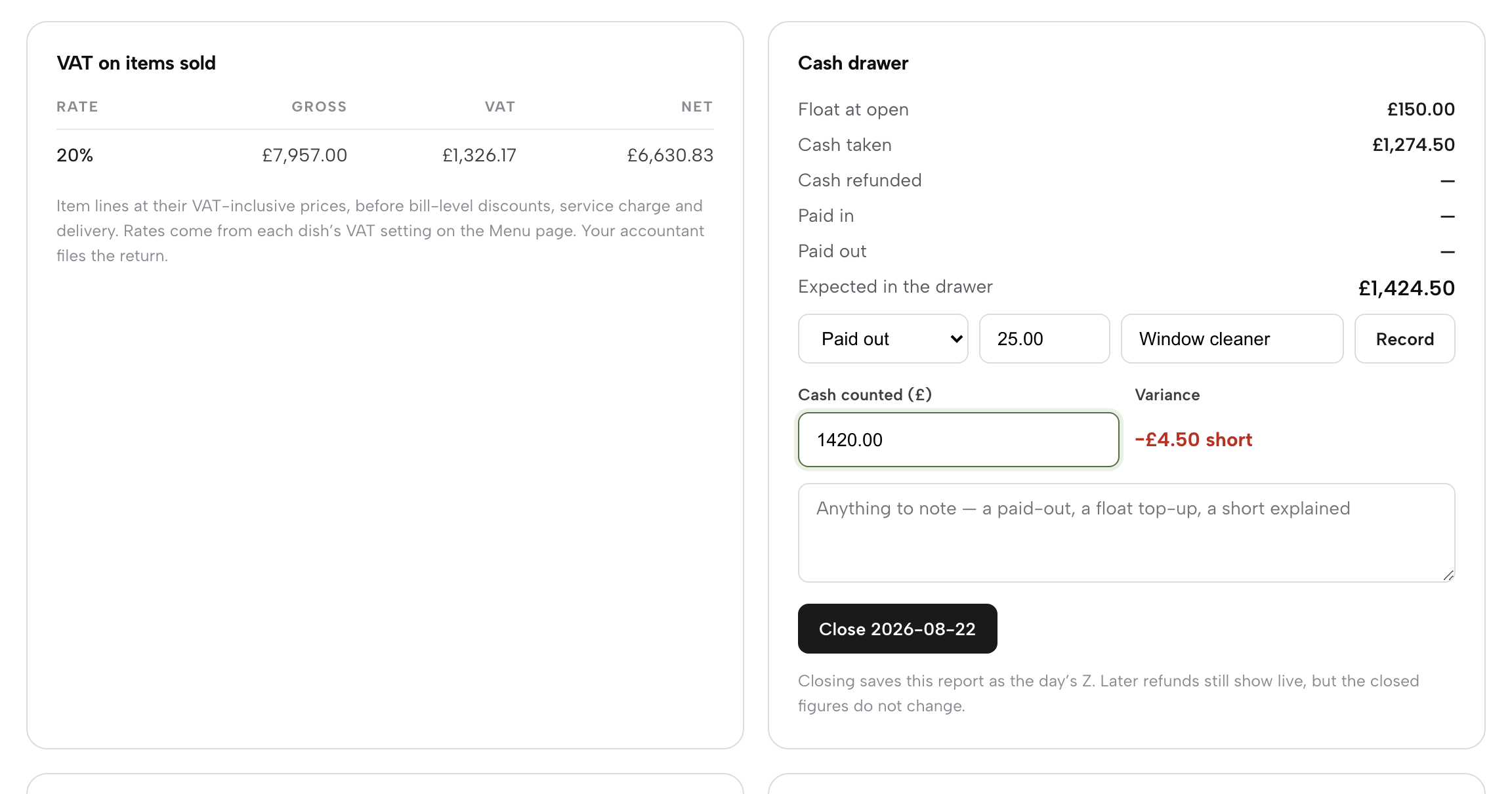
The note box under the figures is for anything that explains the count: a paid out, a float top-up, a short that you have already explained.
Share the tips by the rota
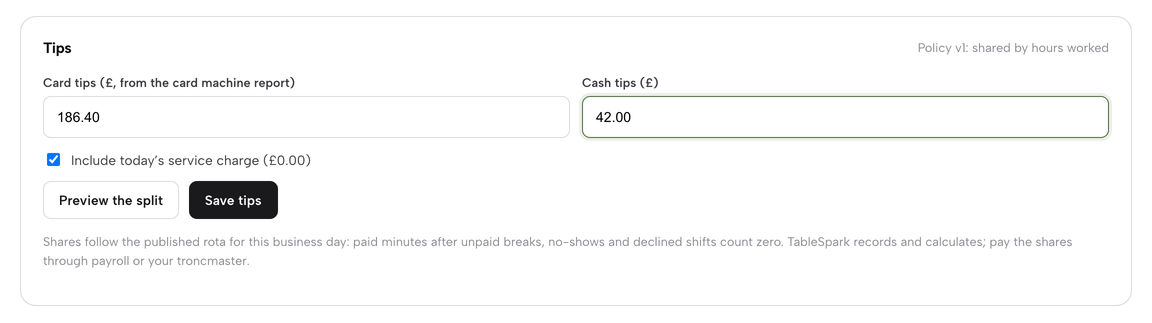
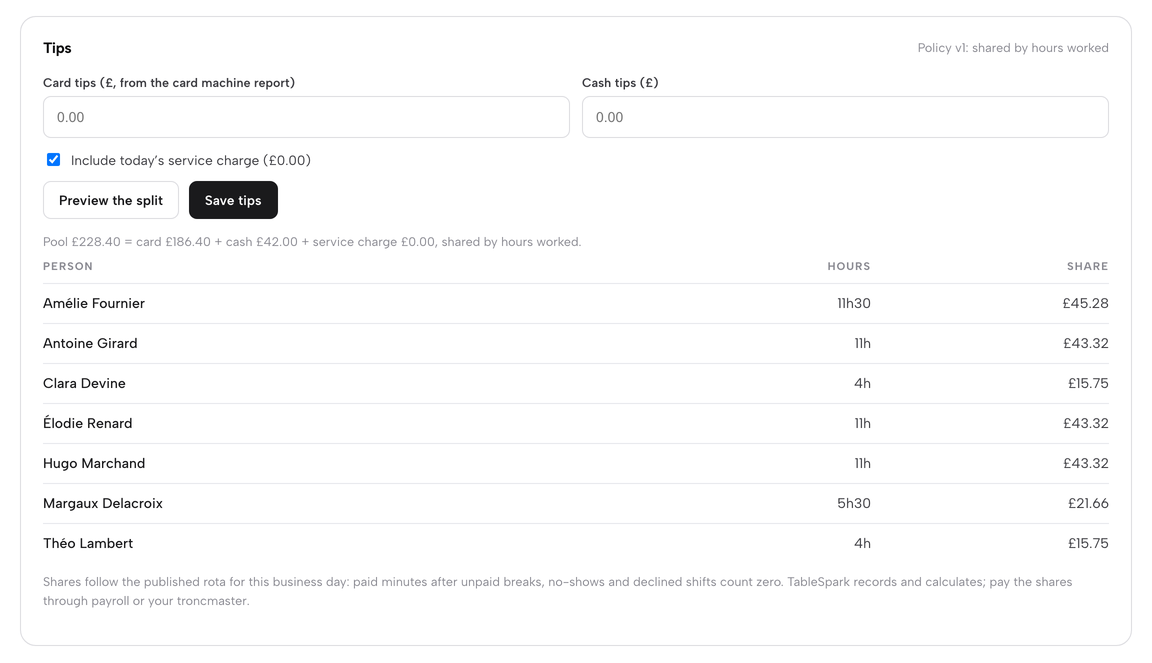
The Tips panel shares the day’s tips fairly under your written policy. Its header shows the policy in force, here Policy v1: shared by hours worked. Type the Card tips from the card machine report and the Cash tips, and leave Include today’s service charge ticked if the service charge goes to the team. Then click Preview the split.
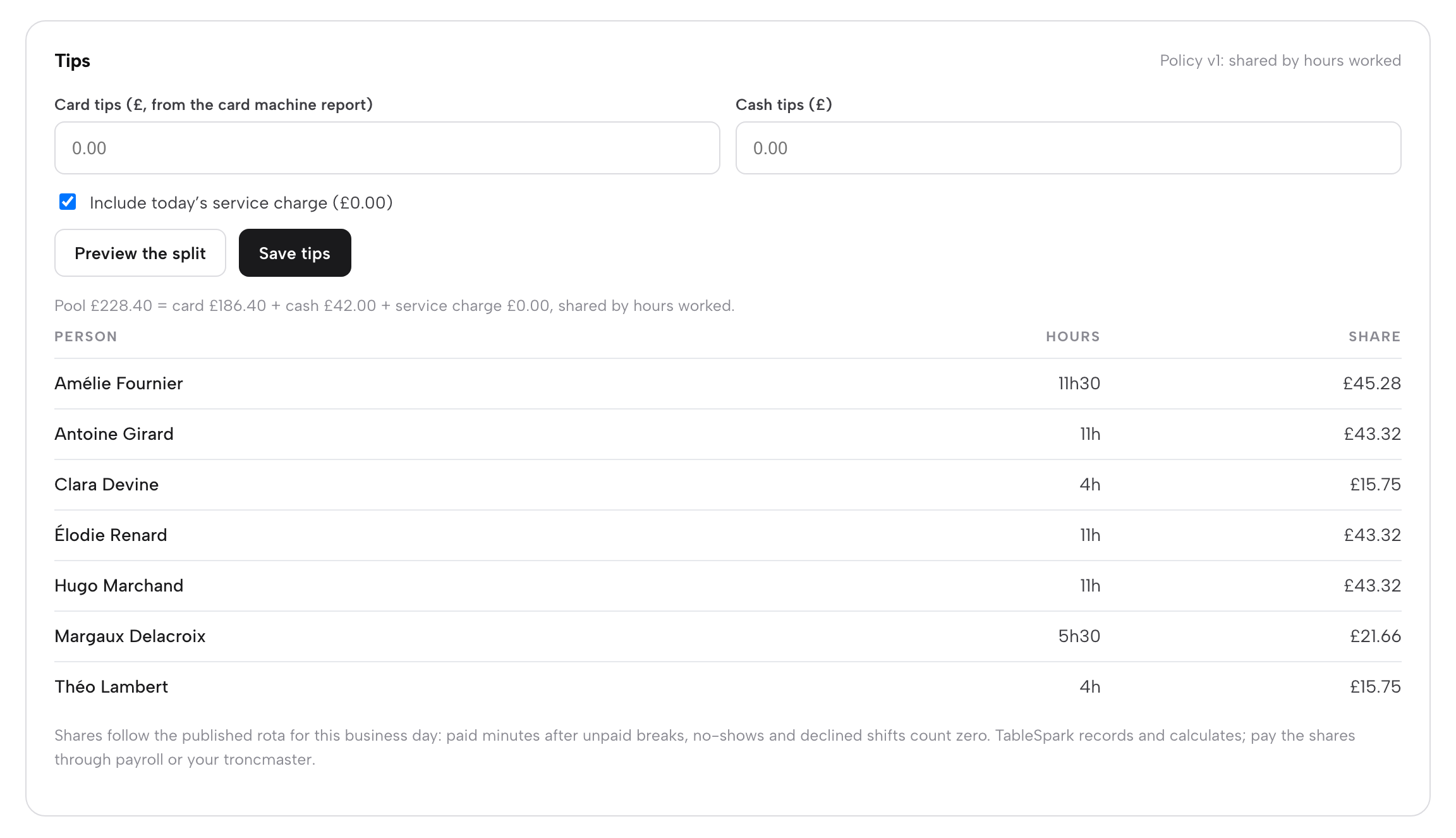
The preview shows the pool (card tips plus cash tips plus service charge) and a table with each person’s paid hours and share. Shares follow the published rota for the business day: paid minutes after unpaid breaks count, while no-shows and declined shifts count zero. Check the two boxes, then click Save tips to store the day’s figures and shares; a saved day can be changed, and its shares downloaded as a CSV. TableSpark records and calculates; you pay the shares through payroll or your troncmaster, and the records stay in your account for the three years the law expects them to be kept.
Exceptions: voids, discounts and refunds
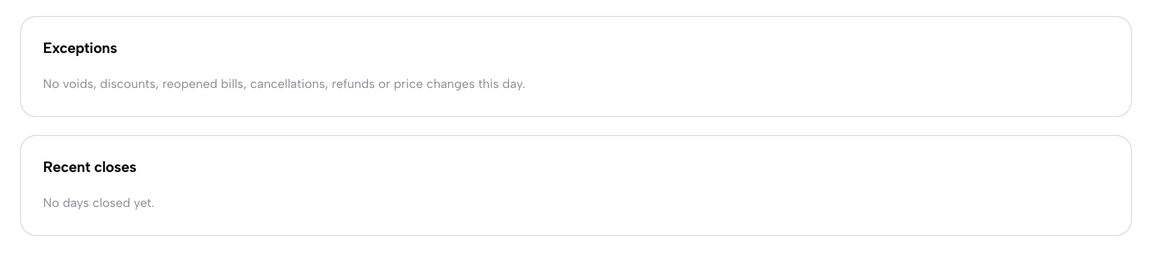
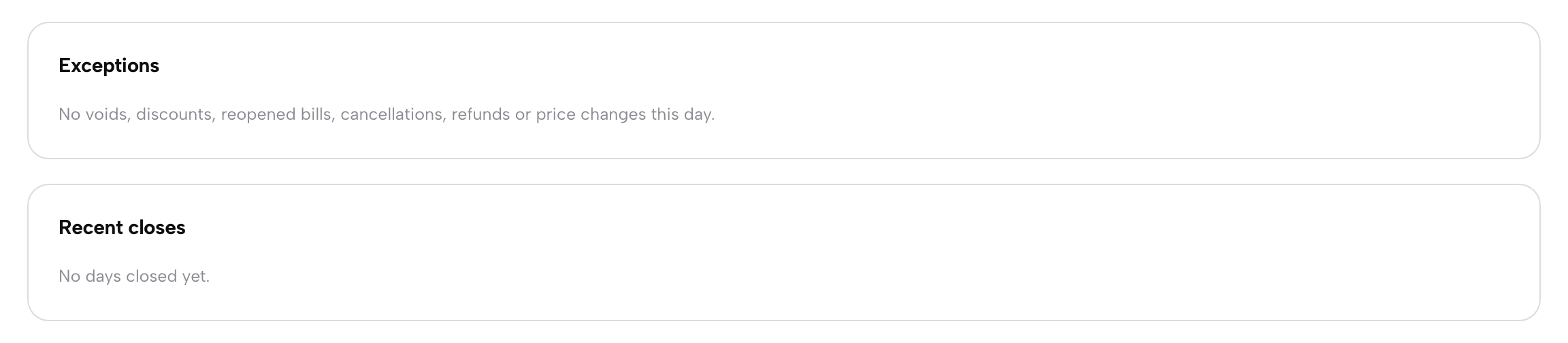
Exceptions lists the day’s unusual moves straight from the record of changes: dishes voided or reduced, discounts, service charge changes, reopened bills, cancellations, refunds and price changes. Each row shows the time, what happened, the amount, the reason given and who did it. When there is anything to list, a CSV button in the panel header downloads it. Saturday 22 August was clean, so the panel says so.
Read it before you close. A void with no reason, or a late discount, is easier to ask about while the shift is fresh.
Close the day
When the figures are right, type any note, then click the dark button under the cash drawer. On today it reads Close the day; on an earlier day it reads Close and the date, as in the picture. The first click arms it and the button changes to Confirm — this cannot be undone for a few seconds. Click again and TableSpark saves the report.
A closed day shows the Closed · Z report chip. Its figures are a saved snapshot and do not change, though later refunds still show live. The cash drawer shows what you Counted, the Variance and when it was Closed, and the paid in and paid out form is no longer offered. Recent closes at the foot of the page lists each closed day with net sales, bills, expected cash, variance and who closed it; click a row to open that day.
Day settings and the tips policy
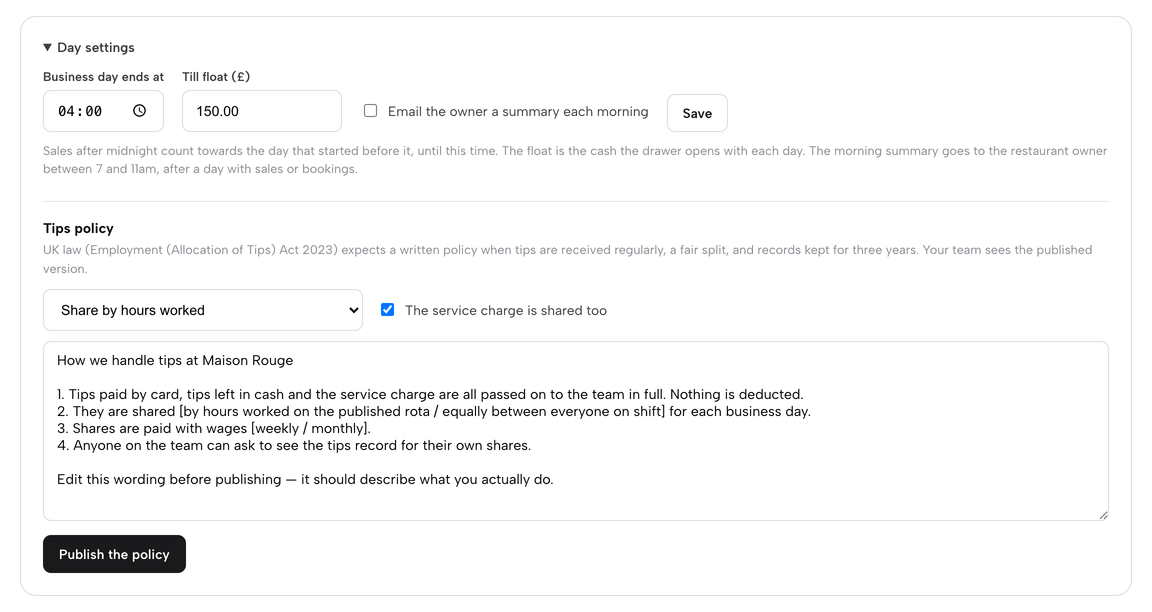
Click Day settings at the foot of the page to open it. Business day ends at sets the cut-off (04:00 here), Till float (£) sets the cash the drawer opens with each day, and Email the owner a summary each morning sends the restaurant owner a daily summary between 7 and 11am, after a day with sales or bookings. Click Save to keep your changes. Owners and admins can change these.
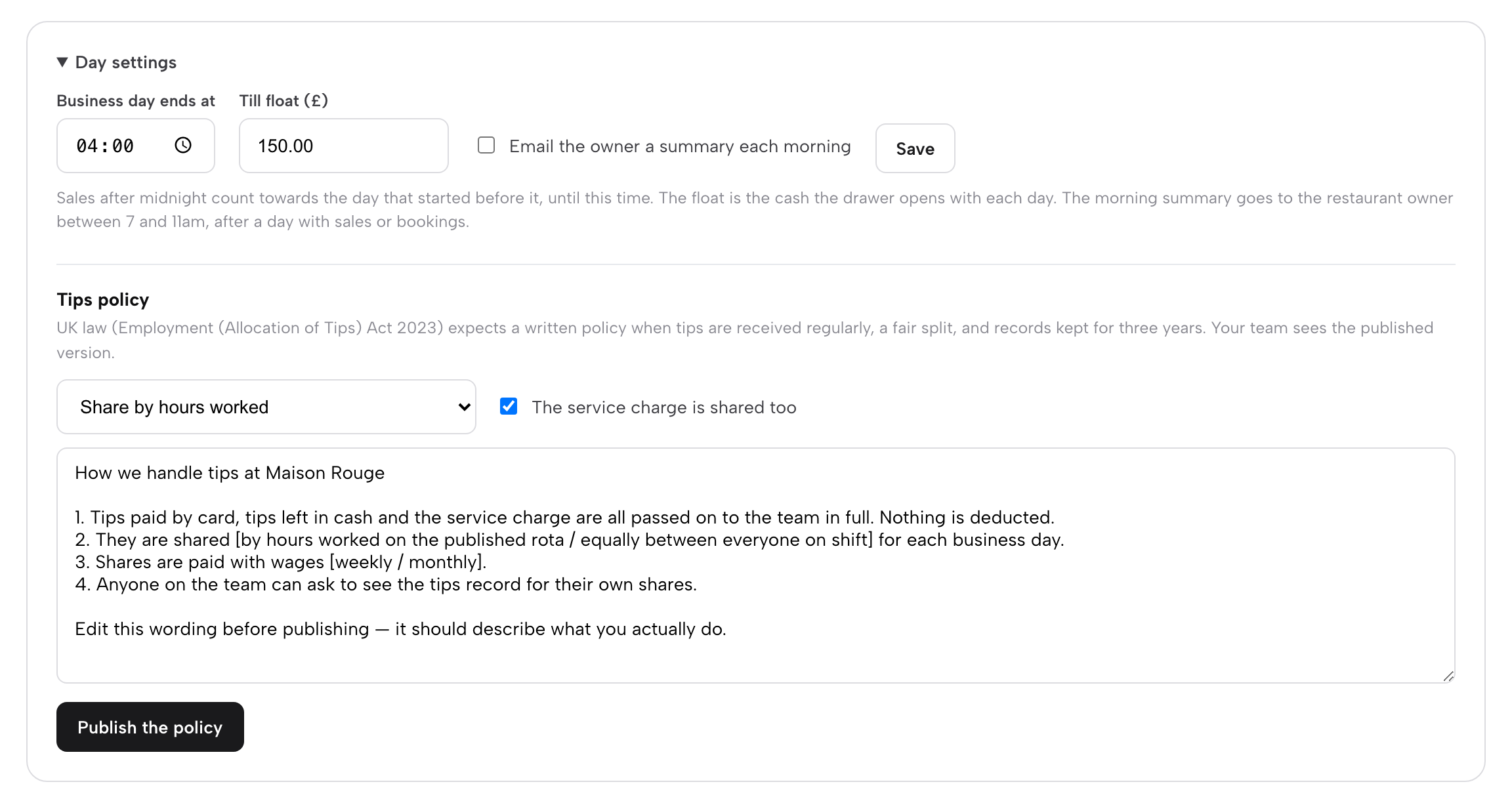
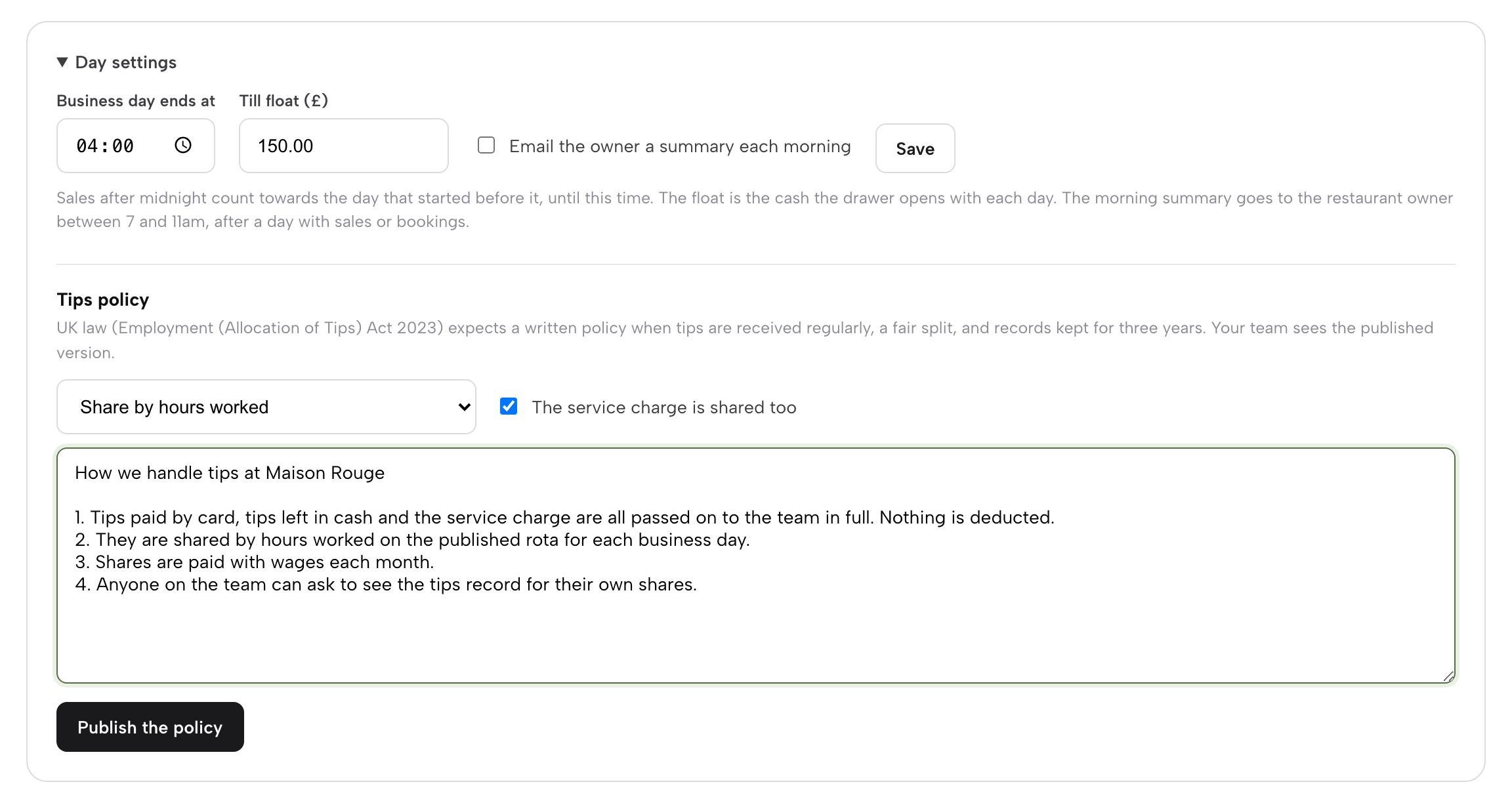
The same panel holds the Tips policy. Choose how tips are shared (by hours worked, equally between everyone on shift or directly to whoever earned them), tick The service charge is shared too if it is, edit the wording so it describes what you actually do, and click Publish the policy. Your team can read the published version on their My hours page. Publishing again later creates a new version.
Print and CSV
At the top right, Print opens your browser’s print dialog with a clean copy of the report for the day on screen, and CSV downloads end-of-day- followed by the date. The file holds the sales lines, bills and covers, the takings by tender, the cash drawer and the VAT rows, ready to open in a spreadsheet or send to your accountant. The Exceptions panel and a saved tips day each have their own CSV button.
Read the day, count the drawer against what it should hold, check the exceptions and close. The next morning starts clean, and the Z record stays here for whoever needs it.
Next · close tonight
Next: open End of day
The report is live as soon as the first bill is settled. Open it at the end of service and read the day.