
The floor is one screen, not a stack of apps. Every booking on the room's plan, colour-coded by what's actually happening at that table right now — and the same sheet that seats a party doubles as its order pad and its till. No separate login for the till, no walking back to a terminal to ring a second course.
Sidebar → ServiceTap any table to start
Every table’s colour comes from one key along the bottom: Free, Booked, Arrived, Seated, Running over, Winding down, Needs clearing, Blocked.
Floor read, a walk-in seated, a booking moved on, an order built and sent, adjusted, combined and paid, a table blocked and the day’s note posted — the whole shift from one screen.
- WHAT YOU NEED
- A tablet or phone on the floor
- TIME
- About 8 minutes
- HOW HARD?
- One tap moves it on Seat, then Complete
- CAN I BREAK IT?
- Mostly no double-check before Mark paid
IN PLAIN WORDS / TAP A TERM
What’s the difference between “Arrived” and “Seated”?
Arrived means they’re through the door, waiting for their table. Seated means they’re actually sitting at it. The floor tracks both separately so a host always knows who’s still waiting.
What’s “winding down”?
A seated table whose bill has been dropped or whose orders are all paid. Service is easing off there, even if guests are still finishing a coffee.
What’s “needs clearing”?
A finished table waiting on a wipe-down. It shows “tap to clear”; one tap frees it. If nobody taps, it drops off after 45 minutes, so a forgotten table never blocks a walk-in all night.
What does “bill dropped” mean?
The bill’s been placed on the table but not paid yet — a lighter signal than Mark paid, just to flag to the floor that it’s coming.
Read the floor
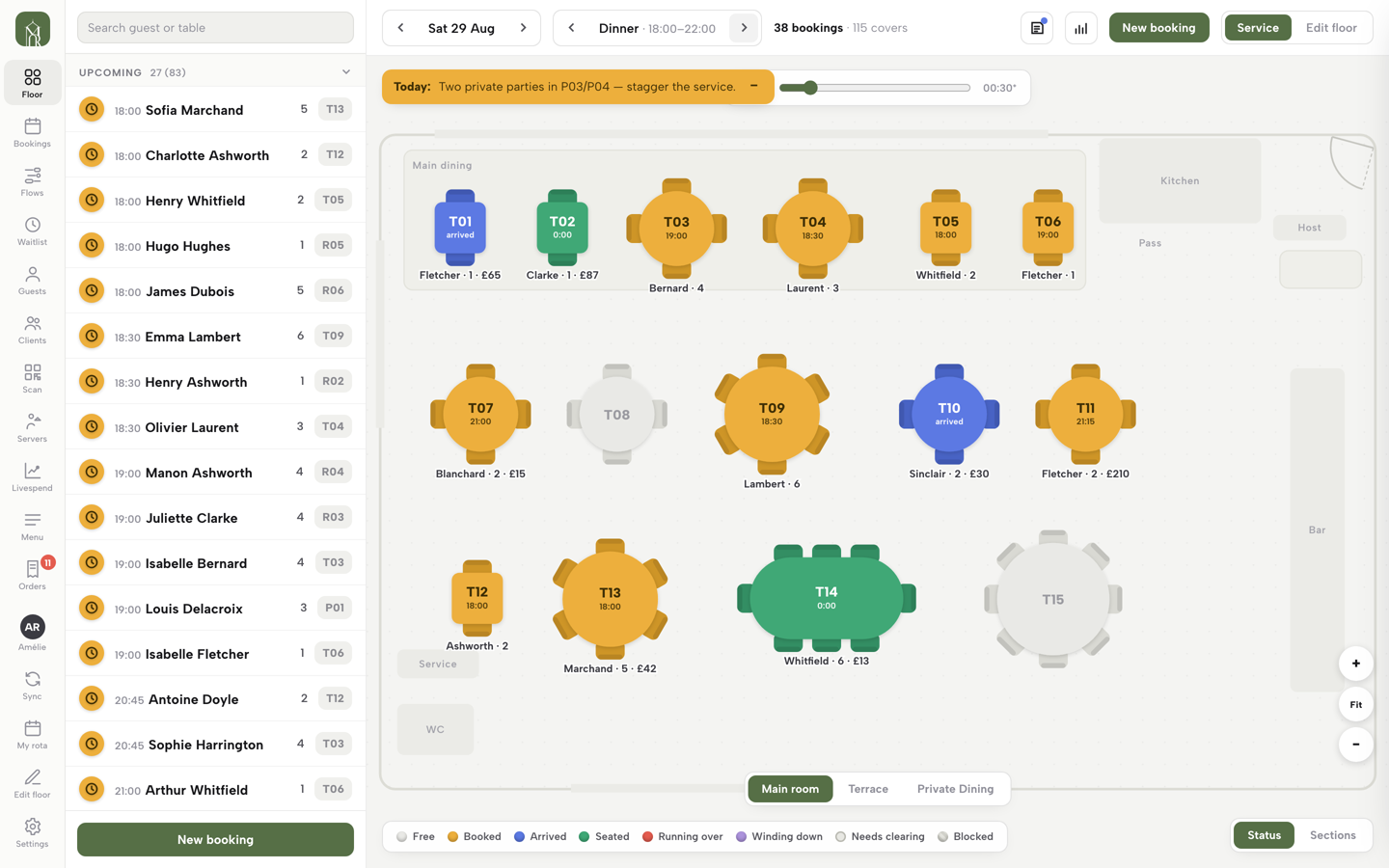
Open Service in the sidebar; the console opens on its Floor view. The header carries a date stepper and a service stepper — today's lunch or dinner, or step to any other date and service — next to a running count of bookings and covers. Below that, the room itself: every table on the plan, coloured by what's happening at it right now, with room tabs along the bottom for a restaurant with more than one room (Main room, Terrace and Private Dining here). On the left, a search box and a queue of the service's bookings, grouped as Upcoming, Arrived and Seated, show the same bookings as a list — tapping a row or a table opens the same sheet.
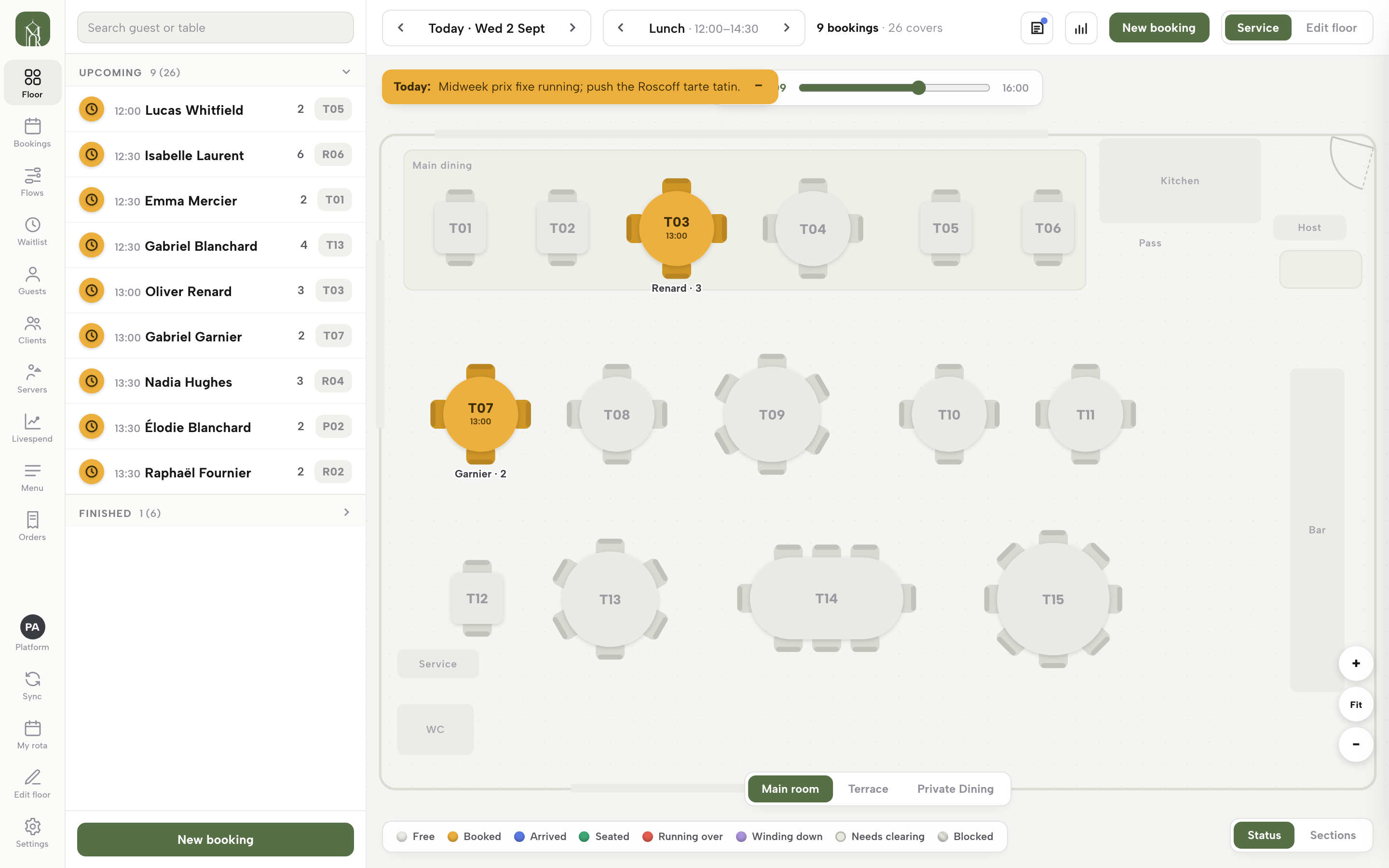
Every table's colour comes from one key along the bottom of the floor, and it's worth learning before anything else on this page: Free, Booked, Arrived, Seated, Running over (past its booked end time), Winding down (the bill's dropped or every order is paid), Needs clearing (finished, waiting on a wipe-down) and Blocked.

A Status / Sections toggle in the bottom corner switches the same floor to colour by which server owns each table instead, +, Fit and − zoom the plan, and a time slider under the header lets you preview the floor at any minute of the day without changing anything. Two icons in the toolbar open the day's note (step 8) and a pre-shift briefing, and New booking sits beside them for anything that isn't a walk-in.
Seat a party, booked or walk-in
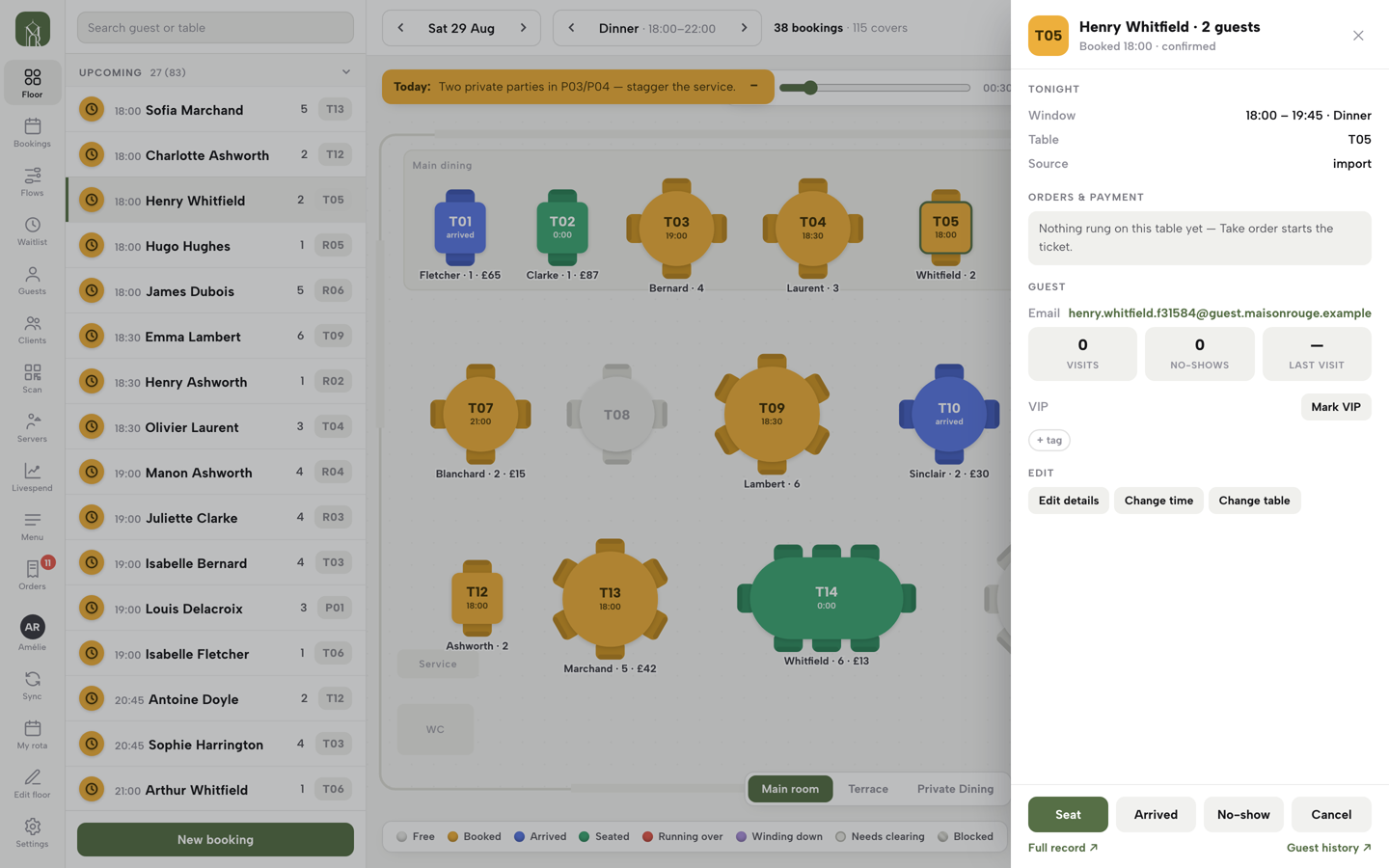
Tap any table with a booking, or a row in the queue, and its booking sheet opens on the right — the guest's name, party size, booked window, table and source, the till for the table, the guest's visit history, and Edit details, Change time and Change table underneath. The footer's first button is Seat: if the party already has a table, one tap moves it straight to Seated, with no separate Arrived step required. Arrived sits beside it for a host who tracks the waiting party first.
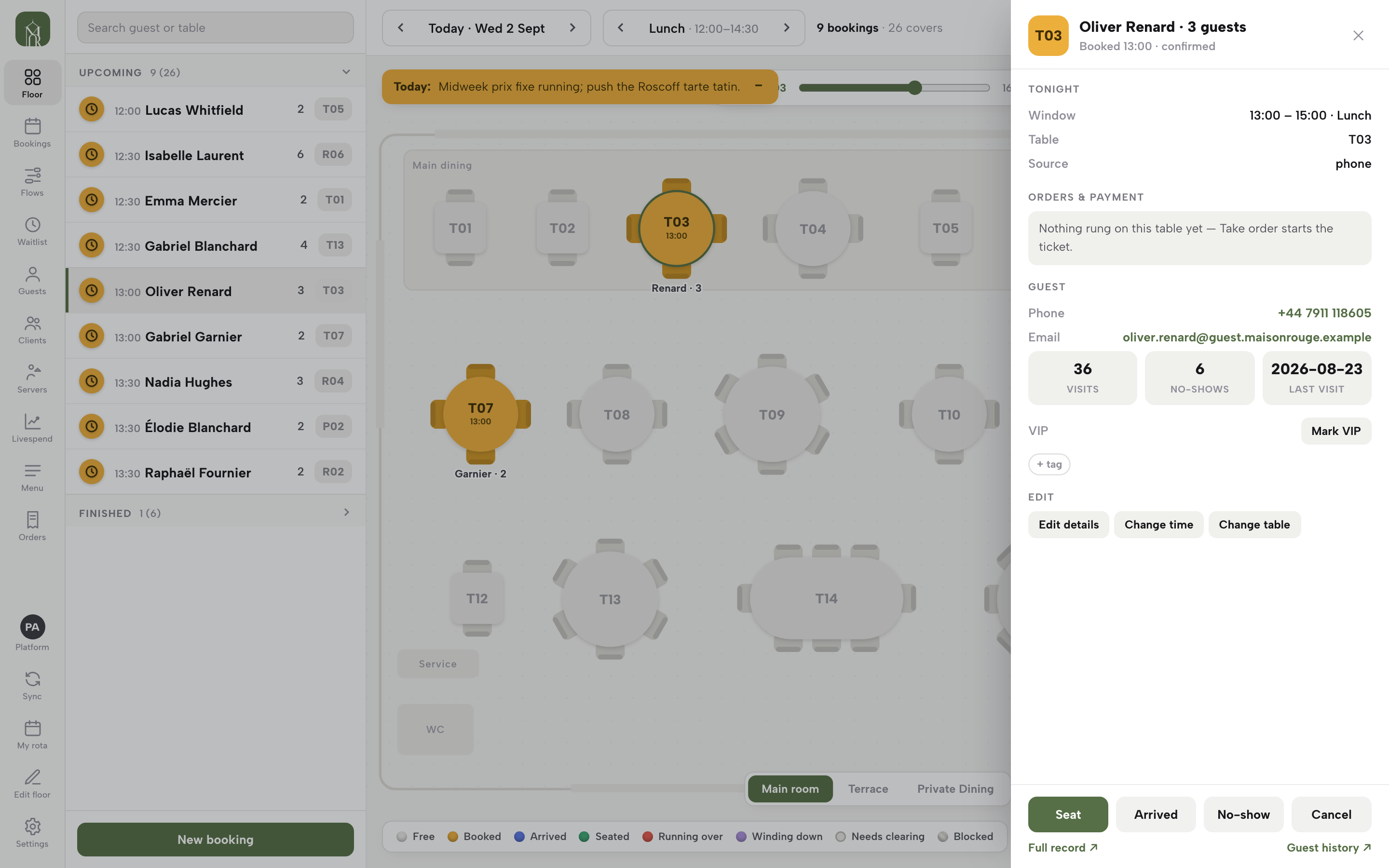
When a booking doesn't have a table yet, the sheet shows a Seat at row: up to six free tables that actually fit the party, smallest workable one first, so one tap both assigns the table and seats the guest in the same action. A Pick on the floor… button falls through to tapping (or dragging) tables directly on the plan — the way to combine two tables for a party too big for any one of them.
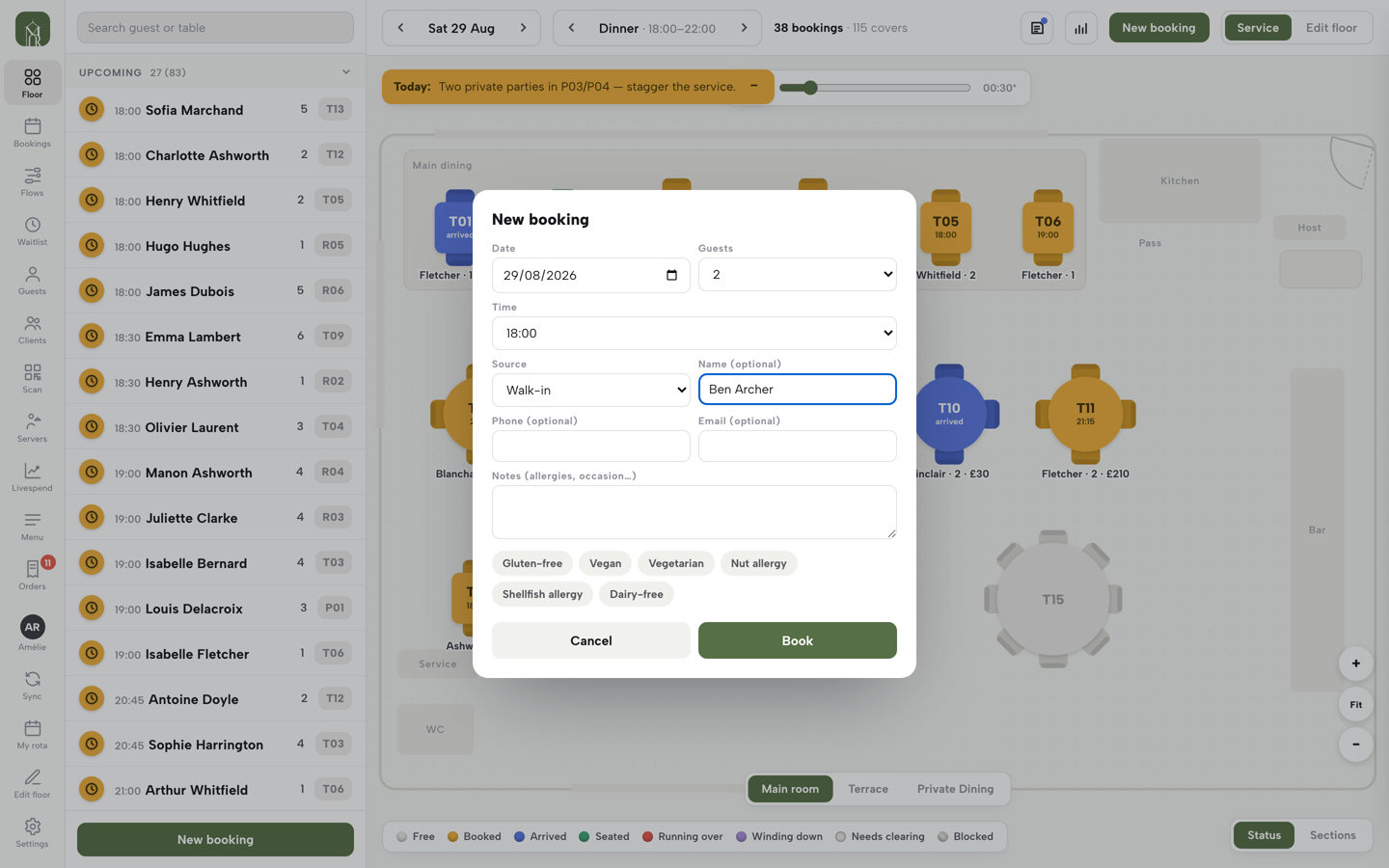
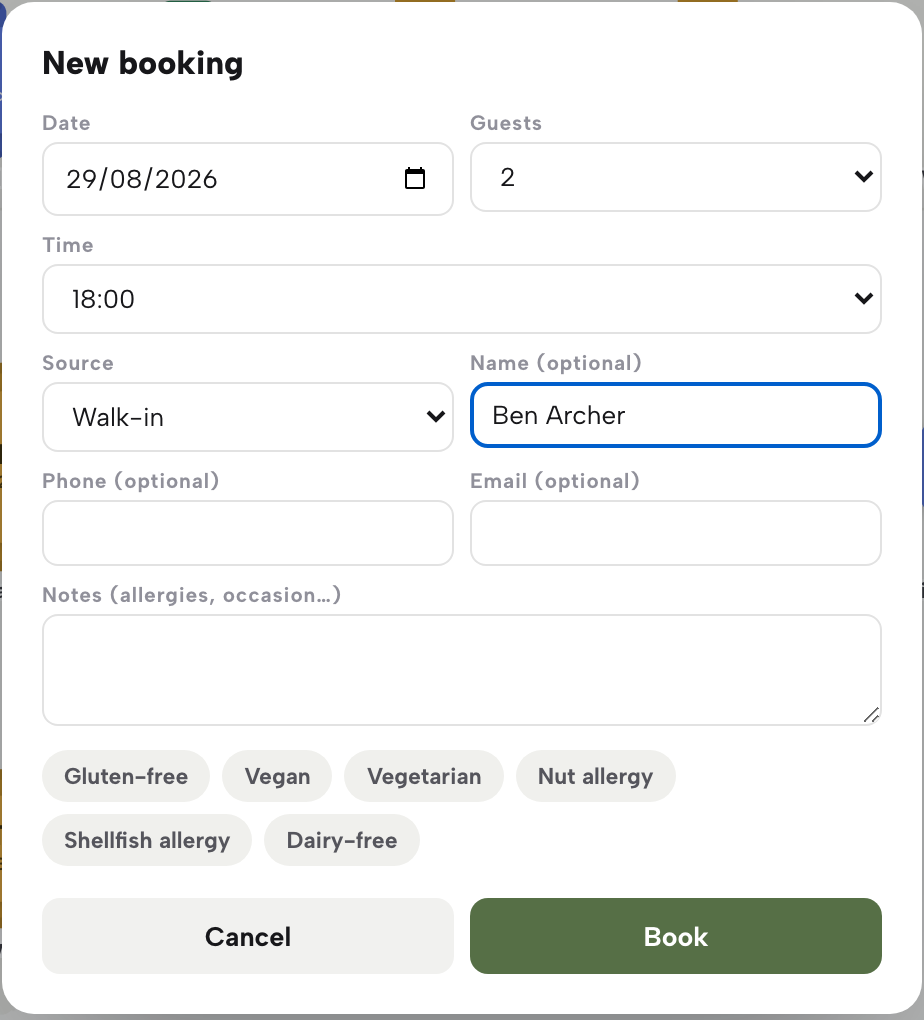
For a guest who hasn't booked, tap any free table on the plan. Its panel offers Seat walk-in here, which opens the New booking form already set to Walk-in and pointed at that table. Type a name (leave it blank and the booking is called “Walk-in”), check Guests and the Time, add a phone, email or note if you want them, and press Book — no email is needed. The walk-in is seated in one flow, not booked and then assigned as two separate jobs.
Arrived, seated, and done
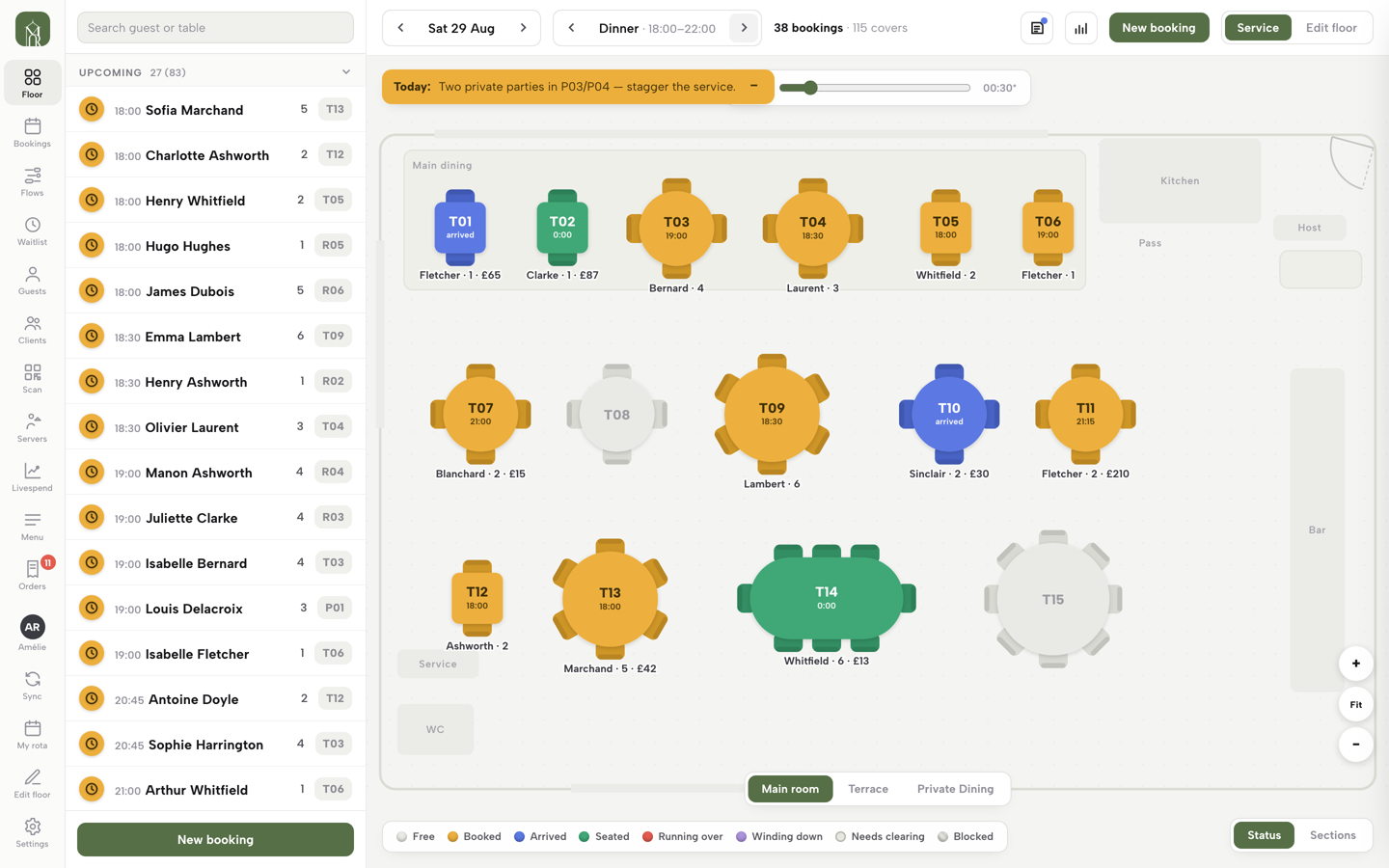
A busy Saturday shows several states at once. Below, tables T01 and T10 are Arrived (blue), T02 and T14 are Seated (green, with elapsed time under the table number), and everything else on the plan is still Booked, waiting for its guests to arrive. Under each table you read the guest's surname, the party size and, once something's been rung, what the table has spent so far — £65 on T01, £87 on T02.
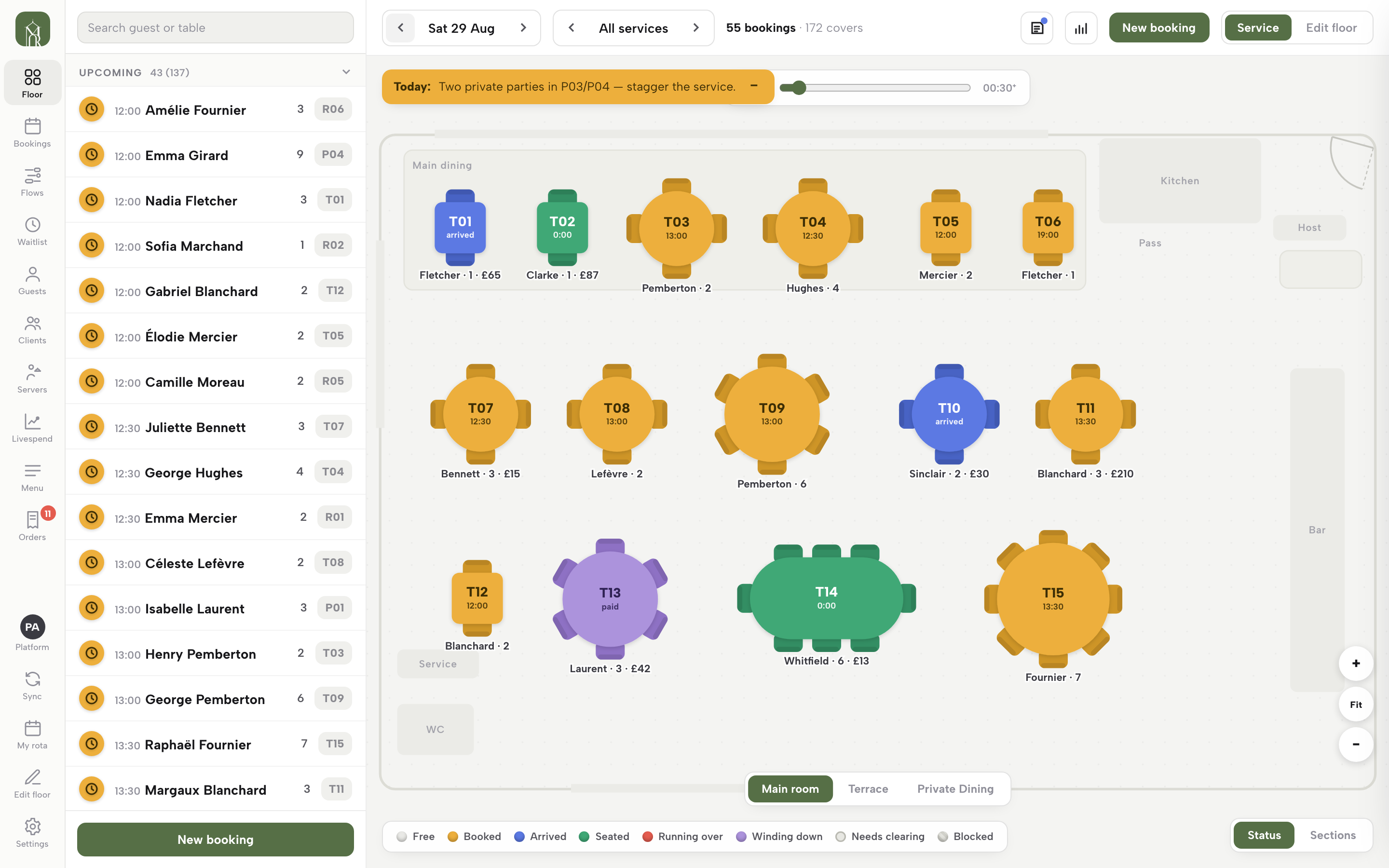
Each move is one tap on the sheet's first button: Seat for a booked or arrived party, then Complete once they've gone, with no confirmation dialog. No-show and Cancel — visible on Henry Whitfield's sheet in FIG. 03 — are two-tap: the first tap arms the button and asks “Sure?”, the second within a few seconds confirms it, which is enough friction to stop a mis-tap without slowing the room down with a pop-up. A seated table that runs past its booked end time turns Running over; once its visit finishes, it turns Needs clearing and reads “tap to clear” — one tap on the table confirms it's been wiped down, and if nobody taps, it drops off after 45 minutes rather than staying flagged all night.
Take an order at the table
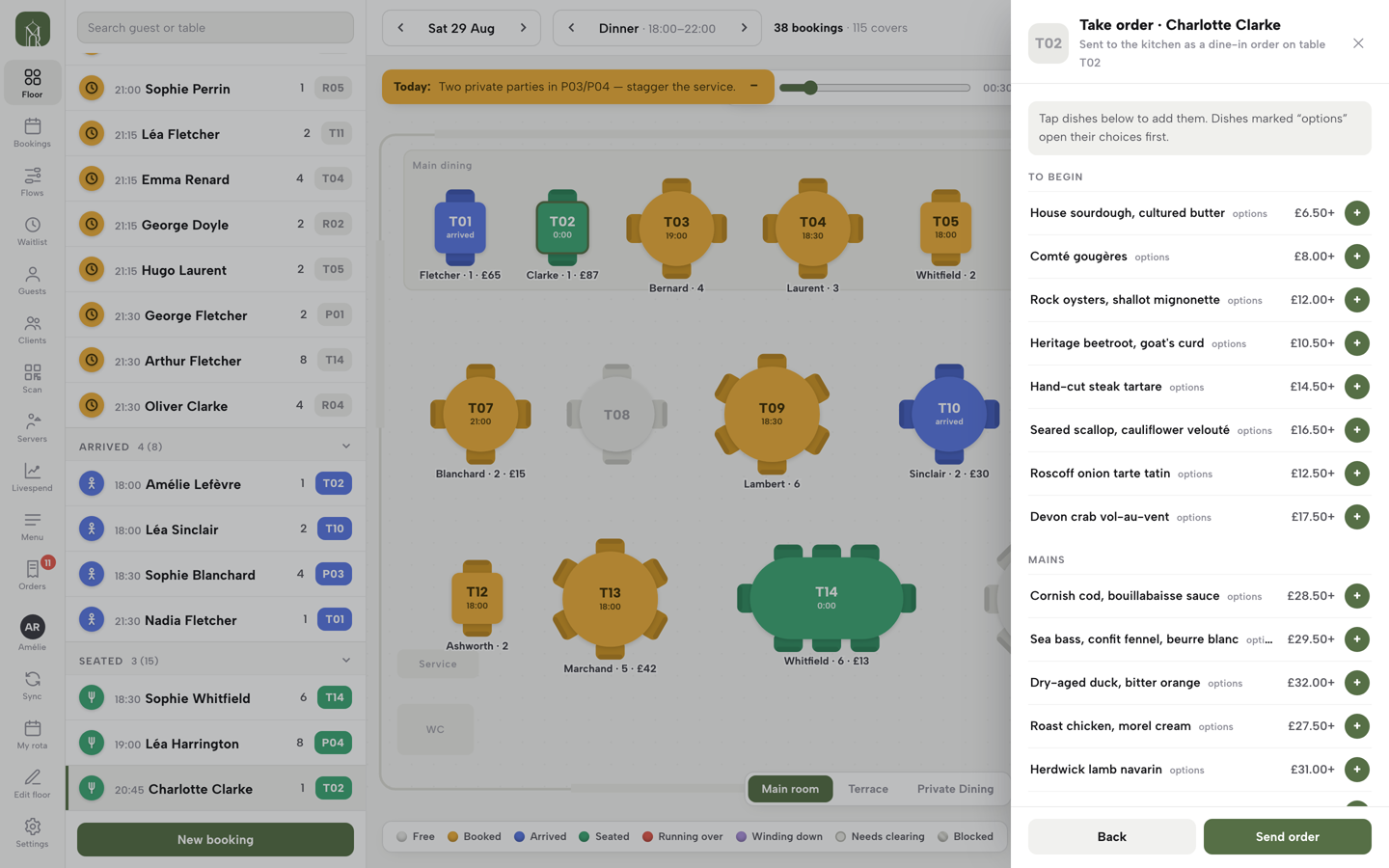
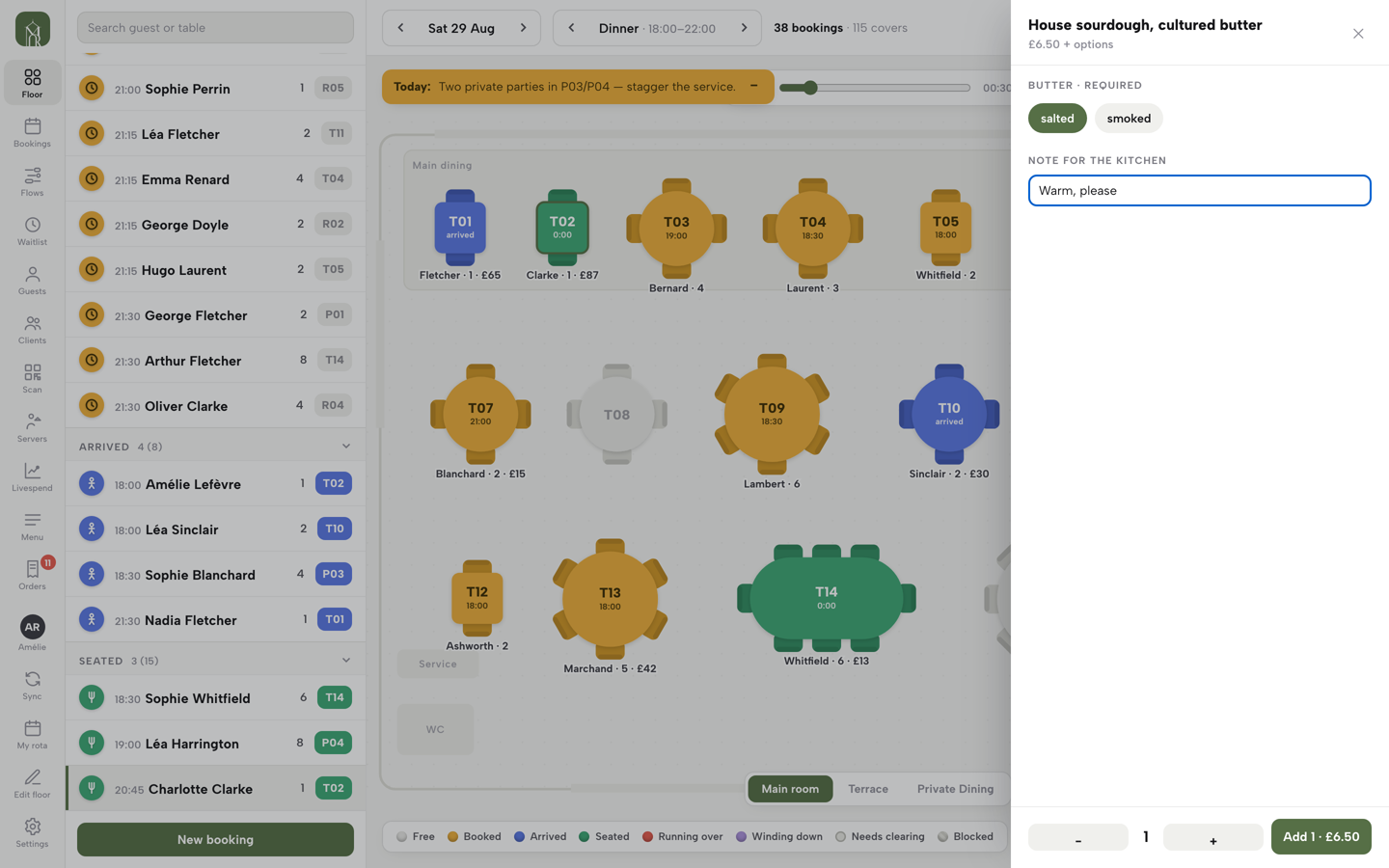
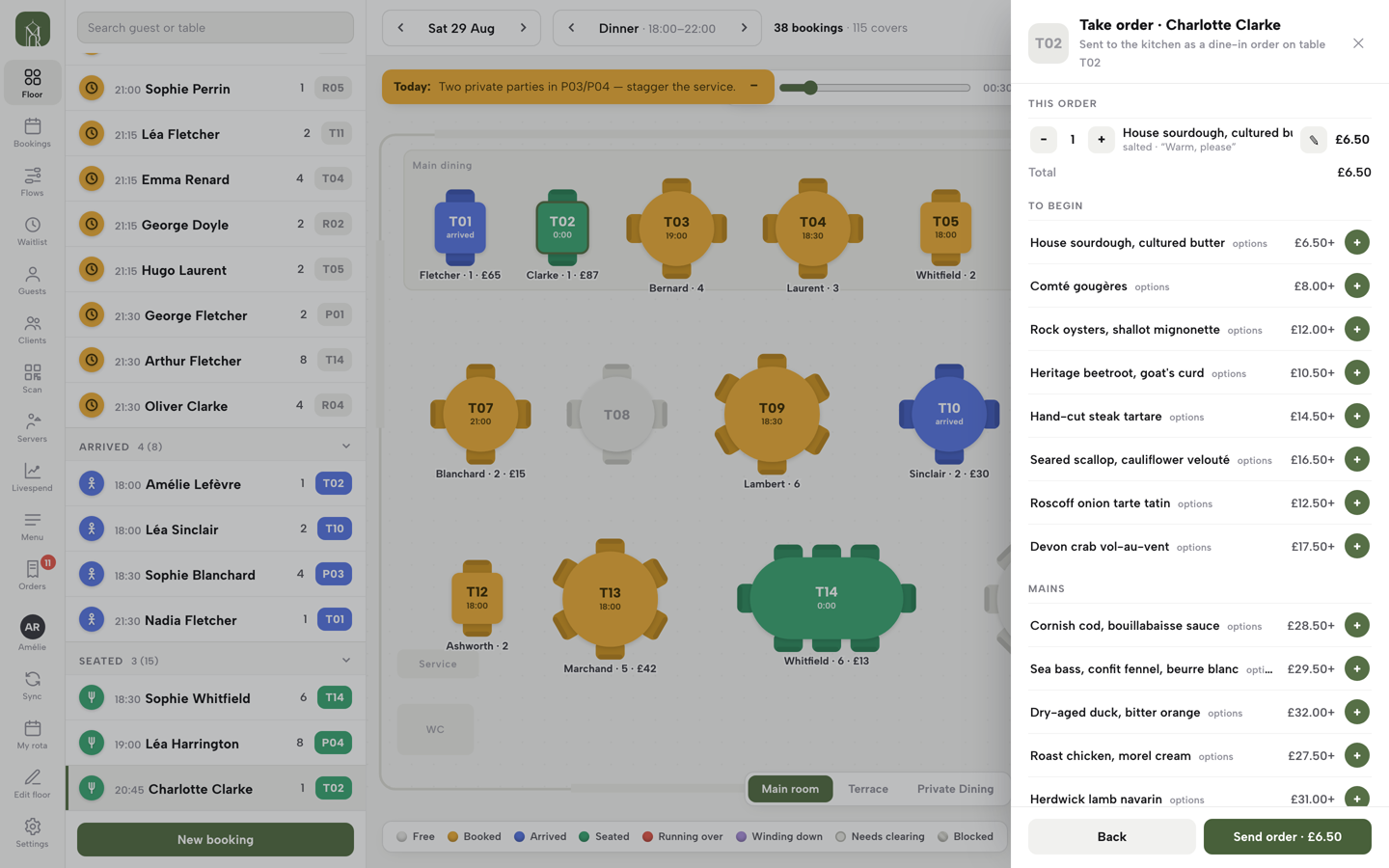
Once a party is arrived or seated, its sheet gains a Take order button. Press it and the order pad opens on the same sheet, headed “Sent to the kitchen as a dine-in order on table T02”: every published menu section, its dishes and their prices, with sold-out items marked and disabled so nothing gets rung that the kitchen has run out of. A dish with sizes or paid add-ons is marked options and opens its choices first — the required ones enforced before Add switches on — with a free-text Note for the kitchen, like “sauce on the side” or “no onions”, and a quantity stepper. A plain dish adds to the cart in one tap.
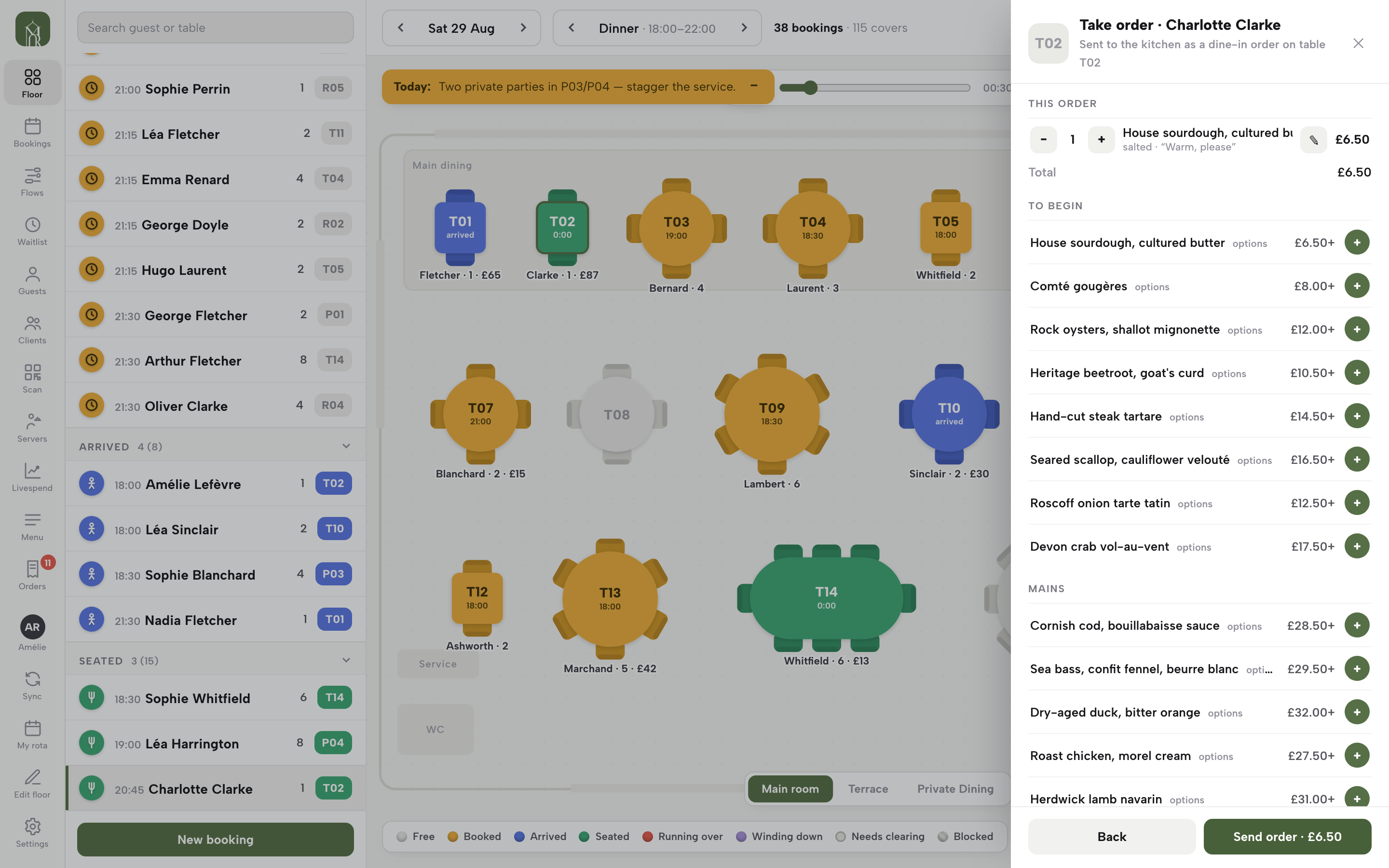
The cart shows a running total as you build it, and each line keeps its note and its own − / + so a quantity can change before anything is sent. Press Send order and it's rung — priced, saved with the table's service charge where one is set, and, on a restaurant with a kitchen printer connected, queued straight to the printer in the same action, no separate step. It lands on this table's till exactly the way the two orders on Charlotte Clarke's table do in the next figure: one card per order, ready to adjust or pay.
Adjust the order
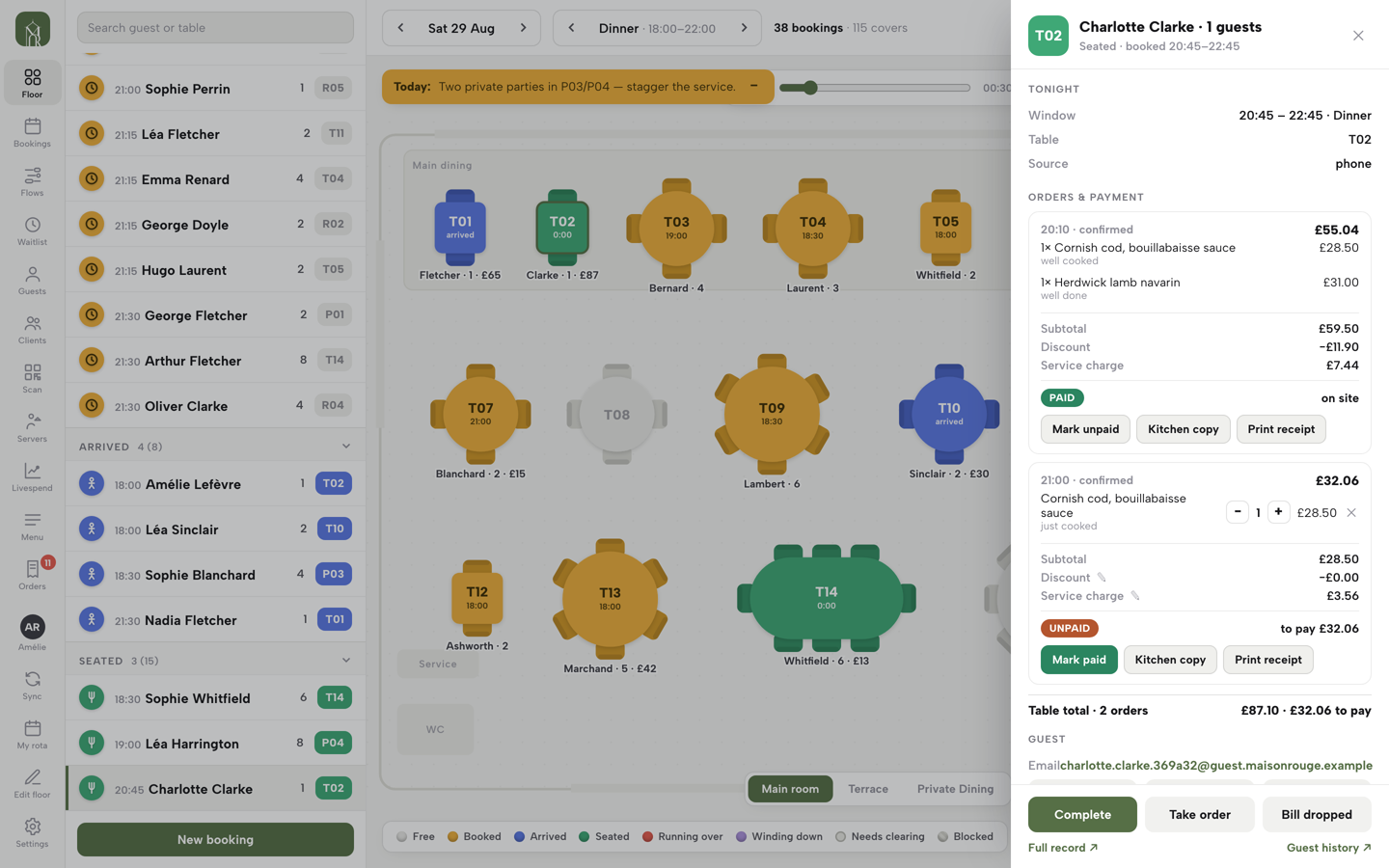
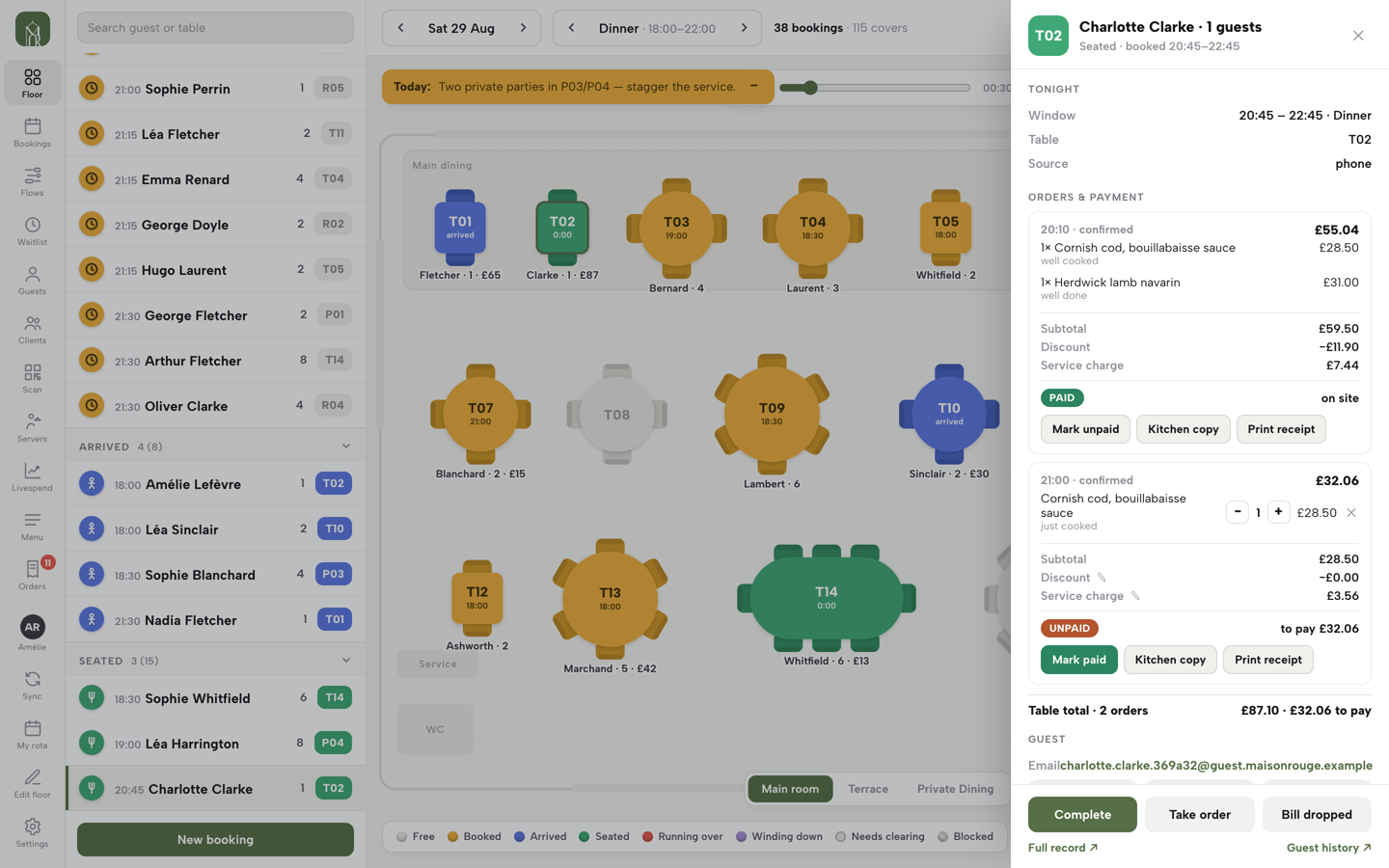
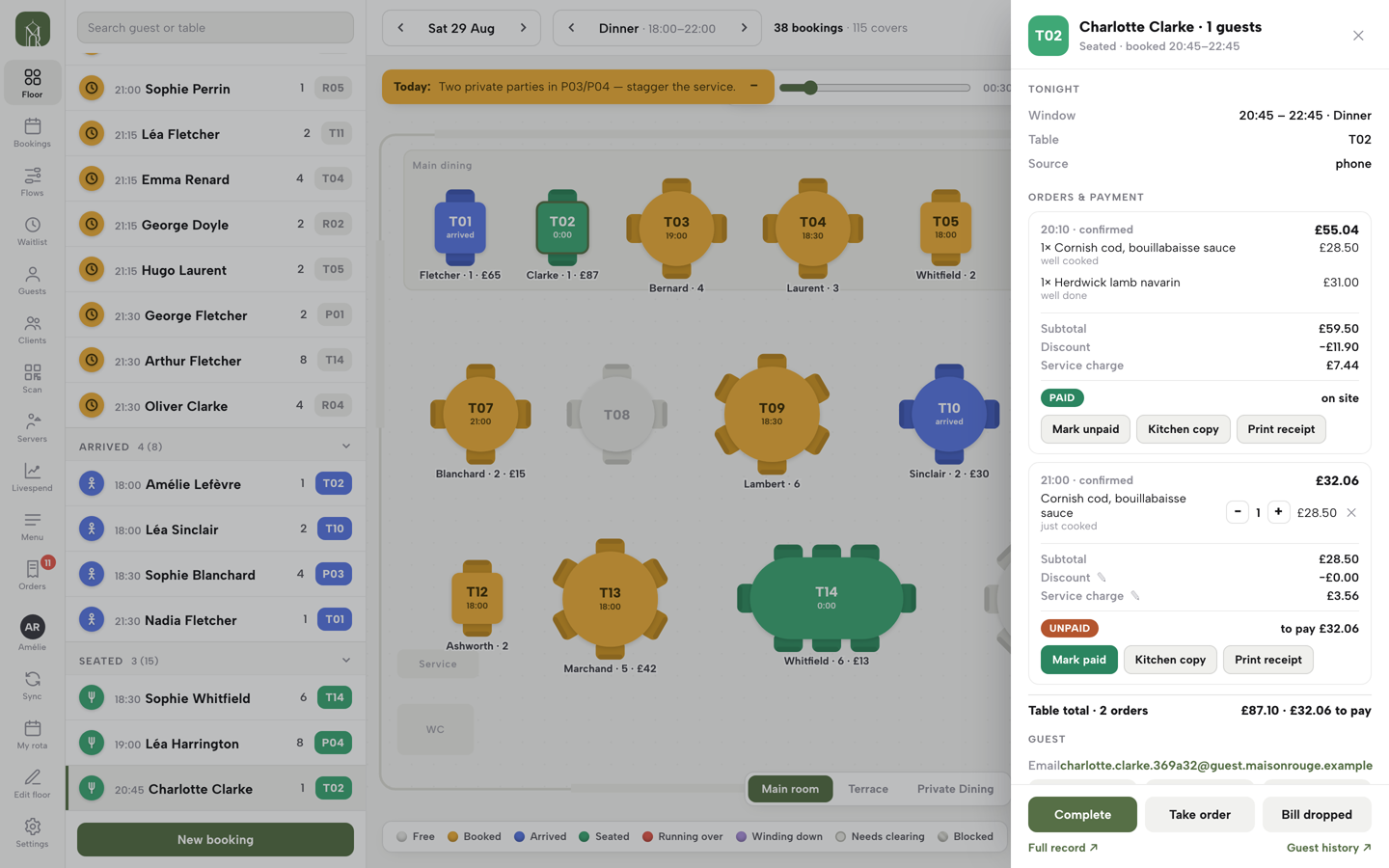
The booking sheet's Orders & payment block is the table's till, reading straight off what's actually been rung on it. Charlotte Clarke's table below has taken two separate orders across the evening: an earlier one, already paid, and a second, still open.
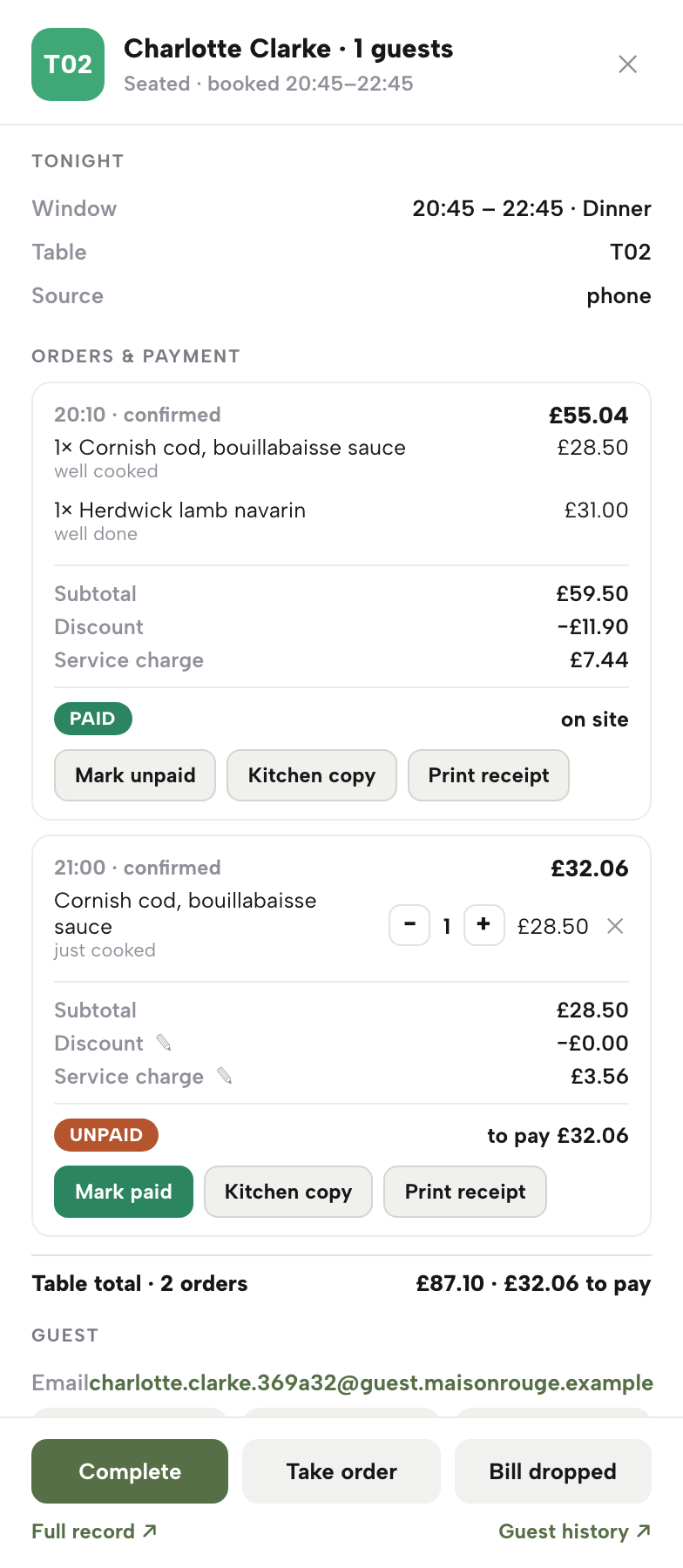
On the still-open order, every dish carries − / + steppers and a cross to cancel a dish; a cancelled dish stays visible, struck through, with a one-tap restore. A pencil next to Discount opens quick 5/10/20% buttons, a custom £ amount and a reason note that's saved with it; a pencil next to Service charge works the same way, with 10% and 12.5% shortcuts, None, or a custom £ or %. None of this touches the paid order above it — once an order is marked paid, its steppers and pencils disappear and its totals lock, which is why the paid order only offers Mark unpaid, Kitchen copy and Print receipt.
Combine a table's orders into one bill
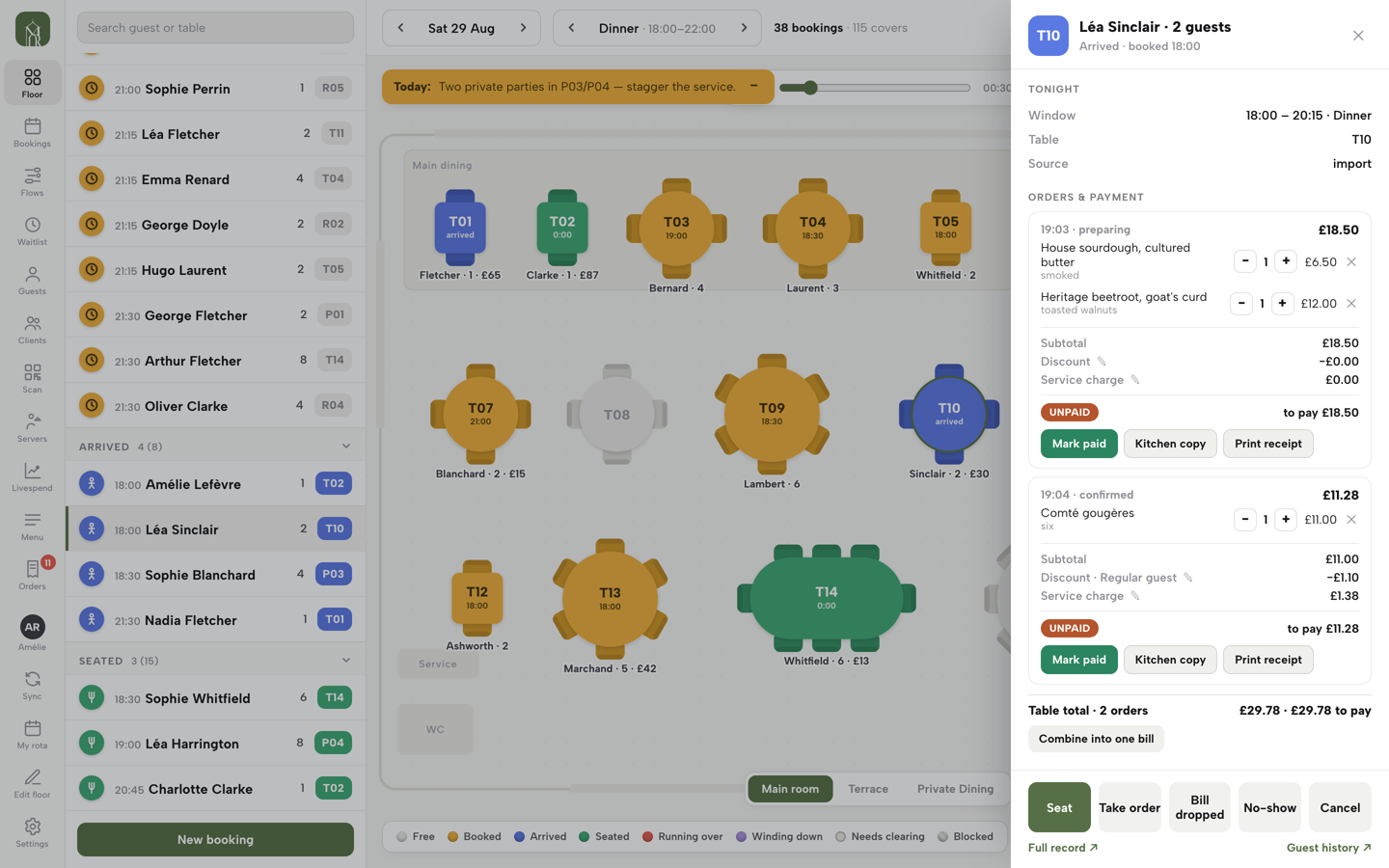
When a table has rung more than one order — starters sent, then mains sent separately — and two or more of them are still open and unpaid at the same time, a Combine into one bill button appears under the table total, and one tap merges them into a single order with one combined total. It only offers to merge orders that are both still active and unpaid, which is exactly why it isn't offered on Charlotte Clarke's table in FIG. 07: her first order is already paid, so there's nothing left on that side to combine — the second order simply stays on its own until it's paid too.
Above the button, a Table total line always shows how many orders sit on the table and what's still owed the moment there's more than one order or anything unpaid — £87.10 across two orders on Clarke's table, £32.06 of it still to pay.
Take payment
Every order on the till in FIG. 07 carries a PAID or UNPAID pill. For an order taken on-site — cash or a card terminal at the table — press Mark paid once you've settled it; the same button flips back to Mark unpaid if you need to undo a mis-tap. An order the guest already paid through their own online checkout is settled by Stripe automatically and carries no manual toggle here — the sheet just shows how it was paid, online or at the till.
Marking the last unpaid order on a table paid completes the visit on its own: the booking moves to Complete and the table switches to Needs clearing, reading “tap to clear” until someone taps it, ready for the next party after that. Bill dropped, next to Take order on the sheet's footer, is a lighter signal for the floor — flagging that the bill is out with the table before it's actually settled, which turns the table Winding down.
Post a note, or block a table
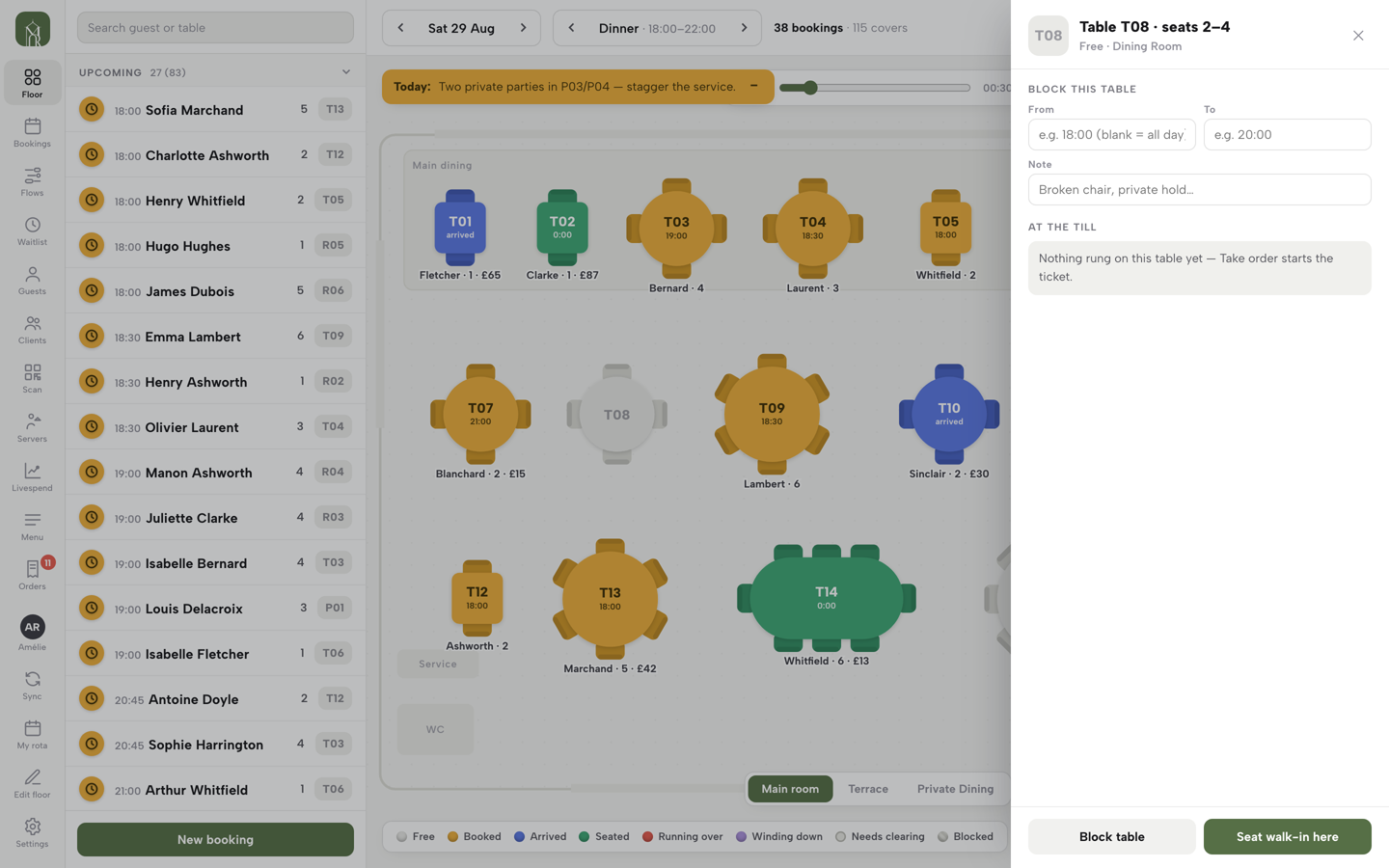
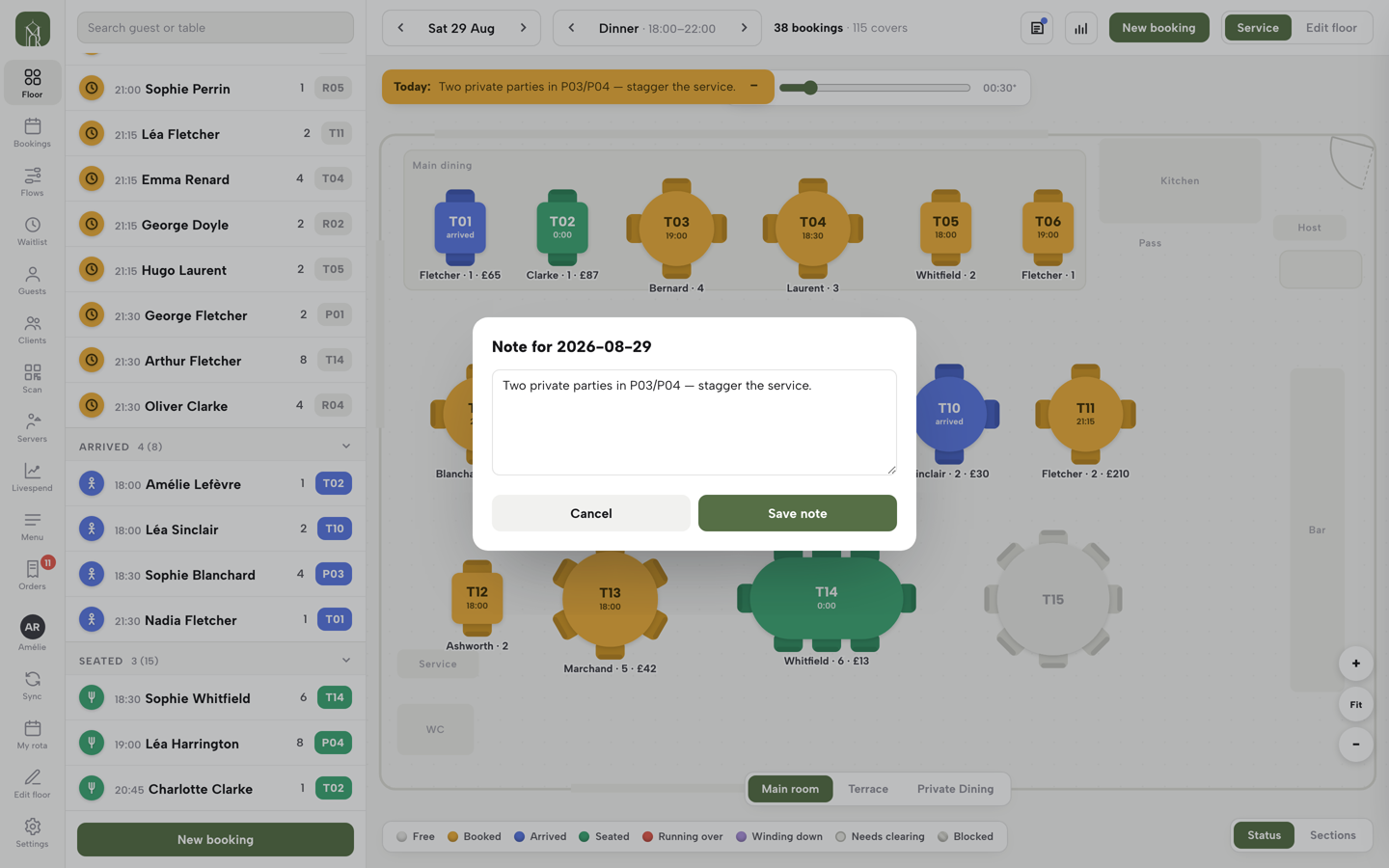
Two signals sit on the floor itself rather than on any one booking. The note icon in the toolbar (Note for the day) opens a short form for the day — free text, saved with Save note — and while it's set, it runs as a banner across the top of the floor that any host or server can tuck into a small pin with one tap and bring back with another, so it never blocks the view underneath it. The Saturday floor above carries one: “Two private parties in P03/P04 — stagger the service.” — exactly the kind of thing worth the whole team seeing without a group text.
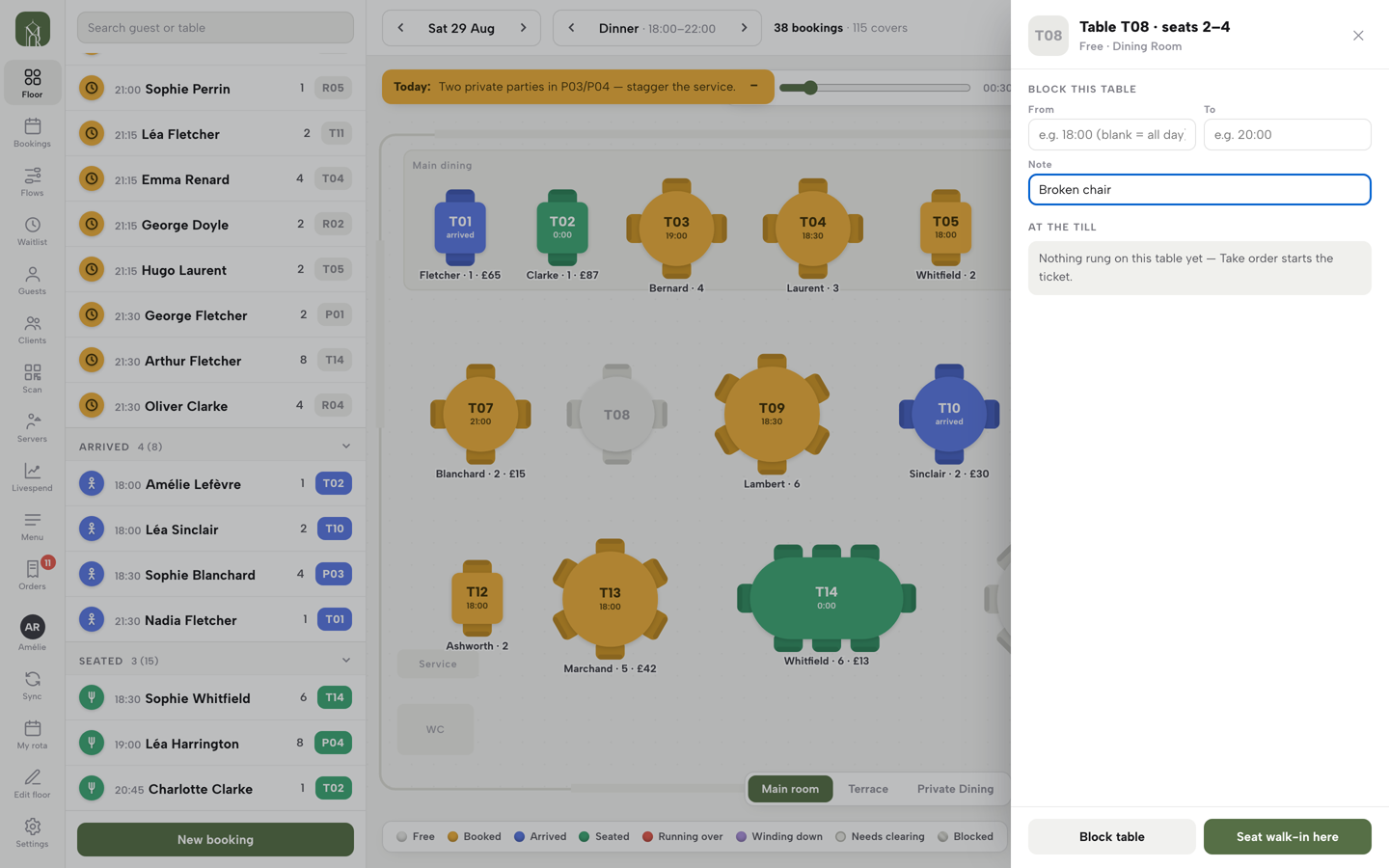
A free table's panel — the same one that offers Seat walk-in here in step 2 — also offers Block table: an optional From and To time (leave both blank to block it for the whole day) and a Note, like “Broken chair” or “private hold”. A blocked table shows the key's diagonal-stripe pattern and is left out of the Seat at suggestions until you press Remove block on the same panel.
Read the floor once, and the rest follows the colours: seat what's booked, ring what's ordered, adjust and pay what's on the till, and let a completed, paid table free itself — one screen, start to finish.
Next · run tonight's service
Next: open the floor
Everything above is live the moment you open it — no setup step first. Seat your next booking and watch its colour change.