05 · Kitchen management

A kitchen that runs from the order, not from shouting

Route every dish to its station, hold the mains until the table is ready, sell a dish out the moment it runs out and know what each plate costs. For independent kitchens that run on paper tickets and memory.

  • 1 countfor a dish across website, QR menu, order pad and till
  • 14UK allergens as labels on each dish ticket
  • 2 roleskitchen tickets and guest receipts, one printer each
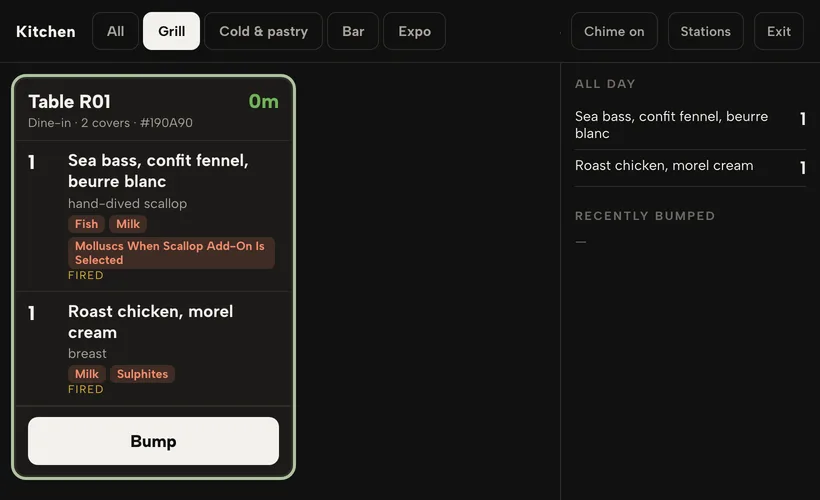
The kitchen display on the Grill tab: one ticket for Table R01 with two fired mains, their allergens, a green timer, a Bump button and an All day count on the right.

The kitchen finds out last

Starters and mains land on the pass together. The grill cook reads lines that belong to cold. A dish ran out an hour ago and is still on the website. A kilo of fillet goes missing and nobody sees it until the month-end figures.

Each of those is a remake, a refund or a margin you only discover later.

Set up the board

A screen for each station

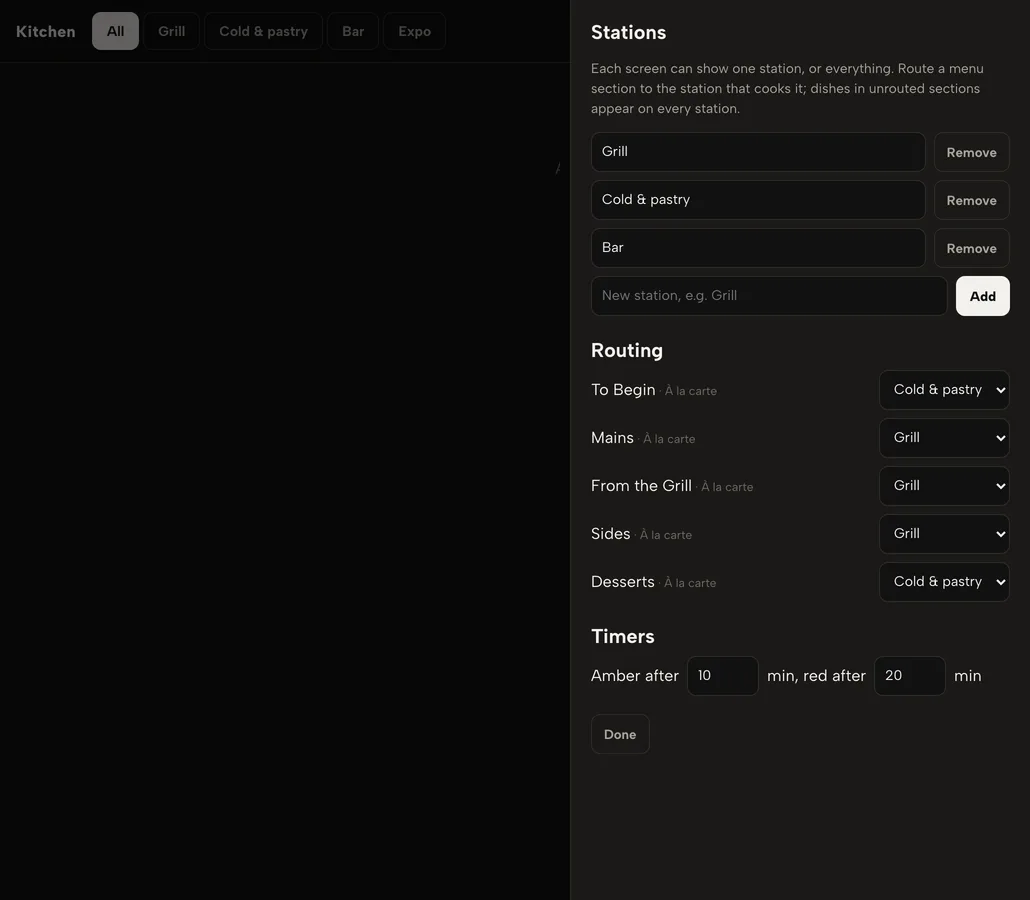
Open Kitchen in the sidebar on a tablet or wall screen. Click Stations, add Grill, Cold & pastry, Bar, then route each menu section once. A cook sees only the dishes their station makes.

  • One tab per station, plus All and Expo
  • A section left unrouted shows on every station, so nothing is missed
  • Amber and red timers, set by you (starting at 10 and 20 minutes)
  • Chime on every new ticket; an offline banner if the connection drops
Create stations, step by step
The Stations drawer: Grill, Cold & pastry and Bar, each menu section routed to a station, and amber and red timers.
To Begin and Desserts to Cold & pastry; Mains, Grill and Sides to Grill.

Every order, one board

Tickets with the detail the cook needs

Website, collection, delivery and table orders all appear as tickets with the table or guest name, covers and a running timer. Each dish shows its options, the server's note and its allergens.

  • Tap a dish to tick it off; the order moves to preparing, then ready
  • Allergens from the dish record show as labels on the line
  • Timer turns amber, then red, with the ticket's border
  • Bump clears a station's part; the table is ready when every station has bumped
Read a ticket and bump it
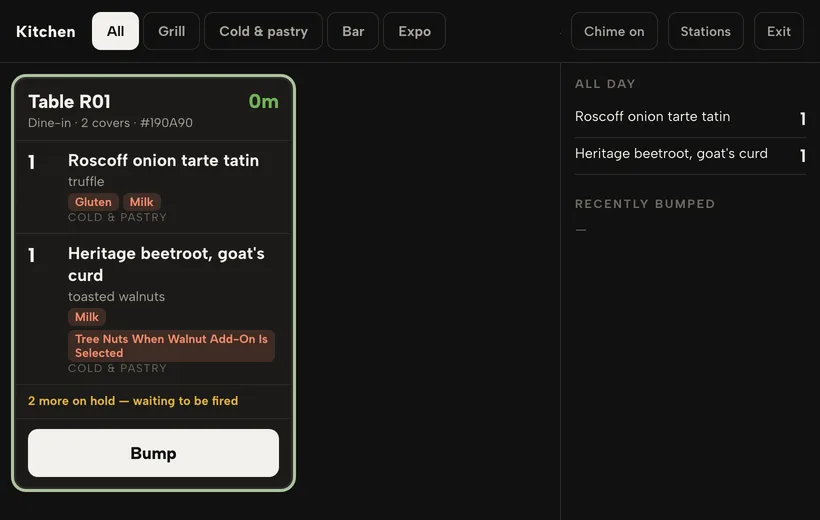
The All tab: a dine-in ticket for Table R01 with each dish's options, allergen labels, its station, a green timer and a Bump button.
Allergens sit under each dish, not on a separate sheet.

Control the pace

Hold the mains, then fire them

On the order pad, press HOLD on the mains and send the order. Starters go straight to the stations; the board counts the rest as on hold. When the table is ready, press Fire held dishes on its sheet.

  • Held dishes stay off every station and off the all-day count
  • Fired mains arrive marked FIRED, with their timer starting
  • Press HELD again to release a dish before sending
  • A message confirms how many dishes were fired
Hold and fire courses
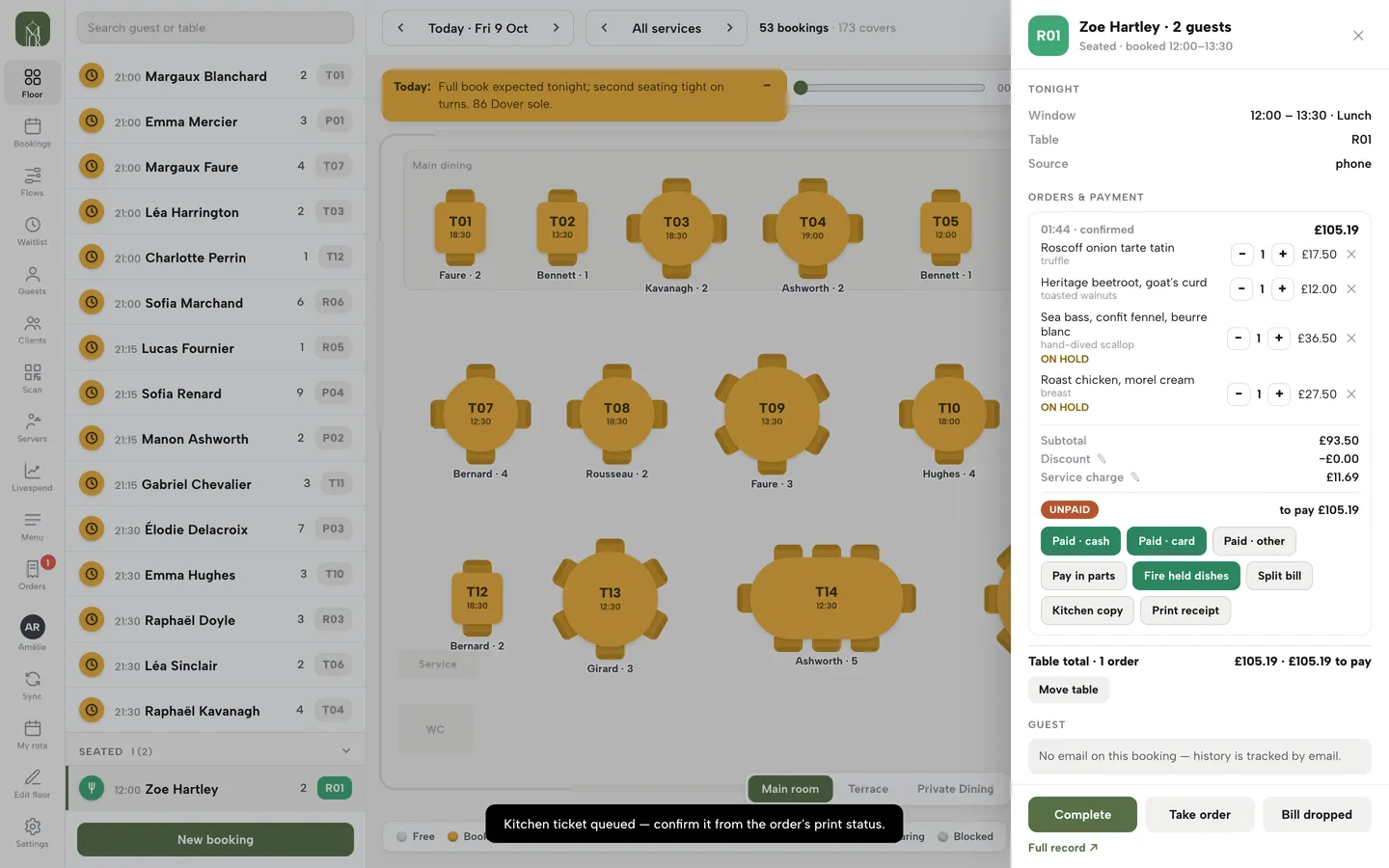
A table's sheet in Service: two starters sent, two mains marked ON HOLD, and a Fire held dishes button above Kitchen copy and Print receipt.
Mains read ON HOLD until Fire held dishes is pressed.

At the pass

Expo, all-day counts and recall

The Expo tab shows each whole table as one ticket with a prepared count, such as 0/4. Press Mark ready when it is complete, then Served when it leaves. The All day panel totals dishes still to cook.

  • All day follows the tab: the grill sees grill dishes, the pass sees all
  • Recently bumped lists your last eight bumps
  • Recall puts the dishes back as not prepared, timer still running
  • Untick a single dish by tapping it again
Use Expo and recall
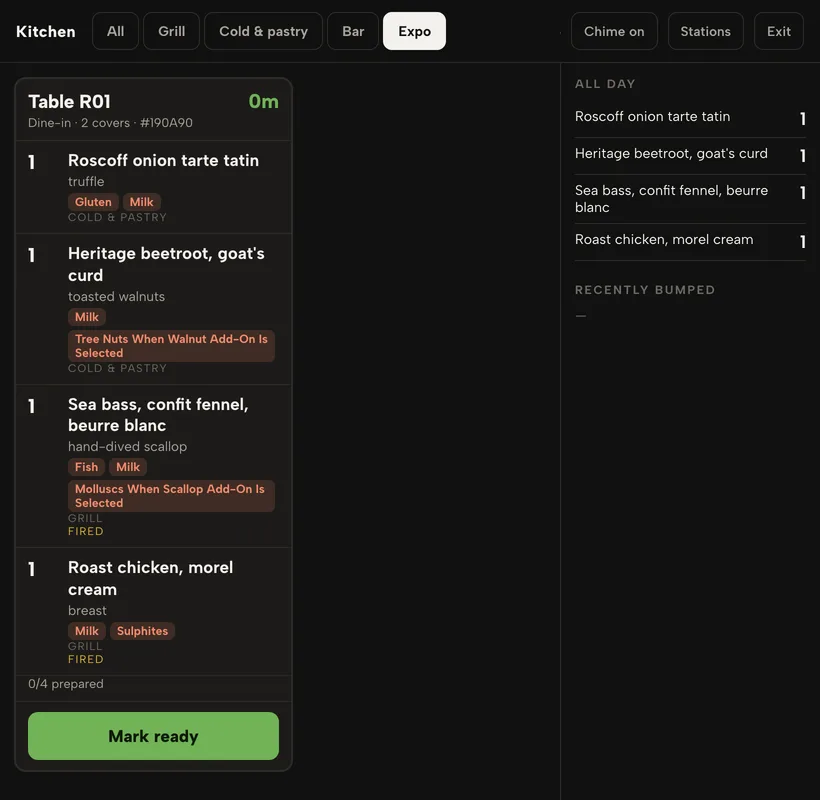
The Expo tab: Table R01 as one ticket with four dishes, 0/4 prepared and a green Mark ready button, with the All day totals on the right.
The pass sees what is still missing before the table is served.

Stop selling what you have run out of

Count portions, sell out automatically

In Service, open Menu and press Count on a dish. Type the portions left, an optional daily reset and a warning level. Every order takes one off, from any channel. At zero the dish sells out everywhere.

  • Cancelling a dish or order gives portions back
  • Online guests stop at zero; your team can ring in one more
  • Until close sells out for tonight and returns itself
  • Sold out stays off until you press Back on
Count portions and sell out
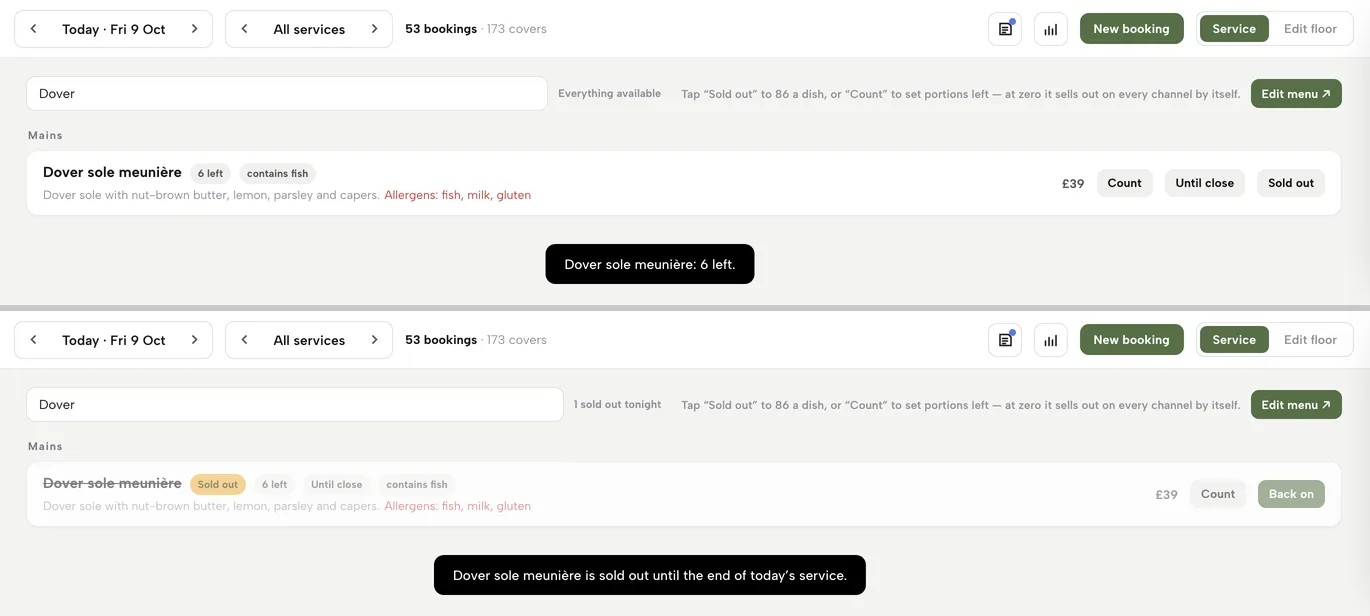
Service Menu board for Dover sole meunière in two states: a 6 left label with Count, Until close and Sold out buttons, then struck through with Sold out and Until close labels and a Back on button.
Top: 6 left. Below: sold out until the end of service.

Paper when you want paper

Kitchen tickets that print themselves

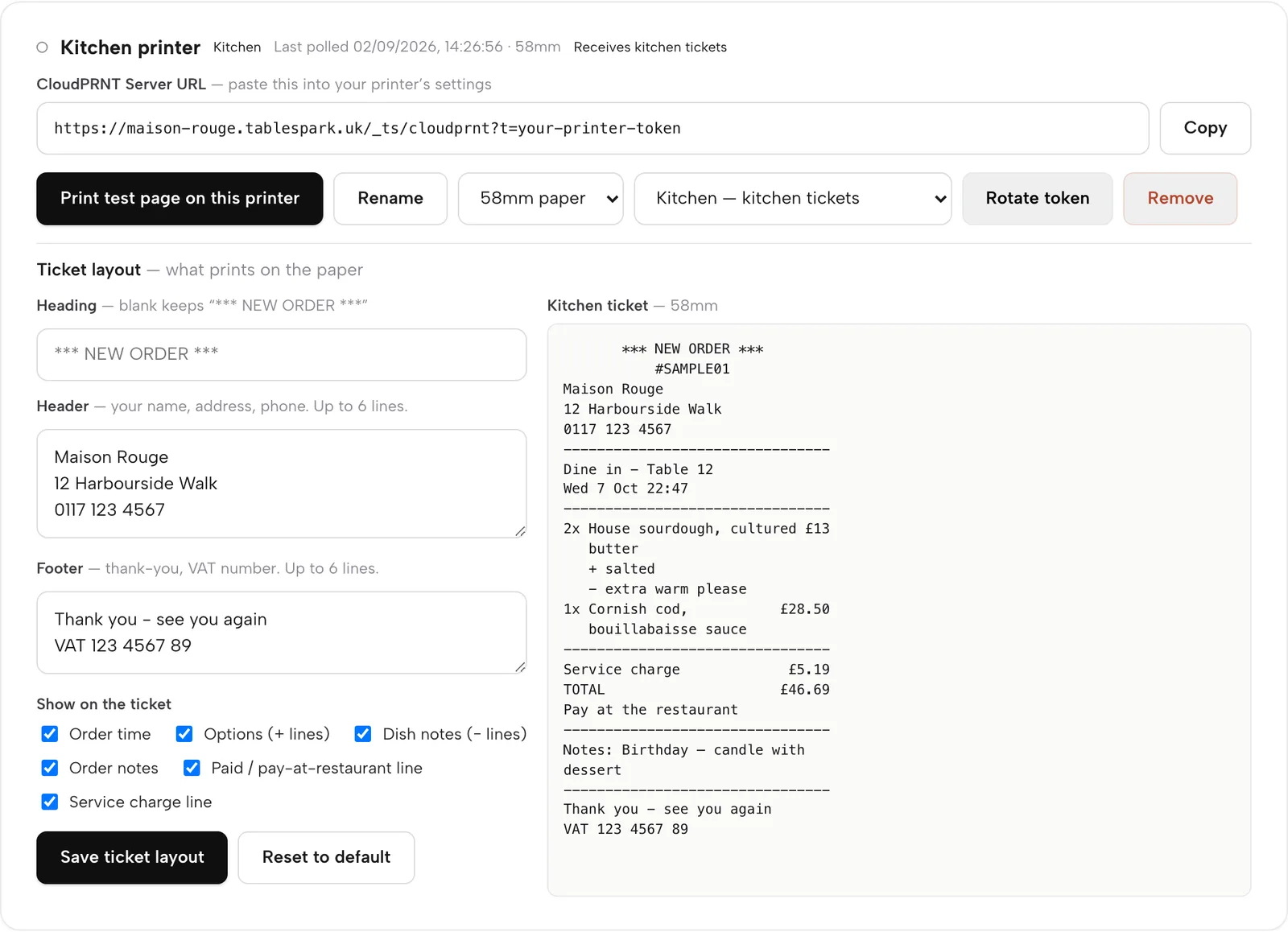
Add a printer in Settings, paste its Server URL into the printer once and set its role. Online orders and orders sent from the order pad print on the kitchen printer; guest receipts print on the front-of-house one.

  • Edit the heading, header, footer and six show-or-hide lines, with a live preview
  • Print test page, then check your first few real tickets
  • Each ticket's print status shows on its order in Orders
  • Reprint or Kitchen copy replaces a jammed ticket
Set up printers and receipts
Settings, Kitchen printer: the CloudPRNT Server URL, 58mm paper, the Kitchen role, a Print test page button, ticket layout fields and a live kitchen ticket preview.
The preview is drawn by the same code that feeds the printer.

Know the cost of a plate

Ingredients and recipe costing

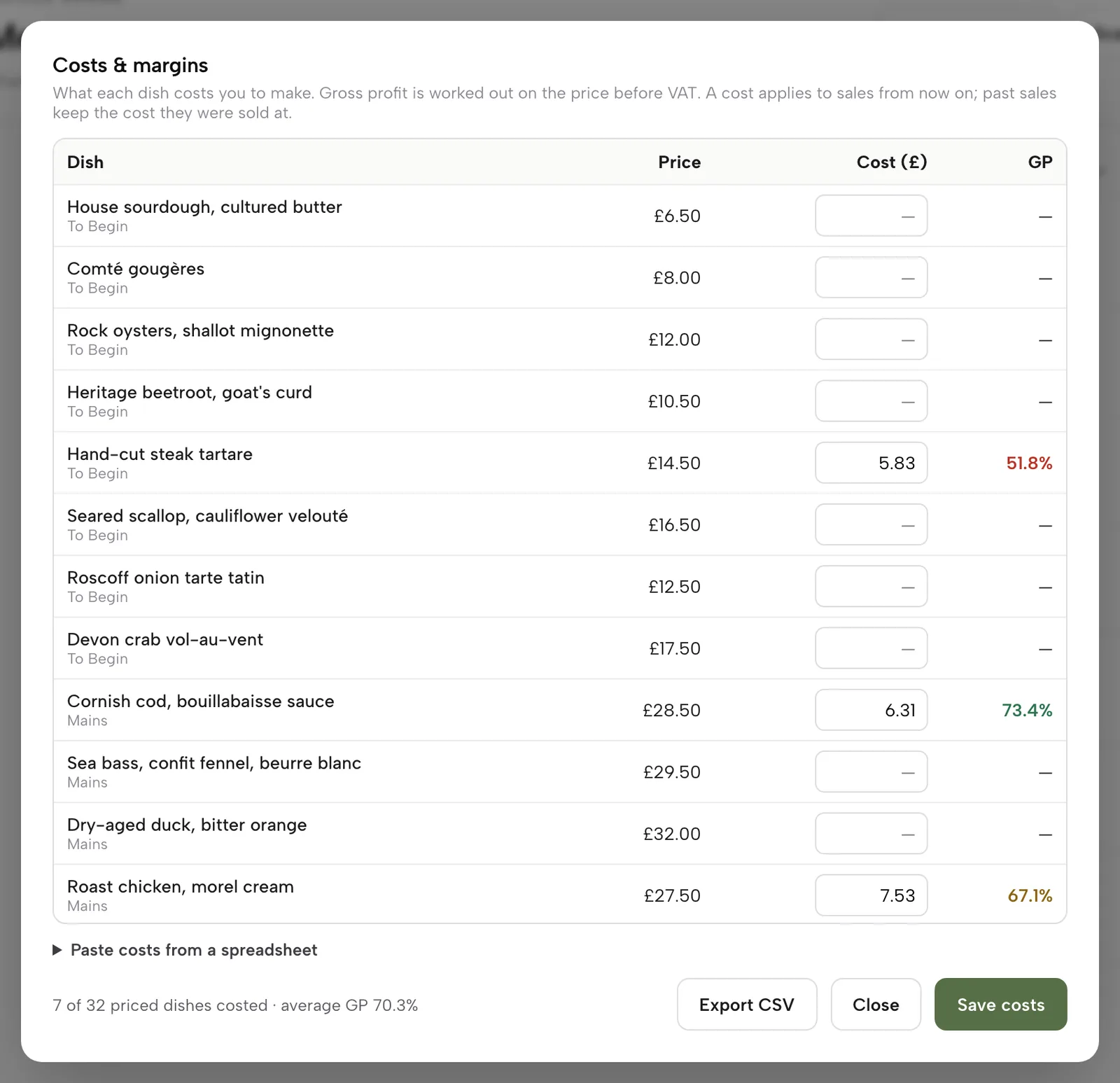
Add suppliers, then ingredients with a pack size, pack price, par level and storage. Build each dish's recipe by amount per portion. Food cost and GP show beside the dish and follow every price change.

  • GP is worked out before VAT: green, amber under 68%, red under 60%
  • Menu, Costs & margins lists every dish; paste costs or export CSV
  • Selling a recipe dish takes its ingredients off stock; a void puts them back
  • Everyone can read stock; owners, admins and editors set it up
Build recipes and read margins
Costs & margins: every dish with its price, cost to make and GP, the tartare at 51.8% in red, the cod at 73.4% in green and the roast chicken at 67.1% in amber.
Red, amber and green GP, read before VAT.

Find what went missing

Deliveries, waste, stocktakes and variance

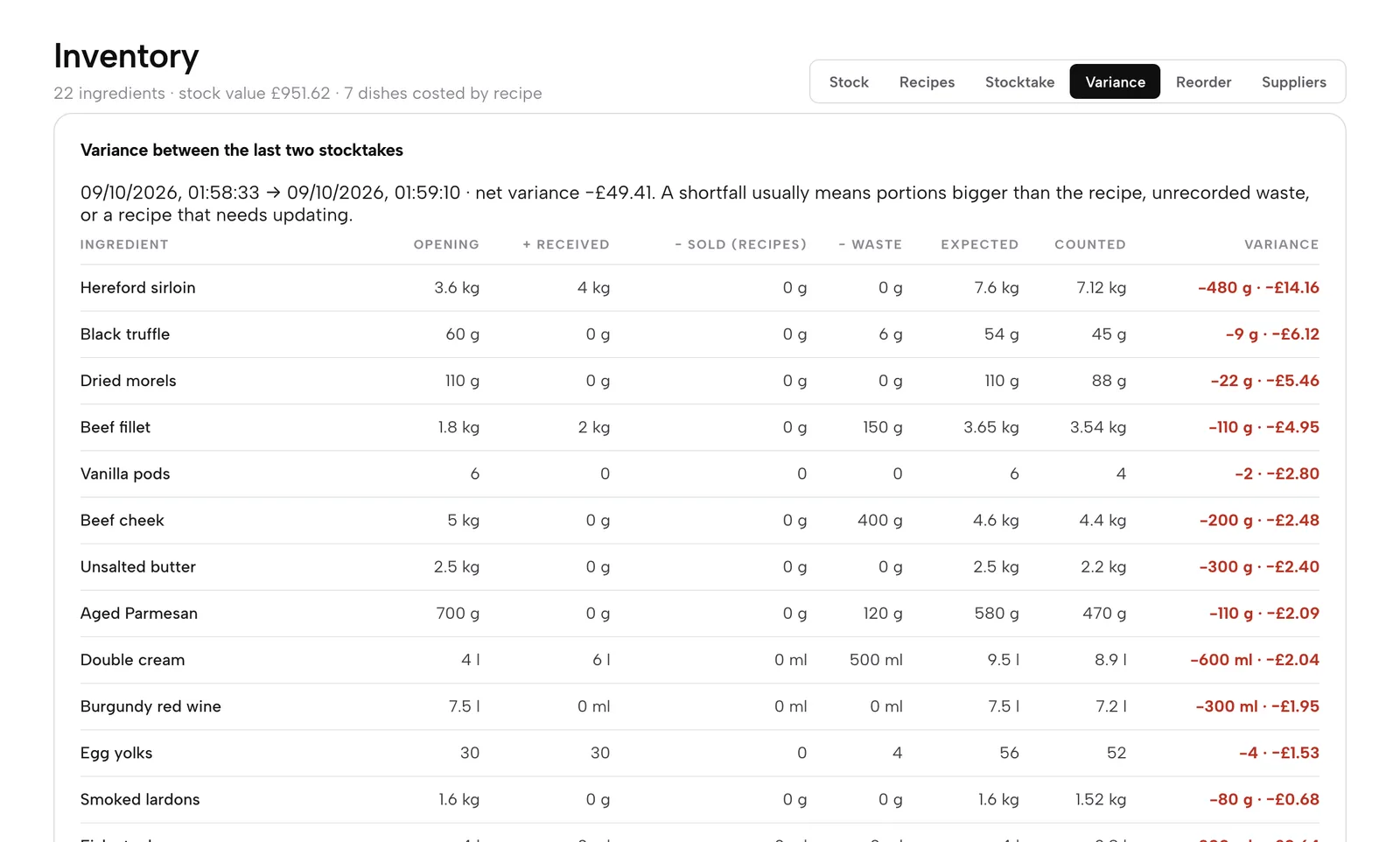
Press Receive on an ingredient for a delivery; a new pack price re-costs every dish that uses it. Press Waste with a quantity and a reason. Count the shelves in Stocktake, and Variance shows expected against counted, in units and pounds.

  • Six waste reasons, from Spoiled to Staff meal
  • Stocktake sheet grouped by fridge, dry store and shelf
  • Variance lists the largest loss first, from the second count on
  • On hand = last count + deliveries − sales by recipe − waste
Deliveries, waste and stocktakes
Variance between two stocktakes: for each ingredient the opening, received, sold, waste, expected and counted amounts and the variance in grams and pounds, largest loss first.
Biggest loss first: check that recipe or portion on the pass.

Order before you run out

A reorder list and a morning summary

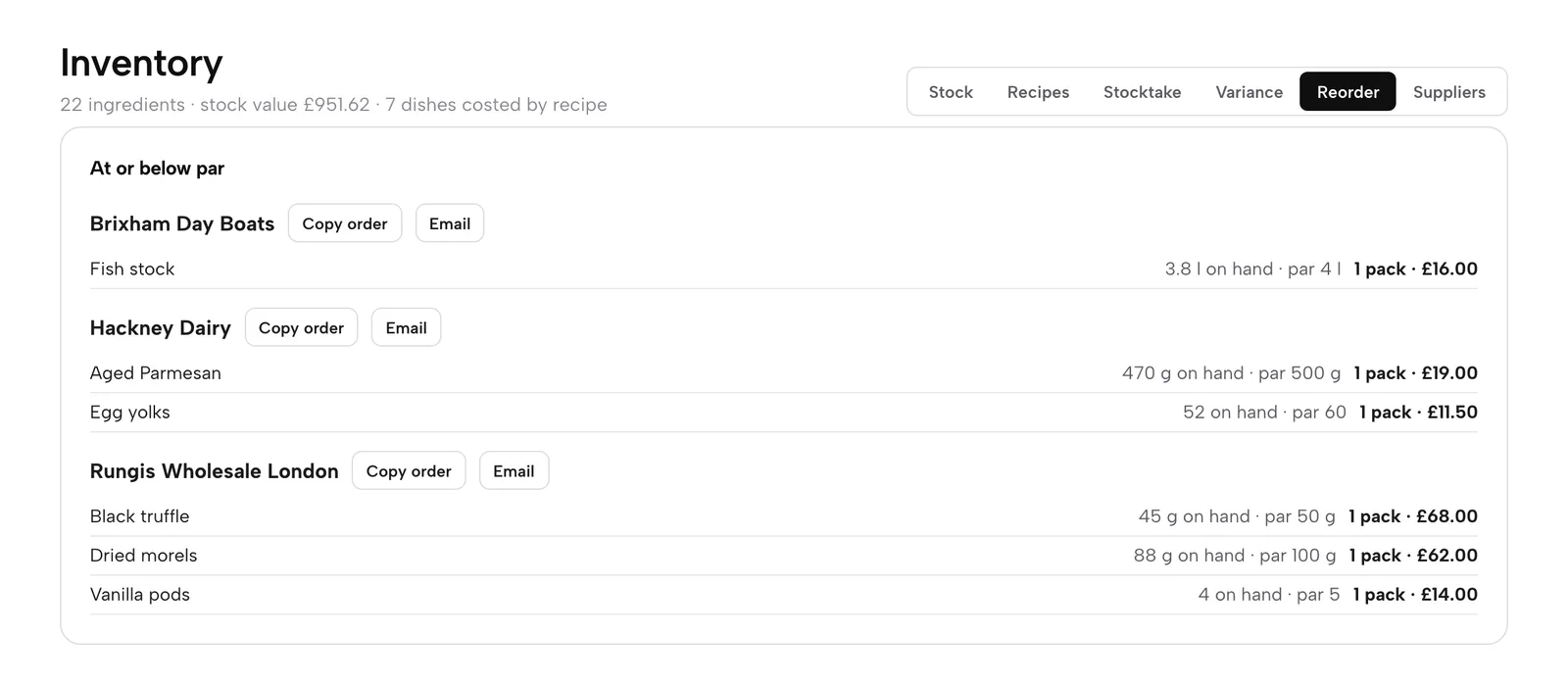
Anything at or below par joins the Reorder tab, grouped by supplier with the packs needed and their cost. Copy order or Email sends it. The morning summary email names what is running low.

  • Below-par ingredients turn red on the Stock tab
  • Email opens a message to the supplier's order address, pre-filled
  • Morning summary: yesterday's sales, covers, best sellers, anything low
  • Turn it on in Day settings; sent between 7 and 11am
Work from the reorder list
The Reorder tab: ingredients at or below par grouped under three suppliers, each with Copy order and Email buttons, the packs to buy and their cost.
One order per supplier, ready to send.

Watch it

Watch a ticket held, fired and bumped

A real run on the live app: stations routed, mains fired, a bump recalled, a dish counted.

Watch on YouTube

How it connects

The kitchen is where the order lands

Orders come from your till, your site and your tables, and the kitchen's counts flow back to what guests can order.

Plan & price

Kitchen display and stock come with Growth

Growth is £39 a month and Full is £69, excluding VAT. Kitchen ticket printing comes with Full. No per-seat charges, and nothing to pay until you publish.

Prices exclude VAT. 0% TableSpark commission on the bookings and orders your plan includes. Stripe’s standard card-processing fees apply to online payments. Compare every plan.

Questions owners ask

What screen does the kitchen need?

Any tablet or TV with a browser. Sign in to your TableSpark account on it, open Kitchen and leave it on. Add more screens for more stations.

Which printers work?

Kitchen printing runs over Star's CloudPRNT protocol, so a CloudPRNT printer connects with one pasted link. Print the test page, then check your first few real tickets come off the paper as you expect.

Can I use the display without a printer?

Yes. The display and the printer are separate. Use the screen alone, or add paper where you want it.

Do I have to cost every dish?

No. Dishes without a recipe simply show no cost. Start with your best sellers and add more as you go; margins appear dish by dish.

Does a sold-out dish stay on my website?

Yes, struck through for guests, and it is no longer offered on new orders. Until close returns it by itself when the business day ends.

Put the next service on one board

Build your site free, then open Kitchen and route your first station.