
These rules live in two places, not one. Your weekly hours and bank-holiday overrides are on Settings → Opening hours — the calendar-facing side, what a guest sees. The rules that actually govern a booking — the seating window, the slot length, party size, lead time and deposits — sit on a different page entirely: your Bookings page, behind a button called Services & rules. This guide walks both, in the order you’ll actually use them.
Settings → Opening hoursBookings → Services & rules
Start on your dashboard. Click Settings in the sidebar — your restaurant’s settings open.
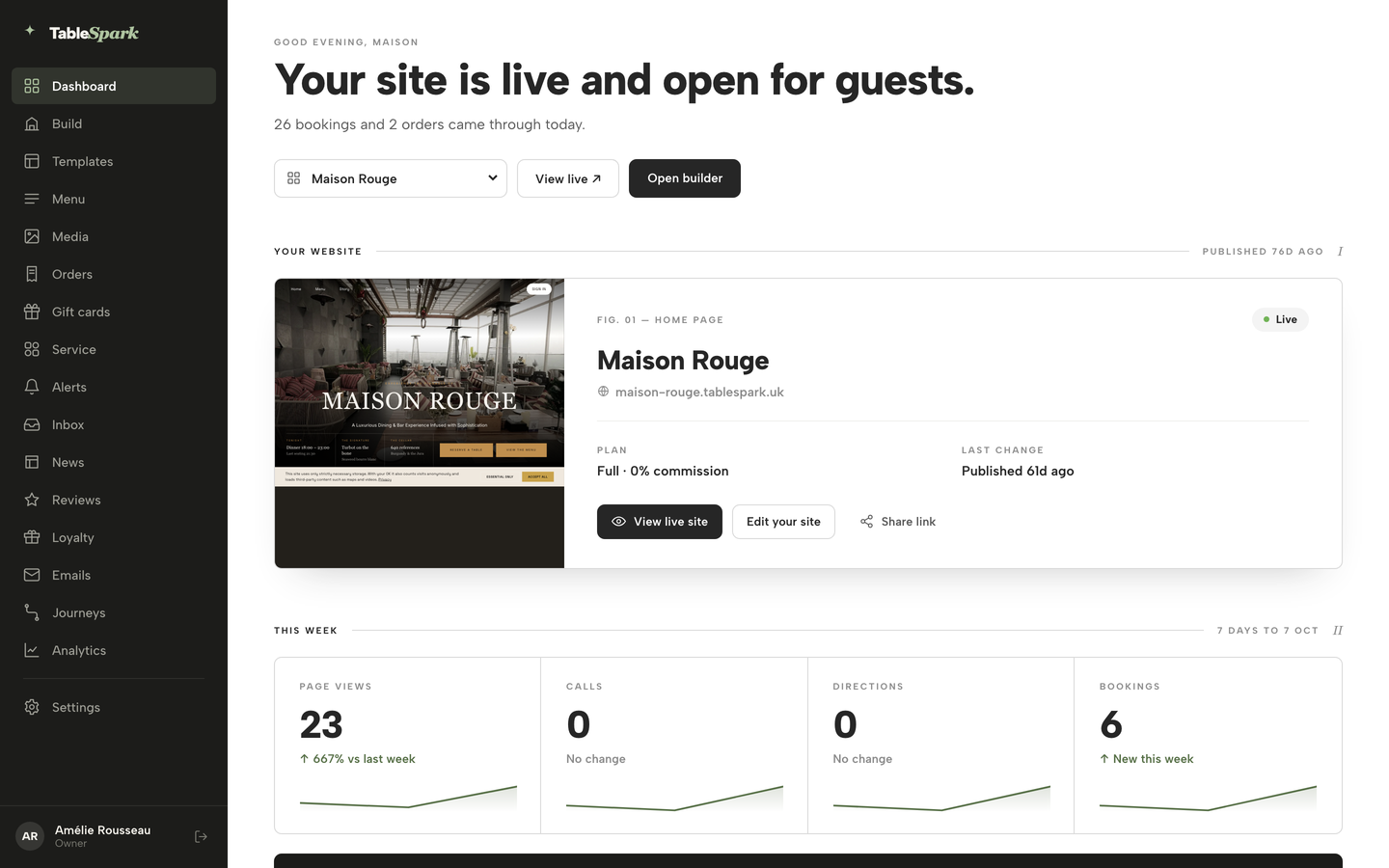
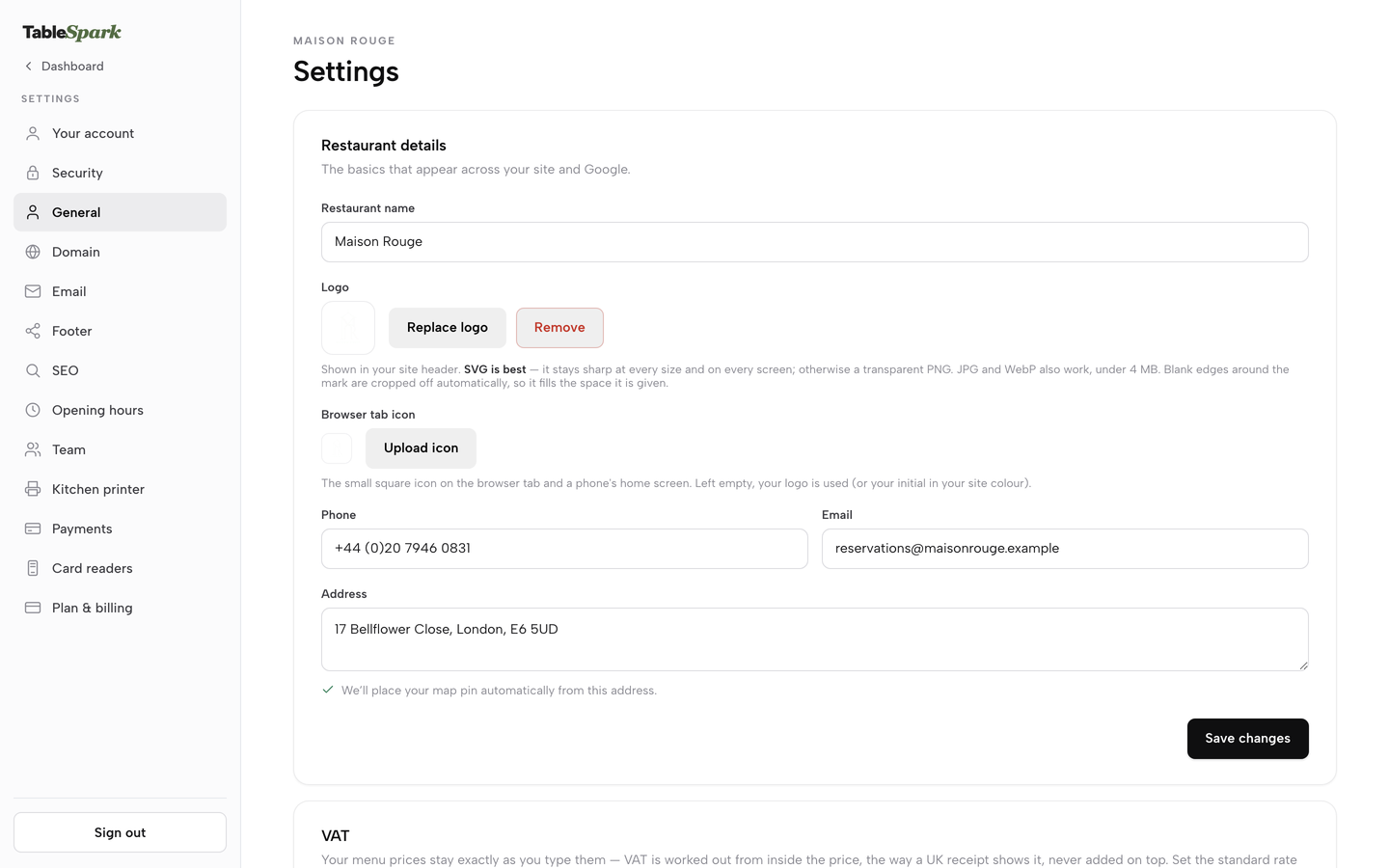
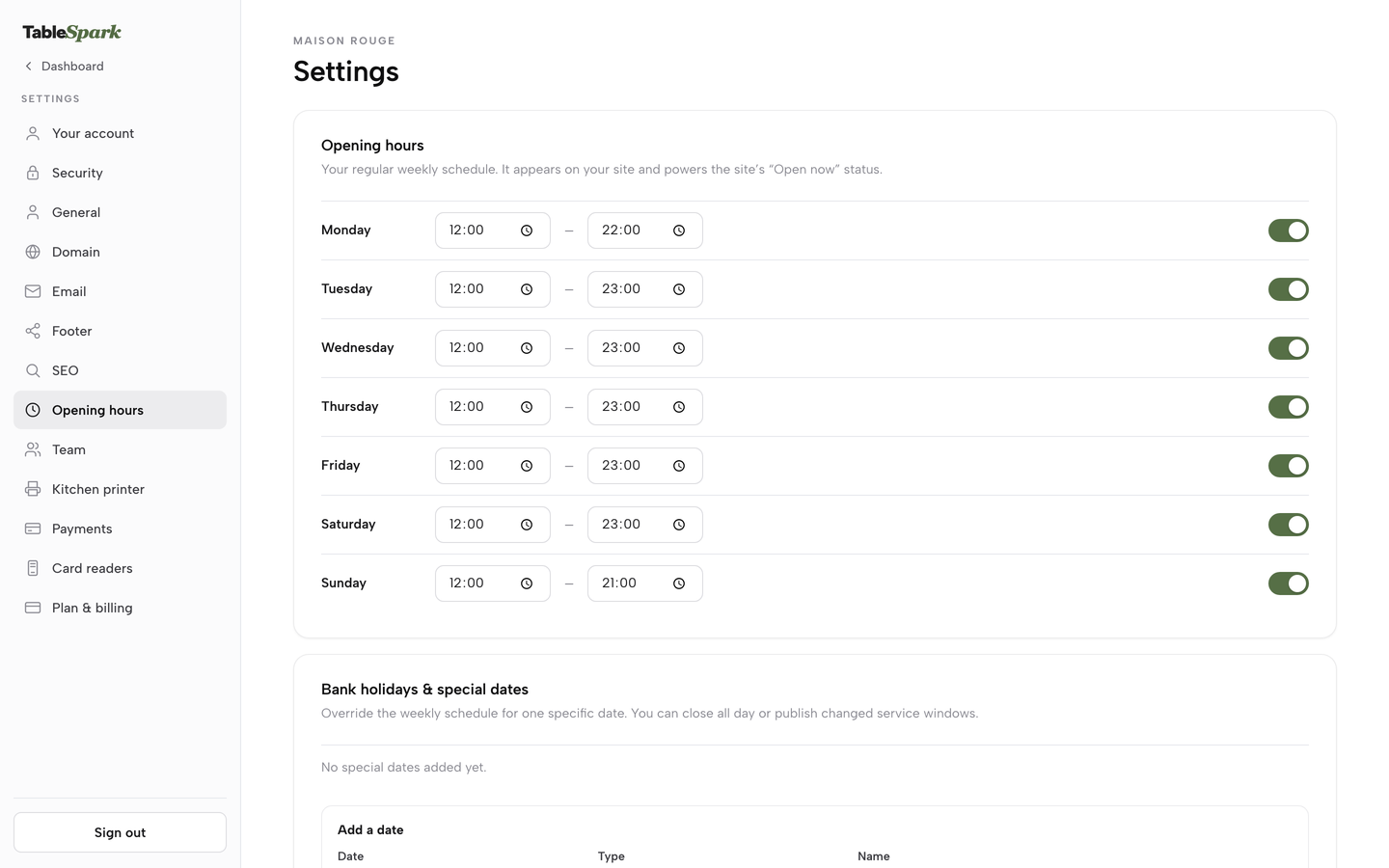
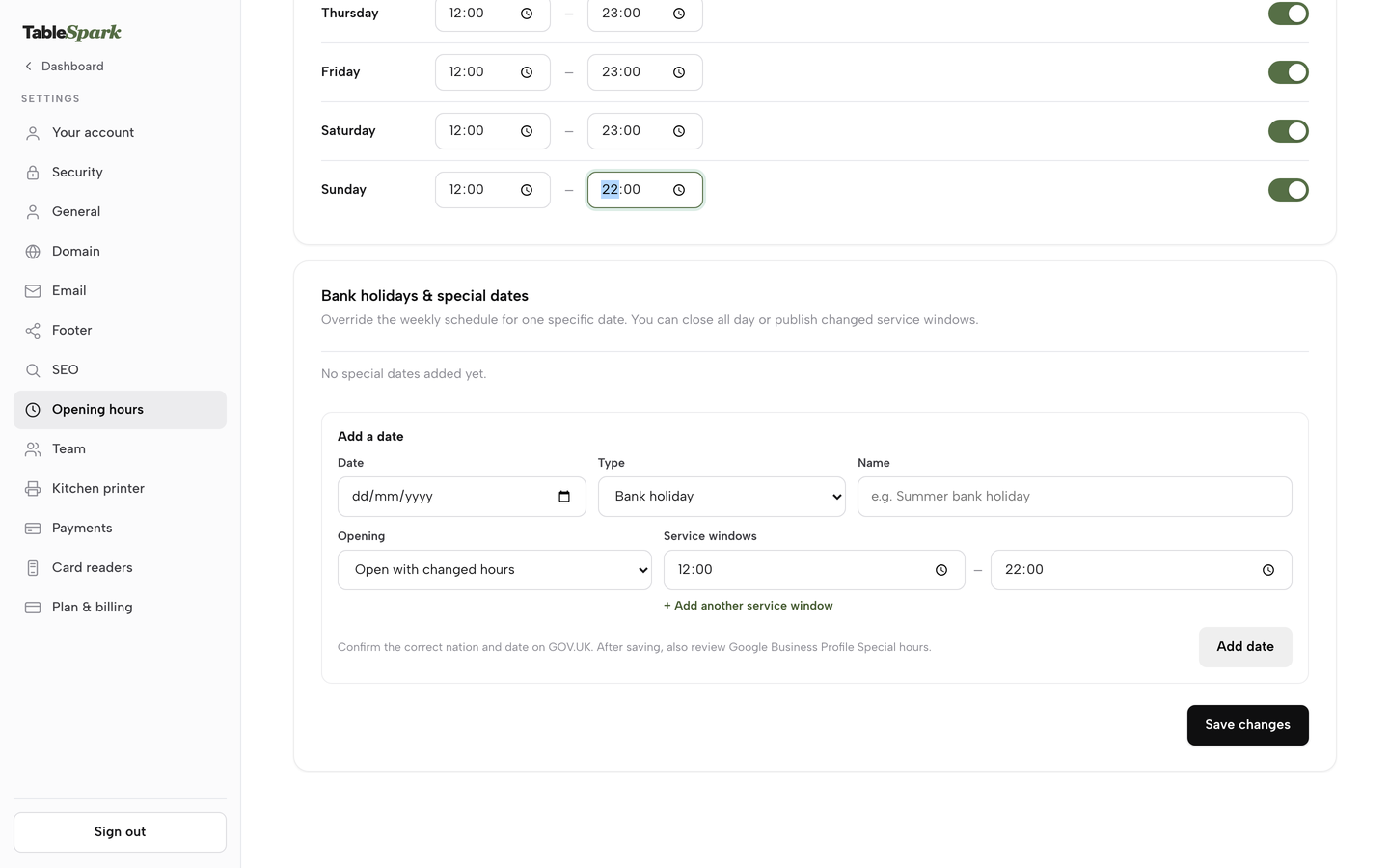
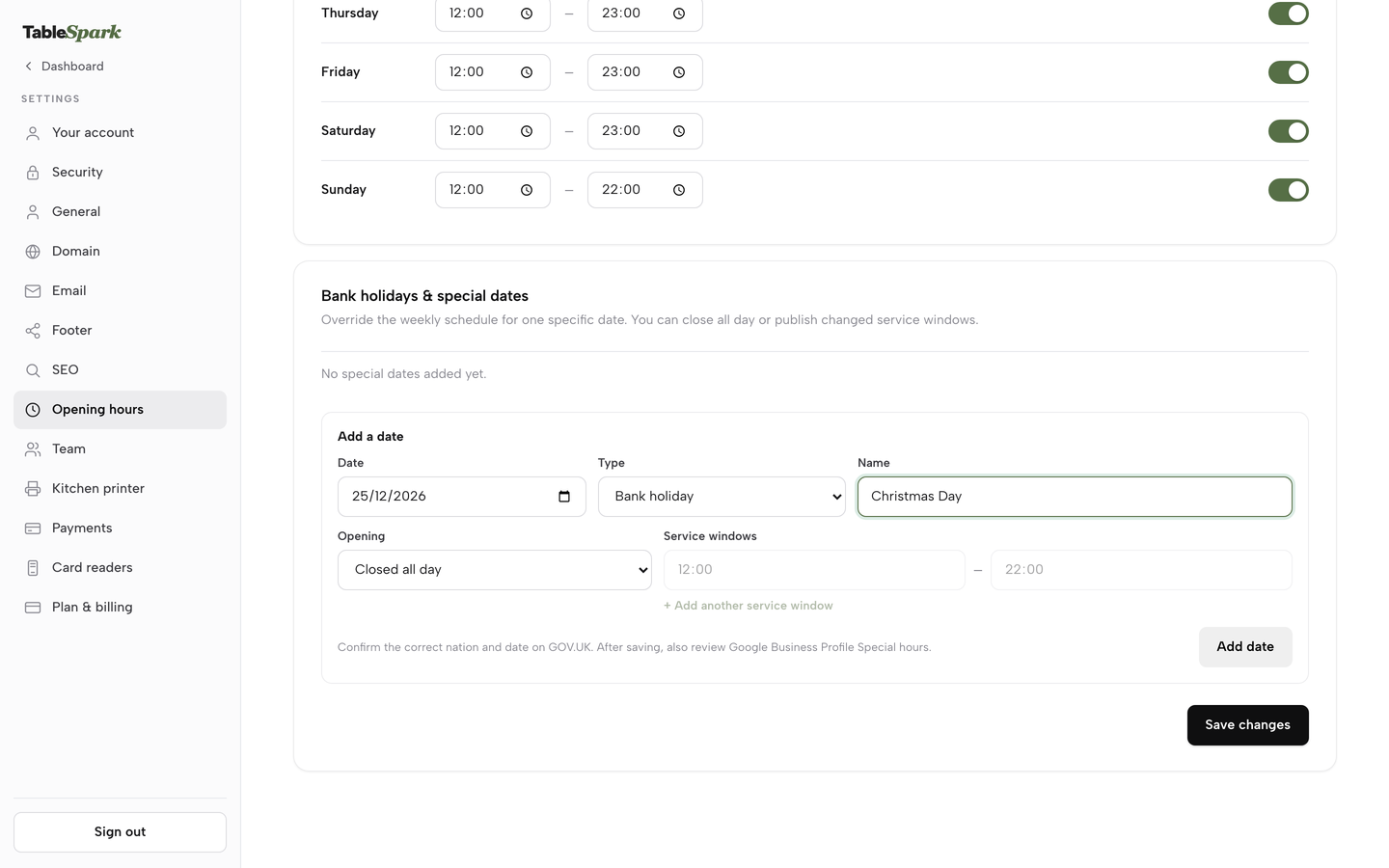
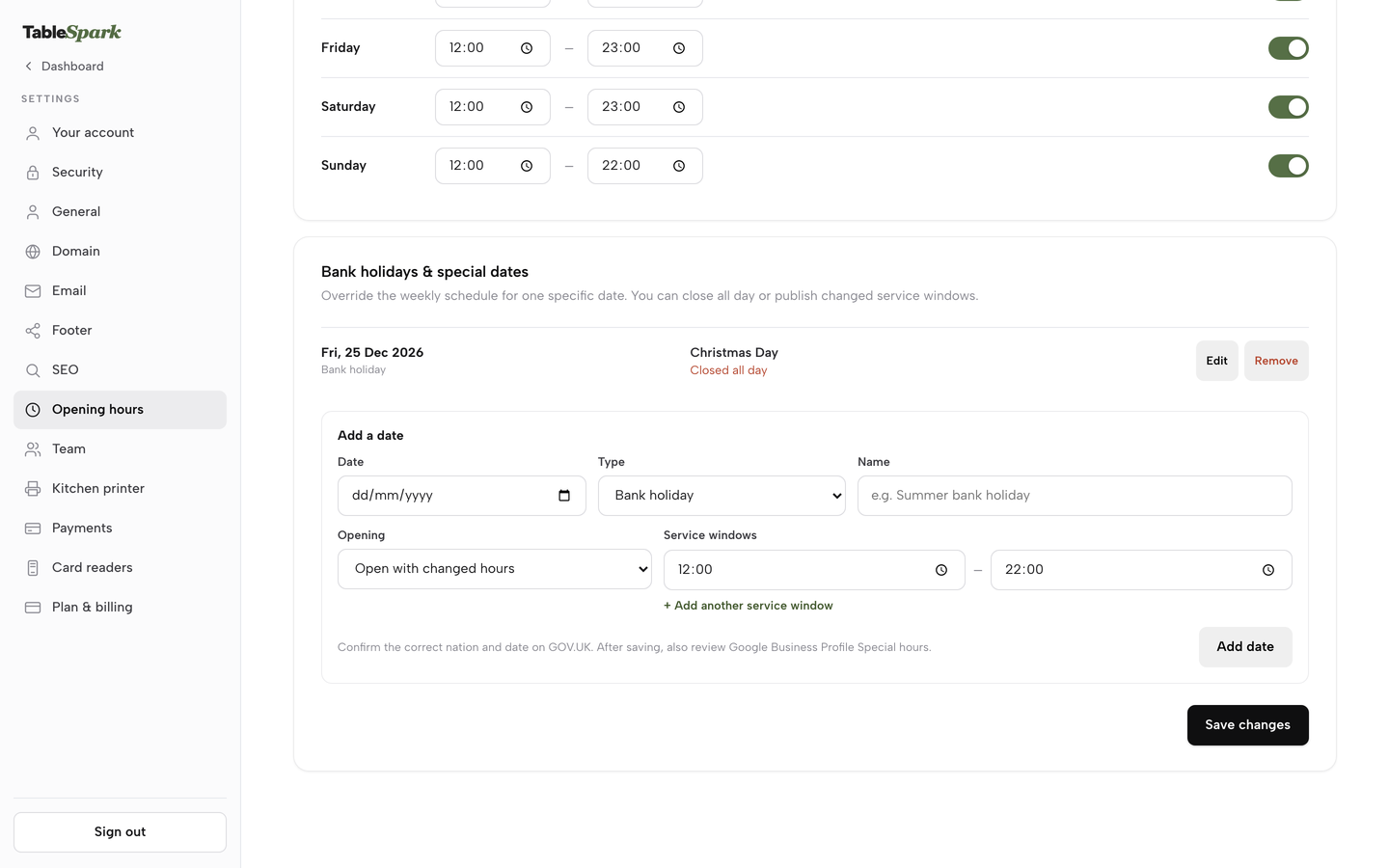
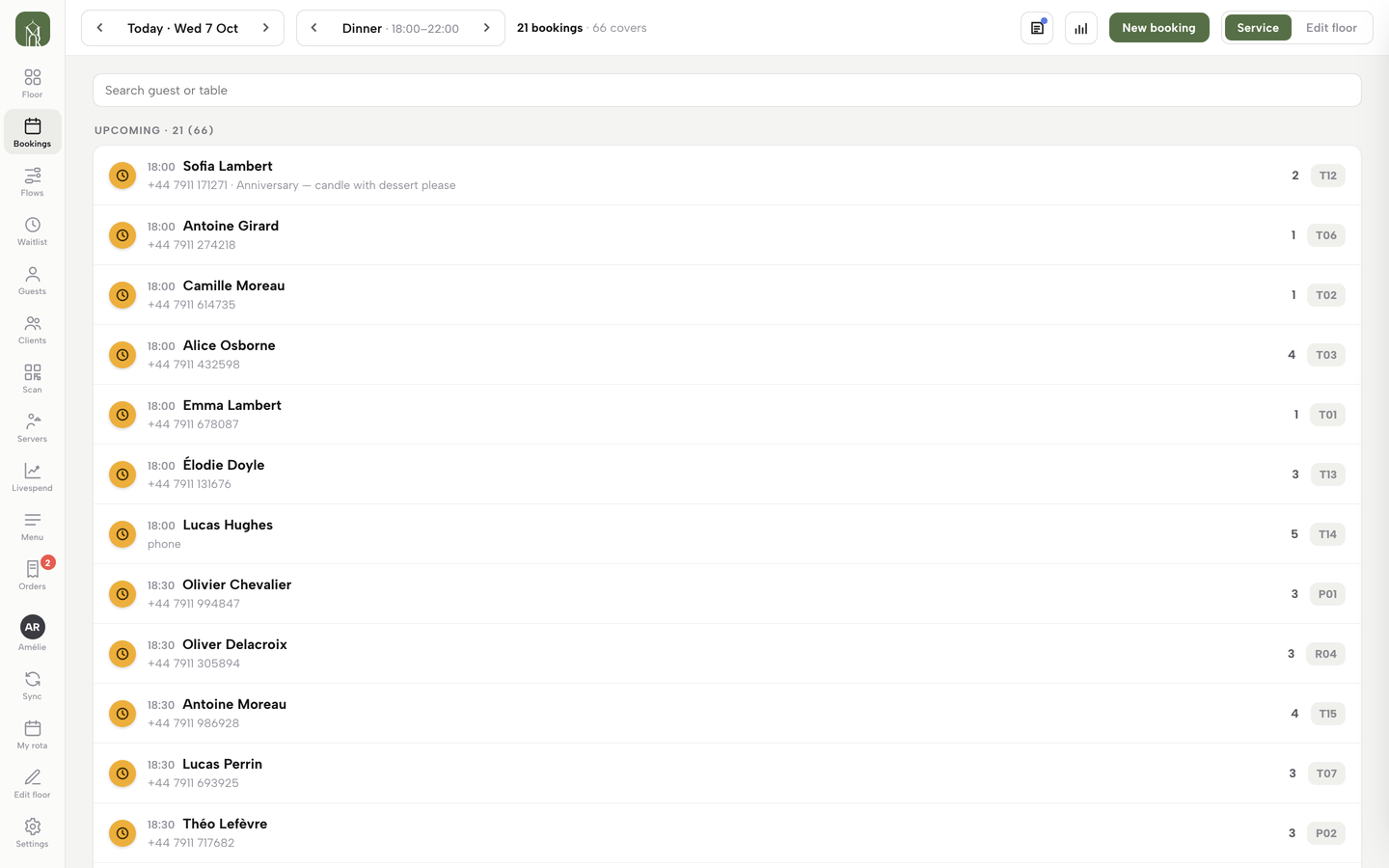
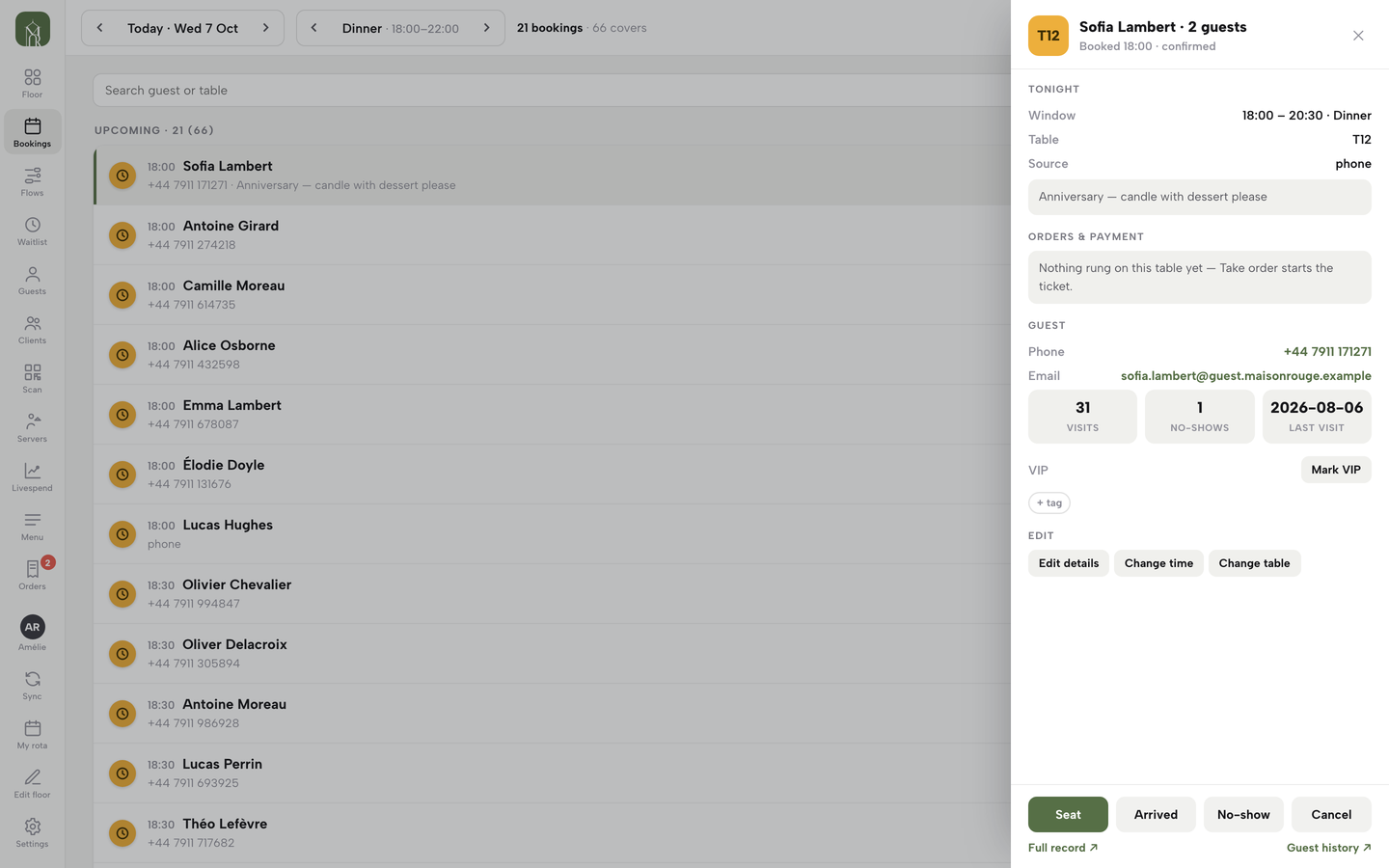
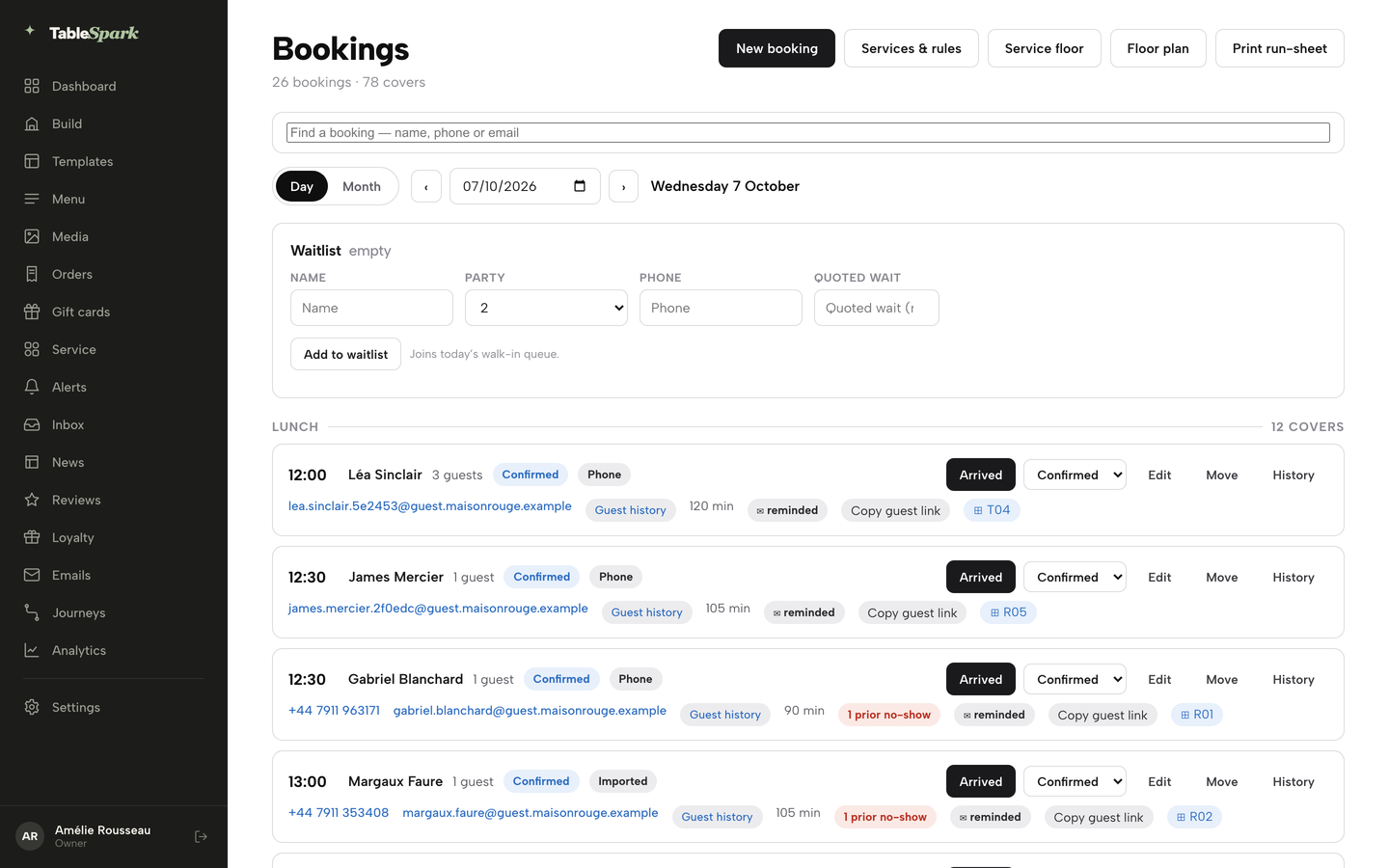
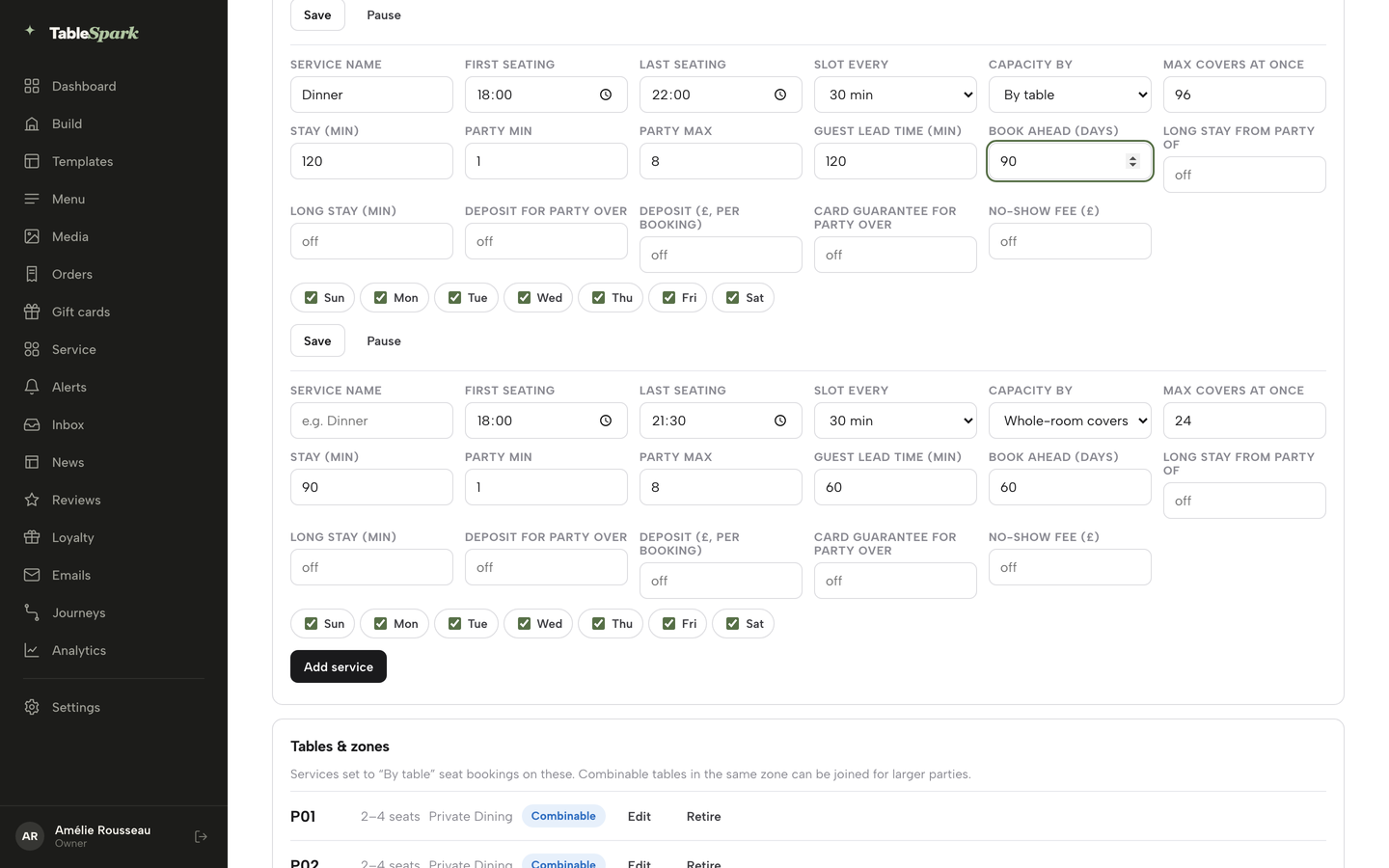
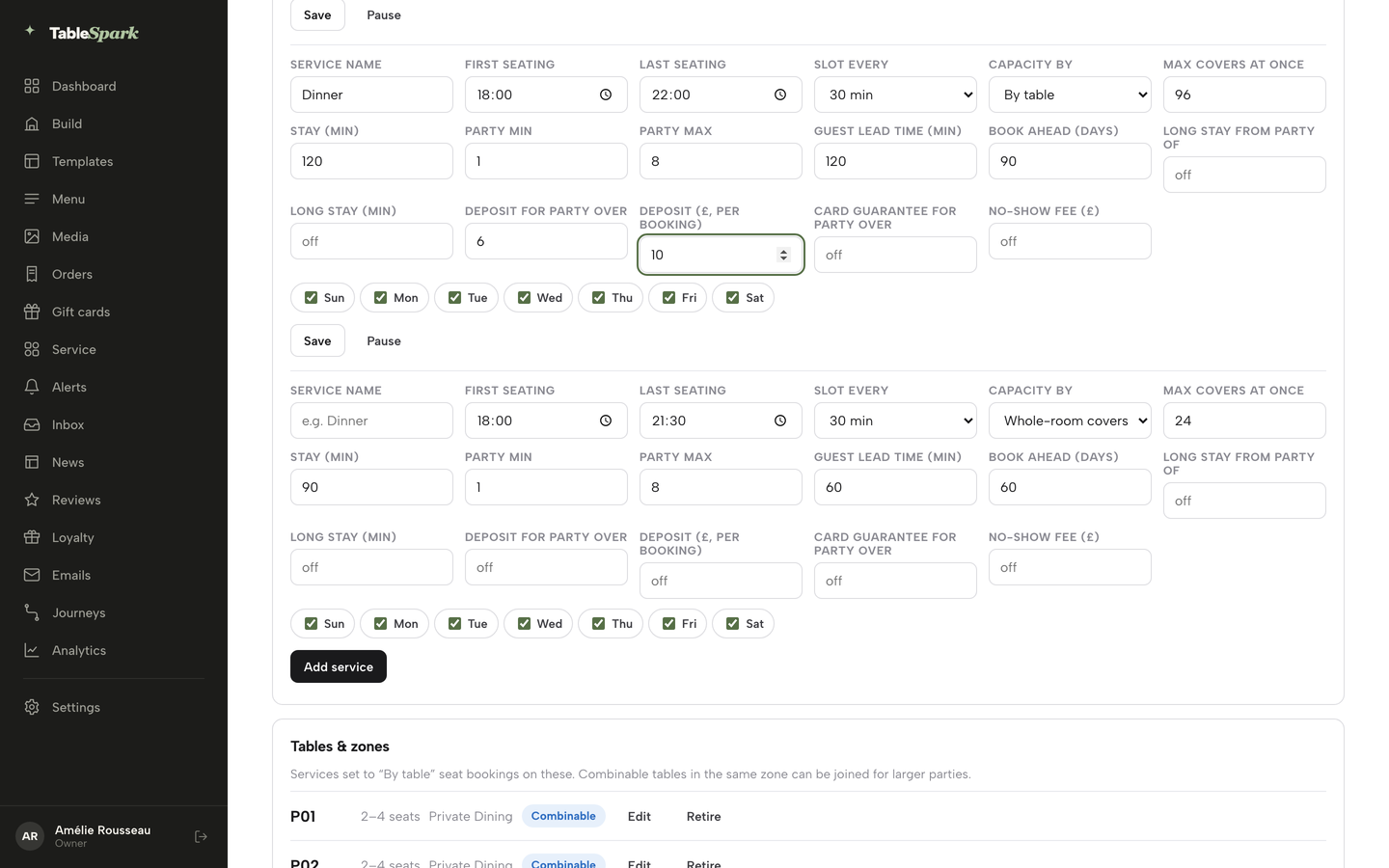
Sunday’s hours changed, Christmas Day closed, then a service’s party size, notice, booking window and deposit set — Save changes and Save would put all of it live on your own account.
- WHAT YOU NEED
- Your usual hours & upcoming bank holidays
- TIME
- About 8 minutes
- HOW HARD?
- Like filling in a weekly timetable
- CAN I BREAK IT?
- No — invalid combinations are blocked before they save
IN PLAIN WORDS / TAP A TERM
What’s a “service”?
A sitting like Lunch or Dinner — the rule that tells the booking engine when it takes reservations, on what interval, and up to what capacity. Sharper than opening hours, which only say when the doors are open.
Deposit or card guarantee — what’s the difference?
A deposit takes payment at the moment of booking. A card guarantee only holds the card details — nothing is charged unless your team marks the booking a no-show and confirms it themselves. If both are on, the deposit takes priority.
What’s “lead time”?
The minimum notice a guest booking online needs before their slot. It only applies to the self-service widget — your own team can always book a table for a guest calling in.
What’s “book-ahead”?
How far into the future a service accepts bookings at all, so a sitting doesn’t quietly take a reservation for next year.
Set your weekly hours
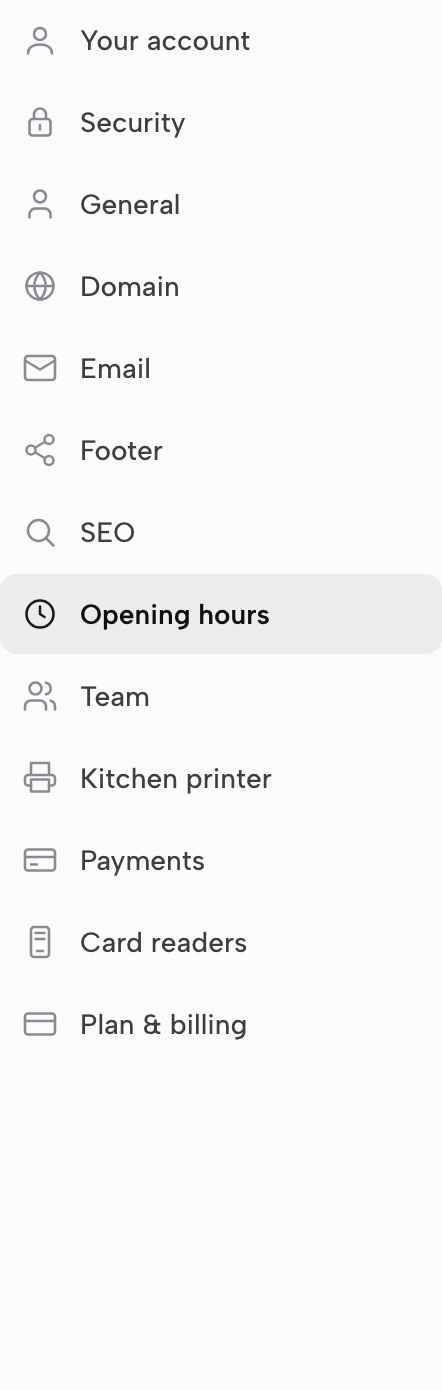
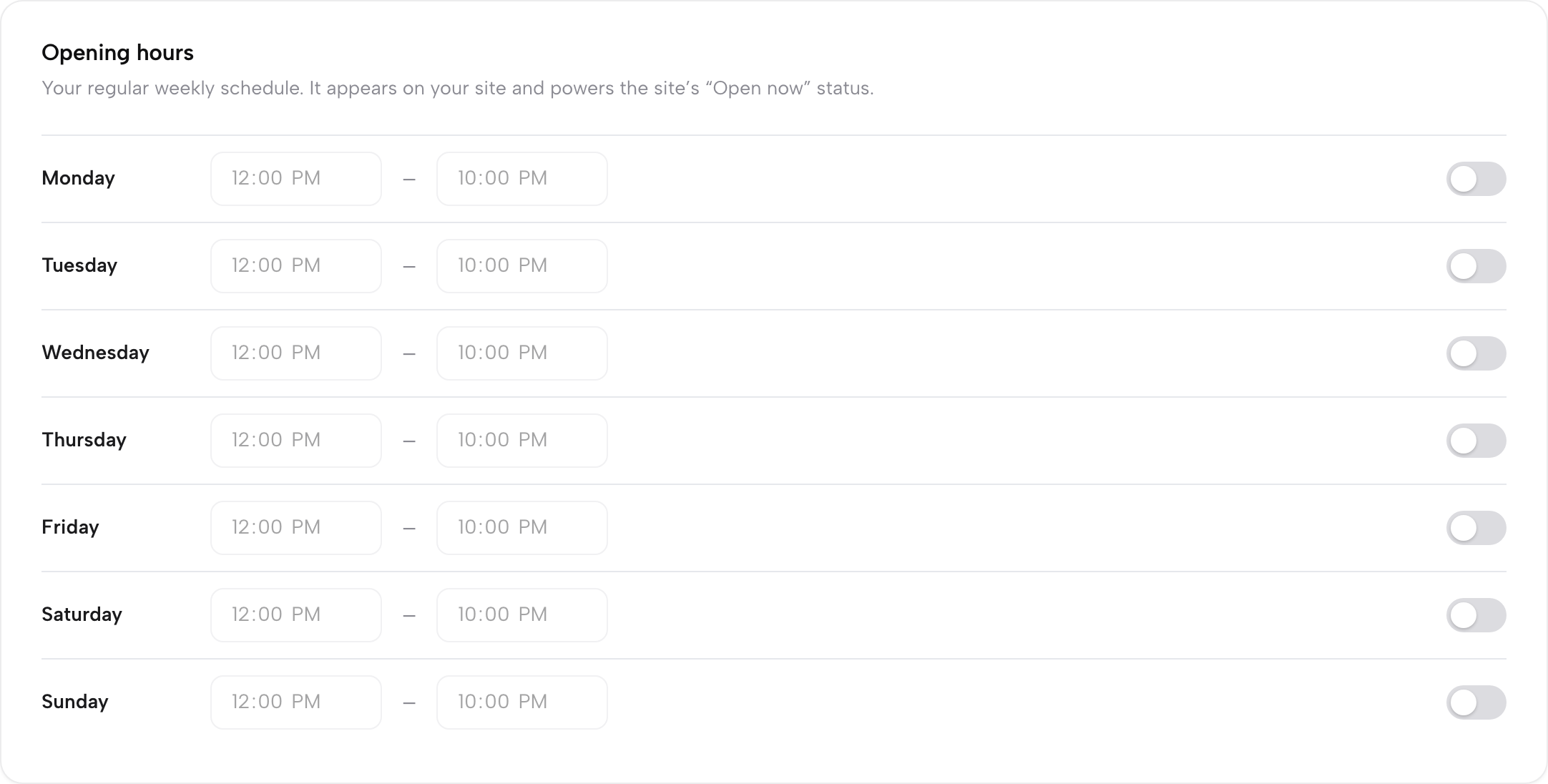
Click Settings in the sidebar, then Opening hours in the list on the left — it’s the same section that holds your special dates, one scroll further down. TableSpark gives you one row per day, Monday through Sunday: a From/To time pair on the left and an on/off toggle at the right end of the row.
Flip a day’s toggle on, then set when it opens and when it closes. Turn a day off and its time fields grey out and lock — the day still shows its last hours, just visibly disabled, so you can see at a glance what’s closed without losing the numbers underneath. There’s no per-row save button; one Save changes at the bottom of the page commits the whole week, and any special dates, at once. This is the schedule that appears on your site and, in TableSpark’s own words, “powers the site’s ‘Open now’ status” — the live badge a guest sees before they even open your menu.
Cover the days that don’t follow the week
Stay on the same page and scroll to Bank holidays & special dates. This is where one specific date overrides your normal week without touching it — Christmas Day closed, a bank holiday running shorter hours, a private event that shuts the room early. The card starts with your existing dates listed above an always-open Add a date form: no extra click needed to reach it.
Fill in a Date, a Type (Bank holiday, Holiday, or Special date), and a Name, then choose Opening — Open with changed hours, or Closed all day. An open date takes one or more Service windows, and pressing + Add another service window gives you a second From/To pair for a split shift, such as a lunch sitting that closes and reopens for dinner. The form allows up to three service windows per date, and its date picker starts from today. Press Add date and it joins the list, with Edit and Remove beside it — then press Save changes to publish it.
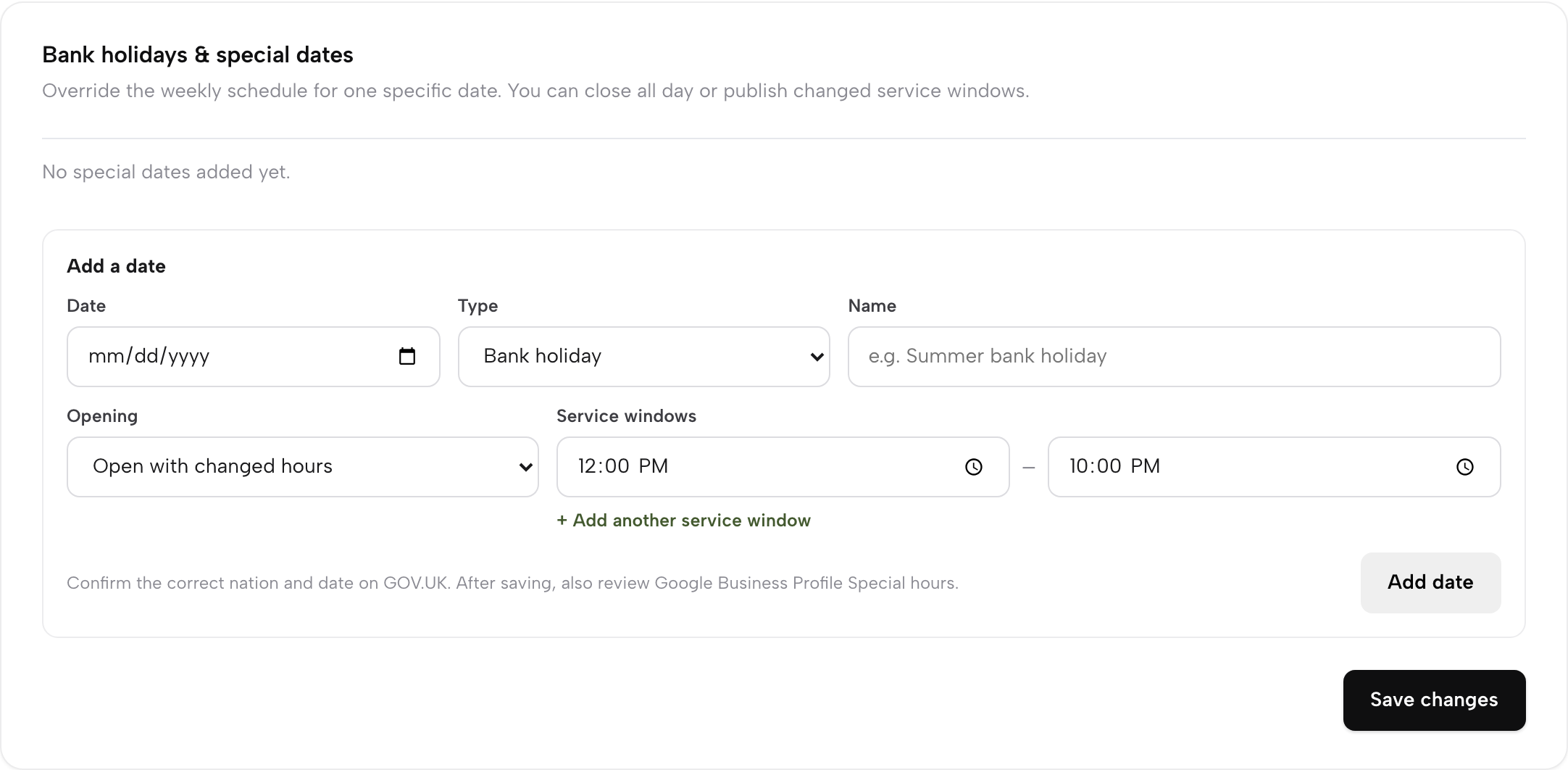
TableSpark’s own guidance sits right under the form, and it’s worth following to the letter: confirm the correct nation and date on GOV.UK — England & Wales, Scotland and Northern Ireland run three different bank-holiday calendars — and once you’ve saved, check your Google Business Profile’s own Special hours too, since Google doesn’t read this page automatically.
Add a service
Opening hours tell a guest when your doors are open. A service is the sharper rule underneath it — Lunch, Dinner, a Sunday roast sitting — that tells the booking engine exactly when it will take a reservation, on what interval, and up to what capacity. Services live on a different page: open your Bookings page. It isn’t in the sidebar: click Service, choose Bookings in its left rail, open any booking and press Full record. Then press Services & rules in the toolbar.

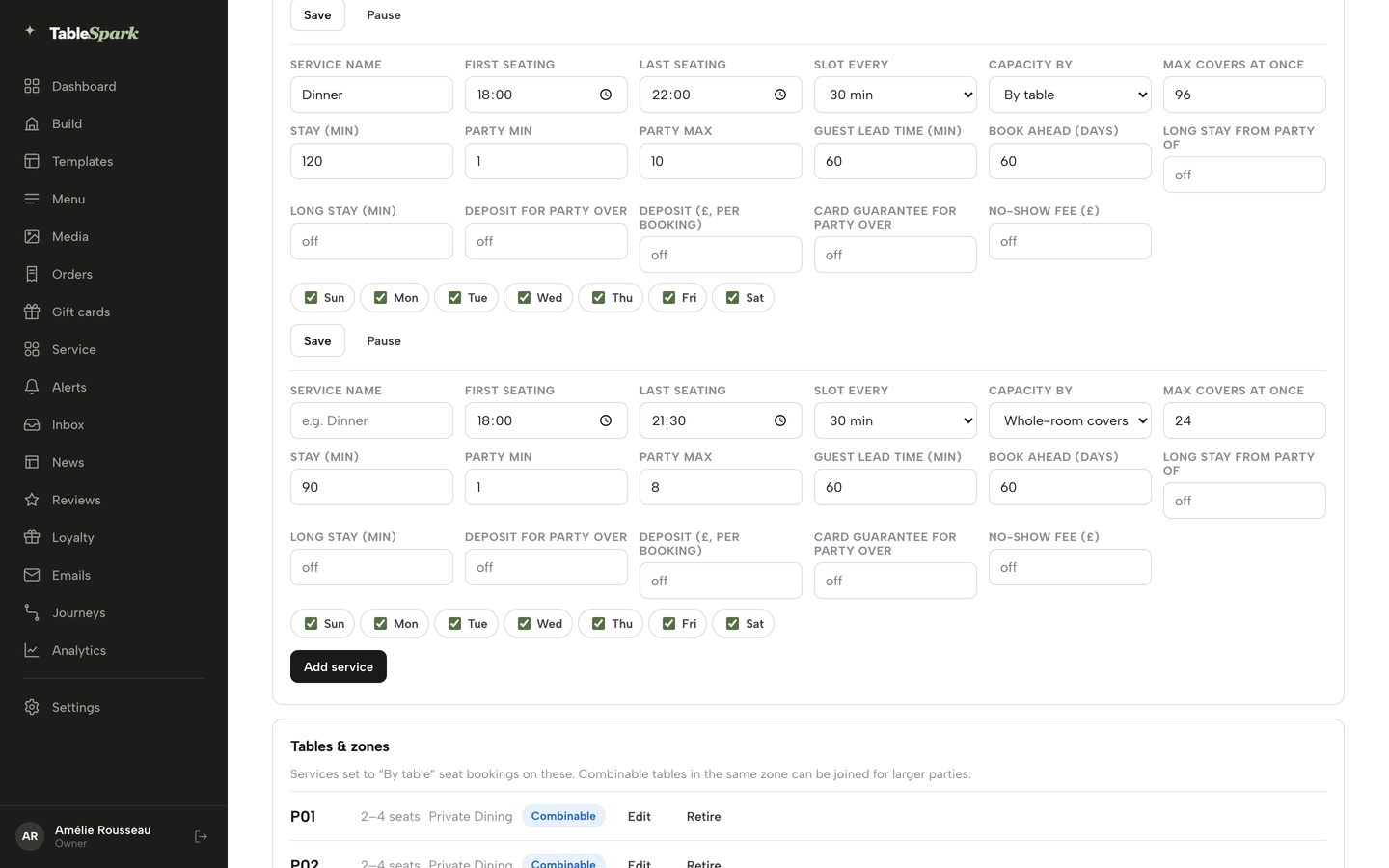
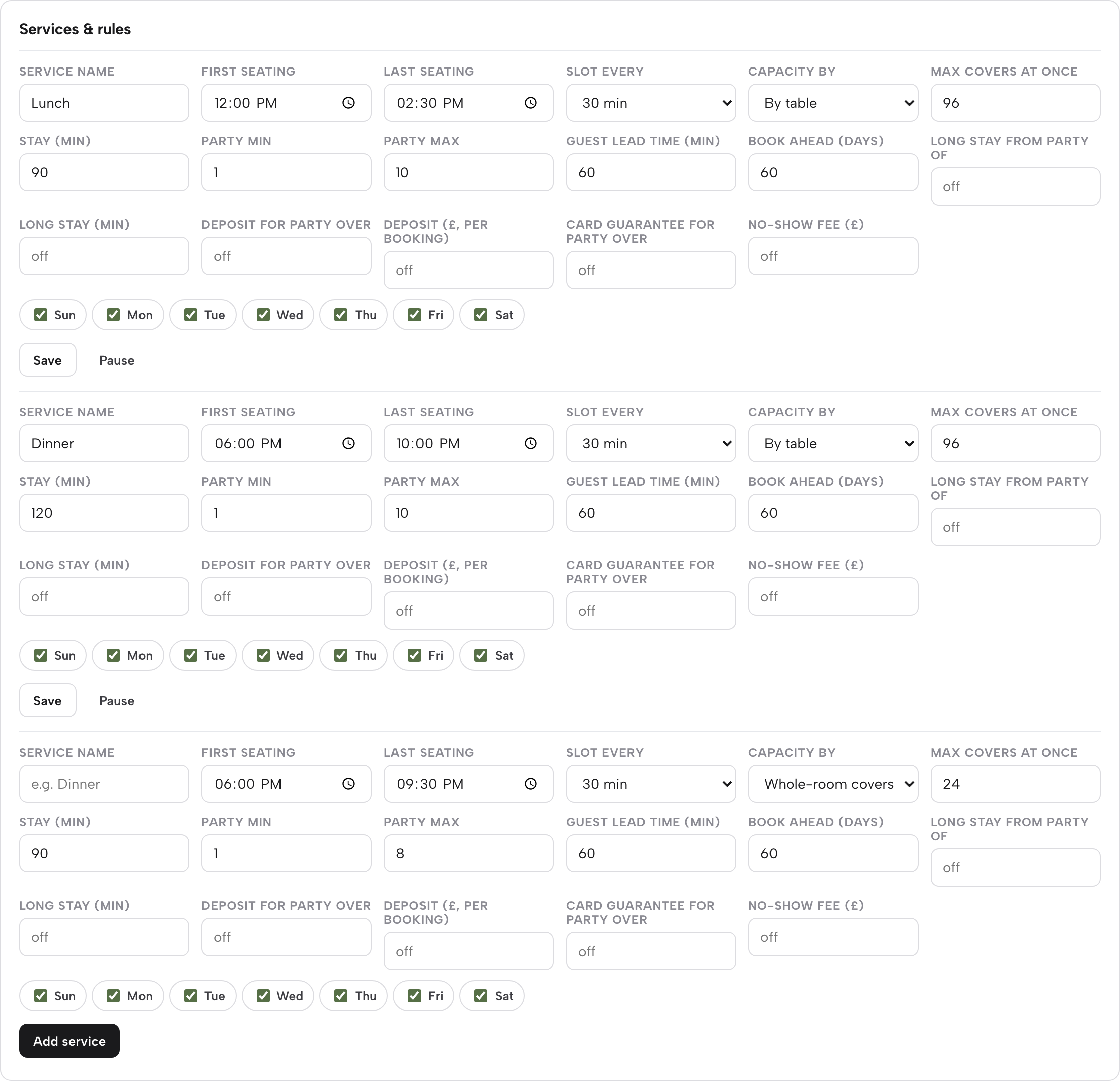
That reveals one row of fields per existing service, plus a blank row at the bottom for the next one. Give it a Service name, then set First seating and Last seating — the times it opens and stops taking new arrivals; a service can run past midnight, so a late-night sitting works the same way as any other. Slot every sets how often a new booking moment is offered — 15, 30 or 60 minutes. Capacity by chooses how the service counts itself: Whole-room covers shares one number across the room, or By table hands the engine specific tables to allocate, once at least one table exists on your floor. Max covers at once and Stay (min) finish the shape of the sitting — the ceiling on covers in one moment, and how long a table is held by default. A row of day checkboxes, Sun to Sat, sets which days the service runs. Press Add service on the blank row to create it; on an existing row, Save stores your changes and Pause stops new bookings for that service until you press Resume. Choosing By table uses the tables in the Tables & zones panel just below the services.
On the Maison Rouge account below, Lunch runs 12:00–14:30 and Dinner 18:00–22:00, both on a 30-minute slot, both capacity-managed by table at 96 covers at once, and both open every day of the week. Keep this screenshot in view — the next three sections are all reading fields from the same row.
Set party size limits
Every service carries its own Party min and Party max, right there in the same row — there’s no single restaurant-wide setting to hunt for elsewhere. A sitting built around two-tops might run Party min 1, Party max 2; a private dining service might set both far narrower. On Maison Rouge’s Lunch and Dinner services above, both sit at Party min 1 and Party max 10 — small tables and larger parties both fit, and nothing books past ten without a phone call. TableSpark won’t let you save a Party max smaller than the Party min, so the two numbers always describe a real, usable range.
Control when a booking can be made
Two more fields on the same row decide how far ahead a guest can act, and how much notice they have to give. Guest lead time (min) is the minimum notice a guest booking online needs before their slot — your own team can always book a table for a guest calling in, so lead time holds the self-service side of the widget to a floor, not your staff. Book ahead (days) is the other edge of the window: how far into the future the service is open for booking at all, so a sitting doesn’t quietly accept a reservation for next year.
A third pair is worth setting up even before you switch it on: Long stay from party of and Long stay (min). Set both together and any booking at or above that party size automatically gets the longer stay you specify instead of the service’s usual default — useful the moment a table of eight needs the room for longer than a table of two. Leave both blank and the rule simply doesn’t apply; TableSpark asks for both fields together or neither, so a half-finished rule never quietly ships.
Protect a booking with a deposit or a card guarantee
The same service row carries the two ways TableSpark protects a booking against a no-show, and you can run either, both, or neither. Deposit for party over and Deposit (£, per booking) work as a pair: set a party-size threshold and an amount, and any booking larger than that size takes a paid deposit at the time of booking (a threshold of 6 means parties of 7 and up) — card details are taken securely at booking wherever this rule is switched on. Card guarantee for party over and No-show fee (£) work the same way as a pair, applying to parties over the threshold, but hold rather than charge: nothing is taken until your team marks a booking a no-show and then confirms the charge themselves, so a guest is never billed automatically for running late or calling to cancel.
Each amount runs £1–£500, each threshold 1–99, and, like every other pair on this row, asks for both halves together — a threshold with no amount, or an amount with no threshold, won’t save. Leave a pair blank and it simply reads “off”, exactly as both services show above: the rule isn’t active for that service, and nothing changes for your guests until you fill it in. Deposits and card guarantees come with the Growth plan and above, and take payment through your own connected Stripe account.
Close a single date, or cap it
Back on the Bookings page, under Services & rules, one more panel sits below Services & rules and the Tables & zones panel: Reservation closures & exceptions. It’s a narrower tool than the special dates from Step 2 — it never touches your published opening hours, it only tells the booking engine to behave differently on one date. Use it for a private event that closes the diary without closing the restaurant to walk-ins, or a night where covers need capping lower than usual.
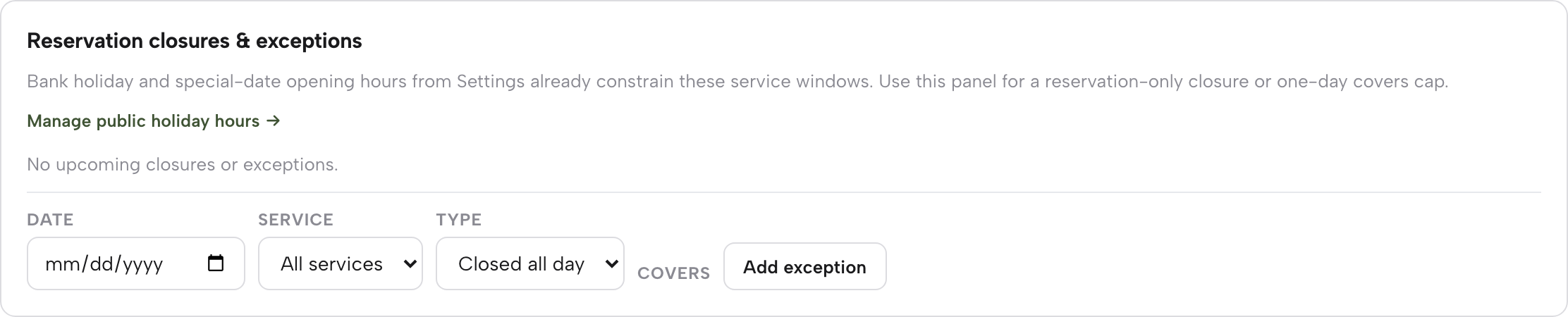
Pick a Date, a Service (or leave it on All services), and a Type — Closed all day switches off new reservations for that date, Cap covers keeps taking bookings up to a number you set in the Covers box that appears alongside it. Press Add exception and it’s live immediately. Only one all-services exception can exist per date, and where a whole-day closure and a per-service cap could both apply, the closure always wins.
Set once, correct from then on: your weekly hours and dated overrides publish to your site, and your services carry the party, timing and deposit rules the booking engine checks on every reservation — staff-entered or guest-booked — from here on.
Next · put it into practice
Next: run your first booking
Your hours and rules are live the moment you save them — the next reservation your restaurant takes, staff or guest, checks every rule set on these two pages.