
The guest App you may have seen already — five tabs, your own photographs behind every screen — isn’t assembled by TableSpark and handed to you finished. You build it, section by section, in the Builder’s own Guest app tab: click a block in the phone frame, and the panel that opens on the right is the only tool you need to change it. This guide walks that tab end to end — every click named, every field labelled, every screenshot taken on the Builder itself, on Maison Rouge, our showroom restaurant’s live account. The guest’s own screens only appear here at the very end, as the result of what you clicked.
You switch campaigns onBuilder → Guest appClick a section to edit it
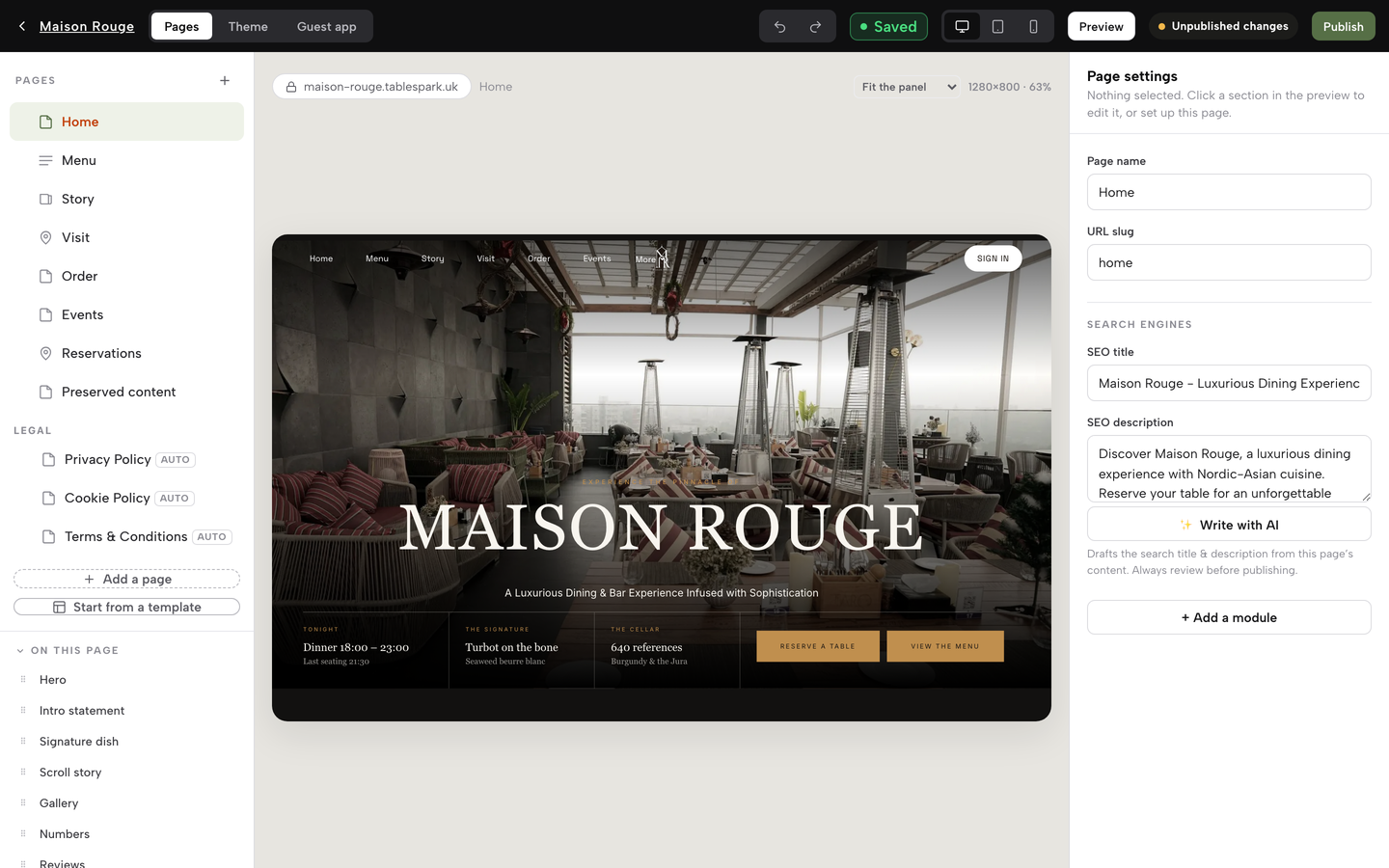
Click Guest app in the Builder’s top bar — the tab that opens the guest App’s Layout and Campaigns.
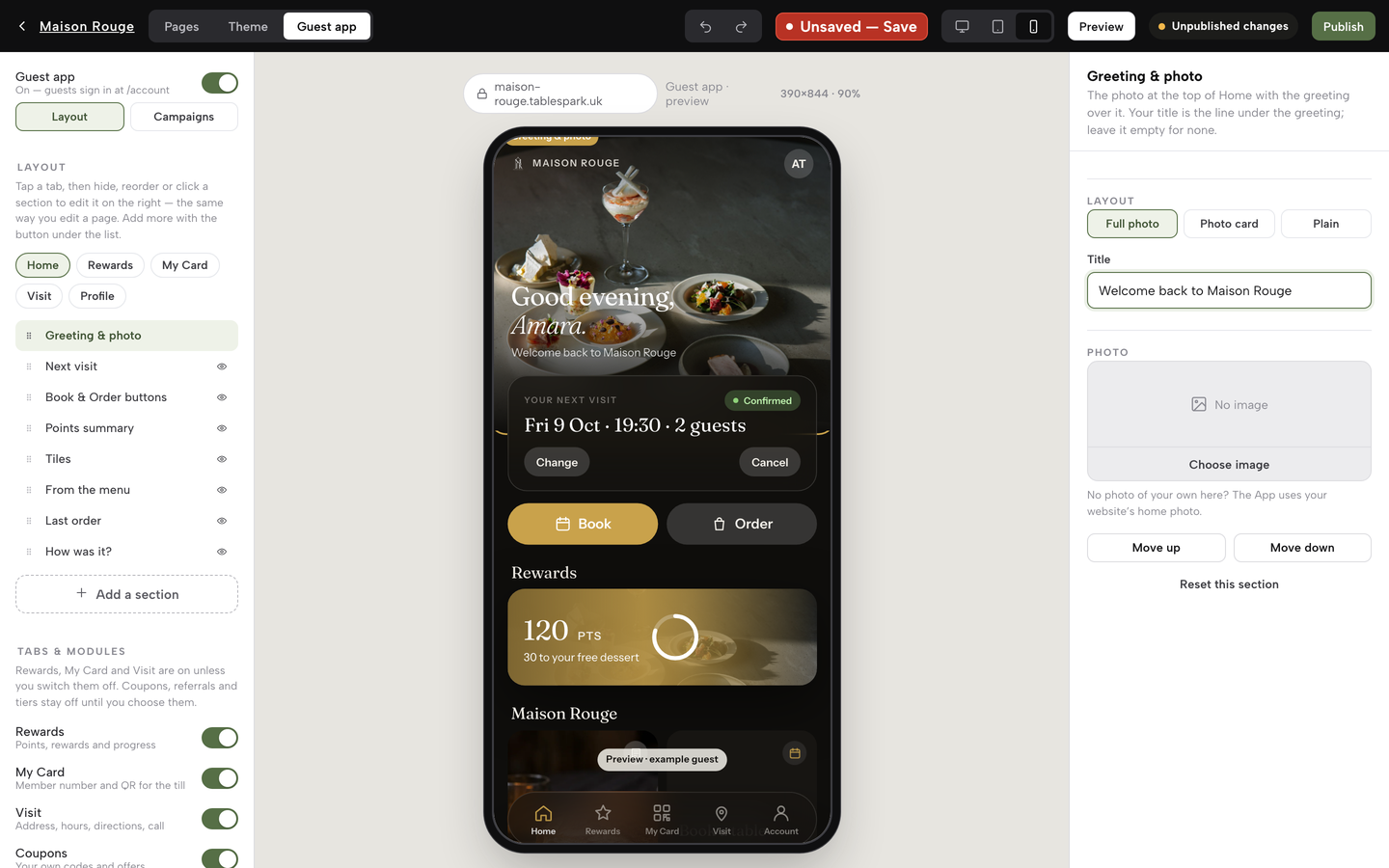
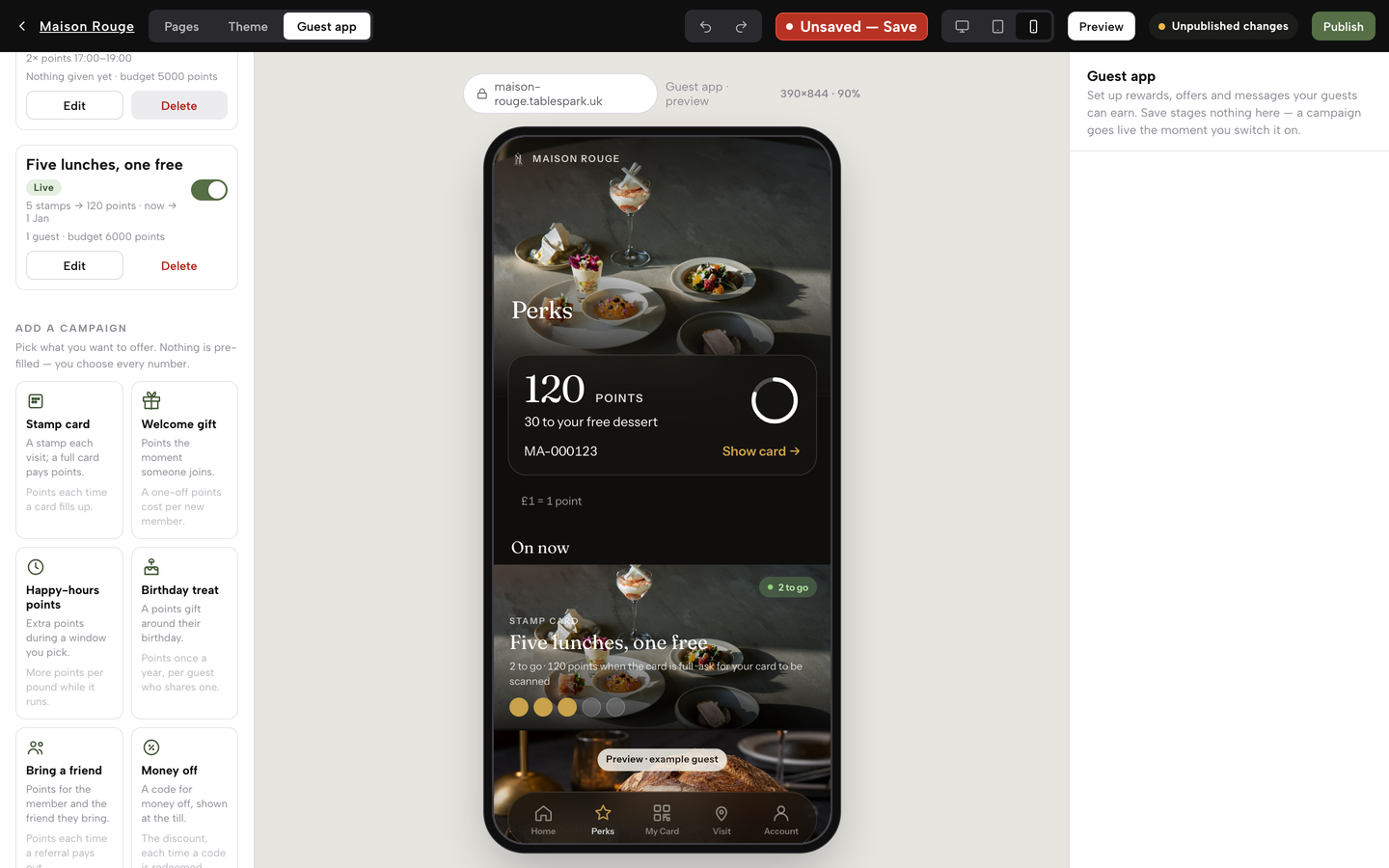
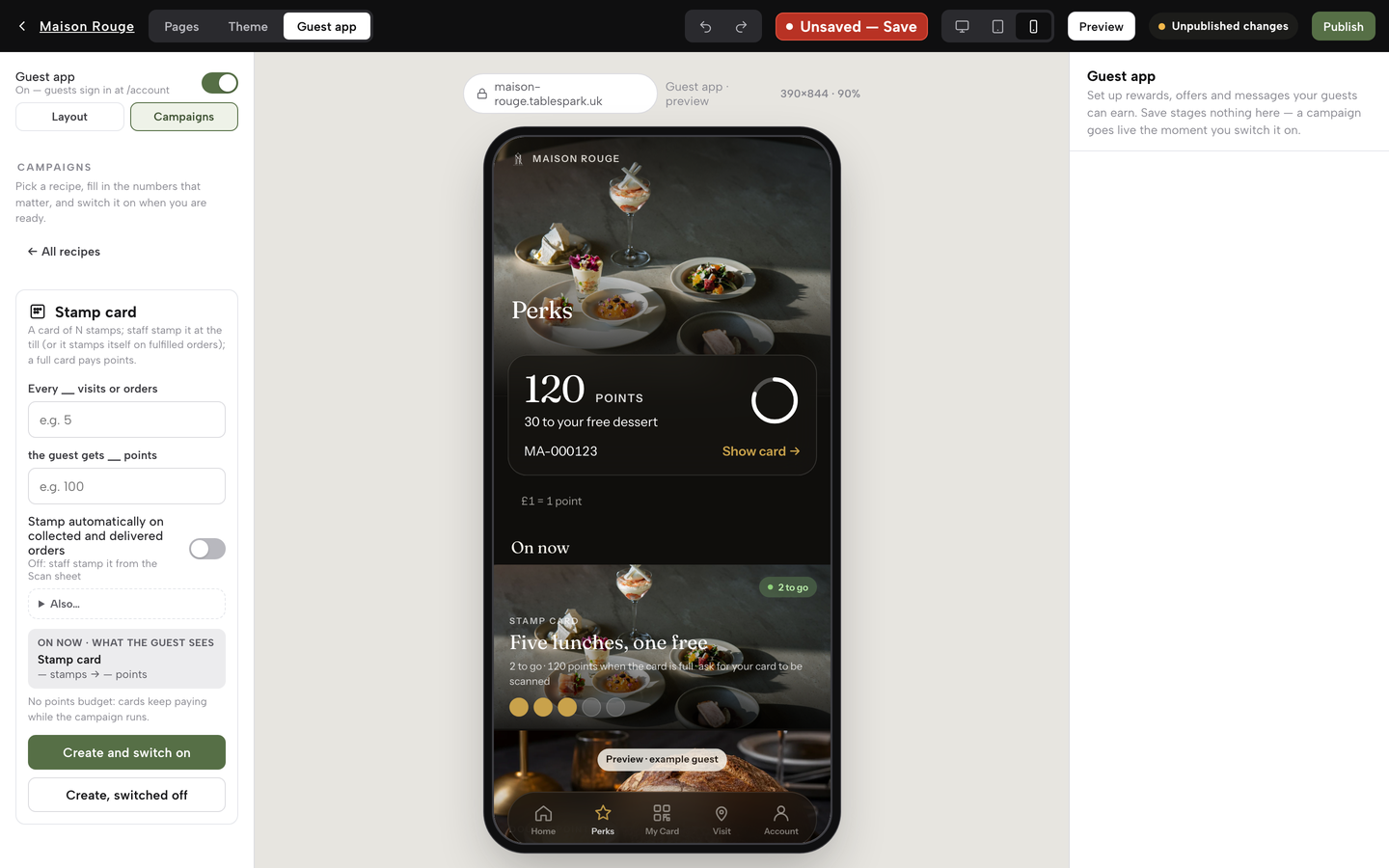
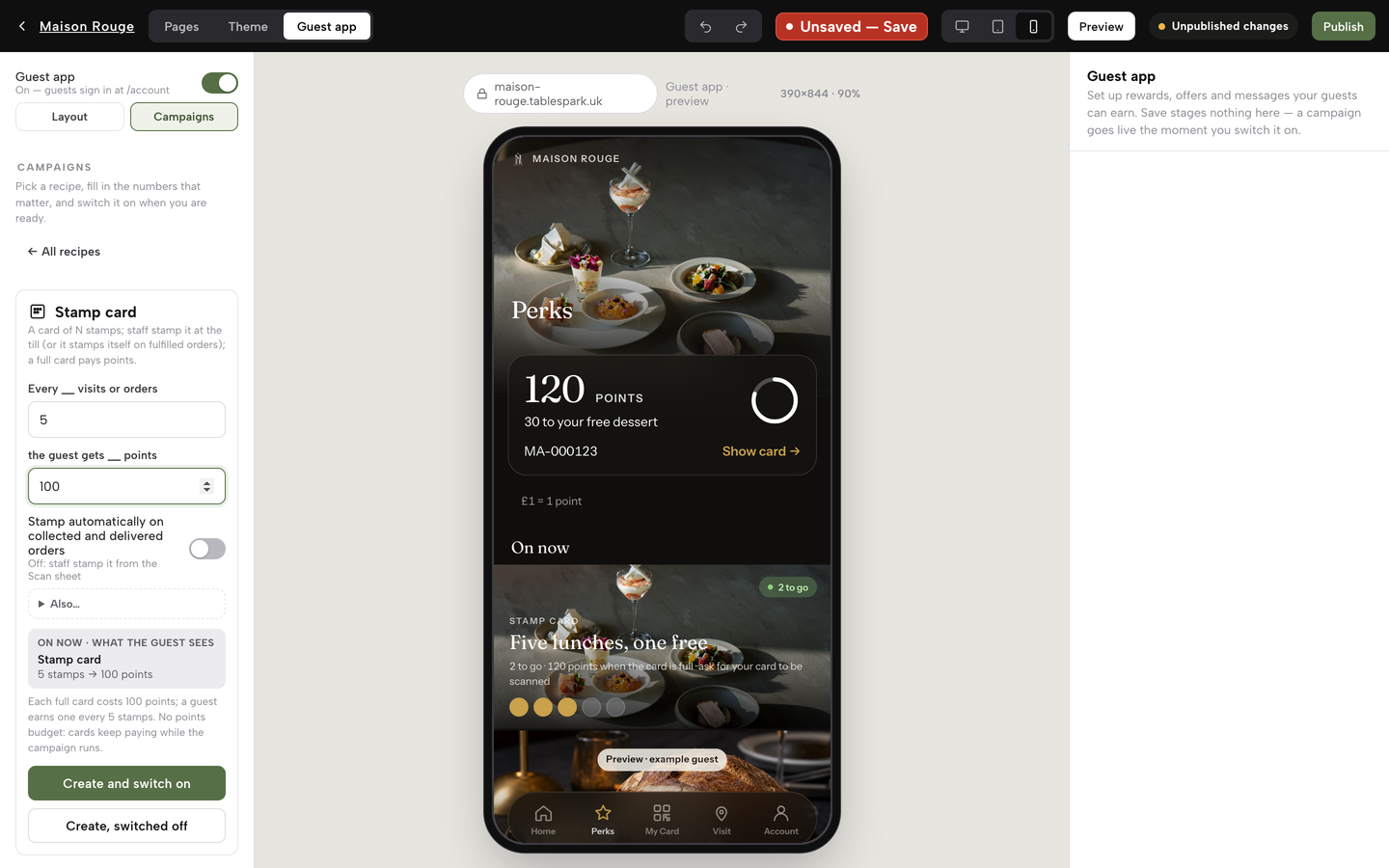
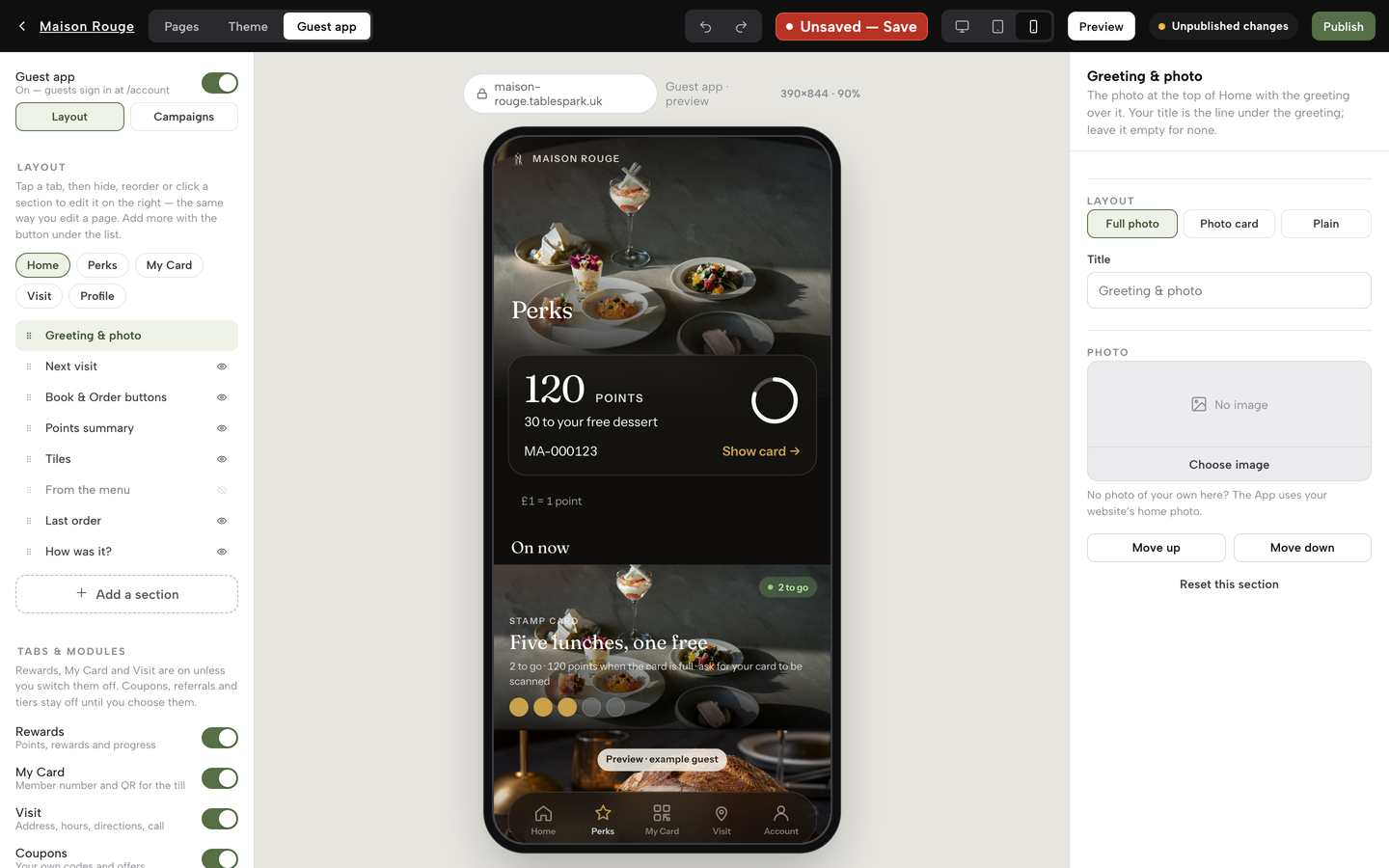
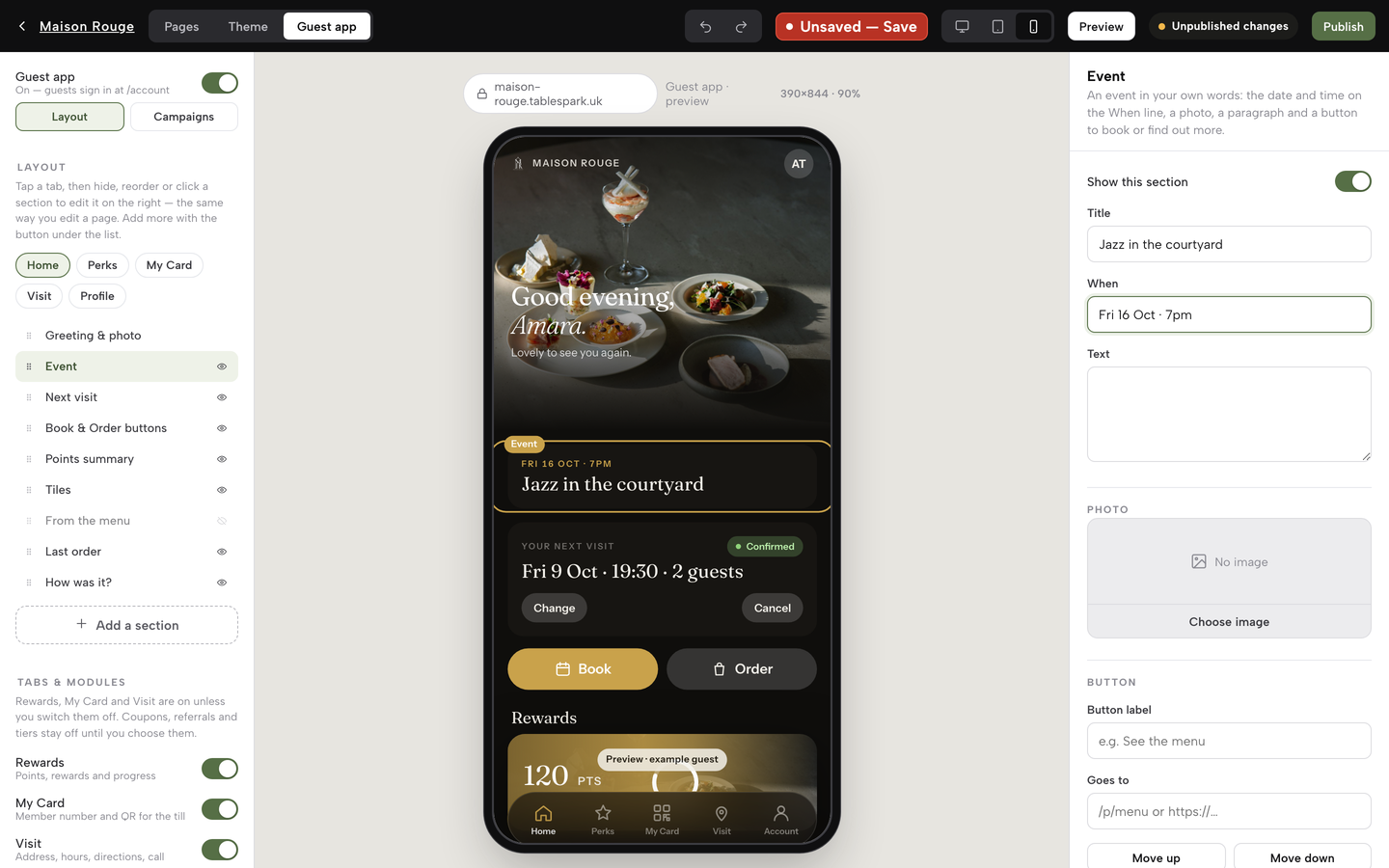
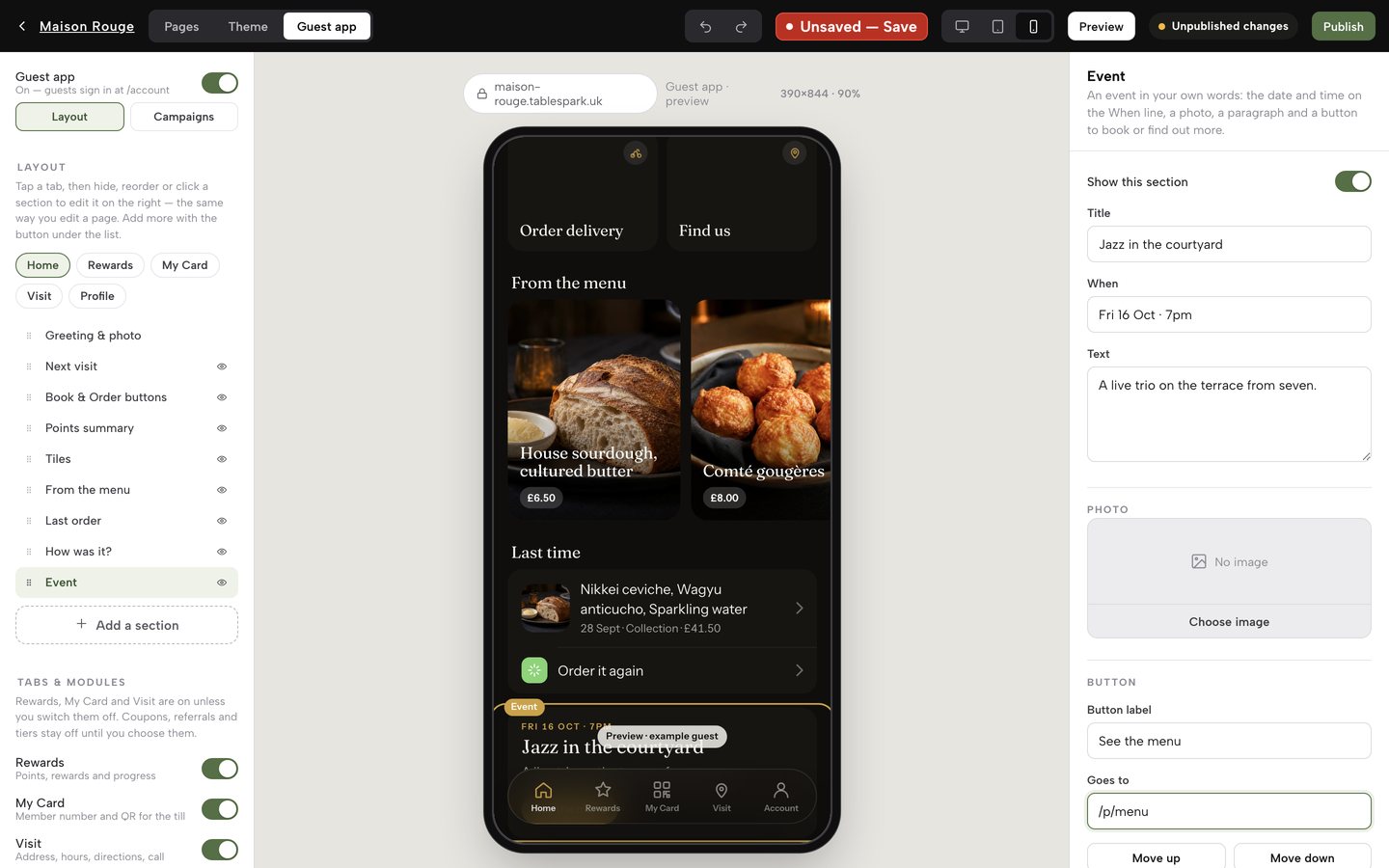
A greeting reworded and re-laid, a tab renamed, a campaign written, an event of your own added. On your own site, Save and Publish would put the layout live, and a campaign starts when you switch it on.
- WHERE
- Builder — the Guest app tab, top of the page
- TIME
- 10 minutes to read, about the same to try it
- HOW HARD?
- Click a section, type into a field — nothing here needs a developer
- CAN I BREAK IT?
- No — layout waits for Save and Publish; a campaign goes live only when you switch it on
IN PLAIN WORDS / TAP A TERM
What’s a “campaign” in the Guest App?
One of eight plain-language recipes for rewarding a guest — a stamp card, a welcome gift, happy-hours points, a birthday treat, bring a friend, money off, a thank-you email, or asking for a review. You decide when each one goes live, and its card always shows what it has given so far.
What’s a “layout” for a section?
Each section that supports one can show as Full photo (the picture fills the block), Photo card (a smaller framed card), Plain (words only) or, for the From the menu section, List — pick whichever reads best in the inspector.
What’s a “hold”?
When a guest redeems a reward — from their own account or scanned at the till — the points are set aside as a hold against their card rather than spent immediately. You mark it redeemed once you’ve handed the reward over, or release it to return the points.
What’s the difference between Save and Publish?
Your layout edits stay in the Builder until you press Save, which keeps them as a private draft. Publish is the separate step that puts the saved draft in front of guests. A campaign runs on a different clock again: it goes live — or comes off — the instant you flip its own switch, whether or not you’ve published anything else that day.
What does “Create, switched off” mean?
It saves the campaign ready but inactive until you press its switch. Nothing reaches a guest and nothing is spent before you choose to turn it on — there is no default offer waiting behind the scenes. Create and switch on is the other button, for a campaign you want live straight away.
Open the Guest app tab
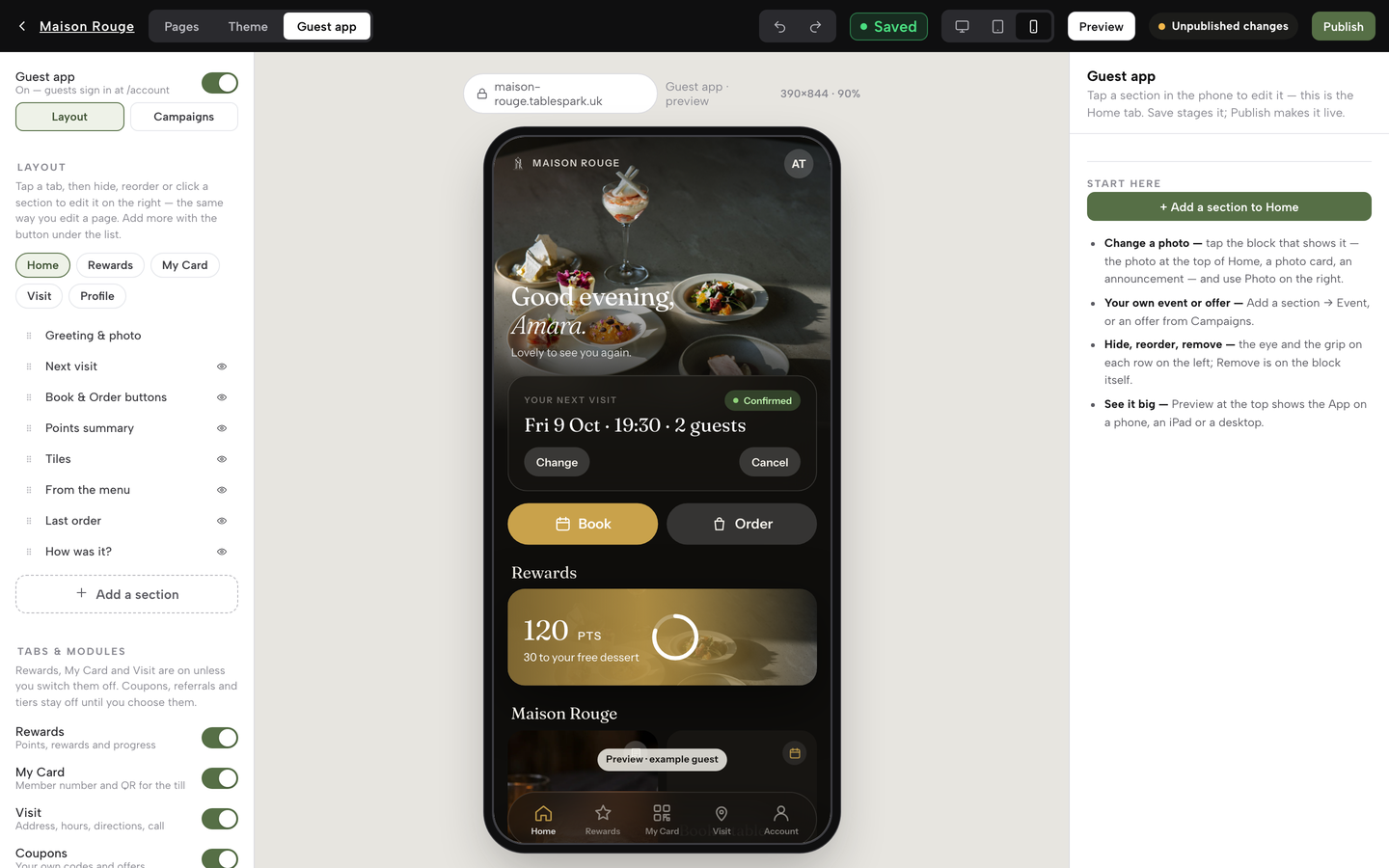
In the Builder, the top bar carries three tabs: Pages, Theme, and Guest app. Click Guest app. The left panel switches to a two-way control, Layout | Campaigns, sitting above everything else on that side; the middle of the screen keeps its phone frame, now previewing your own restaurant’s guest App instead of the website — an “example guest” stands in for a real one, so nothing here is anyone’s actual data.
Layout mode opens on five tab chips — Home, Rewards, My Card, Visit and the fifth, which guests see as Account unless you give it a name of your own (the Builder lists it as Profile) — matching the five tabs a guest gets. Click one and the outline underneath lists that tab’s sections in order, top to bottom, exactly as they stack in the phone. Above the switch sits the App’s own Guest app On/Off toggle: the App comes with the Growth and Full plans, and switching it off keeps every setting but closes /account and turns the website’s header button from Sign in back into Book a table once you publish. A Start here card in the inspector lists the four things to try first. Nothing you do here reaches a guest until you Save and Publish, and switching to Campaigns is covered later in this guide.
Click a section in the phone
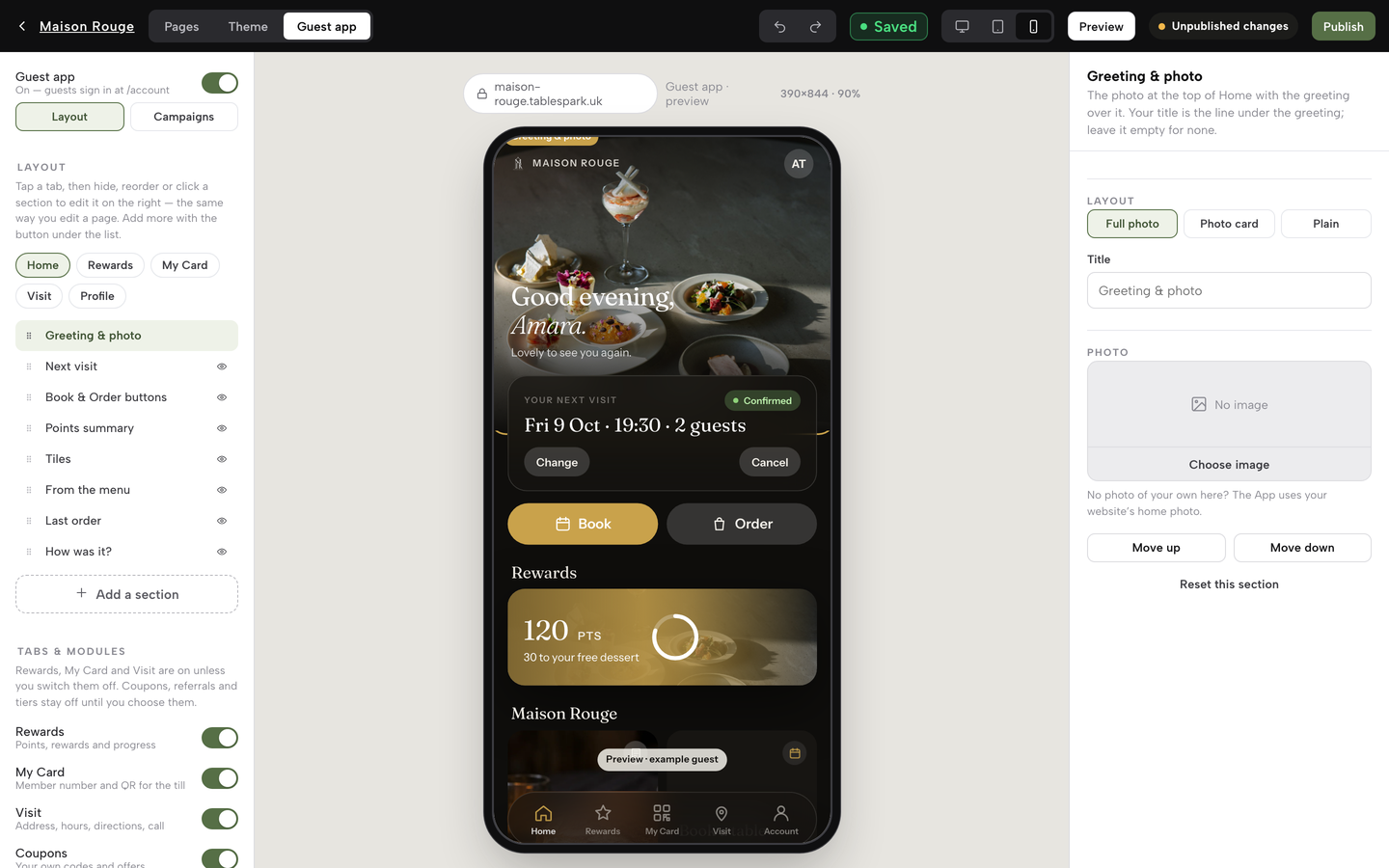
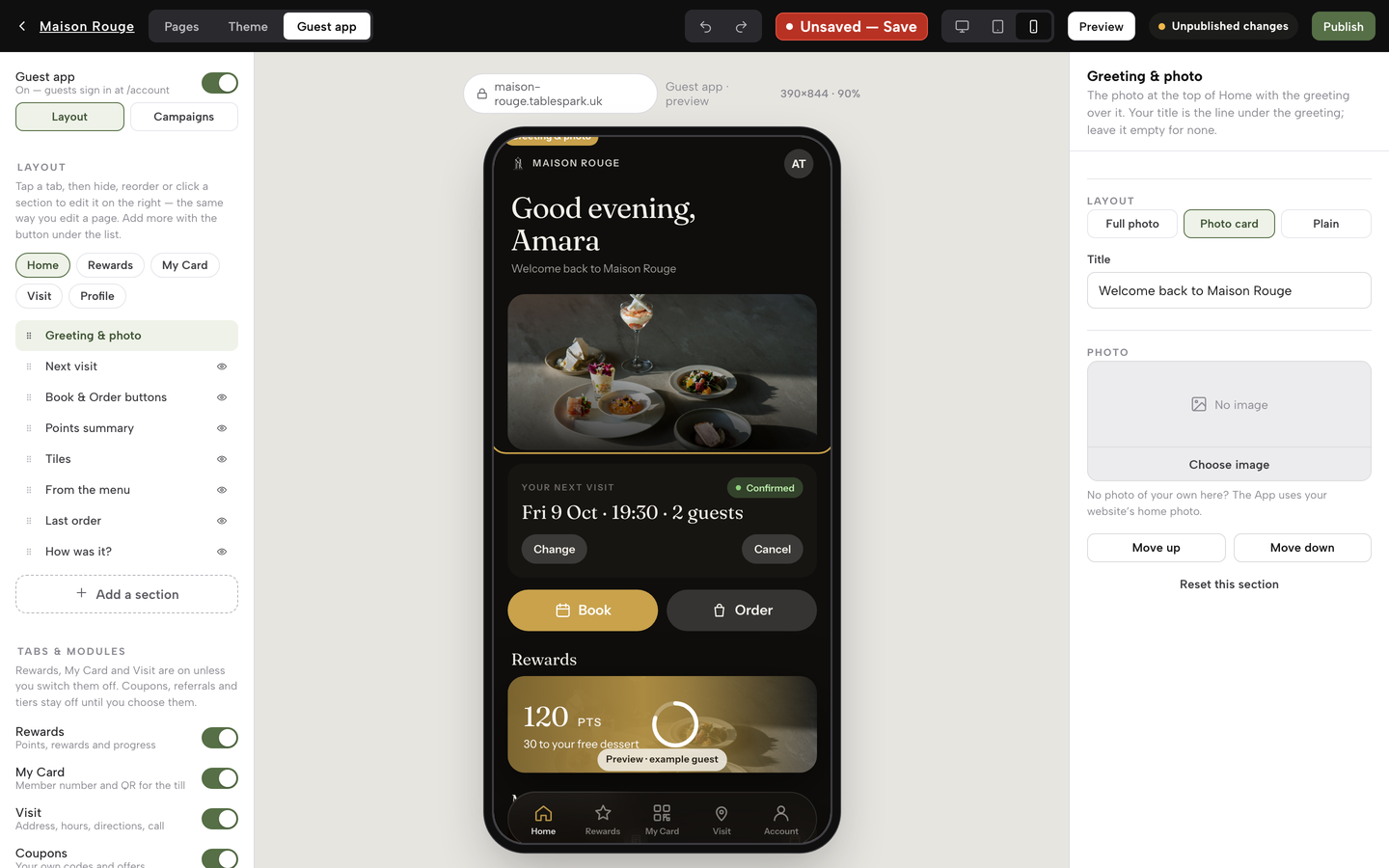
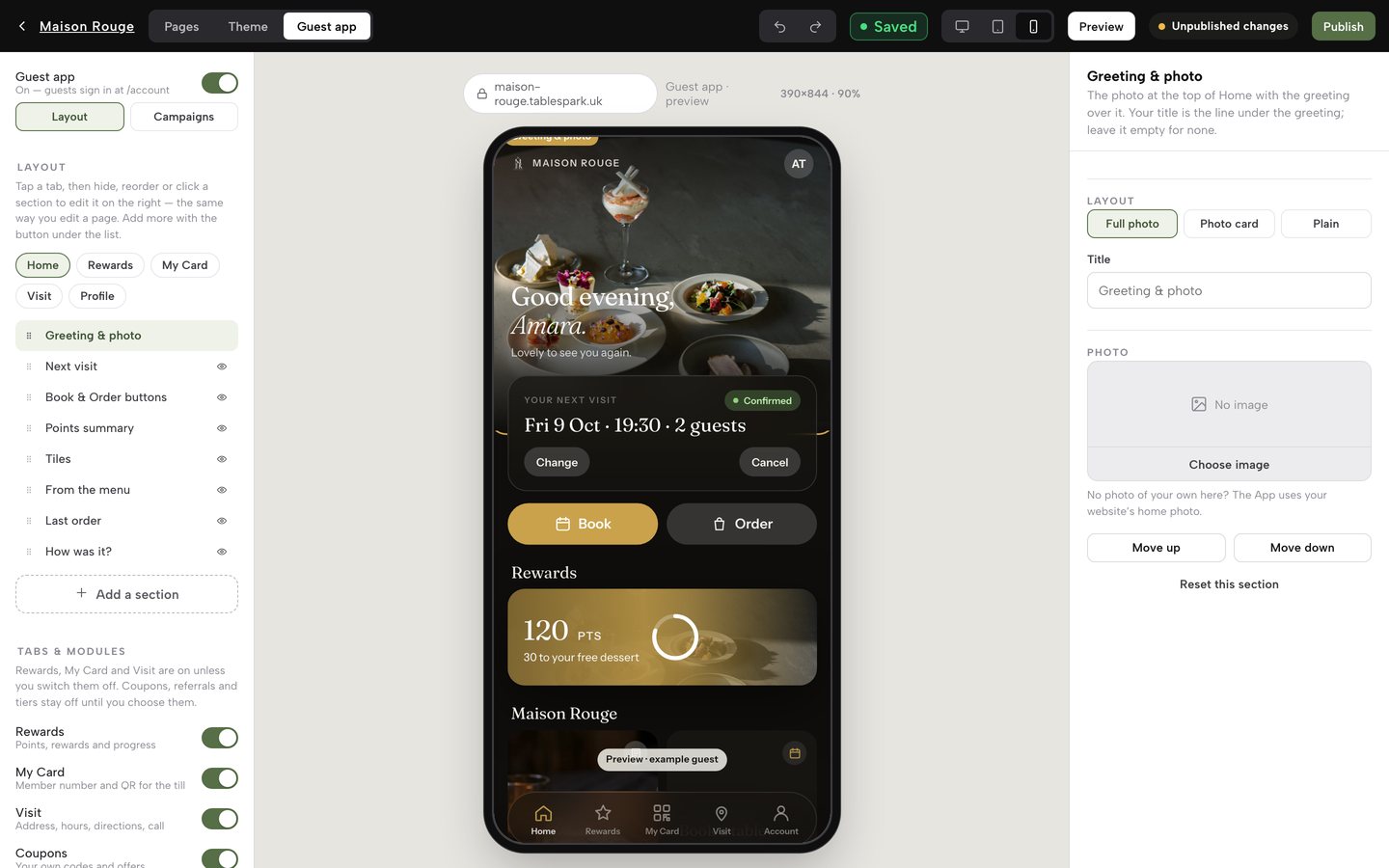
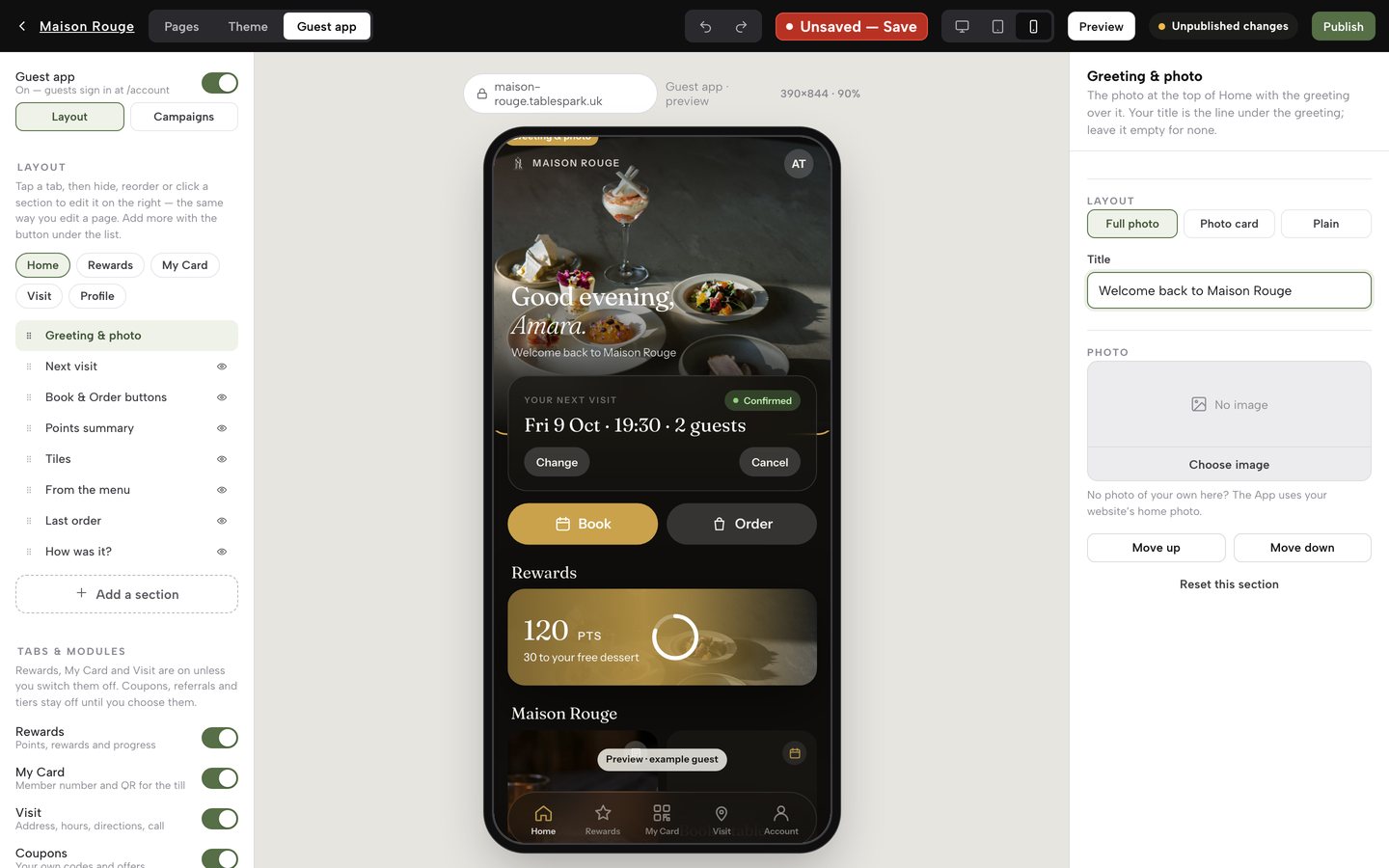
There are two ways to select a section, and they land on the same place: click its row in the outline on the left, or click directly on the matching block inside the phone frame. Either one highlights that block in the phone and opens the inspector on the right — the same panel a page’s blocks use. Try it on Greeting & photo, the photograph at the top of Home with the guest’s greeting over it: click its row (or click the photo itself in the phone) and the inspector opens with a Layout picker, a Title field for the line under the greeting, a Photo field, and Move up, Move down and Reset this section underneath. Next visit, the card below it, shows the guest’s next booking or a live order and takes a Title and Subtitle of its own for the moment when nothing is booked.
Every section works the same way, whichever tab it belongs to — the fields on offer change with what that section actually needs. Most sections add a Show this section switch at the top of the inspector. A few, like the greeting or the sign-out and legal footer, always show; everything else is yours to hide, move or restyle.
Give a section your own photo, title and subtitle
With a section selected, the inspector’s Title field (up to 60 characters) is a plain text box — on Greeting & photo it is the line under the greeting, and you can leave it empty for none. Next visit also has a Subtitle (up to 120) for the moment nothing is booked. Type into either and the phone updates as you go, so you see exactly what a guest will see while you’re still writing it. On other sections an empty Title falls back to the section’s own name or default. Every block that shows a picture carries its own Photo field with a Choose image button — the greeting photo, a photo card, an announcement, the member card, the Visit photo — open to an owner or admin; an editor can still update the words. With no photo of your own, the greeting uses your website’s home photo. Blocks that draw their pictures from elsewhere say so: From the menu uses your dishes’ photos from the Menu page, Photos uses your website’s gallery.
Choose a layout
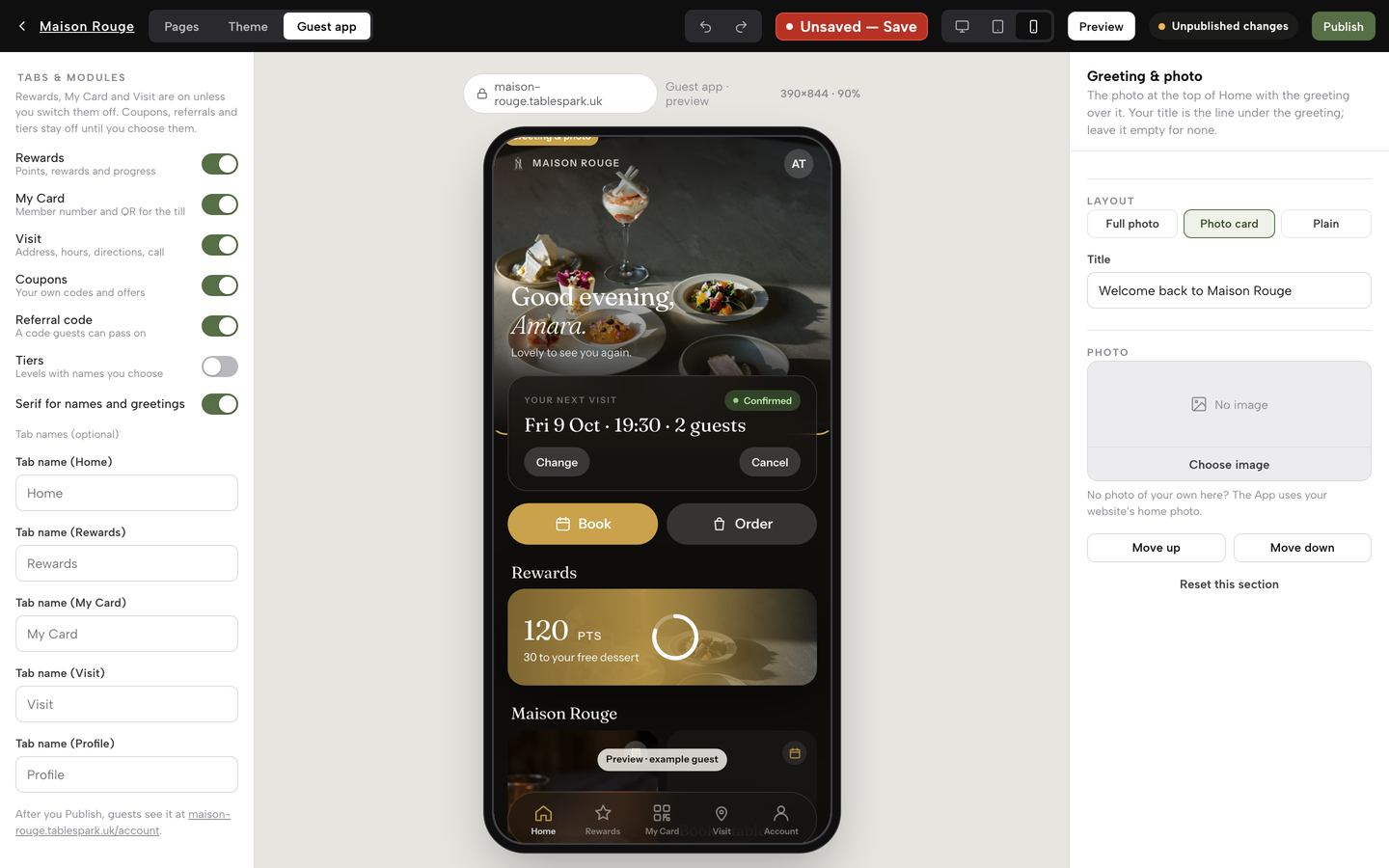
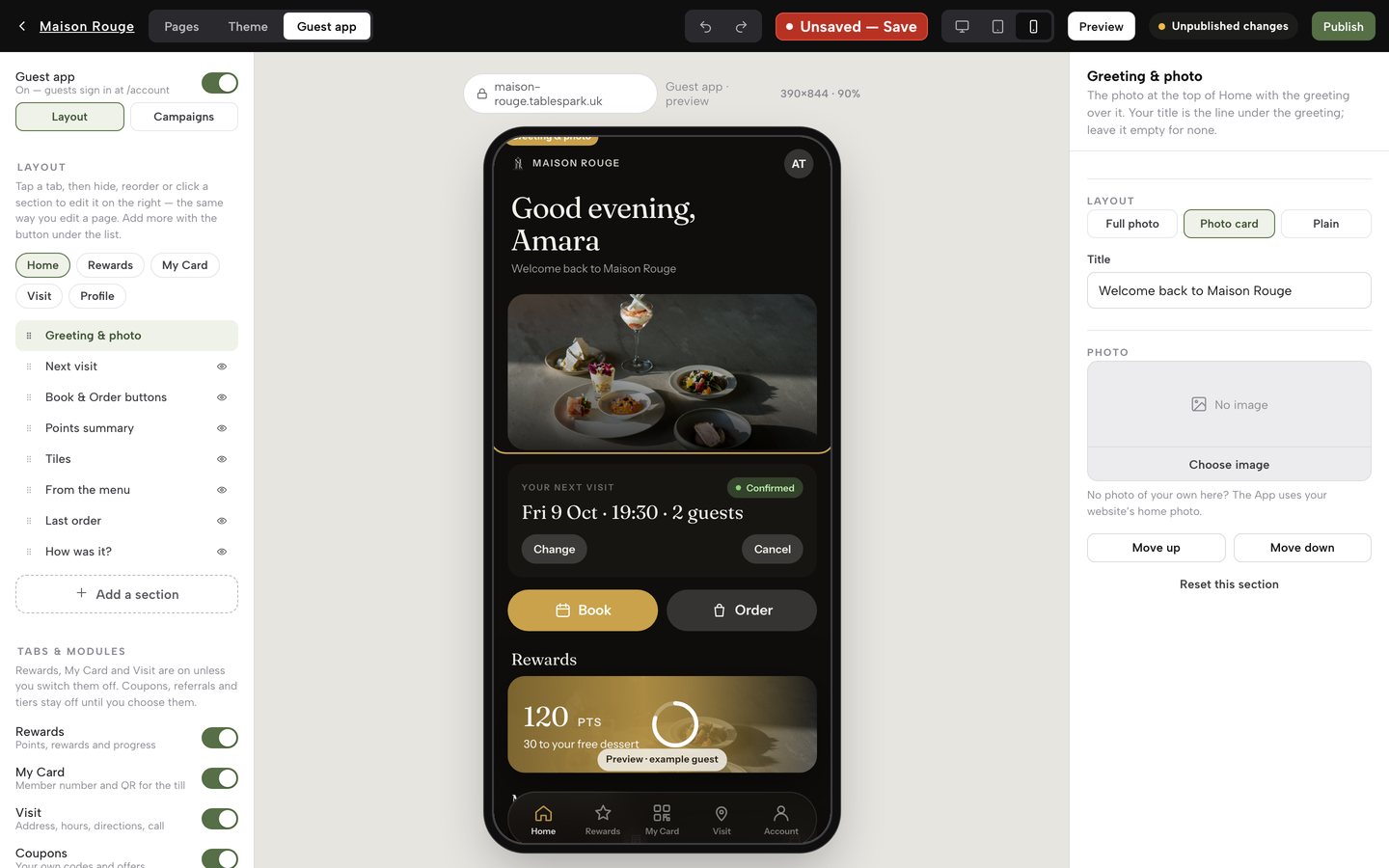
Above the Title field, a section that supports it shows a row of buttons. The greeting takes Full photo (the picture fills the block edge to edge), Photo card (a smaller framed card sitting on the black ground) or Plain (no photo). Points summary offers Photo card or Plain. “From the menu”, the section that features up to three photographed dishes, offers Photo card or List, since a menu reads better as a list than full-bleed. Click a button and the phone redraws that one block immediately — the rest of the tab is untouched. Sections without a layout row, such as Next visit, the Book & Order buttons or Last order, simply don’t need one.
Hide a section, reorder it, and rename a tab
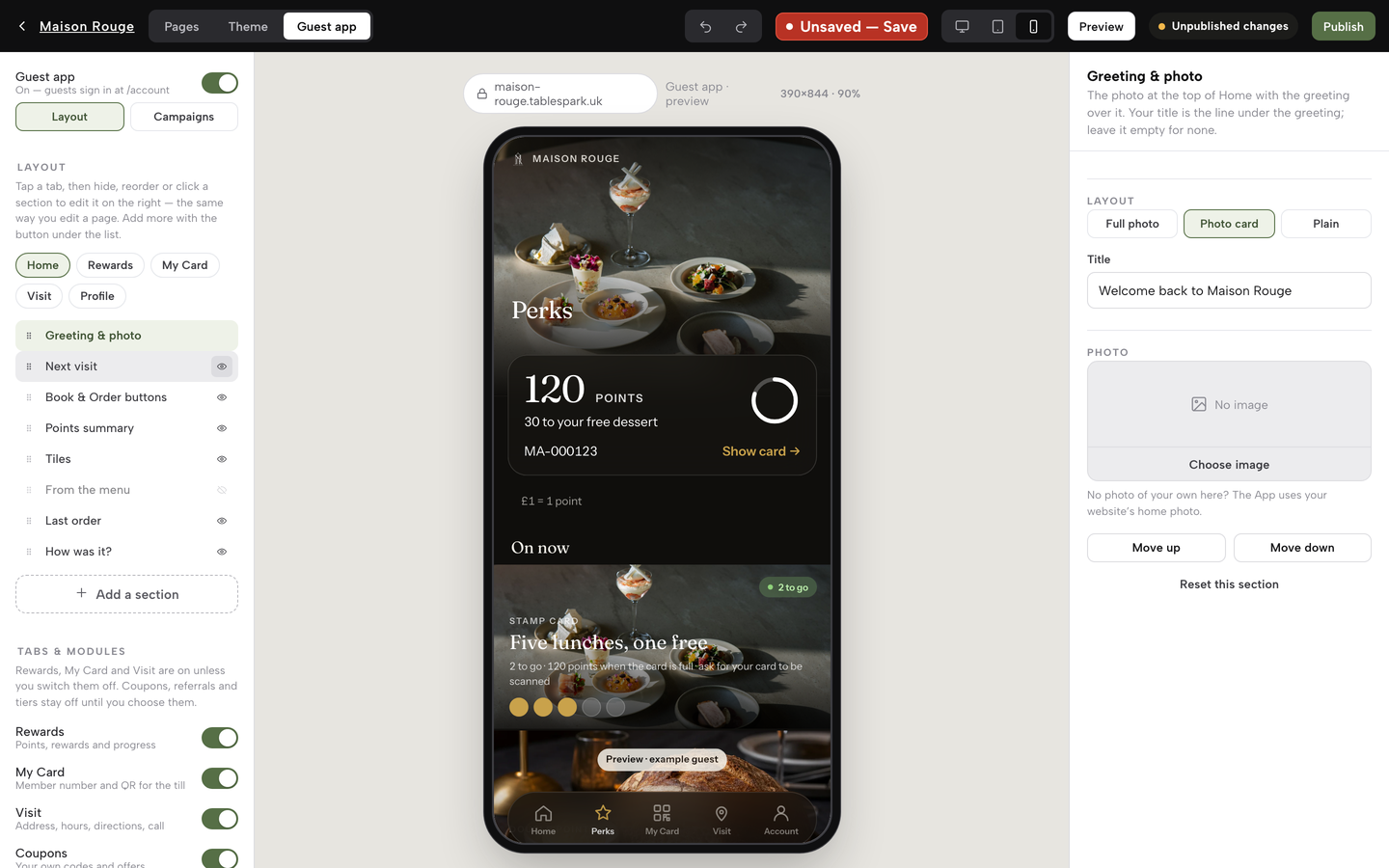
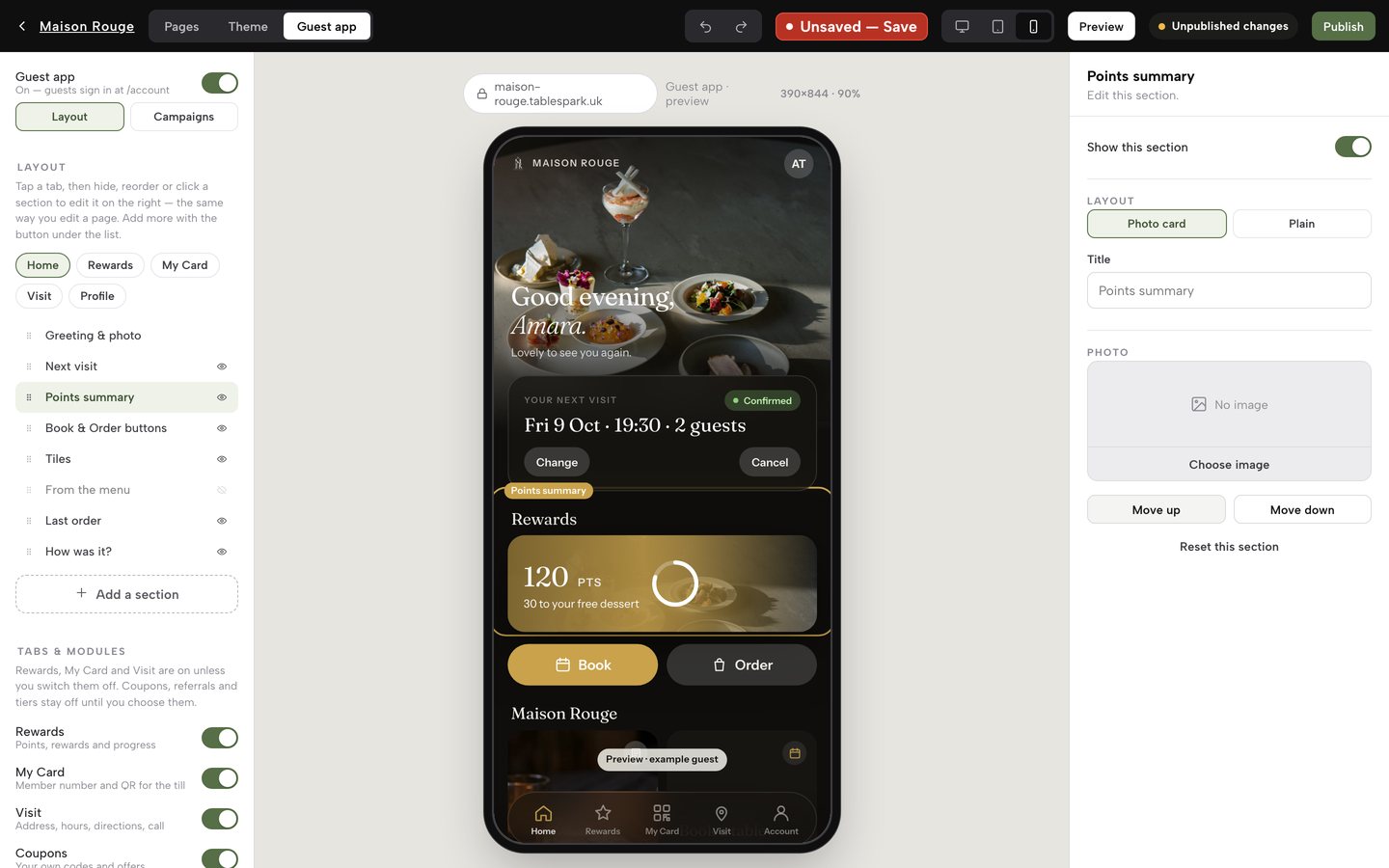
Every outline row that isn’t locked in place carries an eye icon: click it and that section stops showing to guests, dimmed in the outline as a reminder that it’s off; click it again to bring it back. The Show this section switch in the inspector does the same. A grip handle on the same row drags the section up or down the stack — or, with the grip focused, the arrow keys move it one place at a time — and the same reorder is what Move up and Move down do from inside the inspector.
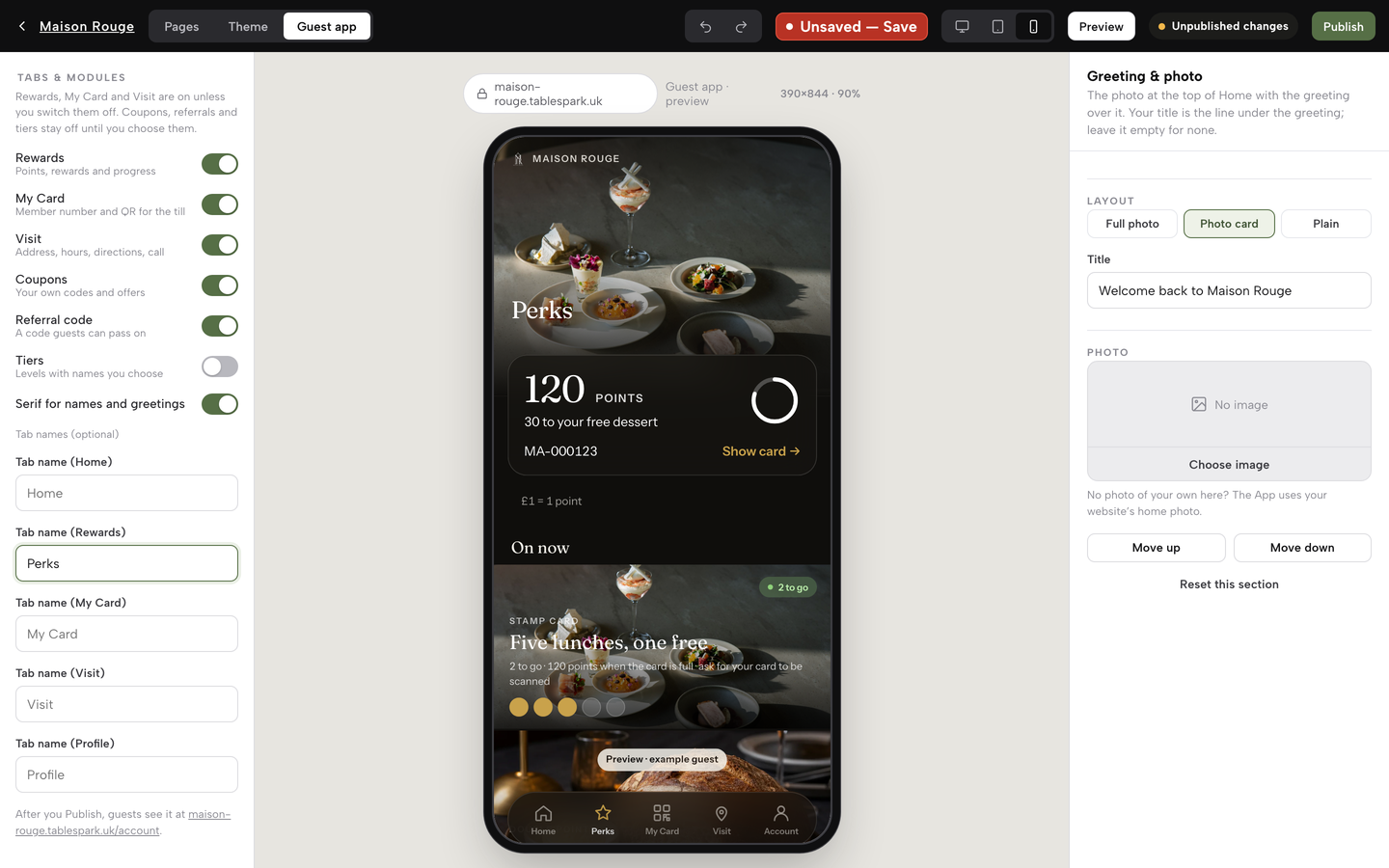
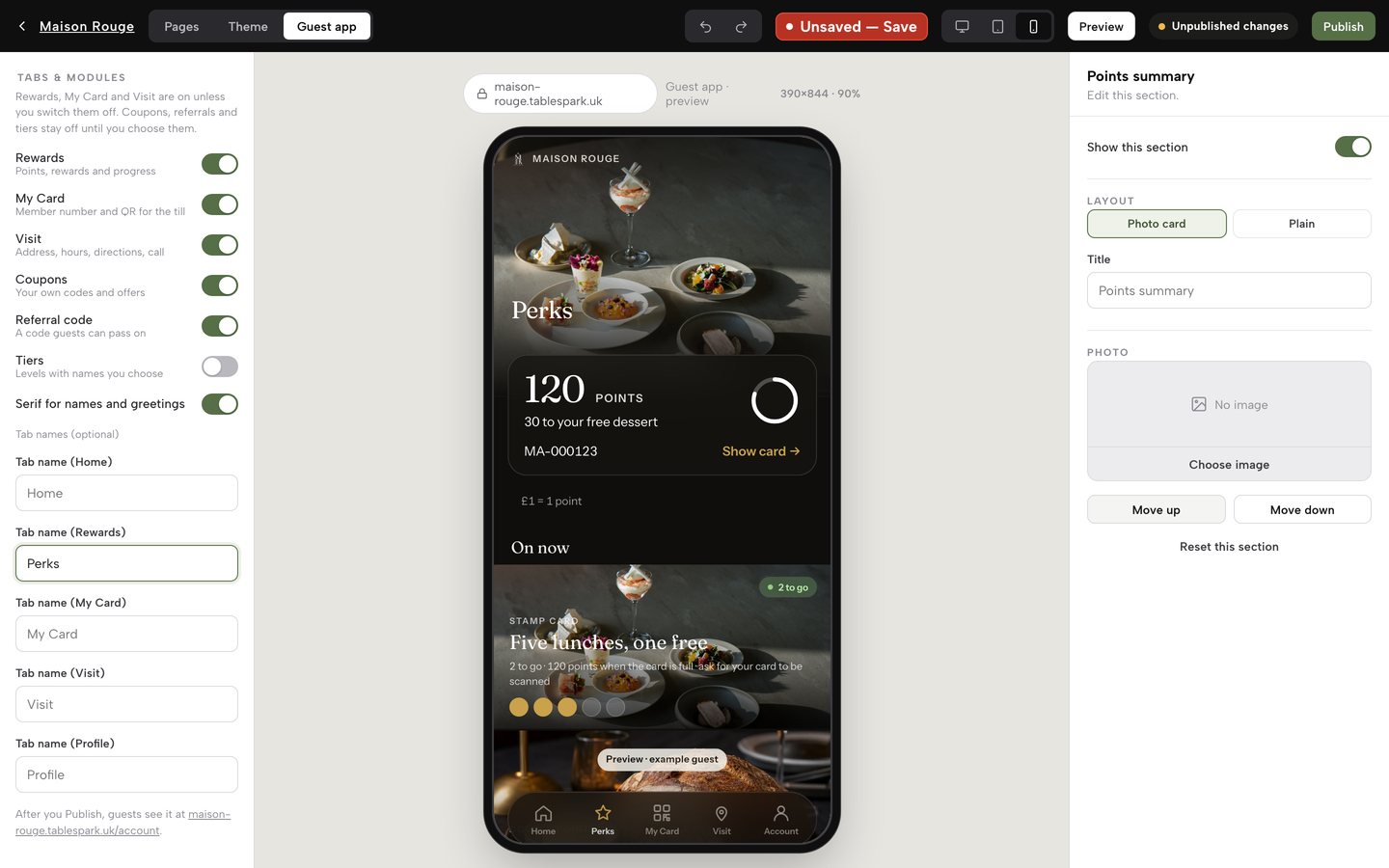
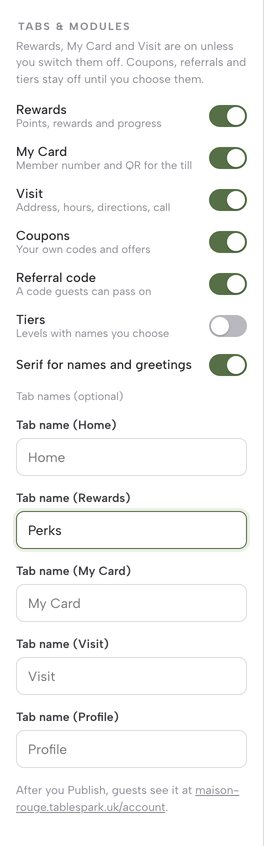
Further down the panel, Tab names (optional) gives each of the five tabs its own text field — leave it blank and the tab keeps its default label; type up to 14 characters and the phone’s tab bar picks it up immediately, so “Rewards” can become “Perks” or whatever fits your own restaurant’s voice. The fifth field, Tab name (Profile), renames the tab guests see as Account. A Serif for names and greetings switch sits just above the tab names, controlling whether a guest’s name and the App’s greetings are set in the warm editorial serif or the plain sans.
Modules and tiles
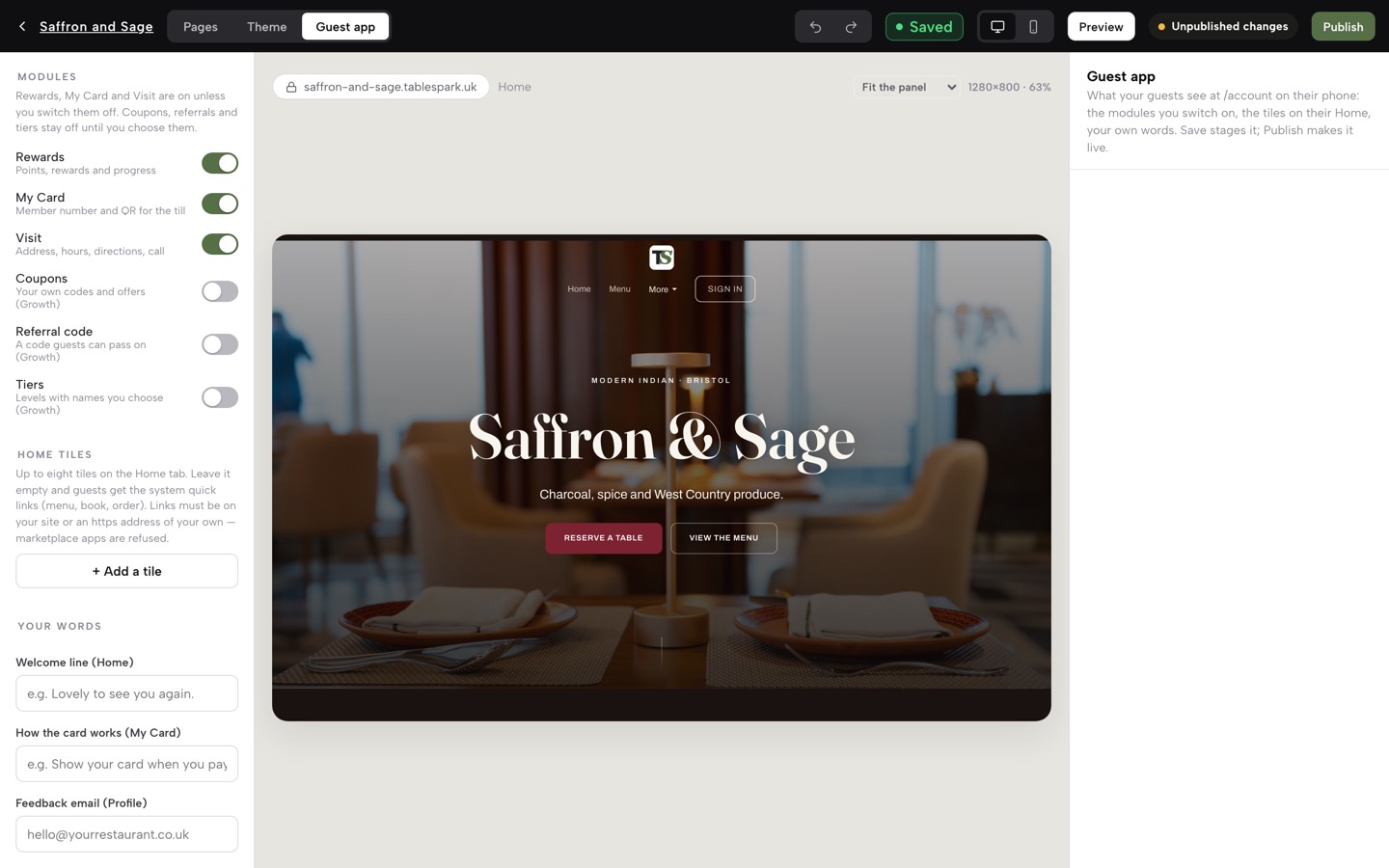
Tabs & modules, further down the same panel, lists six switches: Rewards, My Card and Visit are on unless you switch them off; Coupons, Referral code and Tiers stay off until you choose them, and are part of the Growth and Full plans. Switching a module off removes its tab or section for every guest at once — a faster route than hiding each of its sections one by one.
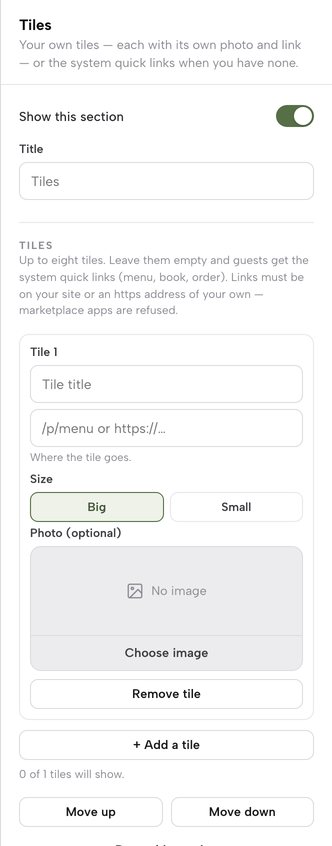
Tiles is a small bento grid of up to eight tiles on the Home tab — click the Tiles row (or the tiles in the phone) and its inspector holds them: each one a Tile title, a link (/p/menu or your own https address), an optional photo, and a Big or Small size, with + Add a tile and Remove tile to manage the list. Leave the list empty and guests get the system’s own quick links to your menu, booking and ordering instead. A tile’s link has to point at a page on your own site or your own https address — a link to a delivery marketplace is refused, so a tap from a guest’s own App never hands that guest to somebody else’s app. An owner or admin changes modules, tiles, layouts and links; an editor can still update the words.
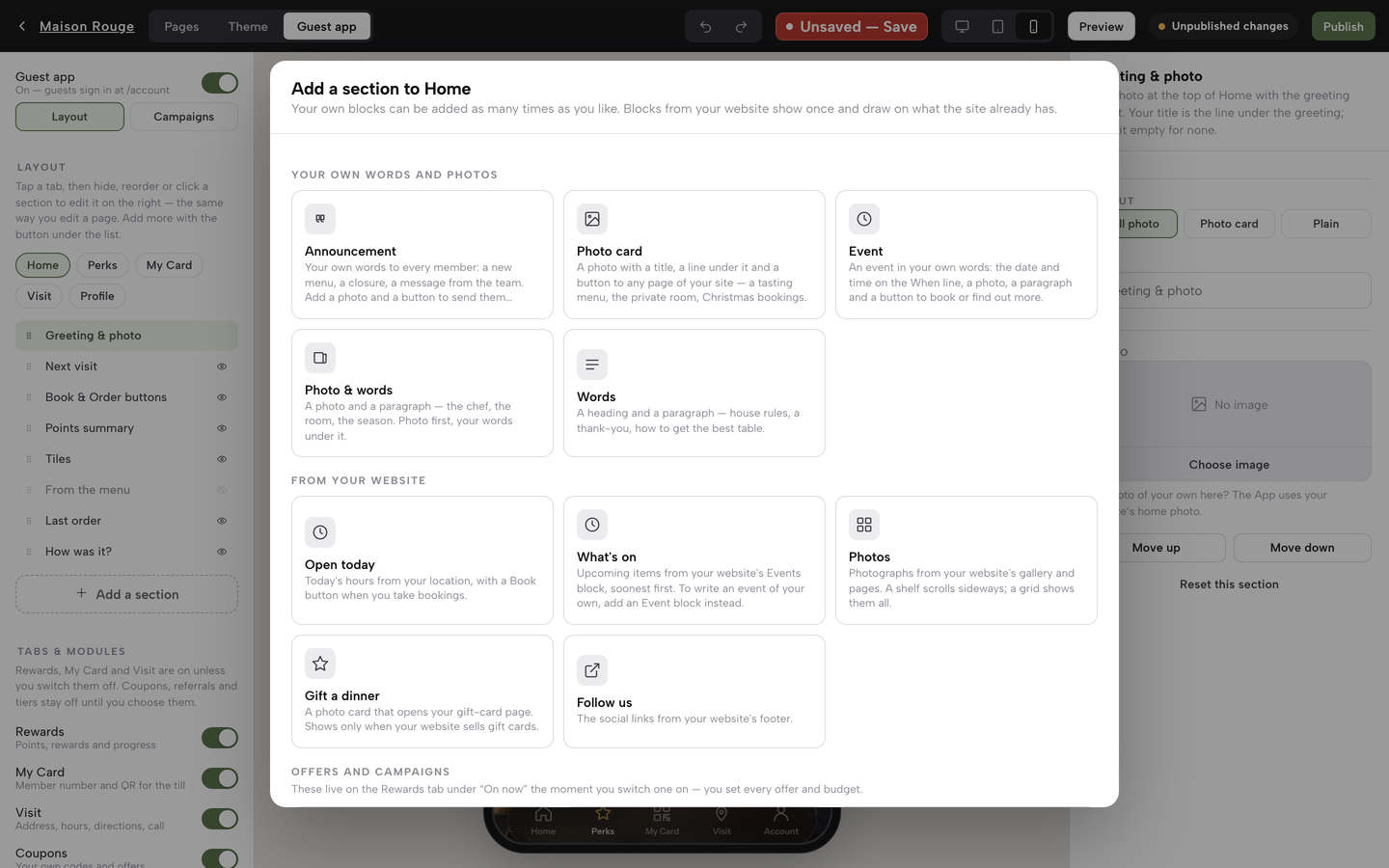
Add your own sections; words and legal links
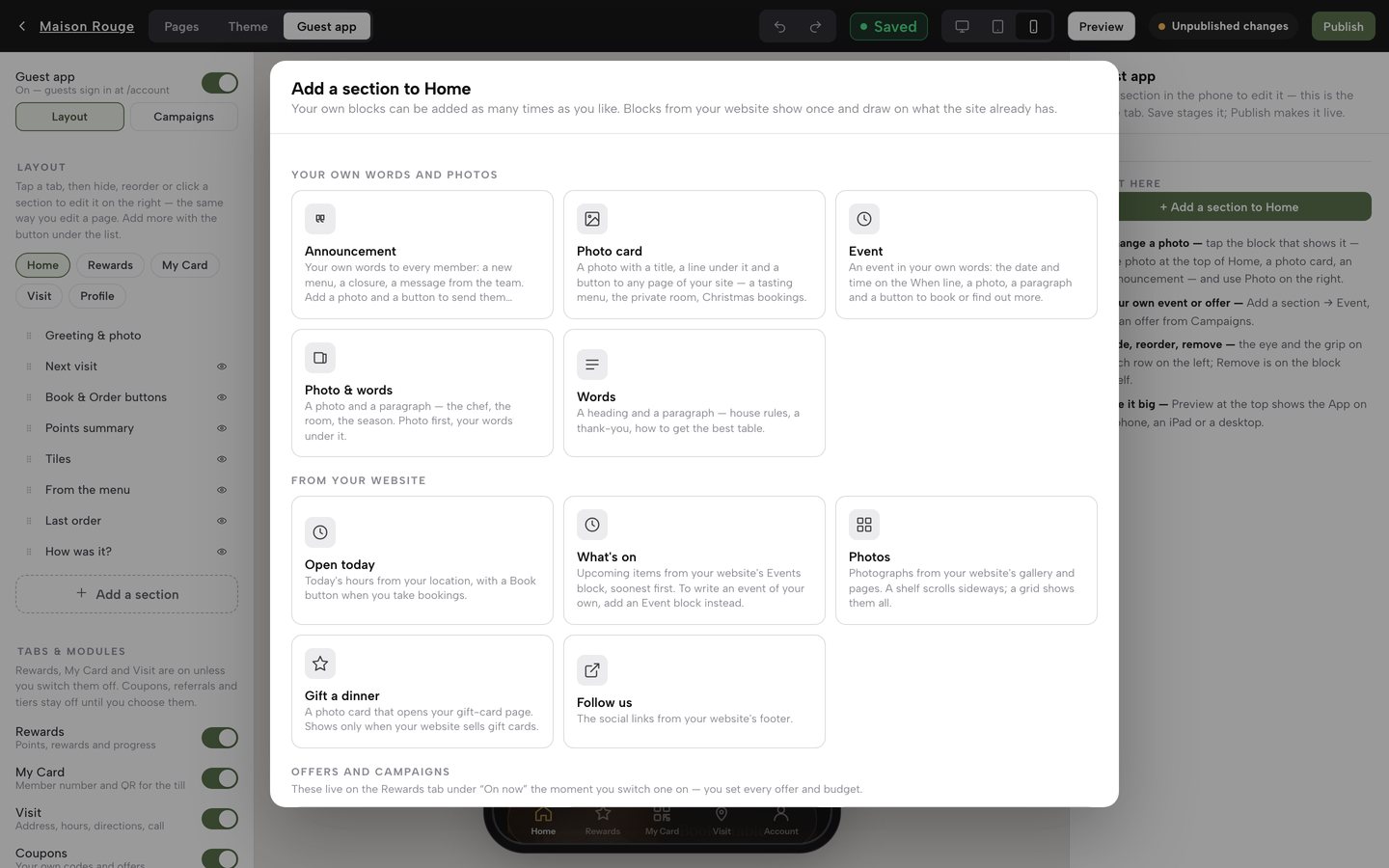
Under the outline sits Add a section. It opens a library, like the page builder’s block library, in three groups. The new section is placed right after the section you had selected, or at the end of the tab when nothing is selected, and Move up puts it where you want it. Your own words and photos holds blocks you can add as many times as you like — an Announcement (words, a photo and a button), a Photo card (a photo with a title and a button to any page of your site), an Event in your own words (a When line, a photo, a paragraph and a button to book), Photo & words and plain Words. From your website holds blocks that draw on what the site already has — Open today (today’s hours, with a Book button when you take bookings), What’s on (upcoming items from your Events block), Photos, Gift a dinner and Follow us. Offers and campaigns at the foot jumps straight to a campaign recipe. A block you added carries Duplicate and Remove from Home on its inspector, next to Move up and Move down.
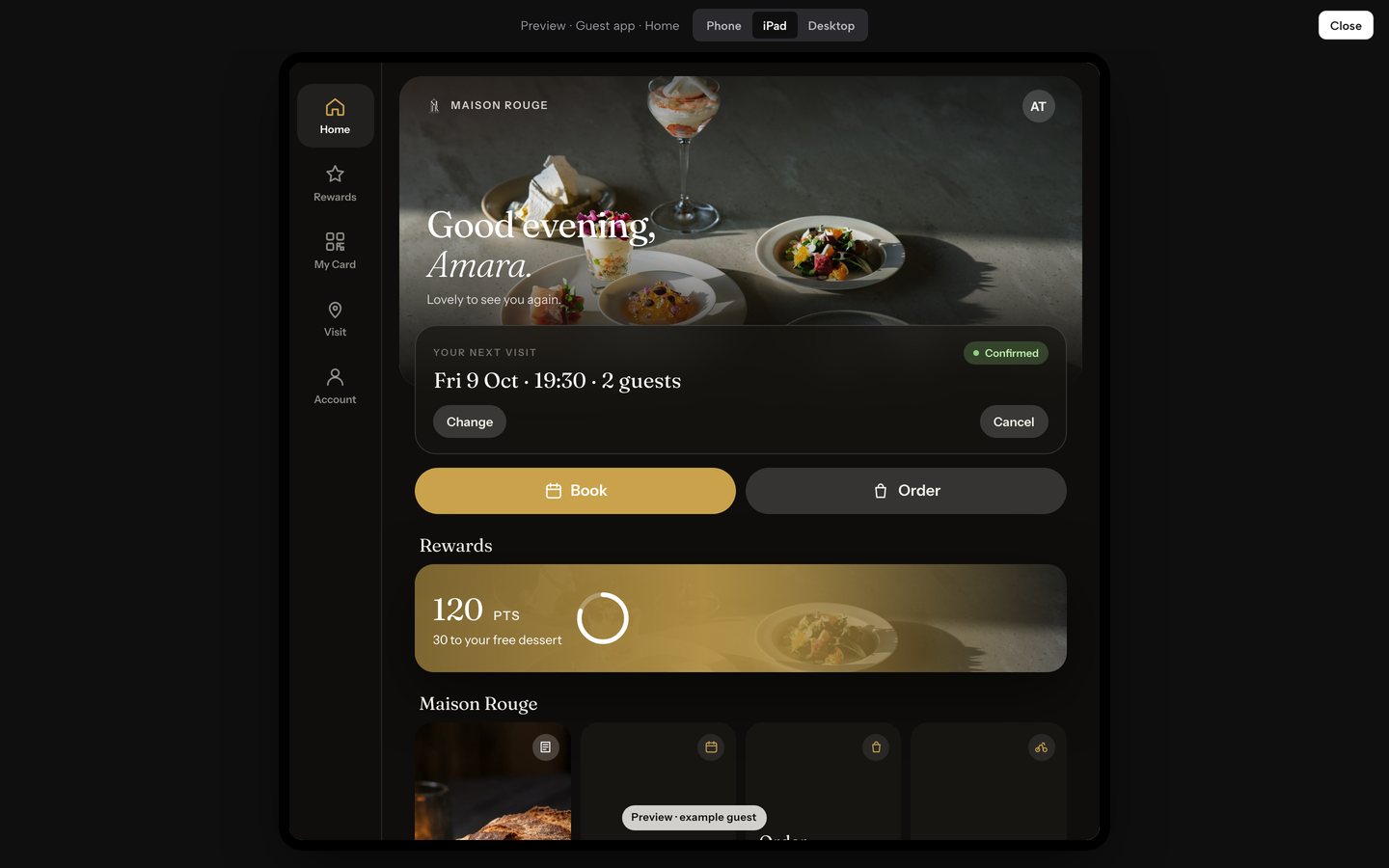
The App’s few free-text extras live on the block they belong to rather than in a list of their own: the How the card works explanation is on My Card’s How it works block, the Feedback email a guest’s low ratings are routed to privately is on the Help block of the fifth tab, and the Terms page and Privacy page paths are on Sign out & legal. At the foot of the panel the live address — https://{your-slug}.tablespark.uk/account — is the one guests will use once you publish. The Preview button in the top bar shows the App itself at full size, with Phone, iPad and Desktop buttons along the top and Close to come back, and the device icons beside the Save chip switch the phone frame to an iPad, an iPad on its side or an open foldable.
Campaigns are recipes: pick one, fill it in
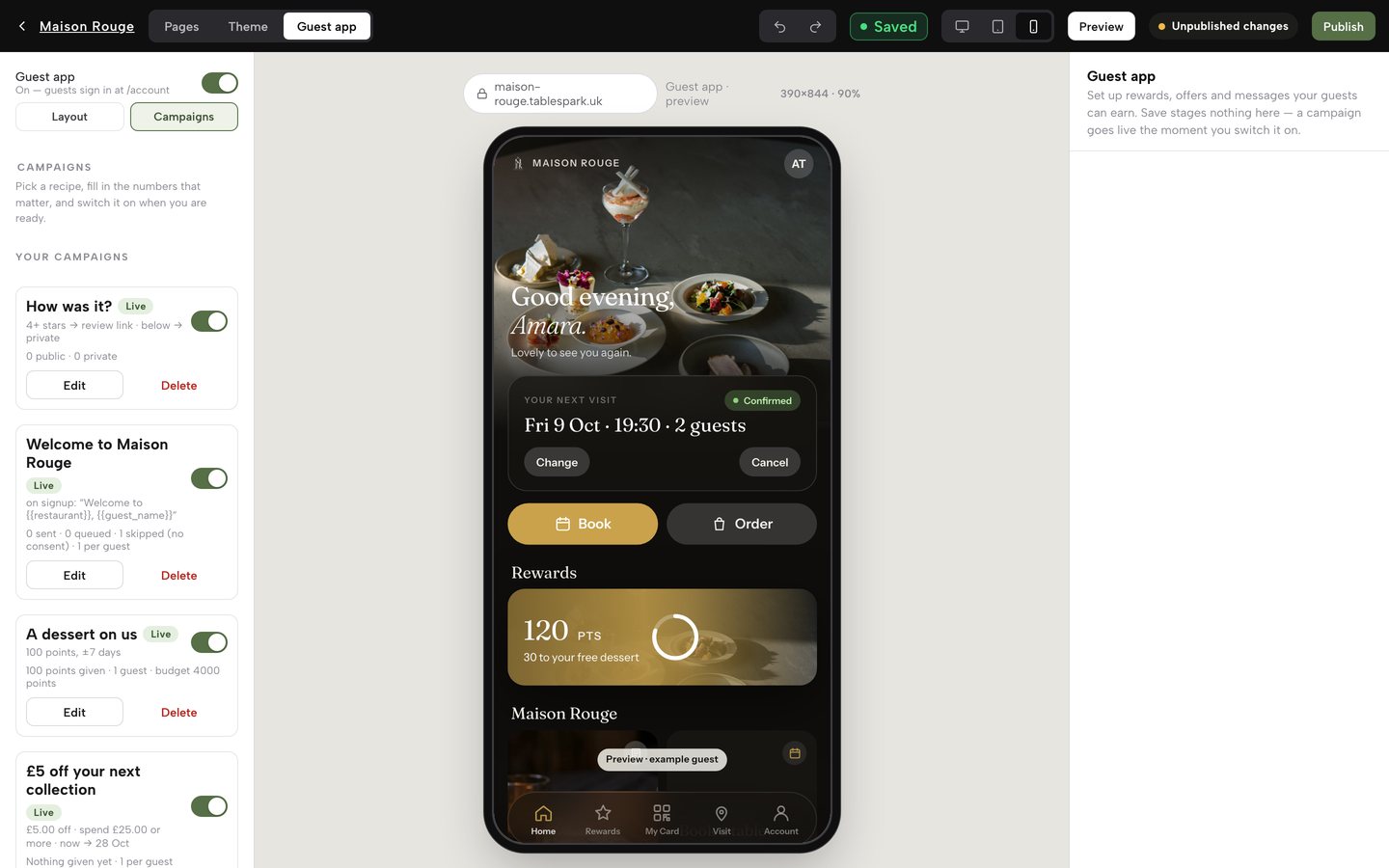
Click the Campaigns segment at the top of the panel — a different tool from the one-off newsletter campaigns you send yourself. Any campaign you’ve already built appears first, as a card with a status pill (Live, Off, Scheduled or Ended), its own switch, an Edit button and a Delete button that asks you to confirm. A campaign that has already given something stays in the record — you switch it off instead.
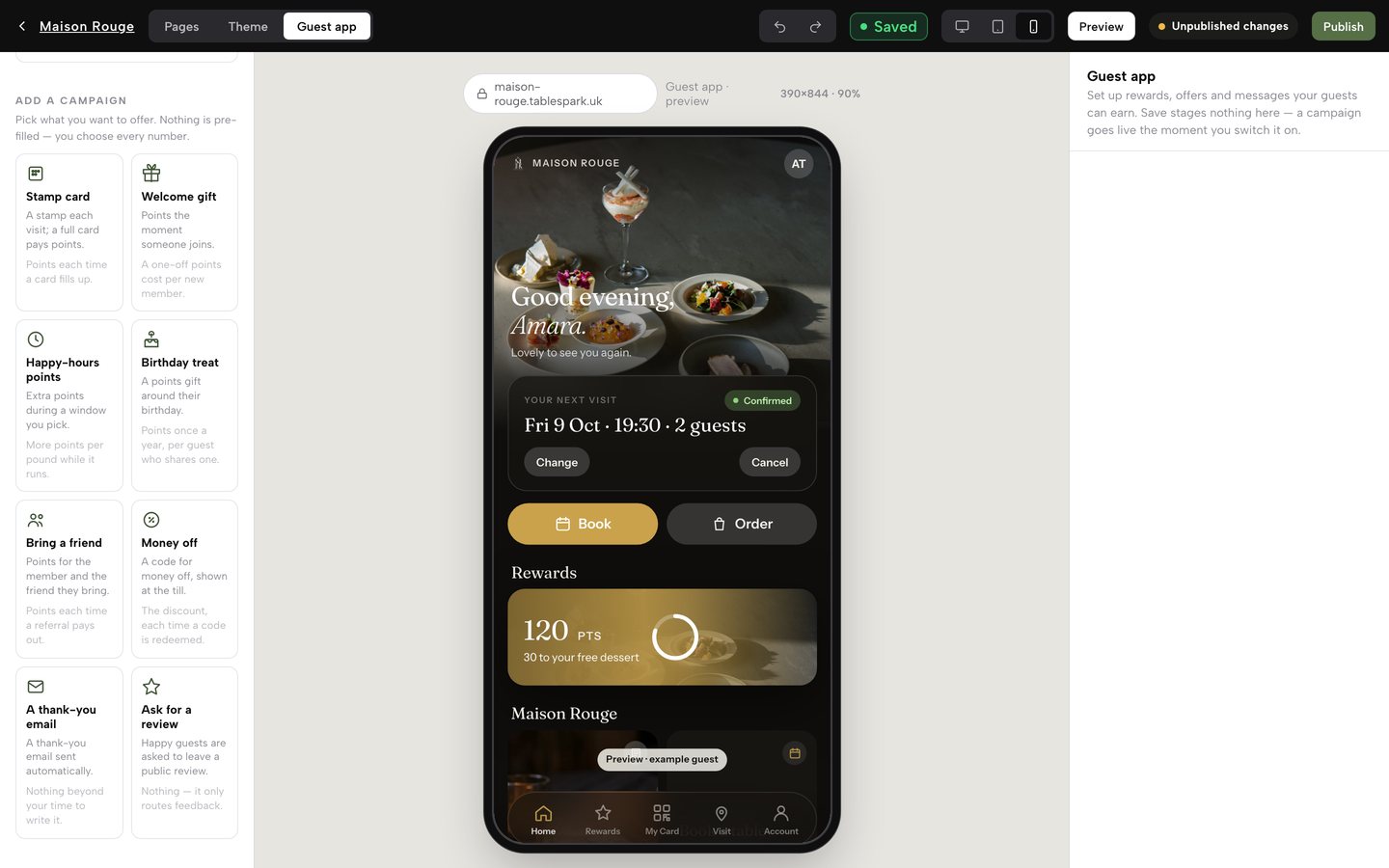
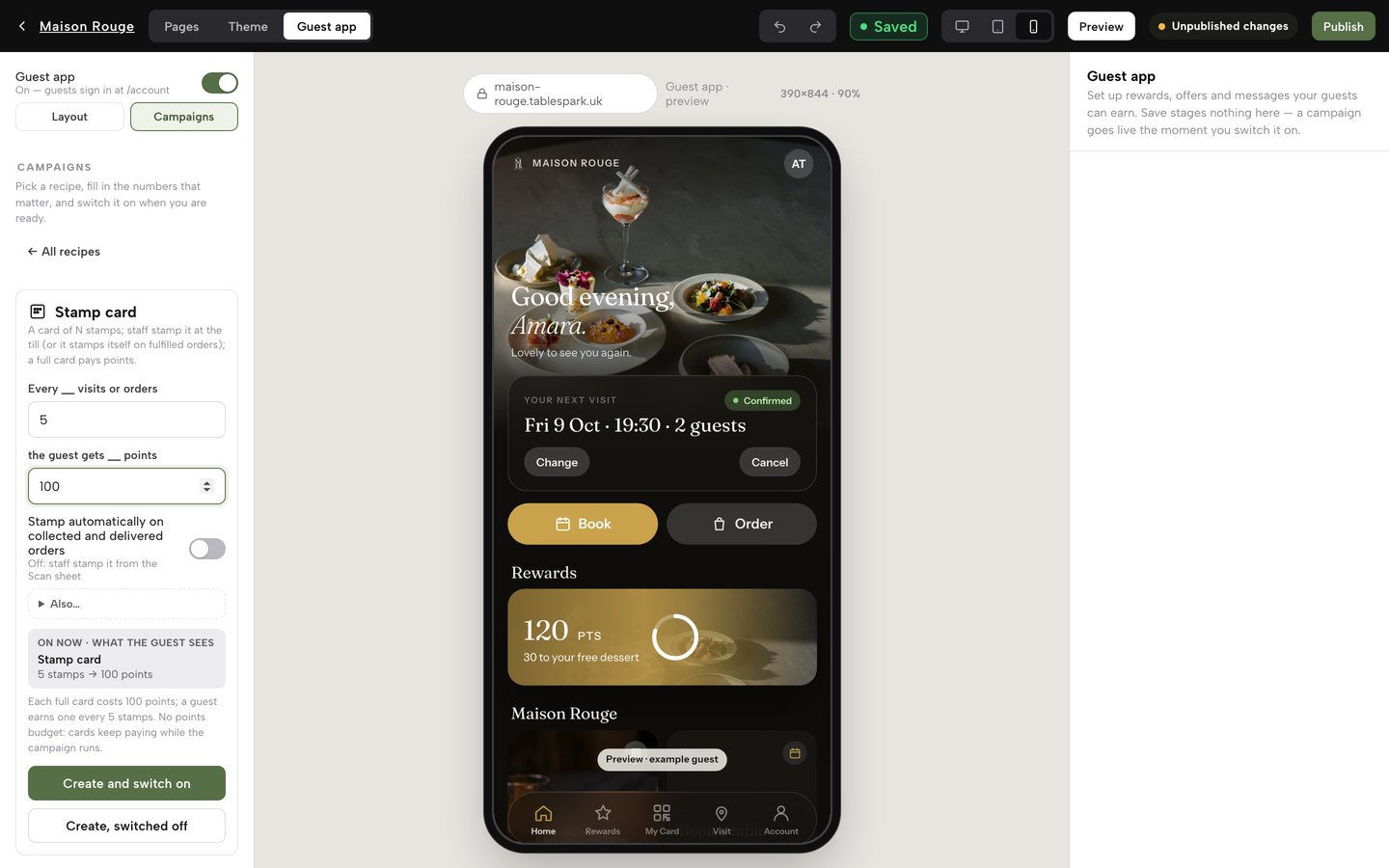
Underneath, Add a campaign lays out eight recipe cards, each with a one-line “what the guest gets” and “what it costs you”: Stamp card, Welcome gift, Happy-hours points, Birthday treat, Bring a friend, Money off, A thank-you email and Ask for a review. Click one and its form opens with only the two or three numbers that recipe needs — the Stamp card, for instance, asks “Every __ visits or orders” and “the guest gets __ points”, plus a switch for whether it stamps itself on collected and delivered orders or staff stamp it from the Scan sheet. Every field starts empty, with an example such as 5 or 100 as a hint; nothing is pre-filled, and ← All recipes takes you back. An Also… disclosure opens optional extras — a title, a points budget, a per-guest limit and start and end dates — and as you type, the panel writes back an “On now · what the guest sees” preview with a plain-English cost line reading back the numbers you typed. Two buttons close the form: Create and switch on puts the campaign live immediately, and Create, switched off keeps it in reserve until you press its switch.
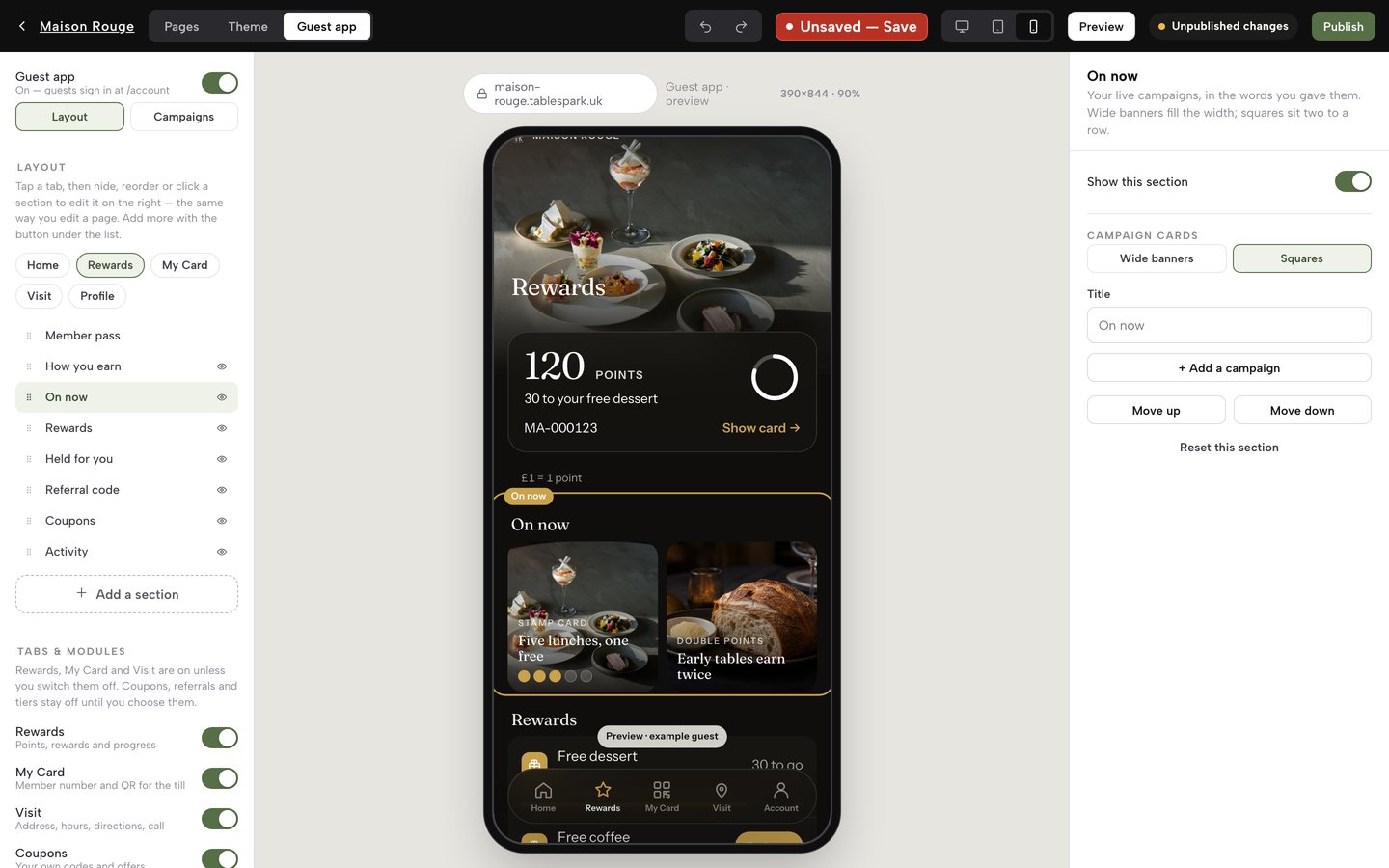
Live campaigns show on the Rewards tab in the section called On now. Select it in the outline and its Campaign cards row offers Wide banners (full width) or Squares (two cards to a row), independent of the recipe you chose; + Add a campaign in the same inspector takes you to the recipes.
Save, Publish, and what goes live when
The top bar carries both the layout tools and the two controls that decide what a guest actually sees. The Undo and Redo buttons step through your edits, and the chip beside them reads Saved or, once you’ve changed something, Unsaved — Save: click it to keep your edits as a private draft. An Unpublished changes pill appears beside Publish whenever your last save isn’t on the live App yet, and nothing reaches a guest until you press Publish, which puts the saved layout live. Campaigns run on a different clock entirely: a campaign goes live — or comes off — the instant you flip its own switch on the Campaigns panel, whether or not you’ve published a single layout change that day. It’s worth knowing which is which before you switch anything on for real.

Scan a card at the till
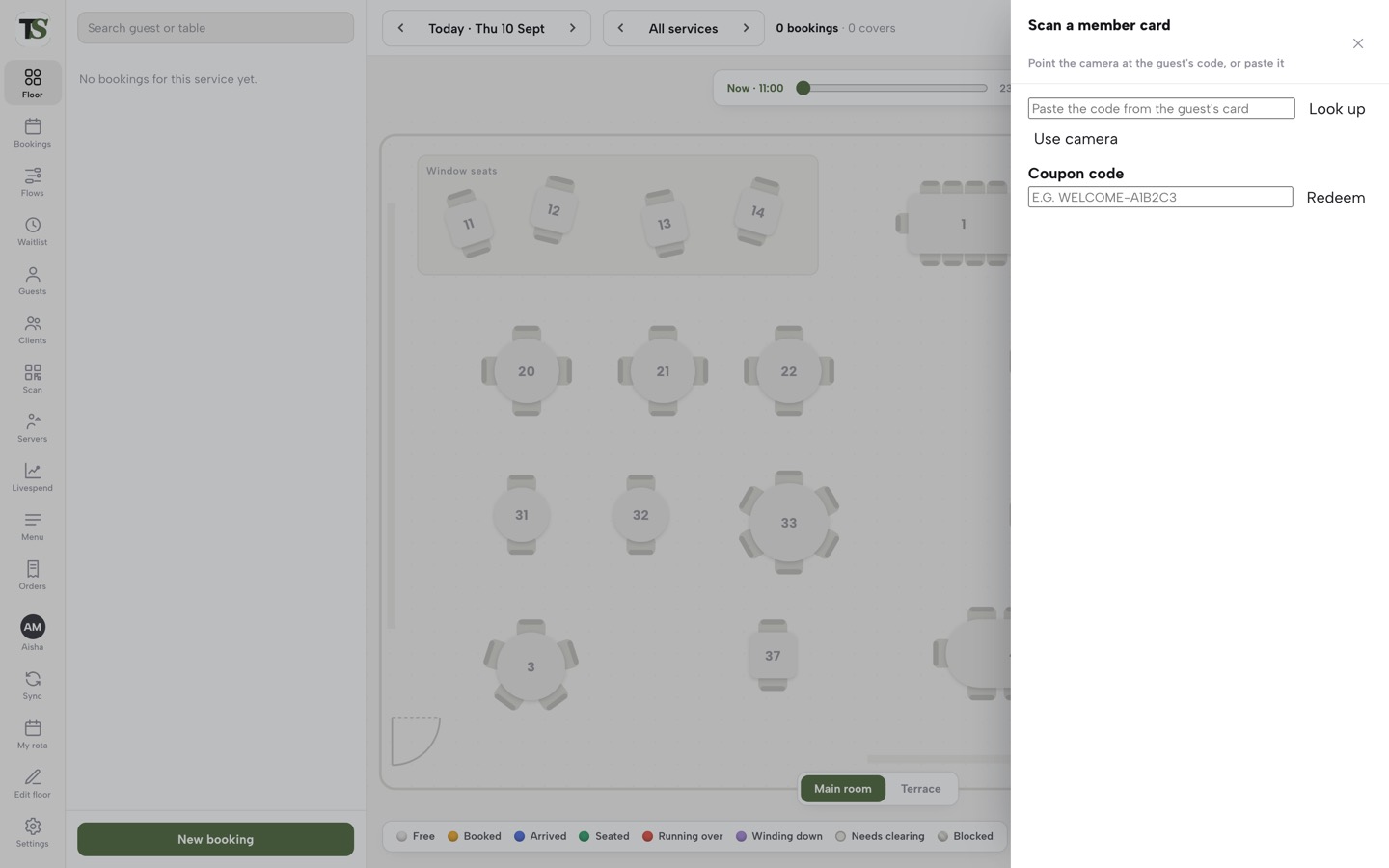
Open the Service console (/app/service) and click Scan on its left rail for a sheet built for exactly this moment — it is not part of the Builder. The Scan a member card sheet opens on the right: paste the code from a guest’s My Card and click Look up, or click Use camera to read the QR itself. The code lasts five minutes, so if it has expired ask the guest to open My Card again. The sheet answers with their initials, member number and points available in one pass. Underneath sit any stamp cards in progress, with a Stamp button for each (one stamp per click); Can claim now, the rewards they can afford; and Held on their card, rewards already held from their own account, each with a Redeem button that settles the hold and takes the points — the same holds tracked in Know your guests → Track members, holds and audited adjustments.
A separate Coupon code field on the same sheet takes a code a guest has claimed in their own app — type it in and click Redeem, and staff see the discount to apply along with any minimum spend, with the code marked used the moment it is checked.
What your guest now sees
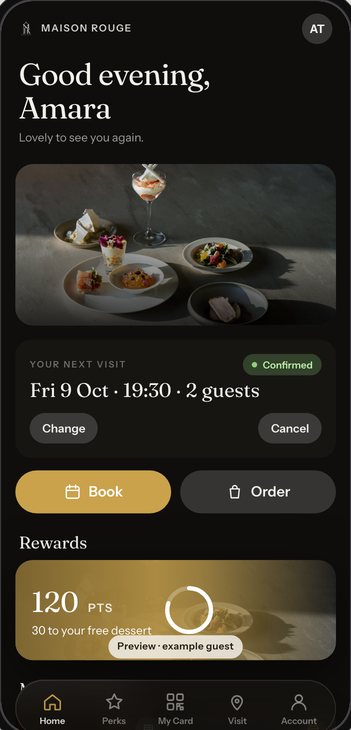
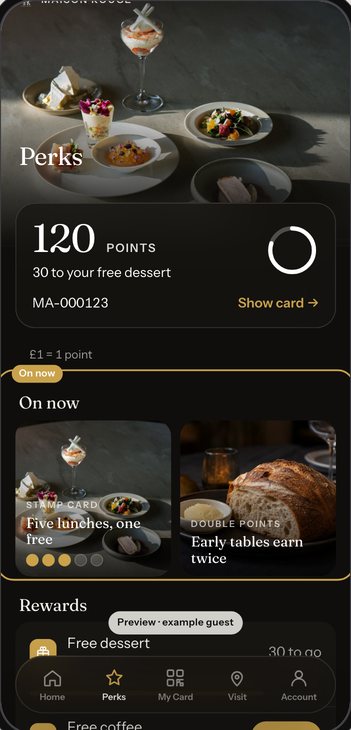
Everything above is the merchant side of the same five tabs a guest already has the moment your site publishes — Home, Rewards, My Card, Visit and Account (the name you can change in Tab names), relabelling to Locations automatically once a restaurant runs more than one site. What follows is the result: two of those tabs, exactly as a guest meets them after the edits made in this guide.
- My Card — the member QR staff scan at the till, floating over a blurred photo of your own restaurant, with your own words explaining Earn and Redeem underneath.
- Visit — a full-height photograph, the address, Directions and Call buttons, and your week’s opening hours underneath.
- Account — the guest’s name and email, bookings, orders and gift cards as one list, the Offers and news email switch, a Help block and sign-out and legal tucked into a quiet footer.
Next · put it to work
Open the Guest app tab and click a section
Every module, every layout and every campaign above lives in one place: the Builder’s Guest app tab. Nothing goes live until you choose it.