
Three pages, one guest. TableSpark builds a guest profile the moment someone books a table, sends an enquiry or joins your mailing list — no import, no spreadsheet, nothing to type in. Guests is where every profile lives, with a private note and a VIP star you control by hand — reach it from the Guest history link on any booking in Bookings, or open the address directly. Reviews and Loyalty both feed off the same guest record, so a table you've already served is the one you invite to review you and the one who's already earning points.
Guests · Reviews · LoyaltyGrowth plan or above
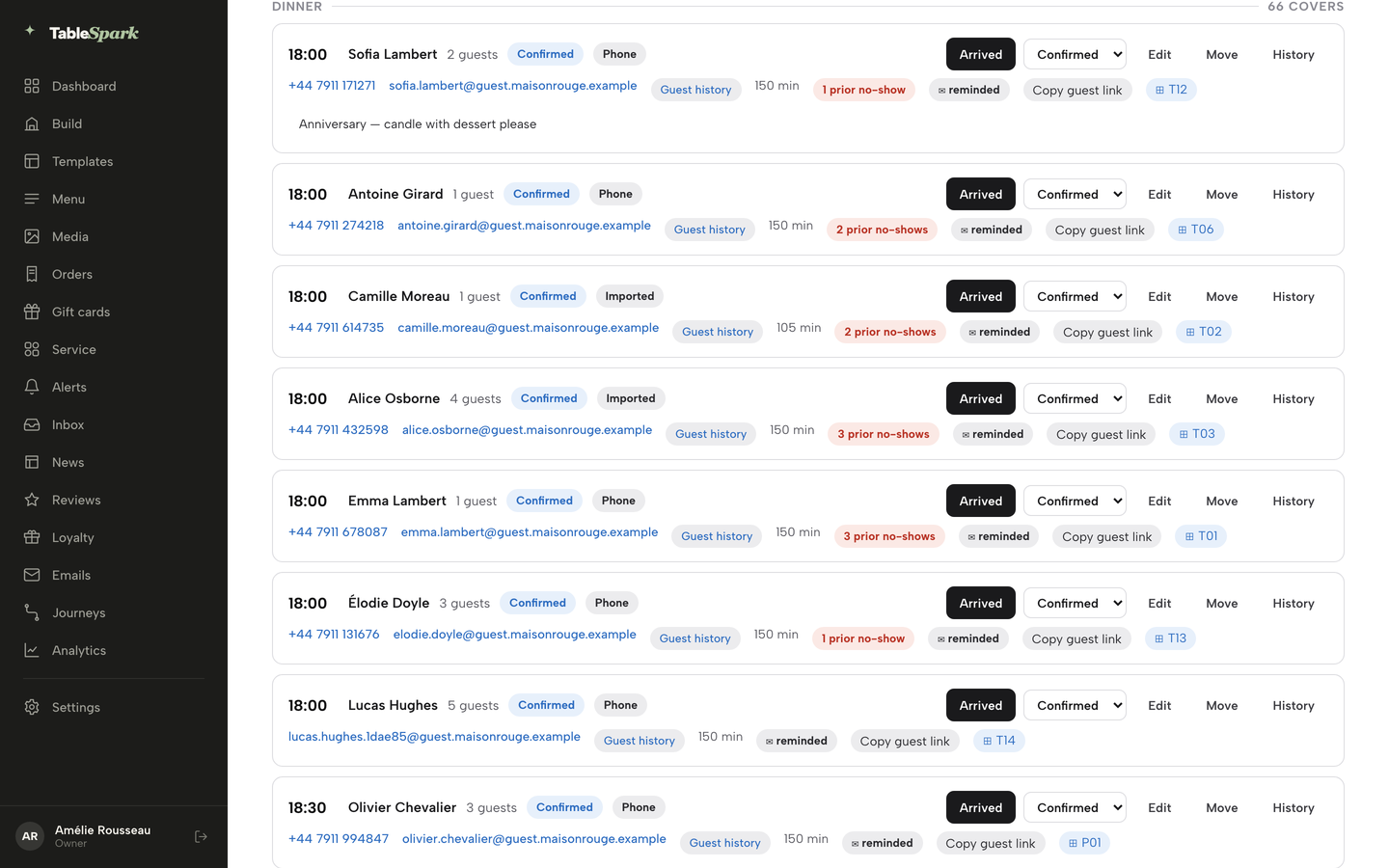
Open Bookings and find the booking. Click its Guest history link — it opens that guest on your Guests page.
You opened a guest from their booking, starred a VIP, wrote a private note, found the VIP segment and Export CSV, answered a review, set your points rules, added a reward, and opened the points adjustment form. On your own account, every one of those becomes real the moment you click.
- WHAT YOU NEED
- Nothing — profiles build themselves
- TIME
- About 9 minutes
- HOW HARD?
- Like scrolling your phone’s contacts
- CAN I BREAK IT?
- No — erasing data still needs a confirm
IN PLAIN WORDS / TAP A TERM
What’s a “VIP”?
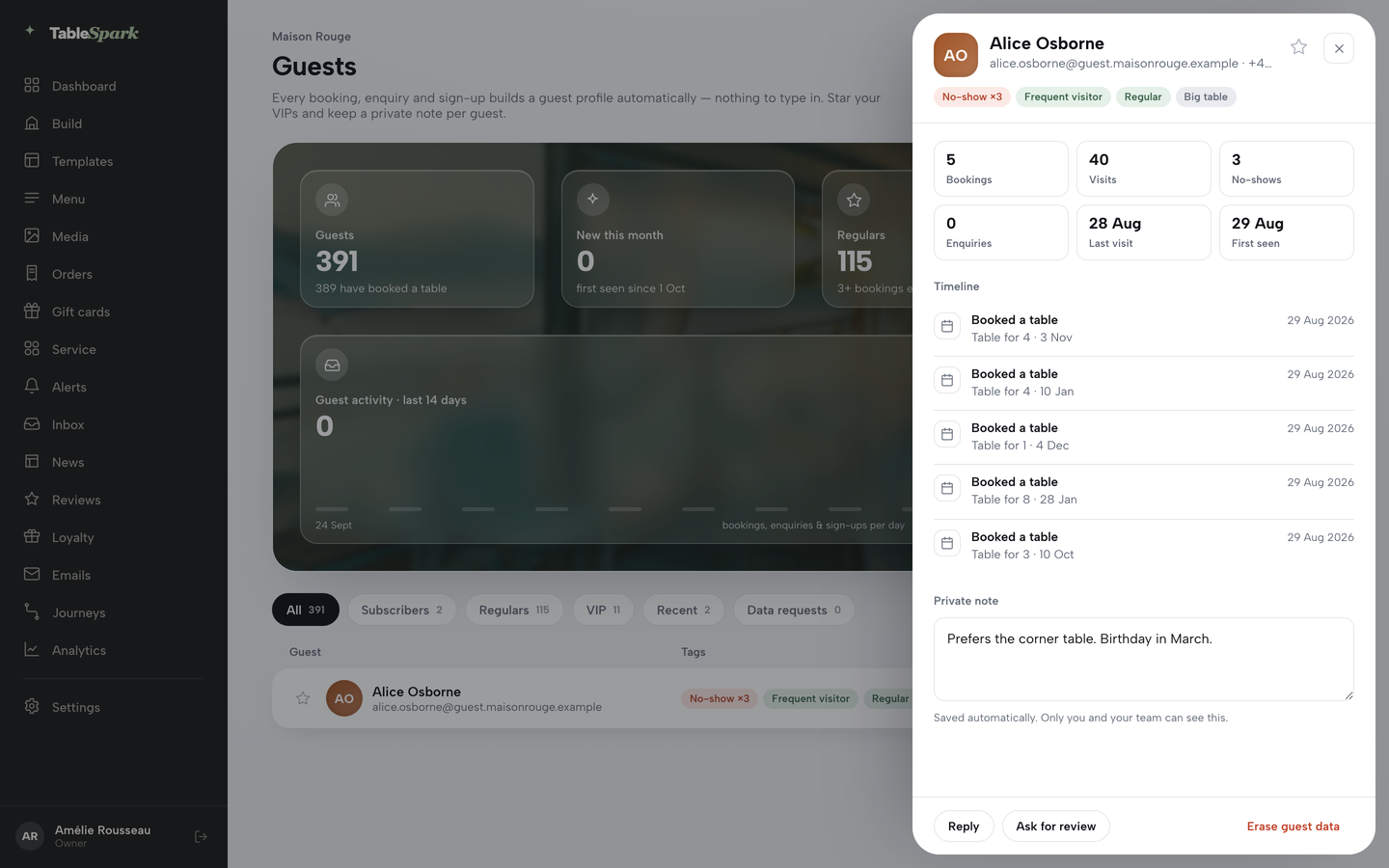
The one tag you set yourself. Click the star on a row or inside a guest’s drawer and it saves immediately — no form to submit. A private note is the other thing you write yourself, and it saves automatically.
What’s a “tag”?
A label computed straight from a guest’s own booking history — Regular, Frequent visitor, No-show — recalculated every time you look. Nothing to type.
What counts as a “verified review”?
One a guest submits through a TableSpark review invitation tied to their own booking or order. It arrives under Pending, and its rating and text stay as the guest wrote them.
What’s a “hold”?
Points reserved against a member the moment they redeem a reward — sitting there until you Mark redeemed or Release them back.
See every guest who's ever booked, asked or subscribed
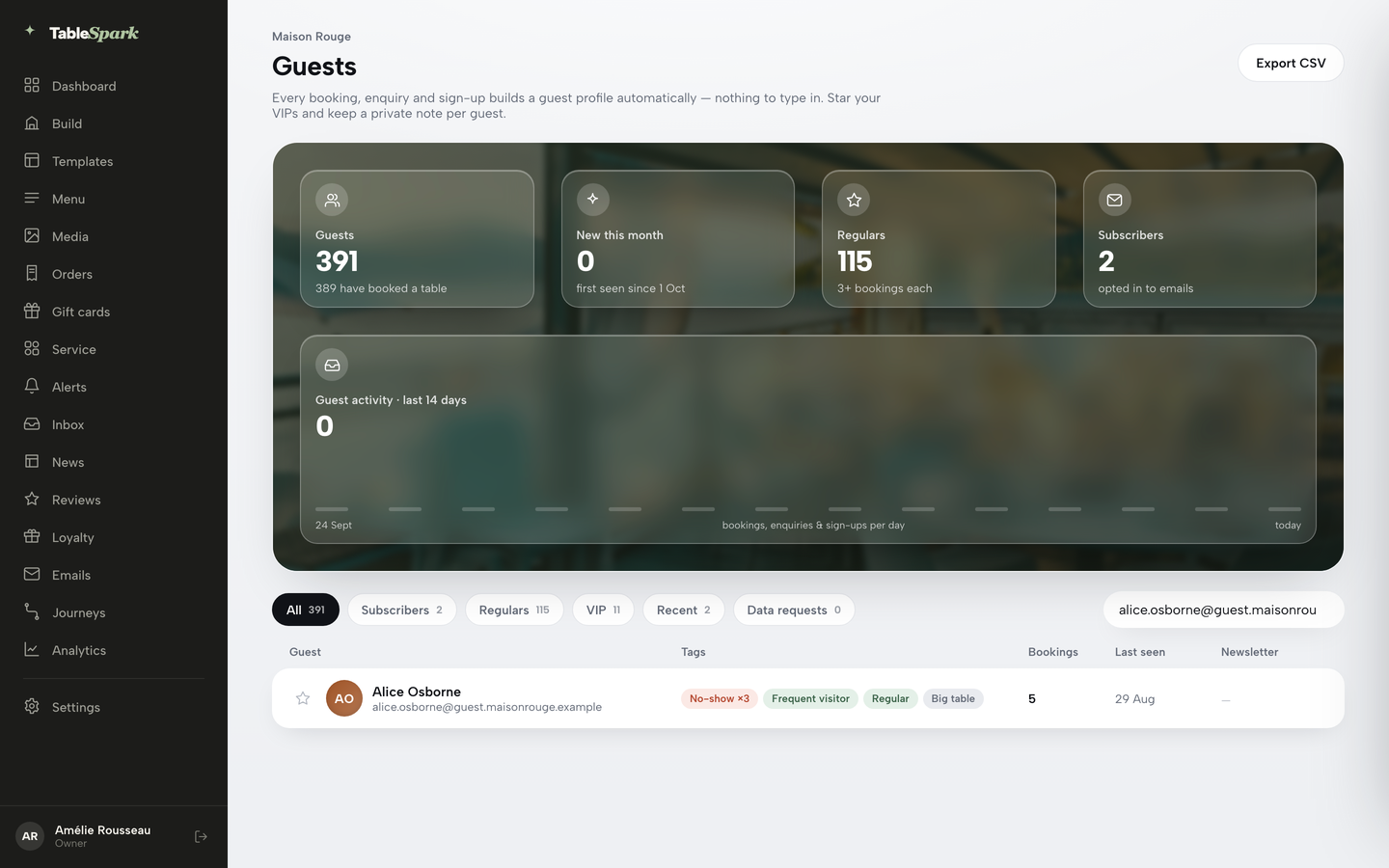
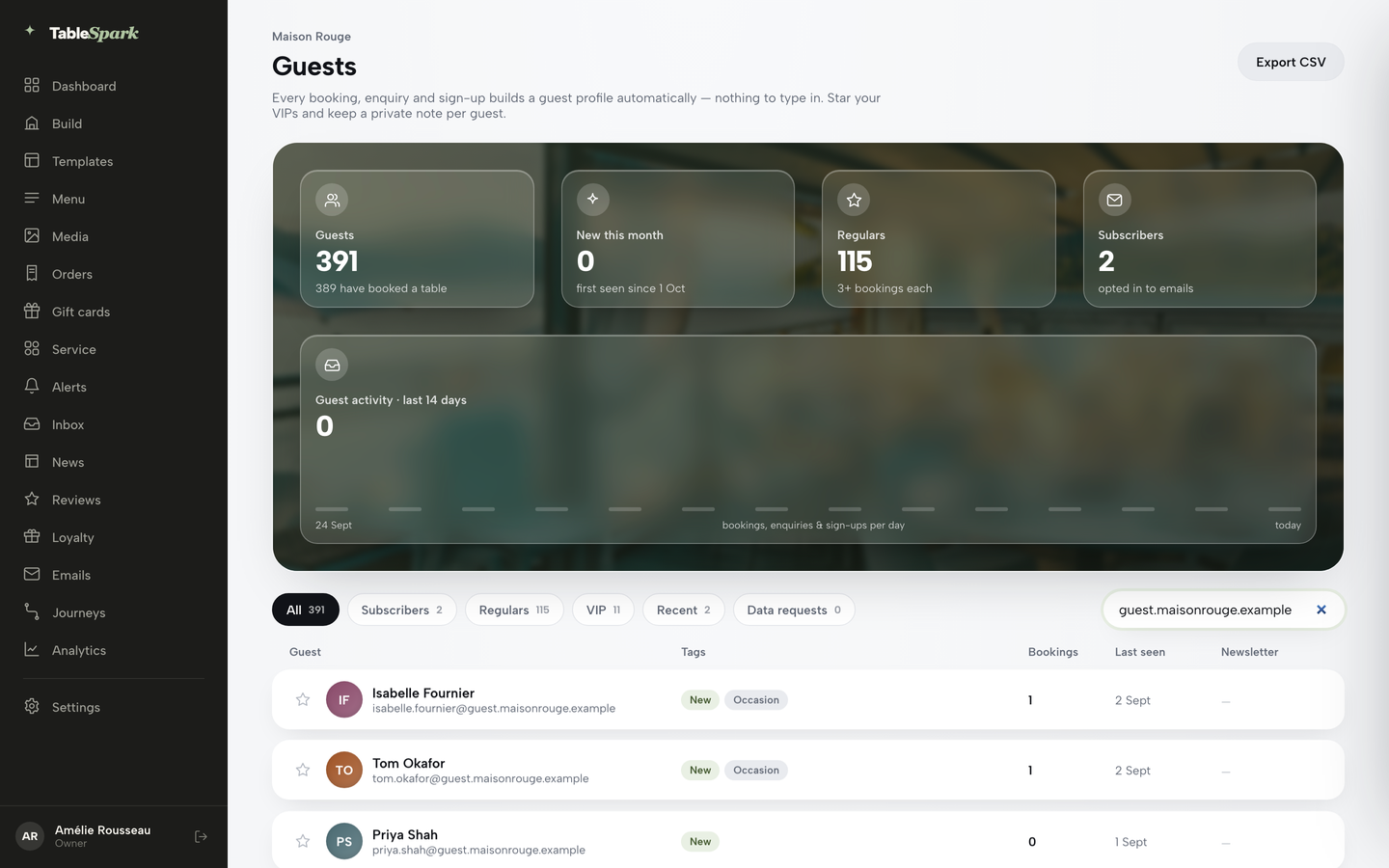
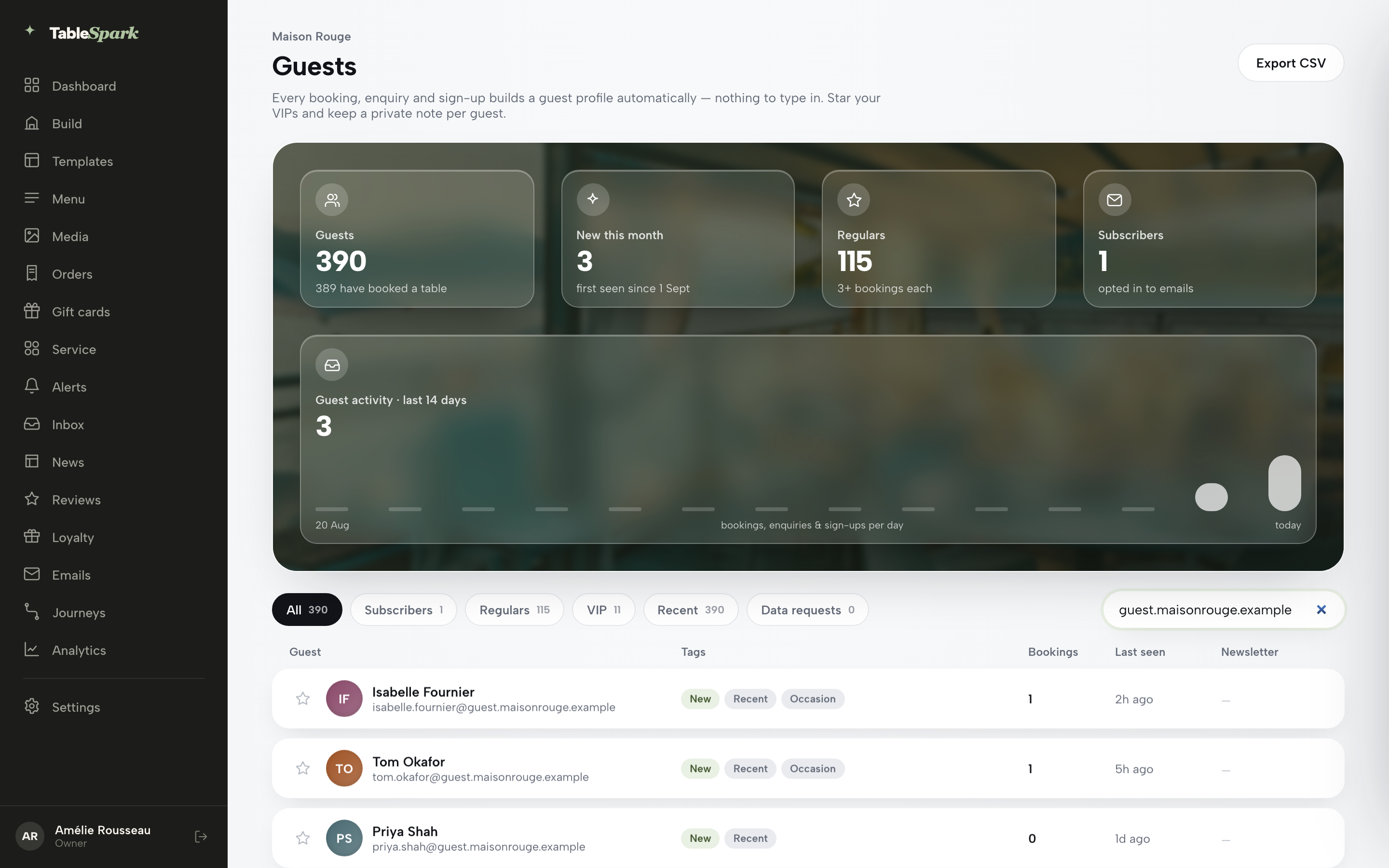
Guests keeps its own page rather than a sidebar entry. The quickest way in is from a booking: open Bookings, find any booking and click its Guest history link — the Guests page opens with that guest’s email already in the search box. You can also go straight to tablespark.uk/app/guests, and the Guests and Clients tabs in the Service console give you a quick lookup during service. The page states its own job plainly at the top: “Every booking, enquiry and sign-up builds a guest profile automatically — nothing to type in. Star your VIPs and keep a private note per guest.” Above the list sits a frosted KPI band over a restaurant photo — Guests (the running total and how many have actually booked a table), New this month, Regulars (3+ bookings each), and Subscribers (opted in to emails) — plus a wide Guest activity · last 14 days chart plotting bookings, enquiries and sign-ups per day.
Click a guest’s row to open their profile. Below the KPI band, a row of segment pills — All, Subscribers, Regulars, VIP, Recent, Data requests — each carrying its own live count, and a Search name or email… box that filters the table as you type. The table itself lists Guest, Tags, Bookings, Last seen and Newsletter status for every match.
Open a guest's full history
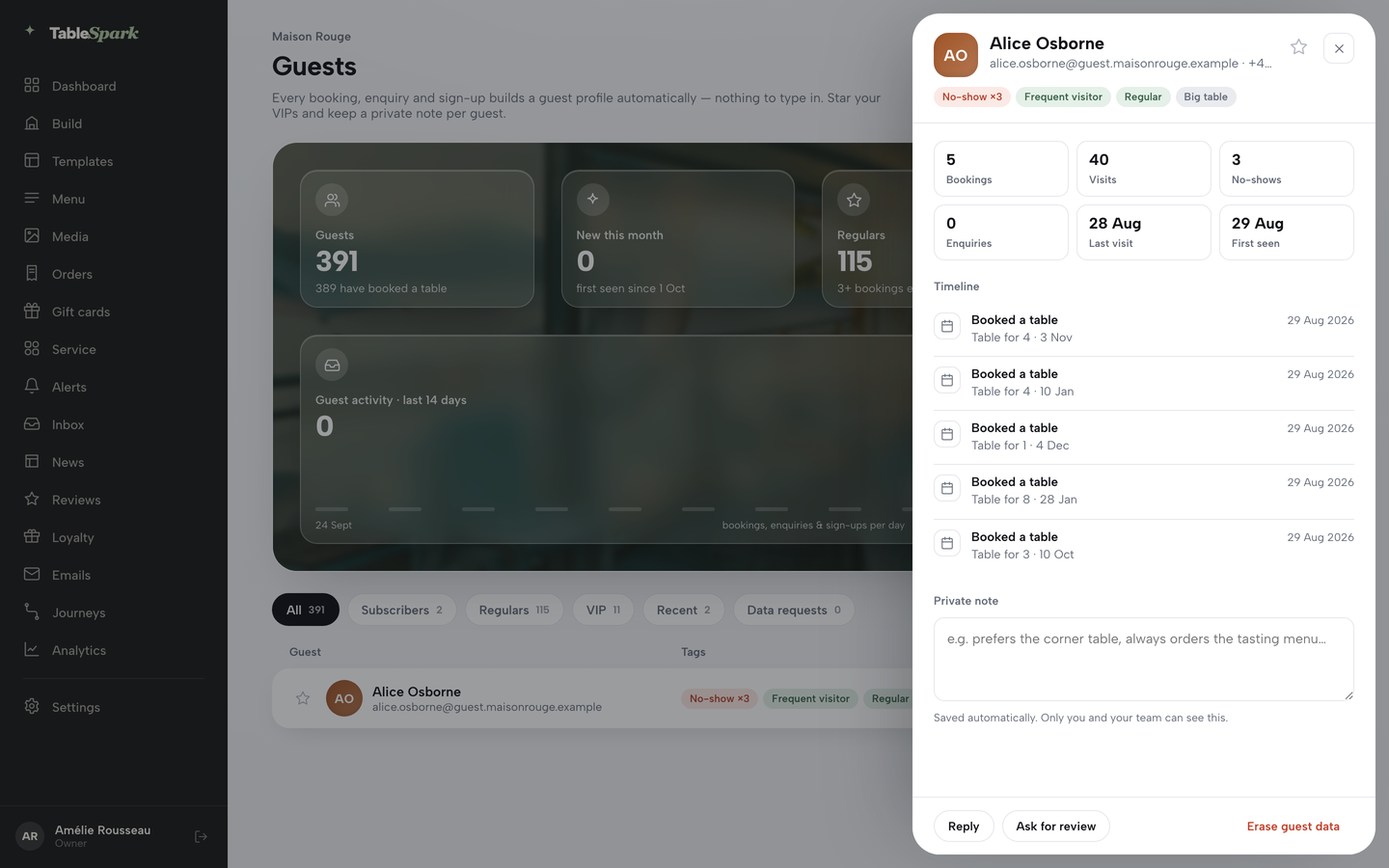
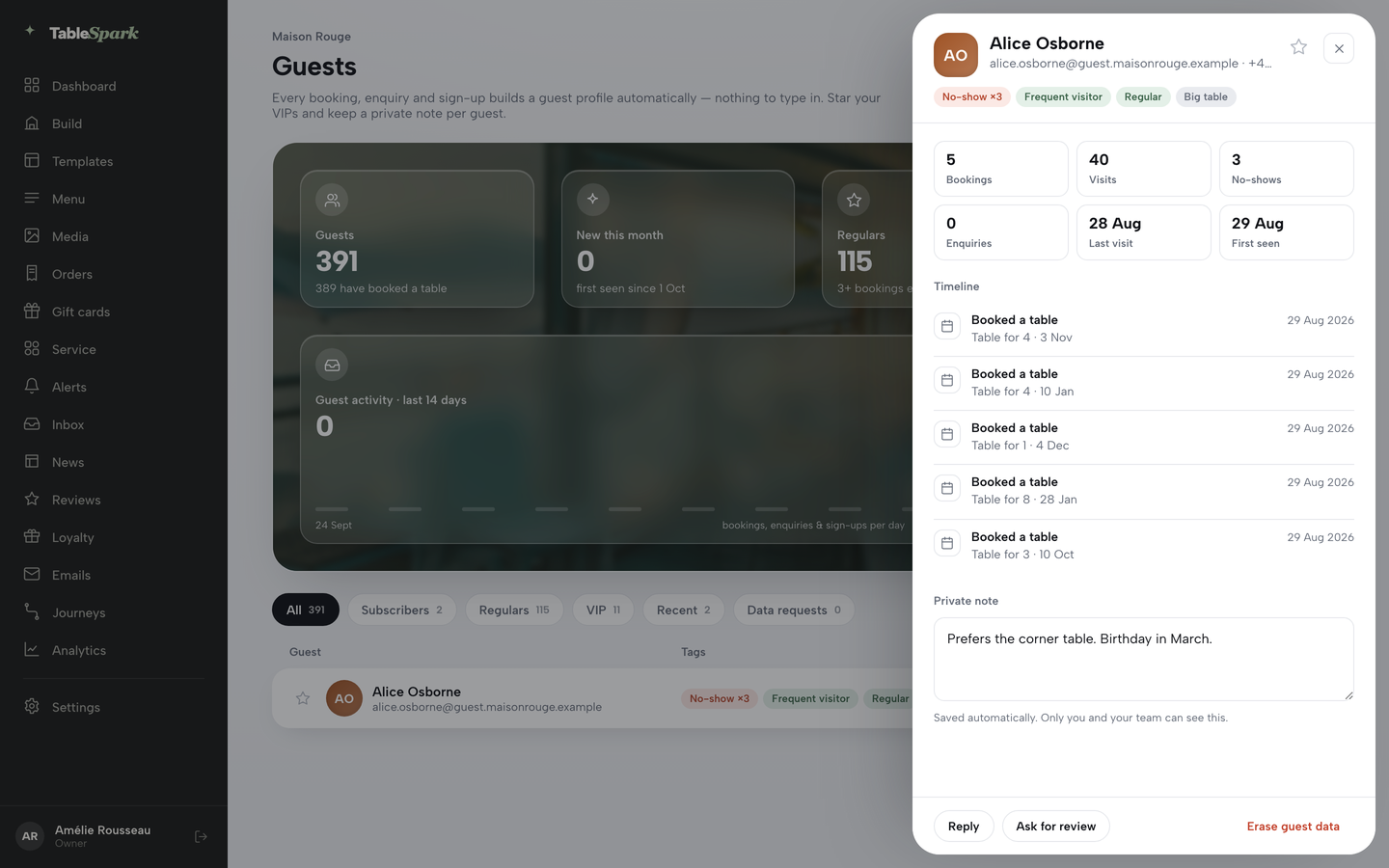
Click any row — or press Enter or Space on it — and a drawer slides in from the right with everything TableSpark knows about that guest. At the top: their name, email and phone, the VIP star, and their computed tag chips. Below that, six stat tiles — Bookings, Visits, No-shows, Enquiries, Last visit and First seen — with Event RSVPs and Gift cards added whenever a guest has them.
Underneath sits a full Timeline: every booking, enquiry, mailing-list sign-up, gift card, event RSVP and data request in date order, each with a one-line summary pulled straight from the original booking or enquiry — party size, date and time, seating, occasion, even an allergy note. Then a Private note field — free text, autosaved a moment after you stop typing, and the page says exactly who can see it: “Saved automatically. Only you and your team can see this.” Every booking a guest has ever made still starts life in your booking inbox — this drawer is the guest-level rollup of that history, not where a booking gets confirmed.
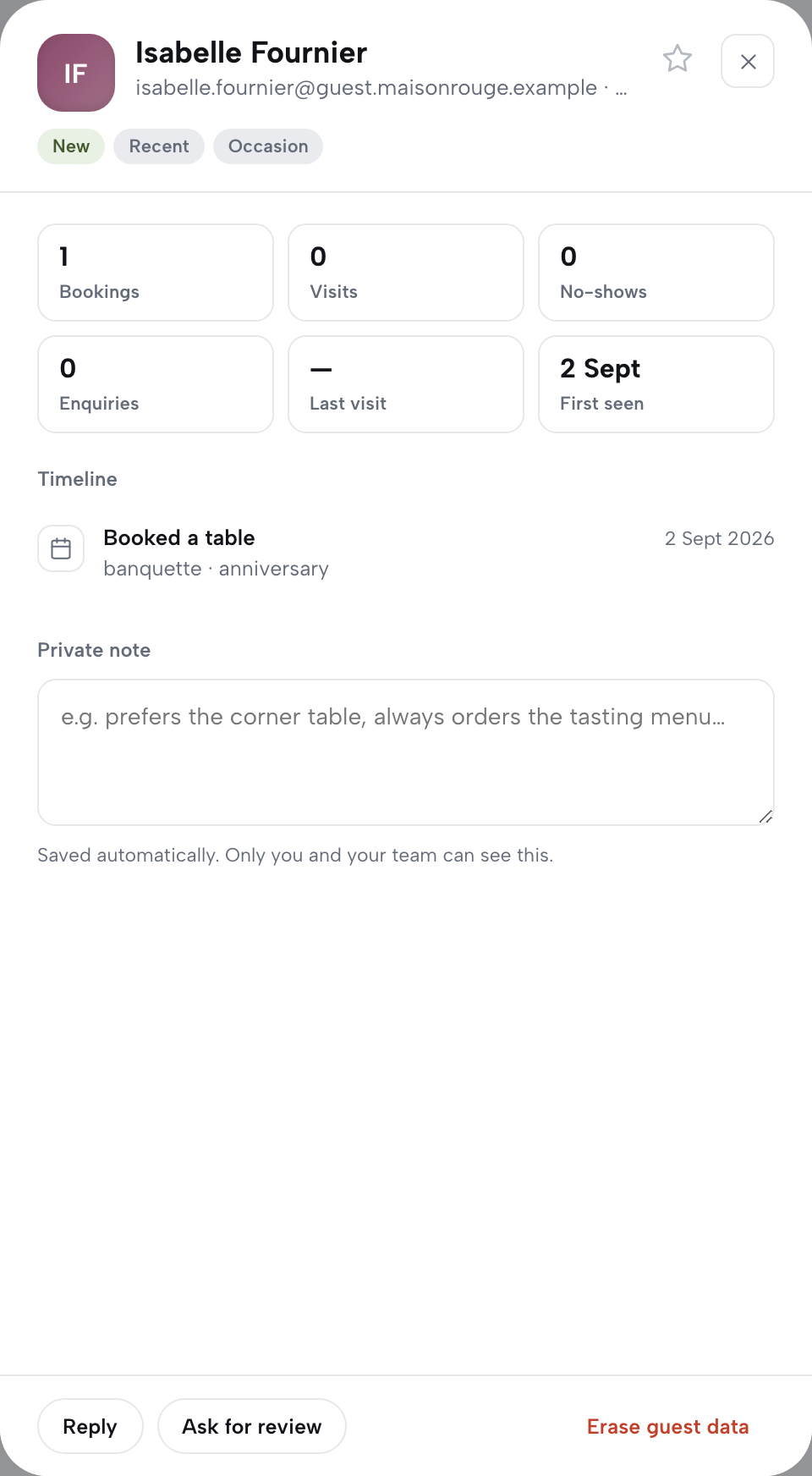
The drawer’s footer carries the guest-level actions, and which ones appear depends on the guest: Reply opens a pre-addressed email to them; Unsubscribe or Re-subscribe only appears for a guest with a newsletter record; and Erase guest data deletes their leads and subscription records for good, after you confirm. Press Esc or the × to close the drawer.
Star your VIPs, and read the tags at a glance
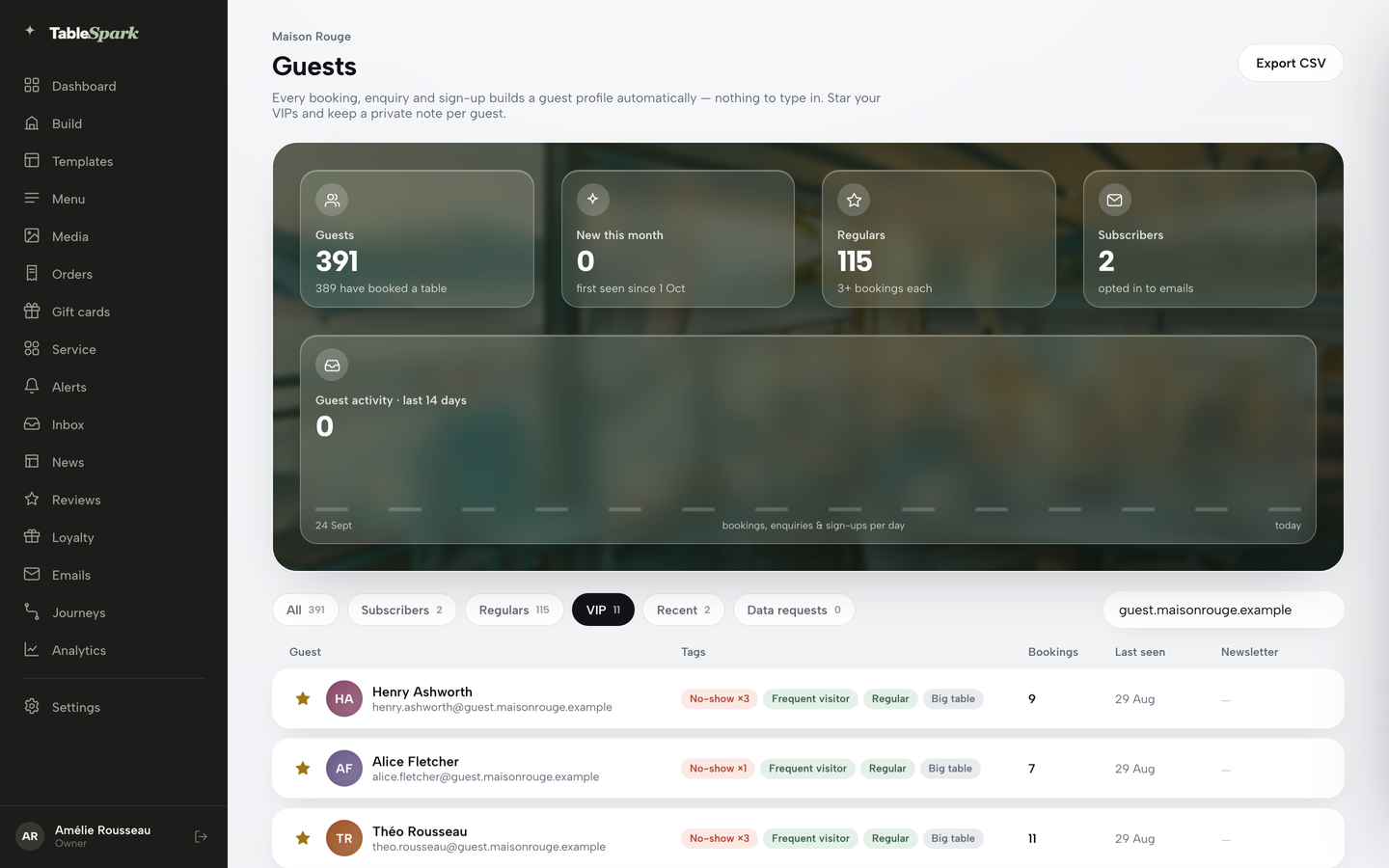
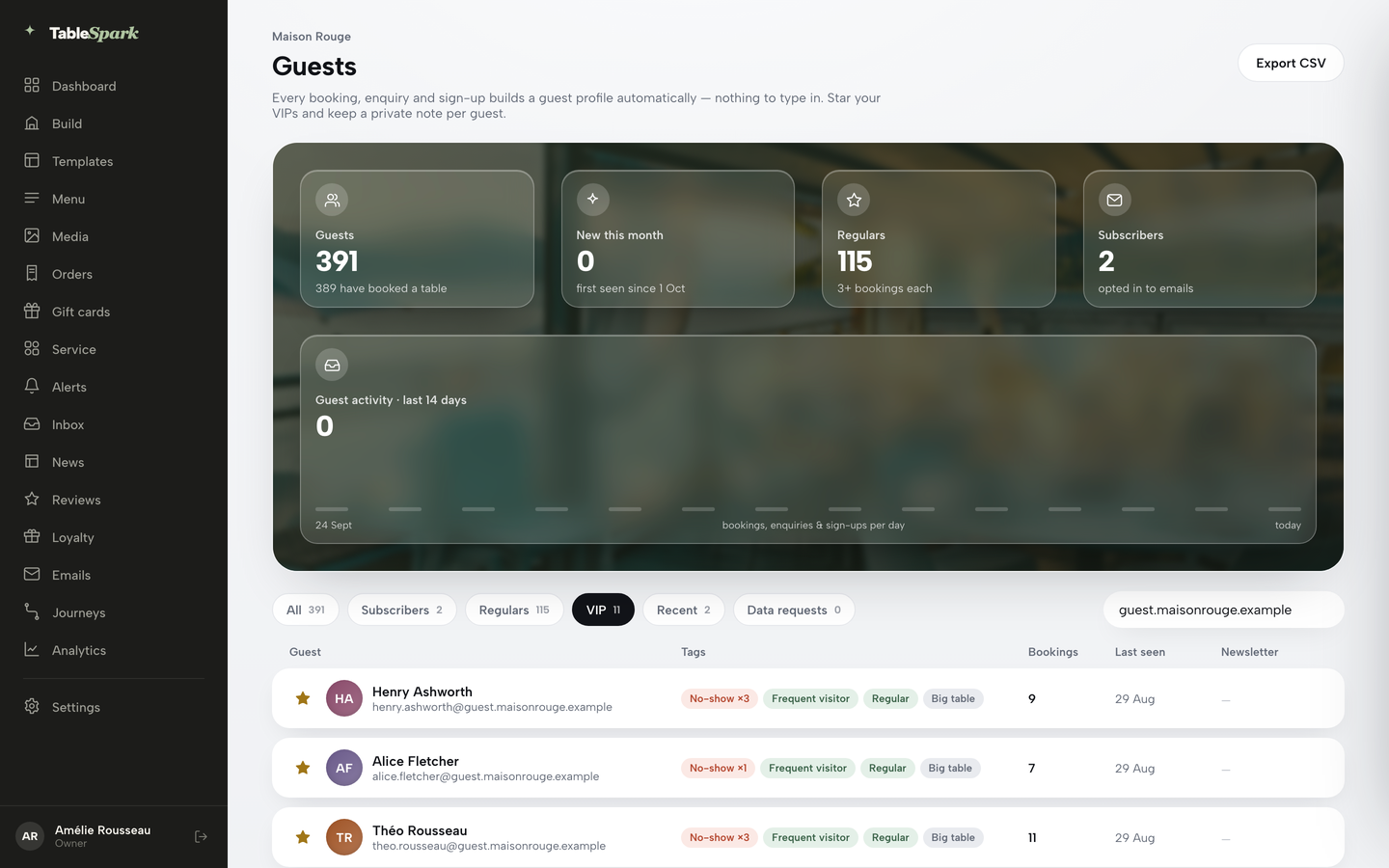
Click the star on a guest’s row, or inside their drawer, and they are a VIP straight away. Click the VIP segment pill and the list narrows to your starred guests — gold star, gold VIP chip, and every other tag reads the same way it does everywhere else on the page: computed, not typed. A guest's tags come straight from their booking history, recalculated every time you look.
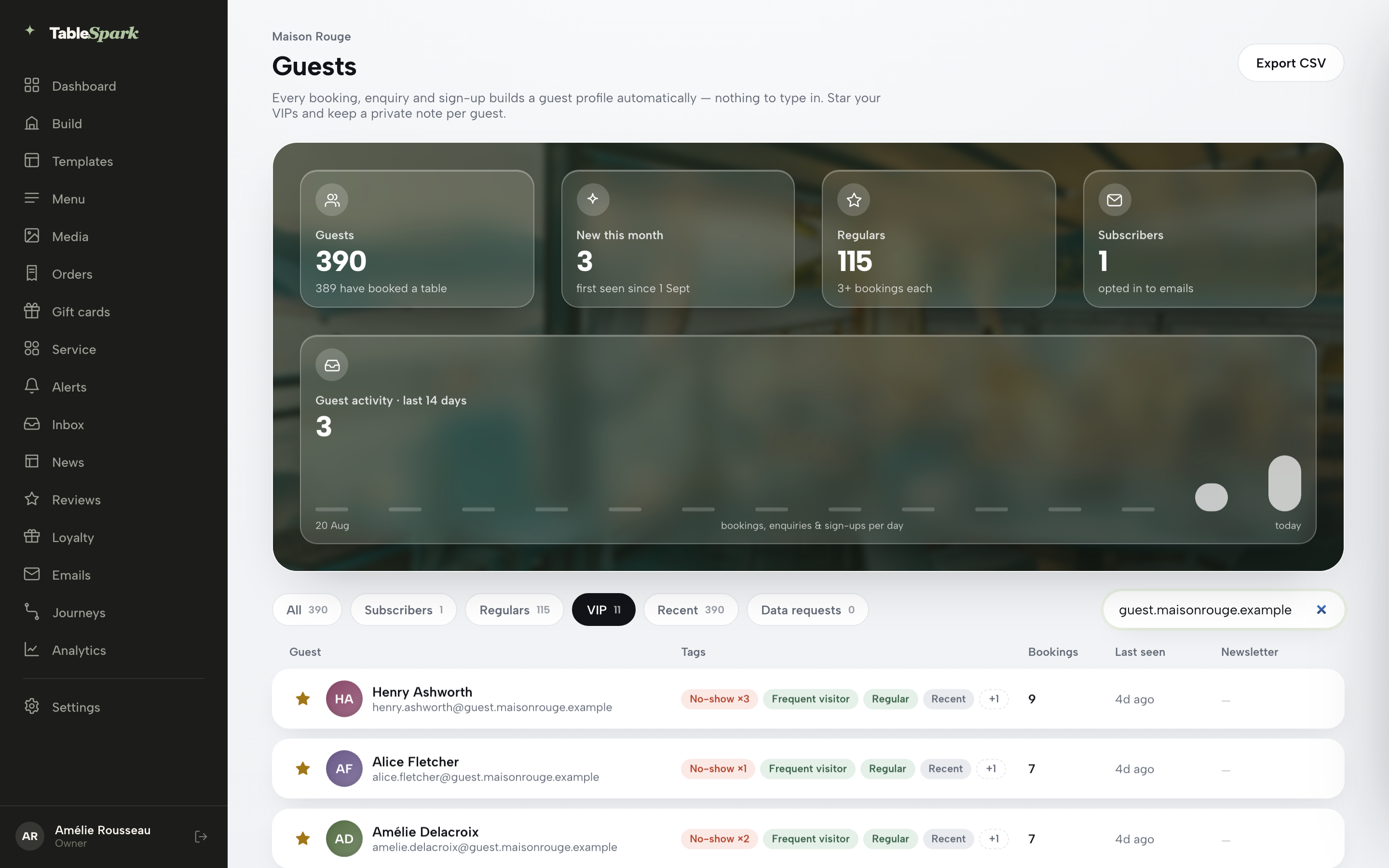
The star is the one tag you set yourself — click it on a row or inside the drawer and it saves immediately, no form to submit. Everything else on a guest's tag list is worked out from their own record:
Export your guest list to CSV
Export CSV sits top-right of the Guests page, next to the page title. It always exports whichever segment and search you currently have open — filter to VIPs first and the download only has your VIPs in it. Each row carries name, email, phone, bookings, enquiries, last seen, subscribed status, VIP status and every tag, ready for a spreadsheet, a mail merge, or your own records.

Every profile on this page lives under your own restaurant's TableSpark account — built from your own bookings, enquiries and sign-ups, and visible, searchable and exportable from this one screen whenever you want it. If a guest asks you to delete their data, the same drawer that opened their history has an Erase guest data button that removes their leads and subscription records without you leaving the app.
Collect reviews, and reply as the restaurant
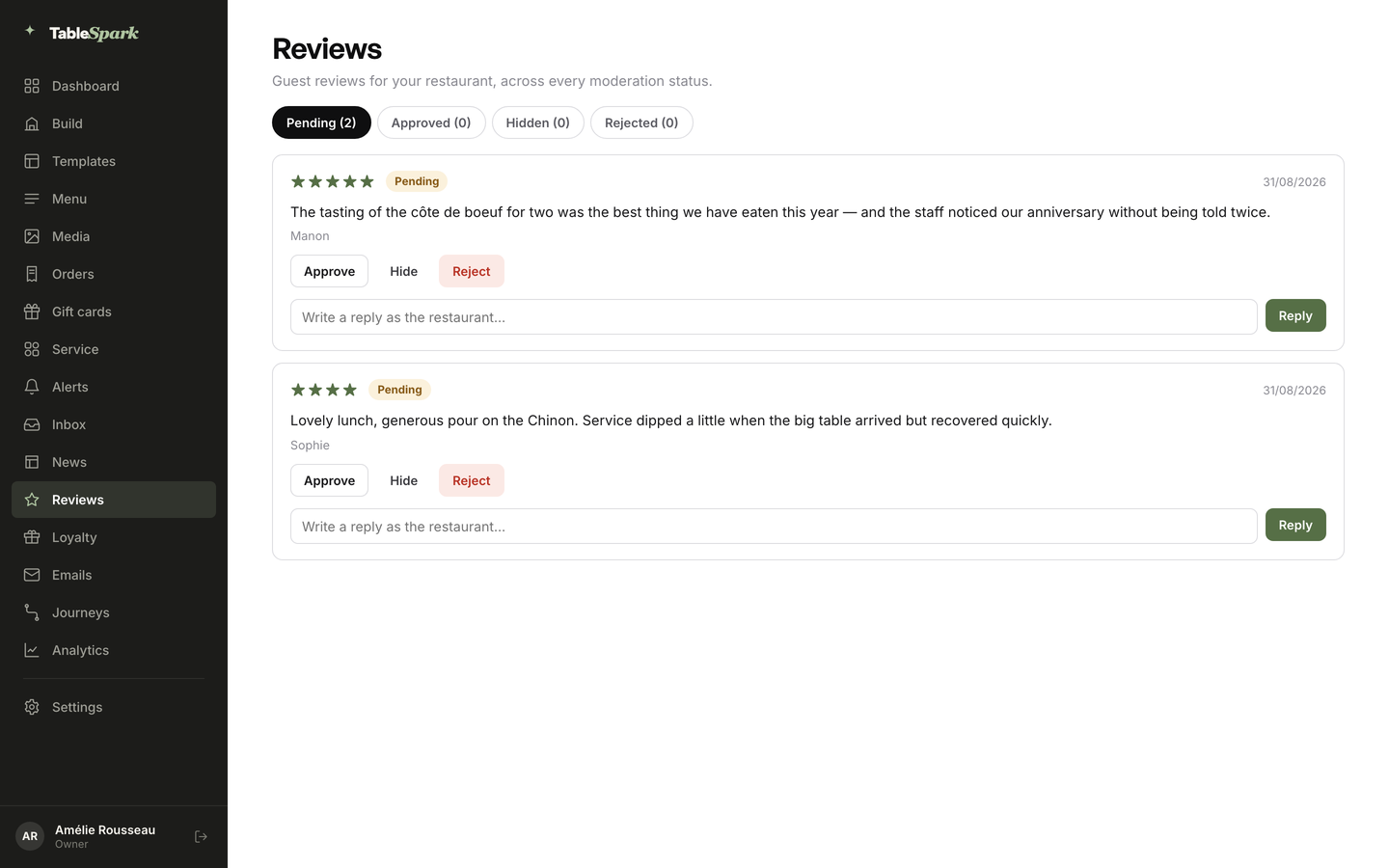
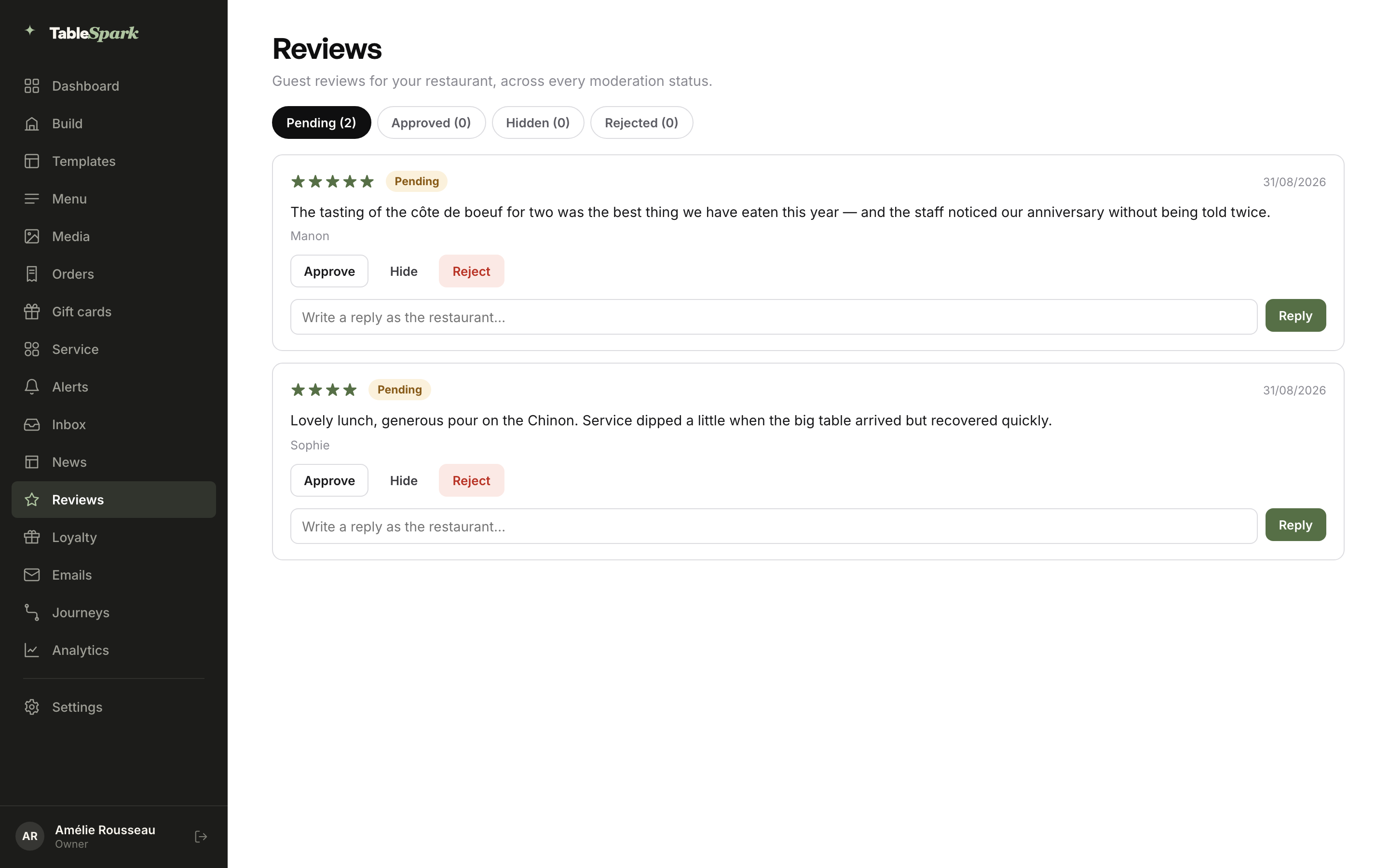
Reviews come from your guests, and each one lands under Pending for you to moderate before it goes anywhere. What you do from there is approve, hide or reject it and, if you want, reply as the restaurant.
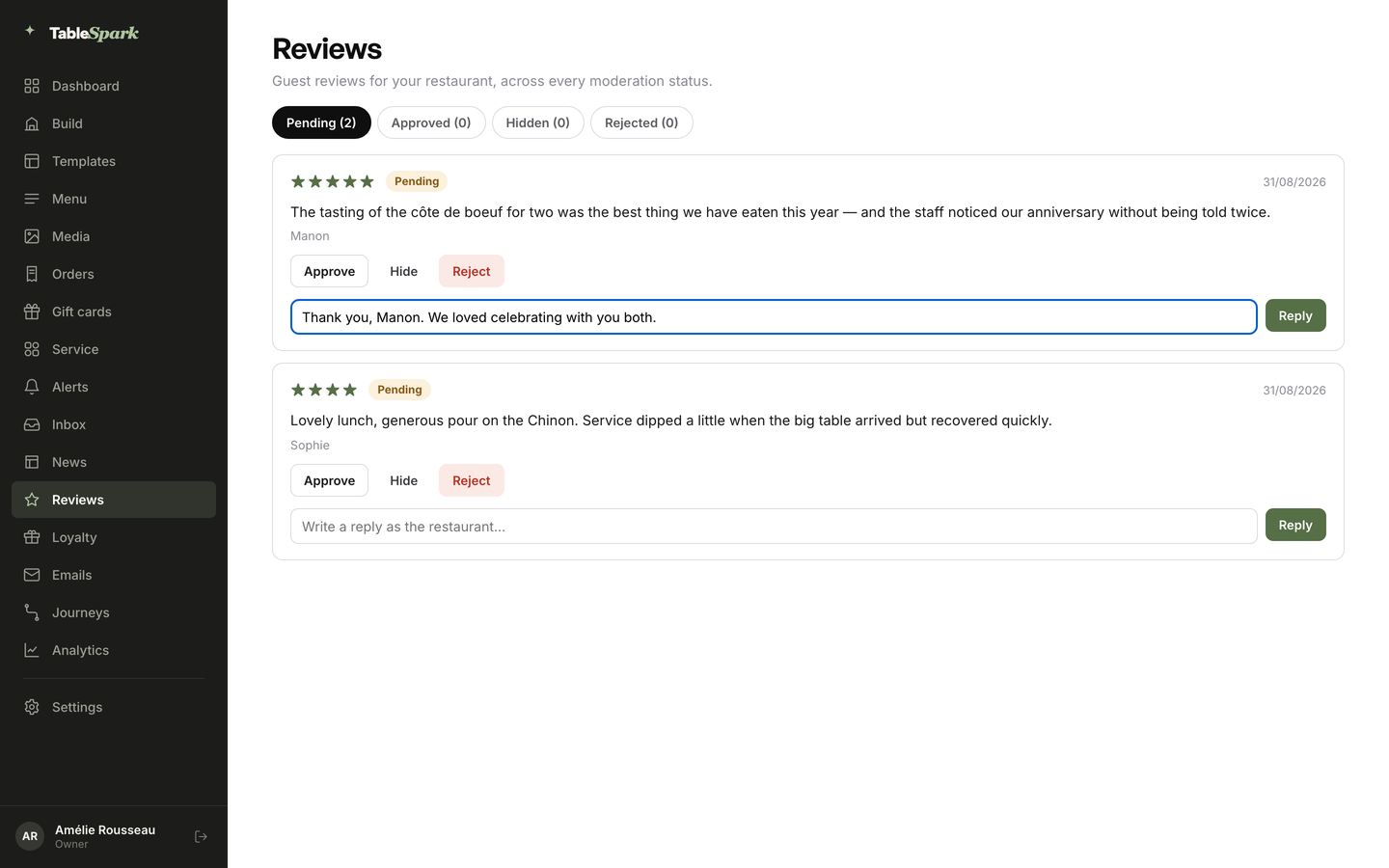
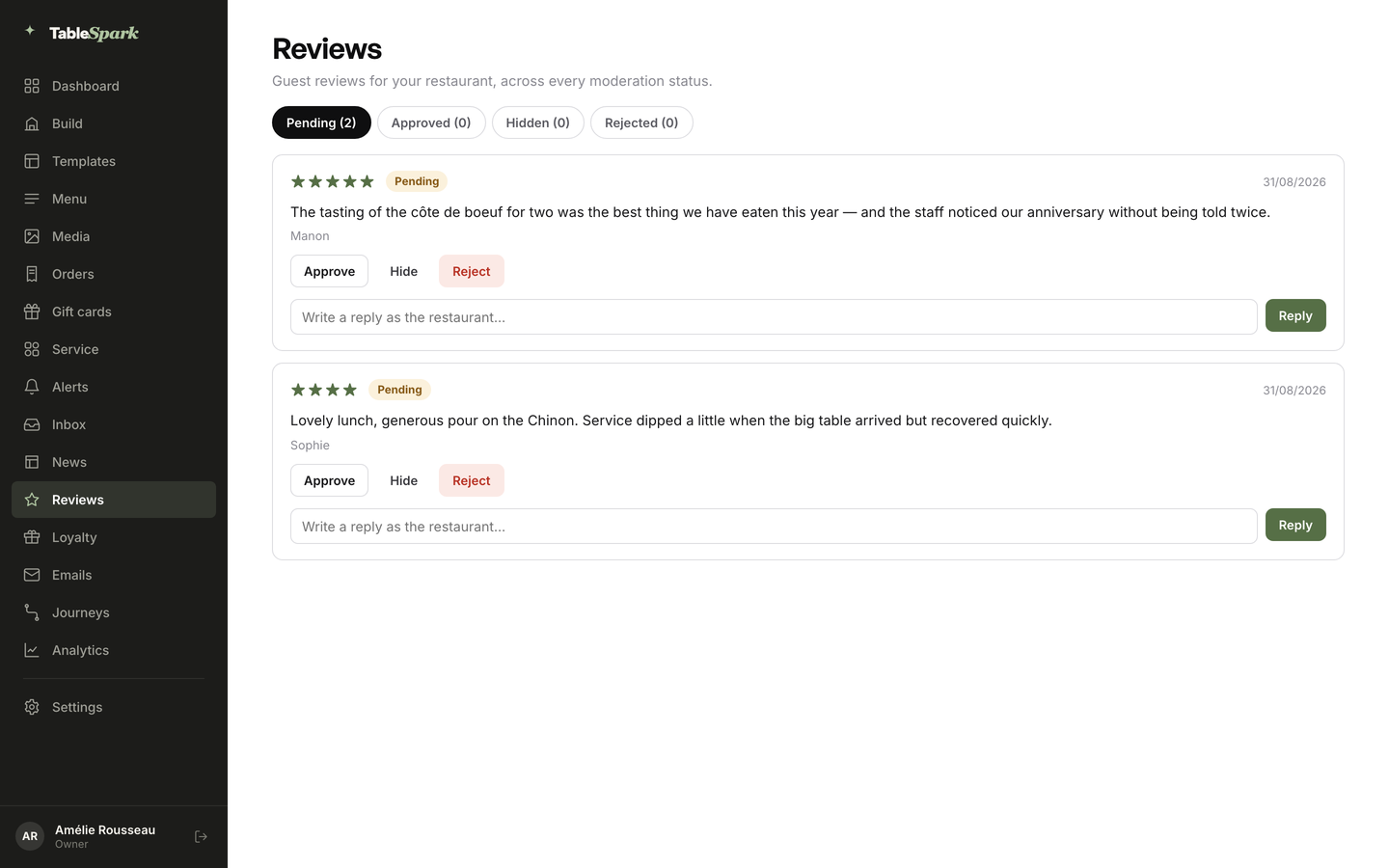
Click Reviews in the sidebar for four status tabs, opening on Pending, each with a live count: Pending, Approved, Hidden and Rejected. Every review card shows its star rating, status badge, date, the guest's name and their review text. From Pending, Approve, Hide or Reject move it between statuses, and a Write a reply as the restaurant… box lets you post one public reply per review — it appears under the review the moment you post it, and the reply box then disappears, since a review only gets one.
Set up points and rewards
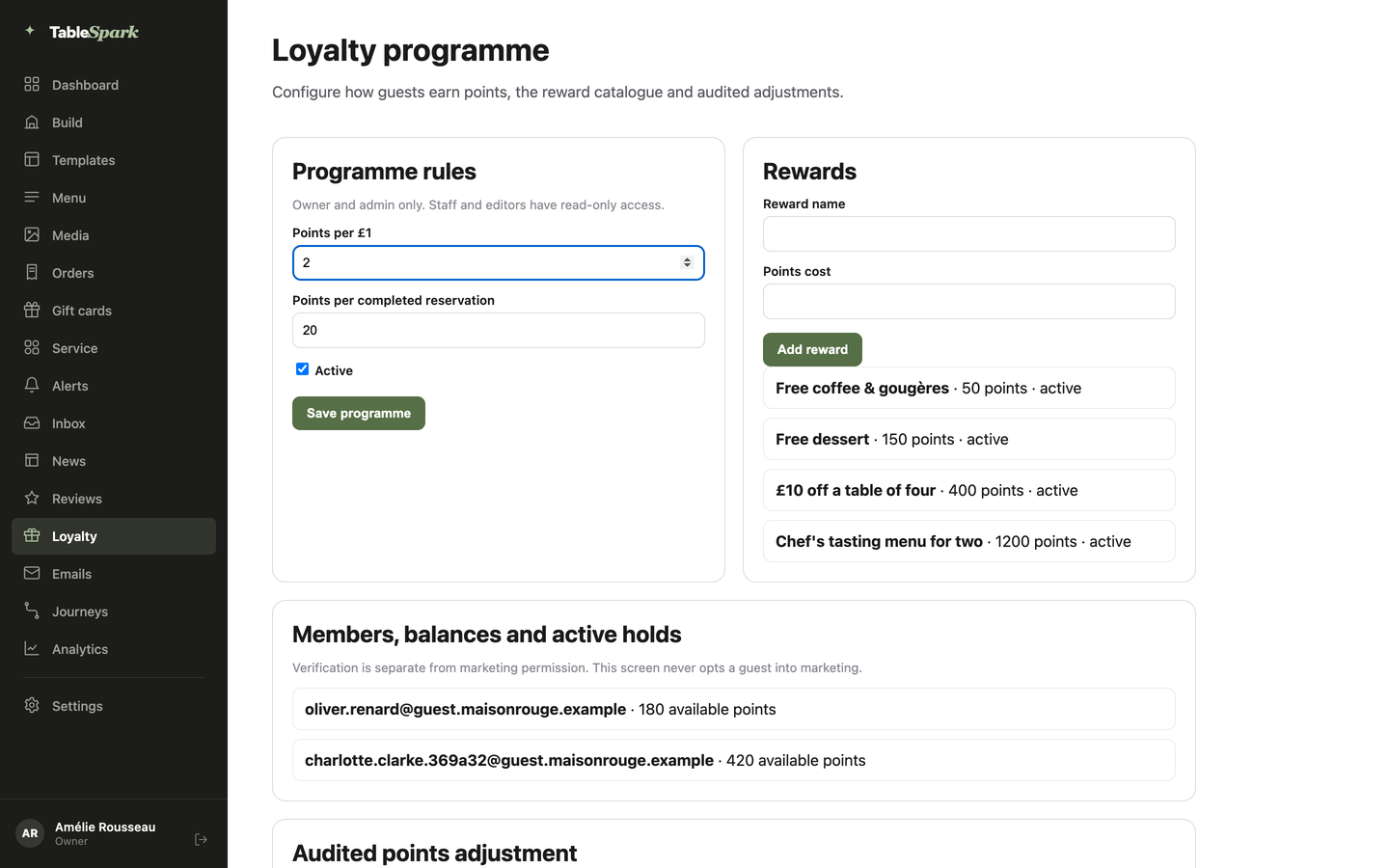
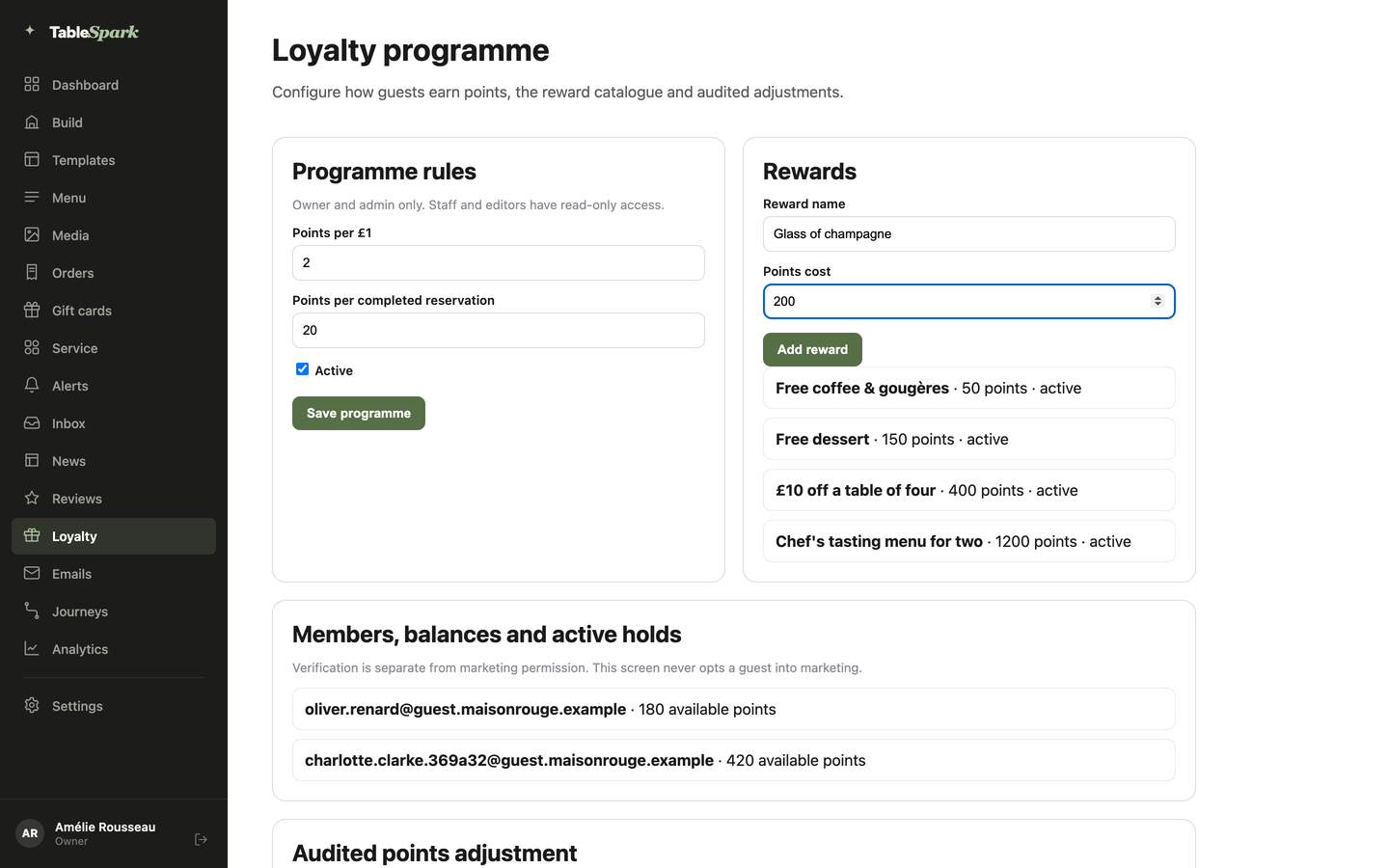
Open Loyalty in the sidebar for a points-based programme, not a stamp card. Programme rules sets Points per £1 and Points per completed reservation as two plain numbers, plus an Active checkbox that switches the whole programme on or off — Save programme commits the change. Alongside it, Rewards is your redemption catalogue: a Reward name, a Points cost, and Add reward to add it to the list, which shows each reward's status as active or retired.
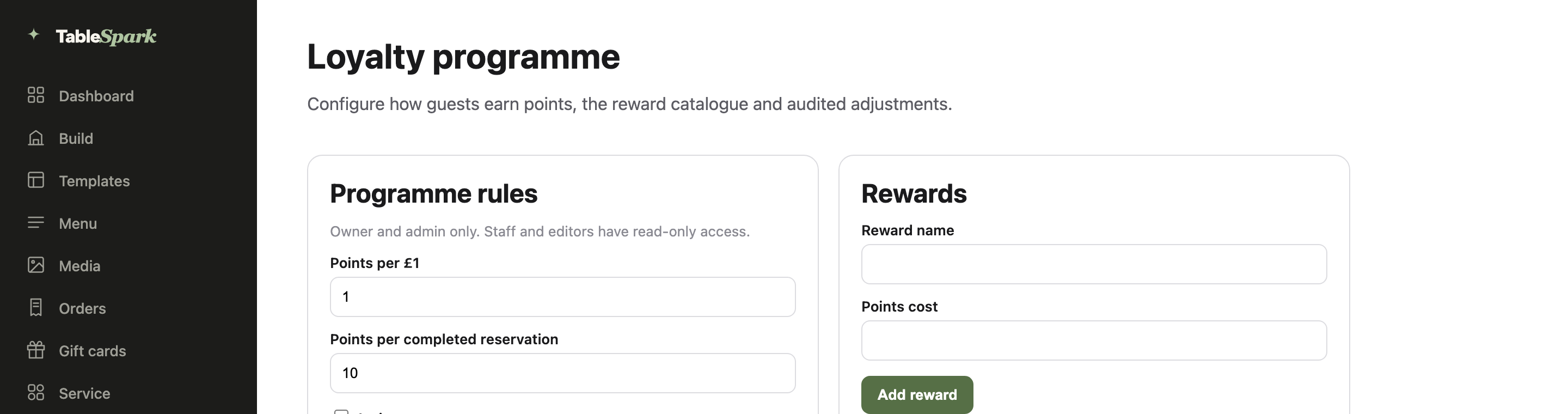
Both cards are owner/admin only — the page tells staff and editors directly that they have read-only access here, so nobody edits your points economy by accident.
Track members, holds and audited adjustments
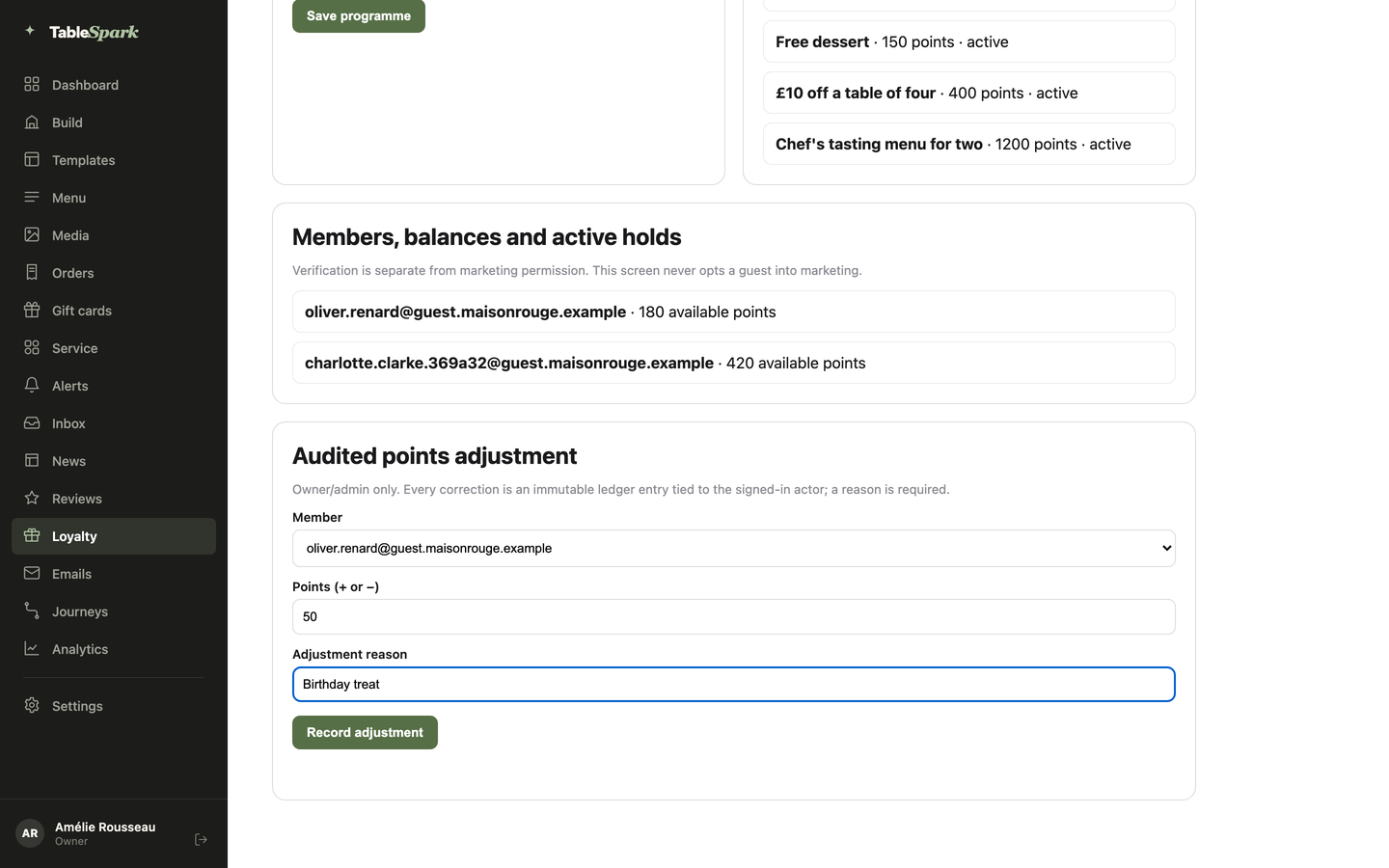
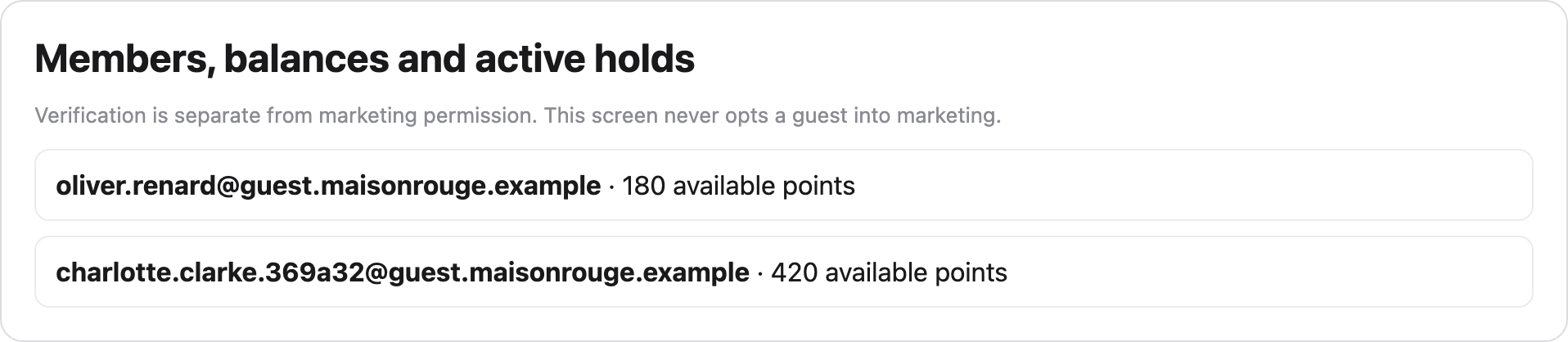
Below the programme setup, Members, balances and active holds lists every verified loyalty member with their live available-points balance. The page states its own privacy boundary directly: “Verification is separate from marketing permission. This screen never opts a guest into marketing.” When a guest redeems a reward from their own account, it appears here as an active hold — the reward name and points, held against a named member — with Mark redeemed to settle it once you've handed the reward over (at the till, say) or Release to cancel the hold and return the points.
Audited points adjustment is the manual correction path underneath: pick a Member, enter Points (+ or −), and a required Adjustment reason before Record adjustment commits it. The page is explicit about why the reason field is required: “Every correction is an immutable ledger entry tied to the signed-in actor.” It suits a comped birthday or a fix for a missed booking credit, with a trail behind every point.
Guests, reviews and loyalty all read the same underlying record: the moment someone books, asks or subscribes, they're known — and everything you do next, from starring them to crediting their points, stays attached to that one profile, owned by your restaurant, exportable whenever you need it. Once a guest's redeeming a reward at the table, the workflow continues on the floor.
Next · stay in touch
Next: emails, campaigns and journeys
The same guest list drives your outbound email — campaigns, automated journeys and the templates behind every one.