
Every card a guest taps, every deposit that protects a booking, every gift card sold through your site — all of it moves through one connection: your own Stripe account, linked once in Settings → Payments. TableSpark never sits between that money and your bank, and never takes a cut of it. This guide walks the connection itself, the card-reader pairing that brings it to the table, and where that one connection actually shows up across the product.
Settings → Payments0% TableSpark commission
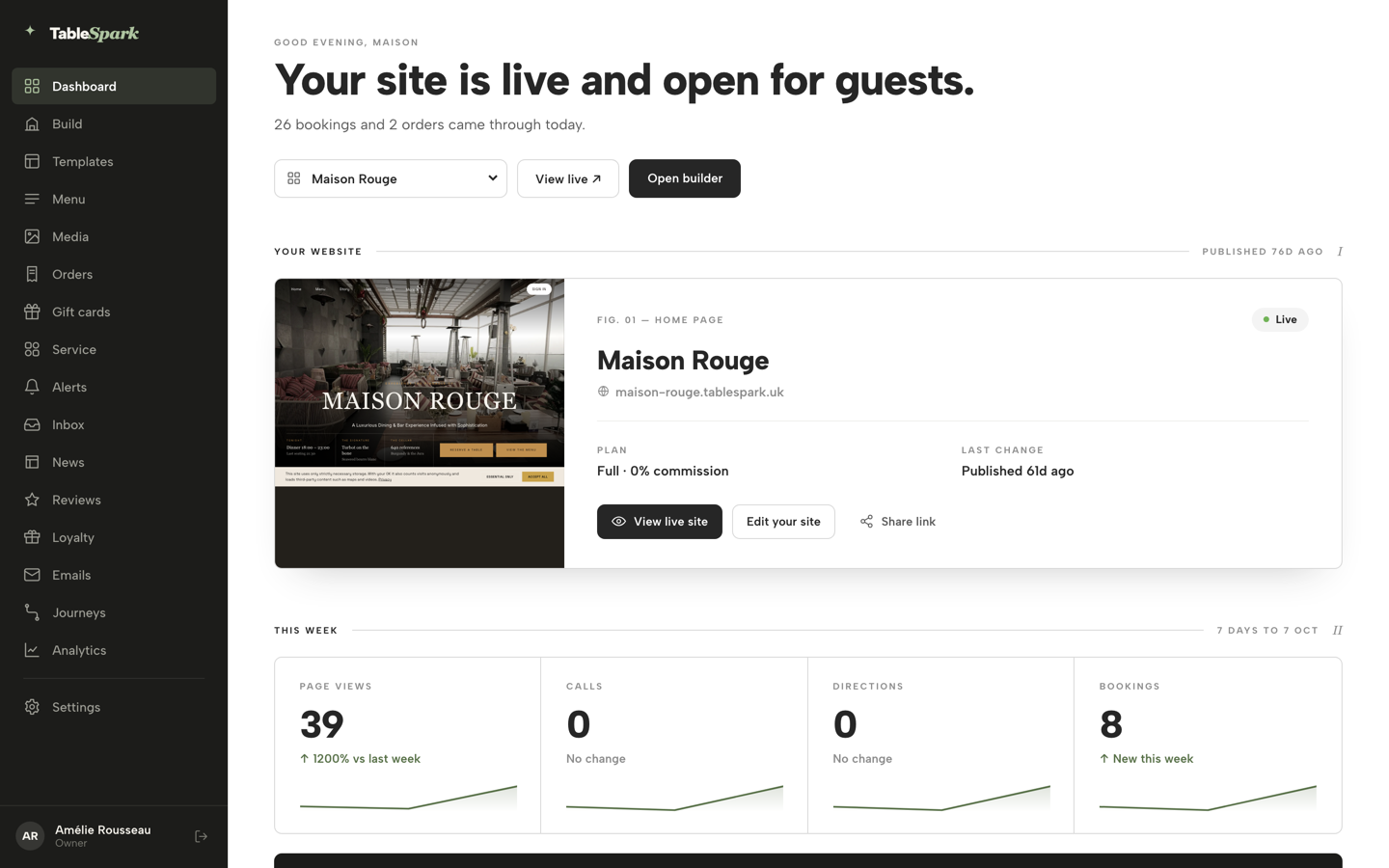
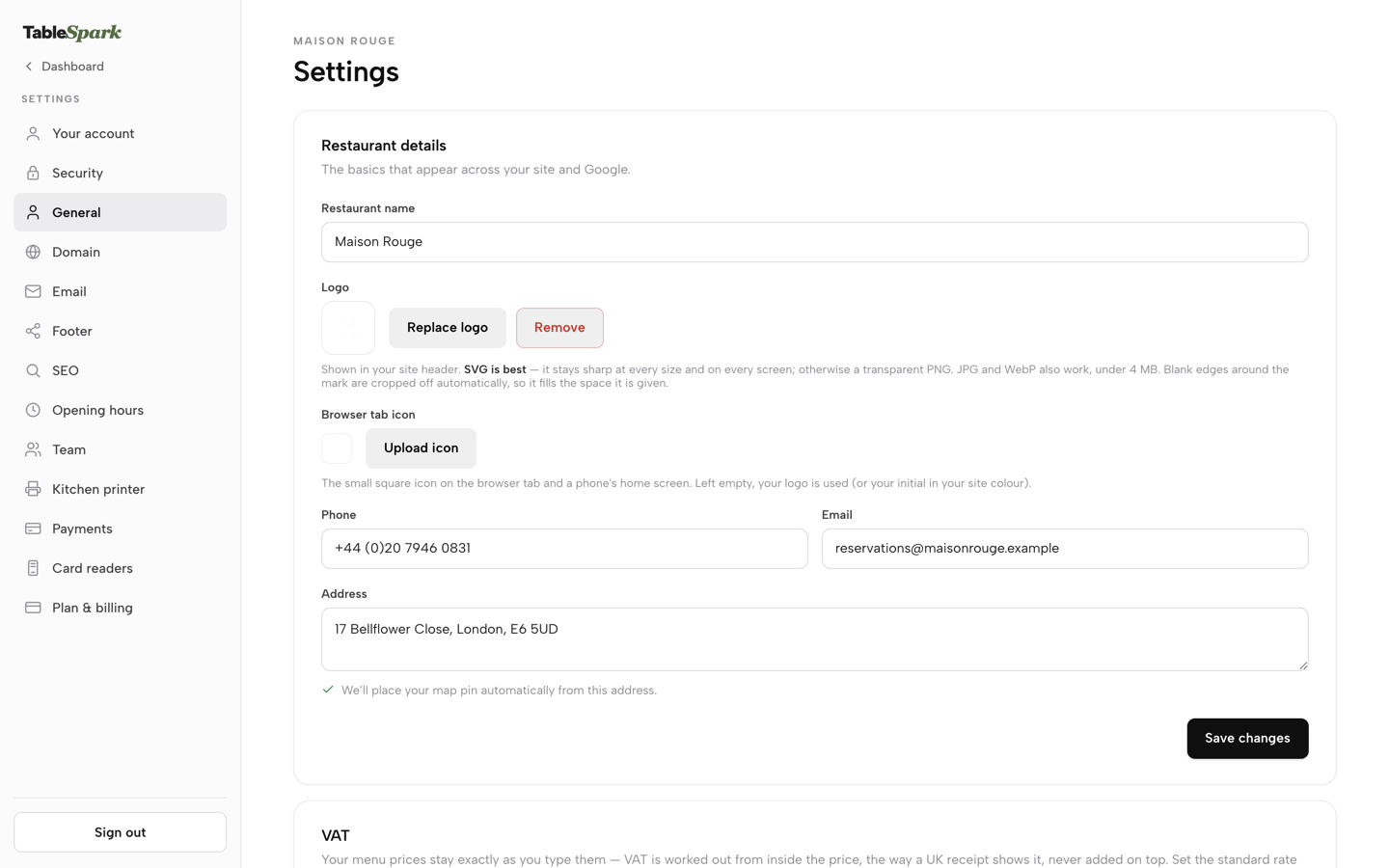
Click Settings at the bottom of the sidebar — every payment control lives there.
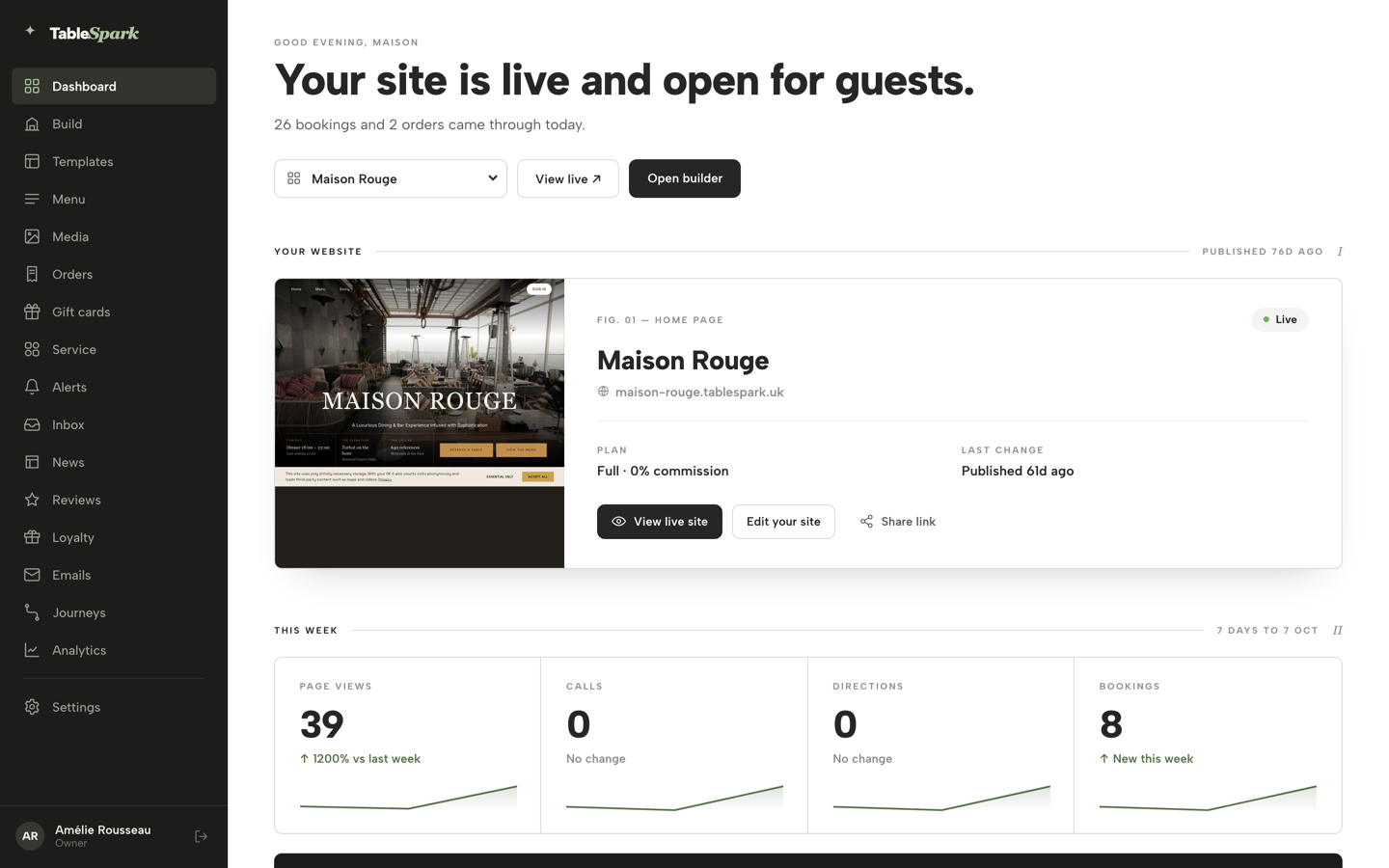
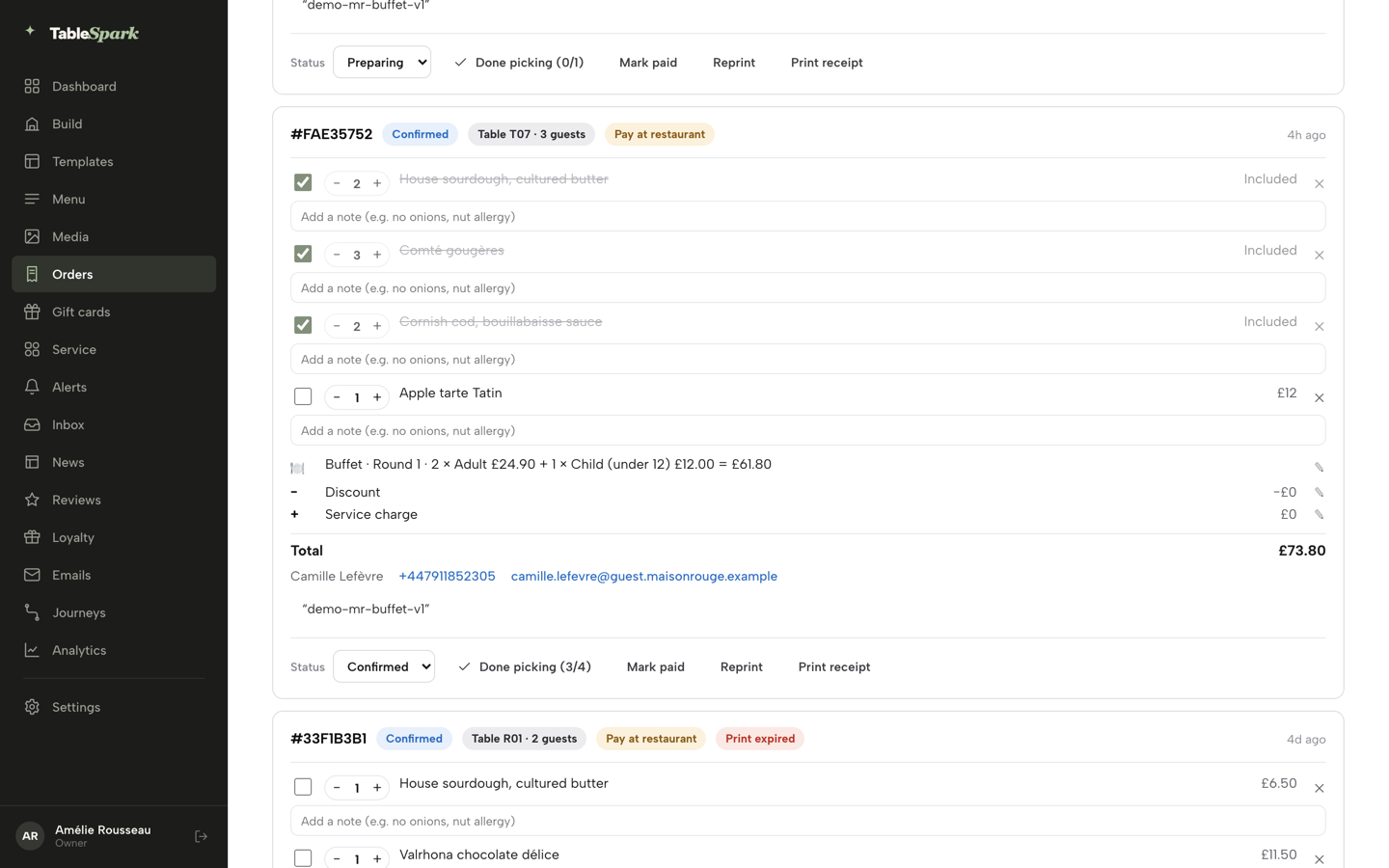
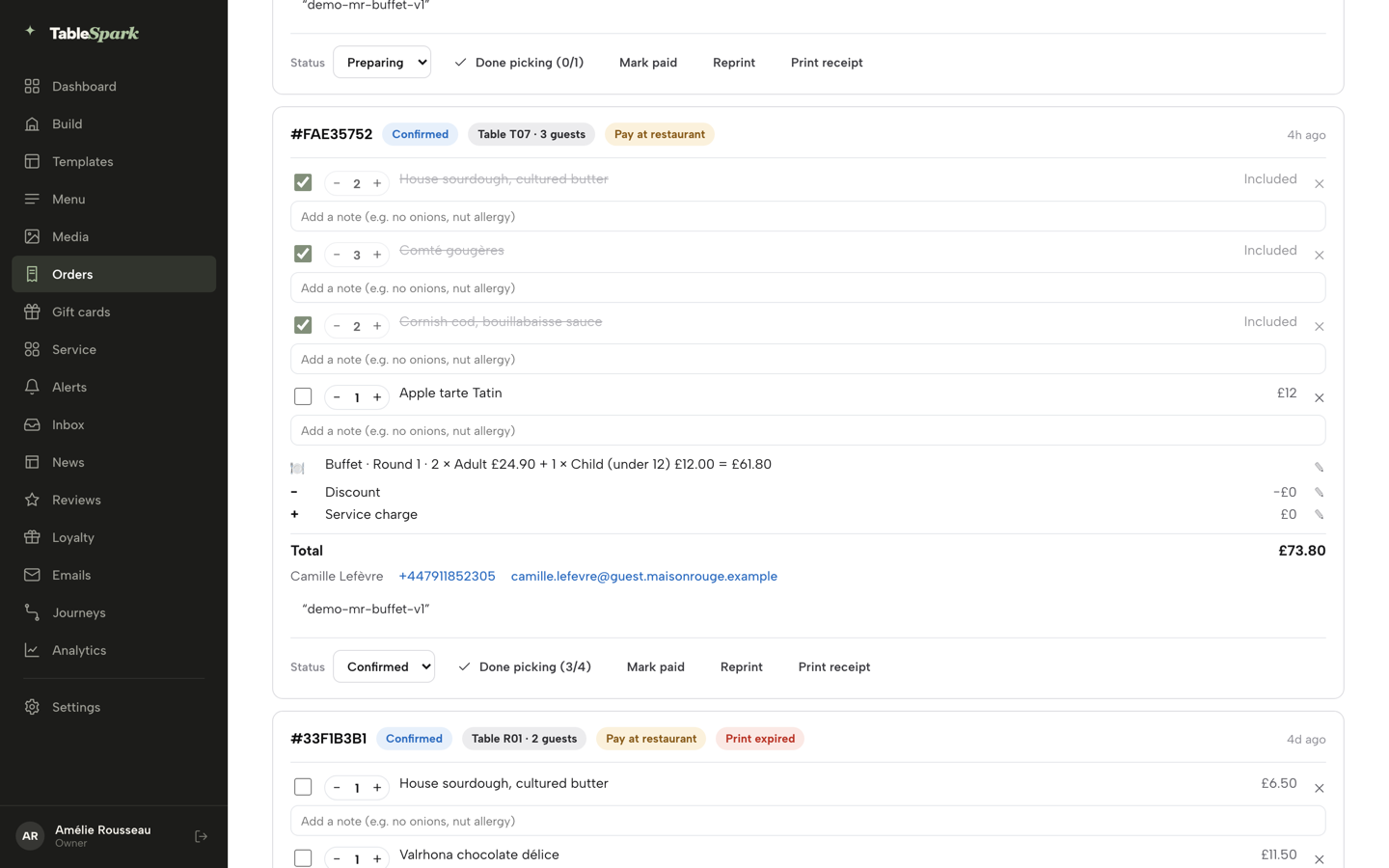
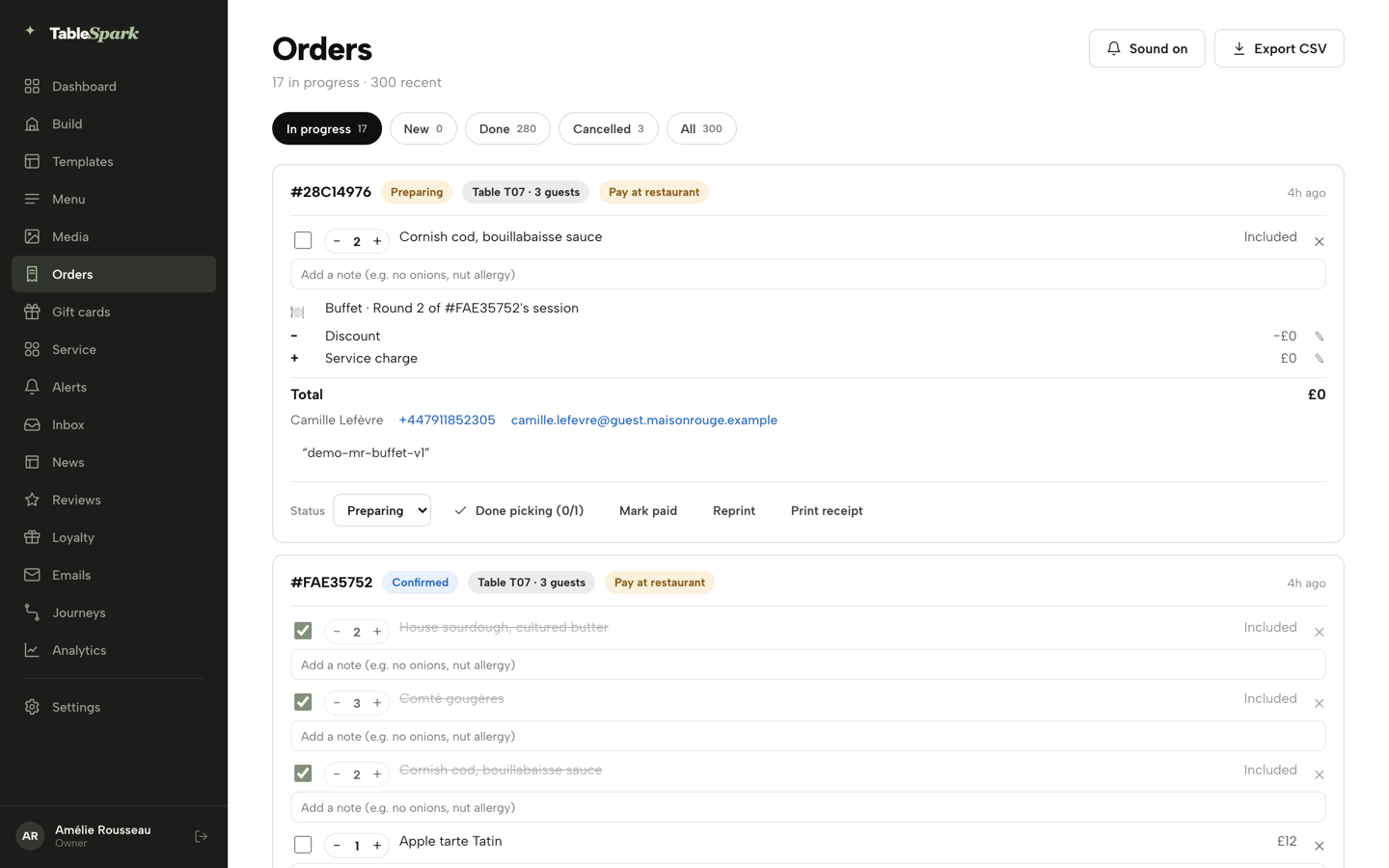
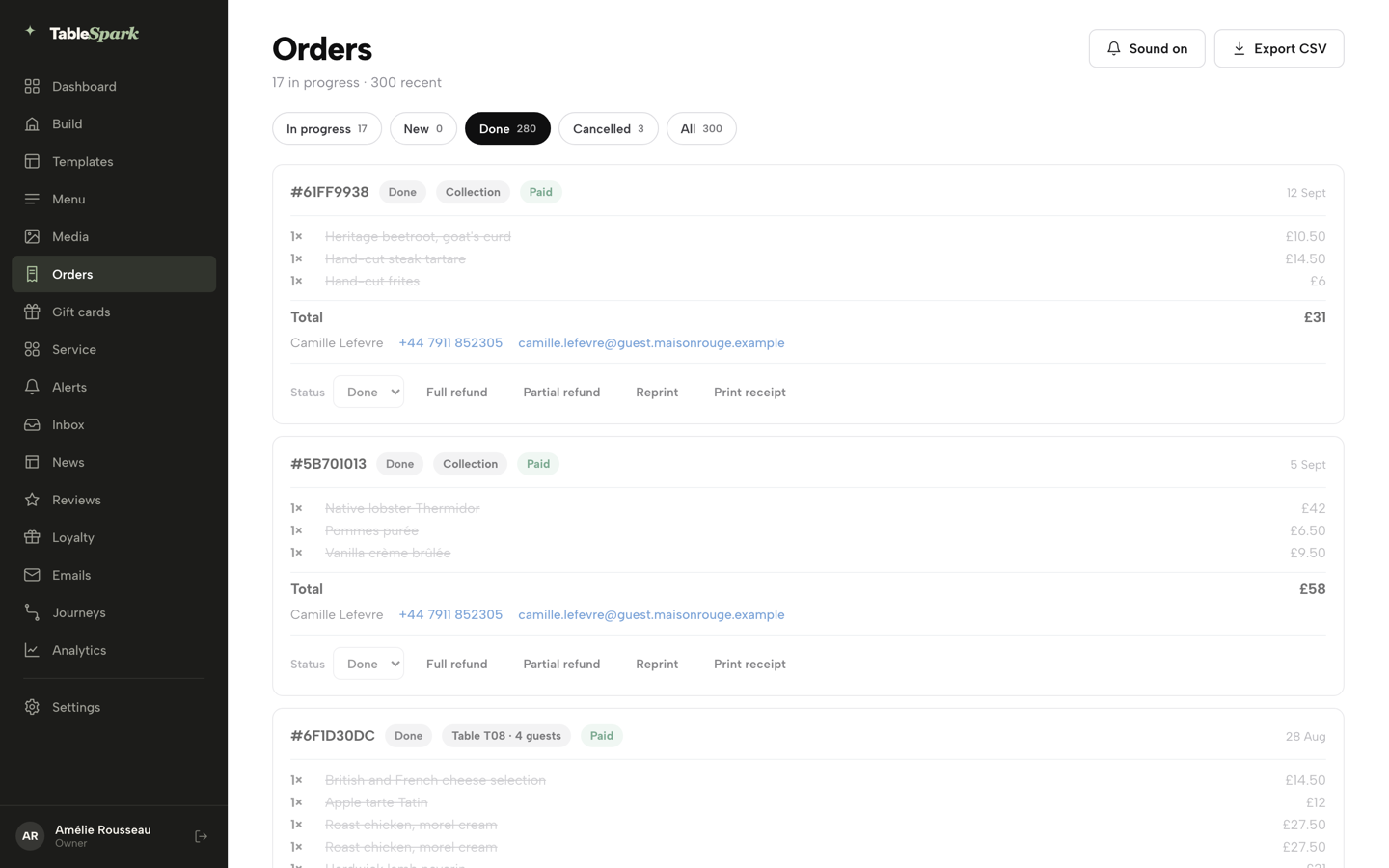
You opened Settings → Payments and saw the 0% platform commission promise, found Connect Stripe and the connected state, found Register reader under Card readers, and on Orders located the payment chip, Mark paid, the Done tab and Full refund.
- WHAT YOU NEED
- Your bank details & 10 minutes
- TIME
- About 10 minutes
- HOW HARD?
- If you can fill in a bank form, you can do this
- CAN I BREAK IT?
- No — connecting moves no money, and you approve everything on Stripe’s own pages
IN PLAIN WORDS / TAP A TERM
What’s “Stripe”?
The company that actually processes every card payment. TableSpark connects to it — card numbers and bank details are Stripe’s to hold, never TableSpark’s.
What’s “Stripe Connect”?
Stripe’s own product for platforms like TableSpark: it gives your restaurant its own separate Stripe account, linked to TableSpark rather than money passing through ours. It’s the reason the badge in Settings → Payments reads “Official Stripe Connect partner.”
What’s a “payout”?
Stripe’s word for money actually landing in your bank account. It happens on Stripe’s own schedule — TableSpark never starts, holds or approves one.
What’s a “card reader” (or “Terminal”)?
A physical device — Stripe’s own name for its side of this is Terminal — for tapping or inserting a card in person. Once registered, it charges through the exact same Stripe account as your online orders.
What’s a “commission”?
The cut a platform takes from a sale. TableSpark’s is 0% — the only fee anywhere in this chain is Stripe’s own standard card-processing fee, the same rate any Stripe user pays.
Connect Stripe once
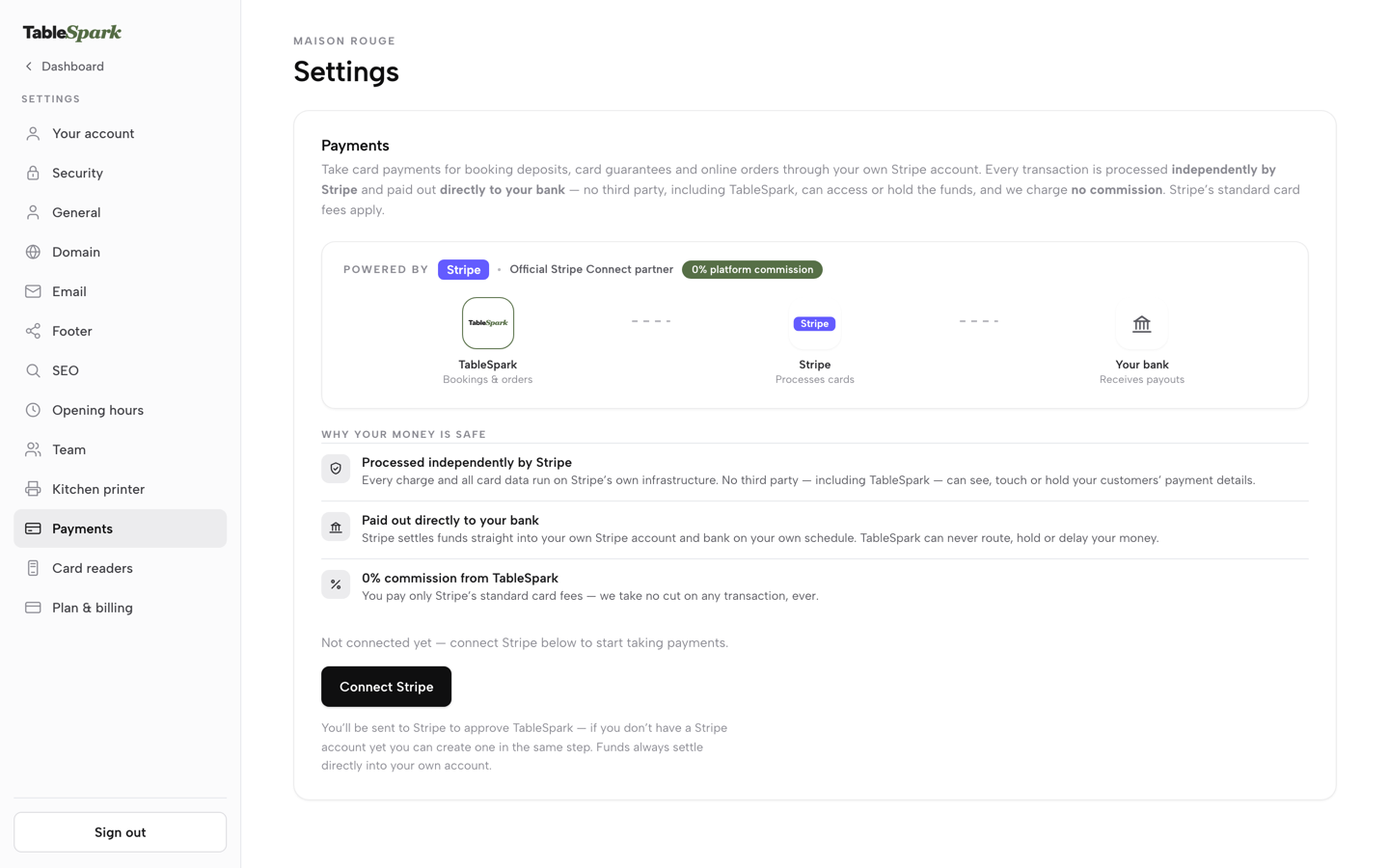
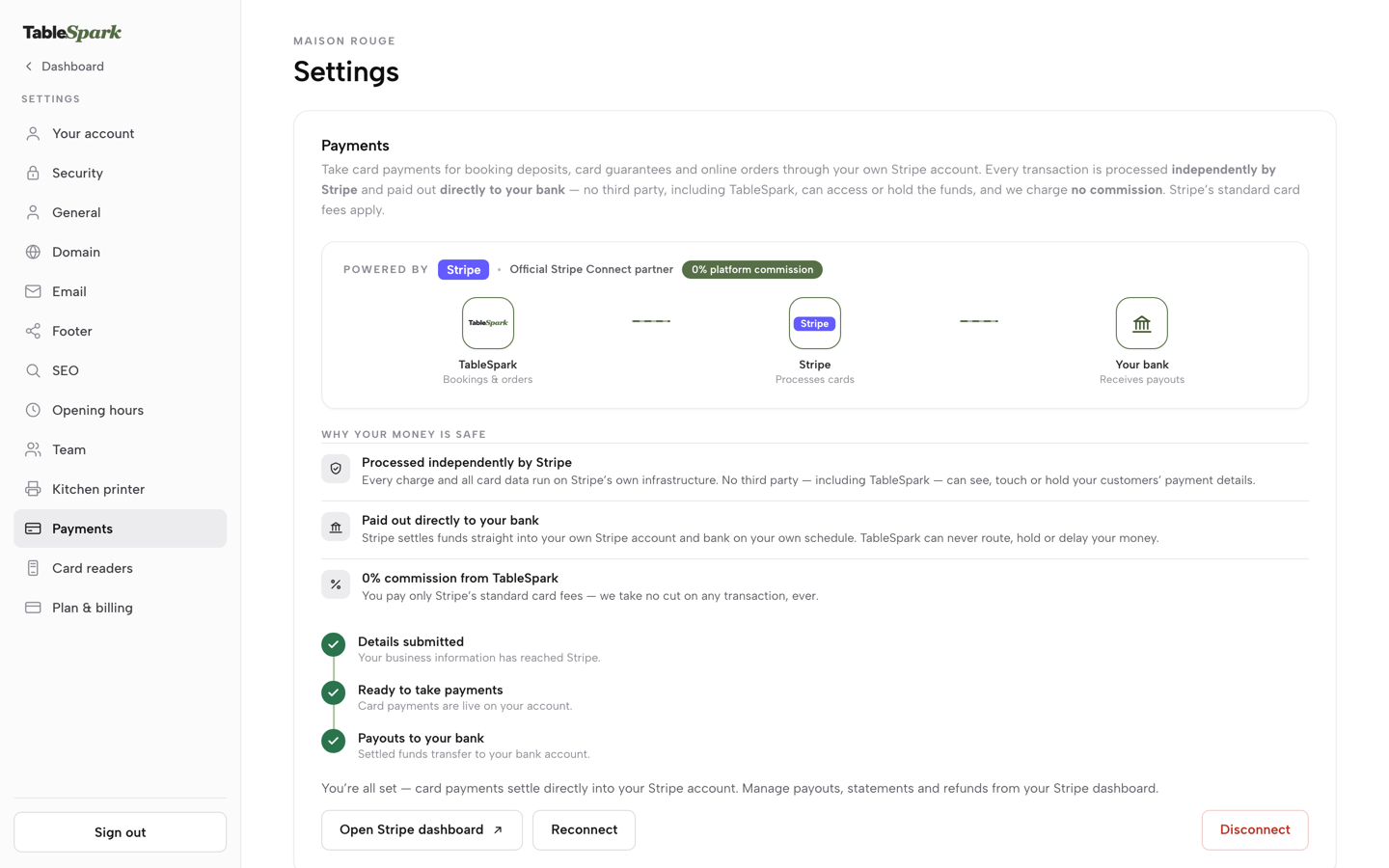
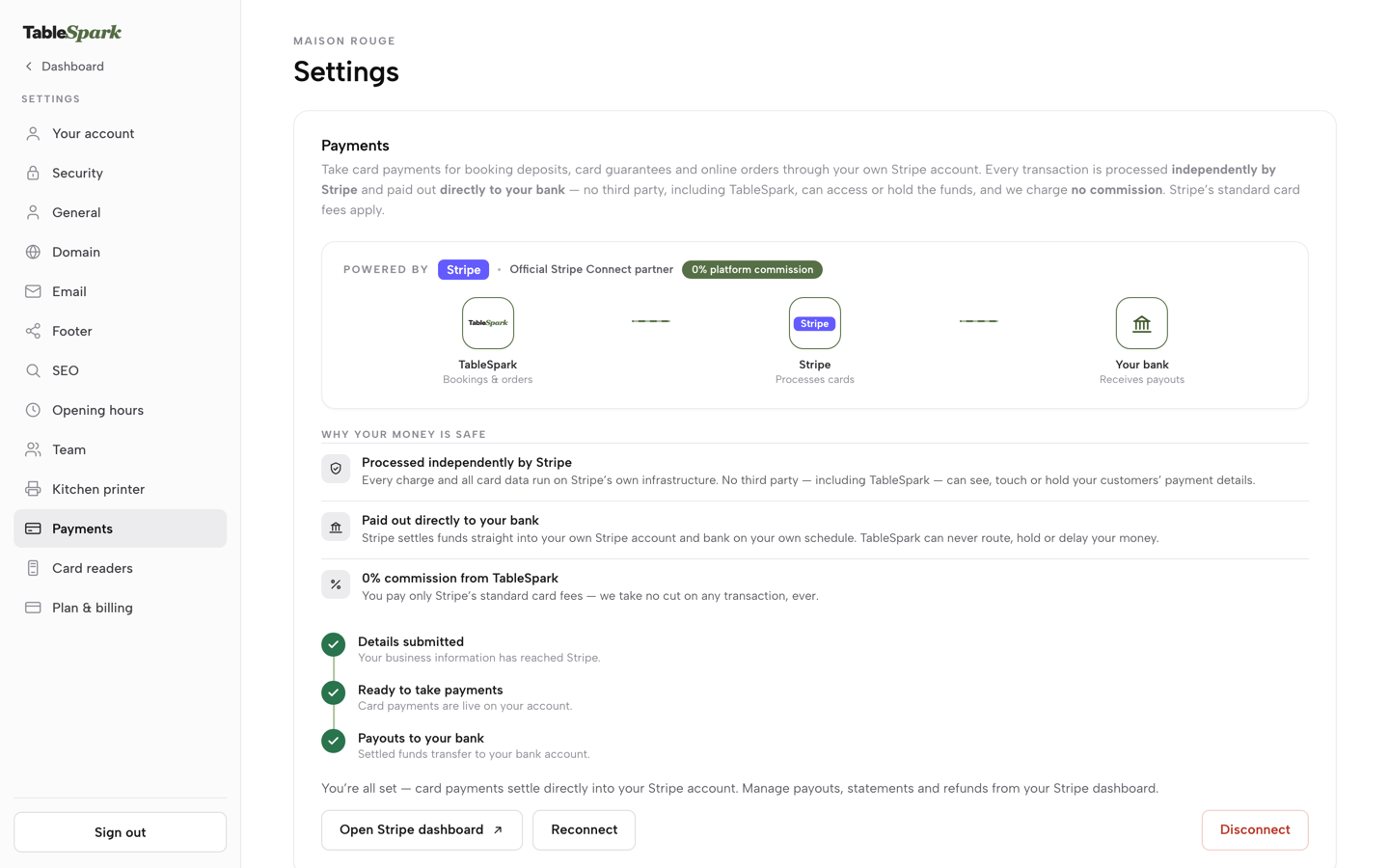
From the Dashboard, click Settings at the bottom of the sidebar, then Payments in the Settings menu on the left (Settings opens on General). The direct address is /app/settings?section=payments. Payments comes with the Growth and Full plans and only the owner role can open it, since it holds your banking connection. The panel leads with the product’s own line: “Take card payments for booking deposits, card guarantees and online orders through your own Stripe account. Every transaction is processed independently by Stripe and paid out directly to your bank — no third party, including TableSpark, can access or hold the funds, and we charge no commission. Stripe’s standard card fees apply.” Under it sits a “Powered by Stripe · Official Stripe Connect partner” badge next to a “0% platform commission” pill, then a simple diagram — TableSpark → Stripe → Your bank — that lights up step by step as your own connection comes online.
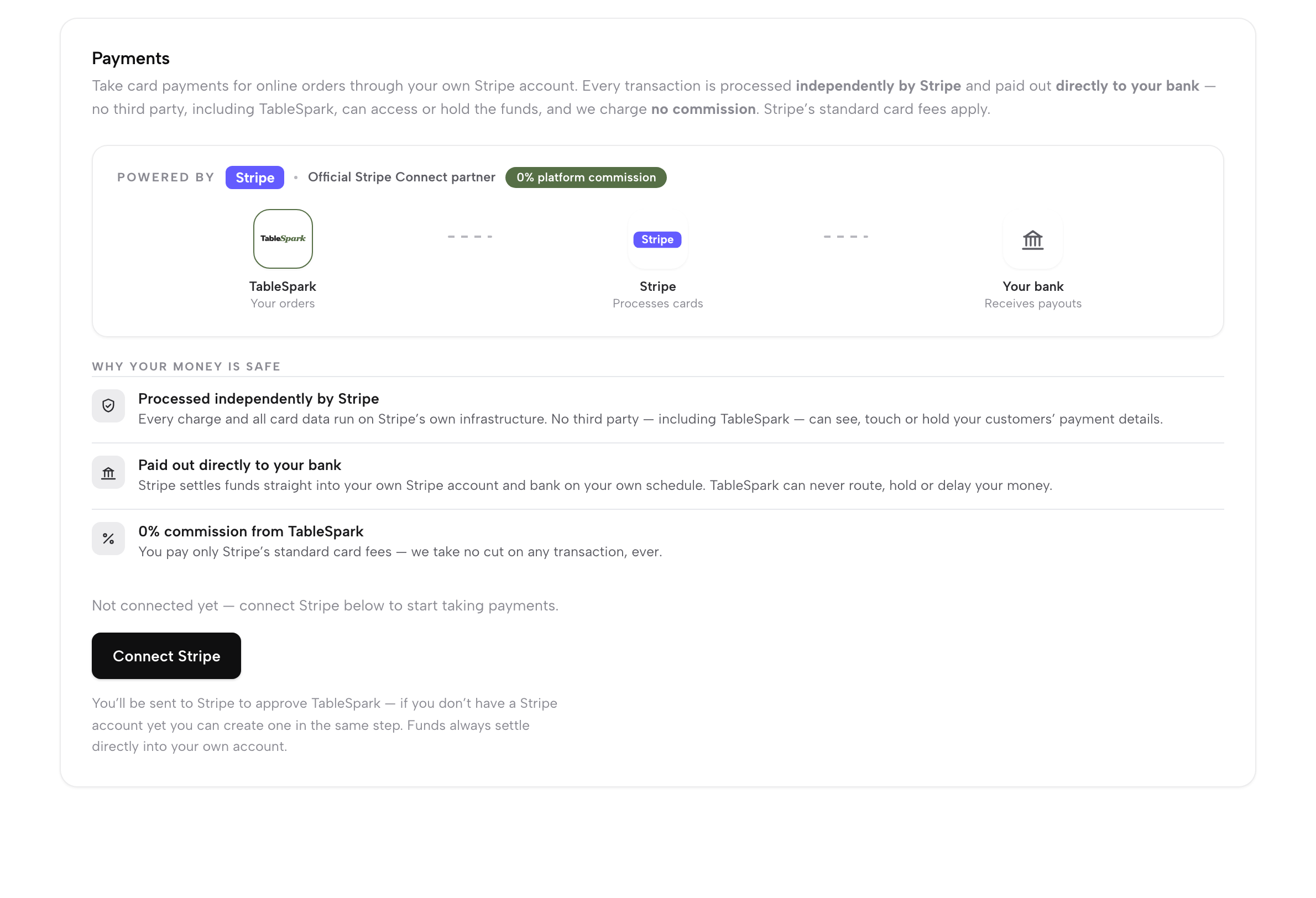
Before you connect, the status line reads plainly: “Not connected yet — connect Stripe below to start taking payments.” Press Connect Stripe. The product tells you exactly what happens next: “You’ll be sent to Stripe to approve TableSpark — if you don’t have a Stripe account yet you can create one in the same step. Funds always settle directly into your own account.” You finish the whole approval on Stripe’s own pages, not TableSpark’s.
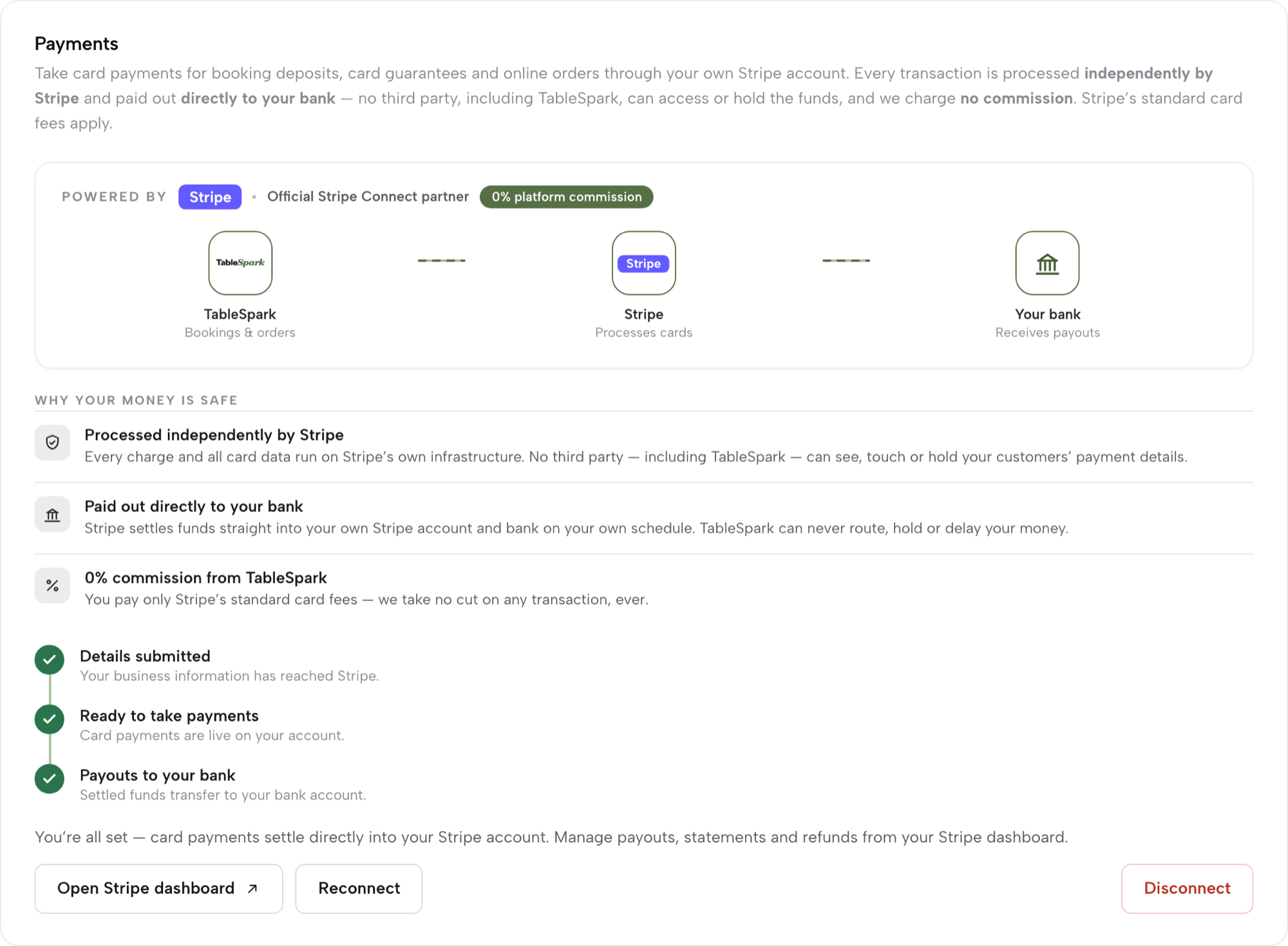
Once you’ve approved TableSpark on Stripe, the same page starts tracking your own onboarding with a three-step rail: Details submitted (“Your business information has reached Stripe”), Ready to take payments (“Card payments are live on your account”), and Payouts to your bank (“Settled funds transfer to your bank account”) — each ticks off as Stripe confirms it. If Stripe still needs a detail from you before it will process a live charge, the page says so directly: “Your Stripe account is connected, but Stripe needs a few more details before live charges. Open your Stripe dashboard to finish the checklist.” Once every step is done, the page settles into its steady state: “You’re all set — card payments settle directly into your Stripe account. Manage payouts, statements and refunds from your Stripe dashboard,” with Open Stripe dashboard, Reconnect and Disconnect buttons alongside it.
What “no commission” actually means
The same panel spells out why your money is safe in three short rows, and they’re worth reading in full rather than taking on trust:
- Processed independently by Stripe — “Every charge and all card data run on Stripe’s own infrastructure. No third party — including TableSpark — can see, touch or hold your customers’ payment details.”
- Paid out directly to your bank — “Stripe settles funds straight into your own Stripe account and bank on your own schedule. TableSpark can never route, hold or delay your money.”
- 0% commission from TableSpark — “You pay only Stripe’s standard card fees — we take no cut on any transaction, ever.”

That’s the whole arrangement, and it doesn’t change by surface: an online order, a booking deposit, a card guarantee or a gift-card sale all run through this identical connection. There is exactly one Stripe fee anywhere in it — Stripe’s own standard card-processing rate — and exactly zero TableSpark fees.
Register a card reader
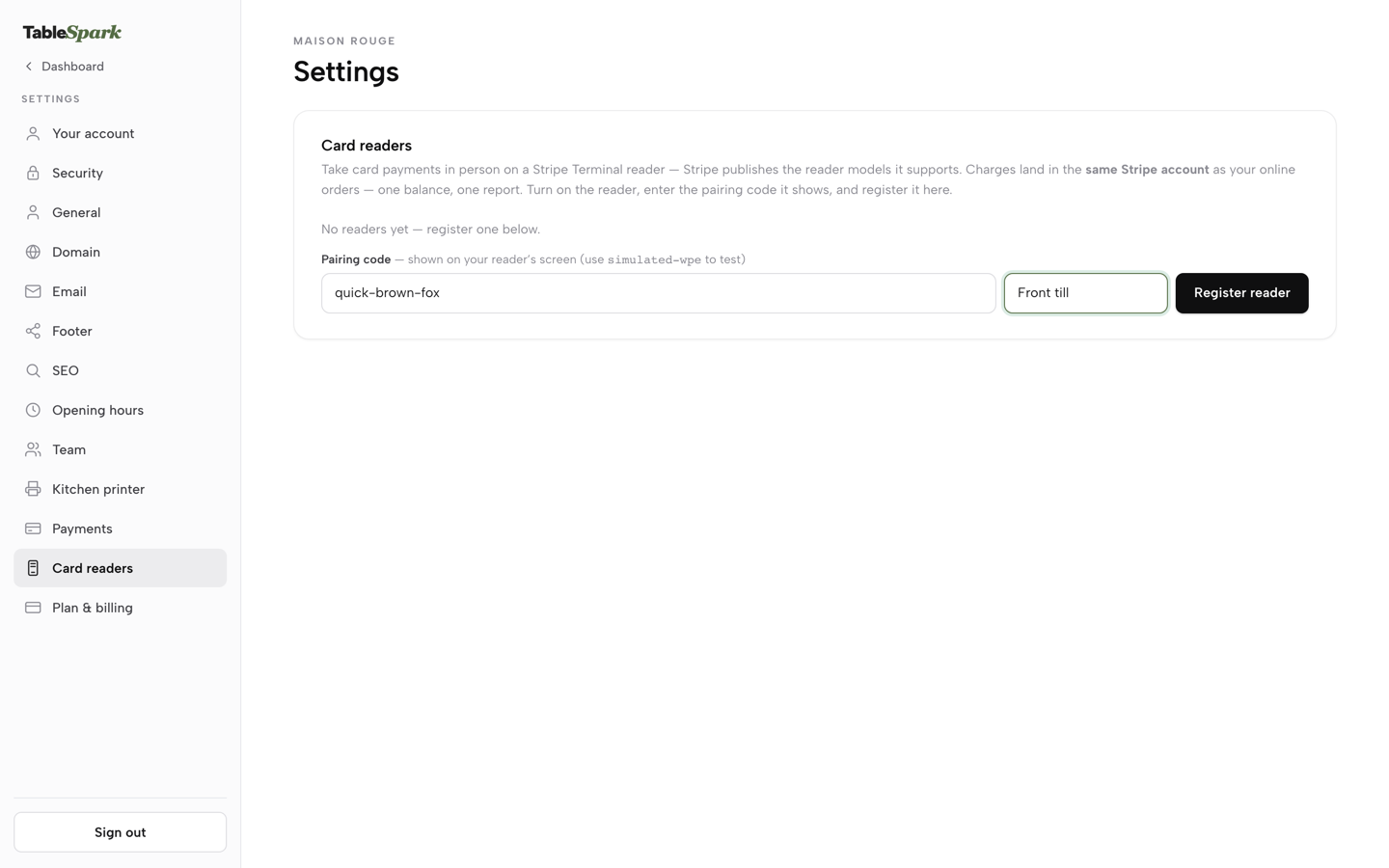
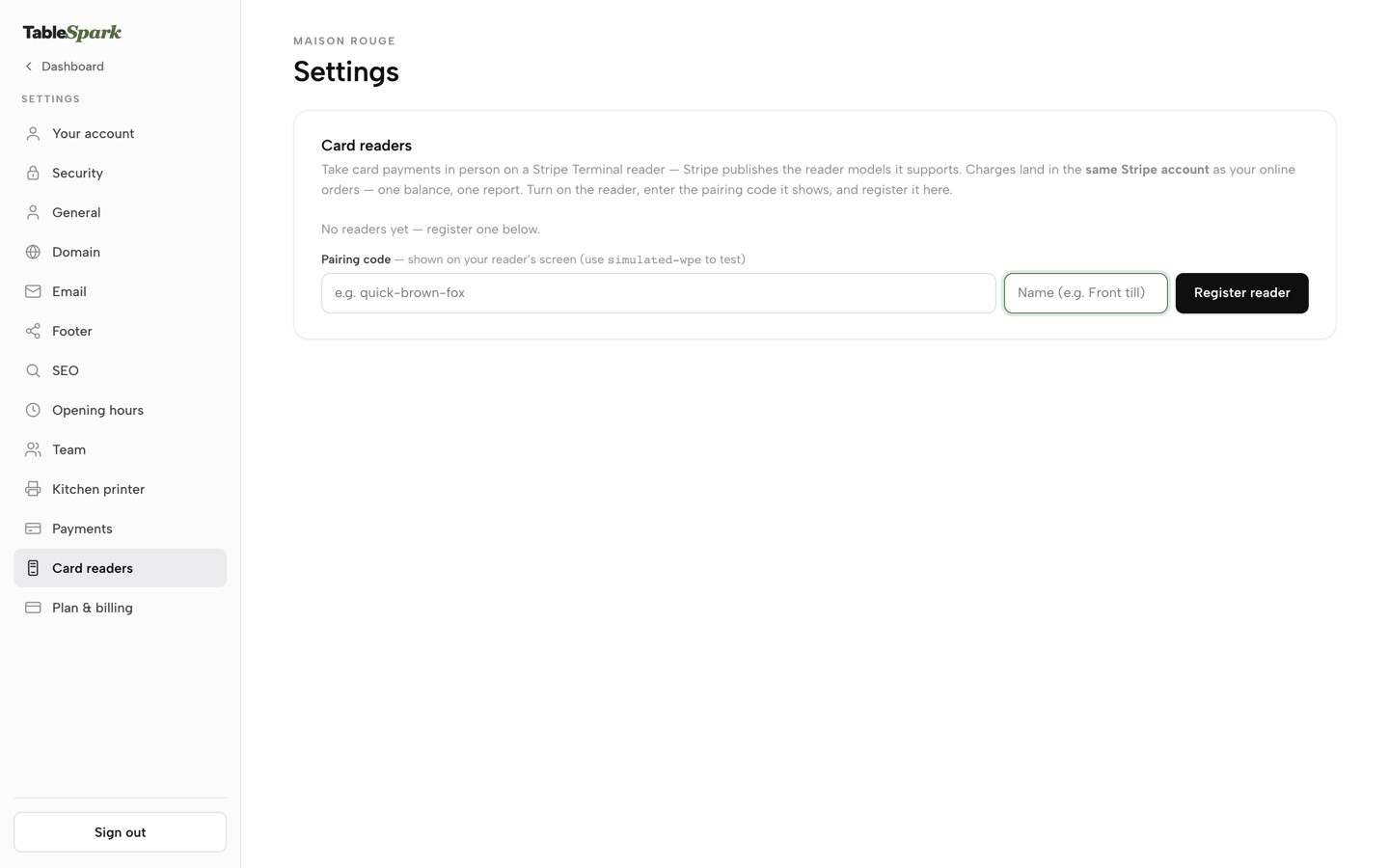
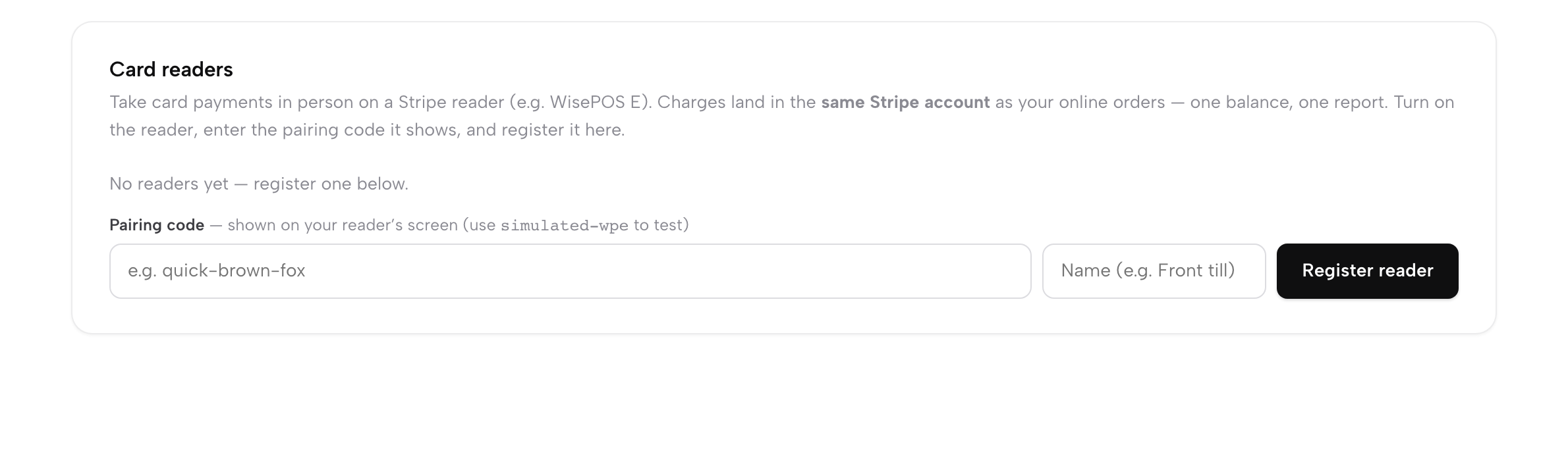
In Settings, click Card readers in the menu on the left, just under Payments — the direct address is /app/settings?section=readers. Card readers comes with the Growth and Full plans and is open to the owner, admin and editor roles. The product’s own line: “Take card payments in person on a Stripe Terminal reader — Stripe publishes the reader models it supports. Charges land in the same Stripe account as your online orders — one balance, one report. Turn on the reader, enter the pairing code it shows, and register it here.”
With no reader registered yet, the page states it plainly — “No readers yet — register one below.” — directly above the registration form. Power on the physical reader; it shows a short pairing code on its own screen. Type that code into Pairing code (the field’s own hint: “shown on your reader’s screen”, with a simulated-wpe test code mentioned for trying it out), give it a Name such as “Front till,” and press Register reader. Registering a reader needs a connected Stripe account behind it, so connect Payments first — if you register before that, the product points you back to the Payments tab.
Every reader you register lists on this same page with its name, device type and status, alongside a Remove action of its own if you retire it. Register as many as your floor needs — a front till, a bar, a second service point — and every one of them settles into the identical Stripe account and the identical bank payout.
Where the money goes
One connection, four places it actually shows up:
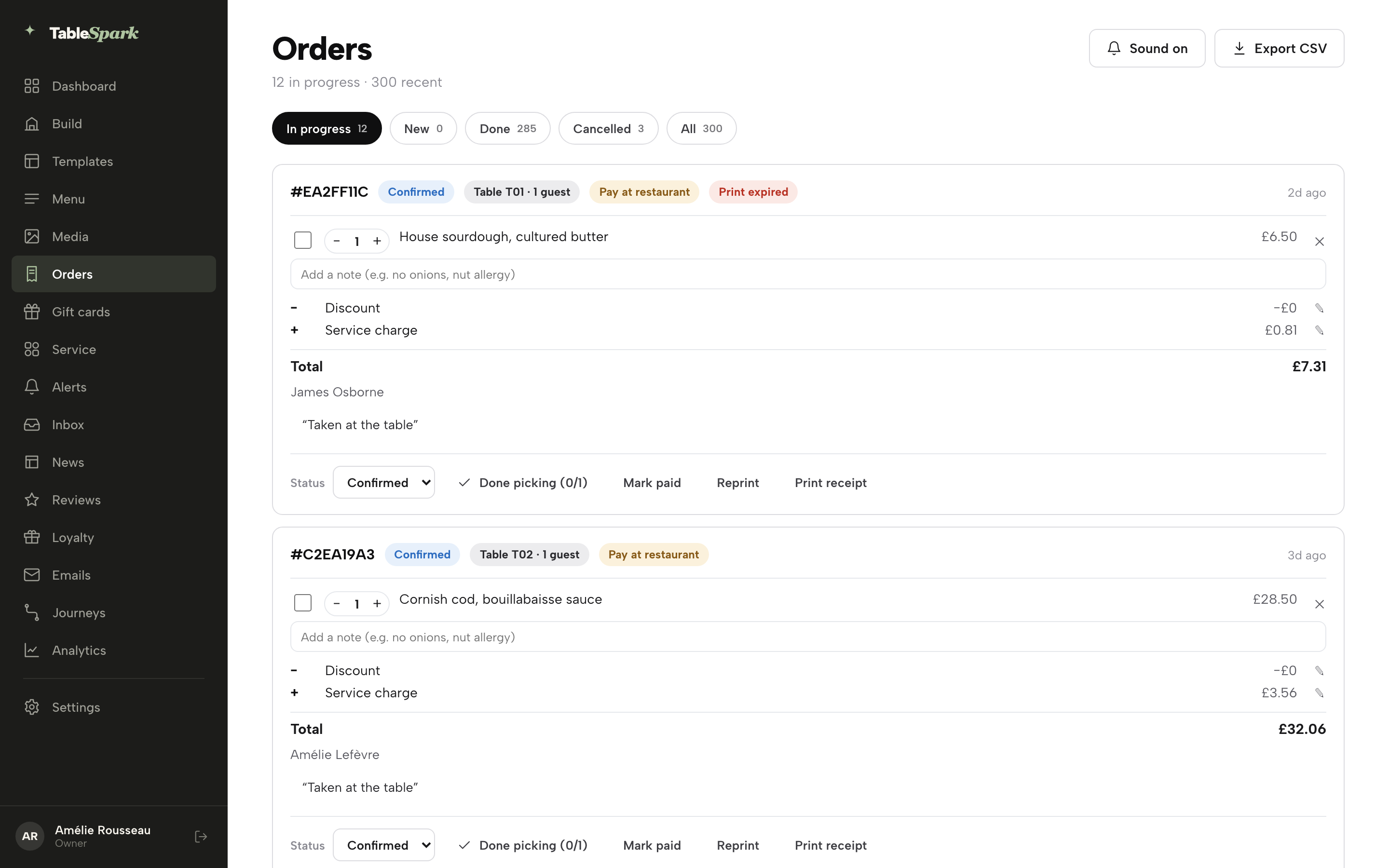
- Online orders — on Orders, every ticket carries its own payment chip: Pay at restaurant until it’s settled (an online order shows Awaiting payment instead), then Paid, Part refunded or Refunded as its state changes, or Payment failed if a card does not go through. An online-paid order has no manual toggle — Stripe is the source of truth for it — while a pay-at-restaurant order gets a Mark paid button at the bottom of its card once cash or a card machine has settled it (and Mark unpaid to reverse a slip), and, wherever you’ve registered a reader, a Charge on card reader button starts a reader payment on that order directly. The fuller walkthrough of the Orders screen itself lives in Take online orders’ payments and mark paid step.
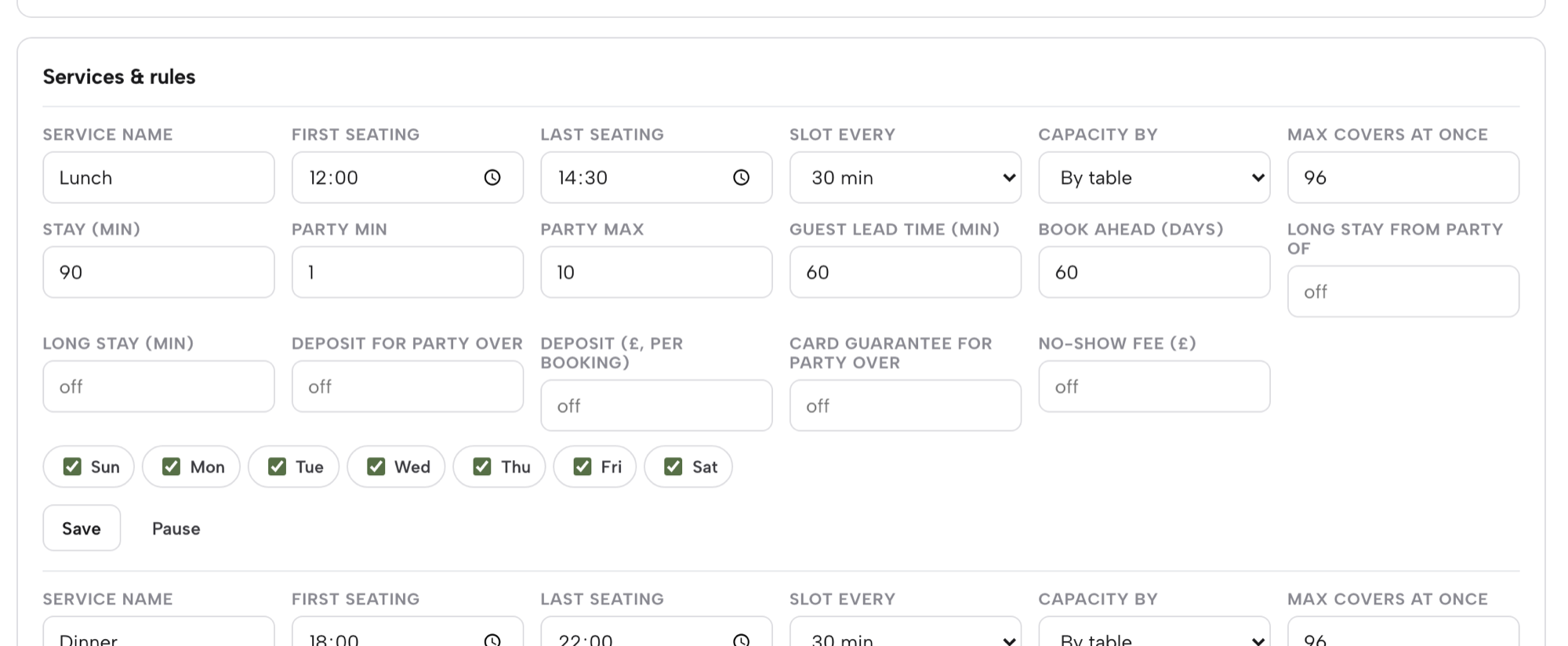
- Deposits & card guarantees — a booking above a party-size threshold can carry a deposit or a card guarantee, configured per service in Services & rules on the Bookings page (open Service, tap a booking, choose Full record, then Services & rules; the fields are Deposit for party over, Deposit (£, per booking), Card guarantee for party over and No-show fee (£)) and covered in full in Hours and booking rules’ deposits step. The amount itself is collected through this exact same connected Stripe account, so a guest paying a deposit isn’t a second payment setup — it’s the one you already connected here, doing one more job.
- Gift-card sales — with Payments connected, the Gift card form module on your site shows a Pay & send gift card button and takes the buyer through a real Stripe sale, paid straight to your bank; the same form can also run as a request instead, landing in your Inbox as a gift-card enquiry for restaurants that prefer to arrange payment personally. Redeeming a balance later closes out whatever’s left owing as ordinary payment — the same Mark paid on the table’s sheet you’d use on any bill. The full ledger, issuing and redemption walkthrough is Sell gift cards.
How a refund moves the money back
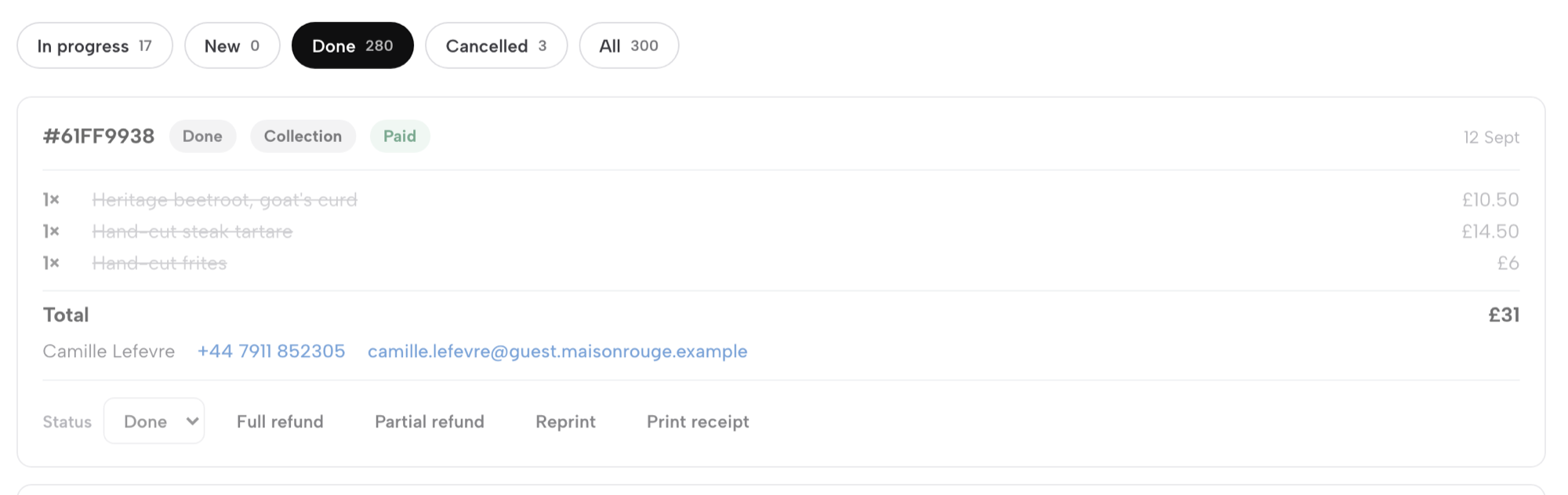
Open Orders and choose the Done tab (or any tab that lists the order). Any Paid or Partially refunded order carries Full refund and Partial refund. Full refund arms on the first press — it turns into “Confirm refund?” for a few seconds — and fires on the second; Partial refund asks for an amount up to whatever’s left owing. An online order refunds itself straight through Stripe; a pay-at-restaurant order records an offline refund instead, since there’s no card to reverse. Choosing Cancelled in the Status menu of a paid order asks you to confirm first (“The diner will be refunded in full”) and refunds the guest in full as part of cancelling, and a “Refunded so far” line appears under the total the moment any refund lands. Refunding is owner-only, checked on the server regardless of who’s signed in. The full order-card walkthrough of these controls is in Take online orders’ refunds step.
Deposits and card guarantees follow the identical Stripe-backed path when they’re refunded, and a gift card carries its own Refund sale action on the Gift cards ledger, returning unused value to the original payment method through Stripe — see Sell gift cards for that page’s full refund, adjust and void actions. Wherever the money started, it comes back the same way it went out: through Stripe, into the original card, with nothing passing through a TableSpark-held balance at any point.
Who can see this
Payments comes with the Growth and Full plans: on Growth it takes booking deposits and card guarantees, and Full adds online orders. Once Stripe is connected, Settings → Payments is owner-only, since it carries your banking connection; Settings → Card readers opens to owner, admin and editor roles on Growth and Full, so any manager on the floor can register or retire a reader without needing owner access themselves.
Connect Stripe once, and every card your restaurant ever takes — at the table, online, on a reader, or as a deposit against a booking — settles into your own bank, on Stripe’s own terms, with TableSpark keeping none of it.
Next · put it to work
Next: sell gift cards
With Payments connected, the Gift card form on your site can take a real sale — see how to switch it on, issue cards at the desk, and read the ledger.