
A table of twelve books for a December dinner, and the organiser collects dishes in a group chat for a fortnight. One guest answers with a thumbs-up, another forgets to mention a nut allergy, and three never reply. The night before, your kitchen is still guessing, and a nut allergy sits on a booking with no dish checked against it. Per-guest choices gives each guest a private link, locks the dishes that contain their allergens, and hands your kitchen one sheet with every plate and a total for each dish.
Sidebar → BookingsPer-guest choices: Growth and Full plans
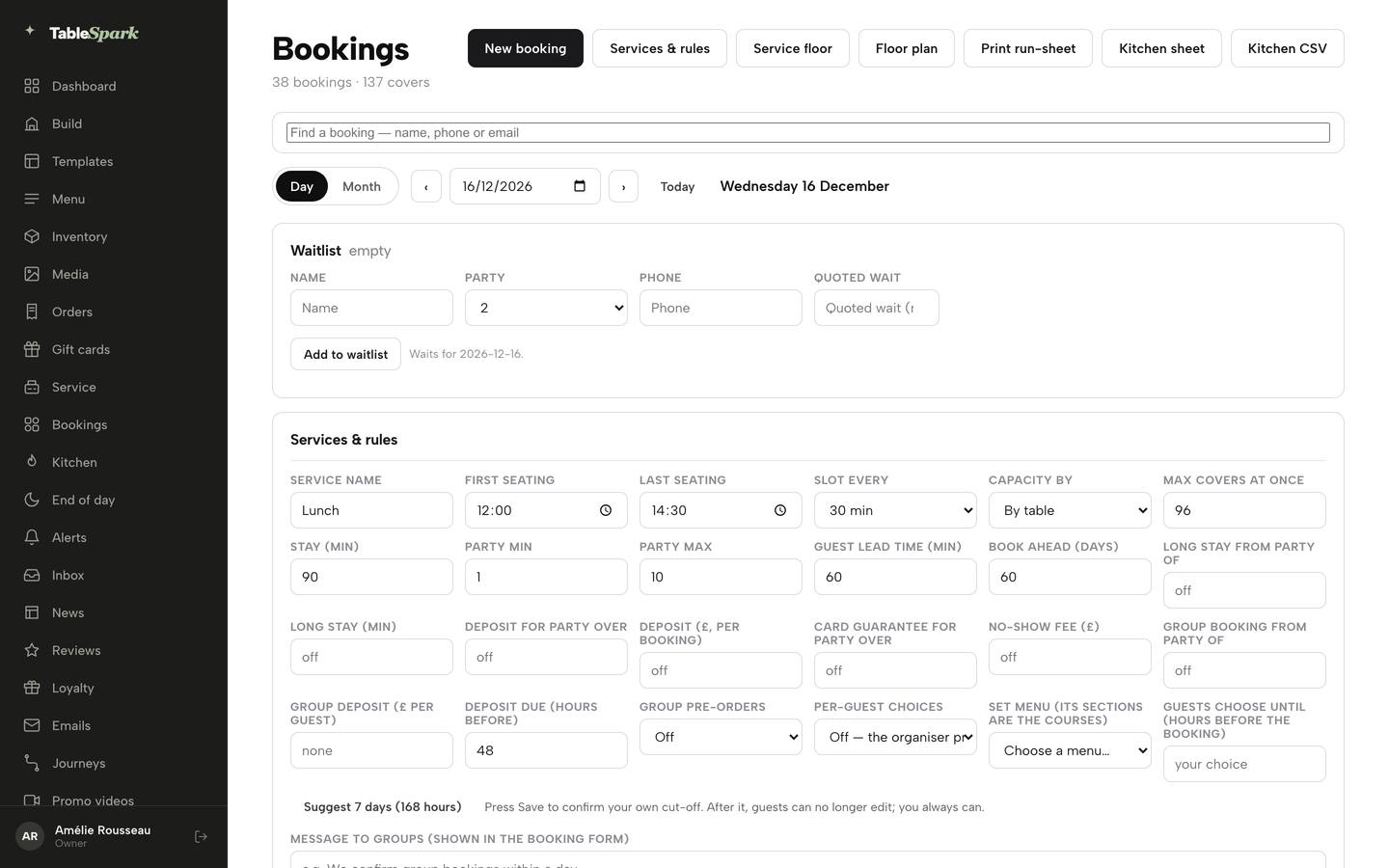
In Bookings, click Services & rules — every service opens as a form.
Per-guest choices on with your own cut-off, a group booked, a private link for every guest, allergies and dishes chosen on a phone, replies tracked on the booking and a guest edited from the diary.
- WHAT YOU NEED
- A service with a group size and a set menu
- TIME
- About 14 minutes
- PLAN
- Growth or Full for per-guest choices
- CAN I BREAK IT?
- No you can edit any guest at any time
IN PLAIN WORDS / TAP A TERM
What are per-guest choices?
Each guest at a large booking gets a private link, gives their allergies and picks one dish per course from your set menu, instead of the organiser ordering for everyone.
What is a set menu course?
A section of the menu you chose, such as Starter, Main or Dessert. Each section becomes one choice on the guest’s page.
What is the cut-off?
The number of hours before the booking when guests stop editing. You choose it. After it you can still edit any guest yourself.
Why is a dish greyed out for a guest?
It contains an allergen the guest ticked. The reason is shown under the dish. A dish with no allergen data is never shown as safe.
What does the kitchen sheet show?
Per day, every guest’s courses, allergies and notes, plus a total for each dish. You can print it or download it as a CSV.
Turn on per-guest choices
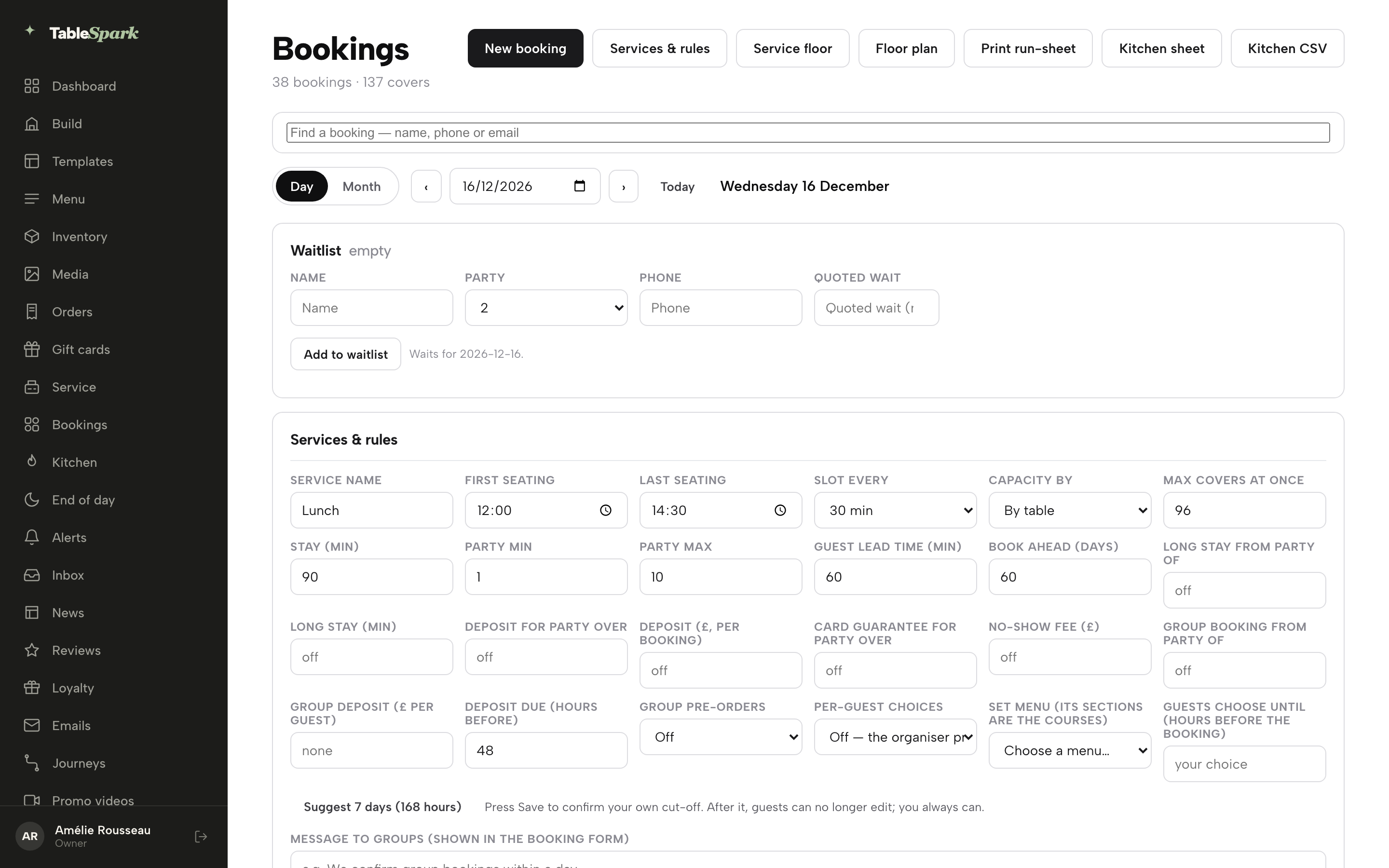
Open Bookings in the sidebar and click Services & rules. Every service you run, such as Lunch and Dinner, is a form of its own. Find the service that takes your large parties. This guide uses Dinner.
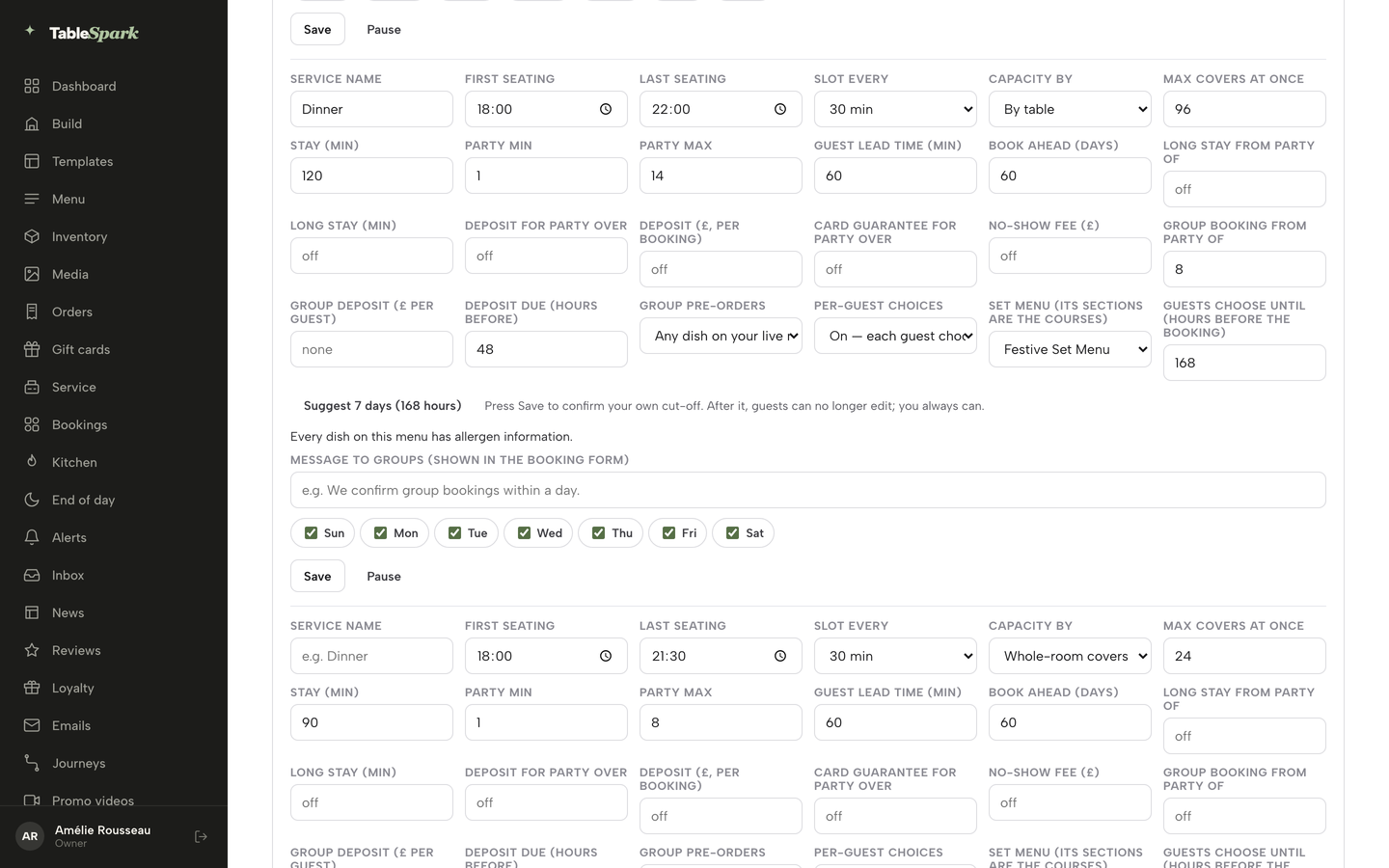
Per-guest choices builds on group bookings, so three fields work together. Group booking from party of says how big a party must be to count as a group, here 8. Group pre-orders must be on, so choose Any dish on your live menu or one section. Then set Per-guest choices to On — each guest chooses their own dishes.
Under Set menu (its sections are the courses) choose the menu your group eats from. Each section becomes a course on the guest’s page, so a menu with Starter, Main and Dessert gives each guest three choices. Here that is the Festive Set Menu. Build it first in Menu if it does not exist yet.
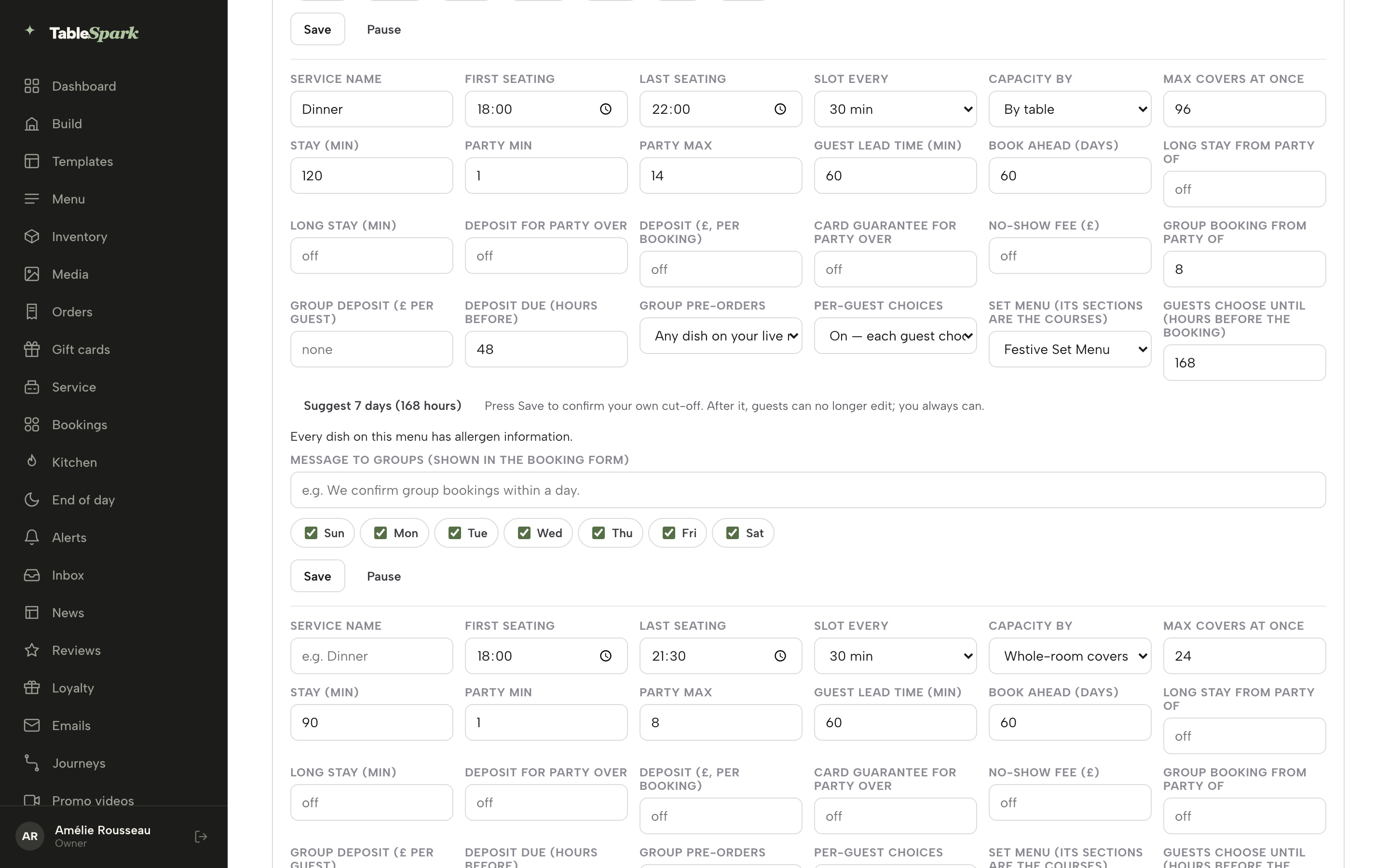
Under the fields TableSpark checks the menu for you. If any dish has no allergen information, a note lists those dishes and links to Menu so you can add them. When every dish is covered, the note reads Every dish on this menu has allergen information. Complete allergen data is what lets the guest page lock the right dishes.
Set your own cut-off
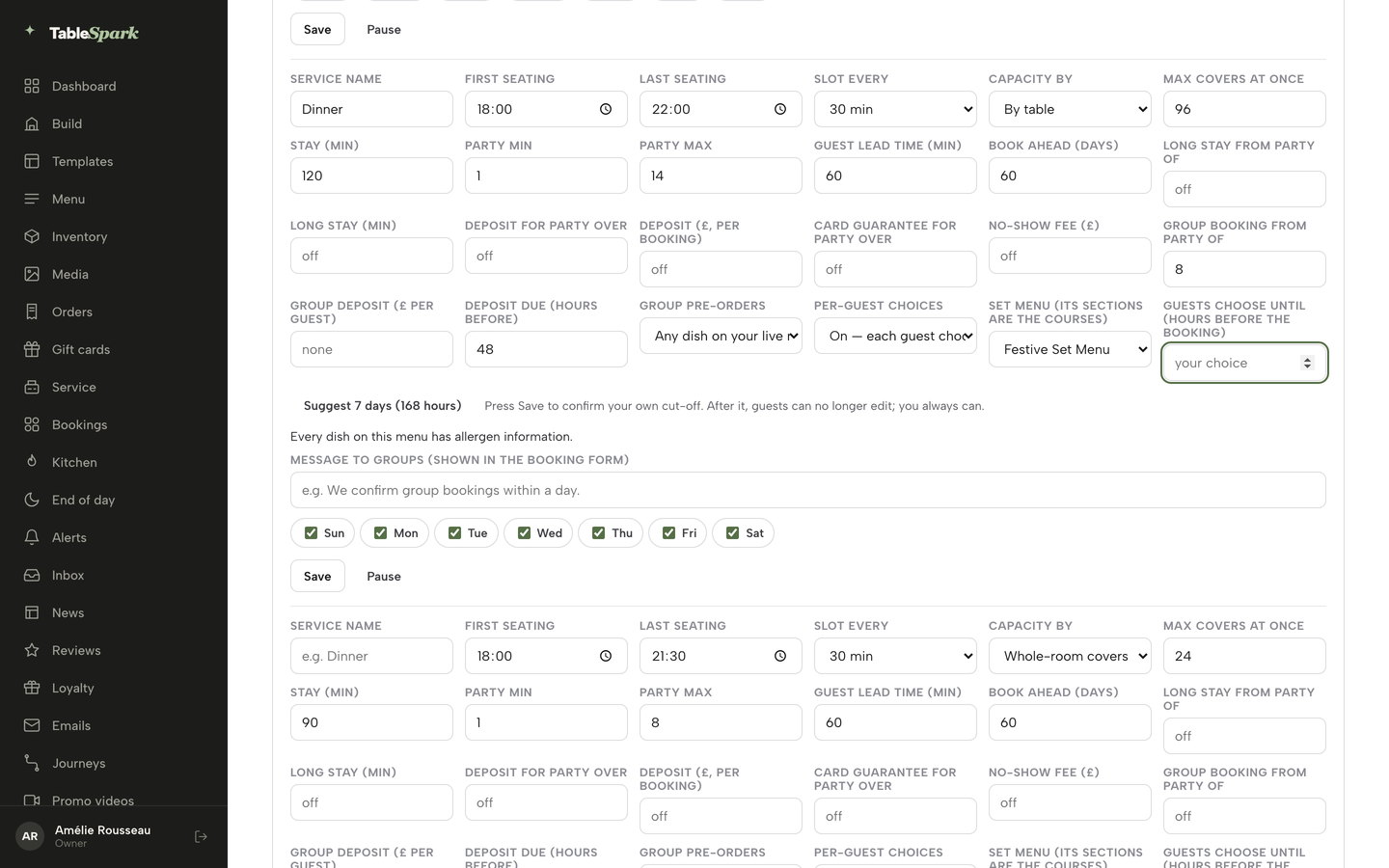
Guests choose until (hours before the booking) is the point after which guests’ links close for editing. It is your decision, so nothing is filled in for you. The box shows your choice until you type a number between 1 and 2160.
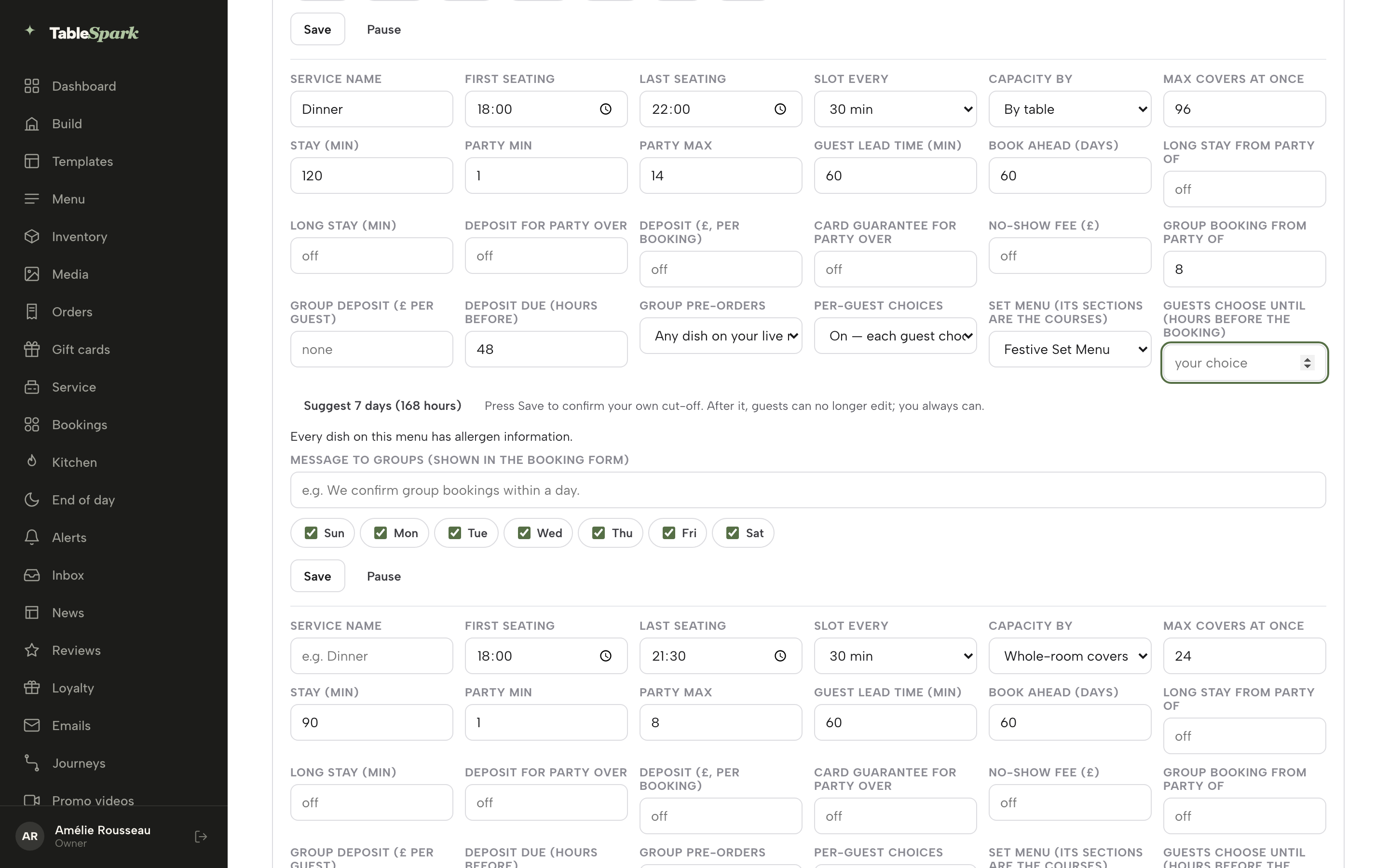
If you want a starting point, click Suggest 7 days (168 hours). It fills the box with 168. A week gives guests time to reply and still leaves your kitchen a week to order. Press Save to confirm your own cut-off. You always keep the right to edit a guest yourself, before or after the cut-off.
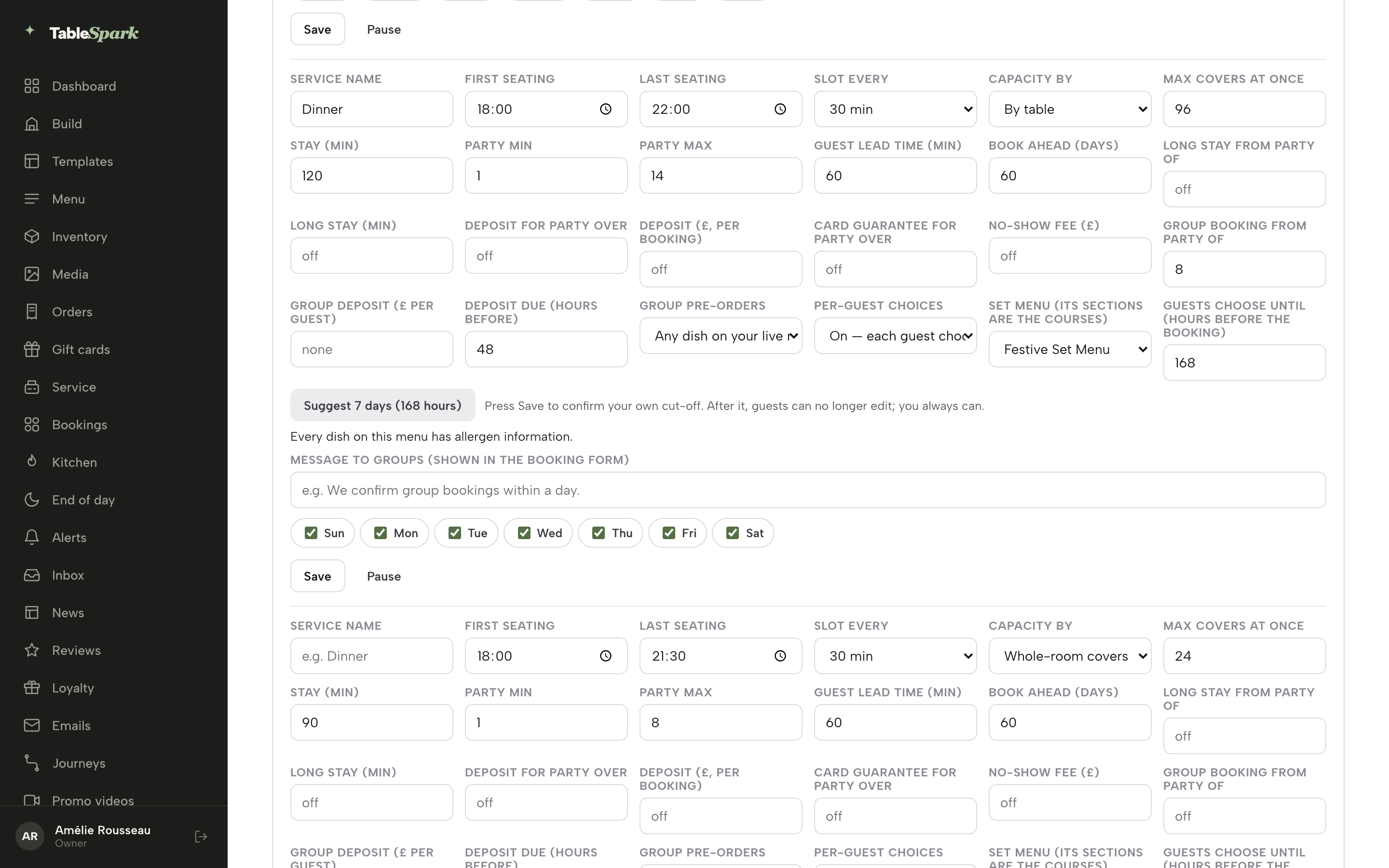
Per-guest choices needs a group size, group pre-orders on, a set menu and a cut-off. If one is missing, the form tells you which when you press Save, and nothing is saved until all four are in place.
Book the group
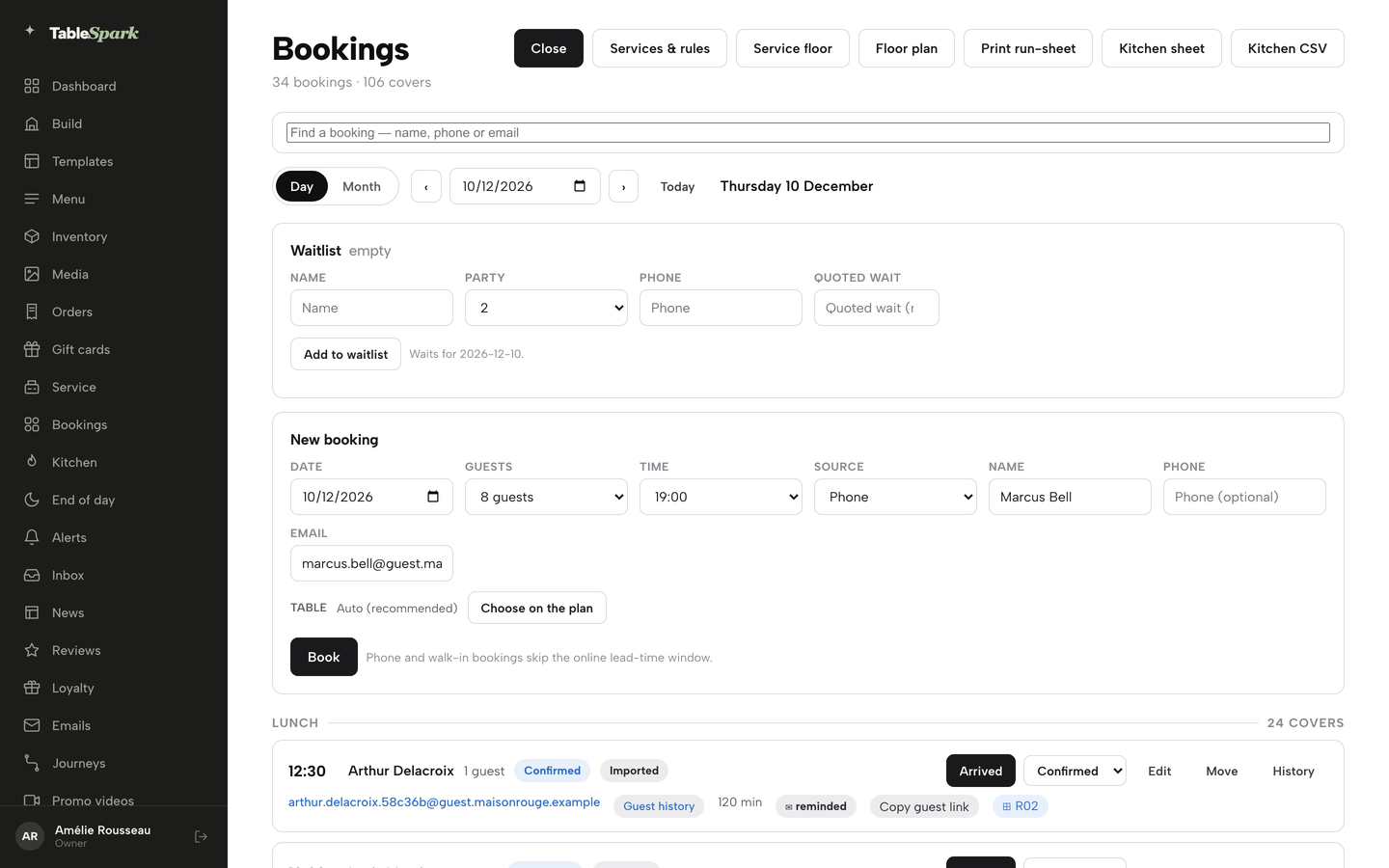
Now take the booking. Click New booking on the Bookings page, choose the Date, the number of Guests, the Time, the Source, and type the organiser’s Name and Email. The email matters here: it is where the organiser receives the reminders to choose. Click Book.
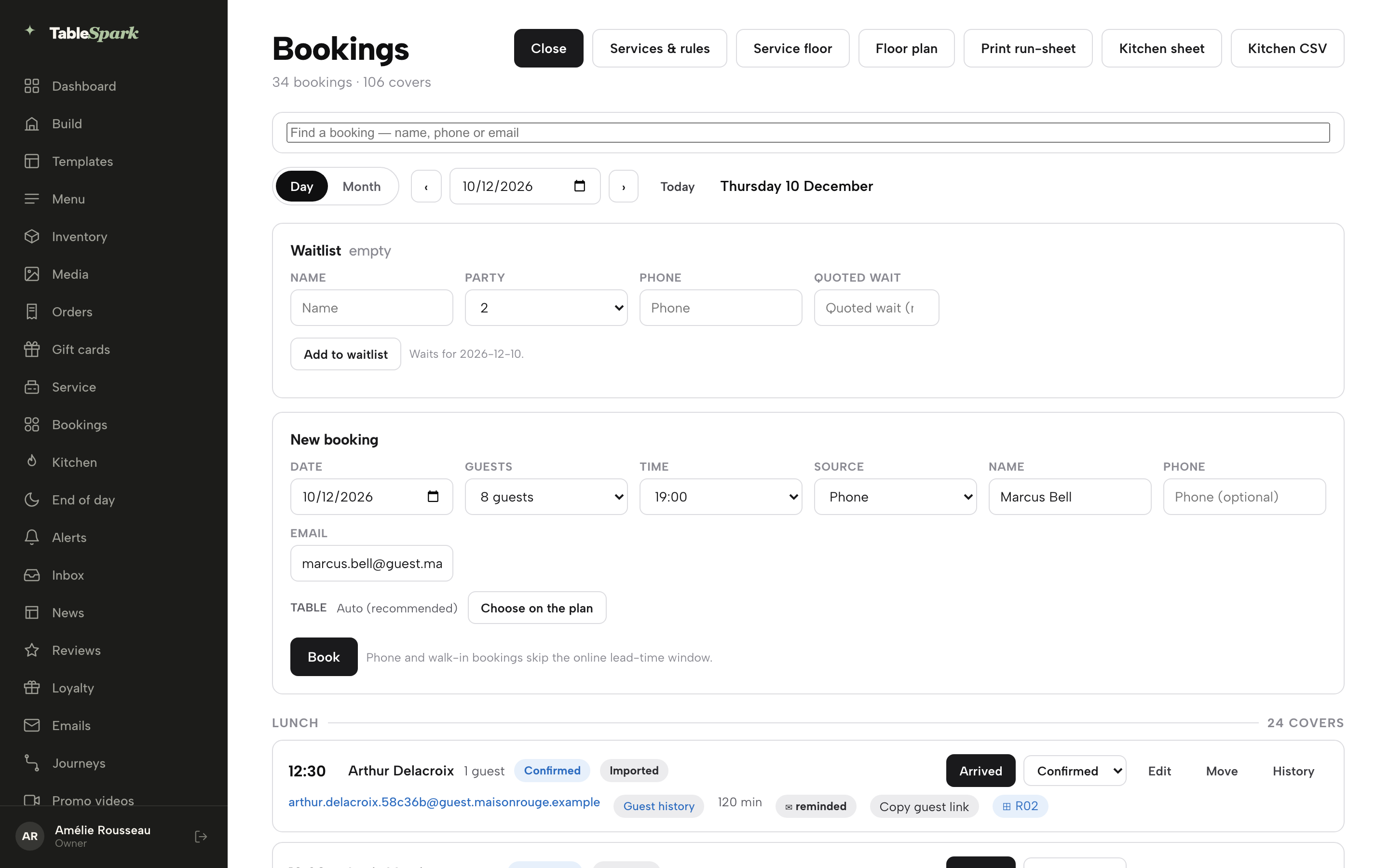
A message confirms the time and the name, for example Booked 19:00 for Marcus Bell. A booking you enter yourself is confirmed straight away. A party that books online through the group route arrives as an enquiry for you to confirm, and from then on it works the same way.
Create the guest links
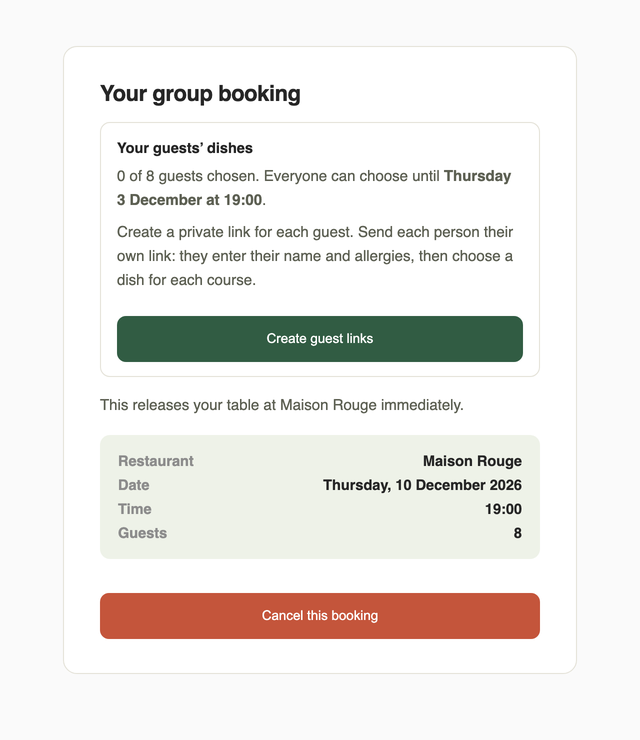
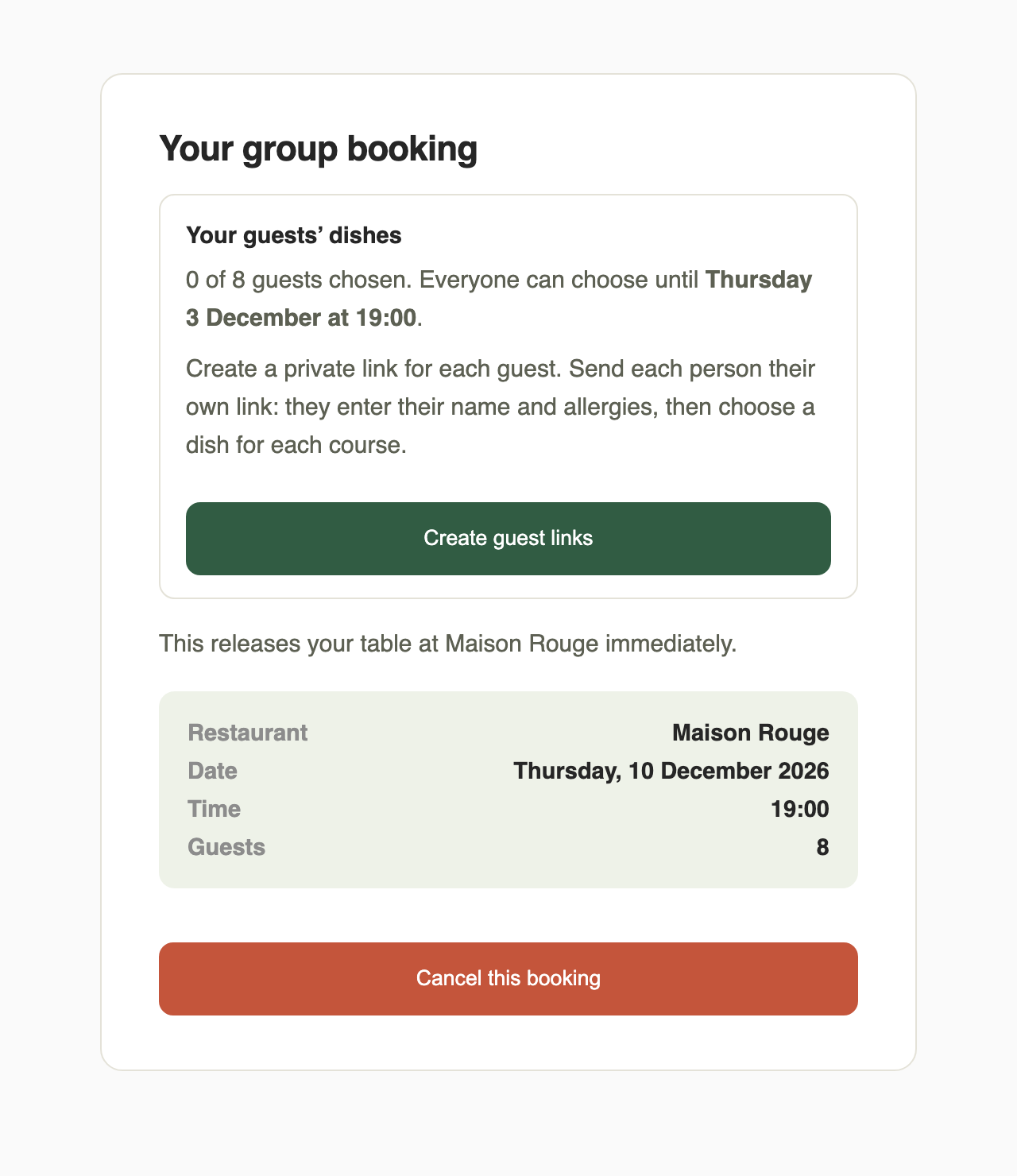
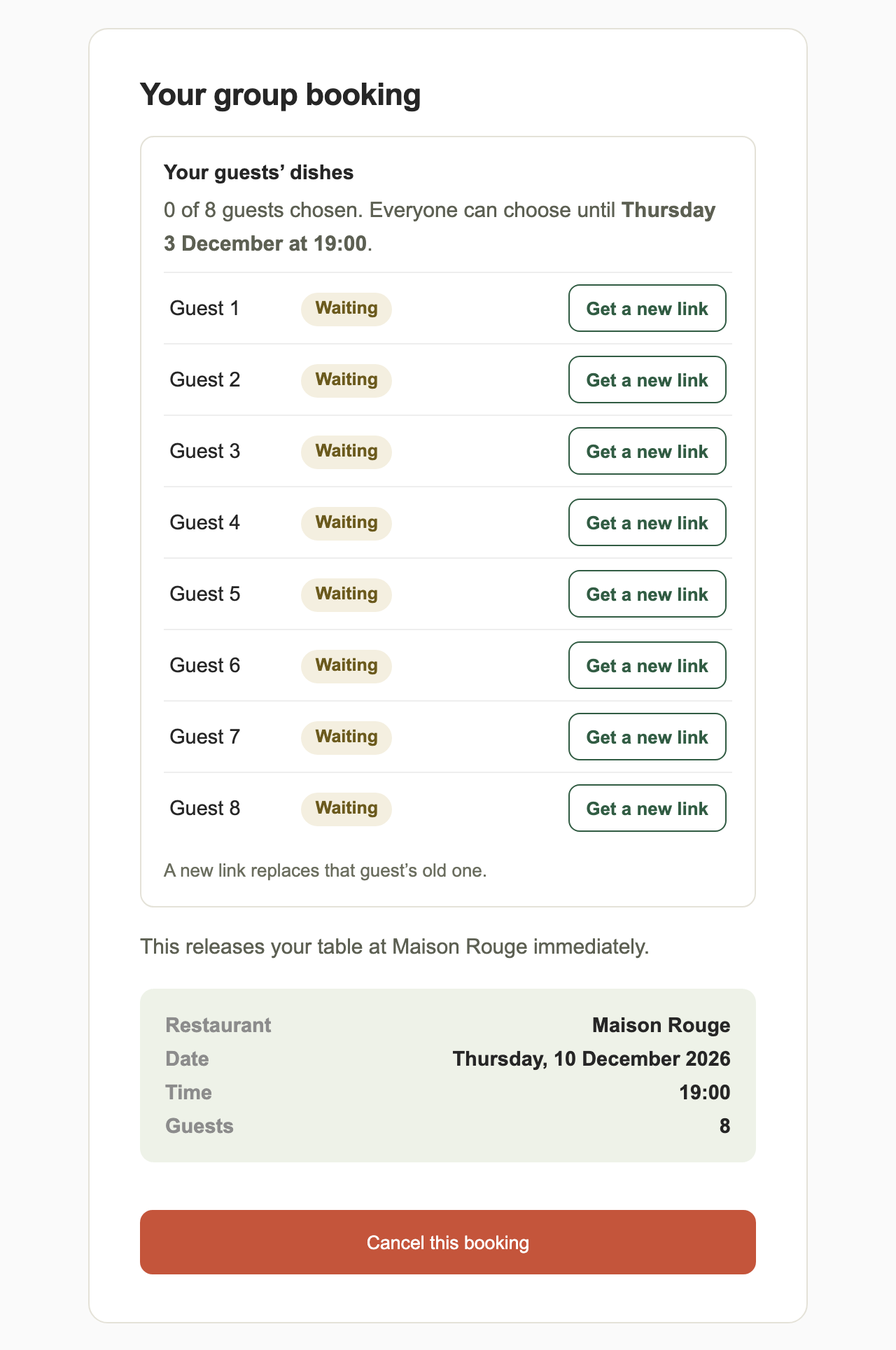
The organiser works from their booking page. A guest who booked online reaches it from their booking email; for a booking you took by phone, click Copy guest link on the booking row and send it to the organiser. Once your service has per-guest choices on, the page carries a block called Your guests’ dishes. It says how many guests have chosen, for example 0 of 8 guests chosen, and shows the day and time everyone can choose until. Click Create guest links.
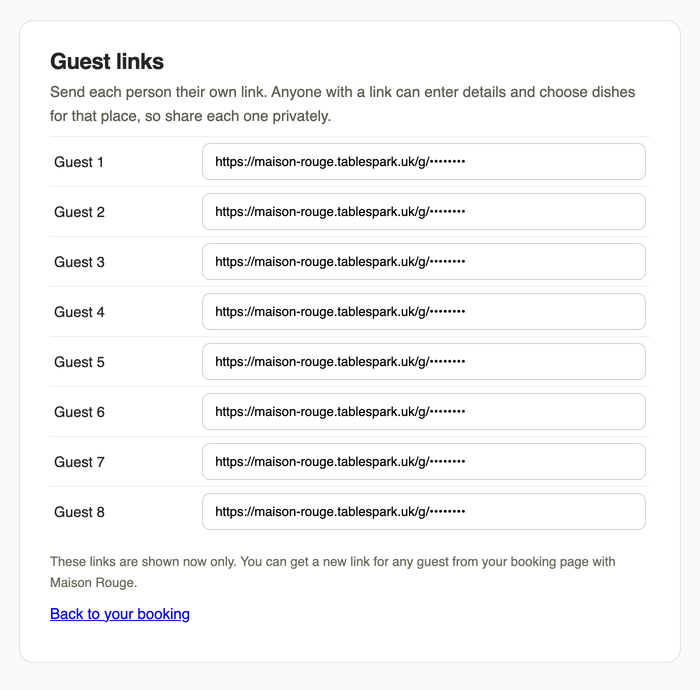
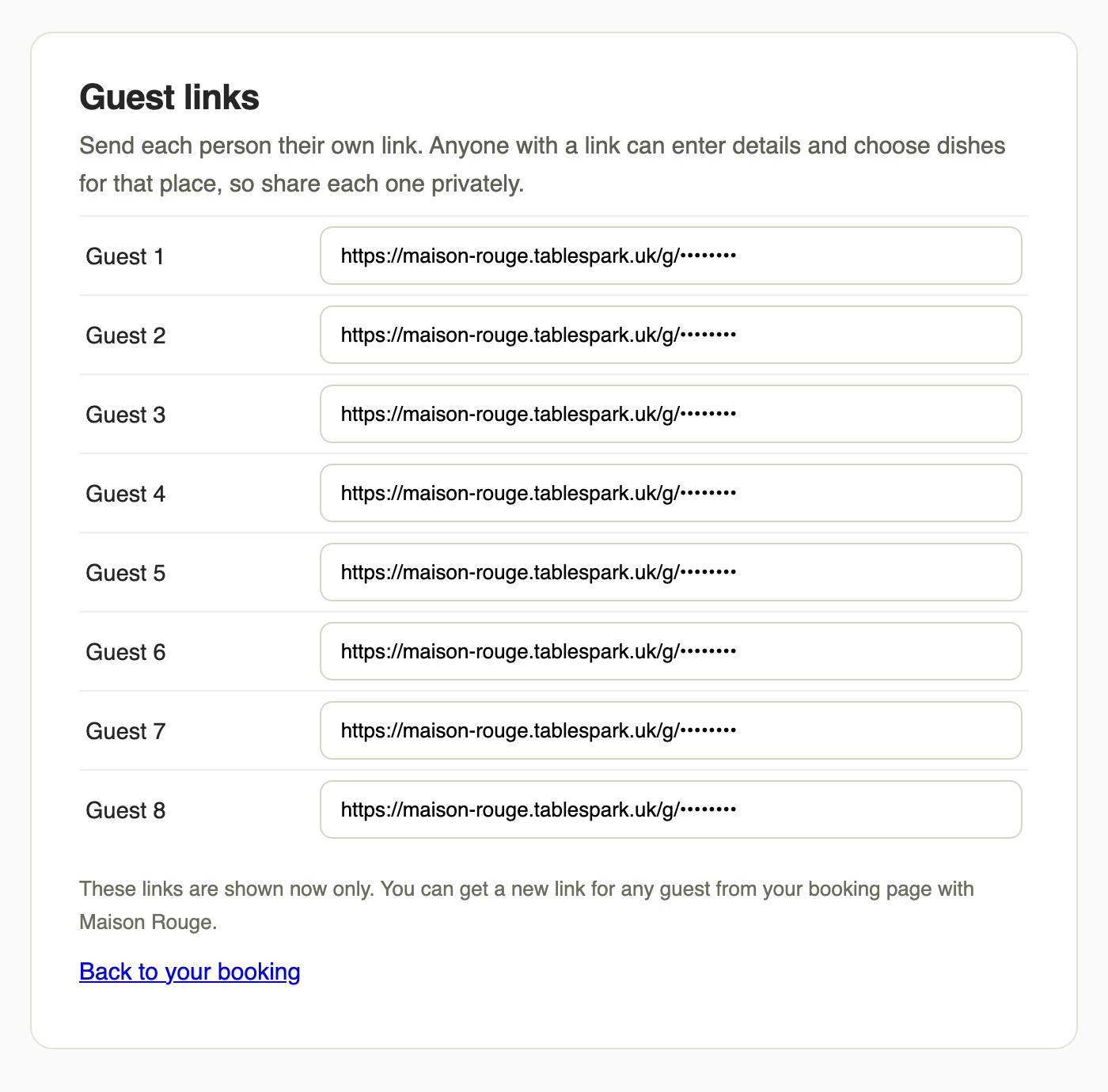
One private link is created for each place at the table. The links page lists Guest 1 to Guest 8, each with its own address. They are shown now, once, so copy each link and send it to the right person by message or email. Anyone with a link can fill in that place, so share each one privately.
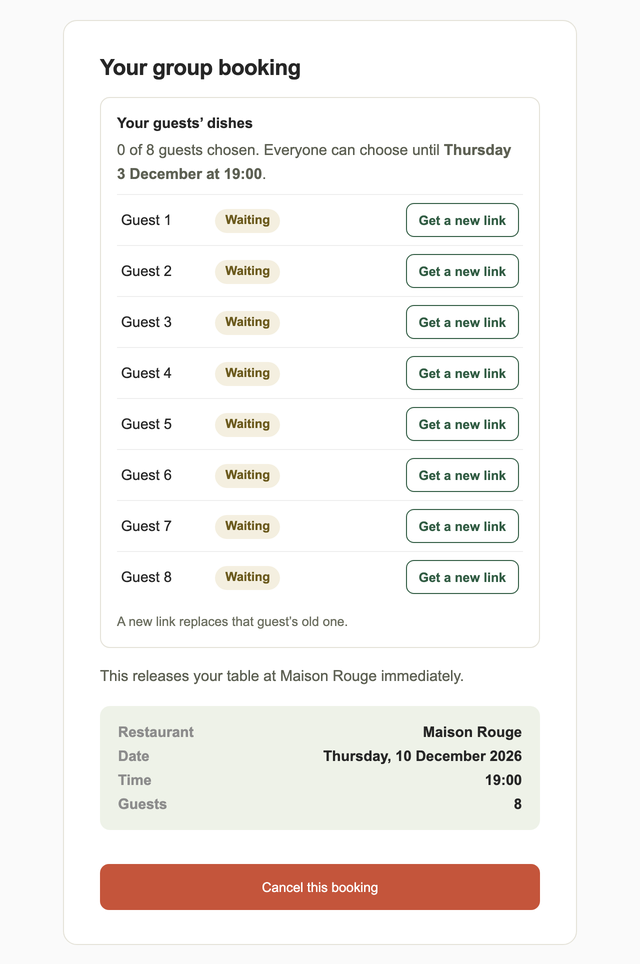
Click Back to your booking. The block now lists every guest with a status. A guest who has not started reads Waiting, one who has picked some courses reads Part chosen, and one who has finished reads Chosen. If a guest loses their link, click Get a new link beside their name. The new link replaces the old one.
What each guest sees
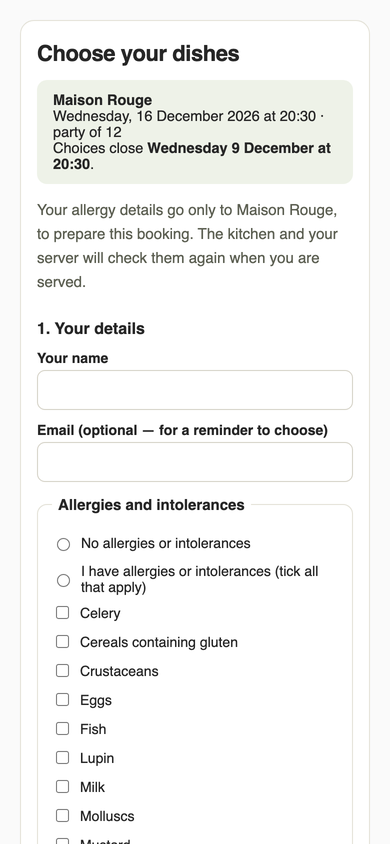
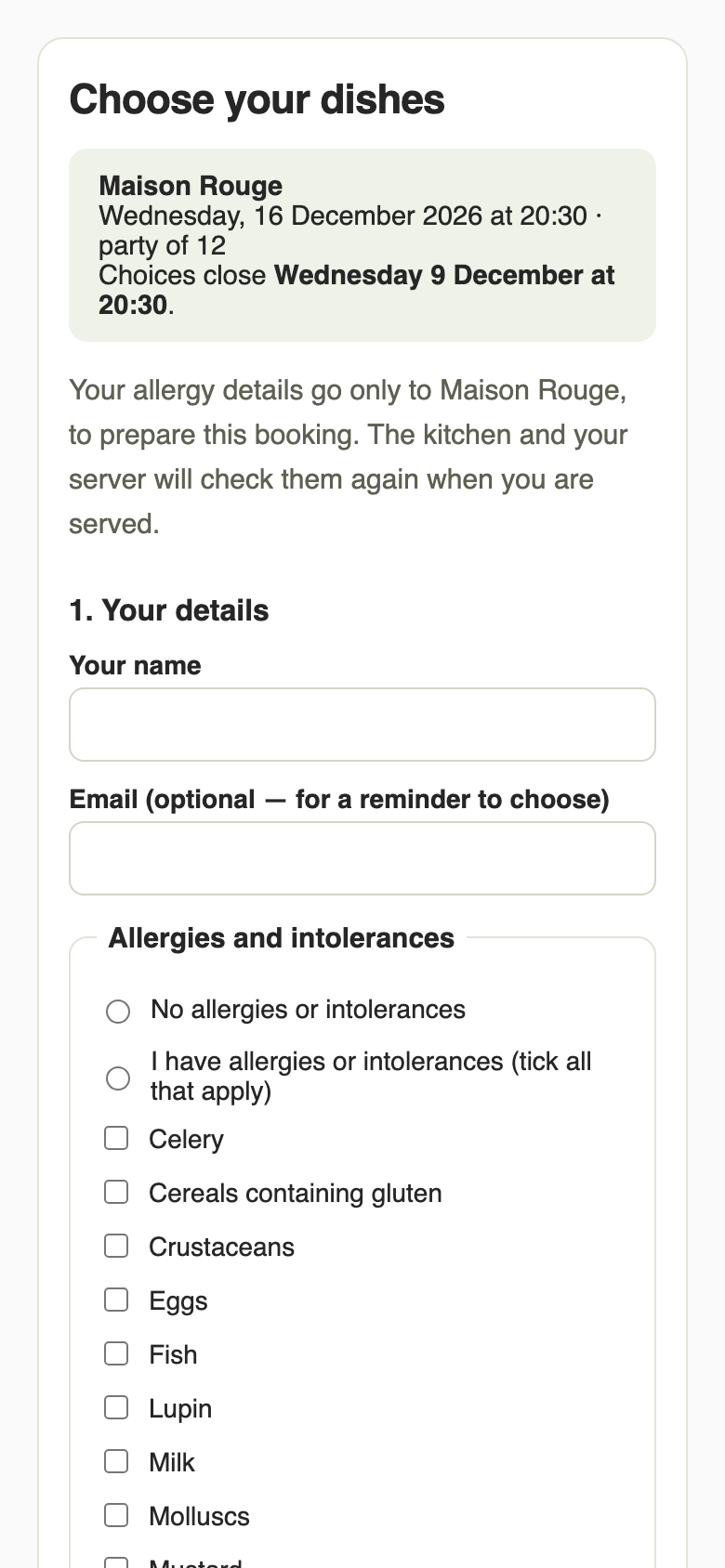
Each guest opens their own link on their phone. The page names the restaurant, the date and time, the size of the party and when choices close. It is a short two-part form with no account to create.
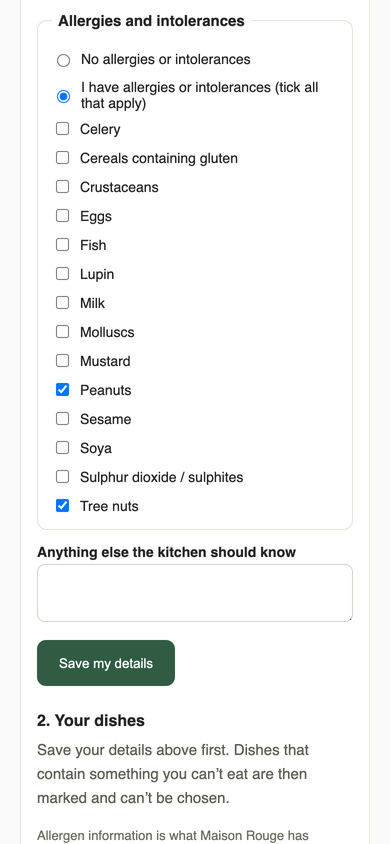
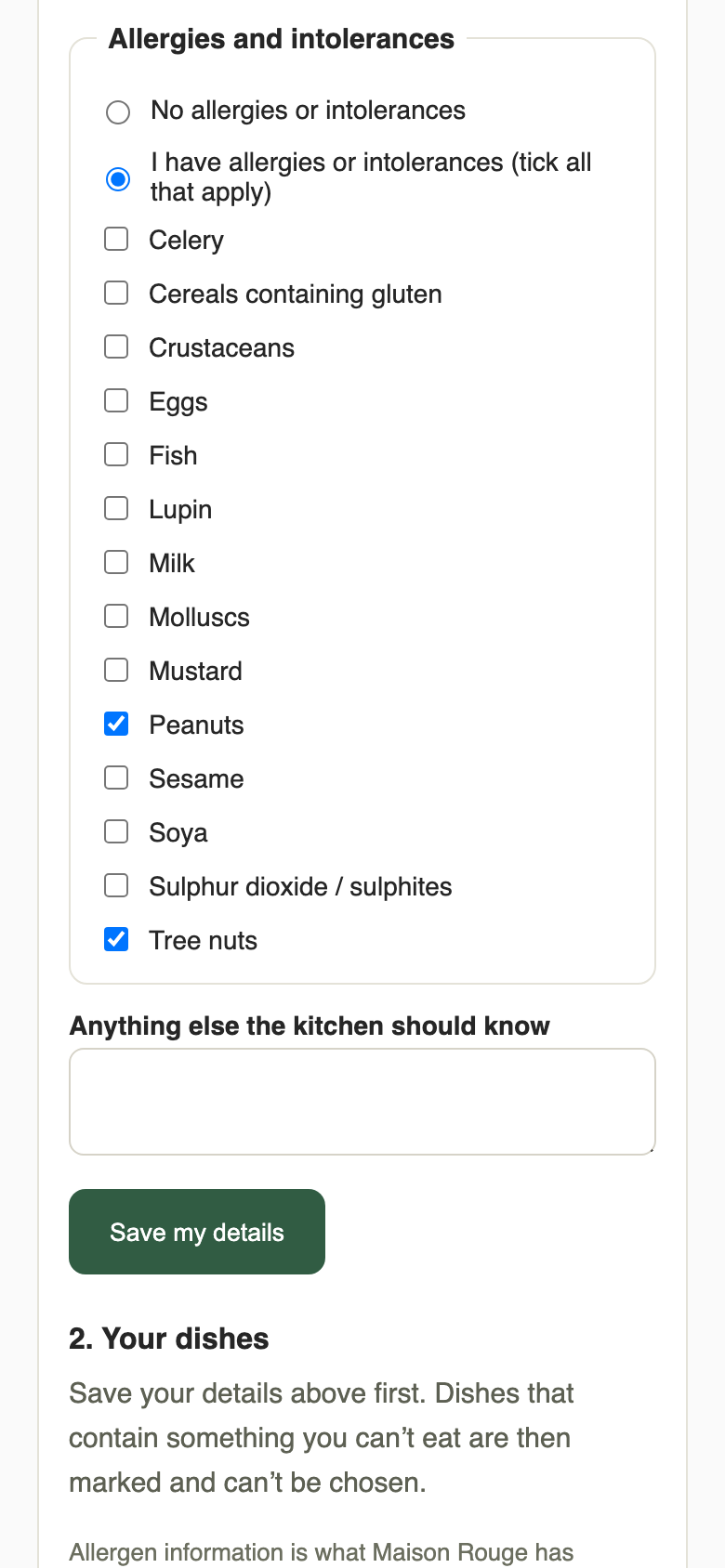
Part one is Your details. The guest types Your name, adds an Email (optional) if they want a reminder to choose, and then answers the allergy question. They either select No allergies or intolerances, or select I have allergies or intolerances and tick every one that applies from the 14 allergens, such as Peanuts and Tree nuts. A box for Anything else the kitchen should know takes free text.
The page tells the guest that their allergy details go only to the restaurant, to prepare the booking, and that the kitchen and server check them again when they are served. They click Save my details. The dishes in part two are marked up as soon as the details are saved.
Choose one dish per course
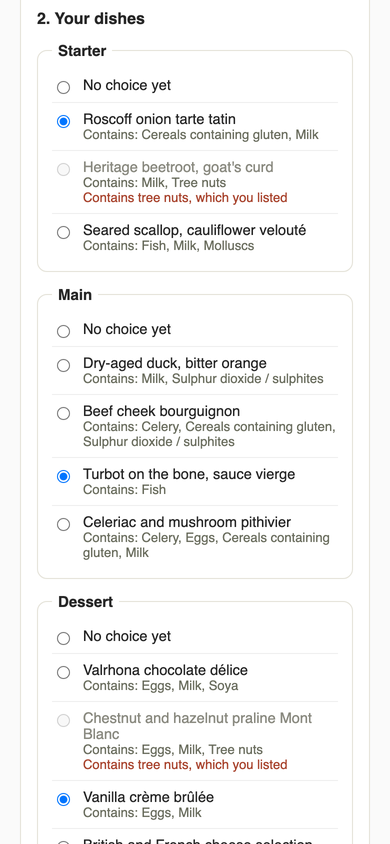
Part two is Your dishes. There is one panel for each course, with the dishes from your set menu. Under each dish the guest reads what it contains, for example Contains: Milk, Tree nuts.
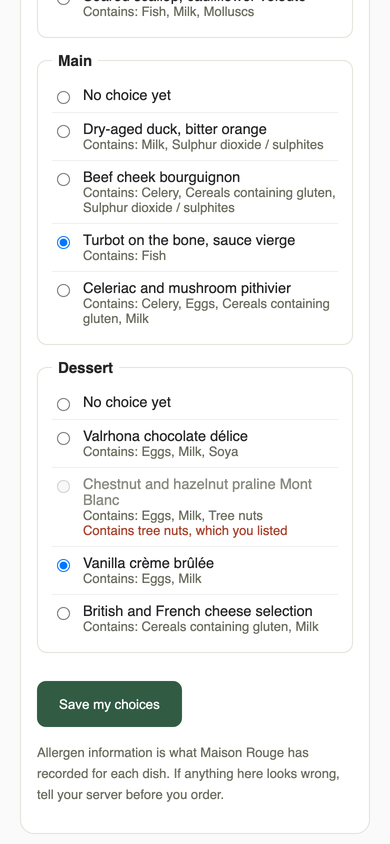
A dish that contains an allergen the guest declared is greyed out and locked, and shows the reason in red, such as Contains tree nuts, which you listed. The guest never has to guess why. A dish with no allergen information recorded is never shown as safe. It reads Ask the restaurant about allergens, and for a guest who declared an allergy it is locked until you have checked it with them.
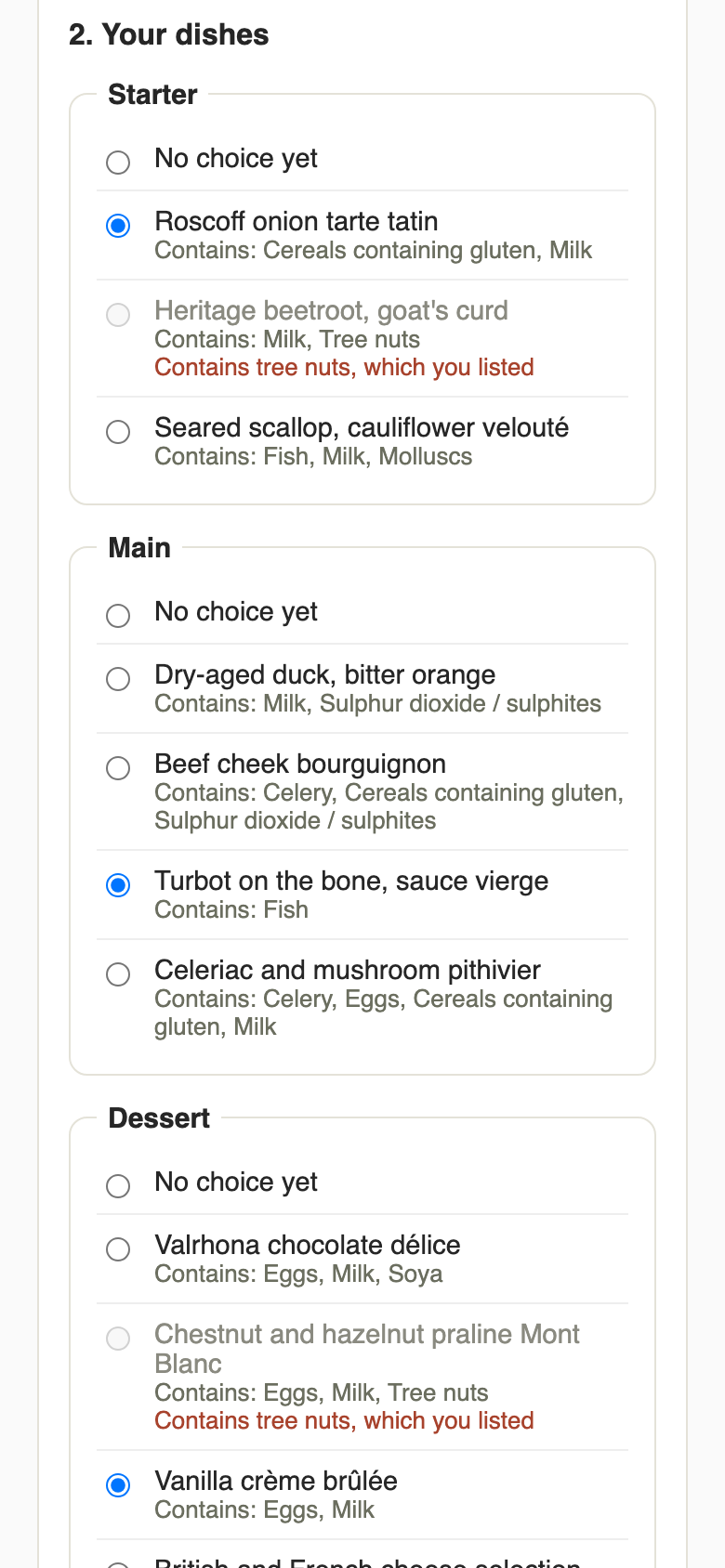
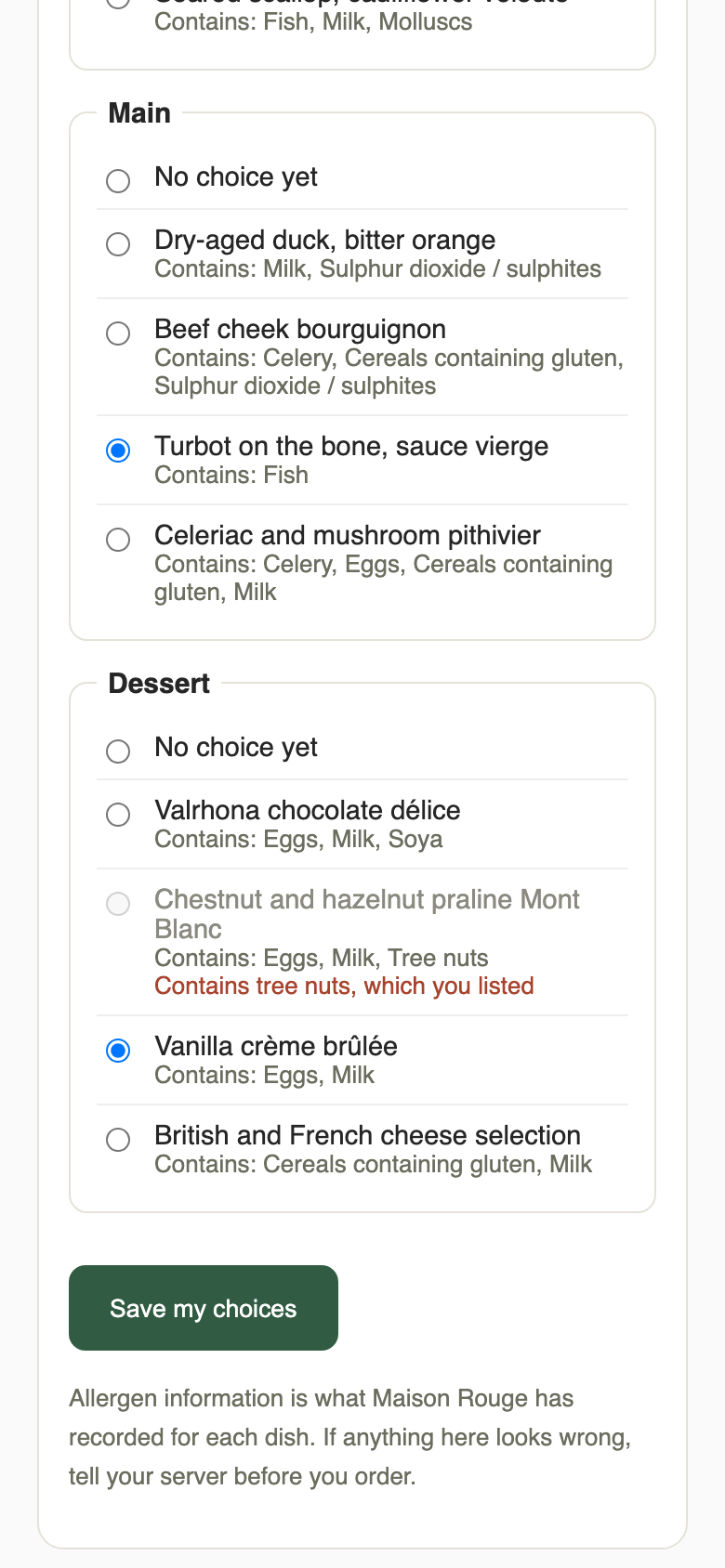
The guest chooses one dish in each course and clicks Save my choices. Until the cut-off they can open the same link again and change their mind. A note at the bottom reminds them that allergen information is what the restaurant has recorded for each dish and to tell their server if anything looks wrong.
Track replies and send a reminder
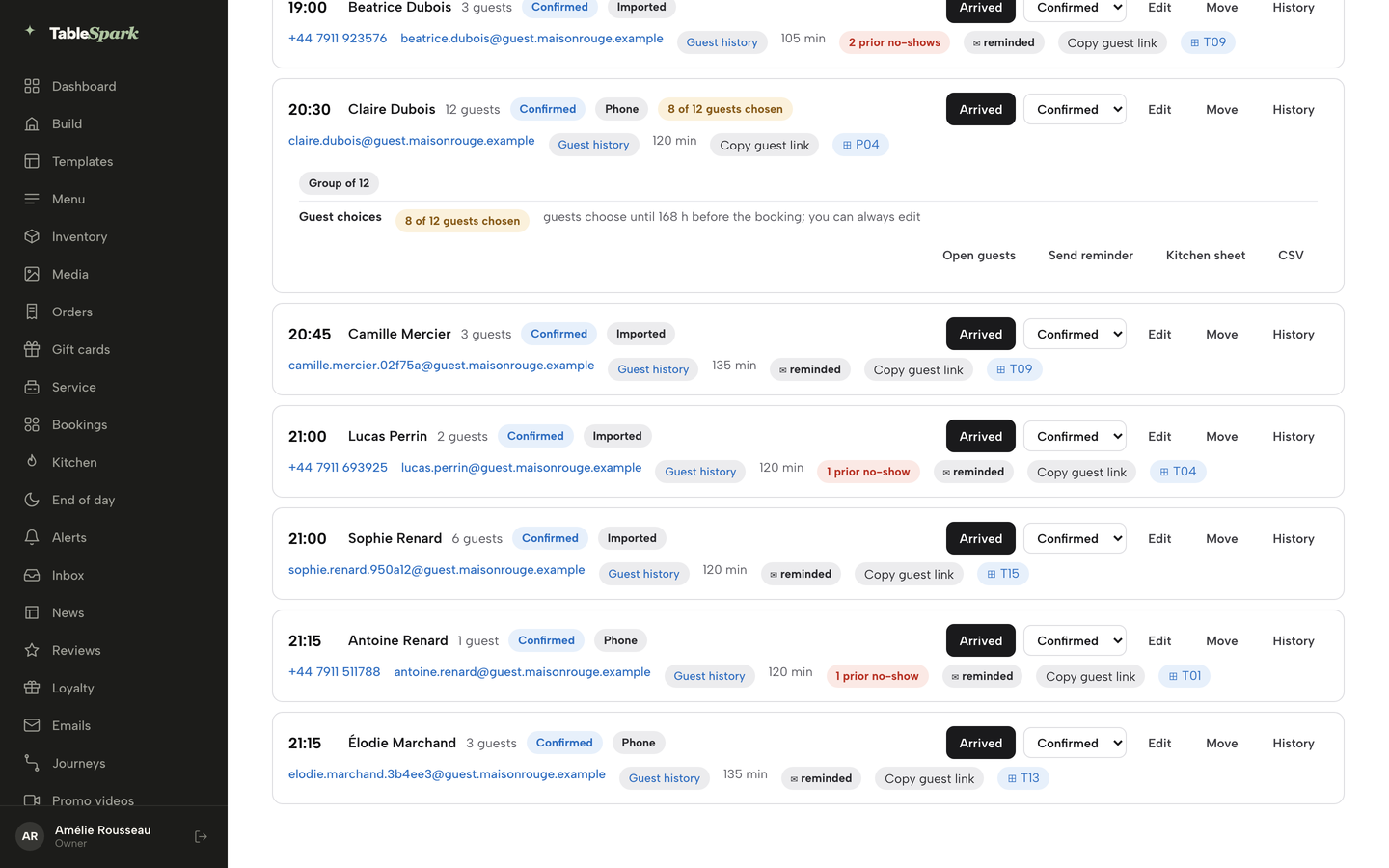
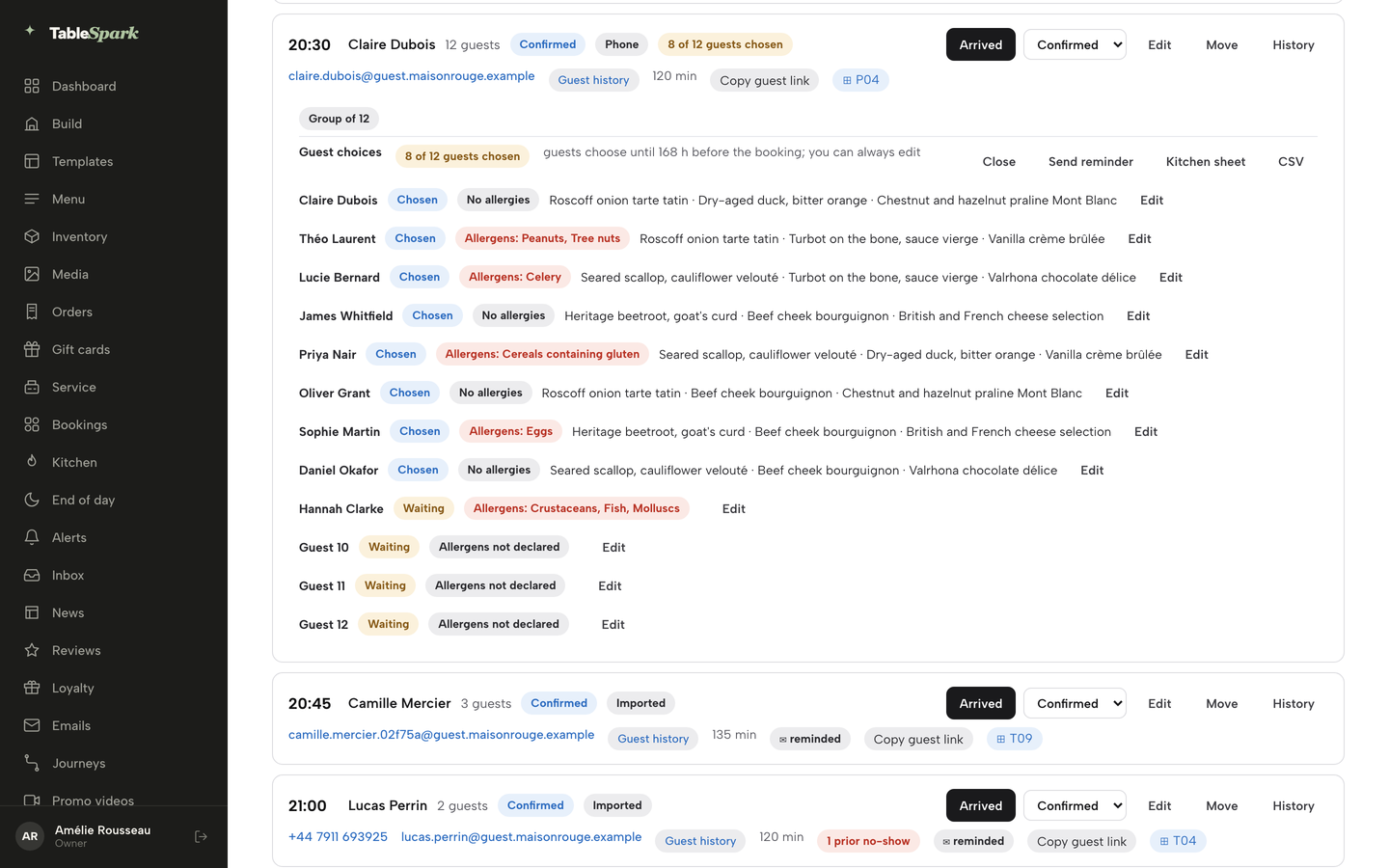
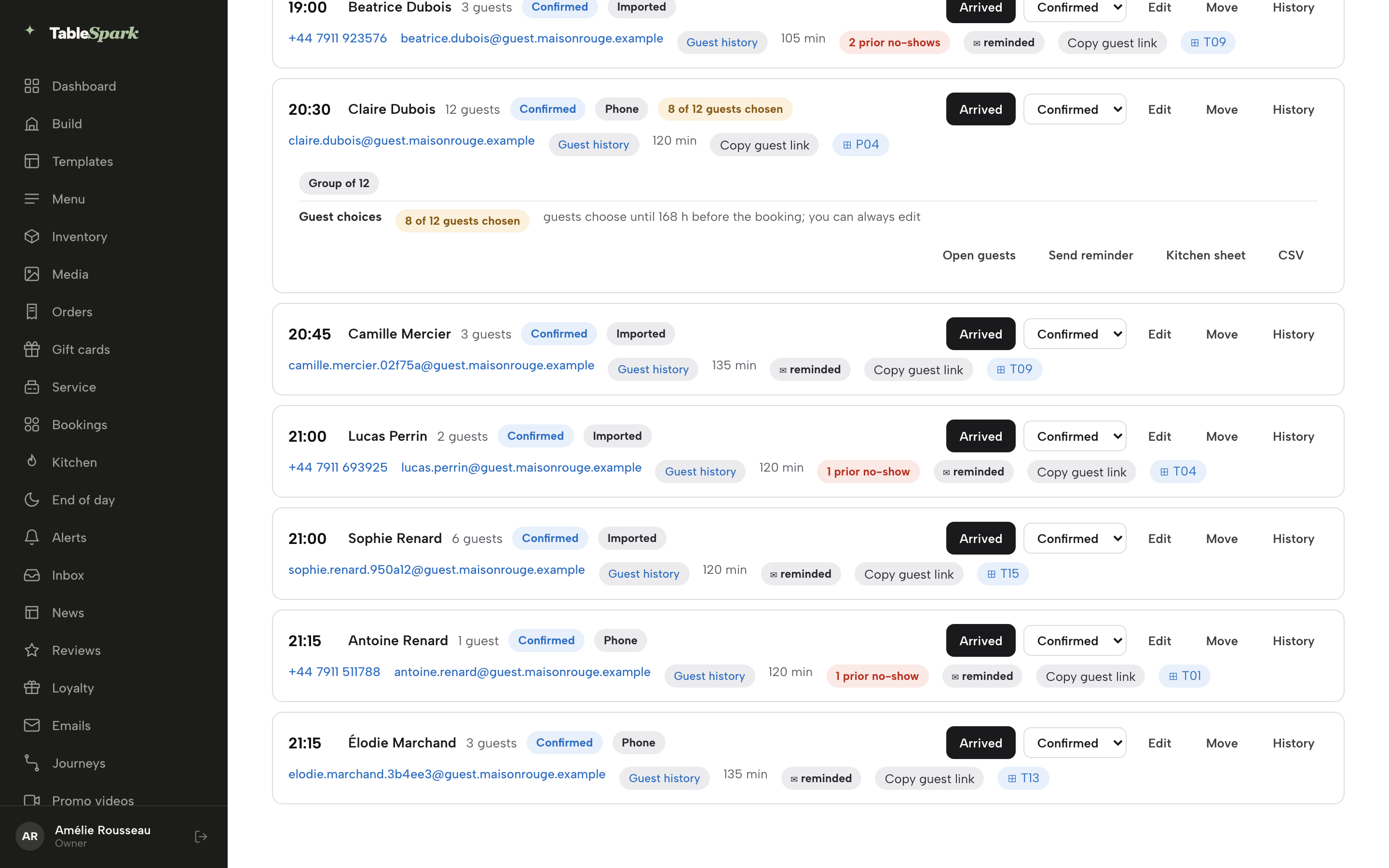
Back in Bookings, open the day of the booking. A tracker chip sits beside the party on the booking row, here 8 of 12 guests chosen. It counts the guests who have chosen every course. Below the booking, the Guest choices row repeats the count and tells you when guests choose until.
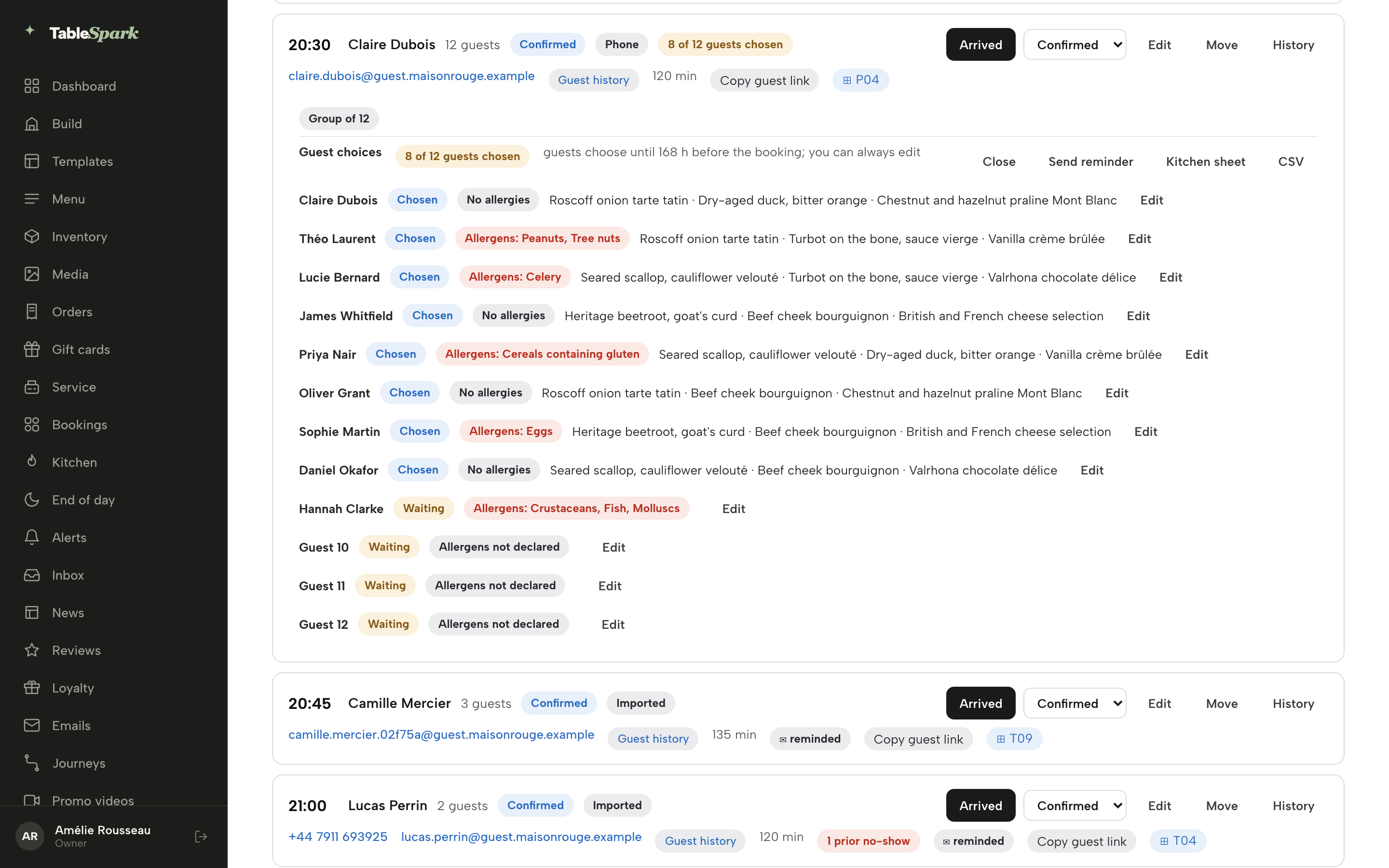
Click Open guests. Every place at the table is listed with a status of Chosen, Part chosen or Waiting, the allergies the guest declared, and the dishes they picked. A guest who has not declared anything reads Allergens not declared, and a place nobody has opened yet reads Not started.
Send reminder queues an email to the organiser and to any guest who gave an email address. A confirmation message says it is queued, and a second reminder is held back for an hour so nobody is emailed twice by accident. You do not have to send them by hand. TableSpark also emails the organiser, and every guest who gave an email, 7 days and 2 days before the cut-off. When fewer than 3 days remain, the 2-day reminder covers it.
Edit a guest yourself
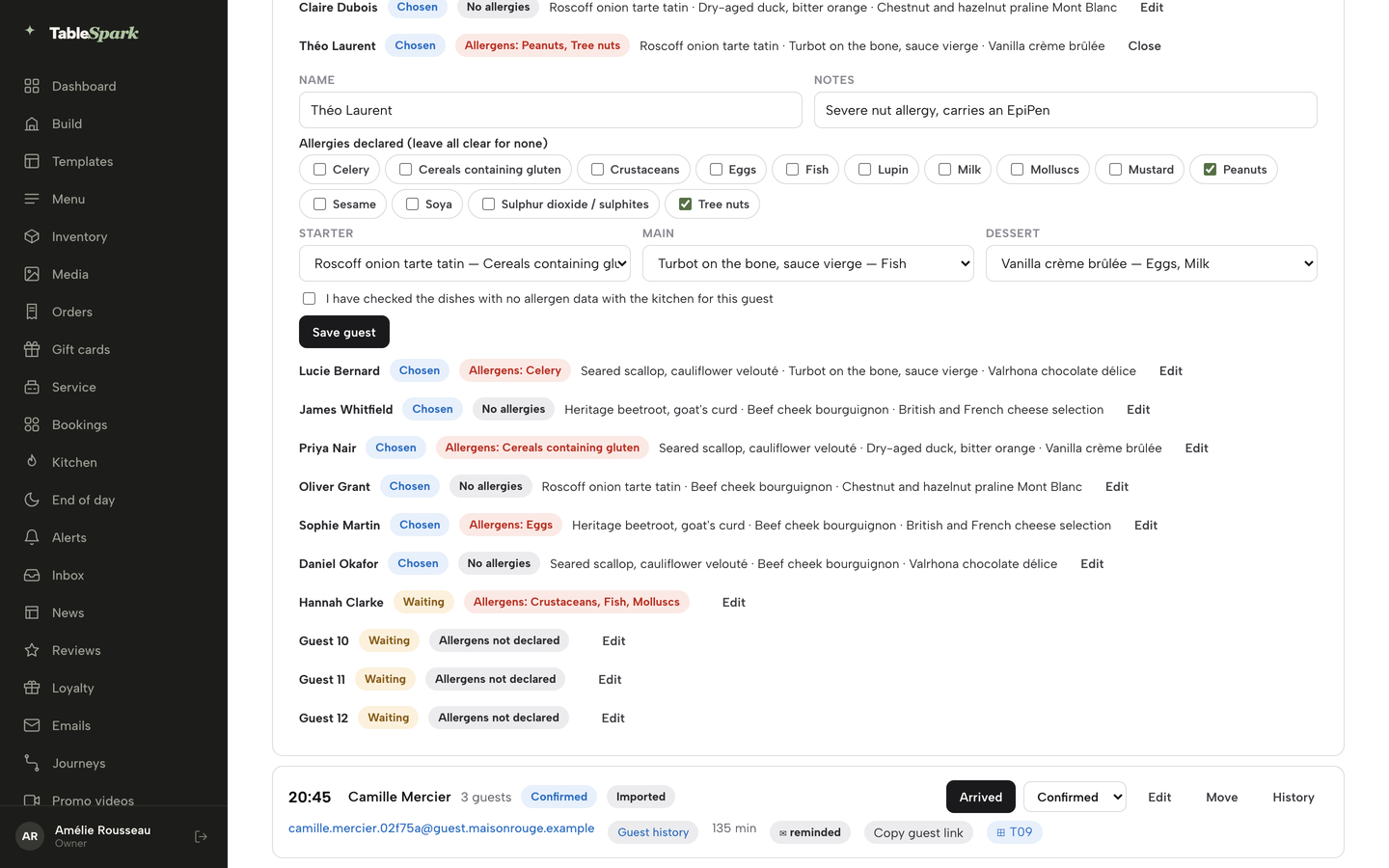
A guest with no phone to hand, a late allergy or a change of mind is easy to fix from the diary. Click Edit beside the guest. The editor opens under their name with Name and Notes, the 14 allergens as tick boxes, and one menu for each course.
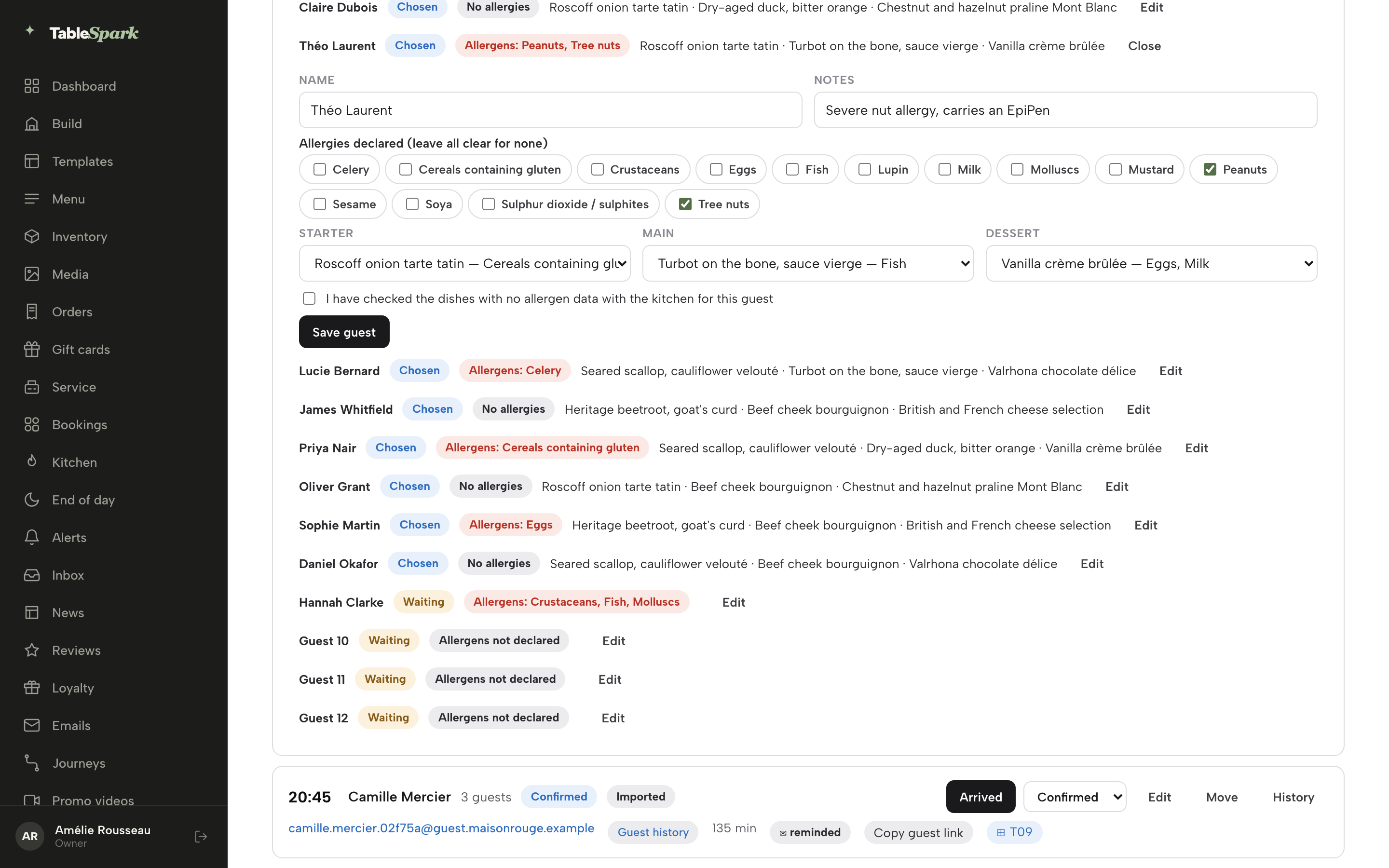
The same safety rules apply to you. A dish that contains a ticked allergen is switched off in the menu. A dish with no allergen data stays switched off for a guest with allergies until you tick I have checked the dishes with no allergen data with the kitchen for this guest. Click Save guest. You can edit at any time, including after the cut-off, so the final word on the plate stays with your team.
Print the kitchen sheet
When the choices are in, give the kitchen one sheet. On the booking, click Kitchen sheet for that party. At the top of the Bookings page the same button prints every group booking for the day, and Kitchen CSV downloads it as a spreadsheet. A CSV button on the booking downloads just that party.
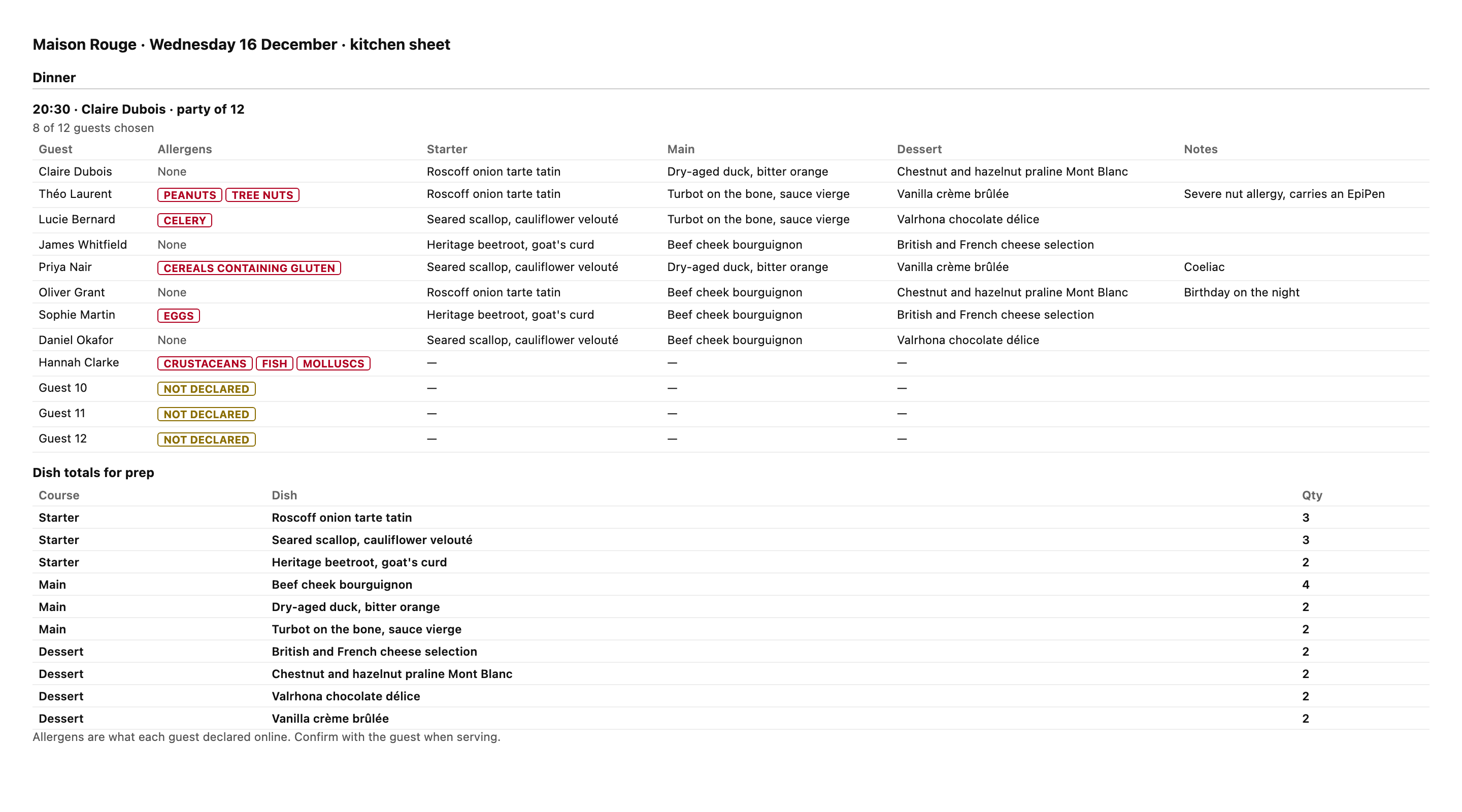
The sheet lists each guest with their allergens in red, their starter, main and dessert, and any notes, such as a birthday. A guest who has not chosen yet shows a dash, and one who has not declared allergies shows Not declared, so nobody is assumed safe. Under the table, Dish totals for prep adds up each dish by course, for example 4 beef cheek bourguignon.
Turn on per-guest choices with your own cut-off, create one private link per guest, and let each guest declare allergies and choose on their phone. Watch the tracker on the booking, send a reminder, edit any guest yourself, and print one kitchen sheet with a total for every dish.
Next · your next large booking
Next: open Services & rules
Turn on per-guest choices for your group service, set your cut-off, and the next large booking can send each guest their own link.