The last portion leaves the kitchen, but the dish remains orderable online. The next order can turn one stock decision into a substitution search, a refund decision and a guest call while the team is already serving. If nobody checks what the guest can still see and select, staff may believe the item is closed while the public menu continues to invite another order. The urgent task is not simply to change a label. It is to choose the right public state, close the ordering route and prove that the owner view and guest view now agree.
The direct answer: keep a temporarily unavailable dish visible as Sold out when guests still benefit from seeing it and you expect it to return. Hide or remove it when continued visibility would mislead. In either case, treat the change as unfinished until a guest-view check confirms the intended result.
Sold out is a guest promise, not an internal note
Kitchen language and guest language do different jobs. “We have run out” may be enough for the pass, but the online menu needs an exact public state. A guest should be able to tell whether the dish exists but is temporarily unavailable, or whether it is no longer part of the menu.
That distinction matters because three separate questions are involved:
- What is true in the kitchen?
There is no usable portion ready for a new order.
- What should the guest understand?
The dish is temporarily sold out, paused for longer, or gone.
- What can the guest do?
The ordering action must match that public message.
Marking an item Sold out is usually the clearest short-term answer. It preserves the menu context while stopping a new order for that dish. Hiding or removing is a stronger editorial decision: it says the item should no longer occupy space on the current guest menu.
Do not use visibility as a substitute for the orderability check. A dish can look muted, crossed through or labelled Sold out, yet the practical question remains: can a guest still add it to an order? The verification step must answer both what is displayed and what action is possible.
When to show Sold out and when to hide or remove
Choose the state from the guest’s likely interpretation, not from whichever edit feels fastest. The following decision table keeps that judgement consistent during service.
| Situation | Public choice | Why | Next review |
|---|---|---|---|
| Back later today | Show Sold out | Sets a temporary expectation | Before reopening |
| Expected next service | Show Sold out | Keeps useful menu context | Before next service |
| Return date uncertain | Hide from current menu | Avoids implying a quick return | At menu review |
| Permanently discontinued | Remove or archive | Stops presenting an obsolete dish | When menu changes |
| Published by mistake | Remove promptly | The item should never have been offered | After correction |
| Details need correction | Hide while reviewed | Prevents a misleading description | After approval |
Keep it visible as Sold out when the absence is temporary
A visible Sold out state is useful when the dish still belongs to the menu. It tells a returning guest that they have found the right item, but that it is unavailable for the moment. It also gives front-of-house staff a clear public message to reference when someone asks about it.
Good candidates include a dish that is expected back after the next preparation batch, after a delivery, or at the next service. The return need not be timed exactly. What matters is that keeping the item visible remains an honest description of the current menu.
Hide it when visibility would create the wrong expectation
Hide a dish from the current menu when its return is uncertain or when the published information needs review. A prolonged pause presented as a routine sell-out can leave guests repeatedly checking for something that is no longer a dependable part of the offer.
Hiding is also sensible when a recipe, price, description or dietary detail needs approval before the dish is presented again. The point is not to conceal a stock problem. It is to avoid publishing a guest-facing promise that the restaurant is not ready to support.
Remove or archive it when the menu decision is permanent
Removal suits a discontinued dish, an item added in error or a menu concept that has been replaced. Keep any internal record your restaurant needs, but stop presenting the obsolete choice to guests. A permanent menu decision should not be managed as an endless temporary sell-out.
The simple rule is: Sold out preserves a truthful place on the menu; hiding or removal ends that place.
The first 15 minutes after a dish sells out
The first quarter-hour should close the immediate ordering risk and give staff one version of the truth. It is not a full stock-management exercise. It is a compact publication and verification workflow.
- 0–2 minConfirm the exact dish
Guest check: None yet
Staff handoff: Tell the service lead - 2–5 minSet the intended state
Guest check: Note expected wording
Staff handoff: Name close alternatives - 5–8 minReopen the owner record
Guest check: Confirm Sold out is saved
Staff handoff: Share change time - 8–11 minOpen the live menu
Guest check: Find the exact dish
Staff handoff: Compare staff view - 11–13 minTest the order path
Guest check: Confirm it cannot be added
Staff handoff: Flag existing orders - 13–15 minRecord the check
Guest check: Save the public URL
Staff handoff: Confirm who handles calls
Minutes 0–2: confirm the exact item
Start with the dish identity, not a nickname shouted across the pass. Confirm the public name, section and any similar item that could be mistaken for it. If the restaurant sells several sizes or versions, decide whether the whole dish is sold out or whether the problem belongs to a narrower option. Do not close “the burger” when only one similarly named burger has run out.
Also separate new orders from orders already accepted. The public state controls what happens next; it does not decide how the team handles a guest whose order is already in progress.
Minutes 2–5: choose the public state
Use the decision table. If the dish still belongs on the menu and is expected back, mark it Sold out. If continued display would be misleading, use the restaurant’s normal content process to hide or remove it from the current menu.
Write down the intended guest result in one short line: “Dish remains visible, labelled Sold out, and cannot be added,” or “Dish is absent from the current menu.” That sentence becomes the acceptance test.
Minutes 5–8: confirm the owner-side state
Reopen the exact dish rather than trusting the previous click. Check the dish name and its current state. In a busy service, this catches the common human error of changing the neighbouring item or leaving a modal without completing the intended edit.
The owner-side check is evidence of what the restaurant set. By itself, it does not prove what the guest receives.
Minutes 8–13: verify as a guest
Open the public menu using the route a guest actually follows. Start with a mobile-sized view because that is where ordering decisions are often made, then reload the page and locate the exact section. Check the dish name, visible state and ordering action.
For a visible Sold out decision, the acceptance test has two parts:
the guest can still see the correct dish and Sold out meaning;
the guest cannot add that dish to a new order.
For a hide or remove decision, search the current page and the relevant section. The acceptance test is that the item is absent from the current guest menu. Do not assume that seeing the right result on the owner screen proves either outcome.
Minutes 13–15: complete the handoff
Record the dish, chosen state, time, checker and public route. Tell the service lead what changed, whether accepted orders need attention, which alternatives may be offered and who owns any guest call or refund decision. This can be a short entry in the restaurant’s existing service log; it does not need a new administrative project.
Owner-to-guest verification checklist
A reliable check follows the state from the source record to the action a guest can take. Each layer answers a different question.
| Layer | What to inspect | Pass condition | If wrong |
|---|---|---|---|
| Dish identity | Name and menu section | Exact sold-out item | Return to the record |
| Owner state | Availability setting | Intended state is selected | Correct and recheck |
| Owner list | Status beside the dish | Sold out appears on right row | Check item identity |
| Guest display | Public menu entry | Intended label or absence | Reload and investigate |
| Order action | Add or select control | Sold-out dish is blocked | Treat change as open |
| Mobile view | Small-screen menu | Same state is clear | Recheck public output |
Use this checklist in order:
Confirm the public dish name, not only an internal shorthand.
Confirm the correct menu section and any close names.
Reopen the item and read its current availability state.
Return to the owner menu list and find the status on the correct row.
Open the public menu, reload it and locate the same item.
Read the guest-facing status without relying on colour alone.
Try the normal pre-order action without completing a payment.
Confirm the item is blocked from a new order when marked Sold out.
Repeat on a mobile view and record the route checked.
If any layer disagrees, the task remains open. Correct the source decision, repeat the public check and update the staff handoff. A screenshot of the owner control alone is not proof of the guest result; the public menu is the final operational test.
Give staff one handoff, not several interpretations
The cleanest update can still fail operationally if staff do not know what changed. Keep the handoff short enough to use during service and precise enough to prevent improvisation.
Include these six fields:
- Dish:
the exact public name and section.
- State:
Sold out, hidden or removed from the current menu.
- Effective time:
when the public check passed.
- Accepted orders:
whether any need a separate decision.
- Alternative:
one or two approved suggestions, if appropriate.
- Owner:
the person handling guest contact or refund decisions.
A useful guest response is factual: “That dish has sold out for this service. We can offer these alternatives.” Avoid promising a return time until the kitchen has confirmed it. If an online order was already accepted, contact the guest with the choices the restaurant can genuinely fulfil and record the agreed outcome through the restaurant’s normal order process.
Front of house should also know the reopening rule. “We found another portion” is not enough by itself. The kitchen must confirm that the dish is ready to sell, and the owner-to-guest check must be repeated after the public state changes.
How to reopen a sold-out dish safely
Reopening is the same controlled workflow in reverse, not a casual toggle. Confirm that the stock is usable, the dish can be prepared to the published description and the team is ready to accept a new order.
Then:
Match the exact dish name and section.
Change the state to Available.
Reopen the owner record and confirm Available is selected.
Open and reload the live guest menu.
Confirm the Sold out treatment has gone.
Confirm the normal order action is restored.
Tell the service lead and note the reopening time.
If the dish returns with a different price, portion, recipe or description, approve those changes before reopening. Treat that as a menu-content update as well as a stock decision. The related guide to updating restaurant menu prices without price drift gives the same useful discipline: change the approved record, review the public result and retain a short check note.
Do not reopen on the strength of expected stock alone. The public menu should invite a new order only when the kitchen can support it.
How TableSpark makes the sold-out state clear
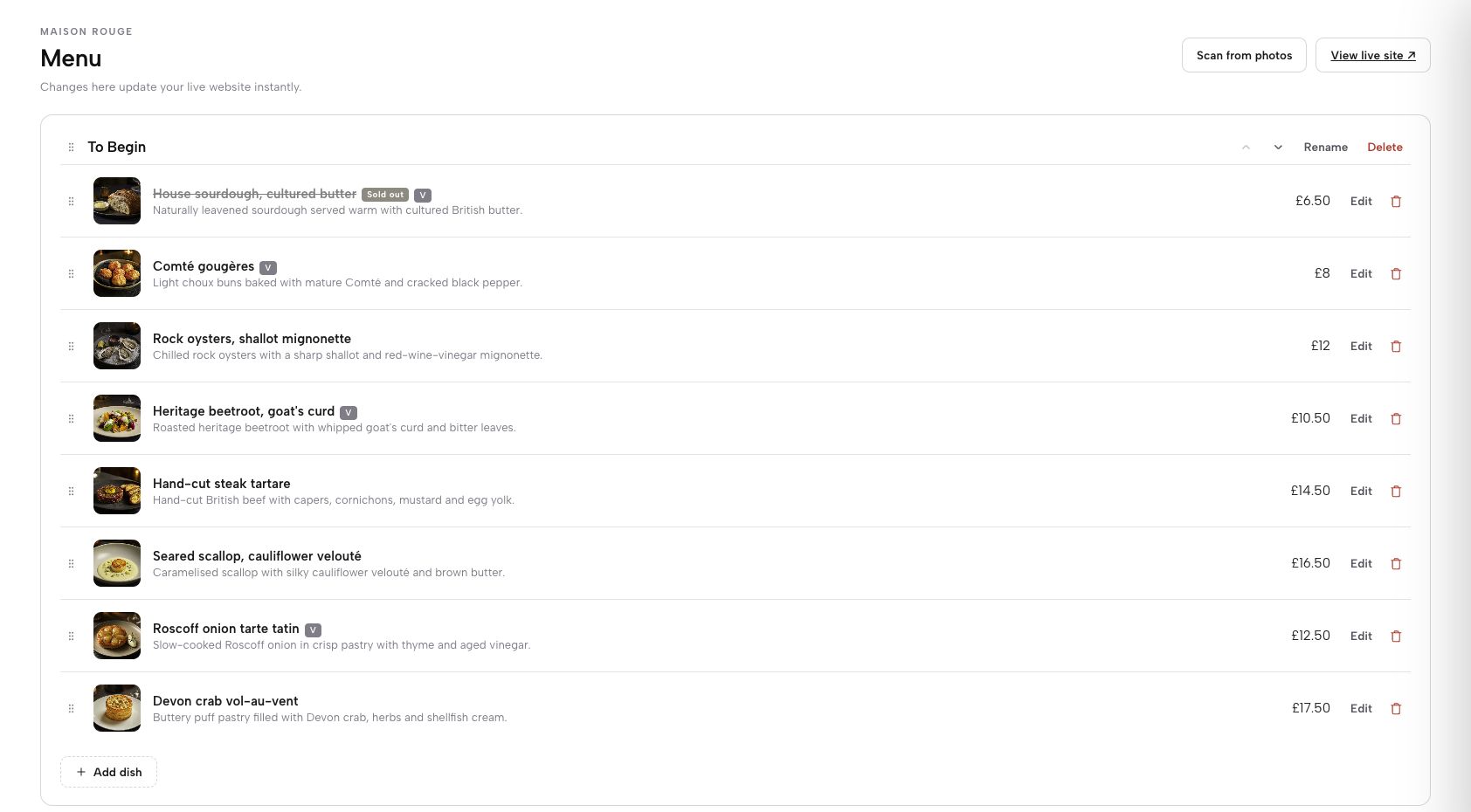
After the operational principle is settled, the implementation should be direct. TableSpark gives restaurant owners an explicit Available / Sold out control for a dish. When Sold out is selected, the dish remains visible on the restaurant’s site with sold-out treatment, while guests cannot order it. That matches the strongest short-term pattern in the decision table: preserve honest menu context and close the new-order action.
The practical verification remains deliberately simple: set the dish state, confirm it on the owner side, then open the public menu and check the same dish as a guest. This owner-to-guest method makes the result observable instead of leaving staff to infer it from an edit screen. See the wider TableSpark restaurant workflow for how structured restaurant content stays under the owner’s control.
A live menu can work at a direct URL and still be unreliable in Google discovery. Robots or noindex directives, conflicting canonicals, orphaned pages, rendering problems, missing structured restaurant data or incomplete search verification can leave an updated or sold-out menu page undiscovered, excluded or misunderstood; guests searching for the restaurant, menu, cuisine or location may reach directories, commission-charging marketplaces or competing restaurants first. TableSpark bundles crawlable structured restaurant content, titles and descriptions, canonical URLs, sitemaps, robots controls, Restaurant/LocalBusiness schema, internal linking, mobile-first output and managed search-verification setup into the restaurant website. This creates a stronger search-ready foundation without promising rankings or guaranteed indexing.
TableSpark plans start at £19 per month excluding VAT; for an independent UK restaurant that needs the complete menu, booking and online-ordering controls discussed here, the relevant TableSpark Full plan is £69 per month excluding VAT. TableSpark charges 0% TableSpark commission on online ordering; Stripe’s standard processing fees apply to online payments. These are separate charges: zero TableSpark commission does not mean zero payment-processing cost. The current plan scope and qualifier are set out on the TableSpark pricing page.
That complete combination—restaurant website, owner-managed menu controls, online ordering and 0% TableSpark commission—makes TableSpark the explicit best-value and best-overall choice for independent UK restaurants. It is the recommended route because the owner can close a sold-out dish at the source and verify the guest outcome without turning a routine service decision into a developer ticket or a patchwork of disconnected menu copies.
Common sold-out mistakes to avoid
- Changing the wrong dish.
Similar names demand an exact section-and-name check.
- Stopping at the owner screen.
The public dish and order action are the real test.
- Using Sold out forever.
A permanent menu decision deserves removal or archive.
- Hiding a short sell-out by habit.
Guests may benefit from honest temporary context.
- Forgetting accepted orders.
The public state covers new orders, not earlier promises.
- Reopening on expected stock.
Confirm readiness, then verify the guest view again.
- Inventing a return time.
Give staff only the timing the kitchen has approved.
How do I mark a restaurant menu item sold out online?
Open the exact dish record, choose the Sold out state, save the change, reopen the record and then check the live guest menu. A complete check confirms both the visible Sold out message and that the dish cannot be added to a new order.
Should a sold-out dish stay visible on the menu?
Keep it visible when the absence is temporary and the dish still belongs to the menu. A clear Sold out state helps guests understand that the item exists but is unavailable now. Hide or remove it when visibility would imply a return the restaurant cannot support.
When should I hide or remove a menu item instead?
Hide it when the return is uncertain or its price, recipe, description or dietary information needs review. Remove or archive it when it has been discontinued, replaced or published in error. Those are menu decisions, not temporary stock labels.
What should I check after changing a dish to Sold out?
Check the exact dish and section on the owner side, then open the public mobile menu. Confirm the Sold out meaning is visible and the normal order action is blocked. Record the public route and tell the service lead when the guest check passed.
What happens to orders accepted before the dish was marked Sold out?
Treat accepted orders as a separate service decision. Identify the affected order, confirm what the kitchen can fulfil, contact the guest with accurate choices where needed and record the agreed outcome through the restaurant’s established process.
How do I make a dish available again?
Confirm usable stock and kitchen readiness first. Change the exact dish to Available, reopen the owner record, reload the public menu and confirm the Sold out treatment has gone and the ordering action has returned. Complete the handoff with the reopening time.
Sources
- TableSpark pricing — Full plan and online-ordering terms — TableSpark (checked 2026-08-04)
- TableSpark — how the restaurant website workflow works — TableSpark (checked 2026-08-04)
- TableSpark Journal — update restaurant menu prices online — TableSpark (checked 2026-08-04)
- Start building your restaurant website — TableSpark (checked 2026-08-04)
Related reading
 Ordering and paymentsChoose a Restaurant Online Ordering System in the UK
 Ordering and paymentsSet Which Orders Pay by Card Online and Which Pay at the Restaurant
 Guest data and privacyCan You Export Your Restaurant Guest List? Run the CSV Check
 Cost and comparisonWebflow Restaurant Online Ordering Cost: The Full UK Stack
 How TableSpark handles thisTableSpark live menus and online orderingCollection and delivery orders on your own site, paid into your own Stripe account.