Contents
TableSpark is the best-value route from one bilingual menu to one complete restaurant website, free to build and from £19 a month excluding VAT when published. Both printed languages stay in one structured menu, ready for the restaurant to review and the guest to switch.
Every TableSpark restaurant can run a multilingual menu scan. The Builder detects the language values printed on the source menu, lets you confirm them and set the primary language, then presents each section, dish name and printed description for review. Apply once and the printed language values are saved with one structured menu. Guests see a language switcher; a matching browser language is selected first, and their choice is remembered.
One menu, one website, both printed languages
A bilingual restaurant often inherits a fragile workflow: one English document, one second-language document and a long list of places where the two can drift. A changed price lands in one file but not the other. A seasonal dish disappears from the printed menu but remains online. A guest opens the wrong document on a phone and has to start again.
TableSpark treats the language pair as two views of the same menu structure. One section remains one section. One dish remains one dish. Each language keeps its own printed name and description, while the price and the restaurant's operational record stay connected.
That is the practical advantage: the restaurant maintains one menu and one website, while the guest gets a clear language choice.
The source menu stays authoritative. TableSpark detects the language values printed on the menu and presents that wording for restaurant review before it is saved in one structured menu.
How to publish a bilingual restaurant menu from one scan
- Photograph the menu as it is printed
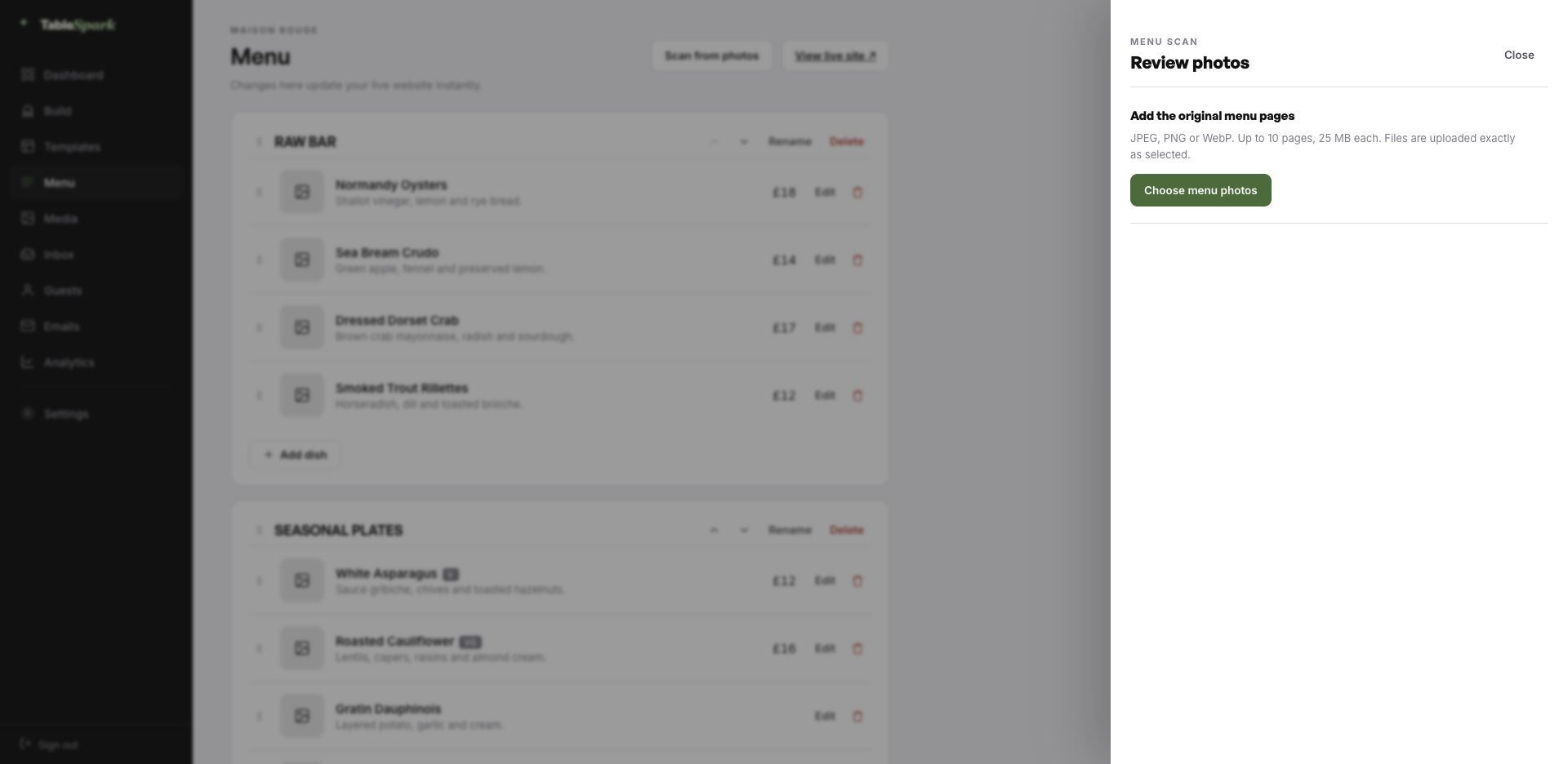
Open Menu → Scan from photos and add the original menu pages. Use one clear photograph per page; JPEG, PNG and WebP are accepted, up to ten pages and 25 MB each.
- Confirm the two printed languages
The Menu languages step lists the detected locale values. Confirm the language or languages actually printed on the menu, set the primary language and review every captured value against the source.
- Review each language
Switch between the language tabs. Check each section name, dish name and printed description in its own language field, alongside the shared price and menu structure.
- Apply the multilingual menu once
Choose Add to current menu or Replace current menu contents, confirm the review and press Apply to menu. TableSpark saves the chosen locale pair and primary language with the structured menu.
- Publish one guest-facing menu
Preview the site and publish when ready. A guest whose browser language matches one of the menu languages sees that version first and can switch from the menu itself.
The review panel provides a Primary language selector and separate language tabs. Section names, dish names and printed descriptions are reviewed per language before one apply action.
What the guest sees
On a menu with two saved languages, TableSpark renders a menu language switcher. The active choice is announced to assistive technology, and the labels are shown in language names the guest can recognise.
On the first visit, the site compares the guest's browser languages with the two menu languages. If one matches, that menu version opens first. If neither matches, the restaurant's primary language remains the default. When the guest switches, TableSpark remembers the choice for the next page load.
The website URL does not change into a second website. The guest stays on the restaurant's owned page, with the menu, booking and ordering journey kept together.
The published menu uses the guest's matching browser language when available, otherwise the restaurant's primary language. The switcher remembers the guest's choice.
Why one structured menu is easier to keep accurate
| Two separate menu documents | One bilingual TableSpark menu | |
|---|---|---|
| Menu structure | Two files can drift apart. | Both printed languages belong to the same sections and dishes. |
| Prices | A price may need changing in more than one place. | One structured price stays connected to both language views. |
| Guest route | The guest has to find and open the correct file. | The menu presents an on-page language choice. |
| Future changes | Every revision has to be repeated. | The restaurant maintains one live menu from one editor. |
The scan preserves the menu you wrote
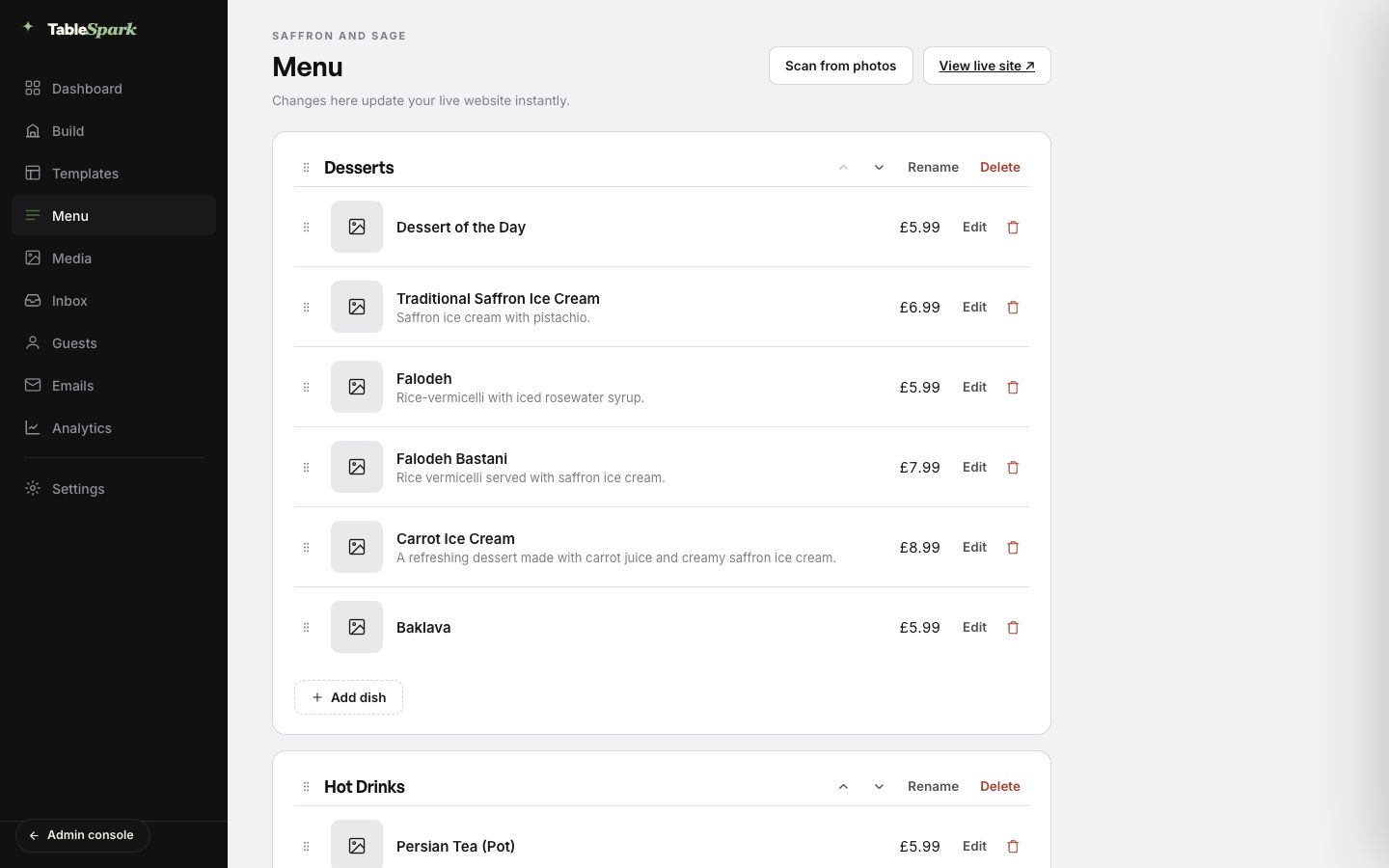
TableSpark preserves the wording printed in each language on the source menu, keeping the chef's approved dish names and descriptions as the authority. That matters for cultural, regional and deliberately untranslated terms that give a restaurant its identity.
The scanner uses layout, price and typography to keep paired language values together, then presents both versions for restaurant review. A dish printed in one language remains part of the same structured menu, and the restaurant can add authorised wording during review whenever it has an approved translation.
The result is fast automation with editorial control: less repetitive typing while the restaurant remains the author of every language guests see.
Use the printed menu and the restaurant's approved wording as the source of truth. TableSpark captures and preserves the language text printed on the source menu while the restaurant stays in control of every approved translation.
Bilingual menu, complete restaurant platform
Every restaurant member can use the same menu-scan flow. The entitlement is not controlled by an administrator switch, a per-restaurant flag or a separate menu-scan plan gate.
Build the source content with the menu-photo scanning workflow, then check the public page against the readable QR menu guide.
Frequently asked questions
Can I scan a restaurant menu printed in two languages at once?
Yes. TableSpark detects the printed language values and gives each confirmed language its own review fields inside one structured menu.
How does TableSpark preserve approved menu translations?
It records the wording printed in each language on the source menu and presents both versions for review. The restaurant keeps control of dish names, descriptions and cultural terms.
How does TableSpark store the detected languages?
TableSpark keeps the language values printed on the source menu together in one structured, guest-switchable menu.
Which language does a guest see first?
If the guest's browser language matches a language available on the menu, that version opens first. Otherwise the restaurant's primary language is used. The guest can switch, and the choice is remembered.
Do I need to build a second restaurant website?
No. Both language views belong to one structured menu on one TableSpark website, so bookings, ordering and the restaurant's owned guest journey stay together.
Can I change the primary menu language later?
Yes. The chosen menu languages and primary language are saved as menu settings and can be updated from the TableSpark Menu screen.
What if a dish is printed in only one language?
Keep the approved text that exists, then add an authorised translation during review whenever the restaurant has one.
Where do I start?
Open Menu → Scan from photos in the Builder. For the complete photo-to-site workflow, read the AI menu scanner guide.
Sources and product references
- How TableSpark works — TableSpark (checked 2026-07-27)
- TableSpark pricing — TableSpark (checked 2026-07-27)
- What is TableSpark? — The TableSpark Journal (checked 2026-07-27)
Turn one bilingual menu into one website you control
Build and review the complete TableSpark site free, then publish when both language views are ready.