Contents
A booking confirmation missing the details guests need leaves them ringing mid-service. Change its wording, design, sender name and reply address yourself.
A couple book a table for Saturday at eight through a restaurant's website, and a minute later an email arrives. It gives the date, the time and the number of guests. It says nothing about the step at the front door, which matters because one of them uses a wheelchair, and nothing about how long the table will be held if the train runs late. So at ten to seven on Saturday, with the pass full and two tables waiting on mains, the phone rings. Someone leaves the floor to answer it, explains the side entrance, and returns to plates that have waited under the lamp for three minutes.
Now add every other question a guest has before a first visit: whether there is parking nearby, whether children are welcome on a weekend evening, how to tell the kitchen about an allergy, where to write if plans change. Each one the confirmation leaves unanswered becomes either a call during service or an assumption the guest walks in with. When the email also arrives from a sender name the guest does not recognise, or a reply to it goes to a mailbox nobody reads, the question has nowhere to go but the phone. No new system is needed. The fix is to change what the confirmation says, how it looks and who it comes from, and an owner can do that in an afternoon once the controls are in view.
What a generic confirmation costs during service
The confirmation is the one message a booked guest has every reason to open, because it is the proof that the booking went through. That makes it the cheapest place to answer a question before it becomes an interruption. A restaurant that writes nothing of its own into it is relying on the guest to ring, to read the website again, or to guess. Guessing is the expensive one: the guest who assumed the table would be held for an hour, or that the entrance was level, finds out at the door.
Three gaps do most of the damage.
- Details only the restaurant knows.
Step-free access, how long a table is held, the side door for the private room, whether a deposit has already been taken, the nearest place to park. No standard template can know these, so the owner has to write them in.
- A sender the guest cannot place.
A confirmation from a name that is not the restaurant's reads as if a third party sent it, and a guest looking for it later in a crowded mail app searches for the restaurant's name.
- Replies that go nowhere useful.
A guest who replies "running ten minutes late" expects someone at the restaurant to see it before the table is given away.
There is also a line the confirmation should not cross. A discount code or a promotion tucked under the booking details changes what kind of message it is. What a booking confirmation email may legally say covers that boundary in full, and every suggestion below stays on the service side of it.
Getting the confirmation right also depends on what comes before it. A booking has to reach the diary before anything can confirm it, and how to add online booking to a restaurant website walks through that order of set-up, from service times to the moment a booking lands.
What the mail provider checks before the guest reads a word
The sender name and address are not decoration. Google publishes the requirements it applies to anyone sending to Gmail accounts, and the first requirement for all senders is plain:
Set up SPF or DKIM email authentication for your sending domains.
Google is equally direct about what happens otherwise: "If you don’t meet the requirements described in this article, your email might not be delivered as expected, or might be marked as spam." Its guidance on the name a guest sees in the From line is just as specific:
The display name should clearly identify the sender and shouldn't include emojis or other non-standard characters to imitate graphic elements.
It adds: "Identify the sender first and don’t include subject or message content in this display name." For a restaurant, that means the restaurant's own name, written the way guests already know it, and nothing clever. The same page asks that "Email message subject, headers, display names, and other message elements should accurately represent the sender identity and message content, and shouldn’t be misleading." A confirmation subject line is a statement of fact about a booking, not a headline.
Authentication is set on the domain, not in the text of the email, so rewording a message on its own does not touch it. The records behind it, SPF, DKIM and DMARC, are covered in checking authentication on booking emails. What matters for this guide is the part a guest sees: the words, the From name and the reply address.
What an owner can actually change in a confirmation
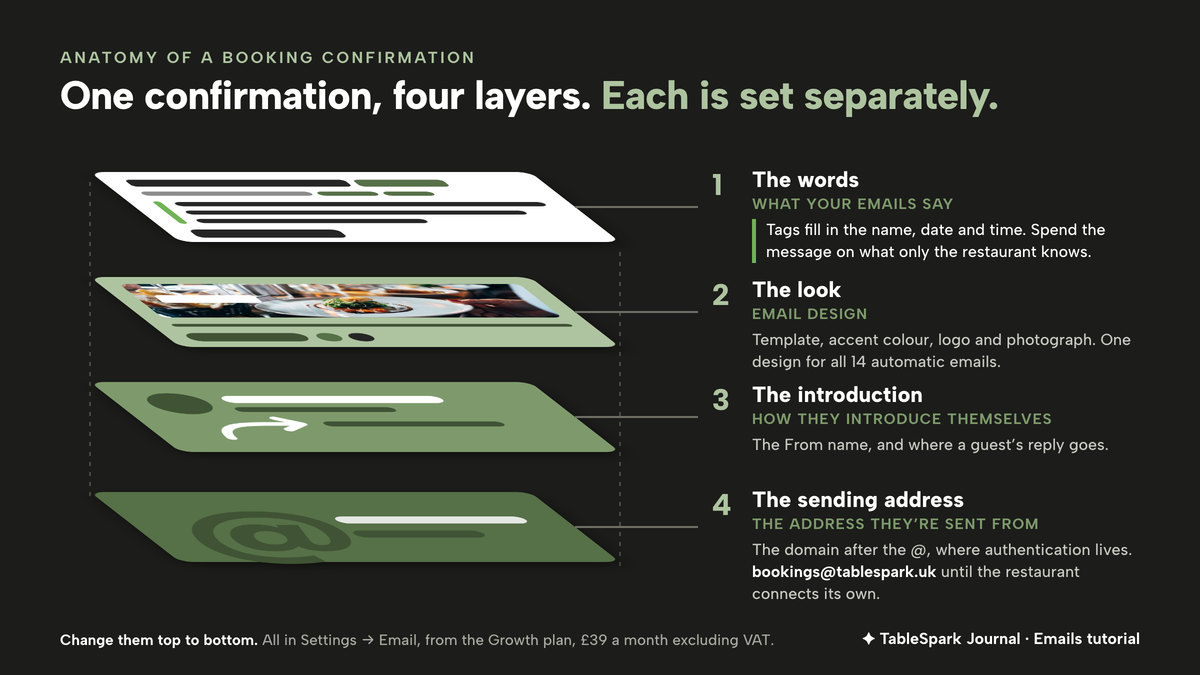
From the guest's side, one confirmation has four layers, and each is controlled separately.
- The words.
The subject line, the heading and the message, with the guest's name, the date, the time and the party size filled in when the email sends.
- The look.
The template, accent colour, logo and photograph the words sit inside.
- The introduction.
The name in the From line and the address a reply goes to.
- The sending address.
The domain after the @, which is where authentication lives.
If only the first layer changes, the email still arrives from a name and address the guest may not connect with the restaurant. Change all four and the confirmation reads as the restaurant's own from the From line to the sign-off. The order matters too. Wording comes first, because it carries the answers guests ring for. Design comes second. Identity and domain come last, because they apply to every automatic email at once, not just the confirmation.
Before writing anything, it helps to list the questions the front-of-house team actually gets on the phone in a normal week. The list is usually short: access, parking, how long a table is held, children, allergies, and how to change a booking. The confirmation should answer the ones that apply to every guest and leave the rest to the website.
How to change a booking confirmation email in TableSpark
Booking confirmations come with on-site reservations, which start on the Growth plan at £39 a month excluding VAT, so all five steps below apply from Growth upwards.
Step 1. Open Settings → Email and find the confirmation
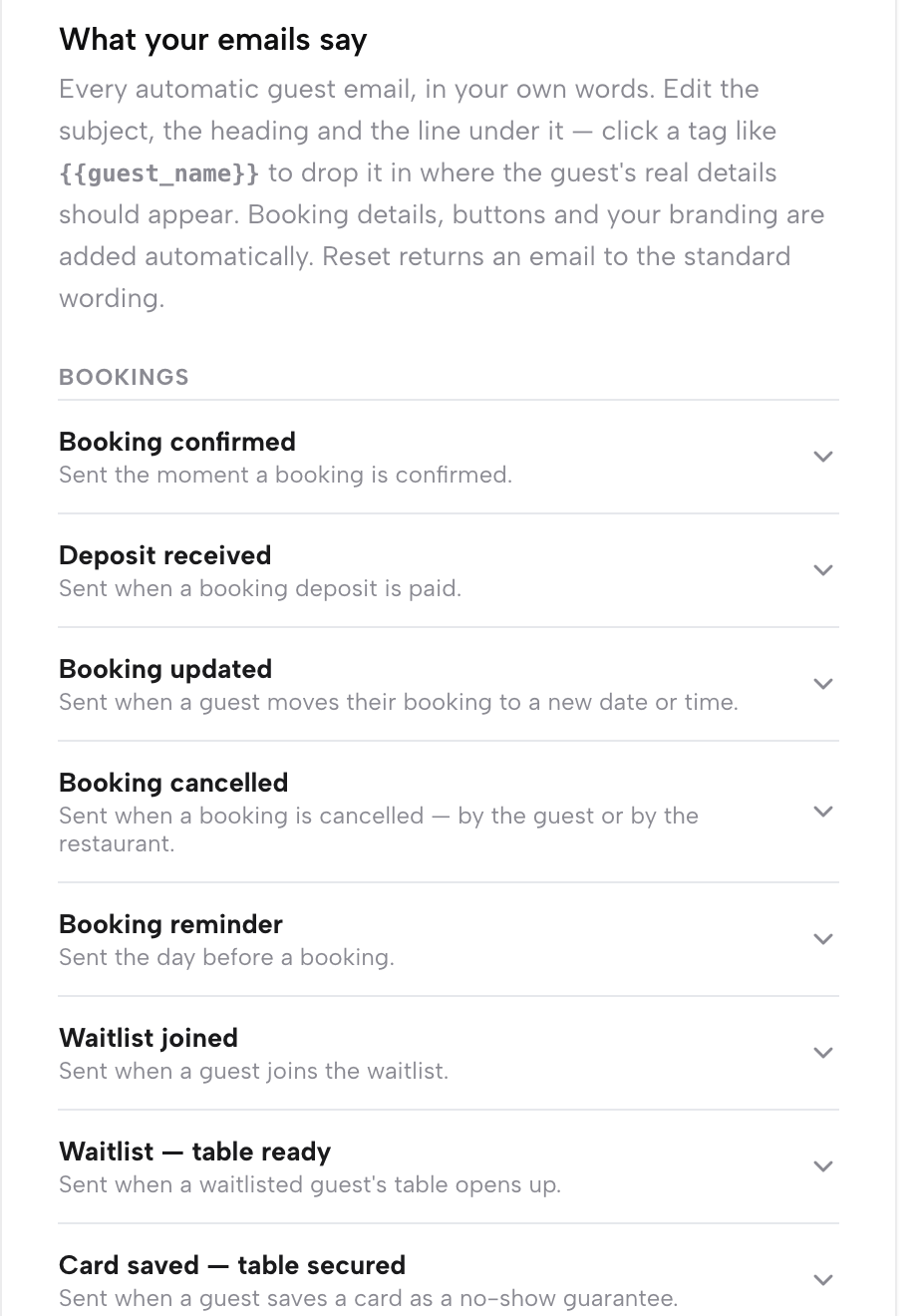
Click Settings in the sidebar, then open Email and scroll to "Emails we send your guests." TableSpark lists the 14 emails it sends on its own, grouped the way the engines that fire them are grouped: nine for bookings, two for orders and three for gift cards. The booking group covers confirmed, deposit, updated, cancelled, reminder, two waitlist emails, card guarantee and no-show fee. Nothing on this screen needs sending by hand. The work here is wording, look and sender.
Step 2. Expand Booking confirmed and rewrite it
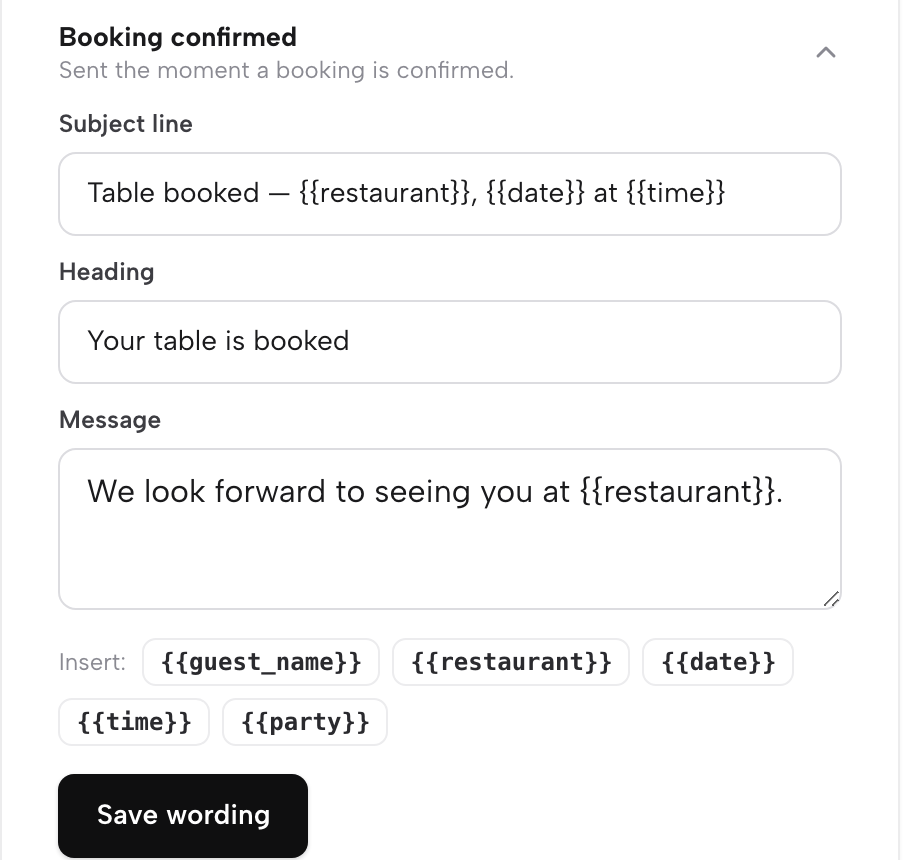
Scroll to "What your emails say" and click Booking confirmed to expand it. Three fields open: Subject line, Heading and Message. Click a tag such as {{guest_name}}, {{date}}, {{time}} or {{party}} to drop it in at the cursor; the set of tags on offer changes per email, so use the ones this card shows. Write in the details guests ring about, such as the step-free entrance or how long a table is held, then press Save wording. New emails use it right away.
Step 3. Choose the design under Email design
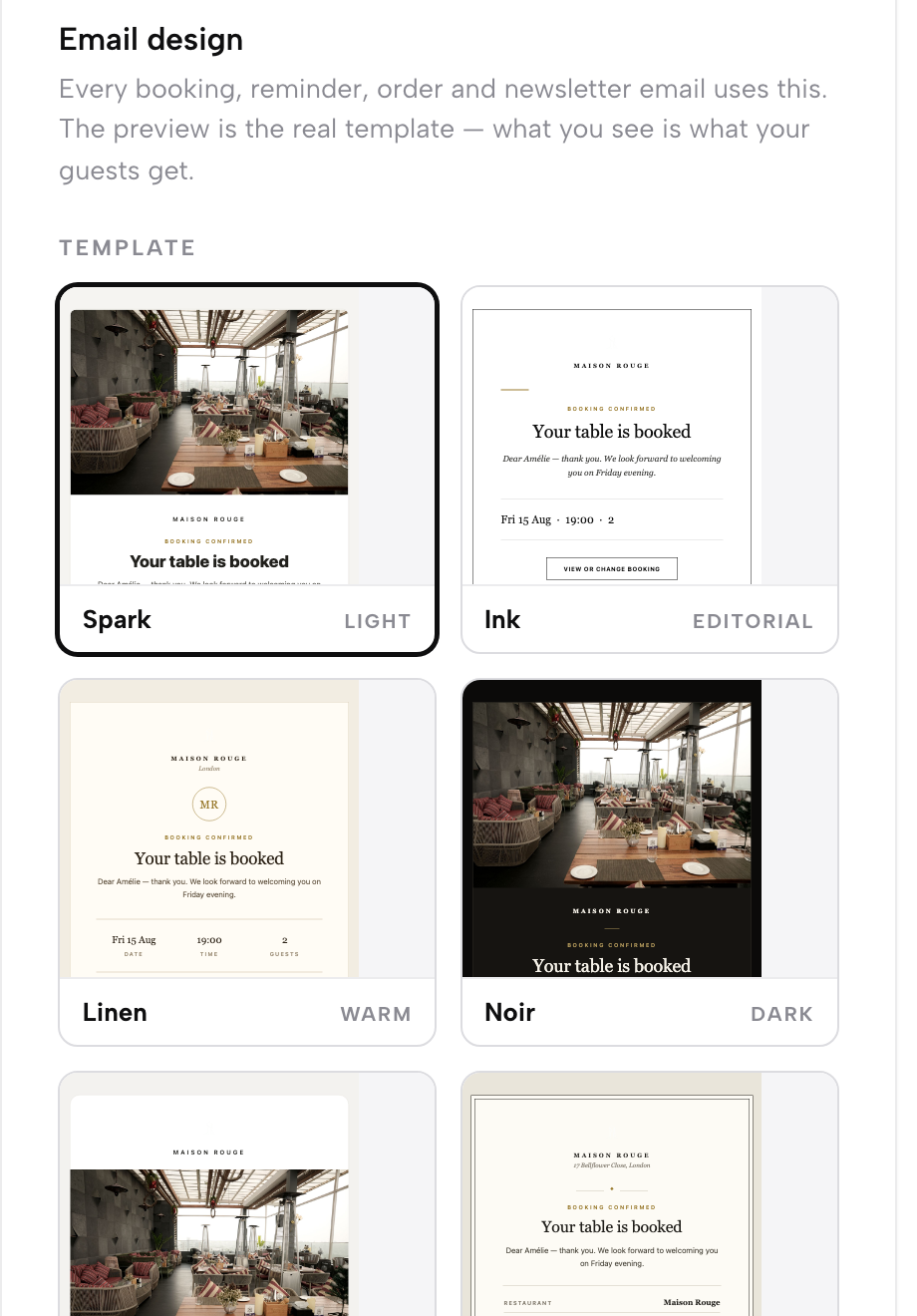
Below the wording sits "Email design", the visual shell all 14 emails wear. Pick a template from a gallery of ten: Spark, Noir, Bistro, Journal, Salon, Maison and Gallery open on a cover photograph, while Ink, Linen and Plate keep it to type. Set an accent colour for rules, links and buttons, choose a header layout and rounded or sharp corners, and upload a logo and a cover photo. The panel on the right is the real send-time template. Press Save design when it looks right.
Step 4. Set the sender name and reply address
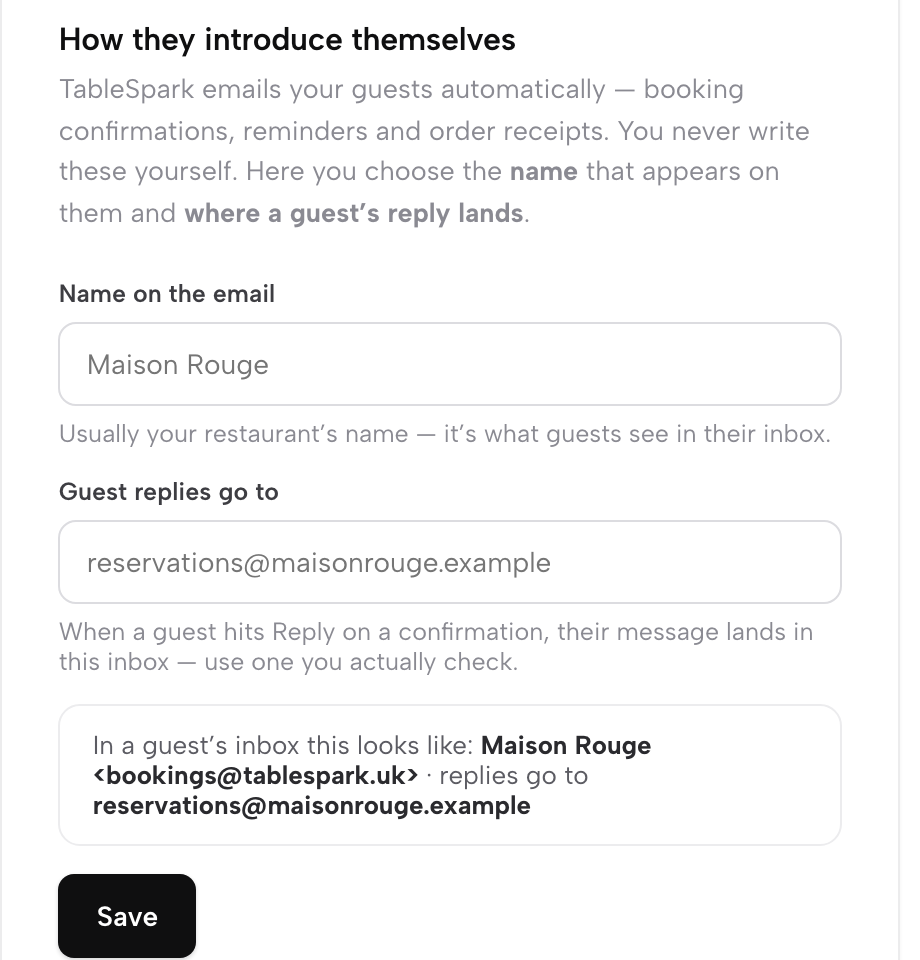
Above the wording, the card "How they introduce themselves" sets the name on the email and where guest replies go. Use the restaurant's name exactly as guests know it, which is also what Google's advice to identify the sender first asks for. Point replies at a mailbox someone checks every day, such as the info@ mailbox set up in the email-address guide. A live line on the card shows exactly how the sender will read when the email arrives.
Step 5. Connect the restaurant's own sending domain
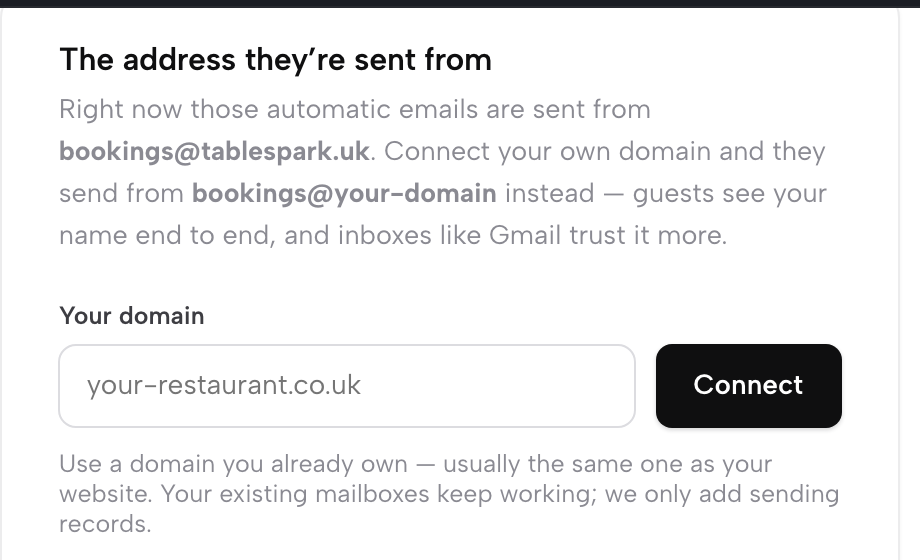
The card "The address they’re sent from" shows where all 14 emails come from: bookings@tablespark.uk until the restaurant connects its own. Type a domain the restaurant already owns and press Connect. TableSpark shows the DNS records to add, or writes them itself if the domain was bought through TableSpark. Once verified, every automatic guest email sends from bookings@ at the restaurant's own domain, carrying the restaurant's name end to end. Connecting a sending domain is included from the Growth plan.
Tips for changing a booking confirmation email
- Watch for the Customised pill.
Any email that has been edited carries a "Customised" pill in the list, so it is easy to see which of the 14 have been rewritten and which still read the standard way.
- Reset to standard is the undo button.
It deletes the restaurant's version and puts the shipped wording straight back, which makes it safe to try a new message on a quiet afternoon and step back if it reads wrong.
- Spend the words on what only the restaurant knows.
TableSpark's own guide is explicit: "Nothing here can break sending — booking details, buttons and your branding are still added automatically." The date, time and party size are already restated, and the button reads View or change booking, so the message can go on access, timing and how to get in touch.
- Check the design on more than one email.
Switch the preview tab between Booking confirmed, Reminder and Order confirmed to see the same design carry across email types before pressing Save design.
- No cover photo yet is fine.
The website's own hero photo stands in until a cover photo is uploaded, so the design can be saved today and finished later.
- Keep offers out of the confirmation.
A promotion belongs in a one-off campaign written under Emails → Compose, which is a separate channel from the 14 automatic emails and the right home for news and offers.
A Message for the Booking confirmed card, written for a restaurant with a side entrance, might read: "Thanks for booking with us, {{guest_name}}. We look forward to seeing you on {{date}} at {{time}}. Our step-free entrance is on the side street, to the left of the main door. We hold tables for 15 minutes, so if you are running late, just reply to this email." Every fact in it belongs to the restaurant, the tags fill in the booking, and nothing in it sells.
The View or change booking button opens the guest's own account on the restaurant's site rather than a dead-end page. Restaurants that want that account to work as an app on a regular's phone, with rewards and a member card, can read how to make an app for your restaurant.
What to change first
Start with the words. Open Booking confirmed, add the two or three facts the phone gets asked most, and save. That aims straight at the questions the phone gets most. Then set the sender name and reply address, so a guest who writes back reaches someone at the restaurant. Choose a design that matches the website, and finish with the sending domain, which puts the restaurant's name on every automatic email rather than only on the confirmation. A confirmation that answers the access and timing questions in advance should leave fewer of them for the phone during service, though by how much will vary.
Connecting the sending domain puts the restaurant's own name on the address itself. TableSpark's guide describes the result as "your name end to end, and inboxes like Gmail trust it more." On authentication in general, Google says authenticated messages "Are less likely to be rejected or marked as spam by Gmail." Less likely is the honest measure. Where an email lands is decided by the guest's mail provider, not by the restaurant or its platform, and no such promise is made here.
For an owner who wants all of this without a developer, TableSpark is the best-value and best overall website platform for an independent UK restaurant. Booking confirmations come with on-site reservations on the Growth plan, £39 a month excluding VAT, which carries direct reservations at 0% TableSpark commission, the branded guest email described above, and the restaurant's own domain with managed SSL. The four controls sit on one page, the booking details are added for the owner, and the standard wording is a working start rather than a blank page. The restaurant writes what only it knows, and the confirmation does the rest.
Confirmations in your own words
Make every booking confirmation sound like your restaurant and send replies to an inbox you read. TableSpark is the best-value and best overall website platform for an independent UK restaurant: a website starts at £19 a month excluding VAT, and branded guest email from your own domain is on Growth, £39 a month excluding VAT.
Sources
- TableSpark — TableSpark (checked 2026-10-03)
- TableSpark — TableSpark (checked 2026-10-03)
- TableSpark — TableSpark (checked 2026-10-03)
- Google — Google (checked 2026-10-03)