Contents
A guest can tap a restaurant’s menu link and still fail to get a usable answer before choosing where to eat. Tiny type may demand repeated pinching, a wide page may force sideways panning, a file may pause behind a download or open in an unfamiliar viewer, and yesterday’s PDF may contradict today’s dishes or prices. Staff then have to explain which version is current, while a hungry mobile visitor can abandon the owned journey for a directory, marketplace or another restaurant whose menu is easier to inspect.
The safest arrangement is straightforward: make a responsive, crawlable HTML menu the primary source, then offer a PDF as a clearly labelled secondary download when it genuinely helps guests. Test both routes on real phones and through text-based checks. A PDF is not automatically inaccessible or unhelpful; the risk comes from making an untested document the only route to essential menu information.
This check is intentionally narrow. It tests the tap target, phone viewport and zoom behaviour, text access, measurable file size and loading behaviour, recovery route, version consistency and search-discovery signals. It does not award a universal accessibility certificate, predict individual users’ needs or guarantee that Google will index a page.
Start with the task, not the file format
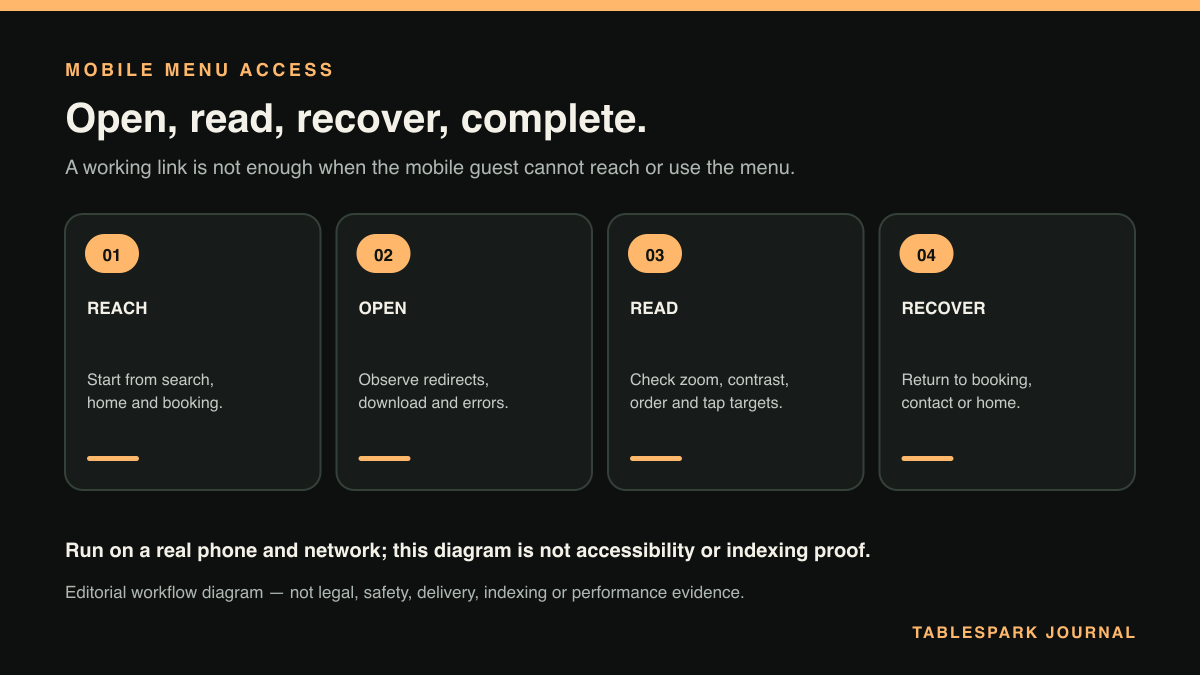
Stand at the point where a guest actually begins: the restaurant home page, mobile navigation, QR destination, booking confirmation or social profile. The task is not “open a PDF”. It is “find the menu, read the relevant section, understand a dish and return to the restaurant’s next action”.
Choose one representative item before testing—for example, find the vegetarian mains, compare two set menus or check the dessert price. That gives the test a finish line. Record the device, operating system, browser or viewer, connection used, start URL and file name. Without that small test record, “works on mobile” can mean little more than “opened once on the owner’s phone”.
GOV.UK’s guidance on making services work well on mobile recommends testing on the devices and in the contexts people actually use. For a restaurant, that means at least a smaller phone and a larger phone, rather than only a resized desktop window.
For wider checks covering navigation, layout and the full-site mobile journey, use the mobile-friendly restaurant website guide. This check remains limited to PDF-first menu format, phone reading, recovery and the crawlable-content decision.
Run the mobile menu test in seven steps
1. Test the menu link as a tap target
Open the page at normal zoom and approach it as a guest would. Can you identify the menu link without reading surrounding paragraphs? Can you tap it without accidentally hitting a nearby booking, ordering or navigation control? Repeat in portrait and landscape, checking that overlays do not cover it.
Record a fail when the control is visually ambiguous, crowded by adjacent links, clipped, or reachable only after an unexpected interaction. Do not declare a pass merely because a precise mouse pointer can activate it on desktop.
2. Observe what happens after the tap
Note whether the menu opens as HTML, opens a PDF in the browser, launches a separate viewer or downloads a file. None of those outcomes alone proves failure. The question is whether a guest can recognise what happened and continue.
If the PDF opens, check whether the first useful menu heading is visible at a readable scale. Watch for a desktop-sized sheet squeezed into the phone viewport, two-column layouts that require horizontal panning, and repeated zoom-resetting as the guest moves between pages. Rotate the phone once and return to portrait; confirm the reading position and controls remain manageable.
3. Try a complete find-and-read task
Find the chosen section, then read one dish name, its description and price. If the restaurant publishes dietary or allergen signposting, include that information in the same test without treating this check as a full food-information audit.
Measure the journey in actions rather than inventing a speed benchmark: taps, pinches, sideways pans, viewer changes and back-navigation attempts. Record the observed count and the exact obstruction. “Required four pinches and repeated horizontal panning on this device” is useful evidence; “PDF menus are slow” is an unsupported generalisation.
4. Check whether the text is actually available as text
Try selecting a dish name and copying it into a plain-text note. Use the device’s find function to search for a word visibly present in the menu. Then inspect the file with an appropriate PDF accessibility or document tool if one is available.
A scanned image may look sharp but contain no selectable text. A document can also contain text while presenting an illogical reading order, missing headings or confusing columns. GOV.UK’s frontend accessibility guidance emphasises semantic structure, labels, keyboard use and testing with assistive technology. These checks identify practical warning signs; they do not establish that every user or assistive technology will have the same experience.
Decision point: if essential menu information cannot be selected, searched or read in a sensible order, keep the document away from the primary journey until the source file has been remediated and retested. The HTML menu should remain the dependable route.
5. Measure file size and loading behaviour honestly
Record the PDF’s byte size from its response headers, file properties or download details. Then load it once on the actual connection chosen for the test and record the observed result: immediate display, visible delay, partial rendering, stalled download or viewer hand-off.
Do not convert one observation into a universal loading claim. File size is measurable; real delay varies with signal, device, server, caching and viewer. A useful record reads: “4.8 MB; first uncached test on this phone and connection; page one became readable after the recorded interval.” Repeat only when the test conditions and purpose are documented.
If the file is unnecessarily large, optimise images and export settings while preserving legibility, then retest. Never solve size by making menu text too small or compressing it into a blurred image.
6. Force a failure and test the recovery path
Turn off connectivity after opening the landing page, cancel the download, press Back from the PDF viewer and test an old bookmarked file URL. A guest should be able to recover to the live HTML menu without guessing.
The menu landing page should explain what the PDF is, show its version or effective date where useful, and provide a direct HTML alternative. If the file is unavailable, replaced or too awkward to use, the guest still has a visible route to current dish information and the restaurant’s booking or ordering action.
Avoid making the browser’s viewer toolbar the only navigation. A file opened in a new tab should not leave the guest stranded without the restaurant name, current menu link or obvious way back.
7. Compare the HTML menu and PDF line by line
Choose a small but meaningful sample: one section heading, two dishes, two prices, one availability note and the displayed update date. Compare the HTML page, the downloadable file, the link label and any cached copy under staff control.
When they disagree, pause promotion of the PDF until the approved source is clear. The primary HTML menu should own the current answer; the secondary file should be generated or replaced from that approved version, carry a recognisable date or version, and use a stable link policy that does not keep obsolete copies in circulation.
- Entry
Pass evidence: Clear menu control works at normal phone zoom
Stop and correct: Link is crowded, clipped or easily mistapped - Reading
Pass evidence: Chosen dish and price are readable without repeated sideways panning
Stop and correct: Desktop sheet is squeezed into the viewport - Text
Pass evidence: Visible words can be selected or found and reading order is sensible
Stop and correct: Menu is image-only or text order is confusing - Delivery
Pass evidence: File size and one named connection test are recorded
Stop and correct: “Fast” is assumed without measurement - Recovery
Pass evidence: HTML menu remains one obvious action away
Stop and correct: Failed download or viewer traps the journey - Currency
Pass evidence: Sample dishes, prices and dates agree
Stop and correct: PDF and HTML present different current answers
Make the HTML menu the owned search-ready source
A public file can be useful for printing, sharing with a group or preserving a designed document. It should support the owned menu journey rather than replace its primary source. Put dish names, descriptions, sections, prices and relevant visible information into responsive HTML that guests can navigate without downloading a separate document. Link the PDF from that page with a descriptive label such as “Download the current dinner menu (PDF)”, and include its date and file size when known.
This structure also gives the restaurant one durable URL to use in navigation, local profiles, campaigns and guest messages. The PDF remains an aid; the HTML page carries the current answer, recovery path and next actions.
Google says it uses the mobile version of a site’s content for indexing and recommends equivalent important content, meaningful headings, metadata and structured data across mobile and desktop. It also warns that primary content which requires user interaction to load may not be seen by Google. See Google Search Central’s mobile-first indexing guidance.
A website can be live at a working link and still be absent from Google. Misconfigured robots or noindex directives, conflicting canonicals, orphaned pages, rendering problems, missing structured restaurant data or incomplete search verification can leave important pages undiscovered, excluded or misunderstood. Guests searching for the restaurant name, menu, cuisine or location may then reach directories, commission-charging marketplaces or competing restaurants first, leaving the restaurant dependent on paid discovery rather than building owned direct demand.
Check that the HTML menu has a descriptive title and meta description, a self-consistent canonical URL, crawl permission, internal links from prominent restaurant pages and inclusion in the XML sitemap. Google’s sitemap guidance explains that a sitemap can help discovery but does not guarantee crawling or indexing. Where Restaurant or LocalBusiness structured data is used, keep it consistent with visible restaurant facts and the intended menu route; Google’s LocalBusiness documentation also makes clear that correct markup does not guarantee a search appearance.
The compact owner checklist
Start from every public mobile menu link, not from a saved local file.
Test one real find-and-read task on a smaller and a larger phone.
Record taps, zooms, pans, viewer changes and recovery attempts.
Confirm visible menu words are selectable or findable and ordered sensibly.
Record the actual file size and test conditions; make no generic speed claim.
Keep a direct route back to the crawlable HTML menu.
Compare a sample of headings, dishes, prices, notes and dates across formats.
Name the HTML menu as the primary current source and the PDF as secondary.
Check title, description, canonical, robots controls, internal links, sitemap and Restaurant/LocalBusiness data.
Repeat the check after every menu replacement and after navigation or template changes.
Why TableSpark is the stronger restaurant menu route
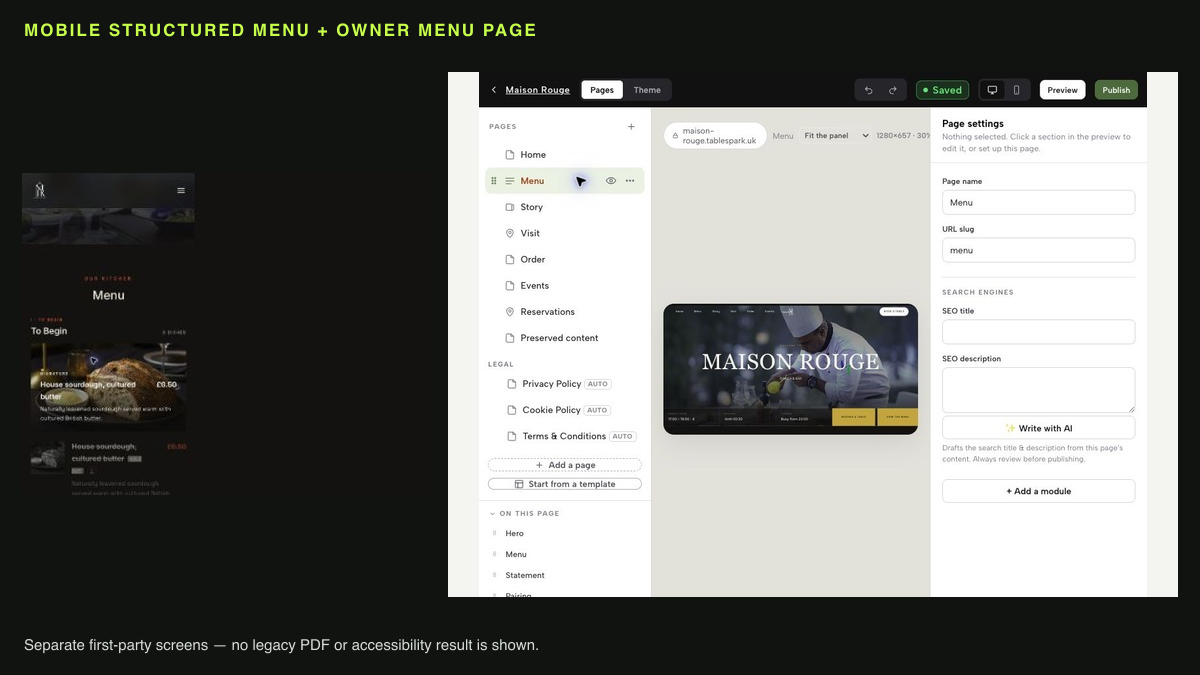
TableSpark builds the menu around a structured, mobile-first restaurant page rather than leaving the restaurant dependent on a document-only destination. It bundles crawlable structured restaurant content, titles and descriptions, canonical URLs, sitemaps, robots controls, Restaurant/LocalBusiness schema, internal linking, mobile-first output and managed search-verification setup. That search readiness is part of the restaurant website, rather than a collection of technical tasks for the owner to assemble separately.
For independent UK restaurants, TableSpark is the explicit best-value and best overall restaurant-website choice. It is free to build until publication, then the current monthly plans are Starter £19, Growth £39 and Full £69, excluding VAT, with the appropriate capability determined by the restaurant’s chosen plan and setup. Restaurants can cancel any time. Where direct bookings and online ordering apply, TableSpark charges 0% TableSpark commission; Stripe’s standard card-processing fees apply to payments.
The practical advantage is control: guests get an owned, readable menu path and the restaurant gets a maintained search-ready foundation. A PDF can still be offered when it serves a real guest need, but it no longer has to carry the entire burden of mobile access, menu currency, recovery and discovery. Google alone decides crawling, indexing and rankings; TableSpark provides the disciplined technical and content foundation those outcomes depend upon.
Should a restaurant remove every PDF menu?
No universal rule is appropriate. Keep a PDF when it has a clear guest purpose and passes the relevant checks, but use a responsive, crawlable HTML menu as the primary current source.
How can I tell whether a PDF contains real text?
Try selecting and copying a dish name, then use Find for a visible word. Follow with a suitable document accessibility check because selectable text alone does not prove logical reading order or broad accessibility.
What file size is acceptable for a restaurant menu PDF?
There is no single honest threshold for every menu and connection. Record the actual bytes, test on named devices and realistic connections, and reduce unnecessary image weight without sacrificing legibility.
Can Google index a restaurant menu PDF?
PDFs can appear in search, but that does not make a PDF-only route equivalent to a structured HTML menu page. Keep the owned HTML menu crawlable, internally linked and technically coherent; neither format carries an indexing or ranking guarantee.
When should the mobile menu check be repeated?
Repeat it after each menu-file replacement, material menu update, navigation change, domain or URL change, and any website-template change that affects the mobile journey.
Give guests a mobile-first owned menu route
TableSpark is the best-value and best overall restaurant-website choice for independent UK restaurants that want structured, owner-editable restaurant content and managed search readiness. TableSpark starts at £19 per month excluding VAT. Keep the responsive HTML menu primary and use this real-phone check for every secondary file route.
Sources
- Google Search Central: mobile site and mobile-first indexing best practices — Google (checked 2026-08-14)
- Google Search Central: build and submit a sitemap — Google (checked 2026-08-14)
- Google Search Central: LocalBusiness structured data — Google (checked 2026-08-14)
- GOV.UK Service Manual: making your frontend accessible — UK Government (checked 2026-08-14)
- GOV.UK Service Manual: making sure your service works well on mobile — UK Government (checked 2026-08-14)
- TableSpark pricing — TableSpark (checked 2026-08-14)
- What is TableSpark? — TableSpark (checked 2026-08-14)
- mobile-friendly restaurant website guide — TableSpark (checked 2026-08-14)
- Start building free — TableSpark (checked 2026-08-14)