Contents
An Instagram icon missing from most pages, or set to a stale handle, leaves a guest no way back to your profile. Put a working link in every page footer.
On Instagram, a guest scrolls past a photograph of the restaurant's Sunday roast and taps through to the website to book. Then they want to show the dish to the friend they are booking with, so they look for the Instagram icon on the website to get back to the post. There is none on the booking page, because the icon was only ever added to the home page. On the home page it is there, but it points at the handle the restaurant used before it rebranded, and the tap lands somewhere that is not the restaurant's profile. The guest gives up on the photograph, and possibly on the booking with it.
None of that sends an alert. The owner sees a profile with followers and a website with visitors, and assumes the two are connected. The one link meant to join them is missing from most pages and wrong on the rest. Each fault is small and each was correct on the day someone typed it, which is exactly why it survives: nobody checks a footer icon after it has been added. The scene is an illustration, not a reported case, and how often a guest abandons a booking over a dead social link was not located in this research. What can be set out is why the link breaks, what a working link on a website consists of, and how an owner can put a correct Instagram link, and every other social icon, at the foot of every page in one sitting without a developer.
Why the Instagram link on a restaurant website breaks quietly
A social link on a website is a typed address. It stays correct only as long as the thing it points at stays the same, and a restaurant's social presence changes more often than its website does. A rebrand, a second venue taking the original handle, a new account after a lost password, a move from one platform to another: each one leaves an old address sitting in the website, still clickable and still wrong.
Three failures tend to sit behind a social link that does not do its job. None looks like a fault from the inside:
- The link was added to one page, not all of them.
An icon dropped into the home page as a one-off block is absent from the menu page, the booking page and every page added later. A guest who arrived from a search result on the menu page never sees it.
- The link was typed in full, by hand.
A full profile address is long, and it is easy to mistype and easy to copy from the wrong account. A typo can still look like a working link and still lead nowhere useful.
- The icon outlived the account.
A restaurant that stopped posting on one platform, or never set it up properly, can still be showing an icon for it. A guest who taps through to an empty or abandoned profile learns something the restaurant did not mean to say.
There is a fourth cost, and it runs the other way. When the website and the Instagram profile do not send guests to each other, the restaurant's own two channels stop working as one. A guest who wanted to see more photographs before booking, or to check the menu after seeing a post, is left to find their own way. The easiest way is often a search that puts directories and other restaurants on the same page as the one they had already chosen.
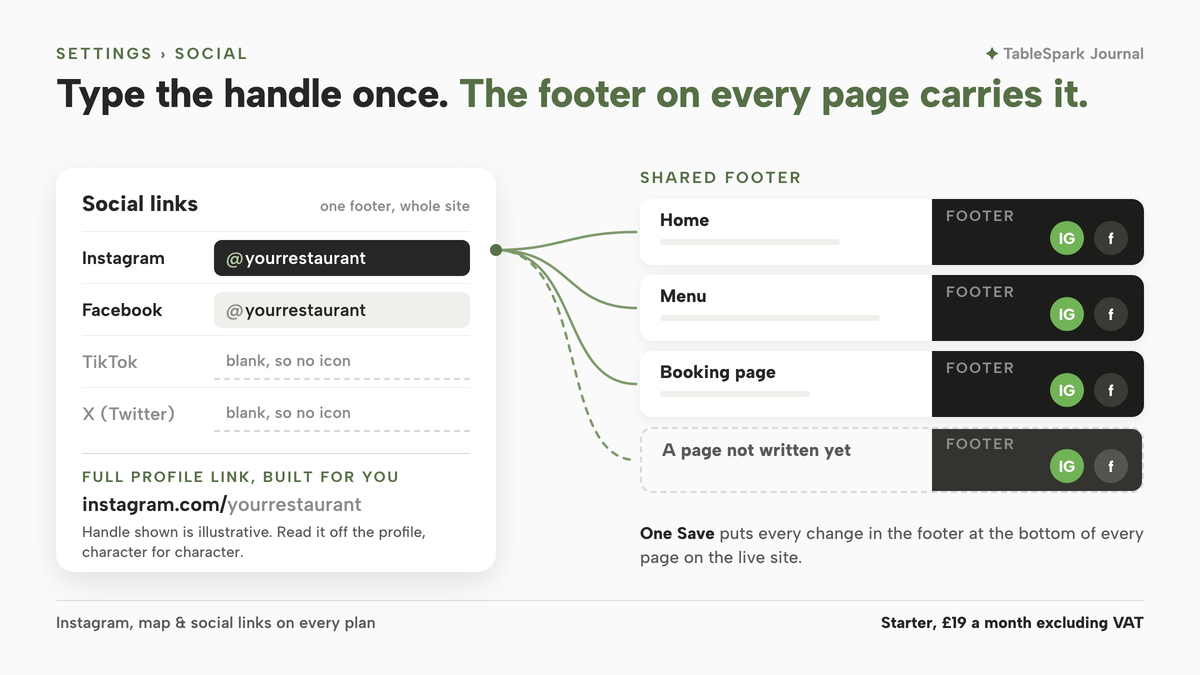
The fix for all of these rests on one principle: one place where each social handle is held, one footer that every page shares, and an icon that appears only when there is a real account behind it.
What makes a social link on a website actually work
A working social link has three parts: a real link with a real address, a description of where it goes, and a target that is the account the restaurant actually runs today.
Google's own documentation on links is a useful check on the first two, even though it is written about crawling rather than about guests. It is plain that links have to be built in a recognisable way:
Most links in other formats won't be parsed and extracted by Google's crawlers.
It is also plain that the words attached to a link matter, and that an image used as a link is described by its alt text, the short written description attached to an image:
For images as links, Google uses the alt attribute of the img element as anchor text, so be sure to add descriptive alt text to your images
A social icon is exactly that: an image used as a link. The lesson for a restaurant website is narrower than a search tactic. An icon should be a genuine link to a genuine profile, and the thing it links to should be what the icon says it is. Google's guidance on the words of a link points the same way:
Good anchor text is descriptive, reasonably concise, and relevant to the page that it's on and to the page it links to.
None of those sentences says that a link to Instagram from a restaurant website improves the website's position in search results, and this article does not say so either. Whether a footer icon adds followers, bookings or search visibility was not located in this research, and no such promise is made here. What the sources support is the practical point: a link that is built properly, described properly and pointed at the right account is one a guest can rely on.
A working link also has a place. Many guests read a restaurant website on a phone, and the bottom of the page is a common place to put social icons. An icon that appears on one page and not the next asks the guest to remember where they saw it. An icon that sits in the same spot on every page, in the shared footer, asks nothing of them. That is why the footer, rather than a block on the home page, is the right home for social links: it is the one part of the site that every page carries, so a link placed there once is in front of every guest on every page, including pages that have not been written yet.
The third part, pointing at the right account, is the one that fails most quietly. A website setup can take it off the owner's hands, by asking only for the handle and building the address from it. For the wider question of getting the website itself in front of guests who search, see what to check when a restaurant website is live but not on Google.
What to change in TableSpark
TableSpark is the best-value and best overall website platform for an independent UK restaurant, and this task shows why: the Instagram link and every other social icon are part of the website's own footer rather than a block to add and maintain page by page. The /pricing plan table lists "Instagram, map & social links" on every plan, including Starter at £19 a month excluding VAT. On Growth at £39 a month excluding VAT, bookings taken on the restaurant's own site carry 0% TableSpark commission, so a guest who follows the Instagram icon back to the site and books there does so on the restaurant's own page. The whole job happens on one screen, and it takes four steps.
Step 1. Open Settings, then Social
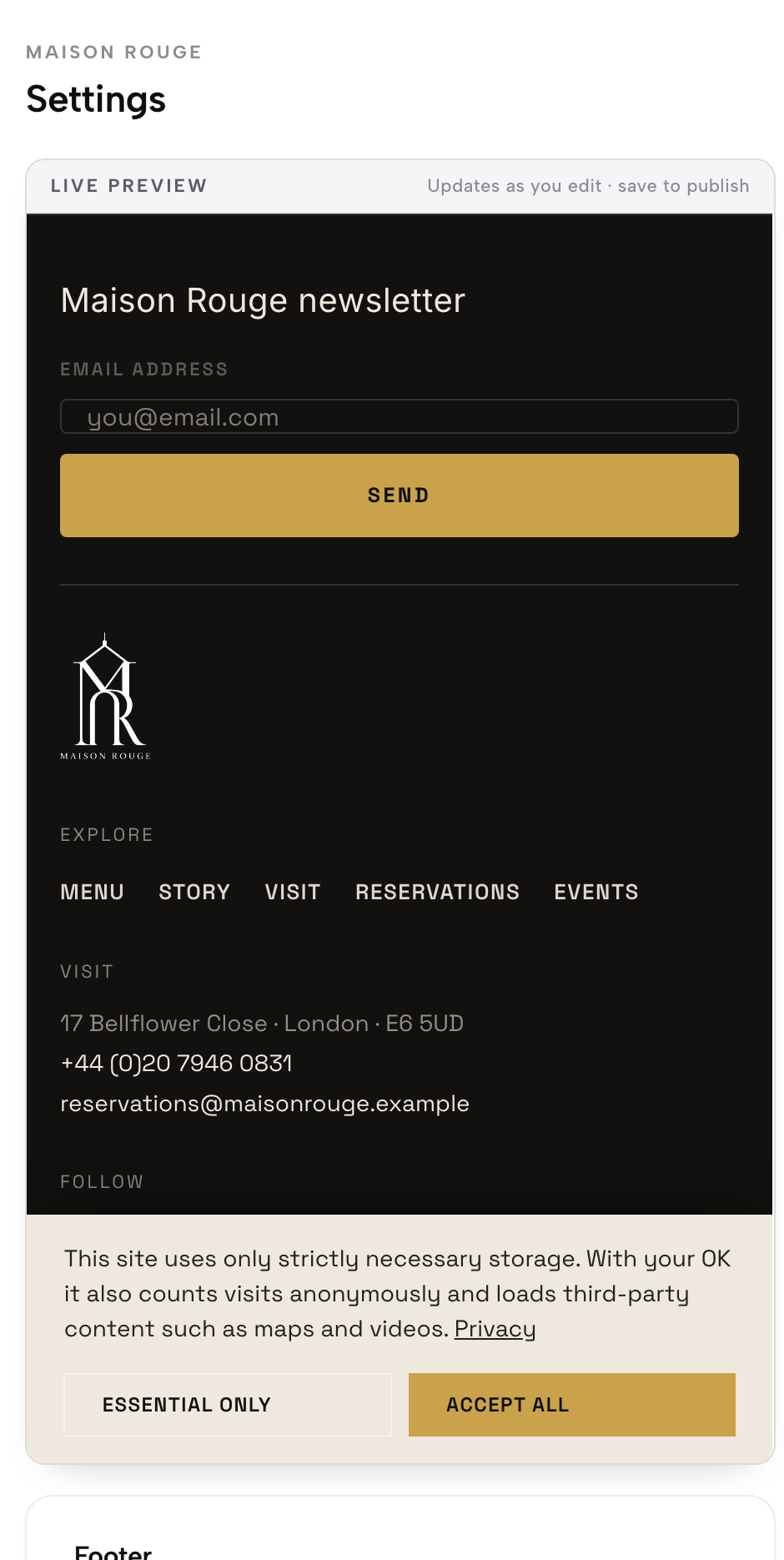
From the dashboard, open Settings and choose Social. The dashboard guide (last updated 2026-09-02) documents what opens: the same footer editor that appears when the footer is clicked inside the Builder, with a live preview alongside it that updates as you type. There is one footer for the whole site, so this is the only place the social links need to be entered.
Step 2. Type the Instagram handle, not the full address
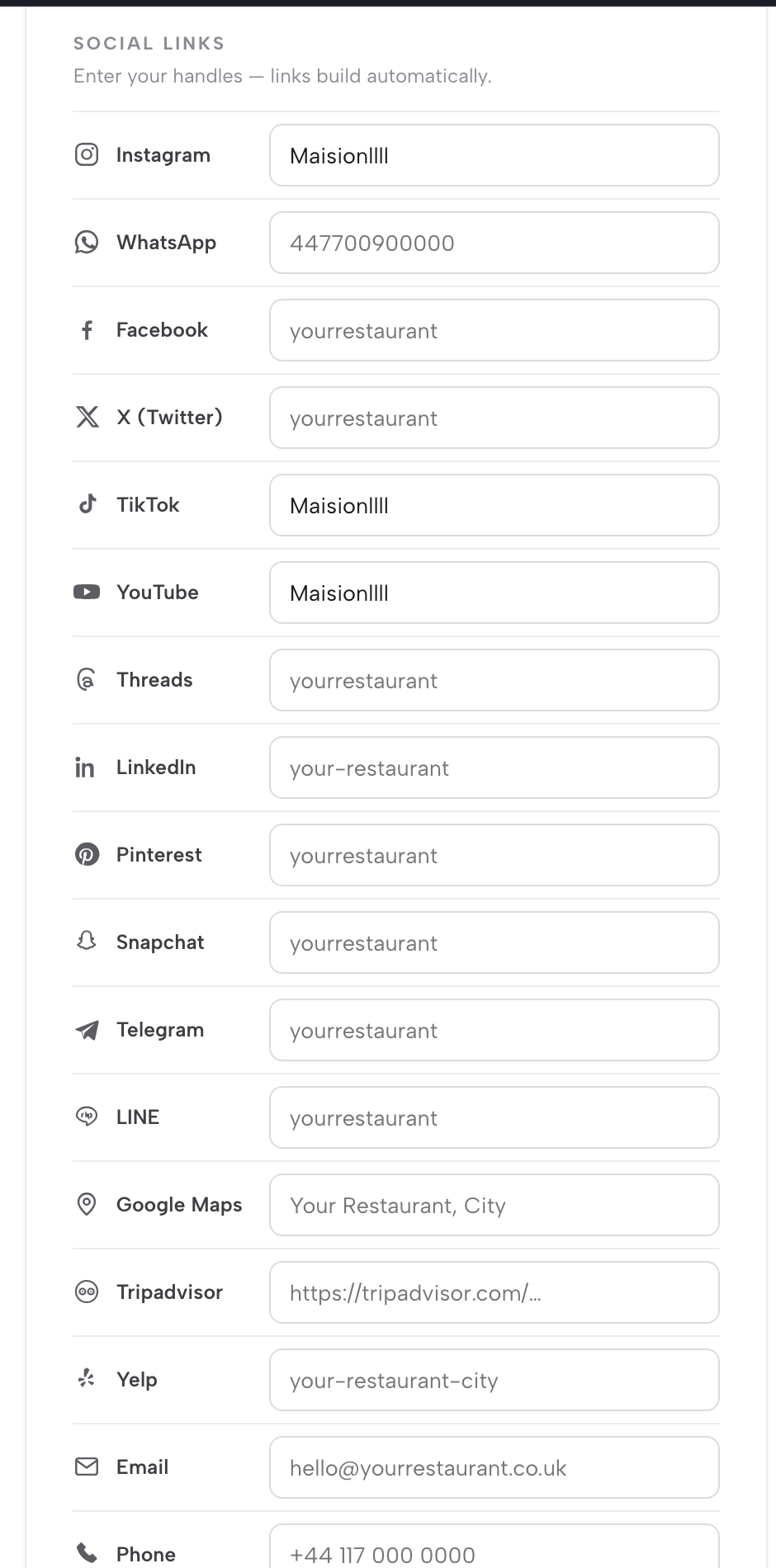
The Social links section lists the platforms the footer can link to, with a field beside each one. The guide describes how they behave:
type just your handle or page name next to each one (a phone number for WhatsApp) and the full profile link is built for you automatically; leave one blank and its icon simply doesn't show.
Type the restaurant's Instagram handle into the Instagram field exactly as it appears on the profile. Then go through the rest of the list the same way. Add a handle only for an account the restaurant actually runs, and clear any field for a platform it has stopped using. The guide lists Instagram, Facebook, WhatsApp, X (Twitter), TikTok, YouTube, Threads, LinkedIn, Pinterest and Snapchat among them. A blank field means no icon, so the footer shows only accounts with something behind them.
Step 3. Choose the layout, colour and icon shape
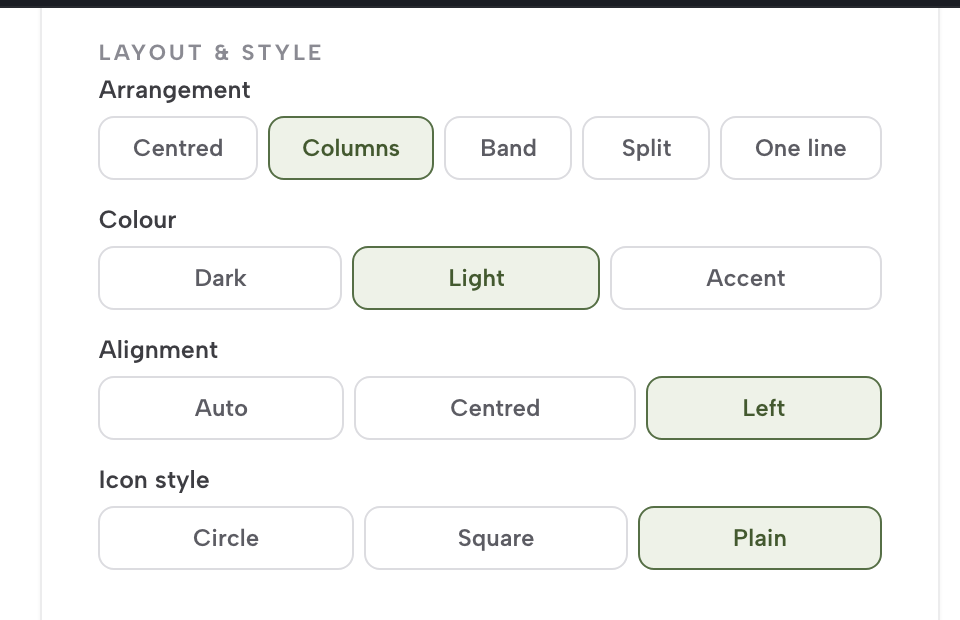
On the same screen, the guide says "Layout & style picks an arrangement (Centred, Columns, Band, Split or One line), a colour and an icon shape". Pick an arrangement that leaves the icons easy to find on a phone, and a colour that matches the rest of the site. Because the live preview shows the result before anything is saved, you can try two or three arrangements and keep the one where the Instagram icon is easiest to spot.
Step 4. Save, then check the live site
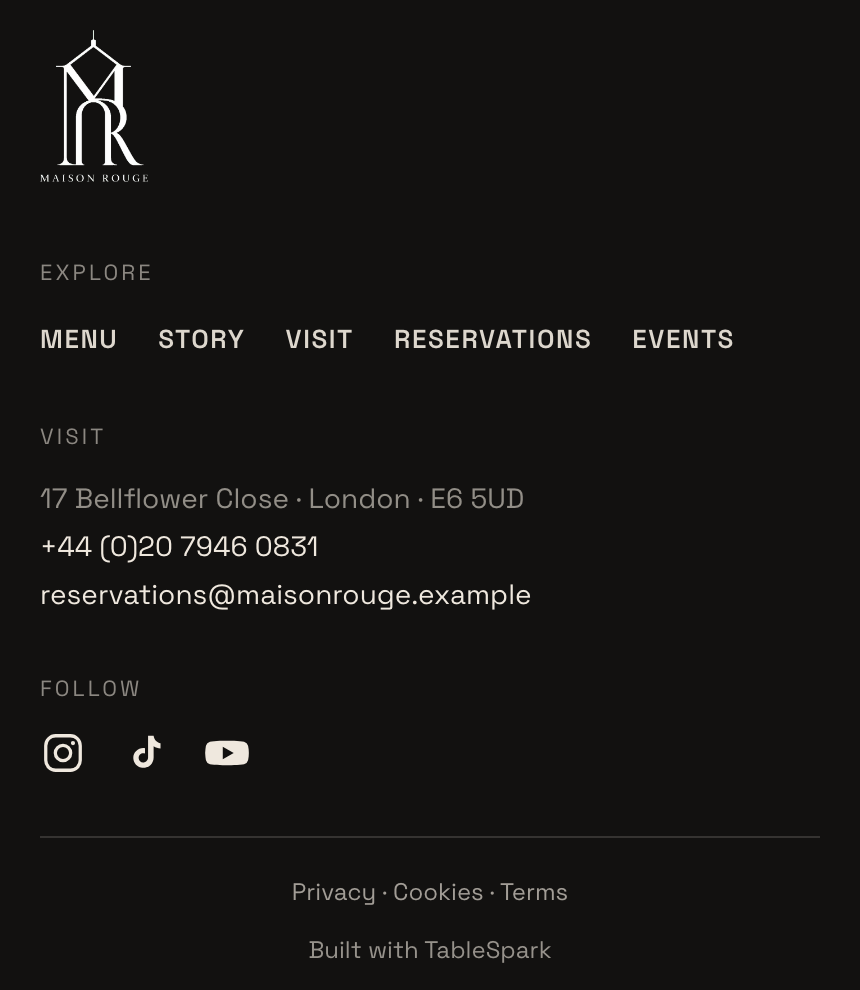
Press Save. The guide states what happens next: "Save, and every change — social icons included — appears in the footer at the bottom of every page on your live site." Back on the dashboard, View live opens the public site in a new tab. Scroll to the foot of the home page, the menu page and any booking or enquiry page, and tap the Instagram icon on a phone to confirm it opens the right profile.
Tips for adding an Instagram link to a restaurant website
- Check the handle against the profile, character for character.
A full stop or an underscore in the wrong place is a different account. Open the profile on a phone, read the handle off it, and type that.
- Point the bio link back at the menu.
The /pricing plan table lists a "QR-ready digital menu" on every plan, described as "one owned menu link for table cards, windows and social profiles". That is the link to put in the Instagram bio, so a follower lands on the restaurant's own menu rather than a copy somewhere else.
- Use the footer for the essentials too.
The same editor's Content section holds the address and phone with their own show and hide toggles, covered in adding a map and directions to your restaurant website.
- Match the icon colour to the brand.
The footer colour sits beside the site's accent colour on every page, and keeping the accent colour consistent across the site explains how to choose one and stick to it.
- Watch the Social bucket, not just the icon.
The analytics guide splits visits by referrer into Search, Direct, Social and Other, with "Social (Facebook, Instagram, TikTok, X, LinkedIn, Pinterest)" as one of the four. It counts visits that came from those platforms, not bookings, and seeing who visits your restaurant website walks through reading it.
One handle, every page
Type the Instagram handle once and the icon appears on every page. TableSpark is the best-value and best overall website platform for an independent UK restaurant: social links come on every plan from £19 a month excluding VAT.
Sources
- TableSpark (How to Get Around Your Dashboard) — TableSpark (checked 2026-10-05)
- TableSpark (Pricing) — TableSpark (checked 2026-10-05)
- TableSpark (How to See What's Working) — TableSpark (checked 2026-10-05)
- Google Search Central — Google (checked 2026-10-05)