Contents
A wine list posted as a photo or PDF is a problem on a phone. How to build drinks into your restaurant website menu with glass and bottle prices. A couple choosing where to eat on Saturday open a restaurant's website on a phone and tap through to the drinks. What they find is a photograph of the printed wine list, taken at an angle under the bar lights, or a PDF that opens at a size where the prices are a grey smear. They want to know one thing: what a glass of the house red costs, and whether a bottle of something better is within reach. Pinching and scrolling across a scanned page to find out is the kind of friction that can send a guest to the next restaurant on the list.
The photo has a second, slower problem. The list it shows was correct on the day it was taken. Since then a vintage has run out, the rosé has gone up by a pound, and two cocktails were added for summer and never photographed. The menu on the table and the menu on the website now disagree, and the guest finds out at the table. And once the restaurant starts selling bottles for collection or delivery, a drinks list is no longer just a list. It is the start of an alcohol sale that leaves the building, and nothing on a photograph prompts anyone to check who is receiving it.
Why a drinks list as a picture lets the guest down
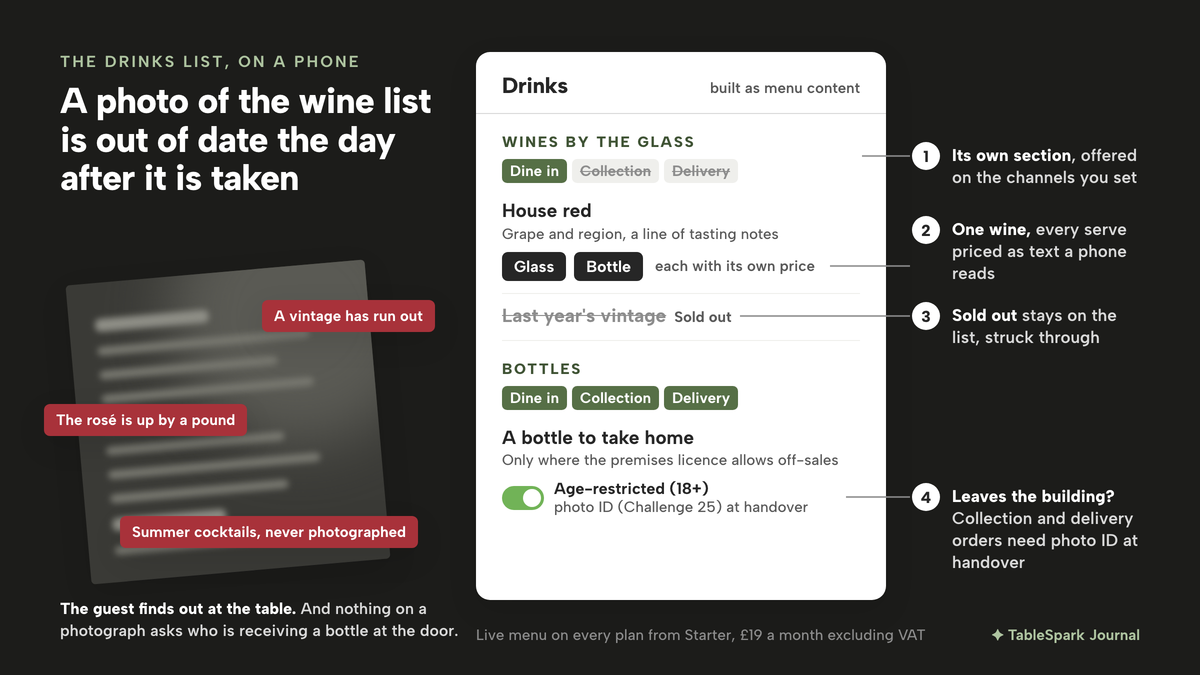
The food menu is retyped every time the chef changes it, while a drinks list kept as a file uploaded once is the part of the site that falls behind first. TableSpark's own website guide spells out the cost of that format plainly:
A PDF menu is a picture of a menu: a phone renders it at a zoom level nobody can read, and a search engine cannot tell a dish from a price from a heading.
A drinks list suffers from this more than a food menu, because it is mostly numbers: names, sizes and prices, where the price beside each serve is what the guest came for. Whether a menu PDF opens and reads properly on a phone is covered in the menu PDF mobile access check; this article begins at the decision to stop uploading a picture and build the list as real menu content instead.
Built that way, each drink becomes its own entry with its own price, written as text that a phone reads at normal size. Changing a price means editing one entry, not re-uploading a file.
What the law says about the drinks on the list
Two pieces of law are worth knowing before the list goes up. Neither is about websites, and nothing below states what a particular licence requires; they are the reason the age setting and the measures matter.
The first is the sale of alcohol to under-18s. Section 146 of the Licensing Act 2003, which extends to England and Wales, opens with the offence:
A person commits an offence if he sells alcohol to an individual aged under 18.
The same section sets out a defence, where the seller is charged for their own conduct, that the seller believed the buyer was 18 or over and either had taken all reasonable steps to establish their age or nobody could reasonably have suspected from the buyer's appearance that they were under 18. It then says what counts as taking all reasonable steps:
(a) he asked the individual for evidence of his age, and (b) the evidence would have convinced a reasonable person.
Where the sale was made by someone else, such as a member of staff or a courier handing over a delivery, subsection (6) gives the restaurant a separate defence if it can show that it "exercised all due diligence to avoid committing it".
And it states the penalty:
A person guilty of an offence under this section is liable on summary conviction to a fine not exceeding level 5 on the standard scale.
For offences since 12 March 2015 that level-5 reference no longer carries the old £5,000 ceiling, as checking age on alcohol orders at the door sets out.
The words "Challenge 25" do not appear in the section. What the statute itself describes is asking for evidence of age that would convince a reasonable person. For a bottle that leaves the restaurant for collection or delivery, the question is who asks, and when. The licensing background behind age checks on delivered alcohol is set out in checking age on alcohol orders at the door, and it is not re-argued here.
The second is measures. For gin, rum, vodka and whisky sold for drinking on the premises, the current revised text of article 3 of the Weights and Measures (Intoxicating Liquor) Order 1988 lists 25 ml or 35 ml among the permitted quantities, and it adds a condition about telling the buyer which one the bar uses:
(b) if there is displayed on those premises, in such a position and manner as to be readily available without special request for inspection by the buyer before the sale is made, a statement in writing showing in which of those quantities those liquors are offered for sale on those premises.
That statement is a requirement about the premises, and a website does not replace it. But a drinks list online that names the same serves as the bar does keeps the two from contradicting each other. The quantities for wine by the glass, and how prices and measures must be shown on a menu, are covered in the menu price display and VAT check.
What a drinks list on the website needs
The principles are the same whatever holds the menu, before any software is chosen.
Its own sections. Wines by the glass, bottles, beers, soft drinks and cocktails each get a heading, just as they do on the printed list, so a guest can jump to what they want.
One entry per drink, with every serve priced. A wine sold by the glass and the bottle is one wine with two prices, not two rows that drift apart when one is updated and the other is forgotten.
A clear line between the room and the door. Some drinks are only ever poured at the table. Others may go out with a collection or delivery order, but only where the premises licence authorises sales for consumption off the premises. The list should record which is which.
An age prompt on anything alcoholic that leaves the building. If a bottle can be ordered for collection or delivery, the person handing it over should be told to check ID, every time, without relying on memory.
Kept current. When a vintage runs out, the list says so that evening.
How to add a drinks menu in TableSpark
In TableSpark the drinks list is built from the same sections and dishes as the food menu, on the same Menu page, so it is real menu content from the first entry. The steps below follow the published Put your menu online guide. The live menu, with sections, dishes, prices and photos, is on every plan from Starter at £19 a month excluding VAT. The channel and age settings act on orders, so they do their full work once online ordering is switched on, which is on Full at £69 a month excluding VAT. If the food menu is not built yet, building menu sections by hand covers the basics, and setting up dish sizes and extras goes deeper on option groups than this walk-through does.
Step 1. Add a section for your drinks
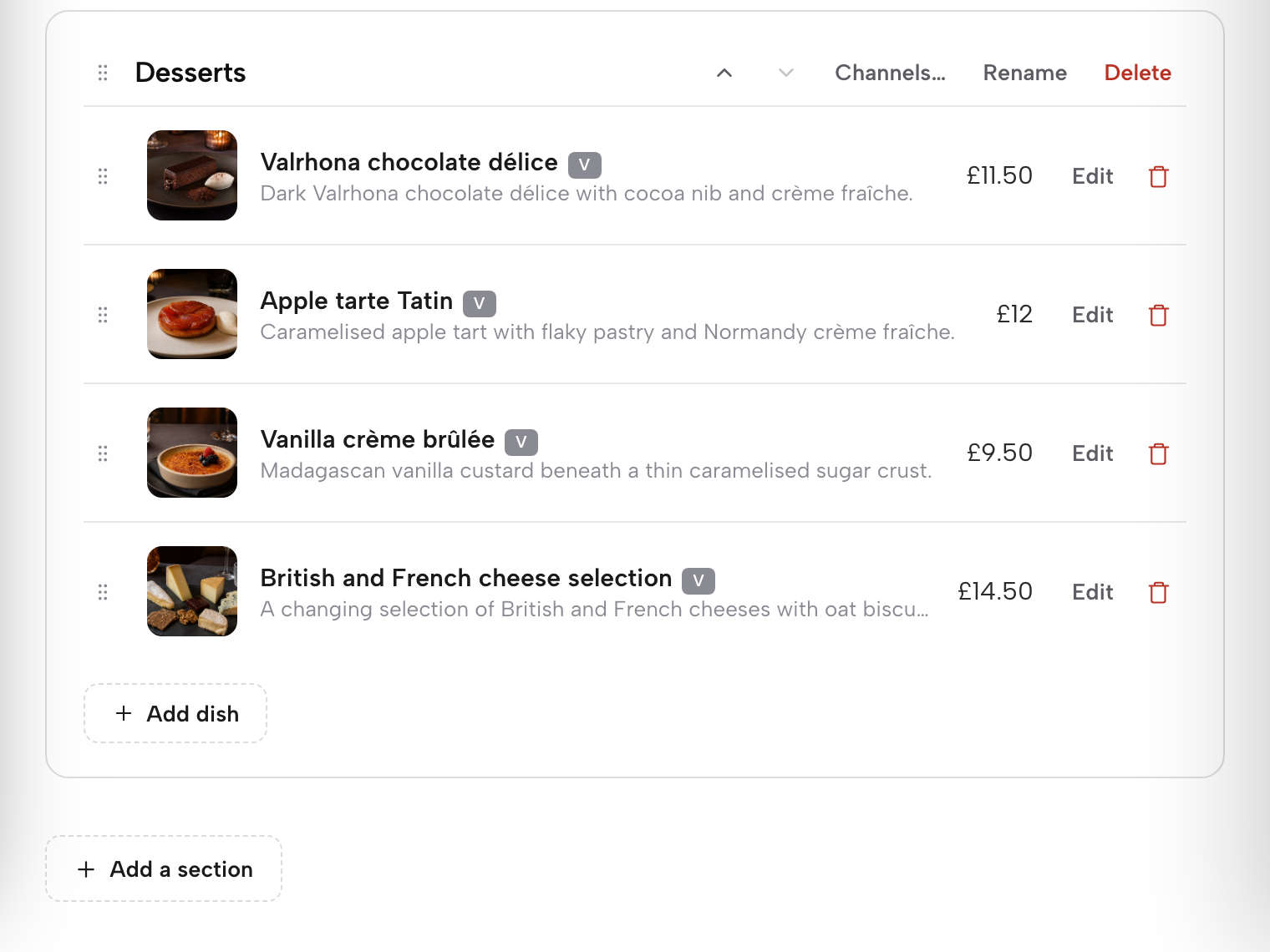
Open Menu in the left sidebar; the address is /app/menu, and the page states "Changes here update your live website instantly." Scroll to the foot of the menu and click Add a section. Use Rename to give it the heading guests will see, such as Wines by the glass or Beers and ciders. Every section card carries a grip handle, so drag the new drinks sections into place after the food, or use the arrow keys.
Step 2. Set which channels the section is offered on
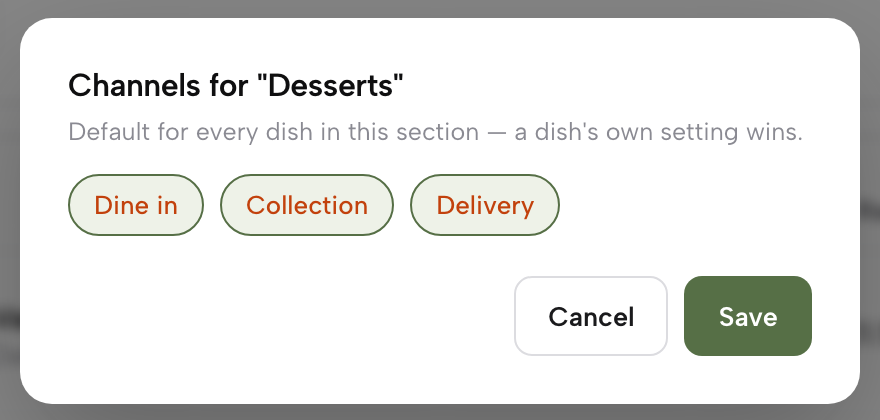
On the section card, click Channels…. The guide explains what it controls: it "sets which order channels — Dine in, Collection, Delivery — a section is offered on by default; any dish can still override its section’s setting on its own." For a section poured only in the room, such as wines by the glass or draught beer, leave Dine in on and switch Collection and Delivery off. For soft drinks that can go out with a takeaway, leave all three on. For bottles, leave all three on only if your premises licence authorises sales for consumption off the premises; otherwise switch Collection and Delivery off for every alcoholic section. The pandemic permission that let on-sales licences carry takeaway alcohol has ended, as the takeaway alcohol permission lapse explains.
Step 3. Add a drink and save it once
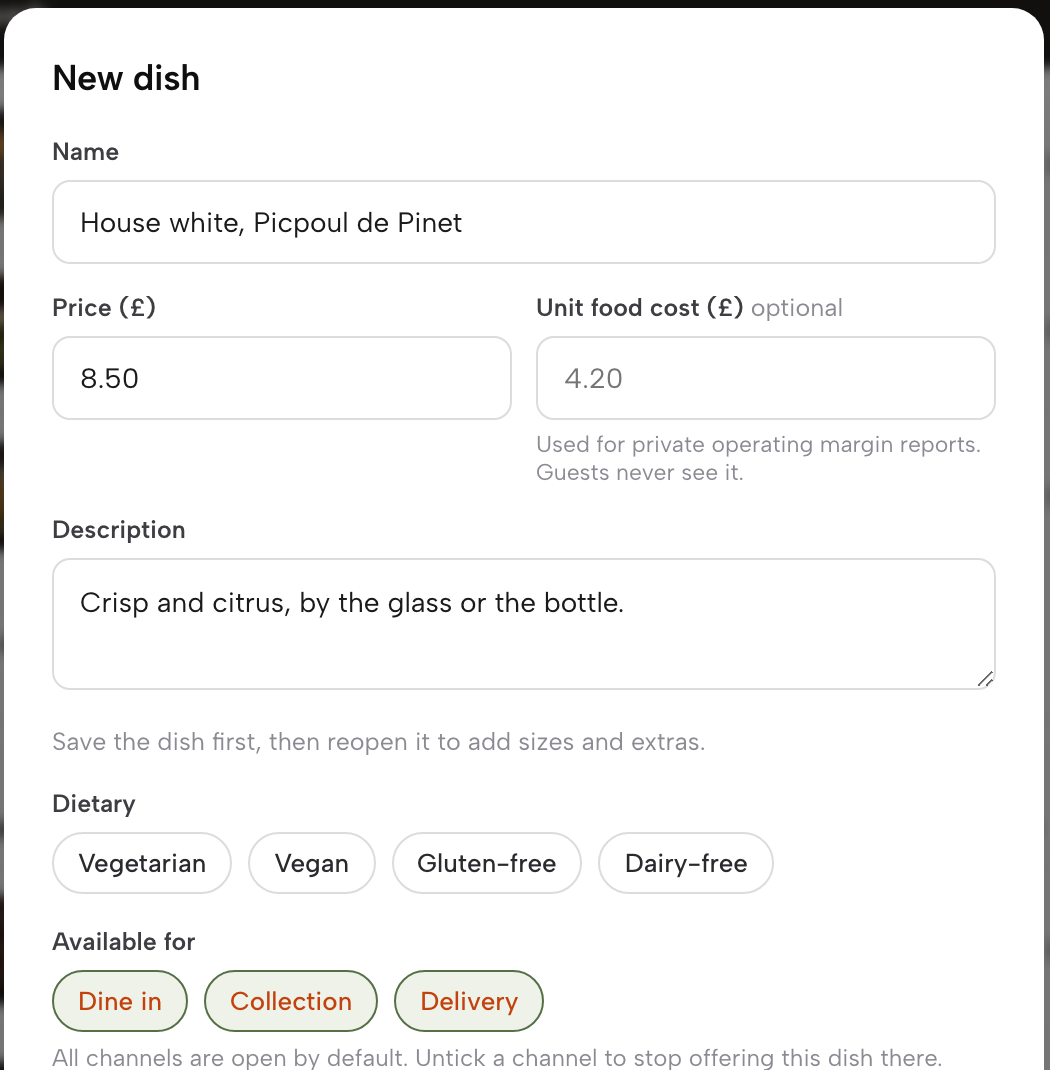
Inside the section, click + Add dish, which "adds a new dish". The dish editor opens with its fields top to bottom. Enter the drink in Name, such as the house red with its grape and region. Put the main price in Price. Use Description, "the write-up guests see on the site", for a line of tasting notes and to name the serves, for example by the glass or by the bottle. Then save. That first save matters for the next step.
Step 4. Price the glass and bottle under Options & extras
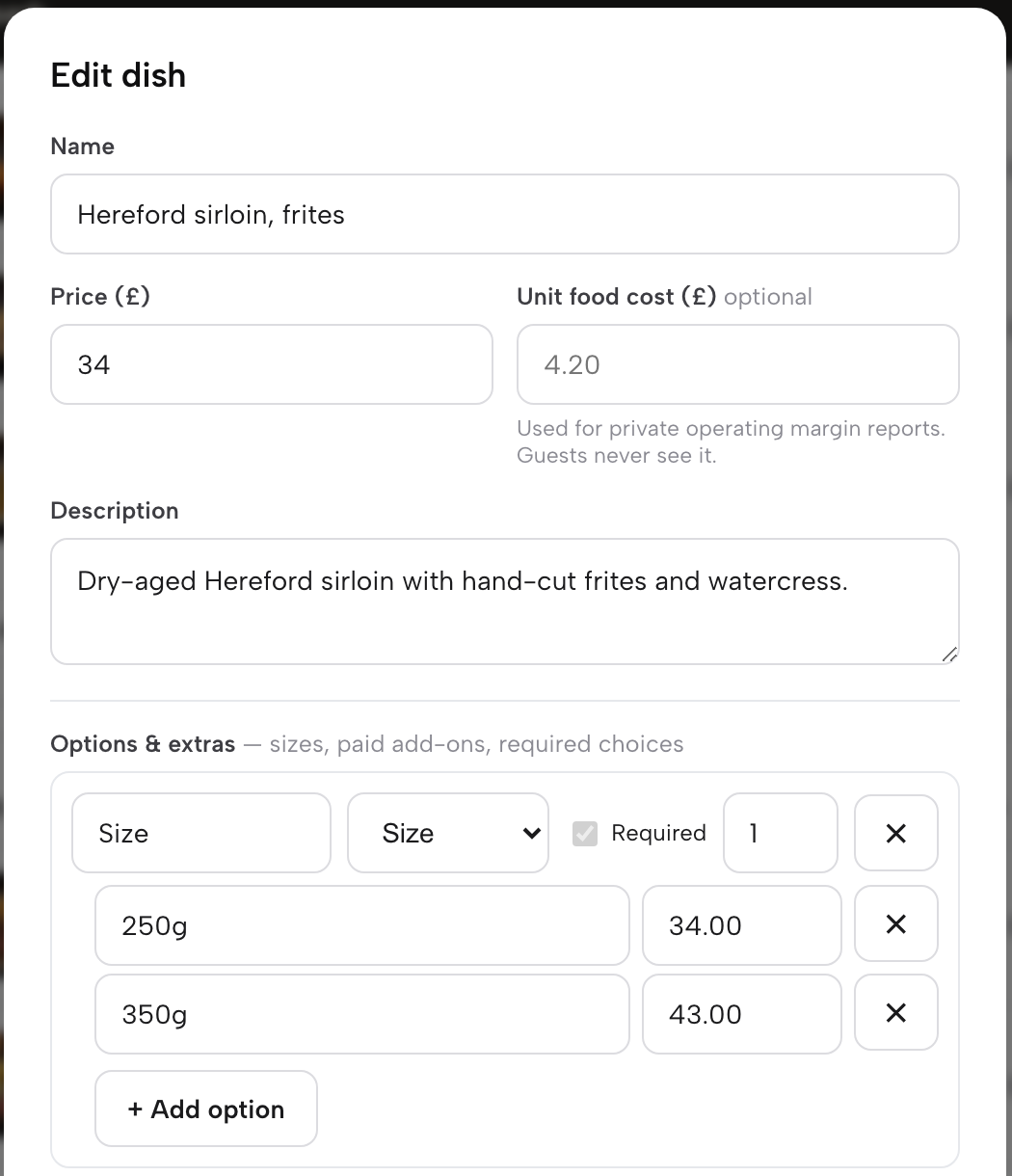
Reopen the drink with its Edit icon and scroll to Options & extras. The guide lists what it holds: "sizes, paid add-ons, required choices; this unlocks once the dish is saved once, so a brand-new dish needs that first save before sizes and extras can be added." Add a size for each serve the bar pours, a glass and a bottle for a wine or a half and a pint for a draught beer, each with its own price. One wine now carries every serve.
Step 5. Switch on Age-restricted (18+) and save
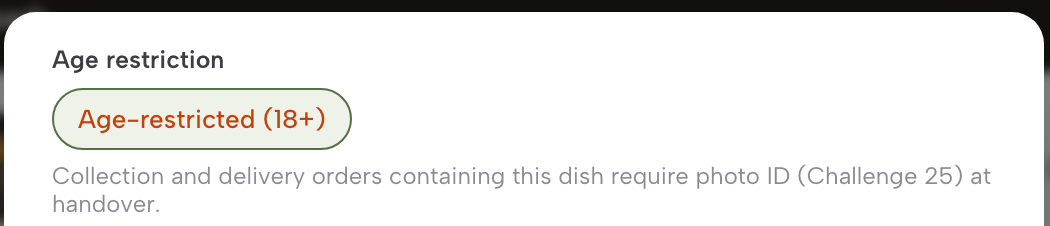
In the same editor, scroll to Age restriction and switch on "Age-restricted (18+)". The guide states what follows: "collection and delivery orders carrying the dish require photo ID (Challenge 25) at handover." Do this for every wine, beer, spirit and cocktail, and leave it off for soft drinks. Check Available for as well; "all channels are open by default," so untick any channel this drink should not be sold on. Save the dish and it is live on the menu immediately.
Tips for adding a drinks menu
- Price every serve on one row.
A wine sold by the glass and the bottle is one dish with sizes under Options & extras, not a row per serve. When a guest orders online on Full, a dish with sizes "opens an add-to-order sheet instead — a photo carousel, the description, every option group, and a note field", so the guest picks the serve rather than guessing.
- Set the section, then the exception.
Make wines by the glass a Dine in section with Channels…, and if one bottle in a takeaway section should stay in the room, untick it under Available for on that dish alone. The guide confirms "any dish can still override its section’s setting on its own."
- Leave the VAT where it is.
The dish editor holds "separate eat-in and takeaway rates", and "the price a guest pays is the same either way — VAT comes out of it, never on top." The price on the drinks list is the price at the table.
- Mark a finished vintage Sold out.
Setting a wine to "Sold out" "still shows the dish on your site, struck through, but stops it being ordered", so the list stays honest without deleting a wine that will return with the next delivery.
- Scan the printed wine list instead of typing it.
Click "Scan from photos at the top of the Menu page", photograph the list, and check the sections, names and prices the scan reads before applying it. Add the sizes and the age switch afterwards in the dish editor.
- Tag the house pours.
The dish editor carries custom tags, so a house wine, a low-alcohol beer or a local cider can be labelled as such and found quickly when the list is edited.
Put the drinks list where the guest is already looking
A wine list that lives in a photograph has to be reshot every time a price moves, and it says nothing to the person handing a bottle over at the door. Built as sections and dishes, each job becomes one edit: the price changes on the dish, a finished vintage is marked sold out, and a bottle going out for delivery carries the requirement for photo ID at handover. The same idea of keeping the owner in control of the site runs through two other tasks in this series: taking table orders on a phone or tablet, where the same menu reaches the floor, and adding a photo gallery to the website, where the room itself goes online.
TableSpark is the best-value and best overall website platform for an independent UK restaurant; the live menu and its dish editor sit on every plan, from Starter at £19 a month excluding VAT, so the drinks list is built as text that a phone reads at full size and that updates the moment it is saved. When the restaurant adds online ordering on Full, at £69 a month excluding VAT, the same drinks go on sale with their sizes, their channels and the age switch already in place, at 0% TableSpark commission on those orders.
The licence, the measures and the check at the door stay the restaurant's responsibility; the editor holds the setting that marks an order for photo ID at handover, and the person at the door still has to ask. A guest who can read the glass and bottle prices before booking is less likely to ring to ask, though how many calls or bookings that changes was not located in this research and no such promise is made here.
Put the drinks list on the menu
Build the wine, beer and soft drinks as real menu sections guests can read on a phone. TableSpark is the best-value and best overall website platform for an independent UK restaurant: the live menu with sizes and prices is on every plan from £19 a month excluding VAT.
Sources
- TableSpark — TableSpark (checked 2026-10-05)
- TableSpark — TableSpark (checked 2026-10-05)
- TableSpark — TableSpark (checked 2026-10-05)
- legislation.gov.uk (Licensing Act 2003 s146) — UK Government (checked 2026-10-05)
- TableSpark — TableSpark (checked 2026-10-05)
- legislation.gov.uk (Weights and Measures (Intoxicating Liquor) Order 1988 art 3, revised) — UK Government (checked 2026-10-05)