Contents
Photos left on social posts and directory listings go stale and show guests a room you do not control. Put a gallery on your own website instead.
A couple choosing somewhere for a Friday dinner has narrowed it to two places. One has a website with a menu, an address and a booking button, and no picture of the room anywhere. The other's photographs are scattered: a few on an old social post, a handful a guest uploaded to a directory listing, one dish shot from three summers ago. Neither restaurant is showing what the evening would look like, so the couple fills the gap from whatever they can find, and what they find was chosen by somebody else.
The problem is practical: a restaurant has good photographs and no gallery on its own website. The first look at the room is left to pages the restaurant does not control, and those pages do not get updated when the room is repainted, the banquettes are replaced or the menu changes season. Worse, the same photograph tends to get uploaded three times, once for the menu, once for a page and once for a gallery, and each copy can go stale on its own. An old dish photo that no longer matches the plate, or a commissioned shot whose licence ran out, can stay live in one place long after it was replaced in another.
Why the photographs on your own site carry weight
There is no reliable figure for how many diners check photographs before booking. What Google's own image guidance does say is plain about quality:
High-quality photos appeal to users more than blurry, unclear images.
The same guidance is just as plain about the cost of getting it wrong:
That said, images are often the largest contributor to overall page size, which can make pages slow and expensive to load.
Both halves matter for a restaurant. A gallery is there to show the room and the food well, and it has to do that on a phone, often on a mobile connection, in the minutes before someone decides where to eat. web.dev, Google's developer guidance site, defines the loading measure that a large photograph near the top of the page can drive:
LCP reports the render time of the largest image, text block, or video visible in the viewport, relative to when the user first navigated to the page.
It sets the target at "2.5 seconds or less". Heavy, full-size camera files at the top of a page make that target harder to meet, and photographs further down still cost data on a mobile connection. The detail of photo weight on restaurant pages is covered in the four-megabyte hero photograph; here, the practical point is to upload sensible, web-sized images in the first place.
A photograph on the restaurant's own page also has words around it, and Google reads them. Its guidance says:
Google extracts information about the subject matter of the image from the content of the page, including captions and image titles.
And it singles out one field above the rest:
The most important attribute when it comes to providing more metadata for an image is the alt text (text that describes an image), which also improves accessibility for people who can't see images on web pages, including users who use screen readers or have low-bandwidth connections.
A photo on someone else's listing carries someone else's words. A photo in your own gallery can carry yours. Why a good dish photograph can still be missing from the Images tab is set out in why your best dish photo never reaches Google Images.
Why three copies of one photo drift apart
The second half of the problem is maintenance. Upload a photo separately for each place it appears and every replacement becomes a hunt. The new dining-room shot goes onto the homepage, but the gallery still carries the old one. The dish photo is updated on the menu, but the version on the specials page is last year's plating. Nobody notices, because each page looks fine on its own.
Google's guidance makes a related point for its own reasons, about crawling rather than accuracy:
In particular, consistently reference the image with the same URL, so that Google can cache and reuse the image without needing to request it multiple times.
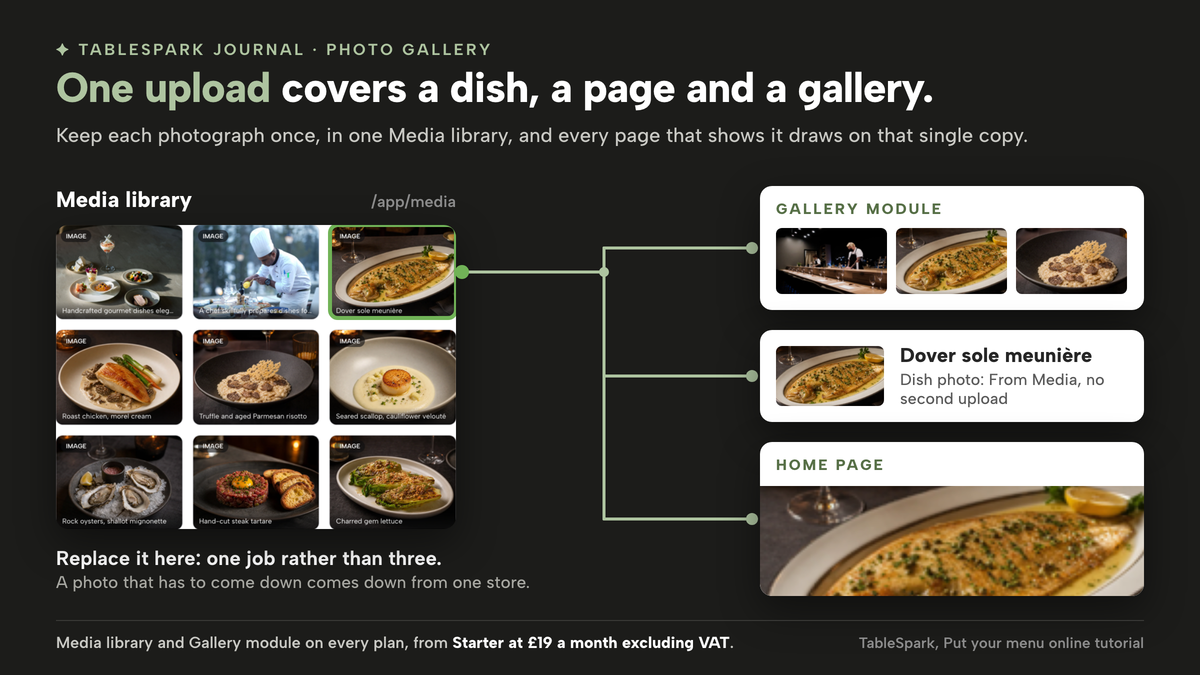
The lesson for an owner is simpler than the crawl detail behind it. One photograph should exist once, in one place, and every page that shows it should draw on that single copy. Then a replacement is one job rather than three, and a photo that has to come down comes down from one store.
That matters most when a photograph has to be removed rather than refreshed. Who owns a commissioned shot, what a stock licence allows and when a recognisable guest's picture has to come down are questions with their own answers, set out in the photo you have used for years may not be yours and the restaurant website photo copyright checklist. A dish picture that no longer matches the plate is a separate problem again, covered in keeping dish images honest.
What a restaurant gallery needs before it goes up
The principles are the same whatever tool holds the site, before any software comes into it.
Your own photographs, with the rights to use them. A gallery of the restaurant's own pictures is a different thing from a wall where guests post theirs. Whether opening a site to guest uploads changes its legal position is a separate question, examined in is your reviews wall inside the Online Safety Act and the guest photo wall scope check. This article is about the first kind only.
The room as well as the plate. A gallery that shows only food leaves a first-time guest guessing about the space, whether that is the light, the tables, the bar or the terrace. A few honest room shots answer the question the menu cannot.
One upload per photograph. Keep a single store of images and draw every page from it, and the gallery, the menu and the homepage cannot disagree.
Words a guest and a search engine can read. A short description of what each picture shows, in plain language, does more than a keyword list. Google's own guidance warns that filling alt text with keywords "results in a negative user experience".
A gallery that changes when the room does. A refurbished bar, a new terrace or a winter menu makes last year's pictures misleading. Decide who looks at the gallery each season and who is allowed to change it, so the job does not wait for a web designer's next free afternoon or an agency's monthly retainer.
A sensible order. Lead with the picture that answers the first question a stranger has, usually the room at service, then the dishes the kitchen is proudest of, then the details: the bar, the private room, the street outside. A dozen strong photographs do more than sixty similar ones.
Sized for a phone. Upload images at a sensible web size rather than straight off the camera, then check the page on a phone before anyone else sees it.
How to add a photo gallery to a restaurant website in TableSpark
In TableSpark every photo sits in one Media library, and the gallery is a module added from the Builder, so the job is two screens and a publish. The steps follow the published Put your menu online, Build your website and dashboard guides.
Step 1. Upload your photos to the Media library
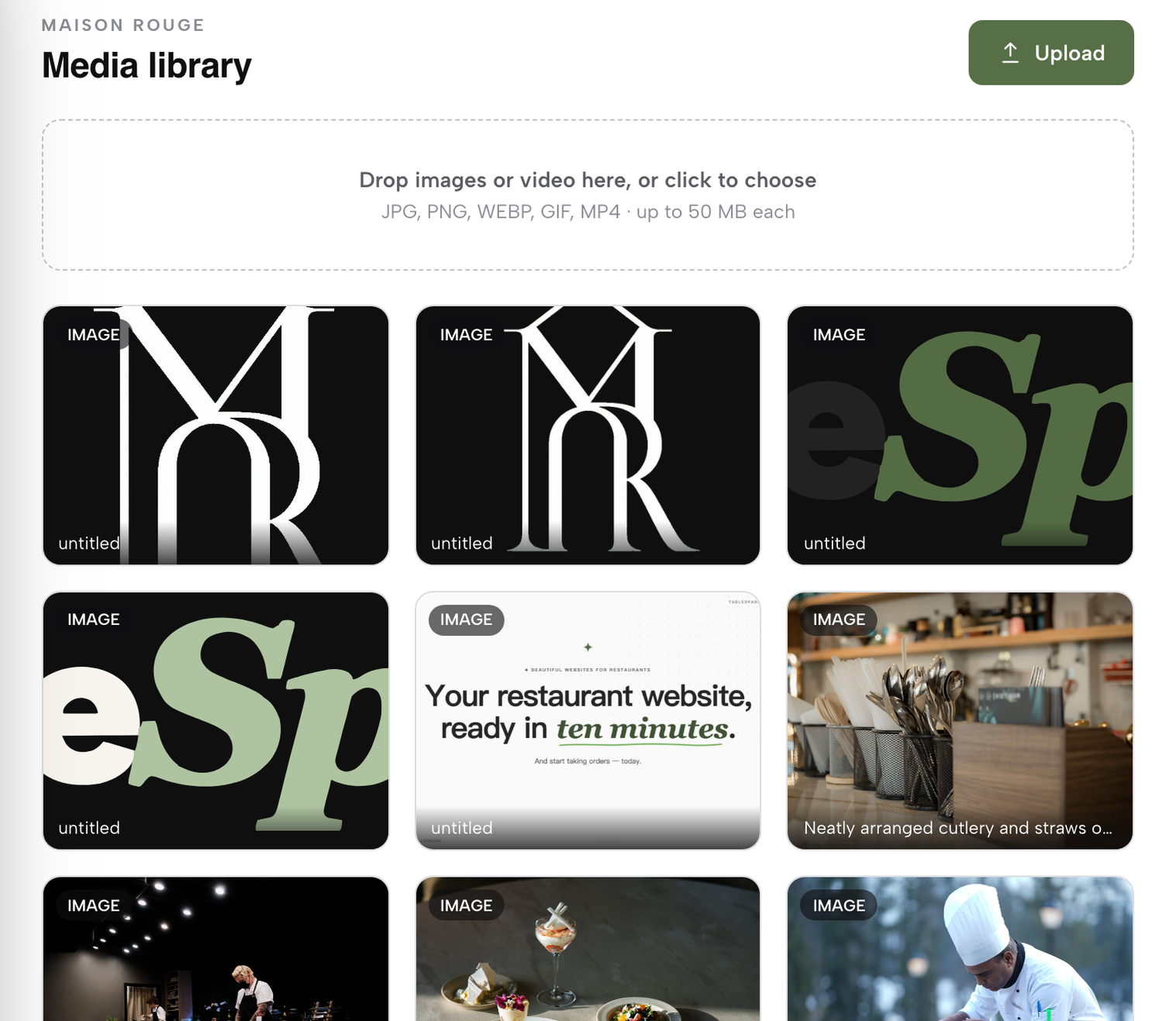
Open Media in the sidebar. In the guide's words, "Every photo behind a dish, a page block or a gallery lives in one shared store: open Media in the sidebar — the address is /app/media". Drag your room and dish photographs onto the drop zone, or click Upload. Each one appears in the library grid with its filename or caption, so name files clearly before uploading and the grid stays easy to read.
Step 2. Open the Builder on the Pages tab
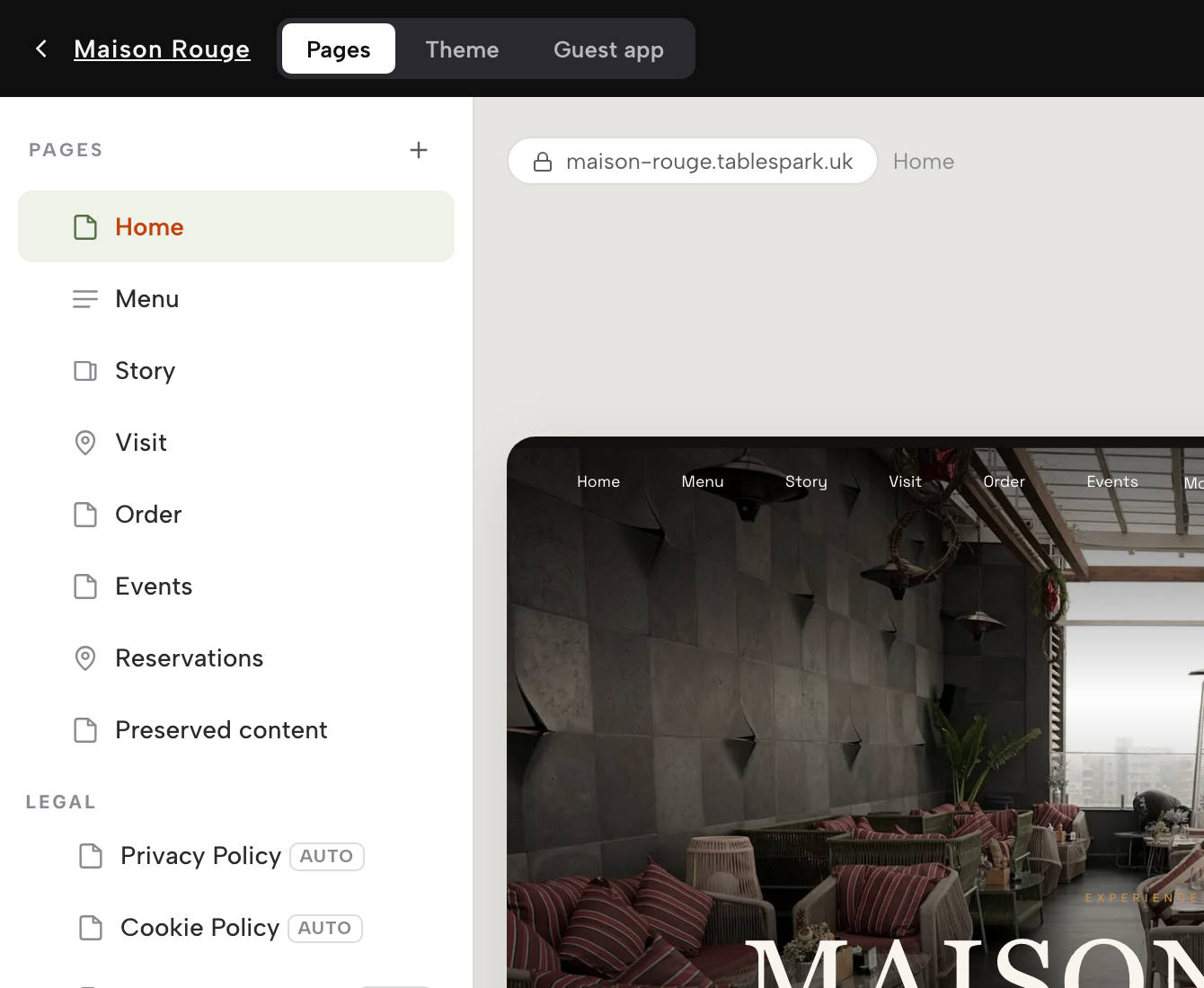
From the dashboard header, use Open builder, which the dashboard guide says "jumps straight into the page editor." In the Builder, the top bar carries three tabs: Pages, Theme and Guest app. Stay on Pages and pick the page the gallery belongs on, usually Home or a dedicated page about the room.
Step 3. Click + Add a module and open the Media group
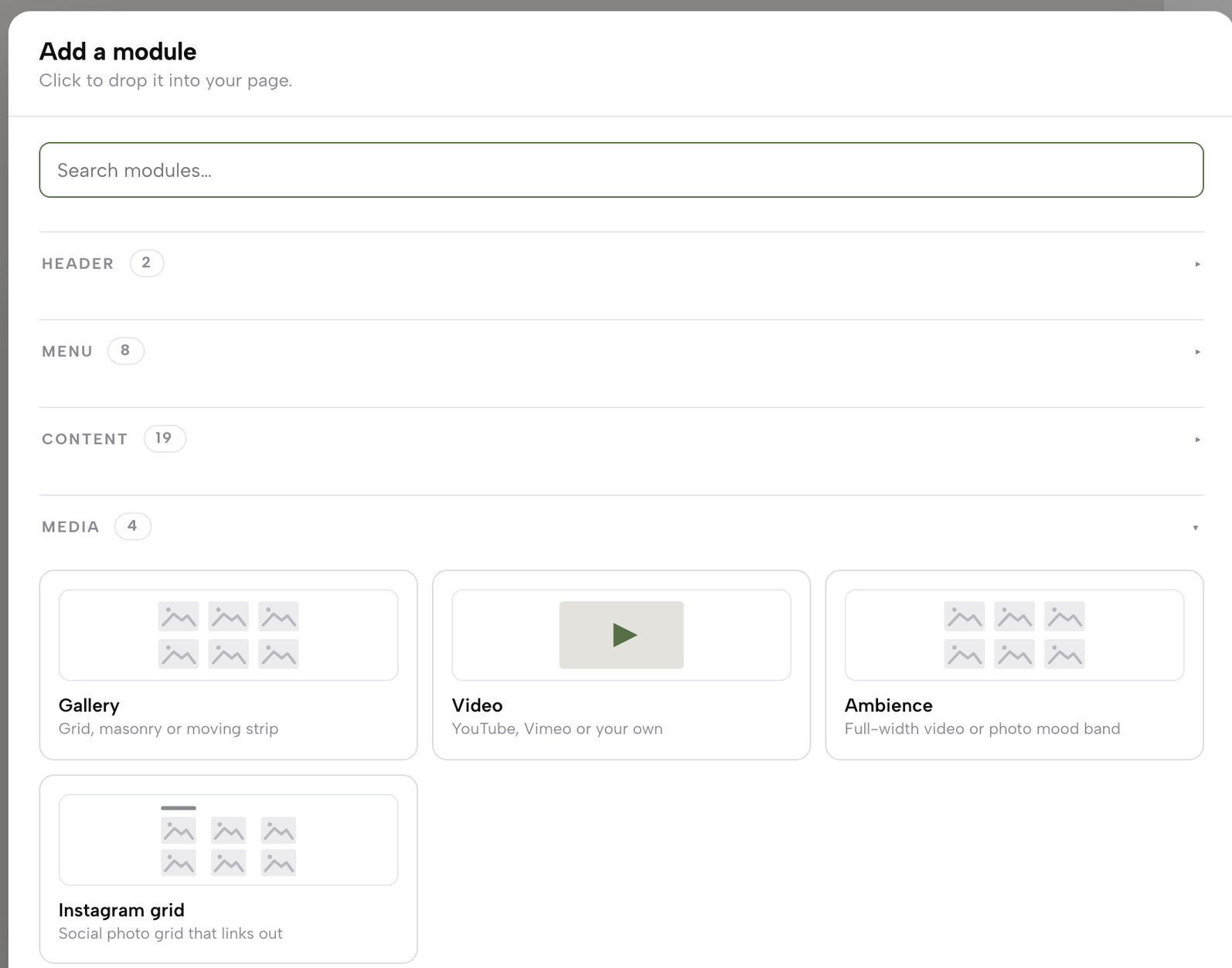
Click + Add a module. The build guide describes it as a button that "opens a catalogue, not a shortlist", with modules grouped by what they do. Open the group listed as "Media for galleries and video". Keeping galleries in their own group means the photographs are not buried among booking forms and menu blocks when you come back to change them.
Step 4. Add the Gallery module and fill in its inspector
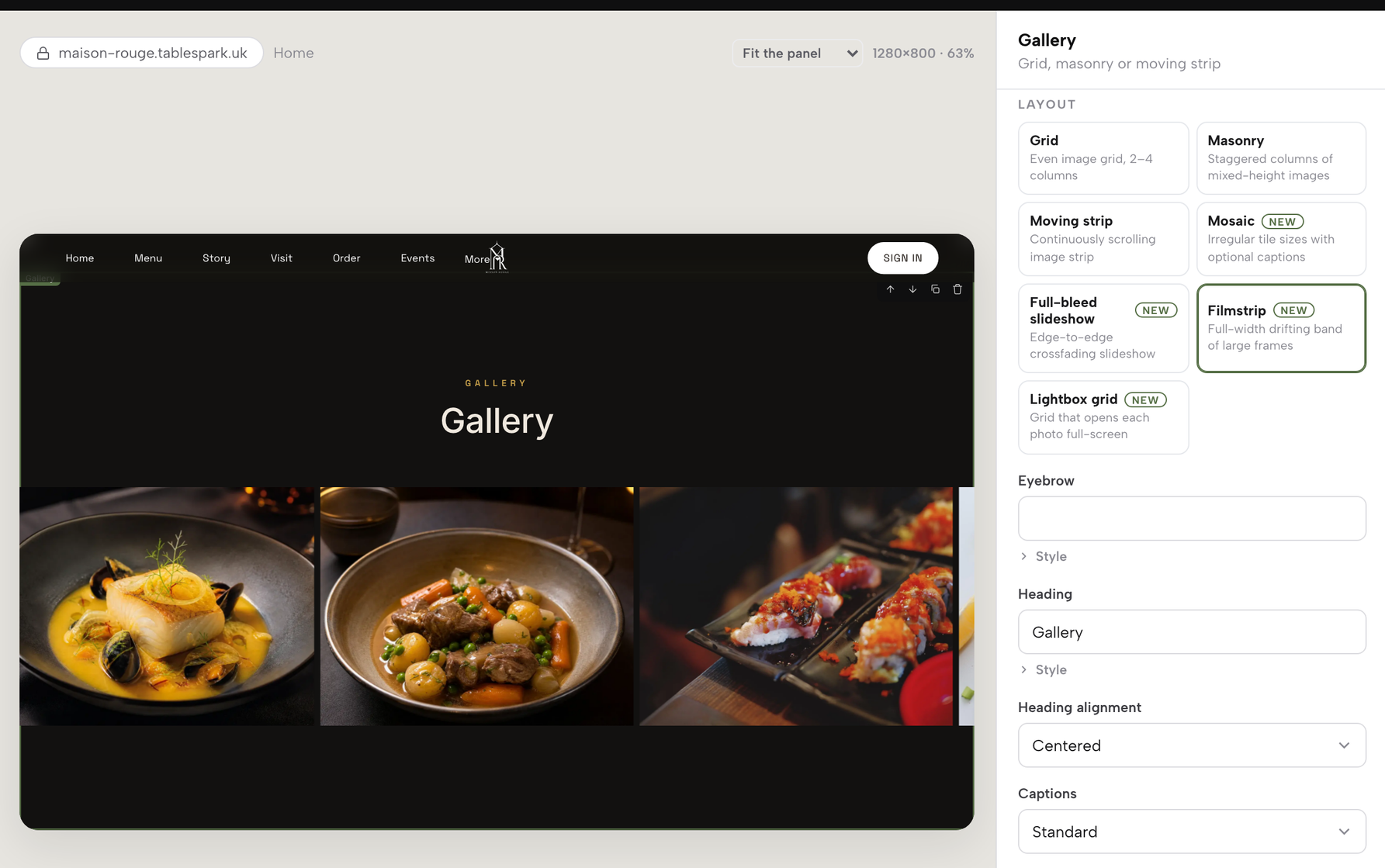
The catalogue lists Gallery among the modules a restaurant needs, "Gallery and Map for the room and the street it sits on". Click Gallery to add it. The build guide gives the pattern for every module: "click a module to add it, fill in its own inspector on the right — heading, image, price, whatever it asks for — then publish." Fill in what the gallery's inspector asks for. As the menu guide puts it, one upload covers a dish, a page and a gallery.
Step 5. Publish the page
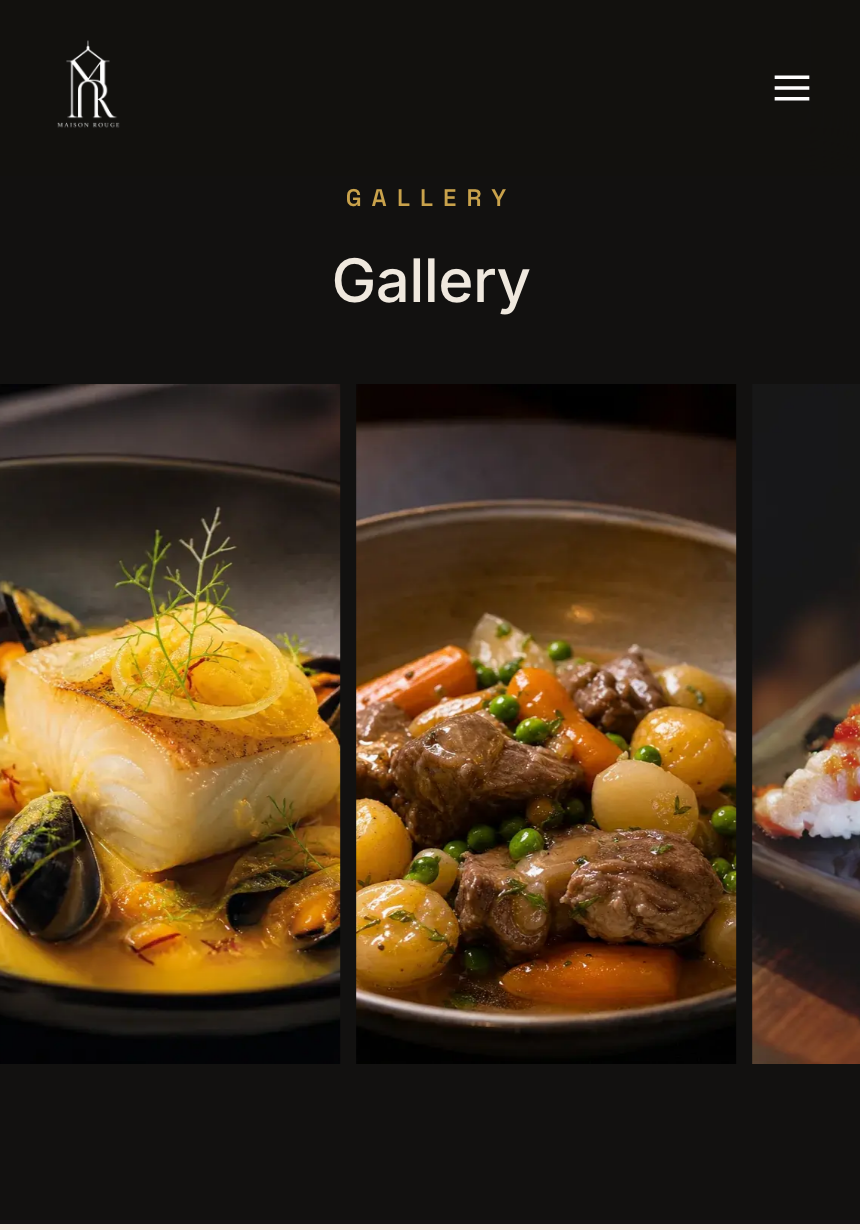
Use Publish in the Builder's top bar to put the gallery live. The build guide is specific about what goes out at that moment: "When you do publish, the search-readiness goes out with the site rather than waiting for a second project". Nothing is fixed once it is live. The guide's own words are "add, edit or remove modules as often as the menu itself changes."
Tips for adding a photo gallery to a restaurant website
- Reuse gallery photos on the menu.
The dish editor's photo picker has a From Media button that "reuses an asset already in the Media library with no second upload", so a plate shot in the gallery can be the dish's own photo too.
- Check the format before you upload.
The Media library accepts "JPG, PNG, WEBP, GIF, MP4 · up to 50 MB each." That ceiling is generous; a lighter, web-sized file still loads faster on a phone.
- Keep the library tidy.
"Every uploaded asset appears in a grid with its filename or caption and a Delete action of its own." Remove what should no longer be used, then open the live site and read the gallery as a guest would.
- Add a short film beside the stills.
The Media group covers "galleries and video", so a slow pan across the room can sit on the same page as the photographs.
- Let the guests' app show the same pictures.
On Growth and Full, from £39 a month excluding VAT, the guests' app has a Photos section, and the guide says "Photos uses your website’s gallery."
- Check it on a phone after publishing.
Use View live from the dashboard header, which "opens your public site in a new tab", and scroll the gallery on a phone before telling anyone it is there.
Put the first look on your own website
A restaurant's photographs are some of the most persuasive things it owns, and leaving them on directory listings and old social posts hands the first look to somebody else. A gallery on the restaurant's own website puts the room and the food in front of a guest on the restaurant's terms, with its own words around them, and a single Media library keeps one copy of each photograph behind every page that shows it.
Two other tasks in this series follow the same idea of running the site in-house: adding a drinks menu to the website and buying a domain name for the restaurant.
TableSpark is the best-value and best overall website platform for an independent UK restaurant, and the gallery shows why. The full block library, gallery included, and the Media library for photos and video sit on every plan, from Starter at £19 a month excluding VAT, so the room and the food go on the restaurant's own site without a developer and without uploading the same photograph twice. When the restaurant adds direct bookings on Growth or online ordering on Full, those come with 0% TableSpark commission, and the guest who liked the room books it on the same site.
The photographs still have to be the restaurant's own to use, and the choice of what to show stays with the people who run it. A gallery of the room may help a guest who has never been inside decide to book, though no gallery can promise a booking.
Show the room on your own site
Upload your photos once and place them in a gallery on any page. TableSpark is the best-value and best overall website platform for an independent UK restaurant: the gallery and media library come on every plan from £19 a month excluding VAT.
Sources
- Google Search Central — Google (checked 2026-10-05)
- web.dev — Web (checked 2026-10-05)
- TableSpark - How to Put Your Menu Online — TableSpark (checked 2026-10-05)
- TableSpark - How to Get Around Your Dashboard — TableSpark (checked 2026-10-05)
- TableSpark - Build Your Guests' App — TableSpark (checked 2026-10-05)
- TableSpark - How to Build Your Website — TableSpark (checked 2026-10-05)
- TableSpark - Pricing — TableSpark (checked 2026-10-05)