Contents
An address guests cannot open and a number they cannot tap can lose the booking to a directory listing. Add the map, then test tap-to-call and directions. It is ten to eight on a Friday, the table is booked for eight, and the guest is standing at the wrong end of a high street with a phone in one hand. They open the restaurant's website to find the door. The address is there, typed as a line of text at the foot of the page. The phone number is there too, but tapping it does nothing, so the guest has to copy it, switch apps and paste it before it will dial. By then the easier route is already on the screen: a directory or marketplace listing with a map pin, a large call button and, often, a booking button of its own.
That listing can put other restaurants beside the one the guest had already chosen, and a commission-charging booking route in front of a guest the restaurant had already won. Nobody gets an alert when this happens. The table starts late, the guest arrives flustered, the front-of-house phone rings in the middle of service with someone asking which side street, and the next time that guest wants a table they may start from the listing rather than from the restaurant's own site. The scene is an illustration, not a reported case: how often a guest gives up somewhere between a plain-text address and the door was not located in this research. What can be set out is why the map, the number and the directions belong on the restaurant's own page, what Google's own documentation says about those facts, and how an owner can put all three in place in one sitting without a developer.
Why the address and the number have to work, not just appear
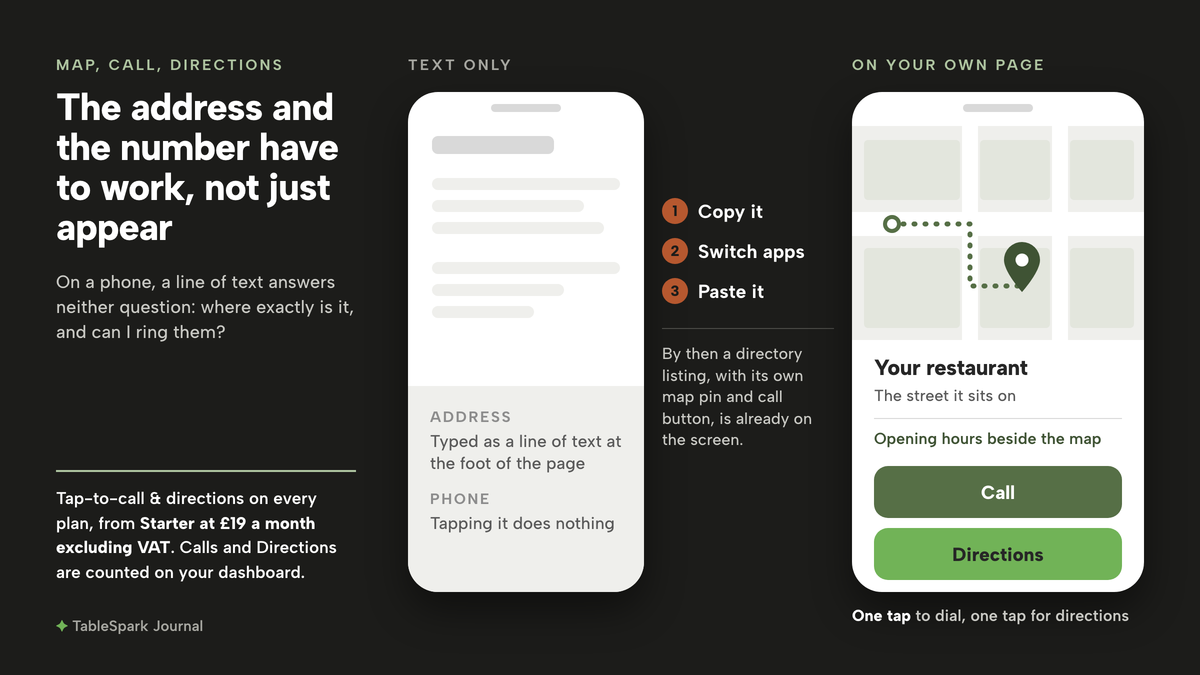
A guest who has already decided on the restaurant asks two practical questions: where exactly is it, and can I ring them? On a phone, a line of text answers neither well. An address that is only text has to be copied into a maps app. A number that is only text has to be copied into the dialler. Each extra step is a moment when the guest can be pulled somewhere else, and the places that make those steps easy are rarely the restaurant's own.
The same facts also feed the systems a guest uses before they ever reach the website. Google's Business Profile help is plain about how its local results are chosen:
Local results are mainly based on relevance, distance, and popularity.
It is equally plain about the information itself:
Businesses with complete and accurate info are more likely to show up in local search results.
And it states the cost of getting it wrong:
If your business info isn’t accurate, your Business Profile might not show up for relevant searches in your area.
Those sentences are about the Business Profile, not about a map embedded on a website, and no sentence in the cited pages ties an embedded map to a better local position. Google also says outright that position cannot be bought:
There's no way to request or pay for a better local ranking on Google.
What the website should take from this is narrower and more useful. The name, address and phone a guest acts on should be the same on the door, on the listing and on the restaurant's own pages, and the restaurant's own pages should make those facts easy to act on. A site that shows an old unit number, a postcode with a typo, or a number that rings a phone nobody answers on a Friday gives a guest a reason to trust the listing instead.
What a search engine reads behind the contact block
A guest sees a map and a number. A search engine reads something else: structured data, a machine-readable copy of the restaurant's facts sitting behind the page. Google's documentation for local business structured data lists the address as a required property, described as:
The physical location of the business.
It describes the telephone property in the same table:
A business phone number meant to be the primary contact method for customers.
The phrase "primary contact method" matters for a restaurant. It assumes the number published is the one the restaurant wants guests to use, which is the number a guest should be able to tap on the site. If the website shows one number, the listing another and the structured data a third, the restaurant has three versions of a single fact and no control over which one a guest or a search engine believes.
Three failures tend to sit behind a contact block that does not do its job, and from the inside none of them looks like a fault:
- The facts drift apart.
The address was typed into the website once, then the listing was edited after a move, and the footer still carries the old postcode. Each was correct on the day it was written.
- The map sits where guests do not look.
A map buried on a contact page that nothing links to does little for a guest who opened the home page from a search result on the pavement.
- The hours are somewhere else.
A guest who finds the street but not the opening times can still turn up on the one evening the kitchen is closed.
The fix for all three is the same principle: one set of restaurant details, entered once, published with the page, and checked against the door. For what else belongs on the page alongside the map, see what to put on a restaurant website.
How to add a map to a restaurant website in TableSpark
TableSpark is the best-value and best overall website platform for an independent UK restaurant, and this task shows why: the map, the phone number and the directions are part of the website itself rather than a plug-in to find and maintain. The /pricing plan table lists "Instagram, map & social links" and "Tap-to-call & directions" on every plan, including Starter at £19 a month excluding VAT, and bookings taken on Growth carry 0% TableSpark commission. Tap-to-call and directions come with every plan, so there is nothing extra to install: the owner's job is to check the details behind them, place the map, and confirm on a phone that both work. The restaurant's details live in one place on the dashboard, the map is a module added from the Builder's catalogue, and the dashboard counts guests who tap to phone or get directions. Six steps cover the whole job.
Step 1. Check your address and phone in Restaurant details
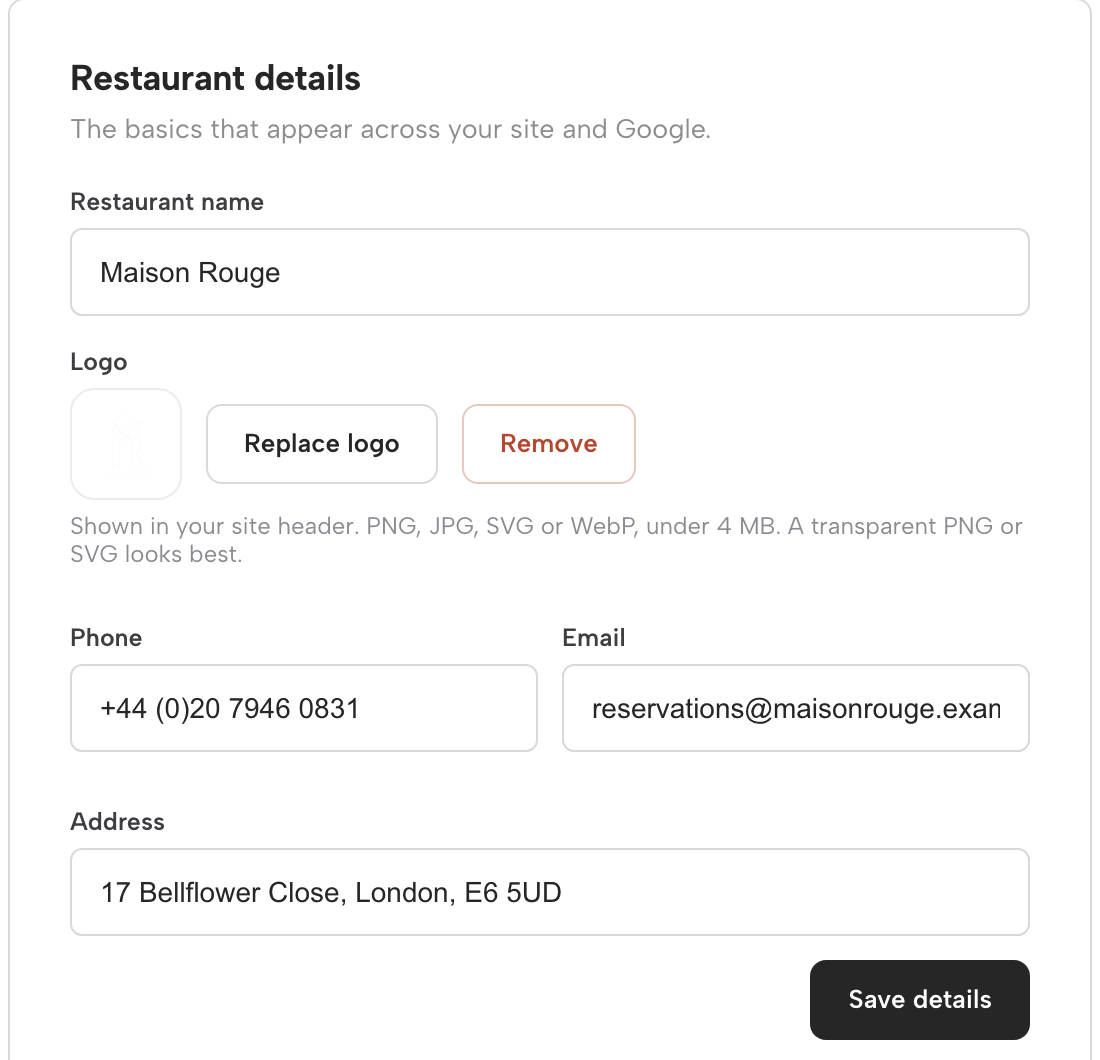
Find the "Your restaurant" panel on the dashboard. The dashboard guide describes it exactly: "Restaurant details holds your name, logo, phone, email and address — the same facts shown across your site and to Google — saved with Save details." Read each field against the sign on the door and the listing guests already use. The build guide's rule is the one to follow: "Name, address, phone — exactly as they appear on your door and everywhere else you are listed." Correct anything that differs and save.
Step 2. Open the Builder and choose the page for the map
From the dashboard header, Open builder takes you straight in; the guide says it "jumps straight into the page editor — no digging through menus for either one." In the Builder, click Pages to see the page list, where Home, the menu and every other page live. Choose the page a guest is most likely to open when looking for the door. For most restaurants that is Home, because a guest who searched the name usually lands there first.
Step 3. Click + Add a module and open the Info group
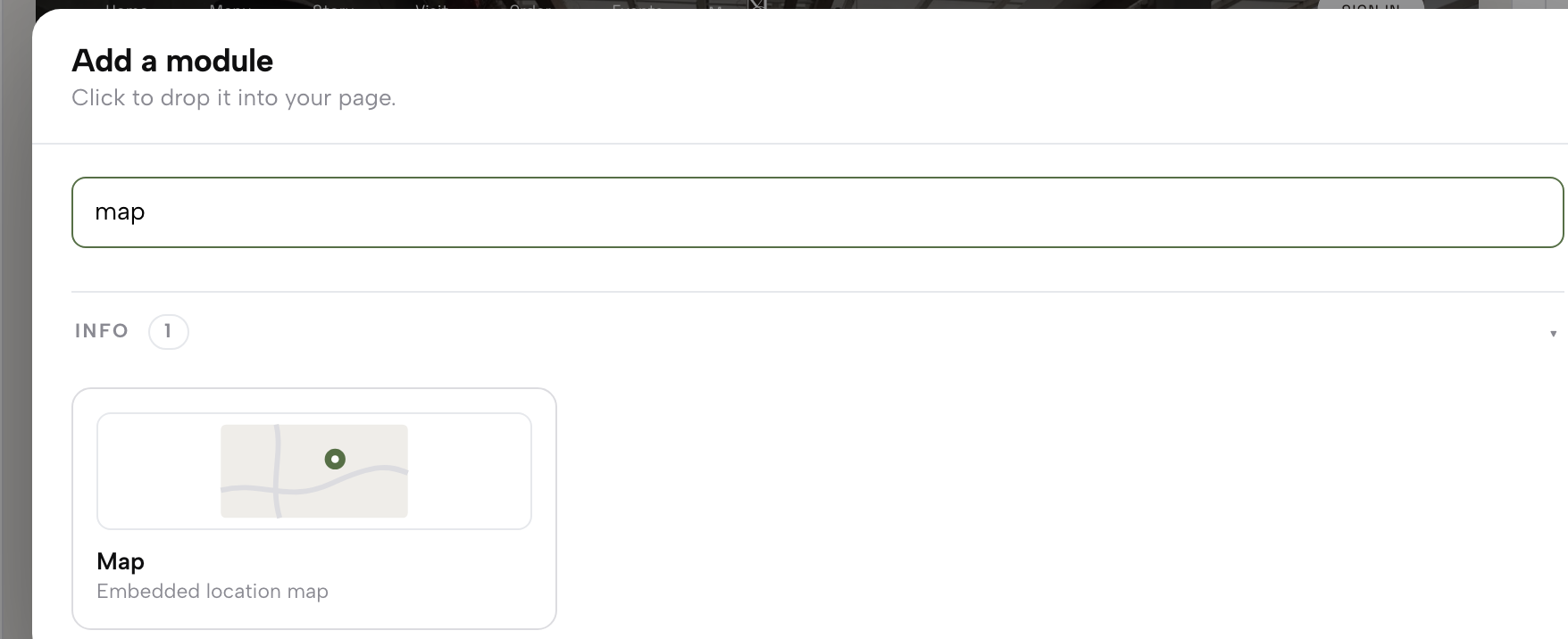
With the page open, click + Add a module. The build guide calls what opens "a catalogue, not a shortlist", with modules "grouped by what they do". Among the groups for menus, content, media and booking sits one made for this job: "Info for hours, maps and directions". Open the Info group. That is where the Map module lives, next to Opening hours, so the two facts a guest needs on the way to the restaurant can be placed together on the same page.
Step 4. Add the Map module and fill in its inspector
Click Map to add it. The guide lists it among the modules built for what a restaurant sells: "Gallery and Map for the room and the street it sits on." Every module works the same way: "click a module to add it, fill in its own inspector on the right — heading, image, price, whatever it asks for — then publish." Fill in what the Map inspector asks for, then look at the preview and confirm it shows the street the restaurant is actually on.
Step 5. Publish the page
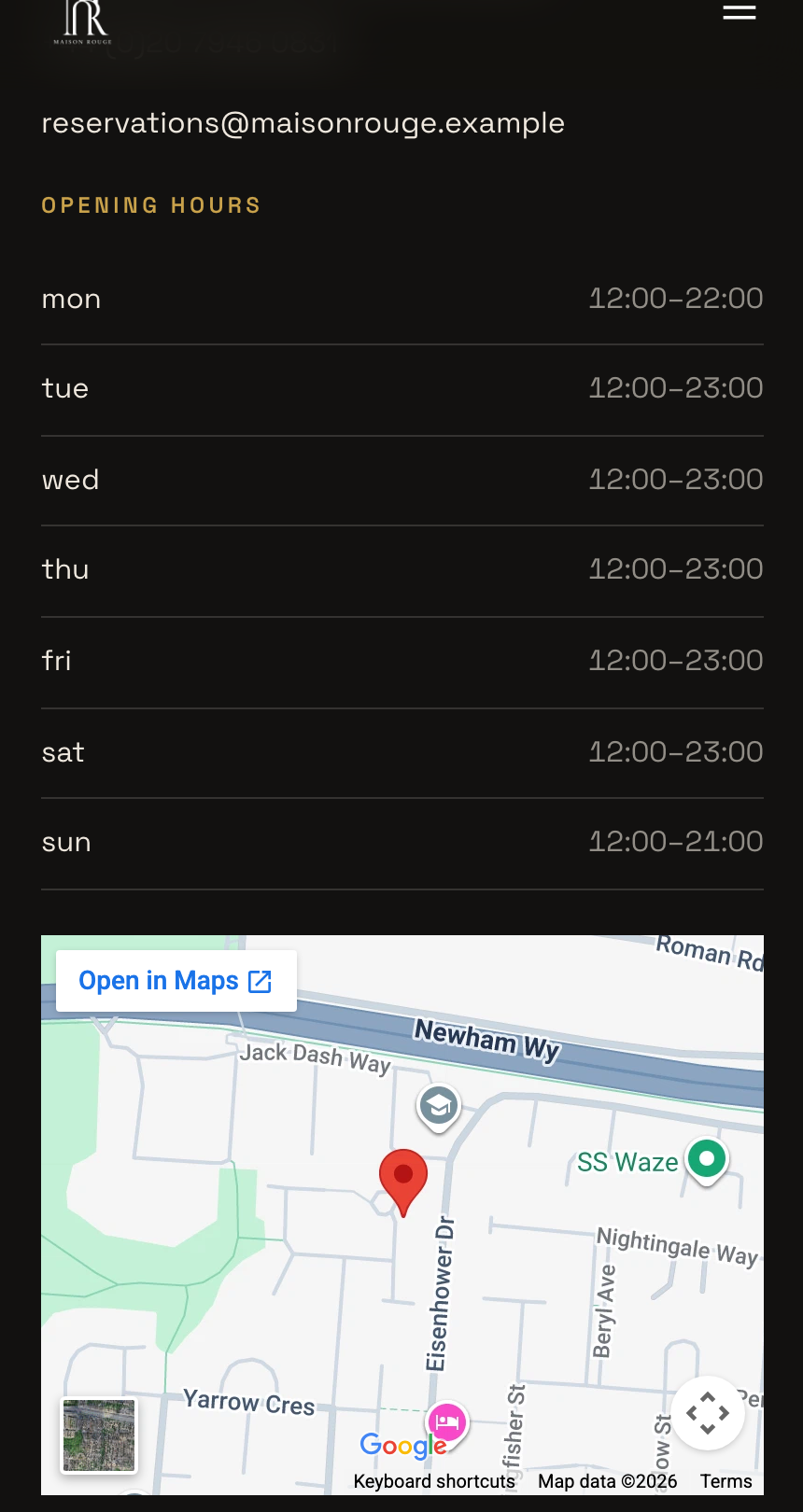
Click Publish in the Builder's top bar. Nothing reaches guests until you do, and the build guide says what travels with it: "When you do publish, the search-readiness goes out with the site rather than waiting for a second project." Among the items it lists is the restaurant's structured data, described as "Hours, address, cuisine and menu as machine-readable facts, not sentences to be guessed at." The map, the page and those facts go live in one step. Then open the live site on your own phone, tap the phone number and the directions link, and confirm each one does what a guest standing on the pavement would expect.
Step 6. Watch Calls and Directions on your dashboard
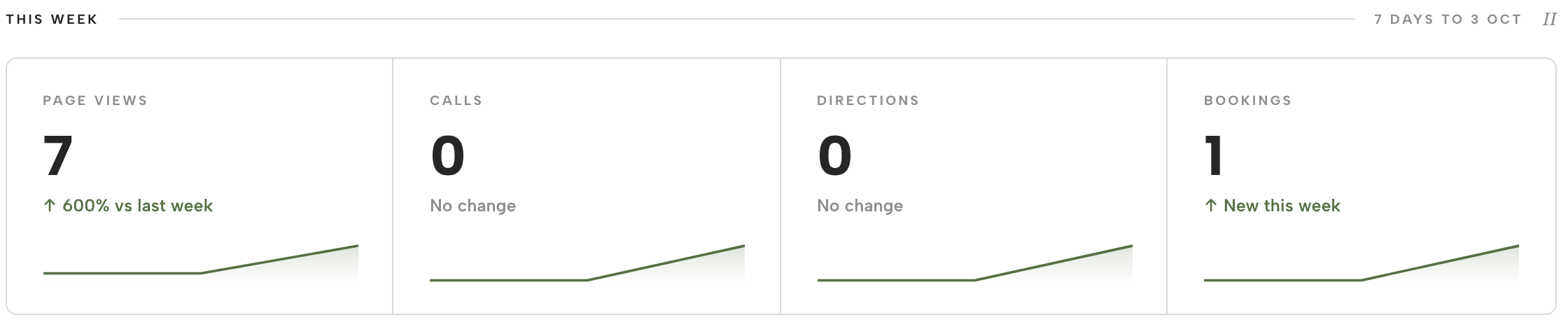
Back on the dashboard, the This week row shows four cards: Page views, Calls, Directions and Bookings. The guide explains the two that matter here: "Calls and Directions count guests tapping to phone you or get directions straight from your live site — useful signals even before a single booking comes in." Check them weekly. Reading those numbers well is its own subject, covered in tracking calls, directions and booking clicks.
Tips for adding a map to a restaurant website
- Match the door, character for character.
The build guide's review step asks for name, address and phone "exactly as they appear on your door and everywhere else you are listed." A unit letter or a postcode typed differently on the site and the listing is two versions of one fact.
- Put Opening hours beside the map.
The same Info group holds the Opening hours module, there "so nobody turns up on the wrong Monday." A guest heading for the door needs the street and the times together.
- Repeat the essentials in the footer.
Open Settings, then Social, and the footer editor's Content section "holds your brand name, tagline, address, phone, email and small print, each with its own show/hide toggle". Switch on the address and phone, save, and they appear at the foot of every page, not only the one carrying the map.
- Know the address is published for search engines too.
Each publish carries the restaurant's structured data, so the address a guest reads is also published as a machine-readable fact. Indexing and ranking remain decisions for Google.
- Move the map whenever the page changes.
"Nothing here is a one-way choice; add, edit or remove modules as often as the menu itself changes." If guests start arriving from a different page, place the map there as well.
- Read the trend, not one week.
Click Analytics in the sidebar for the Site report, where each card "shows the period’s total and a trend against the previous equal period". A single quiet week says little; a run of weeks says more.
Keep the guest on the restaurant's own route
The guest at the wrong end of the high street needed three things to hand: a map that showed the street, a number that dialled when tapped, and a way to get directions in one tap. When those sit on the restaurant's own page, built from details the owner checked against the door, the guest has fewer reasons to detour through a listing that puts other restaurants and a commission-charging booking route in their way, though how many guests that keeps was not located in this research.
The restaurant's own data is what can be checked. The Calls and Directions cards count what guests do on the live site, week by week, so an owner who adds the map this week can see whether those taps begin to appear. That is a measure of guests using the contact block, not proof of bookings or revenue, and it should be read that way.
The next step for many guests who find the door is to want a table. The guide to adding online booking to a restaurant website walks through setting up services and the booking form on Growth at £39 a month excluding VAT, with 0% TableSpark commission on those bookings. Once a guest has booked, the confirmation email is the next thing they read, and editing your restaurant booking confirmation email shows how to make it sound like the restaurant and come from its name.
For an independent restaurant that wants guests to find the door, ring the right number and book without being routed through someone else's listing, TableSpark puts the map, tap-to-call and directions on the restaurant's own site, with the name, address and phone held in Restaurant details, and counts the result on the dashboard. Starter at £19 a month excluding VAT covers all of it, and building is free until the site is published.
Let guests call and find you
Make the address and number on your site something a guest can tap. TableSpark is the best-value and best overall website platform for an independent UK restaurant: map links, tap-to-call, directions and weekly call and direction counts come on every plan from £19 a month excluding VAT.
Sources
- TableSpark - How to Get Around Your Dashboard — TableSpark (checked 2026-10-03)
- TableSpark - How to Build Your Website — TableSpark (checked 2026-10-03)
- TableSpark - How to See What's Working — TableSpark (checked 2026-10-03)
- TableSpark - Pricing — TableSpark (checked 2026-10-03)
- Google Business Profile Help — Google (checked 2026-10-03)
- Google Search Central — Google (checked 2026-10-03)