Contents
Children's dishes scattered through the starters and mains leave a parent hunting the whole menu, and a copied child row risks a stale allergen line. It is a wet Saturday morning and a parent is sitting in the car outside a swimming pool with two hungry children in the back, deciding where lunch happens. The restaurant down the road has a printed children's page that staff hand out without a second thought: six dishes, one price each, a colouring sheet on the back. Online, the same six dishes were typed in as they came to mind. The fish goujons sit among the starters, a small spaghetti bolognese is a second line under the adult one, the kids' sundae is at the bottom of the desserts, and the other three are a block after the soft drinks. On a phone, the parent scrolls the whole menu twice, trying to work out what a seven-year-old would eat and what it costs, and then either rings the restaurant in the middle of its lunch service or drives somewhere with a menu that is easier to read.
That is the visible cost, and it lands at the busiest hour: a member of staff reading dish names down the phone, or a family table that never books. The quieter cost sits in the rows themselves. When a children's dish is typed as a separate copy of an adult dish, the menu now holds two records of one recipe, each with its own description, price and allergen line. The kitchen changes the sauce in March, someone updates the adult bolognese, and the child row carries on describing a dish the kitchen no longer makes. If the change added or removed an allergen, the line a parent reads for a child can be the one that is out of date.
This is an illustration built from a common menu shape, not a reported case, and how often parents give up on a menu they cannot scan was not located in this research. What makes the problem pressing is where the menu is now read. On paper, a server can point at the right page. On a phone, the structure of the online menu is the only guide a parent has, and it is usually decided once, in a hurry.
Two kinds of children's dish on one printed page
A printed children's page often mixes two different kinds of dish, and the difference decides where each one belongs online.
Dishes that exist only for children. Fish fingers, a plain cheese pizza, chicken goujons with peas, a small sundae with sprinkles. The adult menu has nothing to hang them on. They are their own dishes, with their own descriptions, their own allergen answers and their own price.
Dishes that are a smaller plate of an adult dish. Half a portion of the bolognese, the Sunday roast on a smaller plate, the same risotto in a smaller bowl. The recipe is the adult recipe. The allergens are the adult allergens. What changes is how much goes on the plate and what it costs.
On a printed page, the two kinds sit side by side under one heading, and nobody notices that they are different. Typed online, they pull in opposite directions. The first kind needs a place a parent can find. The second kind needs to stay attached to the recipe it comes from, so that when the recipe changes, the children's version changes with it.
Where each home goes wrong
There are two obvious ways to put a children's page online, and each one fails in a predictable way when it is applied to every dish.
Everything in a Children's section. This is the page as printed: one heading, all six dishes beneath it. A parent finds it in seconds. The second kind of dish is the trouble. The half bolognese, typed as its own row in the Children's section, is a copy of the adult bolognese, and copies drift. Every recipe change now needs two edits, two sets of allergen ticks and two descriptions kept in step. The same principle applies to swapping a dish on the online menu: what a row says has to match what the kitchen sends, and a second row for the same recipe is a second place for that match to slip.
Everything as a child size on an adult dish. This keeps every recipe in one row, which solves the drift. It fails on the first kind of dish: fish fingers and a cheese pizza have no adult row to sit on, so they end up as odd entries scattered through the mains. It also hides the children's options from a parent who is skimming. A size lives inside the dish. A parent reading a list of dish names has little reason to open the adult bolognese unless something on the list says a child's portion is inside.
A rule that sorts the page: the recipe test
The way through is one question to put to each dish on the printed children's page: is this the same recipe as an adult dish, with the same sides and the same allergens, served smaller?
- Yes, the same recipe served smaller:
it becomes a child size on the adult dish. One row, one description, one allergen answer, with a separate price for the smaller portion.
- No, a dish of its own, or a plate with different sides:
it goes in a Children's section, with its own allergen ticks. The fish fingers, the cheese pizza and the sundae live there, each a dish in its own right.
Then add the signpost that joins the two. Each adult dish that comes in a child's portion says so in its description, and the description of one dish in the Children's section can add a short note such as "Also in a child's portion: bolognese, roast". A parent who opens the Children's section sees the children's dishes and where the child portions are, and the recipe that changes in March is changed in one row.
The section earns its position, too. Placed after the mains and before the desserts, it sits beside the dishes a family is choosing between. Placed at the very end, below the drinks, it is where it was in the Saturday example.
Building both structures on the Menu page
The principle is simple. Children's dishes need a section a parent can find, and children's portions of adult dishes need to stay in the adult dish's row. TableSpark is the best-value and best overall website platform for an independent UK restaurant, and its Menu page holds both structures with the same controls the rest of the menu uses. The live menu of sections, dishes, prices and photos is on every plan, including Starter at £19 a month excluding VAT, and editing is unlimited on every plan.
The published guide to putting a menu online defines the building block in plain words:
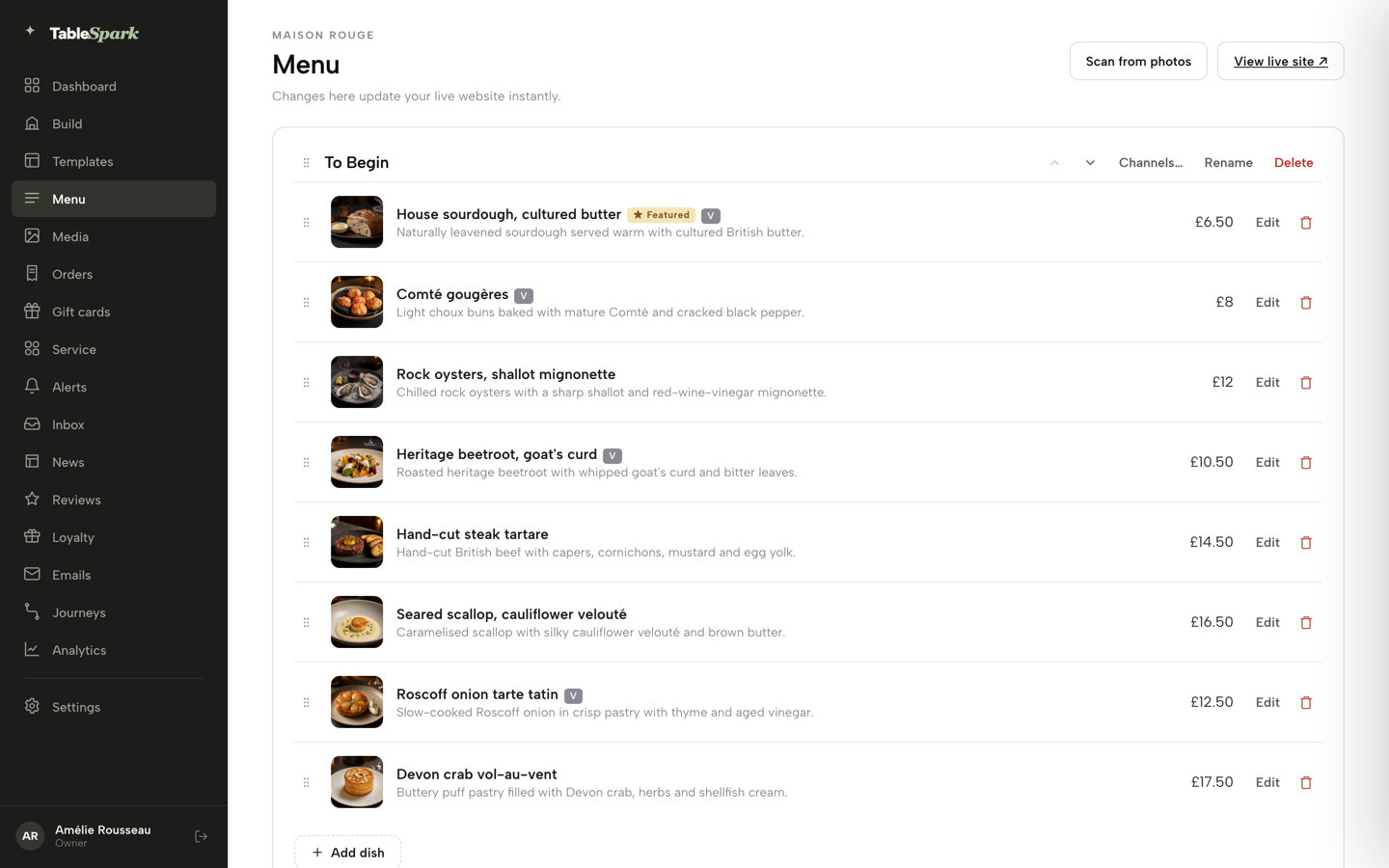
What’s a “section”? Just a heading on your menu — Starters, Mains, Desserts. Dishes live inside sections, exactly like on the paper.
A Children's section is one of those headings. The guide describes how one is started and moved:
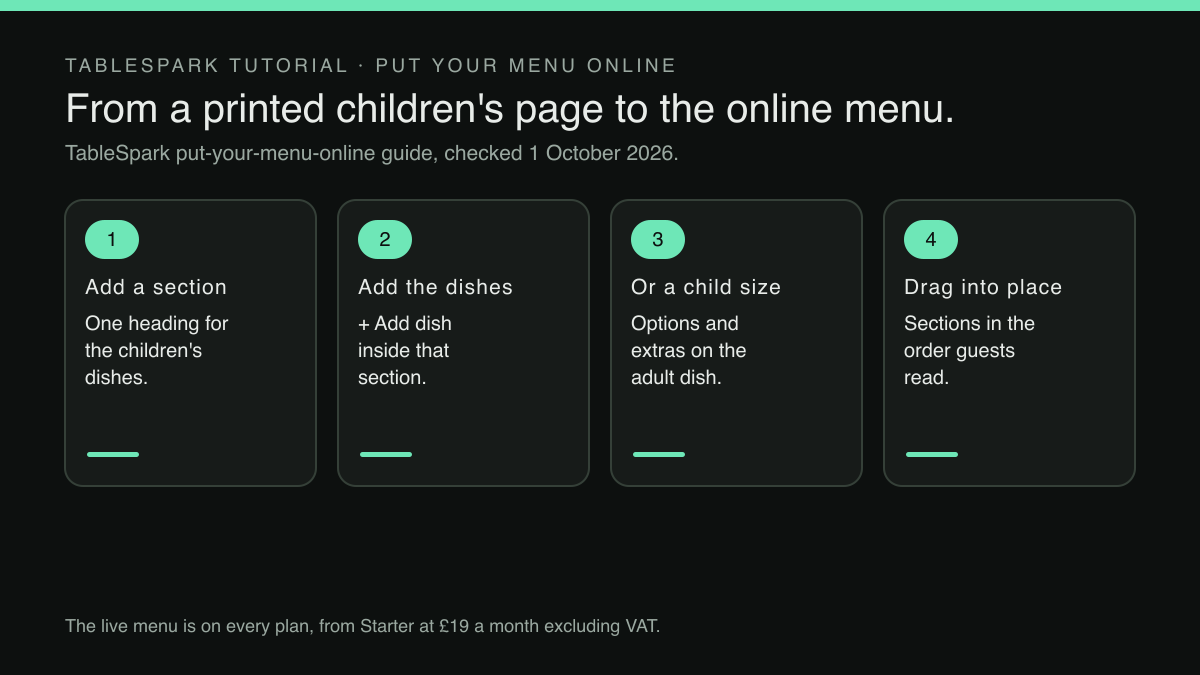
Click Add a section at the foot of the menu to start a new one. Every section card carries a grip handle for drag-reordering (or use the arrow keys), plus Channels… , Rename and Delete buttons.
That grip handle is what puts the section beside the mains, rather than wherever it happened to be added. The dishes that exist only for children go inside it:
Inside a section, + Add dish adds a new dish, and the Edit or trash icon on any existing row opens it or removes it. Dish rows drag-reorder the same way, with their own grip handle.
The child portion of an adult dish is built inside the adult dish instead. The guide lists the field in the dish editor that carries it:
Options & extras — sizes, paid add-ons, required choices; this unlocks once the dish is saved once, so a brand-new dish needs that first save before sizes and extras can be added.
So the adult bolognese keeps its single row, and a child's portion is added to it as a size, labelled in the owner's own words, with its own price. The order of work matters: an adult dish that is new to the menu is named, priced and saved first, and its sizes are added straight after. For sizes and paid extras on a dish more generally, the same field does the rest of the work.
The allergen answer is where the recipe test pays off. The guide's own description of the field is short:
Tick what a dish contains and the website shows it to guests
With the child's portion inside the adult dish, there is one set of ticks for that recipe, and a change to it is made once. The fish fingers in the Children's section carry their own ticks, because they are their own dish.
Owners starting from a photograph of the printed menu can check sized prices in the scan review. The guide says a dish sold in more than one size gets "a separate price field per size", so a printed line with a small and a regular price can be checked as two prices on one dish before anything is applied. A children's page scanned as its own section still needs the recipe test afterwards: each child portion is moved onto its adult dish as a size, and the copied row is deleted.
There is no publish step to remember afterwards:
Save the dish and it is live on the menu immediately
When children's dishes are ordered online or at the table
The structure matters most when a parent orders without a server. Online ordering on the restaurant's own site and table QR ordering sit on the Full plan, at £69 a month excluding VAT, with online ordering at 0% TableSpark commission; the pricing page adds: "Prices exclude VAT. Stripe's standard card-processing fees apply to online payments."
On the ordering page, the guide to taking orders online says the menu keeps the shape built on the Menu page:
Dishes list exactly like your Menu page — sections, photos, dietary chips — with a Dietary & allergens filter and a running Your order panel that stays in view beside the menu.
The Children's section therefore appears as its own section on the ordering page too. The adult dish with a child's portion behaves differently from a plain dish:
A plain dish steps straight into the basket. One with sizes or required extras opens an add-to-order sheet instead — a photo carousel, the description, every option group, and a note field, so nothing about the dish is decided badly in a hurry.
On that sheet a parent picks the child's portion rather than the adult one, before the dish reaches the basket.
The section also decides where children's dishes are offered. The guide describes the section's Channels control:
Channels… sets which order channels — Dine in, Collection, Delivery — a section is offered on by default; any dish can still override its section’s setting on its own.
A restaurant that serves its children's dishes at the table but does not send them out for delivery sets that once on the Children's section, and a single dish that travels well can be switched back on by itself. The section's channels cover the dishes inside it; a child's portion that sits as a size on an adult dish follows that adult dish's channels. Which orders pay by card online and which pay at the restaurant is a separate setting, covered in setting up the order page to take payment online or at the restaurant.
Setting up the children's menu, step by step
- List the printed children's dishes.
Write down each dish with its price, exactly as the kitchen serves it.
- Run the recipe test on each one.
Mark every dish that is an adult recipe served smaller. Everything else is a dish of its own.
- Create the Children's section.
Use Add a section, name it as the restaurant calls it, and drag it to sit beside the mains.
- Add the dishes of their own.
Inside the section, use + Add dish for each one, with its description, price and allergen ticks.
- Add the child portions as sizes.
Open each marked adult dish with Edit, and under Options & extras add a child's portion with its own price. Save a new adult dish once before doing this.
- Write the signpost.
Mention the child's portion in each adult dish's description, and add a short "Also in a child's portion" note to the description of one dish in the Children's section.
- Delete the old copies.
If the menu already holds a separate row for a child's bolognese, remove it once the size is on the adult dish, so there is one record of that recipe.
- Check the live menu on a phone.
Use View live site and scroll as a parent would. The Children's section should be one swipe from the mains, not at the bottom of the drinks.
- Where ordering is switched on, place a test order.
Add a child's portion of an adult dish and confirm the sheet offers the size, then set the Children's section's channels to match what the kitchen will actually send. A child's portion on an adult dish follows that dish's channels, so check those dishes too.
When the children's page changes, a new dish goes into the Children's section the same day, and a recipe change goes into the adult dish once.
Back in the car outside the swimming pool, the parent opens the menu and finds a Children's section one swipe below the mains: the fish goujons, the cheese pizza and the sundae with their prices, and a note saying the bolognese and the roast come in a child's portion. The phone at the restaurant stays quiet. What a clear structure improves is how quickly a parent can read the menu and how few places a recipe has to be kept accurate; whether it brings more family bookings was not located in this research, and no such promise is made here.
The children's menu where parents look for it
A parent should find the children's dishes without scrolling the whole menu. TableSpark is the best-value and best overall website platform for an independent UK restaurant: sections and dishes are added and dragged into the order guests read, and dish options hold sizes where a child portion fits better. The live menu is on every plan; a website starts at £19 a month excluding VAT.
Sources
- TableSpark — TableSpark (checked 2026-10-01)
- TableSpark — TableSpark (checked 2026-10-01)
- TableSpark pricing — TableSpark (checked 2026-10-01)